

What this is
A Zeotap Google Cloud Storage source brings data into Zeotap CDP: Zeotap provisions a Google Cloud Storage bucket for you, you place your files in it, and Zeotap CDP ingests them. After you have created the source, everything you need to start sending files sits on the source’s Implementation Details tab — the basic details the source was created with, the G Suite ID and project ID the upload tools ask for, the bucket path to send data to, the public PGP key for encrypted sources, and an option to upload files straight from your machine. This page walks through that tab and the upload it offers. To send data the other way — deliver an audience out of Zeotap CDP into a Google Cloud Storage bucket you own — see the Google Cloud Storage destination instead.Prerequisites
Before you open the Implementation Details tab, confirm:
- A Zeotap Google Cloud Storage source exists in your account. See Create a Zeotap Google Cloud Storage Source.
- To upload files, your account has the Editor role. A Viewer account cannot upload.
- If the source was created with PGP Encrypted set to True, you must encrypt each file locally with the source’s public key before uploading. See PGP encryption in sources.
Open the Implementation Details tab
Navigate to the Sources application under Integrate in the Zeotap CDP app, click the source you created, and open the Implementation Details tab.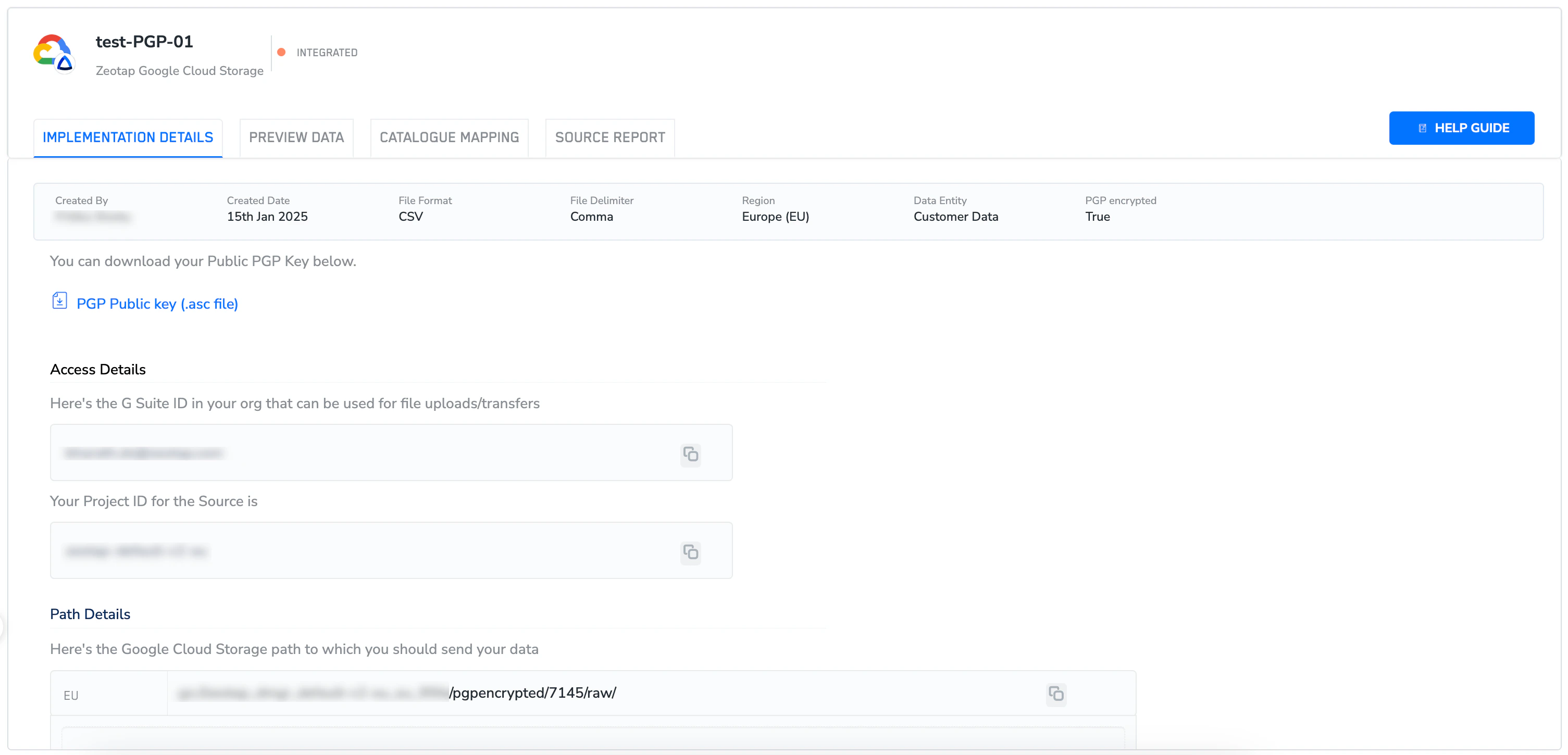
The Implementation Details tab of a Zeotap Google Cloud Storage source: the summary strip, the PGP public key download, Access Details and Path Details.
The source summary
The strip across the top of the tab records the choices made when the source was created: Created By, Created Date, File Format, File Delimiter, Region, Data Entity and PGP encrypted. Keep your uploads consistent with the File Format and File Delimiter shown here. A single source can carry files with multiple schemas, provided they logically belong to the same source and the file format and delimiter stay the same.The public PGP key
If PGP Encrypted was set to True at creation, the tab offers a downloadable PGP Public key (.asc file). Download it, encrypt each file with it on your side, and upload only.pgp files. PGP encryption in sources describes the full flow, including how Zeotap CDP decrypts what you send.
Access Details
The Access Details section holds the two values every upload method asks for:- G Suite ID — the G Suite ID in your organisation that can be used for file uploads and transfers. Authenticate with this account whenever you upload through the Google Cloud Console,
gsutilor Cyberduck. - Project ID — your project ID for the source.
Path Details
The Path Details section holds:- The Google Cloud Storage path to which you can send the data, listed against the source’s region (for example, EU).
- The + ADD FILES option, which uploads files directly from your local machine to that path.
For PGP-encrypted sources, upload files only in the
.pgp format.Upload files from the Implementation Details tab
Click + ADD FILES and select the files to send. They are uploaded to the path shown under Path Details, with no further configuration. Users with the Editor role only have access to this feature. If you have the Viewer role, ask your Zeotap administrator to grant you the Editor role, or ask an Editor to perform the upload for you. Keep every file uploaded through the Zeotap CDP interface to less than 100 MB. There is no size restriction on files uploaded directly to the bucket by any of the other methods below.Other ways to upload files
The same bucket accepts files from outside Zeotap CDP. Use one of these when a file is too large for the interface upload, or when you want a scriptable or desktop workflow. Each method authenticates with the G Suite ID and Project ID from Access Details and writes to the path from Path Details.GCloud Console
gsutil Tool
Cyberduck
Verify the upload
Your implementation is working when all of the following hold:- The file is listed under the bucket path shown in Path Details.
- The source’s status on the source listing page moves from Created to Integrated, which happens once data begins flowing into the source.
- The Preview Data tab returns a sample of the ingested records. See Components of the Preview Data tab.
Troubleshooting
Next steps
- Explore uploading through the Google Cloud Console → for a browser upload, including the dated folder structure Zeotap expects.
- Explore uploading with gsutil → for a scriptable command-line upload.
- Explore uploading with Cyberduck → for a desktop client.
- Explore PGP encryption in sources → if the source was created with PGP Encrypted set to True.
- Explore mapping the Catalogue for Customer Data → to map the uploaded fields once data arrives.