

What this is
A MoEngage Events stream source brings data into Zeotap CDP. MoEngage streams the engagement events recorded on its platform out to Zeotap CDP, where they are ingested and can be mapped to the Catalogue and used alongside the rest of your customer data. For more about the integration, see Moengage Source. For the opposite direction — sending data out of Zeotap CDP to MoEngage — use a MoEngage destination instead: Moengage to sync users and send events from a journey, or Moengage Audience to sync an audience. Creating the source is the Zeotap CDP half of the integration. It generates two values — an API URL and a write key — that are needed to complete the integration on the MoEngage side. No MoEngage credentials are entered in Zeotap CDP.Prerequisites
Before you start, confirm the following:
- An active MoEngage account, and access within it to configure MoEngage Streams for your workspace. The MoEngage-side configuration is what starts the flow of events.
- Access to the Sources application under Integrate in the Zeotap CDP app, so you can create a source.
- The region and the data entity for this source, decided in advance. Both are required on the create form, and the data entity determines whether the source is treated as customer data or non customer data. See Supported Data Entities.
Create the MoEngage Events stream source
1
Open the Sources application
Log into the Zeotap CDP app and navigate to the Sources application under Integrate.
2
Start a new source
Click CREATE SOURCE.
3
Choose Customer Engagement Channels as the category
On the Data Source step, choose Customer Engagement Channels.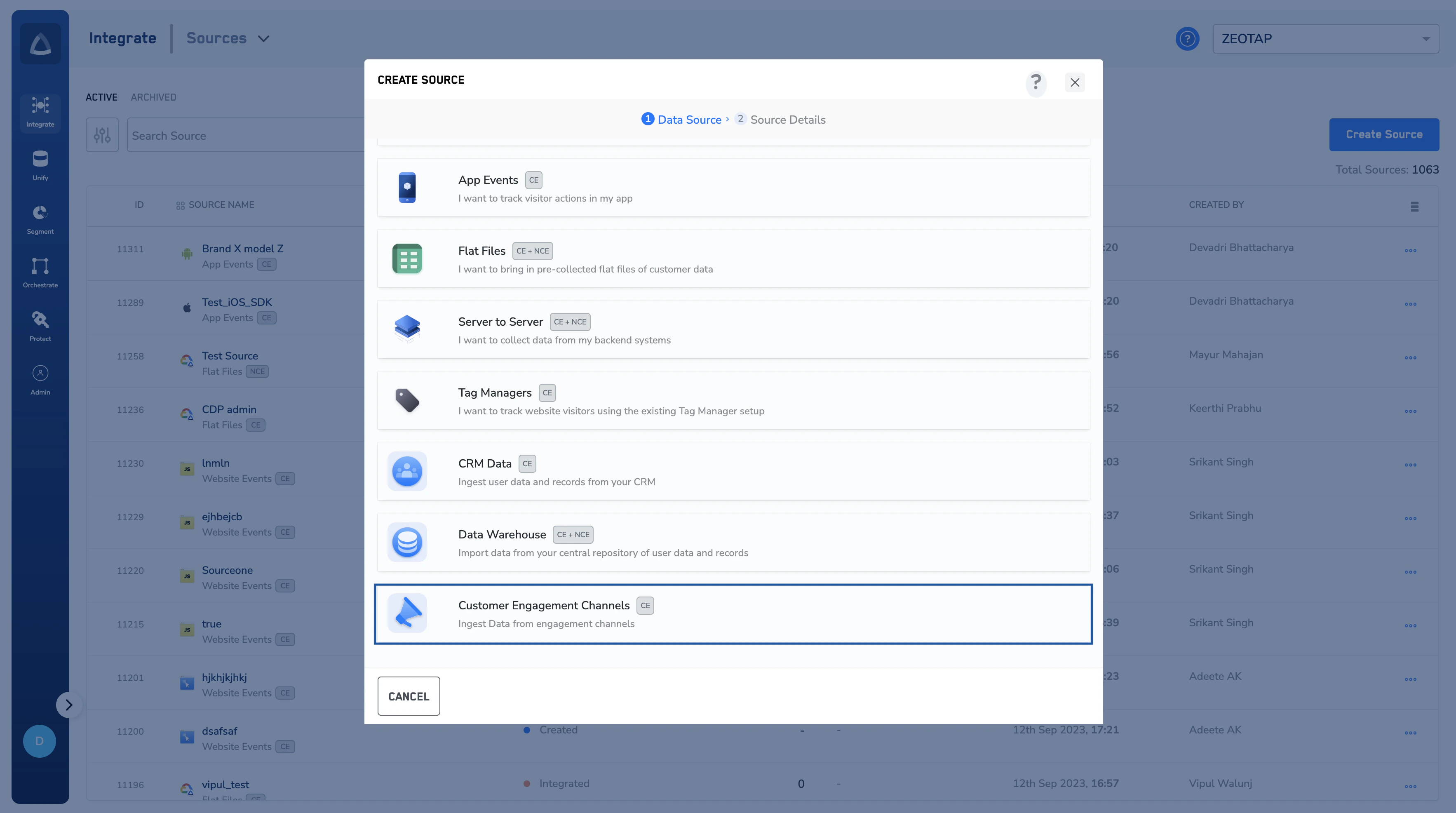
4
Choose MoEngage Events stream as the data source
In the list of customer engagement channels, select MoEngage Events stream.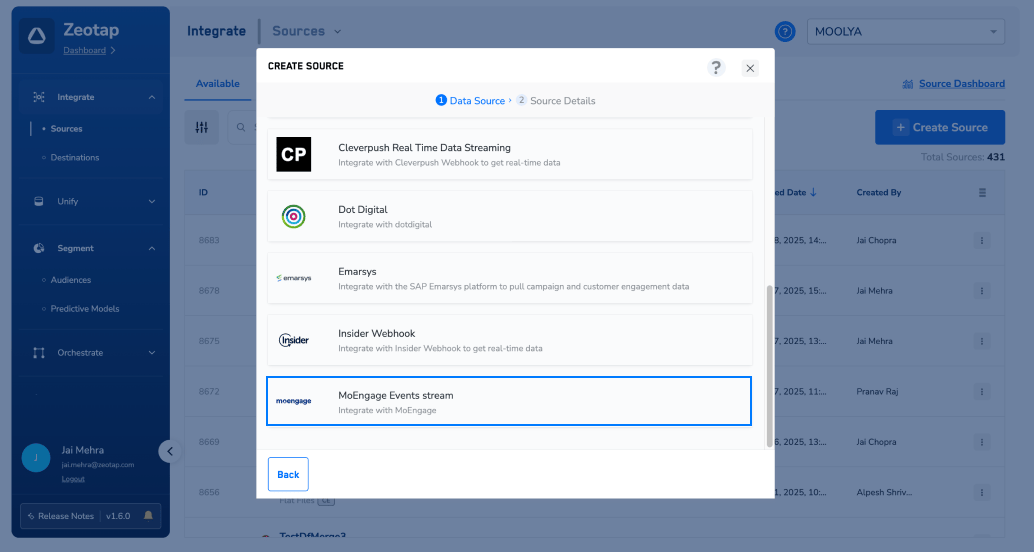
5
Enter the source details
On the Source Details step: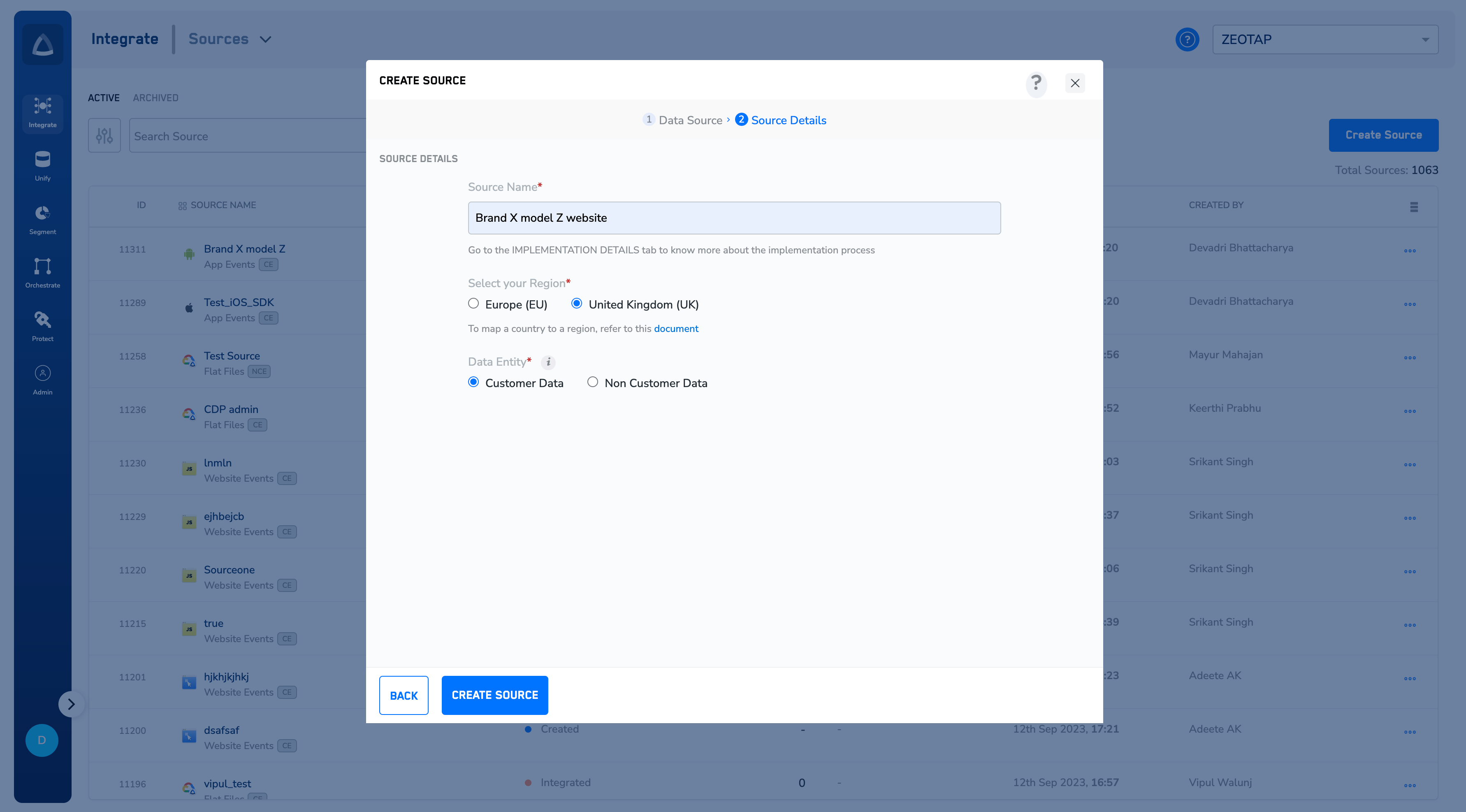
- In Source Name, enter a short, descriptive name for the source.
- Under Select your Region, select a region using the option button provided. The form links to a document that maps a country to a region if you are unsure which to pick.
- Under Data Entity, depending on the type of data that you want to ingest, choose either Customer Data or Non Customer Data. To know more, refer to Supported Data Entities.
6
Create the source
Click CREATE SOURCE. On successful creation, an API URL and a write key are generated for this source and appear under its IMPLEMENTATION DETAILS tab. Both are essential to complete the integration.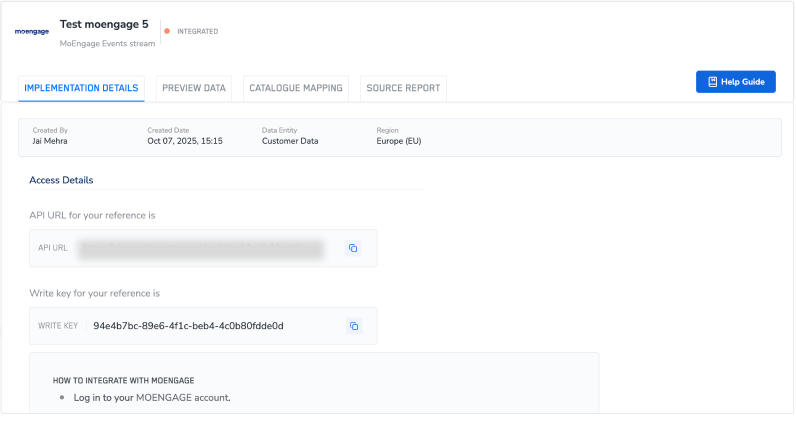
Connect MoEngage to the source
Open the source and note the two values on its IMPLEMENTATION DETAILS tab:- The API URL establishes the connection between MoEngage and Zeotap CDP.
- The write key is used to securely ingest data from MoEngage into Zeotap CDP.
Verify the source is receiving data
The source’s status on the Sources listing tells you how far the integration has progressed:
For the full set of statuses and the other columns on the listing, see Components of the Source Listing Page.
Once the status reaches Integrated, check the data itself:
- The PREVIEW DATA tab shows a sample of the data that has been received. See Components of the Preview Data Tab.
- The SOURCE REPORT tab gives the ingestion health and status of the source. See Exploring Source Reports.
Troubleshoot the source
If you need further assistance, contact Zeotap support at support@zeotap.com with the source name and its ID from the Sources listing.