

What this is
The Airship Real-Time Data Streaming source brings event data from Airship into Zeotap CDP: you create the source in Zeotap CDP, then configure a webhook on the Airship side that streams the selected events to the endpoint Zeotap generates for that source. This page covers the Airship-side webhook configuration, which is the second half of that setup. To send data in the opposite direction — out of Zeotap CDP to Airship — use one of the Airship destinations instead:- Airship Static Lists sends Named Users from a Zeotap CDP audience to Airship.
- Airship Real Time Integration sends data to Airship from a workflow in Journeys.
Supported identifiers
In addition to Named Users, you can match the Airship channel ID to a Zeotap attribute to enrich customer profiles in Zeotap CDP. The retrieval snippet and the identity configuration are covered under the prerequisites on Create an Airship Real-Time Data Streaming Source.Prerequisites
Before you configure anything in Airship, make sure you have the following:- An Airship Real-Time Data Streaming source created in Zeotap CDP. See Create an Airship Real-Time Data Streaming Source.
- The API URL and the write key for that source. Both are generated when the source is created and appear on the source’s IMPLEMENTATION DETAILS tab. Keep them to hand — you paste the API URL into the Airship webhook endpoint and the write key into the webhook’s authorisation header.
- Access to the Airship project you want to stream from, with Settings and Project configuration available on that project.
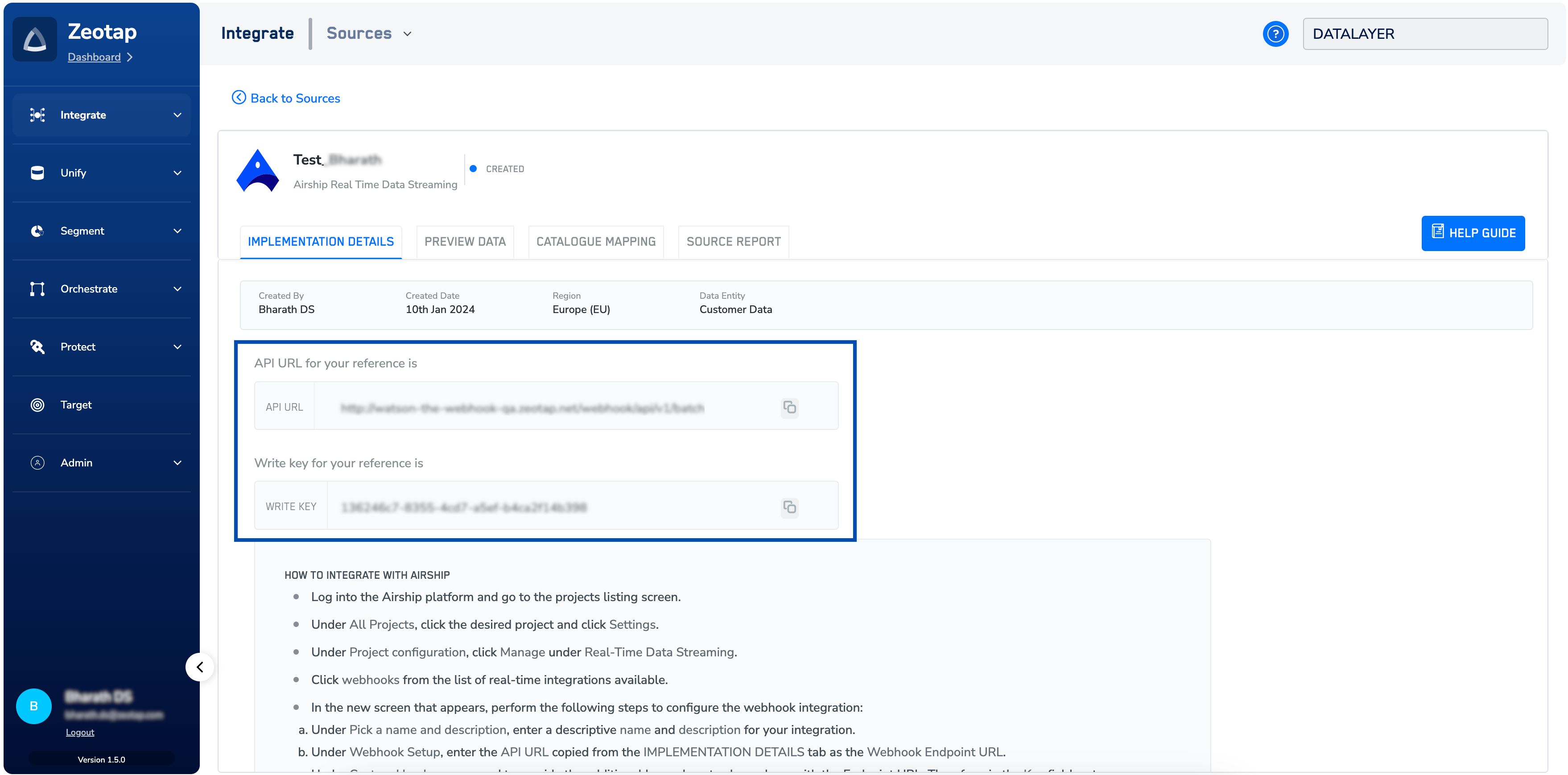
Configure real-time data streaming in Airship
These steps establish a streaming connection between Airship and Zeotap CDP over an Airship webhook integration, and let you choose which events are streamed.1
Log into the Airship platform and go to the projects list screen.
2
Under All Projects, click the project you want to stream from, then click Settings.
3
Under Project configuration, click Manage under Real-Time Data Streaming.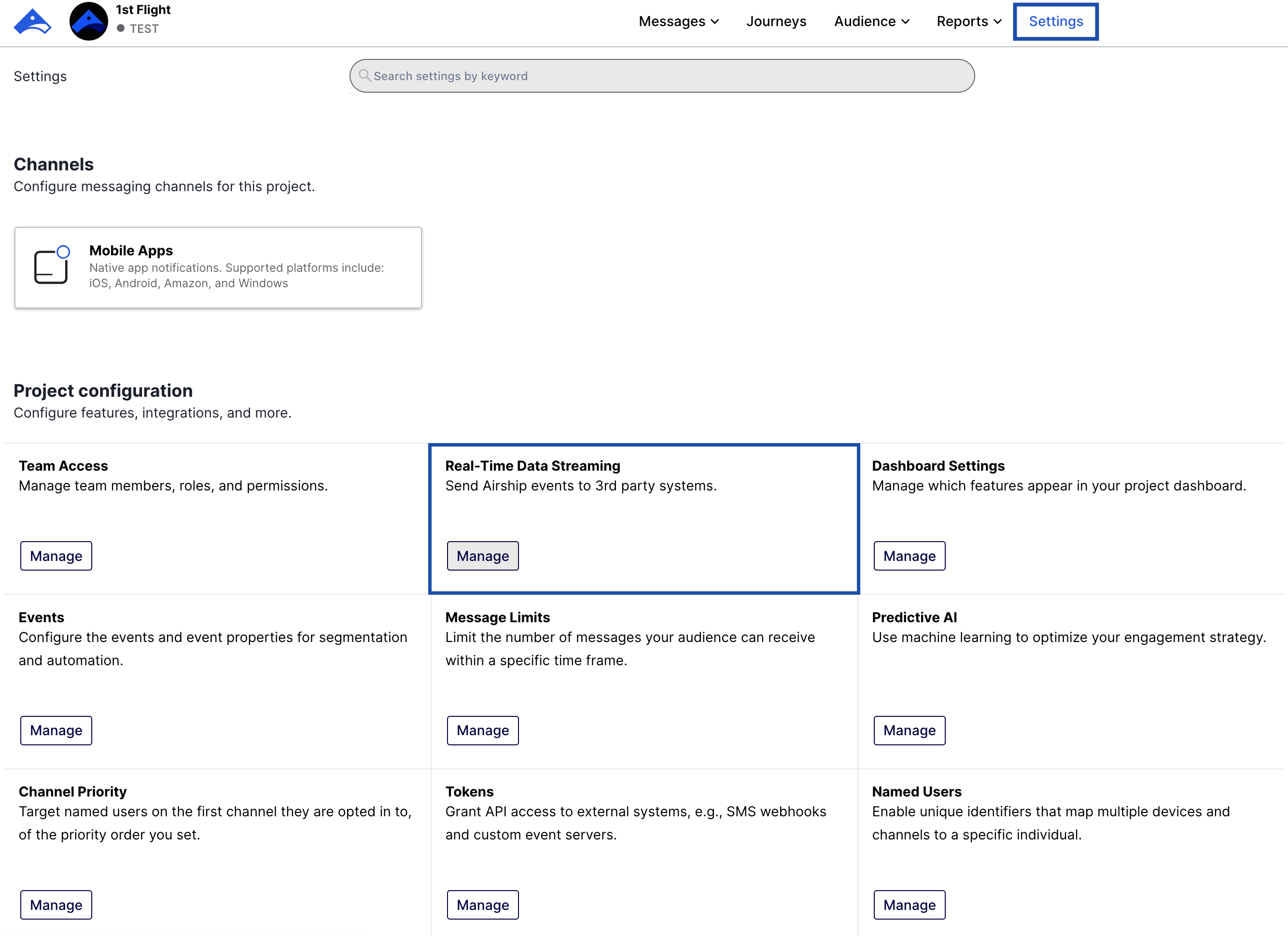
4
Click webhooks in the list of real-time integrations.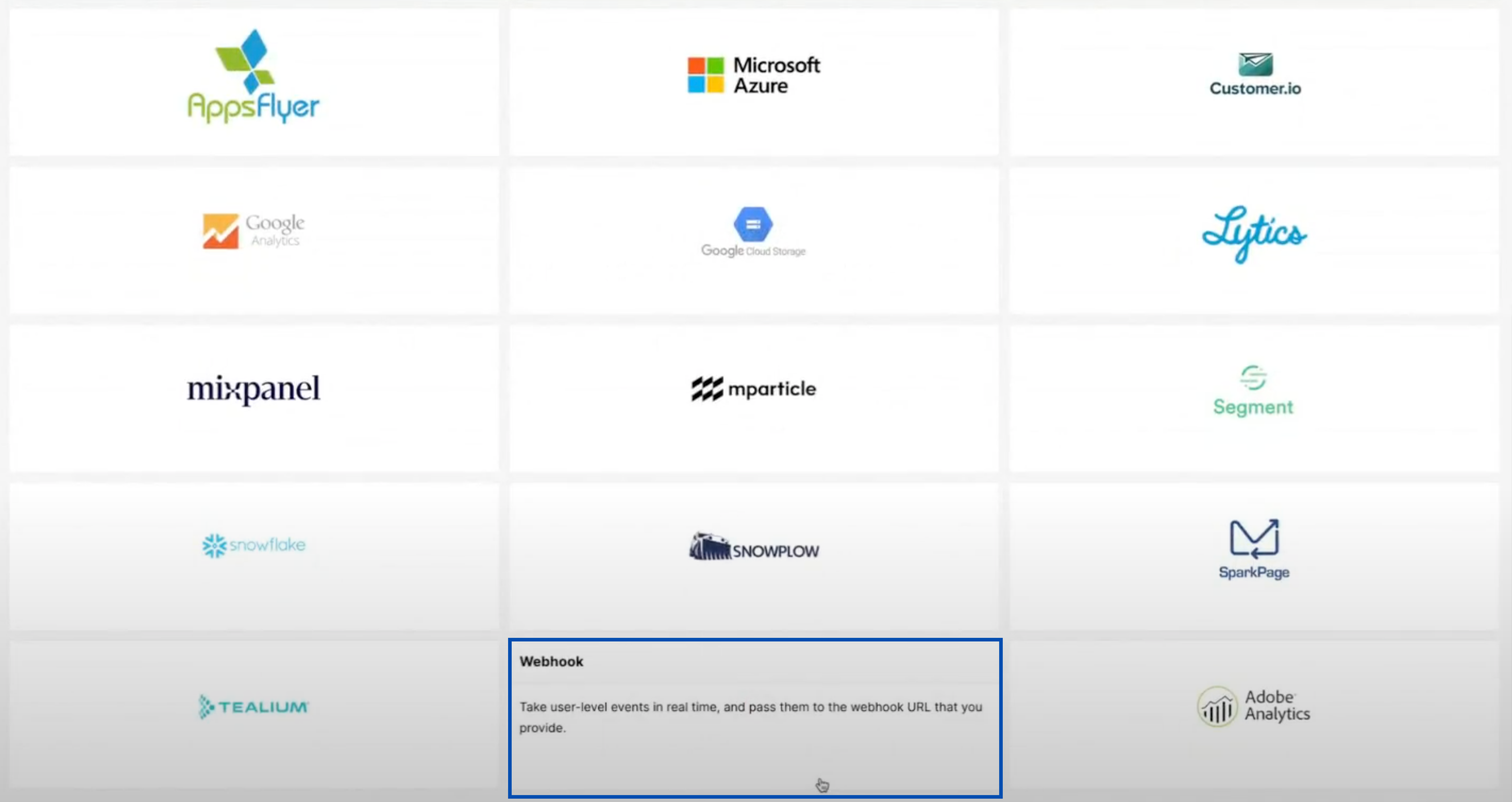
5
On the Create a new Webhook integration screen, configure the integration:a. Under Pick a name and description, enter a descriptive Name and Description for the integration — for example, a description such as 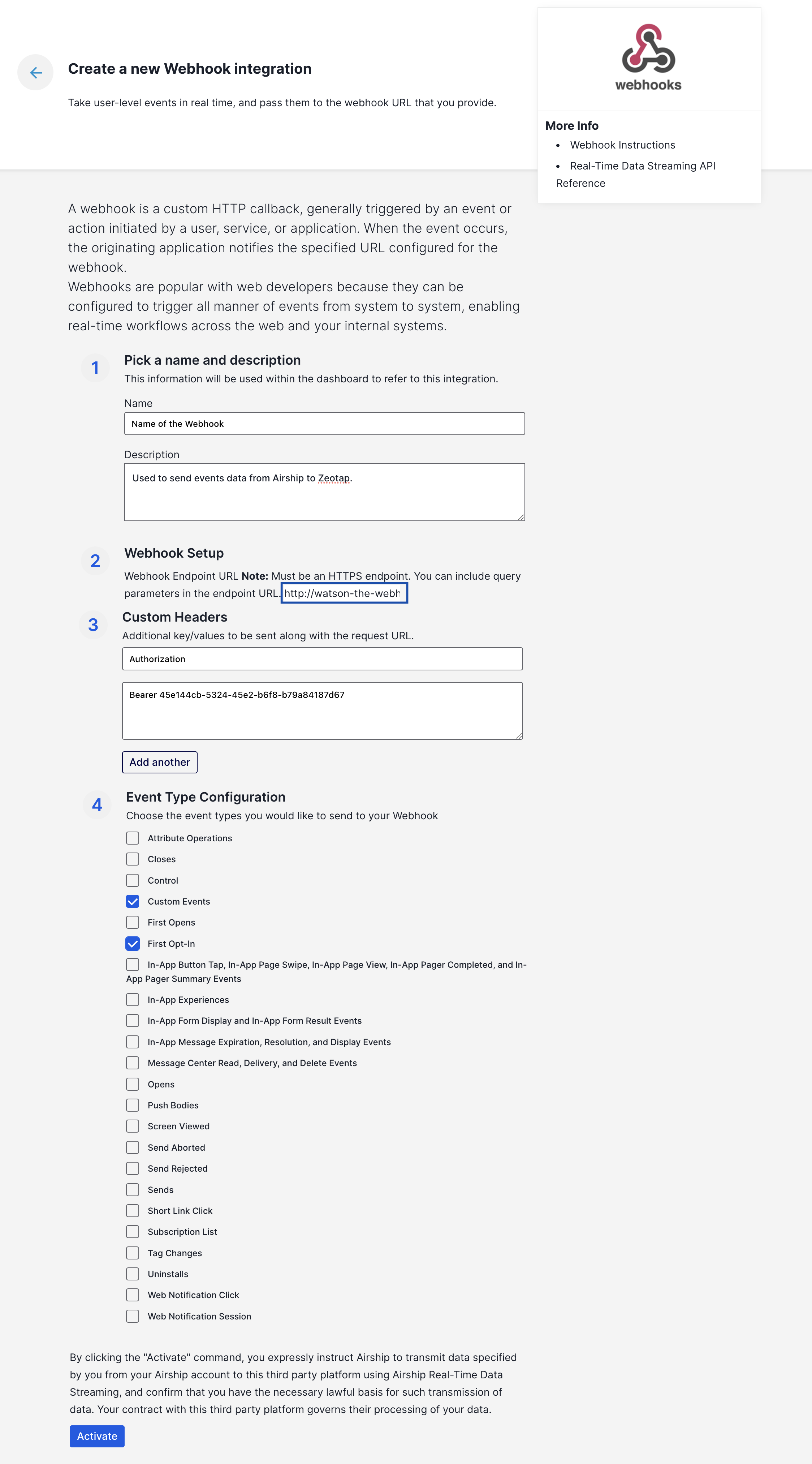
Used to send events data from Airship to Zeotap.b. Under Webhook Setup, enter the API URL copied from the IMPLEMENTATION DETAILS tab of your Zeotap CDP source as the Webhook Endpoint URL. Airship notes on this screen that the endpoint must be an HTTPS endpoint, and that you can include query parameters in it.c. Under Custom Headers, add the key-value pair that Airship sends alongside each request to the endpoint. In the Key field, enter Authorization. In the Value field, enter Bearer<space><write_key> — the word Bearer, a single space, then the write key from the IMPLEMENTATION DETAILS tab.d. Under Event Type Configuration, select the event types you want to send to the webhook integration, then click Activate. Only the event types you select are streamed.Airship states on the webhook screen that clicking Activate instructs Airship to transmit the data you have specified from your Airship account to the third-party platform, and confirms that you have the necessary lawful basis for that transmission.
Verify the connection
Once events start reaching Zeotap CDP, the status of the source changes from Created to Integrated on the Sources listing page.- Open the source and check the PREVIEW DATA tab to see the data flowing in.
- Use the SOURCE REPORT tab for the ingestion health and status of the source.
Troubleshoot the streaming connection
The source status stays Created and no data appears under PREVIEW DATA. A source in the Created state has been created but has not yet received any data. Re-check the Airship webhook integration:- The Webhook Endpoint URL is the API URL from the IMPLEMENTATION DETAILS tab of this source, not of another source.
- The custom header key is
Authorizationand its value isBearer<space><write_key>— the prefix, a single space, then the write key from the same tab. - The integration was saved with Activate.
country and city columns are empty. Records for these columns are blacklisted for ingestion, because Zeotap resolves the country and city automatically from the user’s IP address. For the complete list, see Blacklisted Fields for Data Ingestion.