

What this is
The Pub/Sub Stream source is an inbound integration: it brings data into Zeotap CDP from a Google Pub/Sub topic that you own. You publish messages to your topic, Zeotap CDP consumes them from a subscription attached to that topic, and the records land in the source ready for preview and mapping. This page covers the streaming variant, which carries messages one at a time as they are published. If you want to hand Zeotap CDP messages in bundles instead, use Create a Pub/Sub Batch Source — it is a separate source with its own topic, its own flattened payload shape, and its own creation flow.Pub/Sub appears in Zeotap CDP in both directions, and the names are similar. This page is the source (data in). To send data out of Zeotap CDP to a Pub/Sub topic, see the Google Pub/Sub destination instead.
Prerequisites
Before you begin, confirm the following:
- You have access to the Sources application in the Zeotap CDP App, with permission to create a source.
- You have a Google Pub/Sub topic to publish to, and you can read its Topic ID from the Pub/Sub catalog in the Google Cloud console.
- You can grant permissions on that topic in Google Cloud, so that the Zeotap service account shown during source creation can attach a subscription to it.
- You use a different Topic ID from the one used by any Pub/Sub Batch source. See Keep the stream and batch topics separate.
- You know which Data Entity applies to the data you will send — Customer Data or Non Customer Data. See Supported data entities.
- Your publisher can emit the JSON payload shape described in Send data in the expected format.
How the Pub/Sub Stream source works
Pub/Sub decouples the system producing messages from the system processing them. Messages are published to a topic, and any consumer interested in that topic subscribes to it and receives messages as they arrive. In this integration, your application is the publisher and Zeotap CDP is the consumer:- You create the source in Zeotap CDP and give it the fully qualified Topic ID of your Pub/Sub topic.
- Zeotap CDP shows you a service account. You grant that account permission to attach a subscription to the topic in your Google Cloud project.
- Zeotap CDP consumes the published messages through that subscription and ingests them into the source.
Prepare your Pub/Sub topic
A Topic ID in Google Pub/Sub is the unique identifier for a topic. Topics enable the categorisation or grouping of messages according to specific subjects or themes, and allow consumers to selectively subscribe to and receive messages based on their interest in specific topics. To obtain the Topic ID, navigate to the Pub/Sub catalog in the Google Cloud console, locate the desired topic, and click its name to view its details, where you can find the Topic ID. While creating a source in Zeotap CDP, you need to furnish the fully qualified Topic ID in the format:project/folder/topic/topic_id.
Keep the stream and batch topics separate
We recommend using different Topic IDs for Pub/Sub batch and stream sources. If you use the same Topic ID for both sources, you will receive the same data in both sources.Create the Pub/Sub Stream source
Perform these steps in the Zeotap CDP App:- Log into the Zeotap CDP App and navigate to the Sources application under Integrate.
- Click CREATE SOURCE.
-
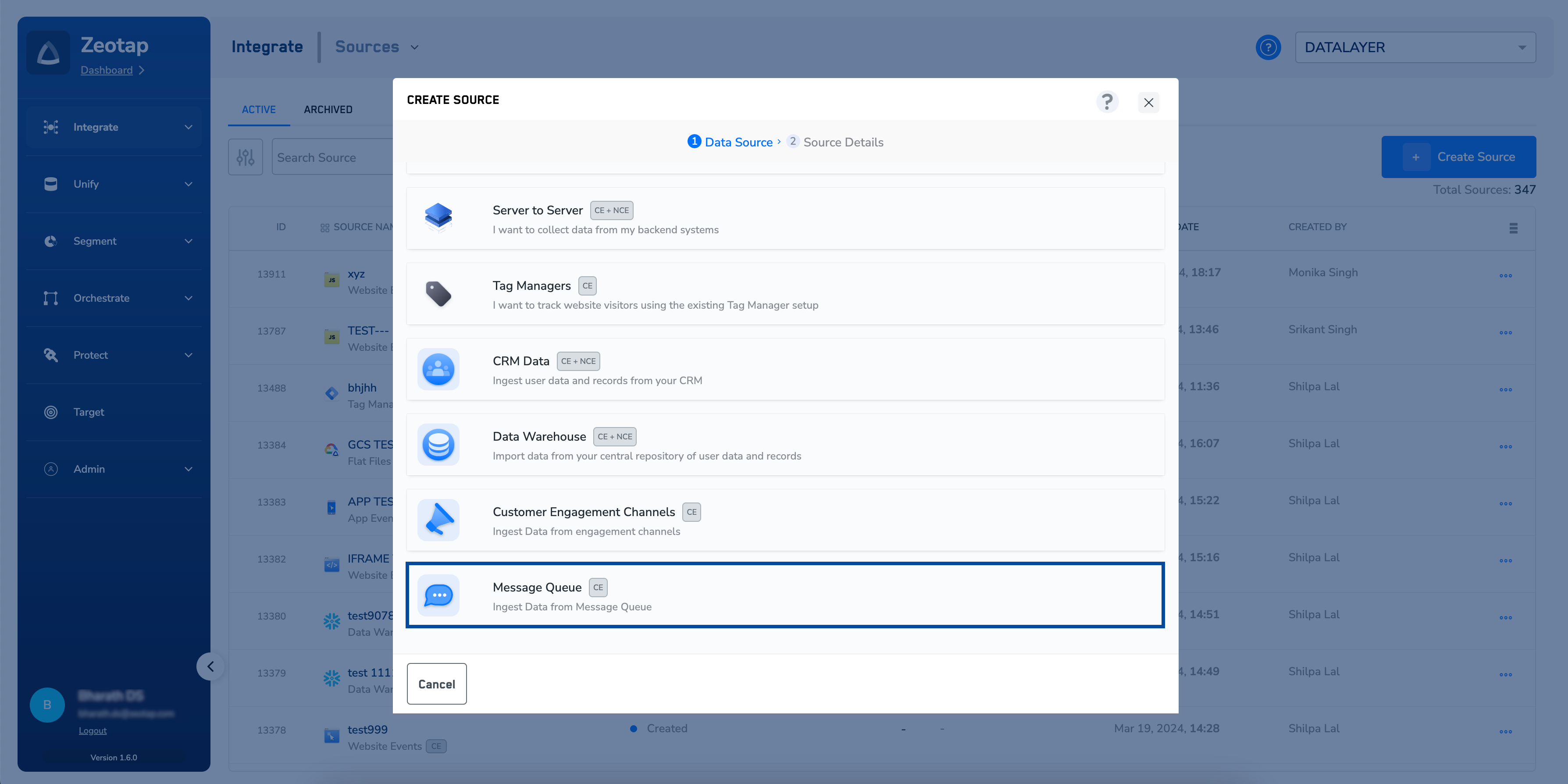
Choose Message Queue as the Category.
-
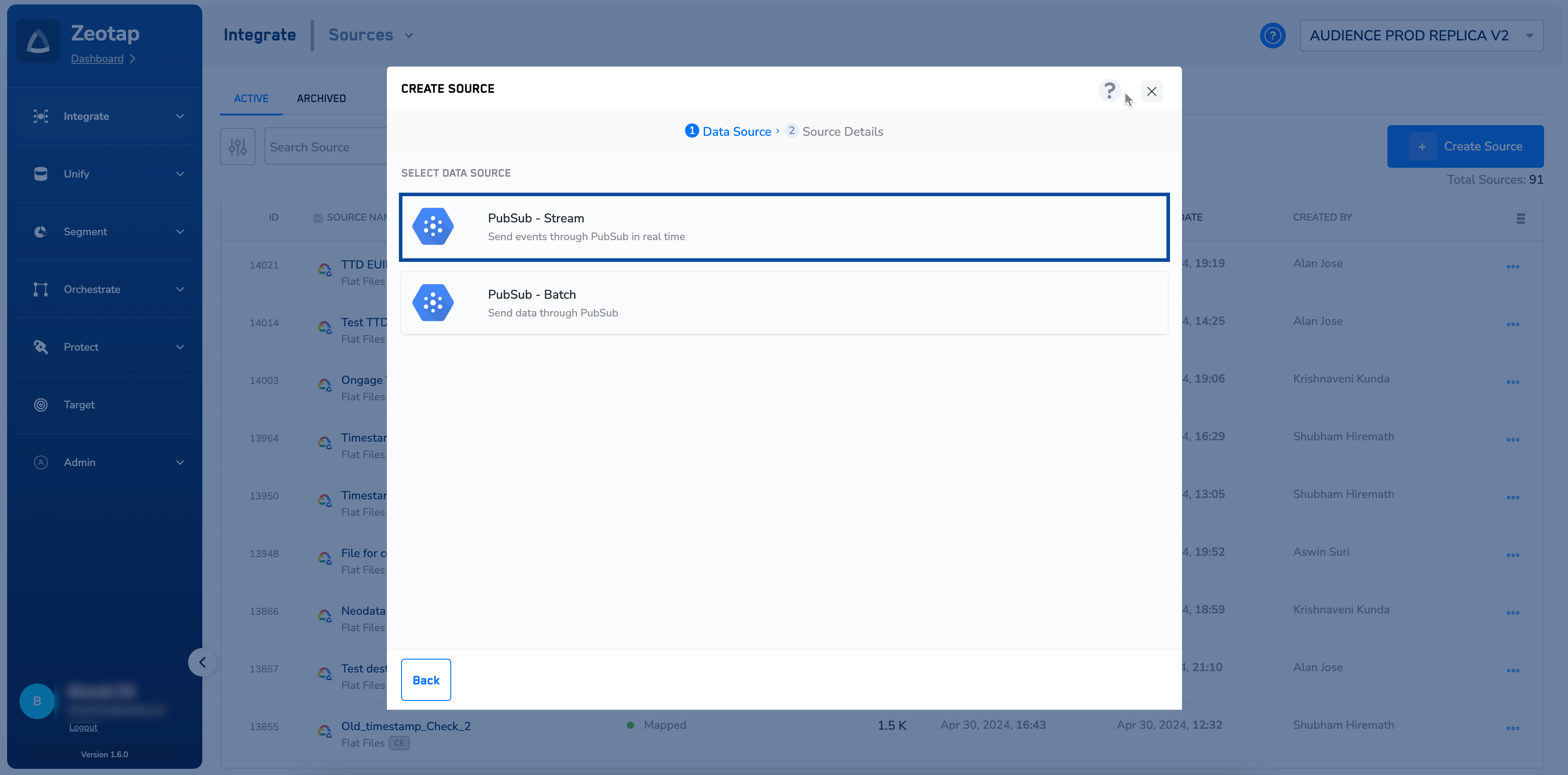
Click Pub/Sub Stream as the Data Source.
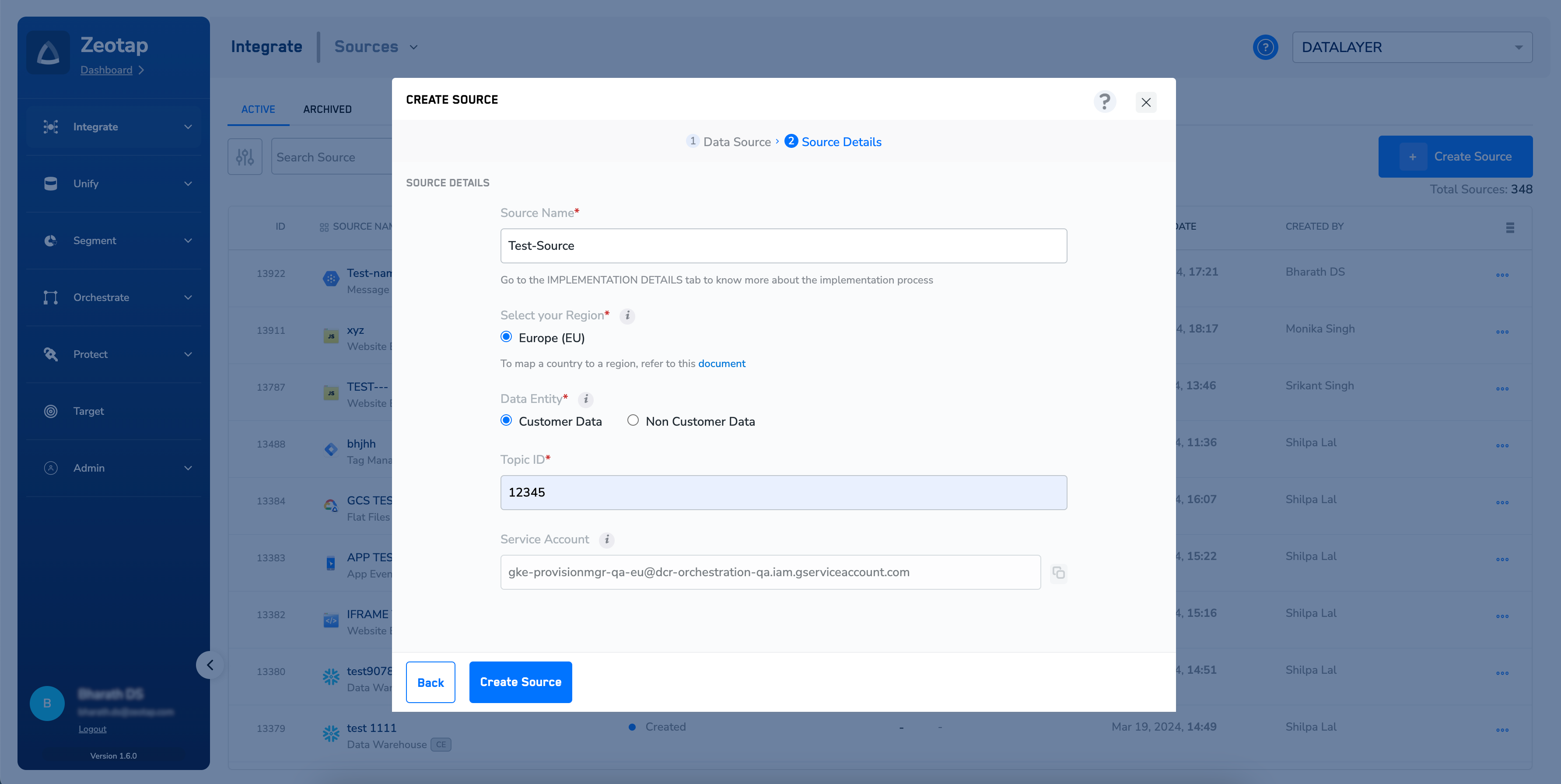
- Enter a short and descriptive name for the source.
- By default, the region is chosen as Europe (EU). See Region of storage for the country-to-region mapping Zeotap uses.
- Under Data Entity, choose either Customer Data or Non Customer Data, depending on the type of data that you want to ingest. See Supported data entities.
- Enter the Topic ID obtained from your Pub/Sub account, in the fully qualified format described under Prepare your Pub/Sub topic above.
-
Under Service Account, note the Zeotap service account that is displayed. You will grant this account access on your topic in the next section, which is what allows Zeotap CDP to consume messages from Pub/Sub.
-
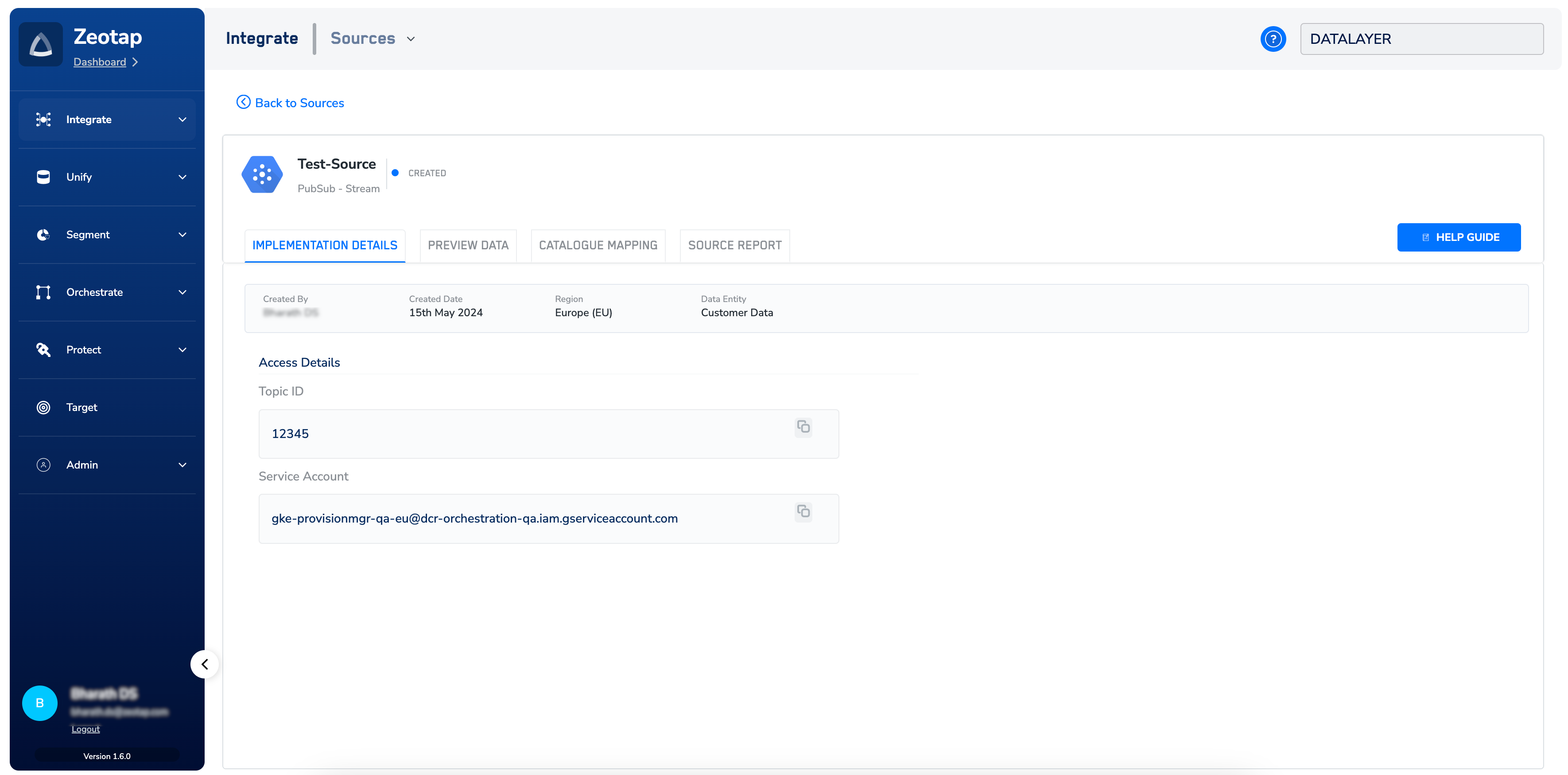
Click CREATE SOURCE. Upon successful creation, the Topic ID and the service account used for the integration are displayed under the IMPLEMENTATION DETAILS tab, along with the rest of the information related to the integration.
Grant the Zeotap service account access to your topic
A service account in Pub/Sub is a type of identity used to authenticate and authorise communication between Zeotap CDP and your Pub/Sub account. The account for your source is shown during source creation and on the source’s IMPLEMENTATION DETAILS tab. In your Pub/Sub instance, provide the following permission to that service account:Attach a subscription to a topic: pubsub.topics.attachSubscription
Without this permission, Zeotap CDP cannot attach a subscription to your topic, and no messages reach the source.
Send data in the expected format
When sending data from the Pub/Sub streaming source to Zeotap CDP, ensure that you adhere to the following format. Replace the sample values with your own.The records for the
country and city columns are blacklisted for ingestion, because Zeotap CDP uses the user’s IP address to determine the country and city automatically. For the complete list of blacklisted fields, see Blacklisted fields for data ingestion.Verify the integration
You have set the source up correctly when all of the following are true:- The source’s IMPLEMENTATION DETAILS tab shows the Topic ID and the service account you configured.
- On the Sources listing page, the source moves from the Created status to Integrated once data starts flowing in. See Components of the Source Listing Page.
- The source’s PREVIEW DATA tab shows a sample of the incoming records. See Components of the Preview Data tab.
Troubleshoot the integration
If you need any assistance to set up this integration, you can reach out to your Zeotap POC.
FAQ
What is the difference between the Pub/Sub Stream source and the Pub/Sub Batch source?
What is the difference between the Pub/Sub Stream source and the Pub/Sub Batch source?
The Pub/Sub Stream source carries messages as they are published to the topic. The Pub/Sub Batch source is a separate source type, created from the Pub/Sub - Batch data source tile, for messages handed over in bundles. Each has its own creation flow and its own payload shape — see Create a Pub/Sub Batch Source.
Can I use one Topic ID for both my stream and batch sources?
Can I use one Topic ID for both my stream and batch sources?
We recommend against it. If you use the same Topic ID for both sources, you will receive the same data in both sources. Use a separate topic for each.
Is this the same as the Google Pub/Sub destination?
Is this the same as the Google Pub/Sub destination?
No. This page creates a source, which brings data into Zeotap CDP. The Google Pub/Sub destination sends data out of Zeotap CDP to a Pub/Sub topic. They are configured separately, in different applications.
Which data entities does this source support?
Which data entities does this source support?
The Pub/Sub Stream source supports Customer Data (CE) and Non-Customer Entity (NCE) data. You choose which applies under Data Entity during source creation — see Supported data entities.
Where do I find the service account after the source is created?
Where do I find the service account after the source is created?
Open the source and go to the IMPLEMENTATION DETAILS tab. The Topic ID and the service account used for the integration are both listed there.
Next steps
- Explore Pub/Sub Stream → for the concept behind this source and where real-time messaging fits.
- Explore Create a Pub/Sub Batch Source → if you also need a batched feed from Pub/Sub.
- Explore Message Queue → for the other message queue sources Zeotap CDP supports.
- Explore Components of the Preview Data tab → to read the records that arrive from your topic.
- Explore Google Pub/Sub destination → to send data from Zeotap CDP back out to a Pub/Sub topic.