Query your Zeotap CDP in plain language from Claude, ChatGPT, or any MCP-compatible AI assistant — data schema, audience and journey health, org comparisons, and suggested definitions, all read-only in this beta.
Zeotap MCP connects your team’s AI assistant directly to your Zeotap CDP — Claude, ChatGPT, or any other MCP-compatible interface — so you can ask questions about your data, audiences, journeys, and platform configuration in plain language. Instead of navigating dashboards or waiting on a data team, you ask, and the answer is grounded in your actual Zeotap data: what a field means, how a metric has moved, whether an audience or sync looks healthy, or what a good next audience might look like.
Zeotap MCP is currently available as a Beta feature, enabled per organisation. The MCP server URL used in the setup below is provided by your Zeotap team during enablement — reach out to your Zeotap contact to join the beta.
Admin setup — adding Zeotap as an organization connector is done once, by a Claude Owner or Primary Owner.
1
Open the organization connectors
In Claude, go to Organization Settings → Connectors, then toggle to Organization connectors.
2
Add the custom connector
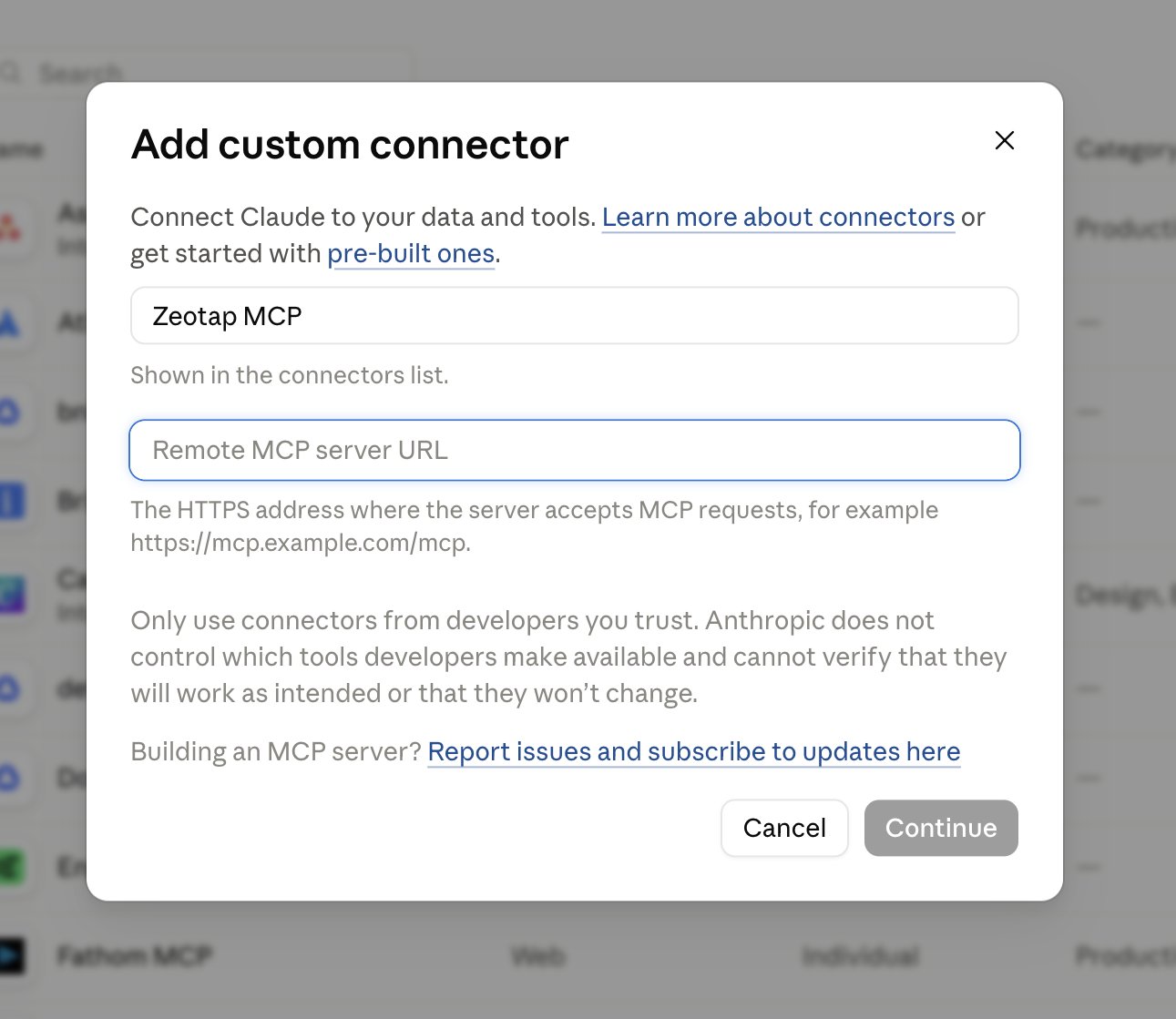
Click Add custom connector. Enter a name (for example, Zeotap — your org name) and the MCP server URL provided by your Zeotap team during enablement.
Claude's Add custom connector dialog, where the name and MCP server URL are entered.
3
Finish
Click Add. The connector is now available to everyone in your Claude organization.
For each user
1
Enable the connector for your conversation
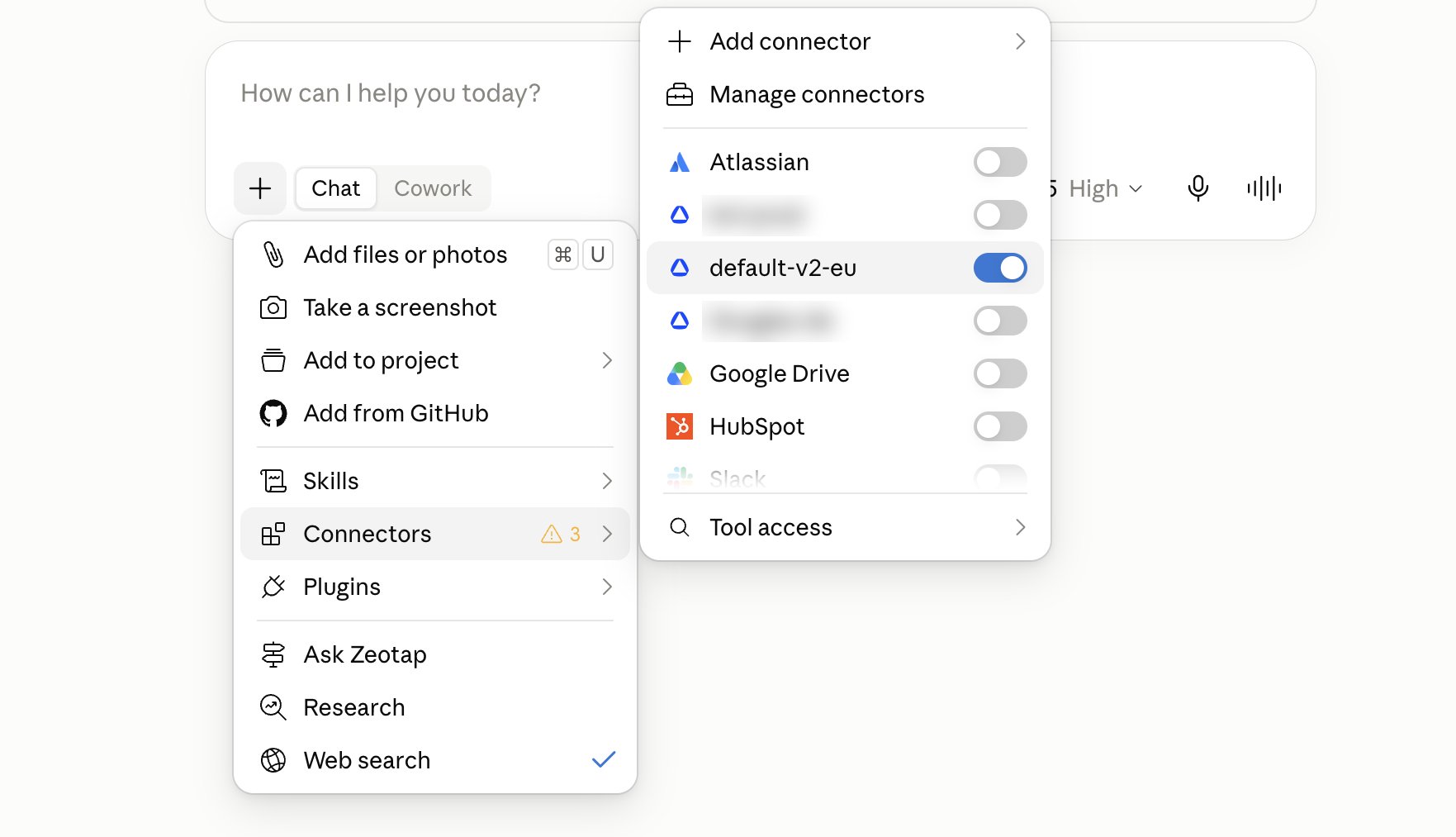
Start a new chat, click the + icon, open Connectors, and toggle the Zeotap connector on.
Toggling the Zeotap connector on for a conversation from the + menu.
2
Sign in and grant consent
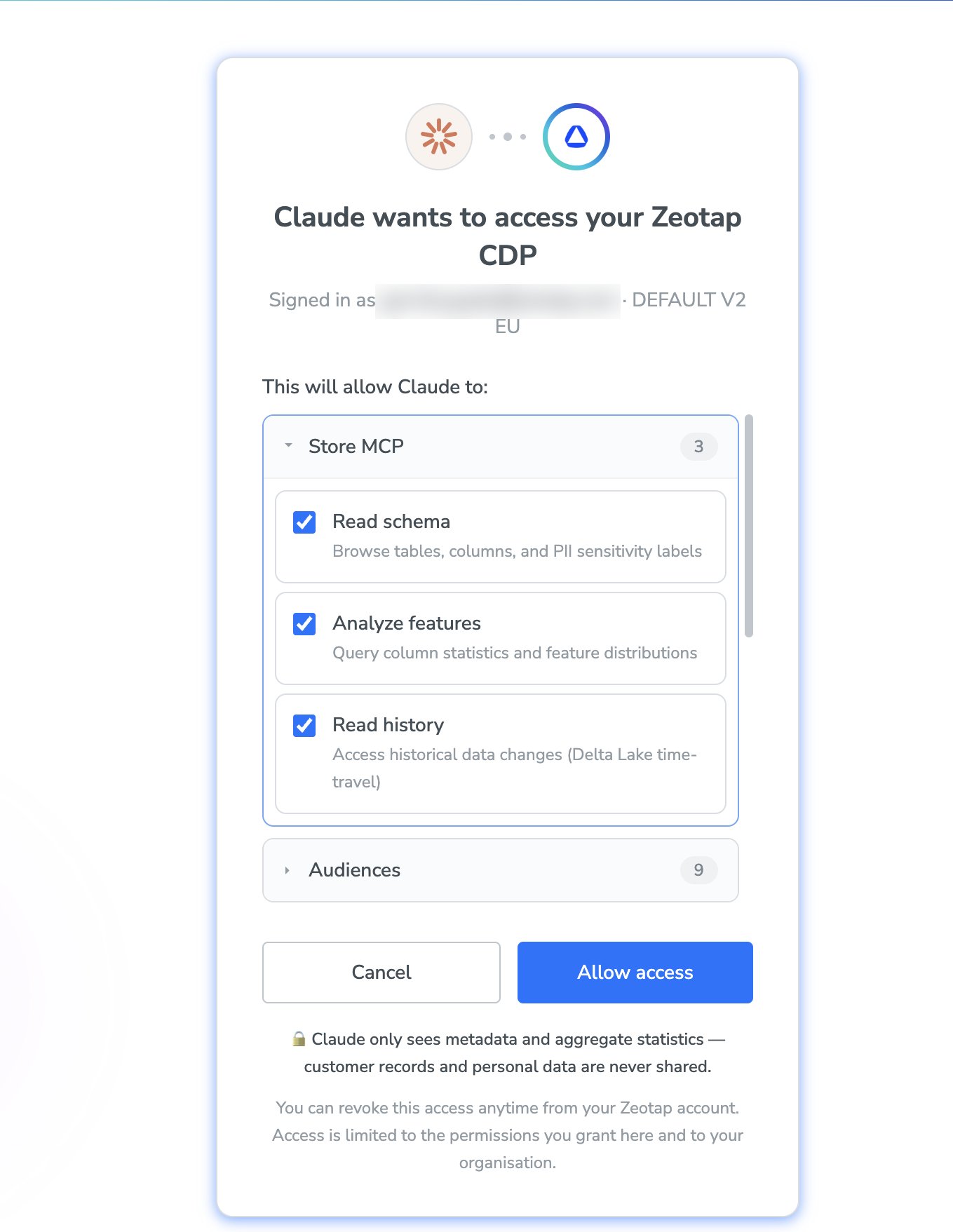
On your first Zeotap-related question, sign in with your Zeotap Google account and grant the requested permissions on the consent screen.
The consent screen — Claude only sees metadata and aggregate statistics; customer records are never shared.
3
Ask your first question
You’re connected for the session. Try one of the sample prompts below.
1
Open the MCP settings
In ChatGPT, go to Settings → Plugins, then click MCP.
2
Add the Zeotap MCP server
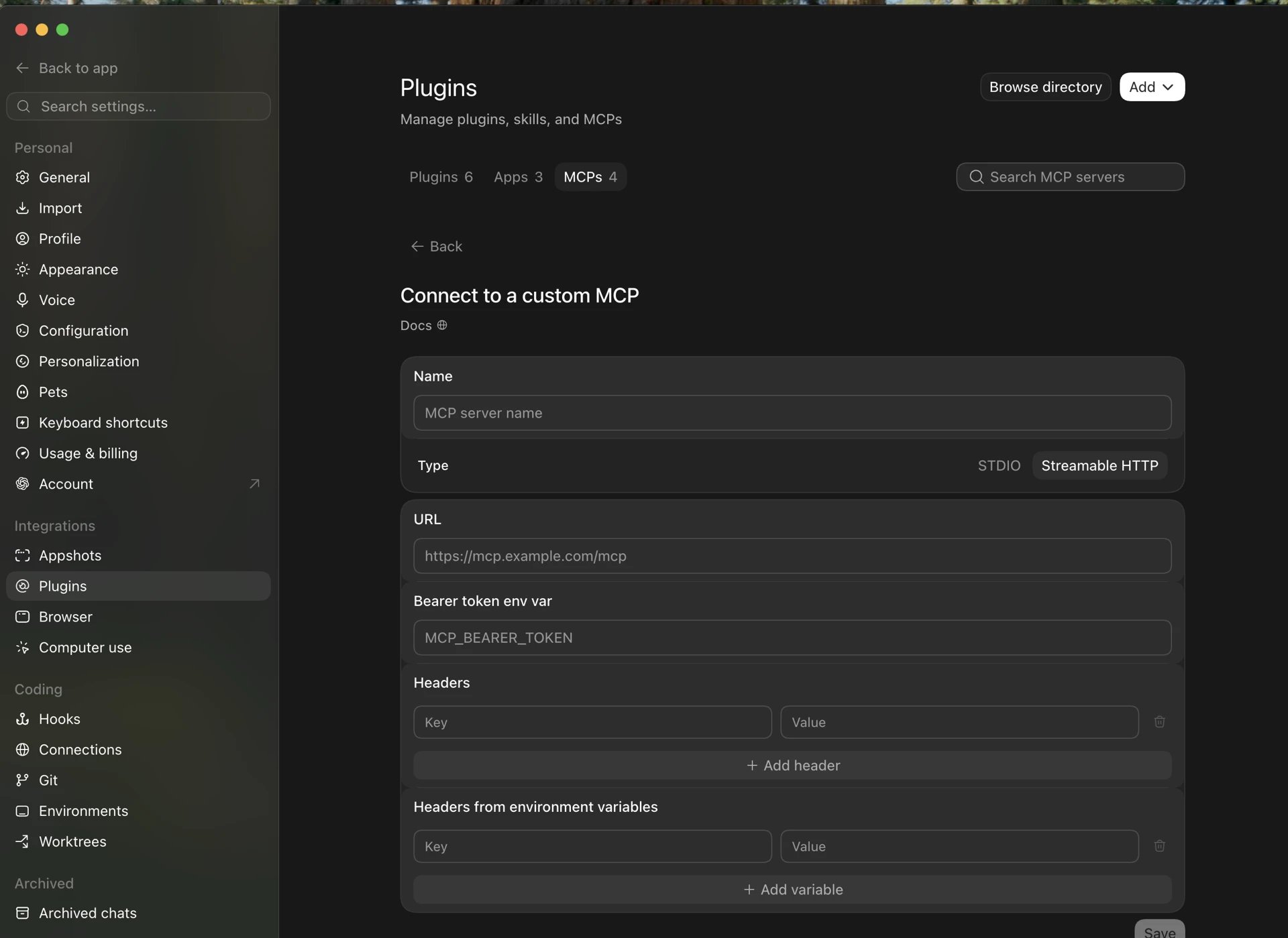
Click Add MCP and select Streamable HTTP. Enter a name (for example, Zeotap — your org name) and the MCP server URL provided by your Zeotap team, then click Save.
The Connect to a custom MCP form, with the type set to Streamable HTTP.
3
Authenticate
Click Authenticate next to the connector, log in with your Zeotap account in the window that opens, and grant the requested permissions on the consent screen. Once authenticated, the connector is active — try your first prompt.
Any MCP-compatible assistant can connect using the same server URL. The sign-in, consent, and permission model described on this page is identical regardless of which assistant you use.
Your MCP connector covers your parent organization and all of its child organizations. By default, queries run against your parent organization; to query a specific child org instead, mention that org’s name or ID directly in your prompt — for example, “Show me active audiences for org name.”
Read-only by design. Creating, editing, or publishing anything in your Zeotap org is not part of this beta.
No change history yet. Audience and other asset change history is planned for the next phase.
Historical data window. Historical analysis of event-related data covers the last 60 days. For anything further back, reach out to your Zeotap contact.
No proactive alerts. MCP answers when asked — it does not send autonomous notifications. For automated alerting across sources and audiences, use Alerts & Notifications under Admin.
Rate limits. Zeotap MCP allows up to 500 queries per minute per organization, shared across all users querying that org, for security purposes.
Cross-platform correlation with external platforms such as Braze requires an active secondary MCP connector and consistent cross-system audience identifiers — discuss your use case with your Zeotap contact.
Data retrieval limits. When querying exceptionally large datasets (for example, organizations with more than 500 audiences), the assistant may return a partial set of results and invite you to request the rest in a follow-up query. This limit exists because pulling too much data at once can overwhelm your AI assistant’s context window.
Scope of data exposed. MCP is built on aggregated data — schema, statistics, definitions, and configuration — not raw individual customer records. No tool in the current release returns individual-level customer identifiers or record lists, and sample values from PII-flagged fields cannot be retrieved through MCP. This is enforced at the tool level, not left to how a question is phrased.Data flow and processing location. Zeotap’s own MCP processing — schema, audience, and journey data handling — runs entirely on EU-based infrastructure. Separately, the LLM interface you use (Claude, ChatGPT, or others) has its own data-handling terms for the conversation itself; that is governed by the vendor’s policies, and worth confirming with whichever vendor your team standardises on.Conversation retention. An MCP server only ever receives a specific, structured request — a tool name and its parameters — when the assistant decides to call it. It never receives your question as asked, the model’s reasoning, or the answer given back. The conversation exists entirely on the LLM side, so there is no conversation for Zeotap’s MCP layer to retain; retention of prompts and responses is a question for the LLM interface in use.Access control. Access is gated in two layers: an organization admin must explicitly enable the connector, and each user then authenticates individually with their own account. Every request is checked against your current Zeotap permissions, live — not just once at login. If you don’t have audience-level access in Zeotap, you cannot pull audience details through MCP, regardless of how the question is phrased. If a permission check can’t be completed, access is denied by default, and credentials are never included in what’s returned to the assistant.