

What this is
The Dotdigital source brings data into Zeotap CDP: Zeotap fetches the customer data held in your Dotdigital account through HTTP REST API calls, receives it as JSON responses and ingests it into Zeotap CDP. Data does not travel back to Dotdigital through this integration — to send audiences the other way, out of Zeotap CDP and into Dotdigital, use the Dotdigital destination. Dotdigital is a marketing automation platform providing a CRM and a multichannel messaging suite (email, SMS, social media, push notifications and more). In Zeotap CDP the integration sits under the Customer Engagement Channels source category, alongside the other engagement-channel integrations listed on the Customer Engagement Channels page. A retailer, for example, can pull the customer data held in Dotdigital’s CRM and messaging suite into Zeotap CDP, then use it to build targeted segments, personalise campaigns across channels and tune messaging for engagement, conversion and loyalty. See Dotdigital for the overview of this integration and its other pages.Supported standard objects
Choose one of the following scopes in Dotdigital before you create the source in Zeotap CDP, then select the matching Standard object on the source form:- Contacts
- Campaigns
- Preferences
- Campaign Opens
- Campaign Clicks
- Campaign Page Views
Prerequisites
Have the following ready before you start.A Dotdigital API user account
To use the Dotdigital developer platform or Dotdigital’s public APIs, you need an API user account in Dotdigital. Create one before you begin this integration — Dotdigital documents the steps in Create an API user.The API user’s ID and password
Each API user created in Dotdigital is assigned a username and password, which authenticate an operation or call. Once you have these credentials you can establish the connection from Zeotap CDP. The Dotdigital destination page walks through the same API user setup inside the Dotdigital console, with screenshots, if you would rather follow it there.Your Dotdigital region
Dotdigital accounts belong to different regions depending on where they are based in the world, and an API endpoint belonging to a different region cannot be used. Confirm which region your account is in before you start; the region codes and API domains are tabulated on the Dotdigital destination page.A sync frequency
The first sync runs as soon as the source is created. Subsequent syncs run on the frequency you select. The supported frequencies are:- Daily
- Weekly
- Monthly
Create the Dotdigital source
Perform the following steps to establish a connection with Dotdigital using the built-in connector in Sources.1
Navigate to the Sources application under Integrate, in the Zeotap CDP App.
2
Click CREATE SOURCE.
3
Choose Customer Engagement Channels as the Category.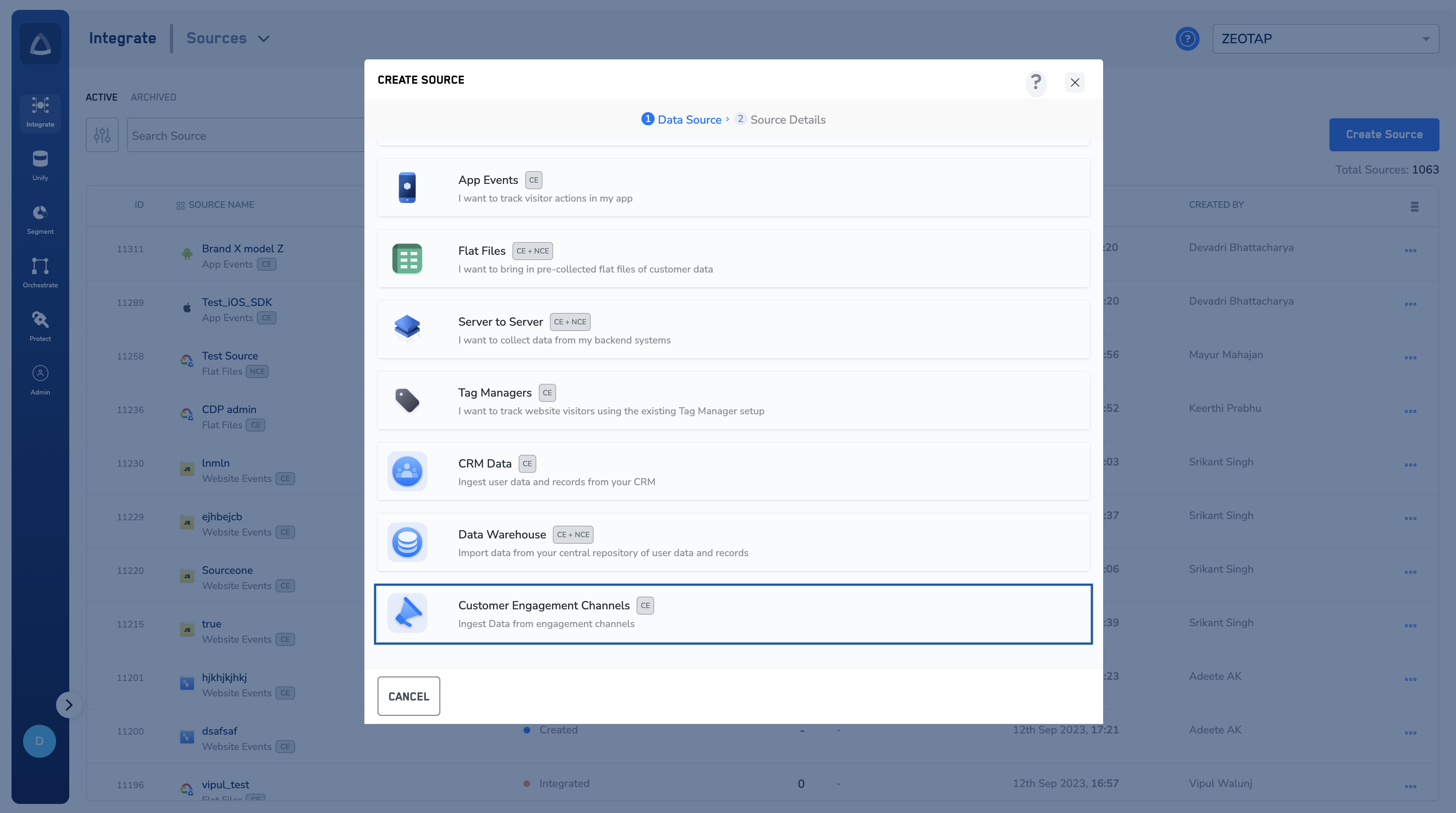
4
Click Dot Digital as the Data Source.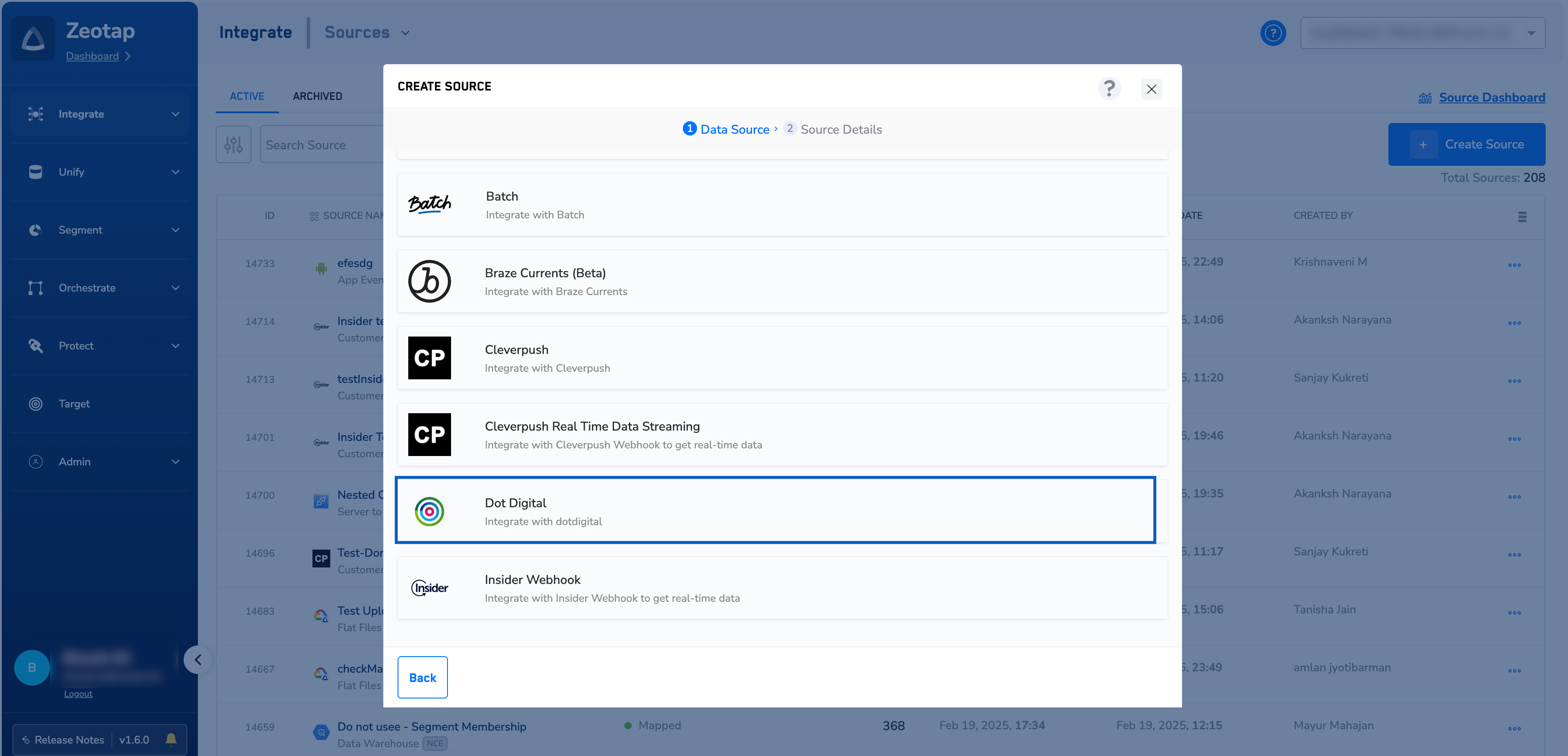
5
In the window that appears, provide the following details:a. Enter a name for the source.b. Enter the User ID and Password of the Dotdigital API user.c. Select your Region using the option button.d. Choose the desired Sync frequency from the drop-down list. This sets how often the data is auto-updated into Zeotap CDP.e. Choose the appropriate Standard object for the source from the drop-down list.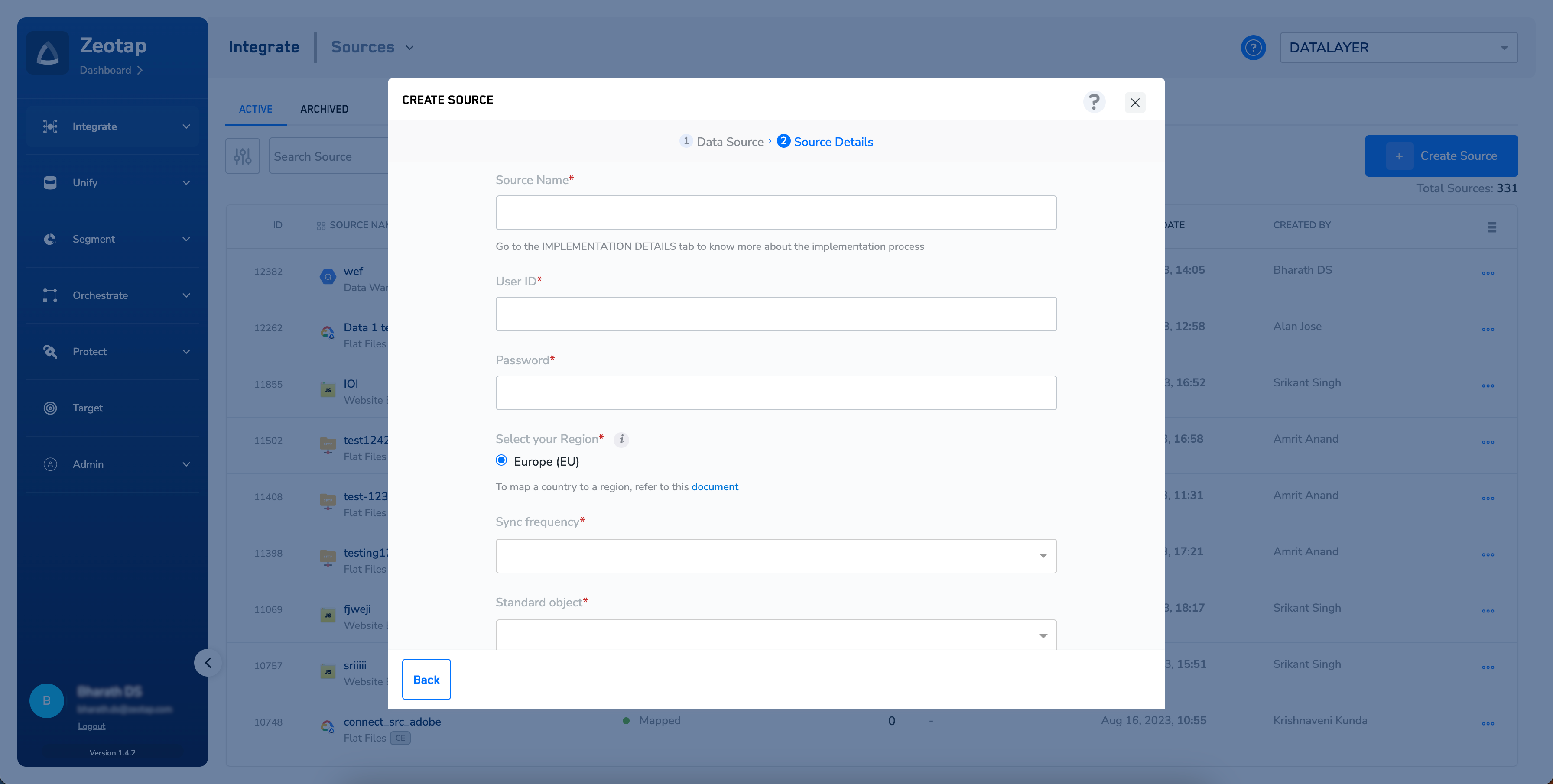
6
Click CREATE SOURCE.
Verify the source
Open the created source and select the IMPLEMENTATION DETAILS tab. It shows who created the source and when, the region it was created against, how far the data has been processed, and the User ID and password that Zeotap uses to make the API calls and fetch the target data from Dotdigital.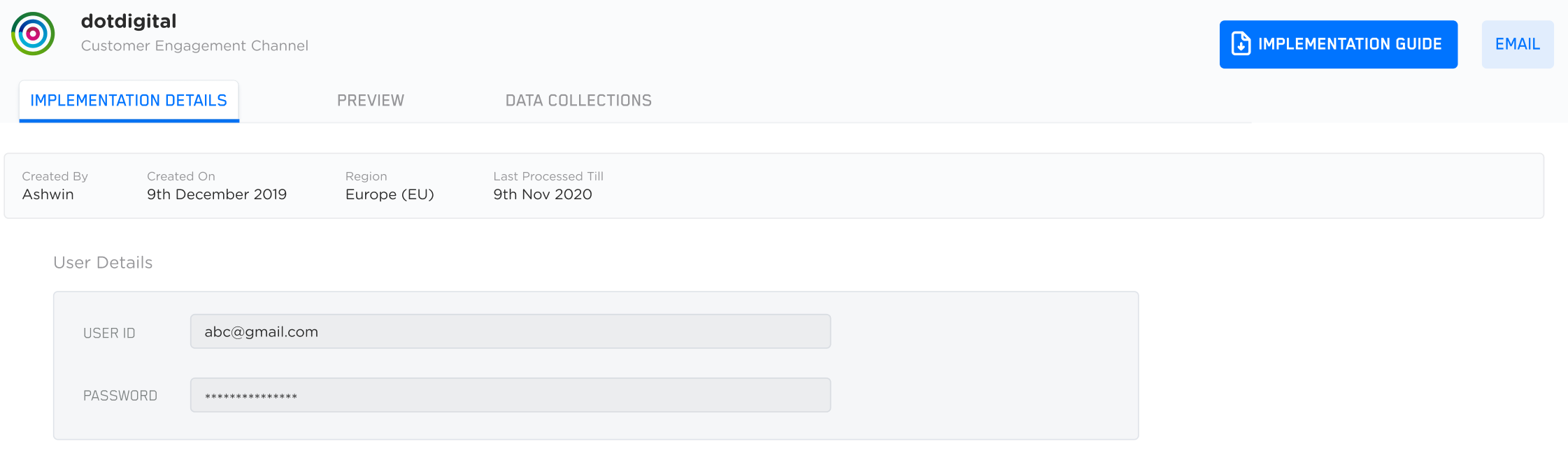
Next steps
- Dotdigital — attributes supported — the attributes fetched for each standard object.
- Components of the source listing page — statuses, ingestion counts and the actions available on a source.
- Dotdigital destination — sending audiences from Zeotap CDP out to Dotdigital.
- Sources — the other source categories and data sources available in Zeotap CDP.