

Prerequisites
Before accepting a partnership invitation, confirm that:- Your organisation is onboarded on Zeotap CDP as a composable organisation.
- Your organisation has enabled collaboration consent (contact your account team if you are unsure).
- You have a customer parent model dataset onboarded as a source in your org. This is required to enable overlap analysis.
- You hold at least one ID-type attribute that matches a join key your Contributor partner has configured (for example, if your partner shares Email MD5, you need Email MD5 data too).
Accepting an invitation
When a Contributor creates a partnership and selects your organisation, all CDP admins in your organisation receive an invitation email. The partnership also appears in your Collaborate → Partnerships list with Pending status.1
Navigate to Collaborate → Partnerships in the left sidebar.
2
Find the pending partnership — you will see the Contributor’s organisation name and the partnership name they chose.
3
Click the partnership name to open it.
4
Click Accept Invitation.
Configuring your join key mapping
The join key mapping step is only available once the Contributor has submitted their configuration. If the Contributor has not yet completed their side, you will not see the mapping screen — check with your partner on their readiness.
- Partner’s Join Key — the attribute name and ID type your partner is using (for example, “Email MD5 Lowercase”).
- Your Mapped Attribute — the dropdown where you select the equivalent attribute from your data.
1
Click the dropdown in the Your Mapped Attribute column.
2
Select the attribute in your data that corresponds to the partner’s key.
3
Repeat for all available join keys, then click Submit.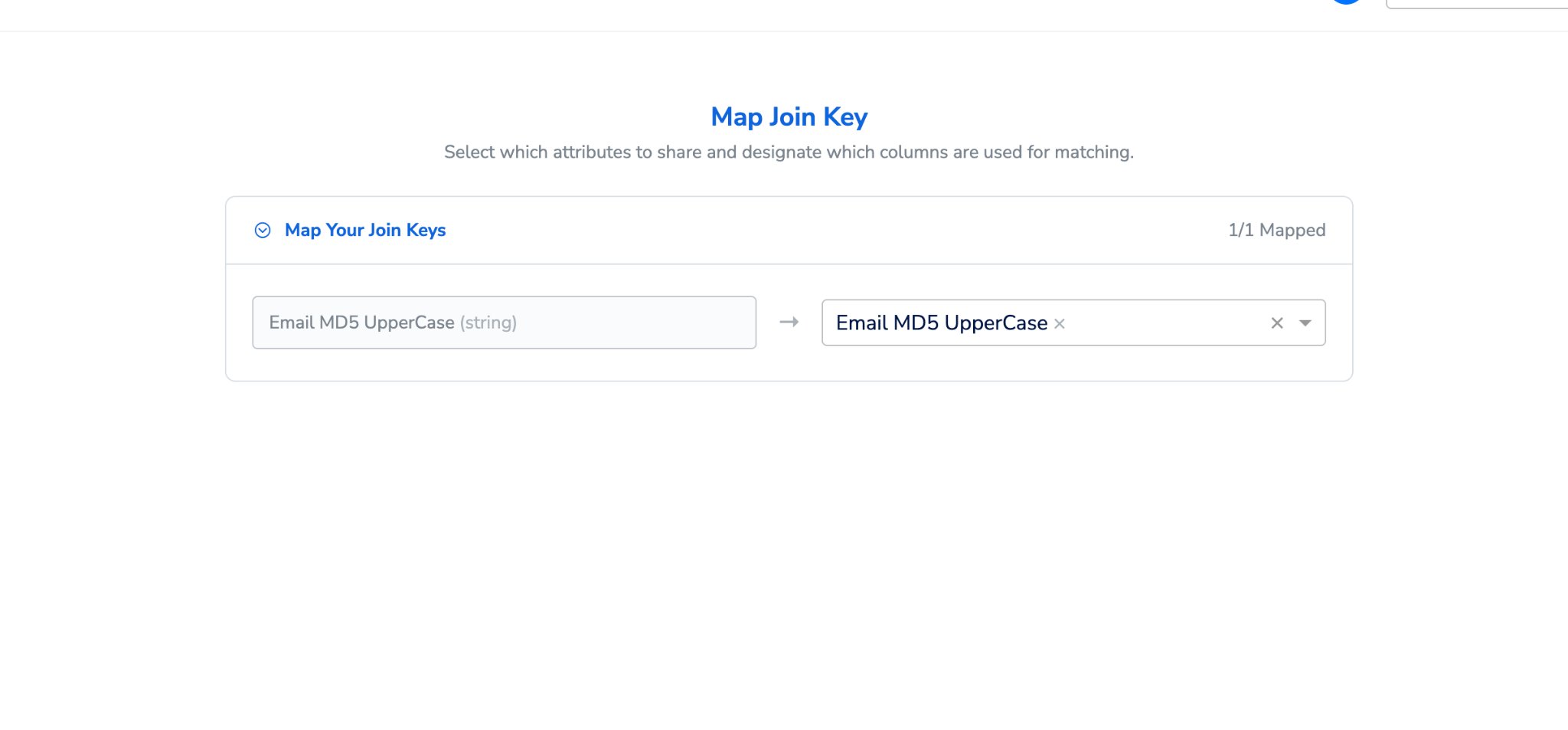
Any join keys you leave unmapped will not contribute to the analysis — they are shown with a Not mapped status but will not cause the partnership to fail.
Run overlap analysis
Discover lets you understand how your audience overlaps with your partner’s and what those shared customers look like.1
Open the Active partnership and click the Analysis tab.
2
Under Matching on, select which join key(s) to use for this run.
3
Click Run Analysis.
Reading your Discover results
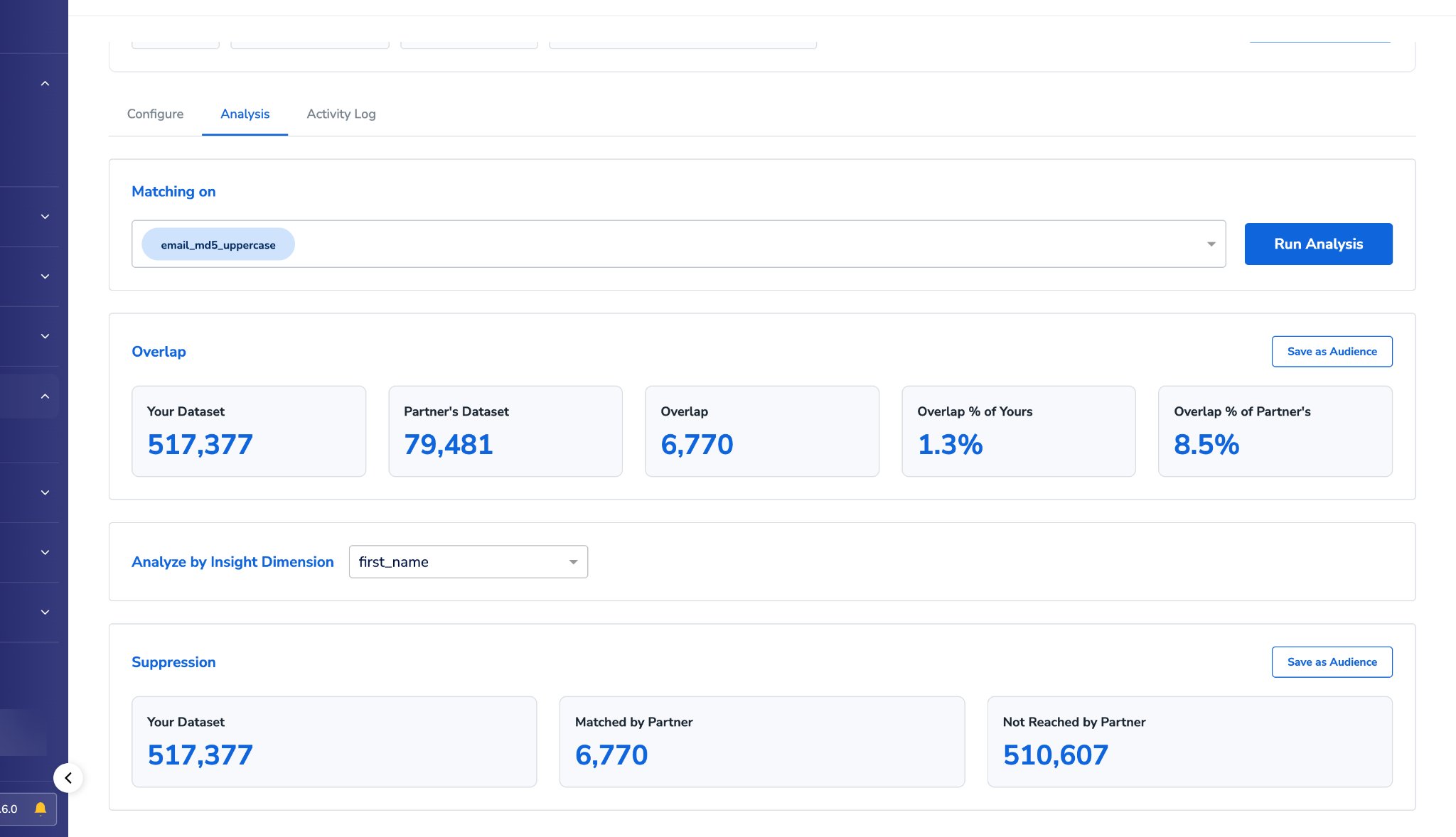
Analyse by Insight Dimension
If your partner has enabled insight dimensions, select one from the Analyse by dropdown (for example, Gender or Age Group) to break the overlap down by that attribute.
Privacy note: Rows may be hidden if the count falls below your partner’s aggregate threshold. This is expected behaviour — those cohorts are too small to be shown under the partner’s privacy settings.
Activate — save audiences for channel targeting
Activate turns your Discover results into audiences you can push to ad platforms and other destinations.- Save the full overlap — in the Overlap section, click Save as Audience to save the entire matched population.
- Save a segment — in the Analyse by Insight Dimension table, click Save as Audience next to any row to save that specific segment as its own audience (for example, “Female” matched users only).
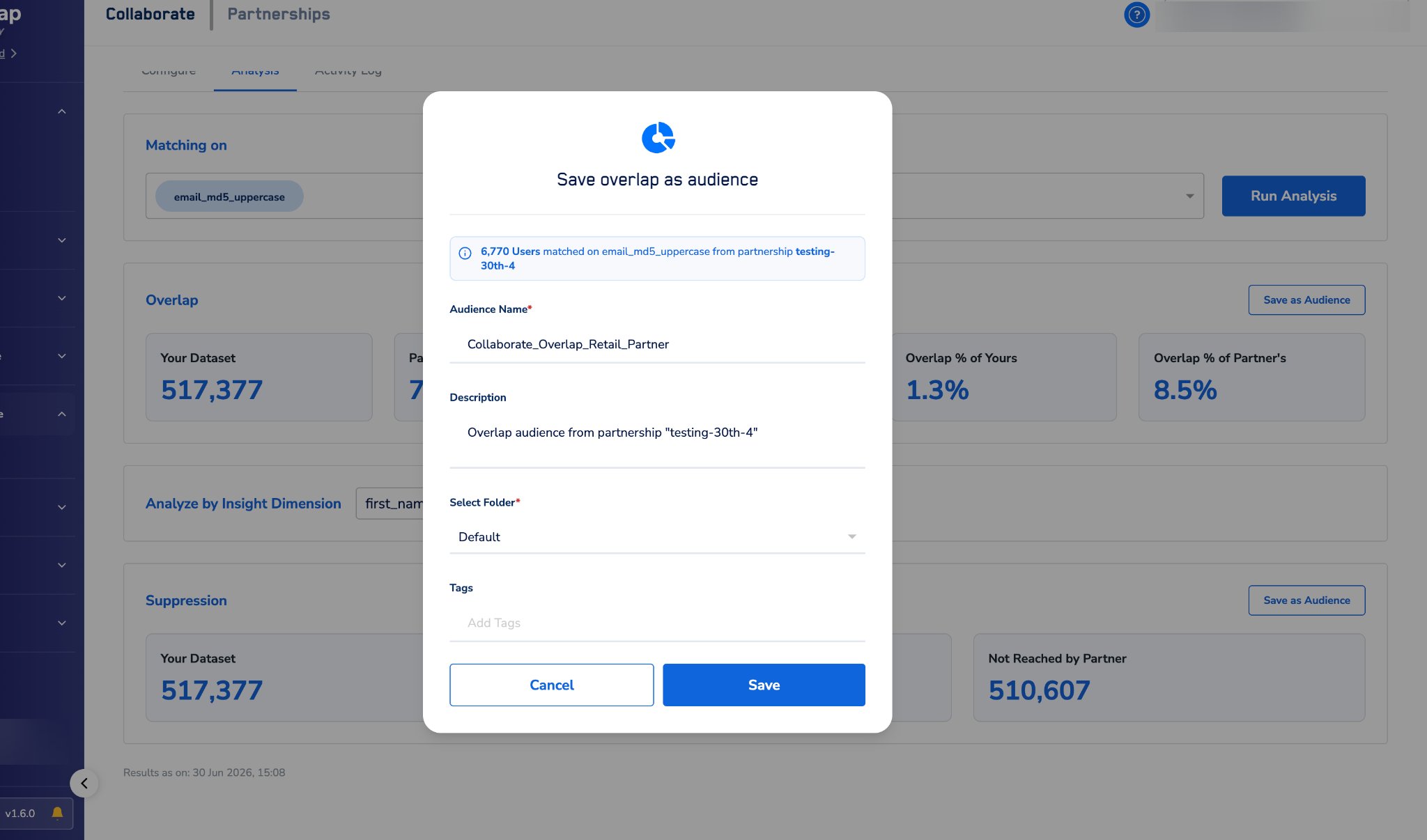
Minimum size: Cohorts below the aggregate threshold (default 1,000 users) cannot be saved. The Save as Audience button is disabled for those rows.
Activation channels: The channels available to you are controlled by your Contributor partner’s activation settings. If a channel is missing, your partner has not permitted it for this partnership.
Suppress — exclusion targeting and incrementality
Suppress shows the portion of your dataset that was not matched by your partner. Use this to:- Build exclusion audiences — avoid showing ads to customers your partner has already reached.
- Measure incremental reach — understand how much new audience the partnership unlocks beyond your existing overlap.
- Manage frequency — suppress already-exposed users to avoid over-targeting.
Tracking partnership activity
The Activity Log tab shows a timestamped record of all key events for the partnership, visible to both you and the Contributor in the same log: Invite Sent, Invite Accepted, Invite Declined, Configuration Saved (both sides), Analysis Run, Audience Saved, and Partnership Terminated.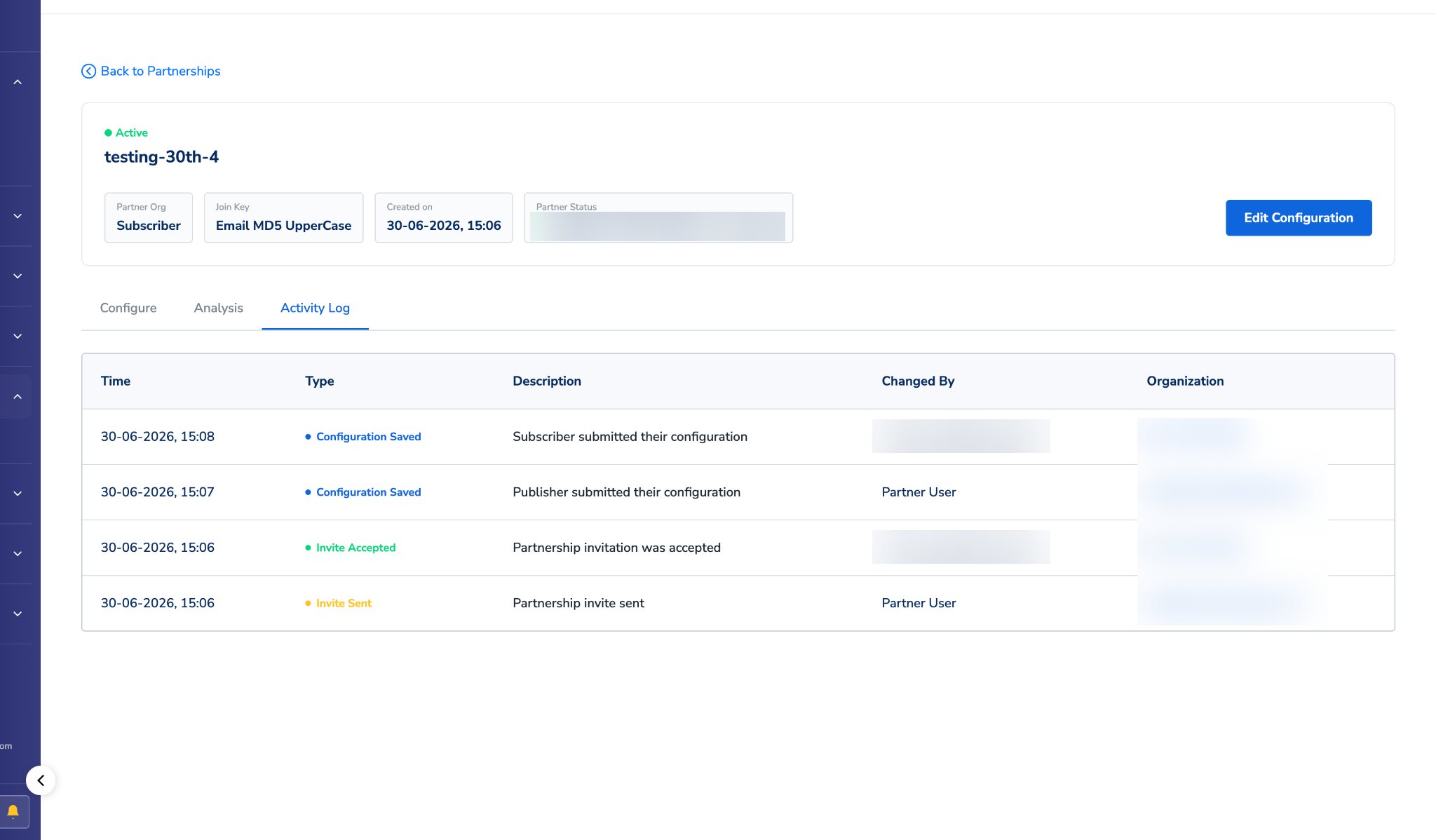
Constraints and limitations
- You can only run analysis if the partnership is Active — both sides must have submitted their configuration. If the partnership is still In Setup, wait for the Contributor to complete their side.
- Only the join keys you have mapped are used in analysis; unmapped keys are excluded.
- The aggregate threshold is set by your Contributor partner and cannot be overridden.
- Audience saving requires a minimum of 1,000 matched users per cohort.
- You can only activate saved audiences to channels your partner has explicitly permitted.
- You cannot change the Contributor’s attribute selection or privacy settings — contact your partner directly if you need adjustments.
- You need a data source marked as a customer parent model to enable successful overlap analysis. The join key of this source lets the system resolve user profiles for matching.