> ## Documentation Index
> Fetch the complete documentation index at: https://docs.zeotap.com/llms.txt
> Use this file to discover all available pages before exploring further.
# Ingestion Filter Criteria
The **Ingestion Filter** feature allows you to control which records from a source file or stream are to be ingested into the Zeotap platform. During source mapping review, you can define filter conditions on the mapped source fields, ensuring that **only records meeting the defined criteria** are processed further. If a record does not satisfy the defined filter condition for any mapped source field, the **entire record row will be rejected** from ingestion.
This feature provides precise control over incoming data, helping reduce unnecessary ingestion, optimize event consumption, and improve overall data quality.
### Defining Ingestion Criteria
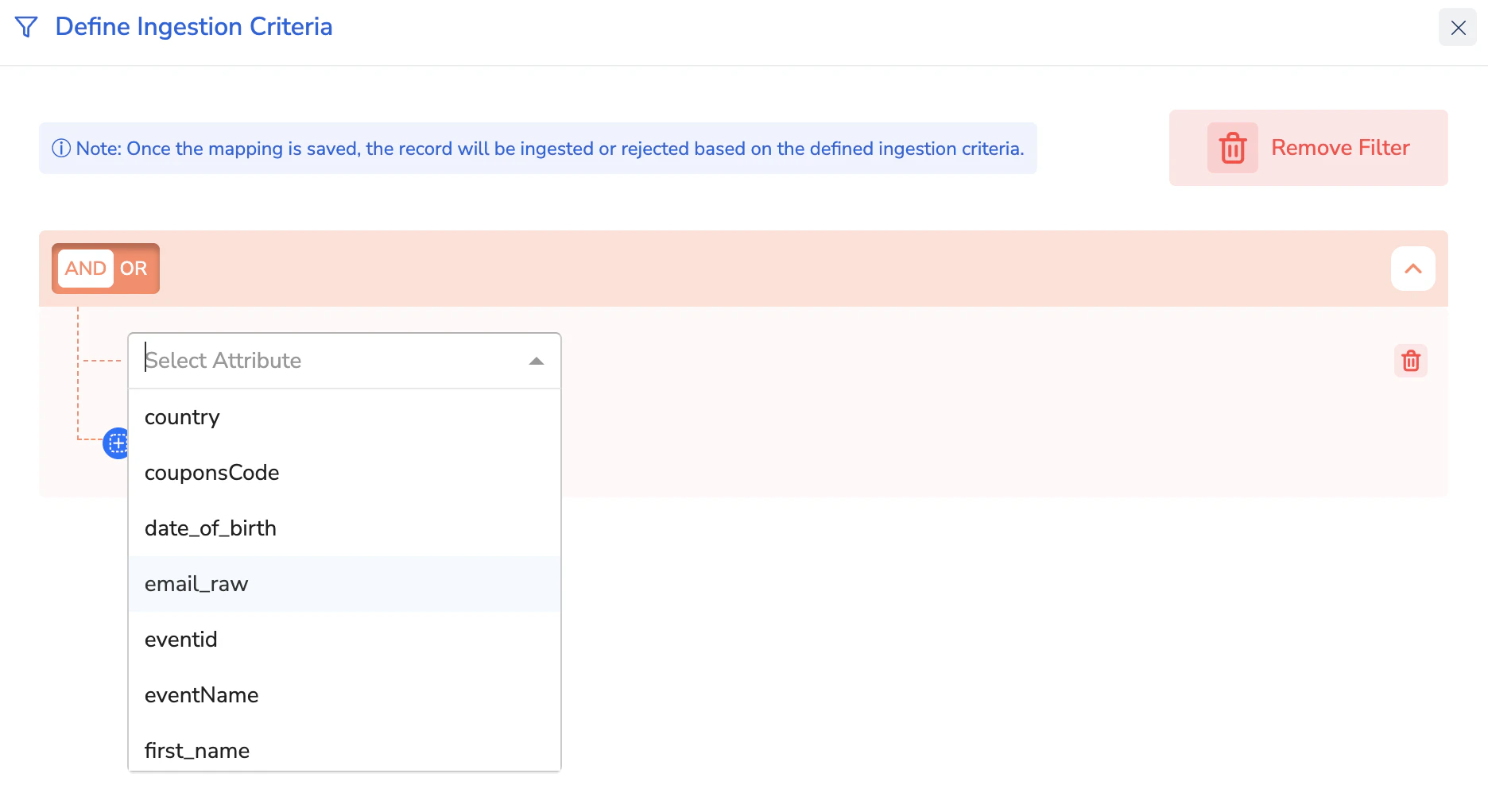
To define a filter, click **Define Ingestion Criteria** in the review screen while mapping your source. Then, click **Add Filter** to view all available source fields of primitive data types (string, double, integer) in the dropdown.
 Select the desired field, choose the appropriate operator, enter the value, and save the filter. This will define the condition for ingestion, allowing only those records that match the applied filter to be ingested. The filter operates on **source fields**, not on catalogue fields.
You can define up to **five conditions per source**. The system allows filters to be created only on **source fields mapped to a catalogue**.
Select the desired field, choose the appropriate operator, enter the value, and save the filter. This will define the condition for ingestion, allowing only those records that match the applied filter to be ingested. The filter operates on **source fields**, not on catalogue fields.
You can define up to **five conditions per source**. The system allows filters to be created only on **source fields mapped to a catalogue**.
 When editing an existing ingestion filter, note that any changes will take up to **10 minutes** to start affecting incoming records after the mapping is saved.
**Note:**
The available operators depend on the catalogue category selection:
When editing an existing ingestion filter, note that any changes will take up to **10 minutes** to start affecting incoming records after the mapping is saved.
**Note:**
The available operators depend on the catalogue category selection:
- ID fields - exists / not exists
- All other fields - equals / not equals / in / not in / exists / not exists / contains / not contains
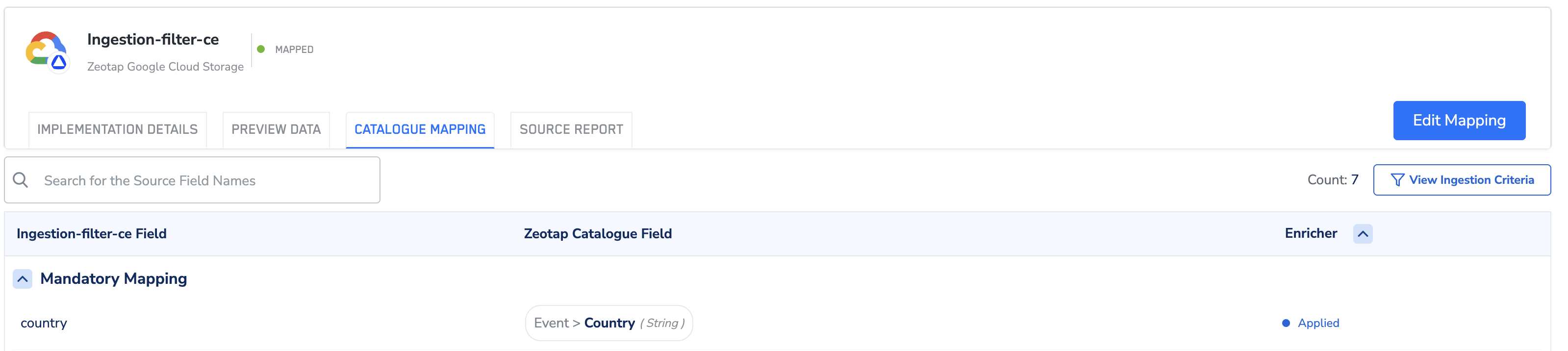
You can view the applied ingestion filter criteria in the **Catalogue Mapping Preview** by clicking the **View Ingestion Criteria** button.
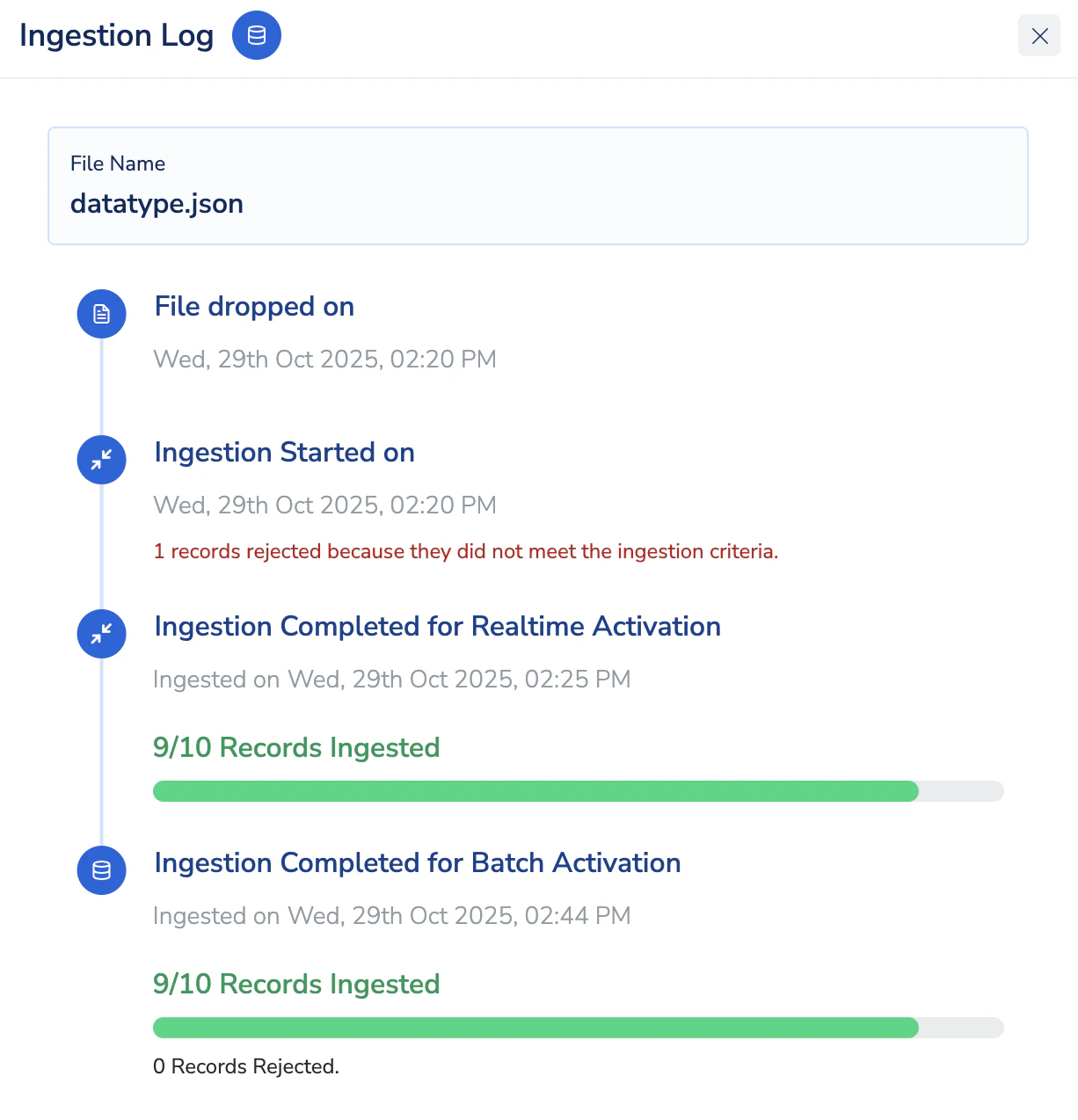
 The number of records rejected due to the applied filter can be viewed in the **Ingestion Log** under the **Source Report** section of the source.