> ## Documentation Index
> Fetch the complete documentation index at: https://docs.zeotap.com/llms.txt
> Use this file to discover all available pages before exploring further.
# Group Name
> Group Name ties related identifier fields together so Zeotap keeps their values in step — how it works, when to use it, and what it changes downstream.
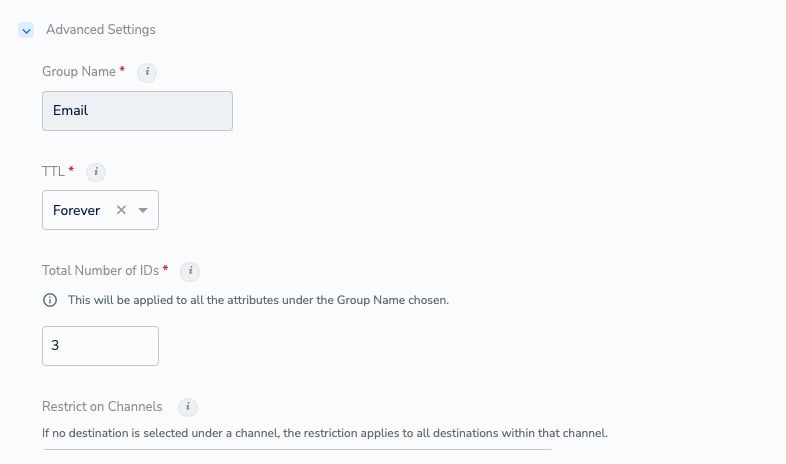
**Group Name** is an advanced setting on a catalogue field. It tells Zeotap CDP that a set of fields belongs together, so their values are treated and updated as one set instead of as unrelated attributes. You set it in **Unify** > **Catalogue**, inside **Advanced Settings** on the field form.
Group Name appears for the identifier categories — **ID**, **ID Metadata**, and **ID Consent**. This page covers it in full. For the other advanced settings that sit beside it — TTL, Total Number of IDs, and Restrict on Channels — see [Understand the Advance Fields](/articles/unify-customer/understand-the-advance-fields).
 ## What Group Name does
A group is a set of catalogue fields that represent the same piece of information. When a record updates one field in the group, Zeotap updates the other fields in that group at the same time, so the group never holds a mix of old and new values.
The clearest example is email. `Email Raw`, `Email SHA256 Lowercase`, `Email SHA256 Uppercase`, `Email MD5 Lowercase`, and `Email MD5 Uppercase` all sit in the group **Email**. When a record changes the raw email address for a customer, the hashed fields in the group are updated with it — so you never activate a hash of the customer's previous address.
Two things follow from that:
* A group is about **consistency**, not storage. Grouping fields does not merge them into one attribute — each field remains its own catalogue field, usable on its own in audiences and mappings.
* A group belongs to your organisation's Catalogue, so the groups offered in the drop-down are the ones already in use across your catalogue fields.
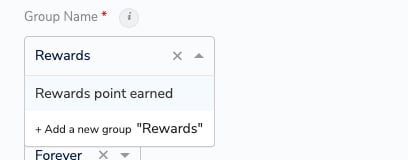
**Choosing a group.** Group Name is a required part of **Advanced Settings** on the field form. Pick an existing group from the drop-down, or type a name and click **+ Add a new group** to start a new one. An identifier that belongs with nothing else takes a group of its own — by default, a group named after the field itself.
## What Group Name does
A group is a set of catalogue fields that represent the same piece of information. When a record updates one field in the group, Zeotap updates the other fields in that group at the same time, so the group never holds a mix of old and new values.
The clearest example is email. `Email Raw`, `Email SHA256 Lowercase`, `Email SHA256 Uppercase`, `Email MD5 Lowercase`, and `Email MD5 Uppercase` all sit in the group **Email**. When a record changes the raw email address for a customer, the hashed fields in the group are updated with it — so you never activate a hash of the customer's previous address.
Two things follow from that:
* A group is about **consistency**, not storage. Grouping fields does not merge them into one attribute — each field remains its own catalogue field, usable on its own in audiences and mappings.
* A group belongs to your organisation's Catalogue, so the groups offered in the drop-down are the ones already in use across your catalogue fields.
**Choosing a group.** Group Name is a required part of **Advanced Settings** on the field form. Pick an existing group from the drop-down, or type a name and click **+ Add a new group** to start a new one. An identifier that belongs with nothing else takes a group of its own — by default, a group named after the field itself.
 Group Name can be changed only **before** the field is added to the Catalogue. Once the field is saved the value is fixed, and the box is greyed out on the field form — as in the Advanced Settings screenshot at the top of this page. Decide the group when you create the field; see [Edit a Catalogue Field](/articles/unify-customer/edit-a-catalogue-field) for the full list of what stays editable.
If a field does end up in the wrong group, the way out is to [add a new catalogue field](/articles/unify-customer/add-a-catalogue-field) with the correct group, point your source mapping at it (see [Editing a Mapping](/articles/unify-customer/editing-a-mapping)), and hide the field with the wrong group so it is no longer offered downstream.
## When to use it
Use a group when two or more identifier fields must never disagree with each other.
| Situation | What to do |
| :---------------------------------------------------------------------------------------------------------- | :------------------------------------------------------------------------------------------------------------------------------------------------------------------------------------------------------------------------------------- |
| The same identity in several formats — a raw value plus its hashes | Put the raw field and every hashed variant in one group, so a new raw value refreshes the hashes with it. Zeotap's standard email fields already ship this way; see [Hashing Guidelines](/articles/unify-customer/hashing-guidelines). |
| An **ID Metadata** field that describes an identifier — for example the status or hierarchy of a loyalty ID | Select the **same group as the identifier it describes**. The group is what links the metadata to that ID; see [Add an ID Metadata Category](/articles/unify-customer/adding-an-id-metadata-category). |
| An **ID Consent** field that carries consent for an identifier — for example consent for an email ID | Select the same group as that identifier, for the same reason; see [Add an ID Consent Category](/articles/unify-customer/adding-an-id-consent-category). |
| A standalone identifier that nothing else describes or mirrors | Leave it in a group of its own. Nothing else needs to move with it. |
Do **not** group identifiers just because they are thematically related. Fields in a group are updated as a set, and — as the next section explains — a group also widens what a deletion rule picks up.
## Downstream effects
The group you choose affects more than the field itself.
* **Values are updated as a set.** A record that updates one field updates the other fields in its group at the same time. This is the whole point of the setting, and it is why a raw identifier and its hashes stay aligned.
* **Total Number of IDs applies to the whole group.** For fields in the ID category, the number of values a profile keeps is set once for the group: the field form states that the value *will be applied to all the attributes under the Group Name chosen*. Raise it on one identifier in the group and every identifier in that group stores the same number of values. (This setting is listed as *No. of ID* on [Understand the Advance Fields](/articles/unify-customer/understand-the-advance-fields).)
* **Channel restrictions cover the whole ID group.** [Restrict on Channels](/articles/unify-customer/understand-the-advance-fields) works at group level for identifiers: restricting one identifier safeguards every identifier that shares its Group Name, so an identifier you add to the group later is governed with the rest.
* **ID Metadata and ID Consent attach through the group.** An ID Metadata or ID Consent field is linked to its identifier by sharing the identifier's Group Name. If you pick the wrong group, the metadata or consent is stored against the wrong identifier — and because Group Name cannot be edited after the field is added, correcting it means creating the field again.
* **Deletion rules act on the whole group.** In a Data Lifecycle deletion rule, selecting an identifier or a profile trait also selects **every attribute in that attribute's group** for deletion. Hover over the selected group in the rule to expand it and see exactly what is included. See [Create a Deletion Rule for Customer Data](/articles/protect-customer/create-a-deletion-rule-for-customer-data).
* **TTL is set per field, not per group.** How long an identifier's value is retained is governed by that field's own **TTL** value, which stays editable after the field is added. Two identifiers in one group can carry different TTLs. See [Time-to-Live](/articles/unify-customer/time-to-live).
## Examples
**Example 1 — a raw identifier and its hashes.** You map your customer email to `Email Raw`. Zeotap creates the four email hashes for you, and all five fields sit in the group **Email**:
| Field in the group **Email** | What it holds |
| :--------------------------- | :------------------------------------------------ |
| `Email Raw` | The email address as ingested (stored encrypted). |
| `Email SHA256 Lowercase` | The address lower-cased, then hashed with SHA256. |
| `Email SHA256 Uppercase` | The address upper-cased, then hashed with SHA256. |
| `Email MD5 Lowercase` | The address lower-cased, then hashed with MD5. |
| `Email MD5 Uppercase` | The address upper-cased, then hashed with MD5. |
A record arrives with a new email address for an existing customer. Because the five fields share a group, the profile's hashes are updated alongside the raw value, and a destination that accepts only SHA256 receives a hash of the customer's current address.
**Example 2 — an identifier with its metadata and consent.** You add a loyalty identifier and two fields that describe it:
| Field | Category | Group Name |
| :------------------- | :---------- | :----------- |
| `Loyalty Id` | ID | `Loyalty Id` |
| `Loyalty Id Status` | ID Metadata | `Loyalty Id` |
| `Loyalty Id Consent` | ID Consent | `Loyalty Id` |
All three share the group `Loyalty Id`, so the status and the consent are linked to that identifier. If `Loyalty Id Status` were created in a different group, Zeotap would have no way to tell which identifier the status belongs to.
**Example 3 — the group as a governance boundary.** Your account holds two identifiers for the same programme in the group `Loyalty Id`, and the agreement behind them allows activation on your own channels only. Restricting one of them on the outside channels covers the whole group, and a third identifier you add to `Loyalty Id` later inherits the same protection — one decision instead of three.
## Related Topics
Group Name can be changed only **before** the field is added to the Catalogue. Once the field is saved the value is fixed, and the box is greyed out on the field form — as in the Advanced Settings screenshot at the top of this page. Decide the group when you create the field; see [Edit a Catalogue Field](/articles/unify-customer/edit-a-catalogue-field) for the full list of what stays editable.
If a field does end up in the wrong group, the way out is to [add a new catalogue field](/articles/unify-customer/add-a-catalogue-field) with the correct group, point your source mapping at it (see [Editing a Mapping](/articles/unify-customer/editing-a-mapping)), and hide the field with the wrong group so it is no longer offered downstream.
## When to use it
Use a group when two or more identifier fields must never disagree with each other.
| Situation | What to do |
| :---------------------------------------------------------------------------------------------------------- | :------------------------------------------------------------------------------------------------------------------------------------------------------------------------------------------------------------------------------------- |
| The same identity in several formats — a raw value plus its hashes | Put the raw field and every hashed variant in one group, so a new raw value refreshes the hashes with it. Zeotap's standard email fields already ship this way; see [Hashing Guidelines](/articles/unify-customer/hashing-guidelines). |
| An **ID Metadata** field that describes an identifier — for example the status or hierarchy of a loyalty ID | Select the **same group as the identifier it describes**. The group is what links the metadata to that ID; see [Add an ID Metadata Category](/articles/unify-customer/adding-an-id-metadata-category). |
| An **ID Consent** field that carries consent for an identifier — for example consent for an email ID | Select the same group as that identifier, for the same reason; see [Add an ID Consent Category](/articles/unify-customer/adding-an-id-consent-category). |
| A standalone identifier that nothing else describes or mirrors | Leave it in a group of its own. Nothing else needs to move with it. |
Do **not** group identifiers just because they are thematically related. Fields in a group are updated as a set, and — as the next section explains — a group also widens what a deletion rule picks up.
## Downstream effects
The group you choose affects more than the field itself.
* **Values are updated as a set.** A record that updates one field updates the other fields in its group at the same time. This is the whole point of the setting, and it is why a raw identifier and its hashes stay aligned.
* **Total Number of IDs applies to the whole group.** For fields in the ID category, the number of values a profile keeps is set once for the group: the field form states that the value *will be applied to all the attributes under the Group Name chosen*. Raise it on one identifier in the group and every identifier in that group stores the same number of values. (This setting is listed as *No. of ID* on [Understand the Advance Fields](/articles/unify-customer/understand-the-advance-fields).)
* **Channel restrictions cover the whole ID group.** [Restrict on Channels](/articles/unify-customer/understand-the-advance-fields) works at group level for identifiers: restricting one identifier safeguards every identifier that shares its Group Name, so an identifier you add to the group later is governed with the rest.
* **ID Metadata and ID Consent attach through the group.** An ID Metadata or ID Consent field is linked to its identifier by sharing the identifier's Group Name. If you pick the wrong group, the metadata or consent is stored against the wrong identifier — and because Group Name cannot be edited after the field is added, correcting it means creating the field again.
* **Deletion rules act on the whole group.** In a Data Lifecycle deletion rule, selecting an identifier or a profile trait also selects **every attribute in that attribute's group** for deletion. Hover over the selected group in the rule to expand it and see exactly what is included. See [Create a Deletion Rule for Customer Data](/articles/protect-customer/create-a-deletion-rule-for-customer-data).
* **TTL is set per field, not per group.** How long an identifier's value is retained is governed by that field's own **TTL** value, which stays editable after the field is added. Two identifiers in one group can carry different TTLs. See [Time-to-Live](/articles/unify-customer/time-to-live).
## Examples
**Example 1 — a raw identifier and its hashes.** You map your customer email to `Email Raw`. Zeotap creates the four email hashes for you, and all five fields sit in the group **Email**:
| Field in the group **Email** | What it holds |
| :--------------------------- | :------------------------------------------------ |
| `Email Raw` | The email address as ingested (stored encrypted). |
| `Email SHA256 Lowercase` | The address lower-cased, then hashed with SHA256. |
| `Email SHA256 Uppercase` | The address upper-cased, then hashed with SHA256. |
| `Email MD5 Lowercase` | The address lower-cased, then hashed with MD5. |
| `Email MD5 Uppercase` | The address upper-cased, then hashed with MD5. |
A record arrives with a new email address for an existing customer. Because the five fields share a group, the profile's hashes are updated alongside the raw value, and a destination that accepts only SHA256 receives a hash of the customer's current address.
**Example 2 — an identifier with its metadata and consent.** You add a loyalty identifier and two fields that describe it:
| Field | Category | Group Name |
| :------------------- | :---------- | :----------- |
| `Loyalty Id` | ID | `Loyalty Id` |
| `Loyalty Id Status` | ID Metadata | `Loyalty Id` |
| `Loyalty Id Consent` | ID Consent | `Loyalty Id` |
All three share the group `Loyalty Id`, so the status and the consent are linked to that identifier. If `Loyalty Id Status` were created in a different group, Zeotap would have no way to tell which identifier the status belongs to.
**Example 3 — the group as a governance boundary.** Your account holds two identifiers for the same programme in the group `Loyalty Id`, and the agreement behind them allows activation on your own channels only. Restricting one of them on the outside channels covers the whole group, and a third identifier you add to `Loyalty Id` later inherits the same protection — one decision instead of three.
## Related Topics