> ## Documentation Index
> Fetch the complete documentation index at: https://docs.zeotap.com/llms.txt
> Use this file to discover all available pages before exploring further.
# Configure the Derived Field Enricher
You can add the Derived Field enricher only for the custom fields. To know more about this enricher, refer to [Derived Field Enricher](/articles/unify-customer/enrichers-for-data-transformation-2816770049#derived-field-enricher).
Perform the following steps to configure the enricher:
**Note:**
You cannot save the catalogue with custom fields, without applying an enricher. Once you have added this enricher, you can edit it for further changes.
Map the source field to the corresponding Zeotap Catalogue field.
Click **ADD A CUSTOM FIELD** for which you want to add the Derived Field enricher. You can add multiple custom fields as per your requirement.
Map the input and output fields for the custom field and then click **+ADD ENRICHER** to configure the Derived Field enricher.
Select **Derived Field Enricher** as the enrichment type.
Under the **Define Conditions** section add one or more conditions. Currently, only the `Is` operator is applied to build the condition. Ensure that the expected input value(s) exactly matches the value received in the source data.
For values that do not match the input values that you have entered above, enter the default value under the **Default value** section. Note that for Consent/Preference mapping, it is mandatory to enter the default value.
Save the changes.
**Note:**
For a custom field when applying a Derived Field Enricher, we recommend that you apply the same set of criteriato avoid conflicting scenarios while resolving the expected output values.
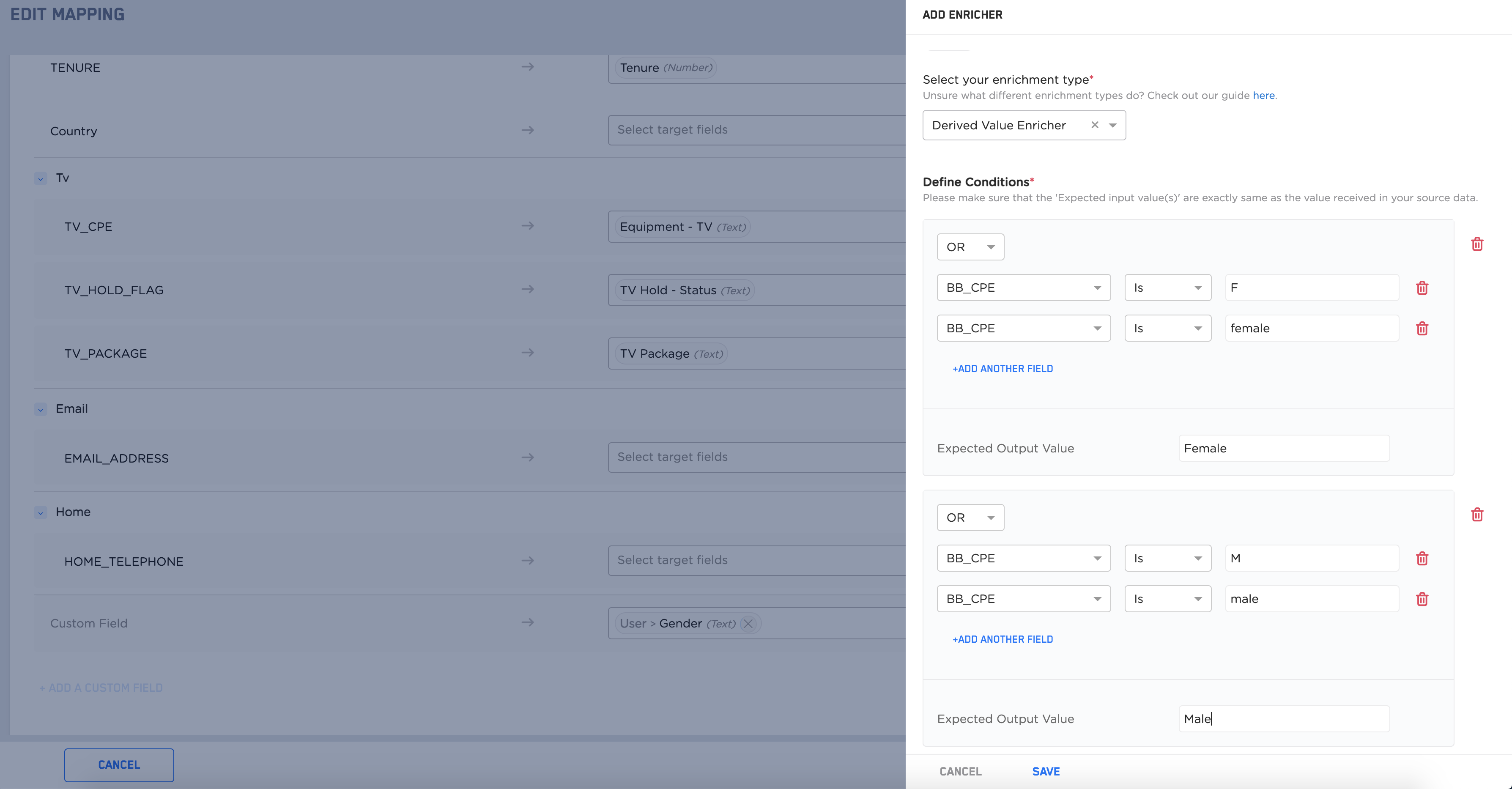 The screenshot above is an example where a user is standardising the values to be consistent for the target field `Gender`. The incoming values `F` and `female` are mapped to the expected output value `Female`. Similarly, the incoming values `M` and `male` are mapped to the expected output value `Male`.