> ## Documentation Index
> Fetch the complete documentation index at: https://docs.zeotap.com/llms.txt
> Use this file to discover all available pages before exploring further.
# Calculated Attributes: Guardrails & Limits
> A consolidated reference for the limits, guardrails, and operational constraints that apply to Calculated Attributes in the Zeotap CDP.
## Overview
Every Calculated Attribute (CA) is computed per user across the unified profiles in your account — batch CAs are recomputed on each daily refresh, and real-time CAs update incrementally as qualifying events arrive. This page consolidates the limits and guardrails that apply to Calculated Attributes.
Limits fall into two groups: **fixed product behaviour**, which applies to every account, and **package-governed limits**, which depend on your contract and can be adjusted with your Zeotap representative or CSM.
## Fixed product behaviour
These limits apply to all accounts.
| Area | Limit | Notes |
| ---------------------------- | --------------------------------------------------------------------- | ------------------------------------------------------------------------- |
| Operators | 12 (batch) / 3 (real-time) | Real-time supports Count, Sum, Unique List |
| Conditions per CA | Up to 10 | Combined with AND / OR |
| Condition value picker | Dropdown hidden above \~500 distinct values | Type the value instead |
| Lookback units | Batch: Days, Months · Real-time: Hours, Days, Weeks | — |
| Lookback maximums | Batch: 540 days / 18 months · Real-time: 24 hours / 30 days / 4 weeks | UI restriction in the "over the last" mode |
| Lookback modes | Over the last N / over entire data / from a fixed date | Window is fixed at creation |
| Group By | Up to 3 fields | Batch only |
| Batch refresh | Once every day, all CAs together | A paused CA's values are cleared at the next refresh |
| End-to-end freshness (batch) | Usually 24–36 hours; worst case \~72 hours | See the freshness math below |
| Real-time freshness | Immediate — as soon as the event enters the system | — |
| Aggregation scope | Per user only | No cross-user or global aggregates |
| Segment Membership CA | Requires enablement | Computed from each segment's latest run; usable in Audiences and Journeys |
## Package-governed limits
These depend on your contract — check your current values with your Zeotap representative or CSM before designing around them.
| Area | Typical limit | Notes |
| --------------- | --------------------- | ---------------------------------------------------- |
| CAs per account | No universal hard cap | Governed by your pricing package; raise via your CSM |
## How many CAs you can create
There is no universal hard cap on the number of Calculated Attributes per account. Your allowance is governed by your pricing package and contract — if you need more, contact your CSM to extend it.
The practical guardrail is CA proliferation. Because a CA's time window is fixed at creation, teams commonly create parallel variants of the same attribute per timeframe (for example 30-, 60-, and 90-day versions of order value) — and every variant consumes your contractual allowance.
Adopt a naming convention that encodes the operator, field, and window (for example `sum_order_value_90d`), and periodically pause or retire CAs that no audience or journey still uses.
## Builder limits
The Standard (sentence-builder) definition puts a few deliberate bounds on complexity:
* **Conditions** — you can add up to 10 optional conditions to filter the events a CA aggregates, combined with AND / OR.
* **High-cardinality value pickers** — when a condition targets a field with more than roughly 500 distinct values, the value dropdown is hidden and you type the value instead.
* **Group By** — batch CAs only; select up to 3 fields to split one CA into one value per group (for example, order value by country). Only attributes at the same level as the aggregation field are offered.
## Input data types per operator
Which fields the builder offers depends on the operator you choose:
| Operator | Accepted input types |
| --------------------------------- | -------------------------------------------------------- |
| Sum, Minimum, Maximum, Average | integer, double |
| Unique Value Count, Most frequent | integer, double, string, timestamp |
| First Value, Last Value | integer, double, string |
| First Timestamp, Last Timestamp | timestamp |
| Unique List | integer, double, string |
| Count | Aggregates events themselves — no field selection needed |
Real-time CAs support **Count, Sum, and Unique List**, with the same input types.
The builder only offers fields compatible with the operator you pick. If a field you expect is missing for an operator, confirm current type support with your Zeotap representative.
## Time windows
Every CA computes over a time window you set in the **Run computation** section, with three modes: **over the last** N units, **over entire data**, or **from** a fixed start date.
| CA type | Window units | Maximums |
| --------- | ------------------ | ---------------------------- |
| Batch | Days, Months | 540 days / 18 months |
| Real-time | Hours, Days, Weeks | 24 hours / 30 days / 4 weeks |
The window is part of the CA's definition and is fixed at creation — you cannot vary it at query time. If you need the same metric over several timeframes, create one CA per timeframe (and see the proliferation guidance above).
## Refresh & freshness
Active batch CAs refresh **once every day**; in the CA list you can see this as the **Last Successful Refresh** and **Next Refresh Date** columns sitting 24 hours apart. Paused CAs are **not** refreshed — and a paused CA keeps its last computed values only until the account's next refresh, when they are cleared (set to null). Only **Active** CAs can be used in workflows such as audiences and journeys.
**Refresh timing.** All of an account's CAs refresh **together, once a day, in a single computation**. The **Next Refresh Date** column in your CA list shows exactly when your account's next refresh is due — schedule campaigns around that timestamp.
**If a refresh fails.** Because the refresh is a single account-wide computation, a failure affects **every CA in the account** for that cycle: values hold at the last successful computation and the **Last Successful Refresh** column stops advancing. If that column falls more than a day behind, or an attribute you rely on is not in the **Active** state, contact your Zeotap representative.
The end-to-end delay between a user performing an event and that event being reflected in a batch CA is longer than the refresh interval alone, because two stages stack:
1. **Event processing** — an incoming event can take up to 24–48 hours to be processed, though it is typically much faster.
2. **Daily refresh cycle** — the next CA refresh after that adds up to 24 hours.
Because processing usually completes well inside its upper bound, most events are reflected within **24–36 hours**; budget for **up to \~72 hours in the worst case** (slow processing plus a just-missed refresh).
Real-time CAs update **immediately — as soon as the event enters the system**.
Don't build campaigns that promise same-day reactions from a batch CA. Use a real-time CA (Count, Sum, or Unique List) for instant triggers, and batch CAs for next-day engagement.
## Users with no qualifying events
A user with **no qualifying events** in a CA's window does not carry a `0` — they carry **no value at all** for that attribute. Only users with at least one meaningful value hold the attribute on their profile. This is the single most common audience-rule pitfall: a rule like `sessions_30d = 0` matches **nobody**, because no profile ever stores a zero for "no activity".
The audience builder accounts for this: the operator list for calculated attributes is **Greater Or Equal, Less Or Equal, Greater, Less, Equal, Not Equal, In, Not In, Exists, Does Not Exist**. Write suppression and lapsing rules with **Does Not Exist** (and require presence with **Exists**):
* *Lapsing subscribers:* `sessions_60d` **Greater** `0` **AND** `sessions_30d` **Does Not Exist**.
* *Low-engagement readers (including fully dormant):* `page_views_7d` **Less** `5` **OR** `page_views_7d` **Does Not Exist**.
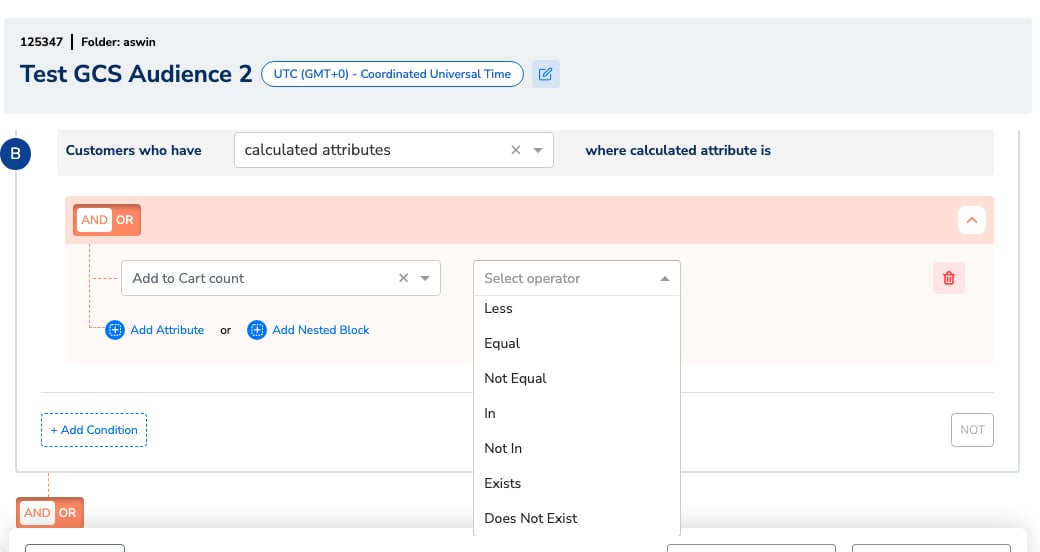 Before launching a suppression or lapsing audience, sanity-check it: build the rule both ways (`= 0` vs **Does Not Exist**) as two test audiences and compare the customer counts — the difference is exactly the population an `= 0` rule silently drops.
## Editing, pausing, and deleting
How the lifecycle behaves:
* Creating a CA triggers a **first full computation** over the configured window; the CA appears as **In Progress**, then **Active** once the first computation completes.
* Each **daily refresh recomputes** the batch CA's value in full.
* Real-time CAs update **incrementally per event** as qualifying events arrive.
* **Pausing** stops refreshes; the paused CA's values are cleared (set to null) at the account's next daily refresh, so audiences and journeys referencing it stop matching.
What you can and cannot do after creation:
* **You cannot edit, rename, or delete a CA yourself in the UI today.** Plan definitions and names carefully before saving.
* **You can pause a CA yourself** — pausing is the standard way to retire an attribute that no audience or journey still references.
* **Zeotap can update a definition on request** — contact your Zeotap representative to change a CA's logic. Because every batch refresh is a full recompute, an updated definition takes effect from the next daily refresh.
* If a change is urgent or complex, the practical self-service route is to **create a new attribute** with the corrected definition and pause the old one.
* **When a CA is deleted** (via Zeotap), it disappears from the audience and journey builders — but any existing audience or journey that still references it **fails silently**. Remove the CA from every query that references it before it is deleted.
* Before retiring a CA that live audiences or journeys still reference, check the impact with your Zeotap representative.
## Identity resolution behaviour
CAs are aggregated per unified customer profile (`ucid`), so they operate on the merged view of a user's events — each daily refresh recomputes batch values against the profile state at that moment.
How existing CA values behave on profile merges, splits, or data-subject erasure propagating into computed values is account-relevant behaviour: contact your Zeotap representative if your identity strategy involves frequent merges and splits, or if you need erasure guarantees documented for compliance.
## Data-type limits on CA inputs
CAs aggregate Catalogue fields, so the Catalogue's container limits bound what a CA can consume:
| Catalogue data type | Limit |
| ------------------- | ------------------------------------------------------------------------ |
| List | Up to 200 values per user; max 15 List attributes |
| Object | Up to 50 properties; max 10 Object + List-of-Objects attributes combined |
| List of Objects | Up to 200 objects |
See [Data Types in Catalogue](/articles/unify-customer/data-types-in-catalogue) for the full reference. For the input types each operator accepts, see the **Input data types per operator** table above.
## SQL CA rules
The full how-to for SQL Calculated Attributes lives on [Create a Batch Calculated Attribute](/articles/unify-customer/add-a-calculated-attribute) — this section is the reference copy of the rules. The SQL CA Editor is **Beta** and enabled per account on request (raise a support ticket, as for real-time CAs); it applies to batch CAs only. Unlike the form-based builder, a SQL CA can aggregate attributes beyond event data. Every query must follow these structural rules — use the **Test Query** button to validate against sample data before saving:
* Top-level SQL must have only `ucid` in the `GROUP BY` clause.
* The query must have exactly two columns: `ucid` and one aggregated column with an alias (the alias becomes the CA name).
* CTEs (`WITH` clause) are not allowed.
* `LIMIT` and `ORDER BY` clauses are not allowed in the top-level query.
* Subqueries are allowed.
Any BigQuery-native aggregate is allowed in the top-level SELECT. Use the macro tables to reference your data:
| Macro | Refers to |
| --------------------------- | -------------------------------------------------------------------- |
| `%%ID_STORE%%` | User identity store |
| `%%EVENT_STORE%%` | Event store |
| `%%PROFILE_STORE%%` | Profile store |
| `%%CONSENT_STORE%%` | Consent store |
| `%%NCE_STORE_%%` | Custom source data (replace `` with the actual source ID) |
| `%%ZERO_COPY_{sourceId}%%` | Zero copy source data |
```sql theme={null}
SELECT
ucid,
COUNT(*) AS page_views_30d
FROM %%EVENT_STORE%%
WHERE event_name = 'page_view'
AND date(_zeotap_timestamp) >= CURRENT_DATE() - 30
GROUP BY ucid
```
Before launching a suppression or lapsing audience, sanity-check it: build the rule both ways (`= 0` vs **Does Not Exist**) as two test audiences and compare the customer counts — the difference is exactly the population an `= 0` rule silently drops.
## Editing, pausing, and deleting
How the lifecycle behaves:
* Creating a CA triggers a **first full computation** over the configured window; the CA appears as **In Progress**, then **Active** once the first computation completes.
* Each **daily refresh recomputes** the batch CA's value in full.
* Real-time CAs update **incrementally per event** as qualifying events arrive.
* **Pausing** stops refreshes; the paused CA's values are cleared (set to null) at the account's next daily refresh, so audiences and journeys referencing it stop matching.
What you can and cannot do after creation:
* **You cannot edit, rename, or delete a CA yourself in the UI today.** Plan definitions and names carefully before saving.
* **You can pause a CA yourself** — pausing is the standard way to retire an attribute that no audience or journey still references.
* **Zeotap can update a definition on request** — contact your Zeotap representative to change a CA's logic. Because every batch refresh is a full recompute, an updated definition takes effect from the next daily refresh.
* If a change is urgent or complex, the practical self-service route is to **create a new attribute** with the corrected definition and pause the old one.
* **When a CA is deleted** (via Zeotap), it disappears from the audience and journey builders — but any existing audience or journey that still references it **fails silently**. Remove the CA from every query that references it before it is deleted.
* Before retiring a CA that live audiences or journeys still reference, check the impact with your Zeotap representative.
## Identity resolution behaviour
CAs are aggregated per unified customer profile (`ucid`), so they operate on the merged view of a user's events — each daily refresh recomputes batch values against the profile state at that moment.
How existing CA values behave on profile merges, splits, or data-subject erasure propagating into computed values is account-relevant behaviour: contact your Zeotap representative if your identity strategy involves frequent merges and splits, or if you need erasure guarantees documented for compliance.
## Data-type limits on CA inputs
CAs aggregate Catalogue fields, so the Catalogue's container limits bound what a CA can consume:
| Catalogue data type | Limit |
| ------------------- | ------------------------------------------------------------------------ |
| List | Up to 200 values per user; max 15 List attributes |
| Object | Up to 50 properties; max 10 Object + List-of-Objects attributes combined |
| List of Objects | Up to 200 objects |
See [Data Types in Catalogue](/articles/unify-customer/data-types-in-catalogue) for the full reference. For the input types each operator accepts, see the **Input data types per operator** table above.
## SQL CA rules
The full how-to for SQL Calculated Attributes lives on [Create a Batch Calculated Attribute](/articles/unify-customer/add-a-calculated-attribute) — this section is the reference copy of the rules. The SQL CA Editor is **Beta** and enabled per account on request (raise a support ticket, as for real-time CAs); it applies to batch CAs only. Unlike the form-based builder, a SQL CA can aggregate attributes beyond event data. Every query must follow these structural rules — use the **Test Query** button to validate against sample data before saving:
* Top-level SQL must have only `ucid` in the `GROUP BY` clause.
* The query must have exactly two columns: `ucid` and one aggregated column with an alias (the alias becomes the CA name).
* CTEs (`WITH` clause) are not allowed.
* `LIMIT` and `ORDER BY` clauses are not allowed in the top-level query.
* Subqueries are allowed.
Any BigQuery-native aggregate is allowed in the top-level SELECT. Use the macro tables to reference your data:
| Macro | Refers to |
| --------------------------- | -------------------------------------------------------------------- |
| `%%ID_STORE%%` | User identity store |
| `%%EVENT_STORE%%` | Event store |
| `%%PROFILE_STORE%%` | Profile store |
| `%%CONSENT_STORE%%` | Consent store |
| `%%NCE_STORE_%%` | Custom source data (replace `` with the actual source ID) |
| `%%ZERO_COPY_{sourceId}%%` | Zero copy source data |
```sql theme={null}
SELECT
ucid,
COUNT(*) AS page_views_30d
FROM %%EVENT_STORE%%
WHERE event_name = 'page_view'
AND date(_zeotap_timestamp) >= CURRENT_DATE() - 30
GROUP BY ucid
```
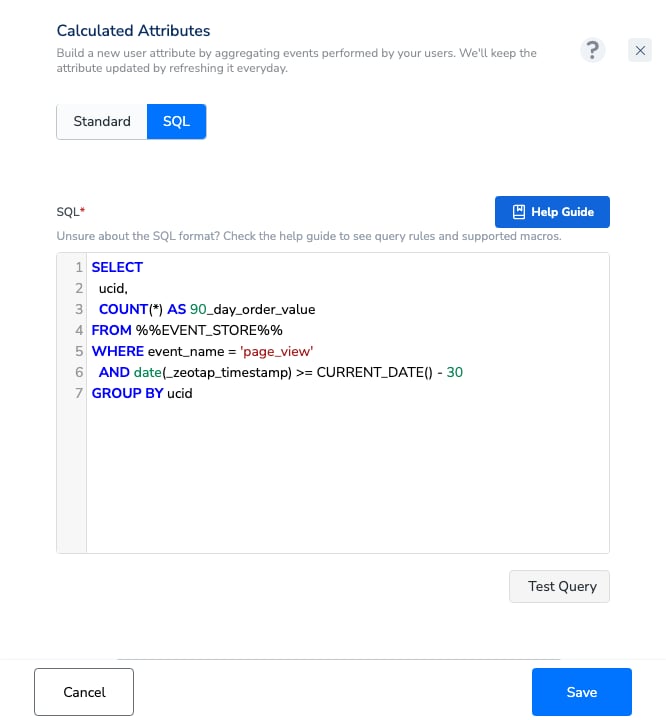 Timestamp fields such as `event_timestamp` and `created_ts` are epoch **milliseconds** — wrap them with `TIMESTAMP_MILLIS()` before using date functions. Queries that would scan very large volumes of data are rejected at validation as a cost guardrail — if a valid query is rejected, contact Zeotap.
Group By is available in SQL mode too, and a saved SQL CA behaves like any other batch CA — it appears on the Batch Attributes tab and is usable in audiences and journeys like any other batch CA.
## Segment Membership CA constraints
The system-defined Segment Membership CA is **not enabled by default** — request it via your Zeotap point of contact. Once enabled, it reflects membership based on **each segment's latest run**, and is usable in Audiences and Journeys. See [Segment Membership Calculated Attribute](/articles/unify-customer/system-defined-calculated-attributes).
## Validation & visibility
CA values are not currently listed per user for sanity-checking inside the CDP UI. To verify that a CA is producing the values you expect:
* **Test audiences** — build a small audience with a rule on the CA (for example a threshold you know some customers cross, or an **Exists** rule) and check whether the resulting customer count matches your expectation.
* **Compare rule variants** — the count difference between two rule variants (such as `= 0` vs **Does Not Exist**) tells you how a boundary behaves for your data.
* **Ask Zeotap** — your Zeotap representative can check specific per-user values for you if a count looks wrong.
## Operational guardrails & best practices
The guardrails below appear in context throughout this page; here they are in one place:
* **Use only Active CAs in workflows** — a CA must reach **Active** status before audiences or journeys can use it. A newly created CA computes first (In Progress → Active), so plan campaign timing accordingly.
* **Plan for the refresh lag** — don't promise same-day reactions from a batch CA (usually 24–36 hours end to end, up to \~72 hours in the worst case). Use a real-time CA for instant triggers.
* **Remember: no qualifying events means no value, not zero** — write suppression and lapsing rules with **Does Not Exist**, never `= 0`; see Users with no qualifying events above.
* **Control CA proliferation** — per-timeframe variants multiply and consume your contractual allowance; use a naming convention such as `sum_order_value_90d`.
* **Know what pausing does** — a paused CA stops refreshing and its values are cleared at the next daily refresh, so workflows referencing it stop matching. Pause only CAs that no audience or journey still references.
## Related Topics
Timestamp fields such as `event_timestamp` and `created_ts` are epoch **milliseconds** — wrap them with `TIMESTAMP_MILLIS()` before using date functions. Queries that would scan very large volumes of data are rejected at validation as a cost guardrail — if a valid query is rejected, contact Zeotap.
Group By is available in SQL mode too, and a saved SQL CA behaves like any other batch CA — it appears on the Batch Attributes tab and is usable in audiences and journeys like any other batch CA.
## Segment Membership CA constraints
The system-defined Segment Membership CA is **not enabled by default** — request it via your Zeotap point of contact. Once enabled, it reflects membership based on **each segment's latest run**, and is usable in Audiences and Journeys. See [Segment Membership Calculated Attribute](/articles/unify-customer/system-defined-calculated-attributes).
## Validation & visibility
CA values are not currently listed per user for sanity-checking inside the CDP UI. To verify that a CA is producing the values you expect:
* **Test audiences** — build a small audience with a rule on the CA (for example a threshold you know some customers cross, or an **Exists** rule) and check whether the resulting customer count matches your expectation.
* **Compare rule variants** — the count difference between two rule variants (such as `= 0` vs **Does Not Exist**) tells you how a boundary behaves for your data.
* **Ask Zeotap** — your Zeotap representative can check specific per-user values for you if a count looks wrong.
## Operational guardrails & best practices
The guardrails below appear in context throughout this page; here they are in one place:
* **Use only Active CAs in workflows** — a CA must reach **Active** status before audiences or journeys can use it. A newly created CA computes first (In Progress → Active), so plan campaign timing accordingly.
* **Plan for the refresh lag** — don't promise same-day reactions from a batch CA (usually 24–36 hours end to end, up to \~72 hours in the worst case). Use a real-time CA for instant triggers.
* **Remember: no qualifying events means no value, not zero** — write suppression and lapsing rules with **Does Not Exist**, never `= 0`; see Users with no qualifying events above.
* **Control CA proliferation** — per-timeframe variants multiply and consume your contractual allowance; use a naming convention such as `sum_order_value_90d`.
* **Know what pausing does** — a paused CA stops refreshing and its values are cleared at the next daily refresh, so workflows referencing it stop matching. Pause only CAs that no audience or journey still references.
## Related Topics