> ## Documentation Index
> Fetch the complete documentation index at: https://docs.zeotap.com/llms.txt
> Use this file to discover all available pages before exploring further.
# Audience Templates
> Learn how to create and manage audience templates to standardize conditions and configurations across multiple audiences.
Audience templates allow you to standardize conditions and configurations that should be applied across multiple audiences. Instead of manually setting up the same logic for each audience, you can define it once as a template and reuse it — ensuring consistency and saving time.
Audience templates work similarly to journey templates. You can find them alongside journey templates inside the **Templates** module under the **Protect** section.
 ## Create an Audience Template
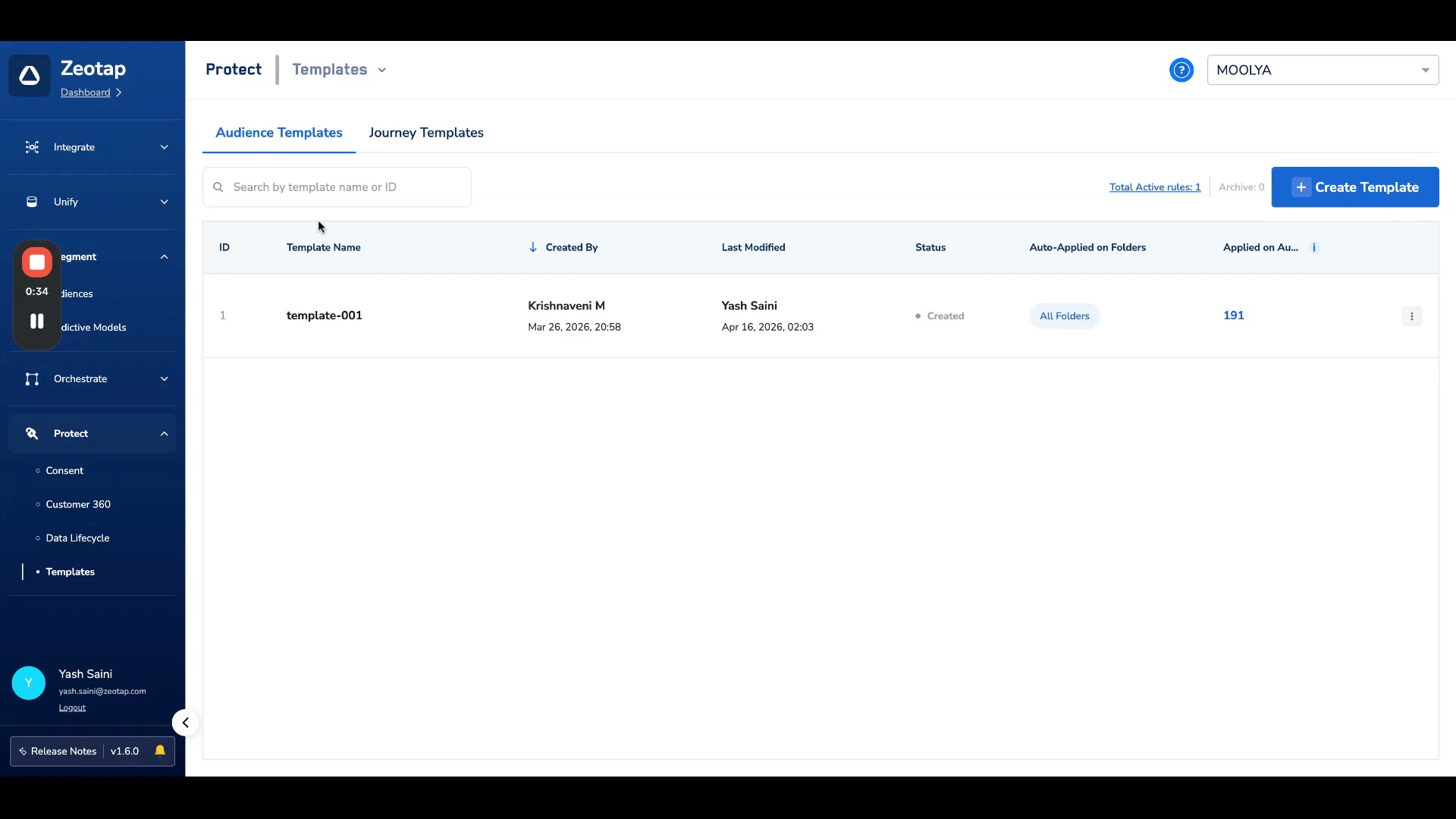
Navigate to **Protect → Templates** and select the **Audience Templates** tab.
Click **Create Template**.
In the **Define Audience Template** dialog, provide a **Template Name** and **Description**.
## Create an Audience Template
Navigate to **Protect → Templates** and select the **Audience Templates** tab.
Click **Create Template**.
In the **Define Audience Template** dialog, provide a **Template Name** and **Description**.
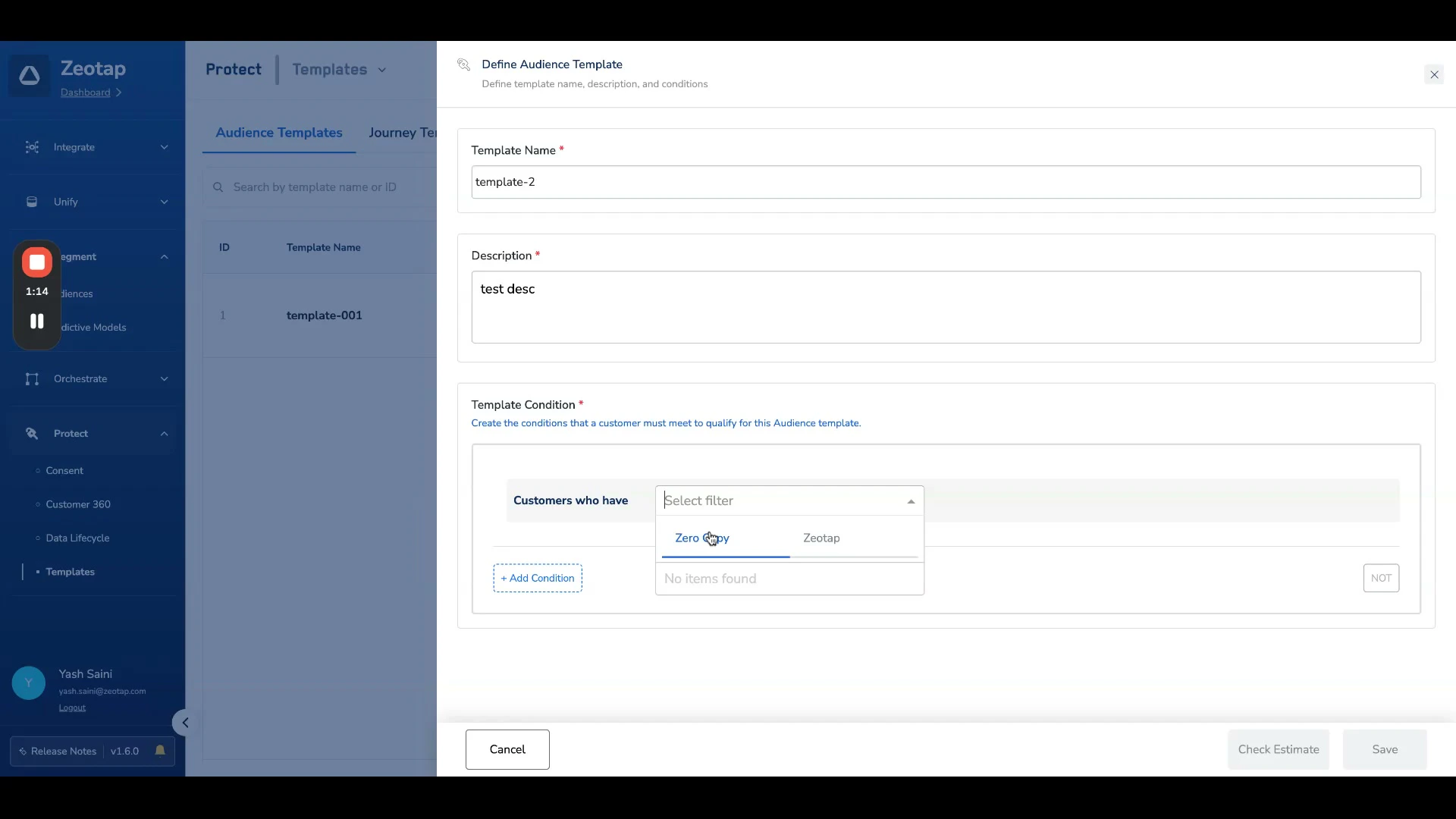
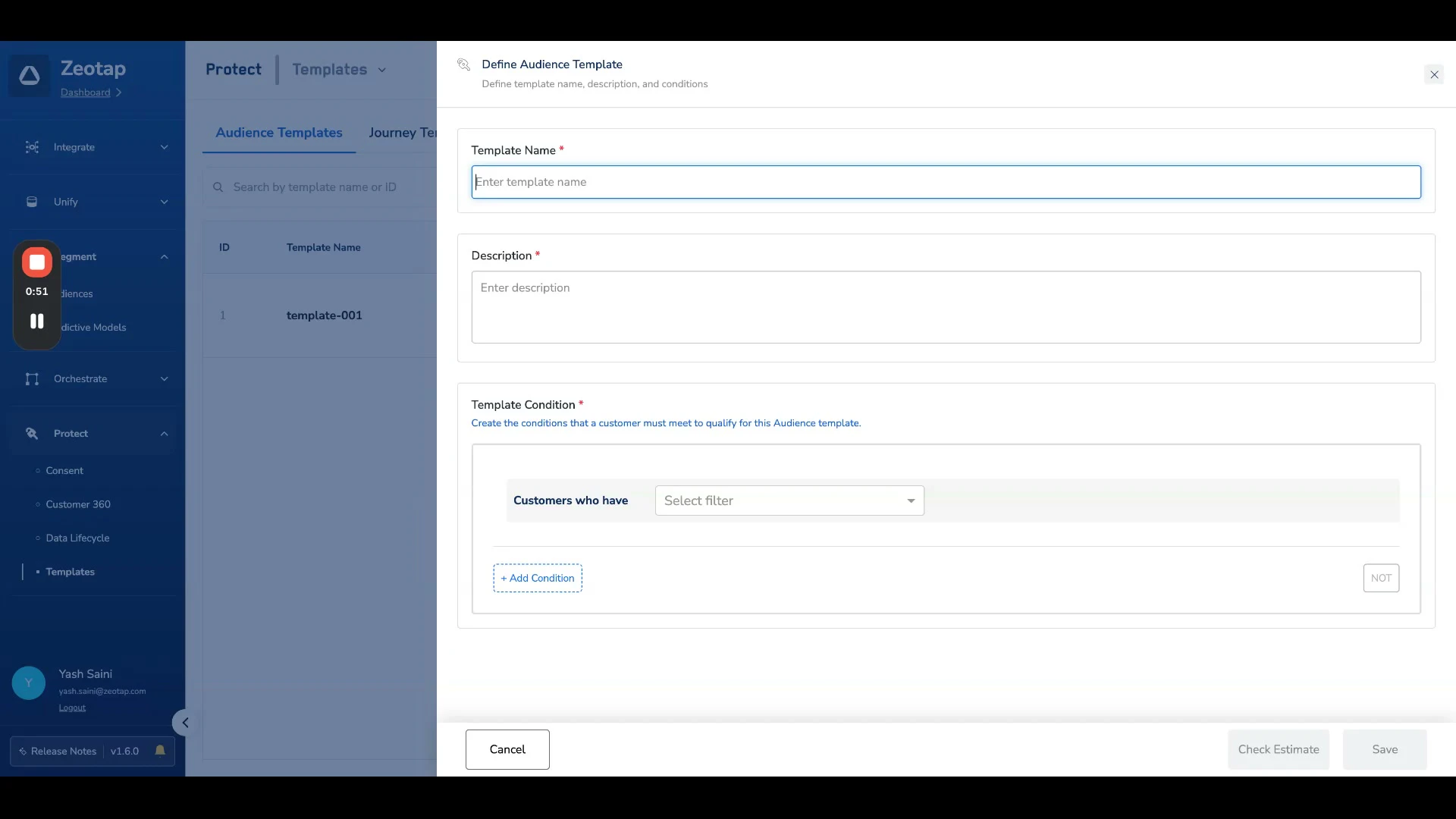 Define the conditions or configuration that should be included in the template. The template condition builder uses the same interface as the audience block builder — you can use all catalogue and/or Zero Copy attributes (for example, Profile, Event, Consent etc.).
 For example, you can create a consent filter to ensure all audiences comply with consent requirements.
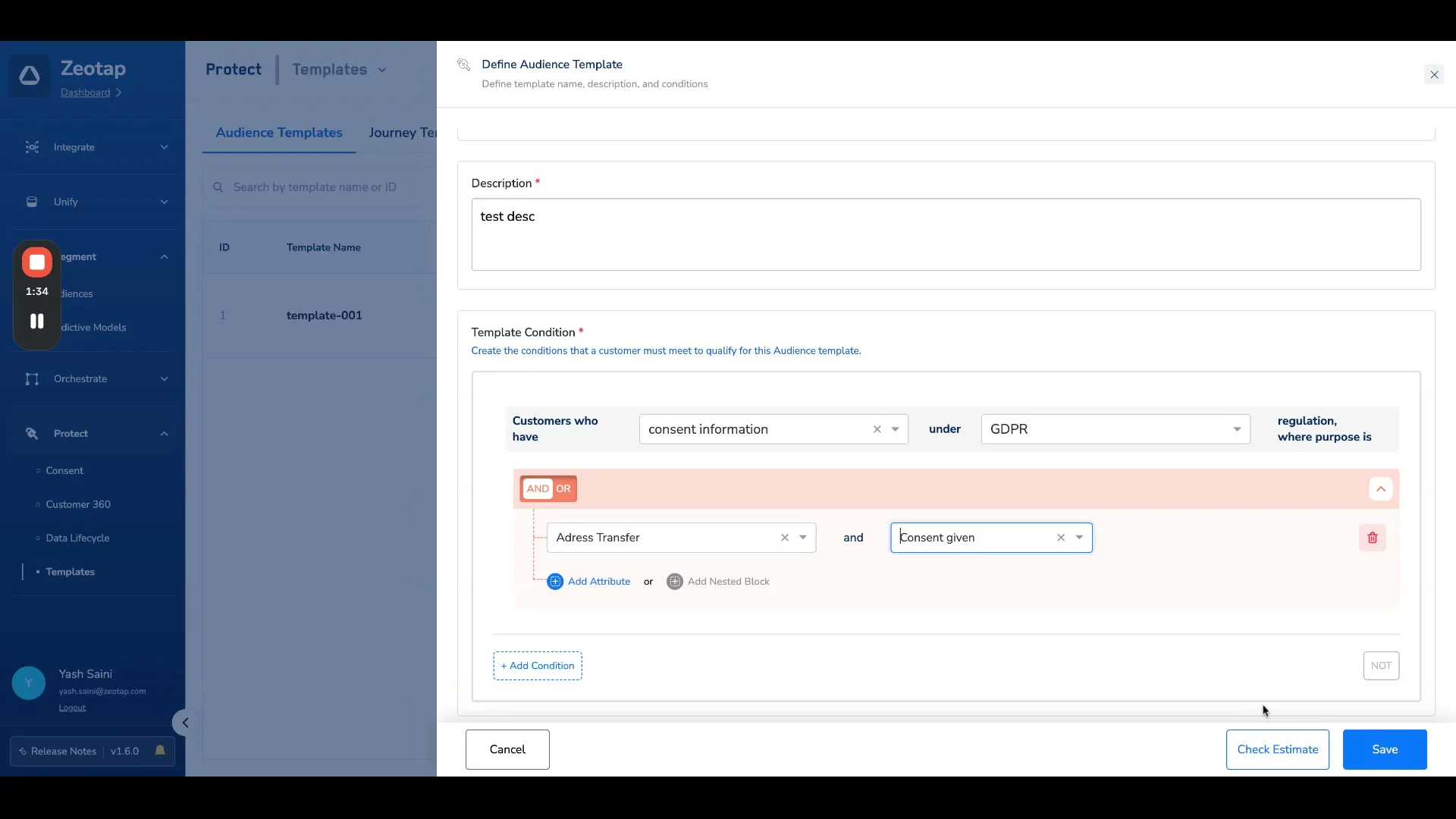 Optionally, click **Check Estimate** to see the estimated count of users qualifying this condition.
Click **Save**. The template is now in the **Created** state, meaning it is not yet applied to any audiences.
**Note:**
Currently, Real-time Audiences do not support Zero Copy Attributes. Therefore, templates created using Zero Copy Attributes will not be available or applied in Real-time Audiences.
## Configure Template Application
After creating a template, you need to decide where it should be applied. Templates can be configured for **manual use** or **auto-apply**.
### Auto-Apply Settings
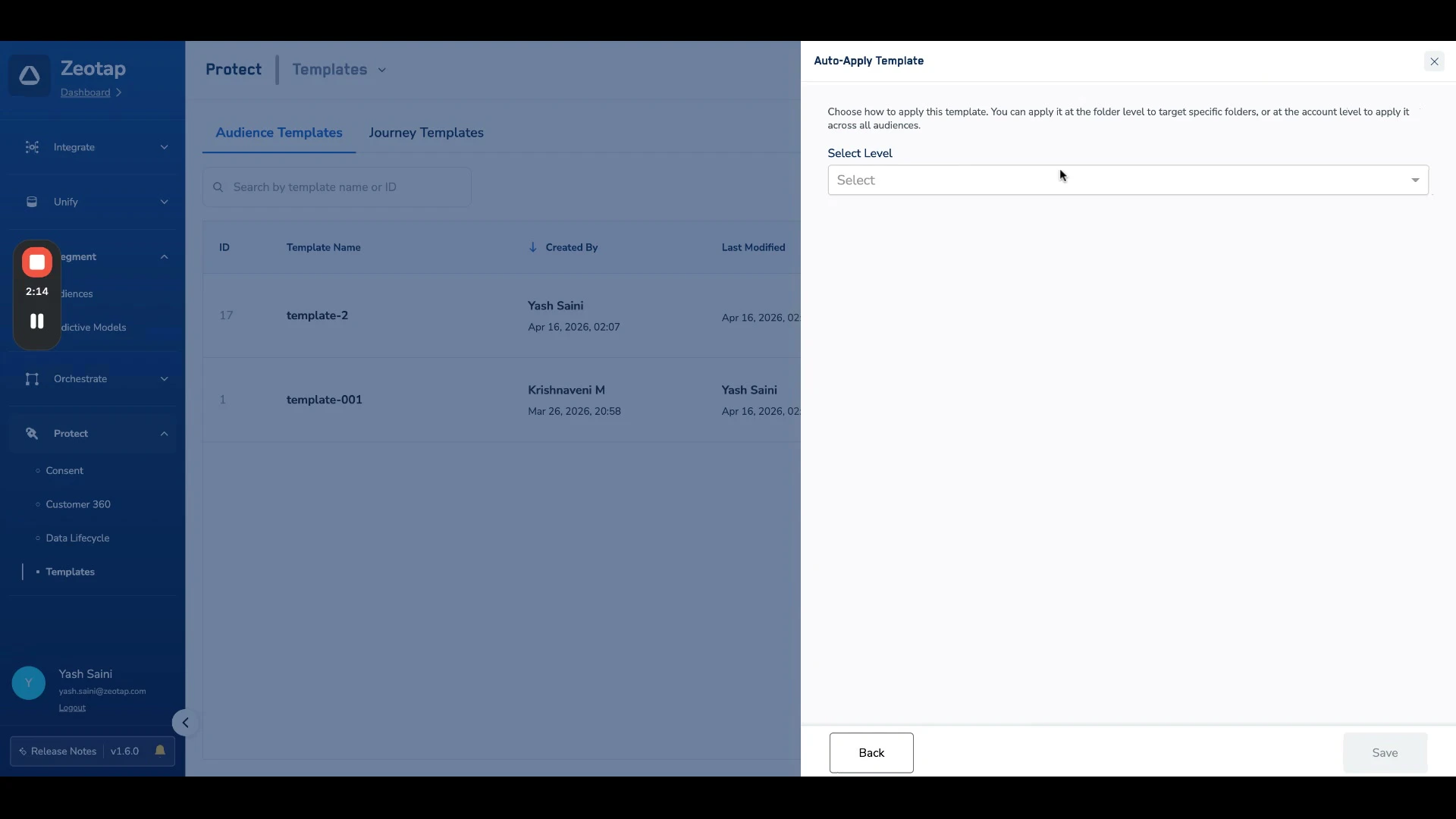
Auto-apply ensures the template is automatically attached as a top-layer condition to all existing and future audiences within the selected scope. There are two auto-apply options:
* **Apply at Folder Level** — Automatically applied to audiences created in selected folders. Every audience in the chosen folders will follow the same standard rules.
* **Apply at Account Level** — Automatically applied to all audiences across the entire account.
Optionally, click **Check Estimate** to see the estimated count of users qualifying this condition.
Click **Save**. The template is now in the **Created** state, meaning it is not yet applied to any audiences.
**Note:**
Currently, Real-time Audiences do not support Zero Copy Attributes. Therefore, templates created using Zero Copy Attributes will not be available or applied in Real-time Audiences.
## Configure Template Application
After creating a template, you need to decide where it should be applied. Templates can be configured for **manual use** or **auto-apply**.
### Auto-Apply Settings
Auto-apply ensures the template is automatically attached as a top-layer condition to all existing and future audiences within the selected scope. There are two auto-apply options:
* **Apply at Folder Level** — Automatically applied to audiences created in selected folders. Every audience in the chosen folders will follow the same standard rules.
* **Apply at Account Level** — Automatically applied to all audiences across the entire account.
 **Note:**
When auto-apply is enabled for a folder, the template is automatically attached as a top-layer condition to all existing and future audiences created within that folder. Only one template can be enabled for auto-apply per folder.
**Important**
The auto-apply feature for audience templates is restricted to **admins only** (CDP Admin and CDP Manager roles). Users with other roles can create or edit templates, but only admins can configure the auto-apply settings.
Changes to auto-apply settings take effect immediately and affect all audiences currently using the template. For running audiences, changes take place on the next refresh cycle.
### Manual Application
Users can manually select and apply templates when creating or editing an audience. This is covered in the [Use Templates in Audiences](/articles/segment-customer/audience-templates#use-templates-in-audiences) section below.
## Manage Templates on the Listing Page
The Audience Templates listing page provides an overview of all templates, including:
| Column | Description |
| :-------------------------- | :------------------------------------------------------------------------------------------------------------------------------------------------------------------------------------------------------------------------------------------------------------------------------------------------------------------------------ |
| **ID** | The unique identifier of the template. |
| **Template Name** | The name given to the template. |
| **Created By** | The user who created the template. |
| **Last Modified** | The date and time the template was last updated. |
| **Status** | The current state of the template. There are 3 possible states: **Created** — the template is not applied anywhere. **Active** — the template is auto-applied at folder level or account level, or applied manually to an audience. **Archived** — a template can only be archived when it is not used in any of the audiences. |
| **Auto-Applied on Folders** | Shows which folders the template is auto-applied to, or **All Folders** for account-level application. |
| **Applied on Audiences** | The number of non-draft audiences currently using this template. Click this number to view the full list of audience IDs and names. |
**Note:**
When auto-apply is enabled for a folder, the template is automatically attached as a top-layer condition to all existing and future audiences created within that folder. Only one template can be enabled for auto-apply per folder.
**Important**
The auto-apply feature for audience templates is restricted to **admins only** (CDP Admin and CDP Manager roles). Users with other roles can create or edit templates, but only admins can configure the auto-apply settings.
Changes to auto-apply settings take effect immediately and affect all audiences currently using the template. For running audiences, changes take place on the next refresh cycle.
### Manual Application
Users can manually select and apply templates when creating or editing an audience. This is covered in the [Use Templates in Audiences](/articles/segment-customer/audience-templates#use-templates-in-audiences) section below.
## Manage Templates on the Listing Page
The Audience Templates listing page provides an overview of all templates, including:
| Column | Description |
| :-------------------------- | :------------------------------------------------------------------------------------------------------------------------------------------------------------------------------------------------------------------------------------------------------------------------------------------------------------------------------ |
| **ID** | The unique identifier of the template. |
| **Template Name** | The name given to the template. |
| **Created By** | The user who created the template. |
| **Last Modified** | The date and time the template was last updated. |
| **Status** | The current state of the template. There are 3 possible states: **Created** — the template is not applied anywhere. **Active** — the template is auto-applied at folder level or account level, or applied manually to an audience. **Archived** — a template can only be archived when it is not used in any of the audiences. |
| **Auto-Applied on Folders** | Shows which folders the template is auto-applied to, or **All Folders** for account-level application. |
| **Applied on Audiences** | The number of non-draft audiences currently using this template. Click this number to view the full list of audience IDs and names. |
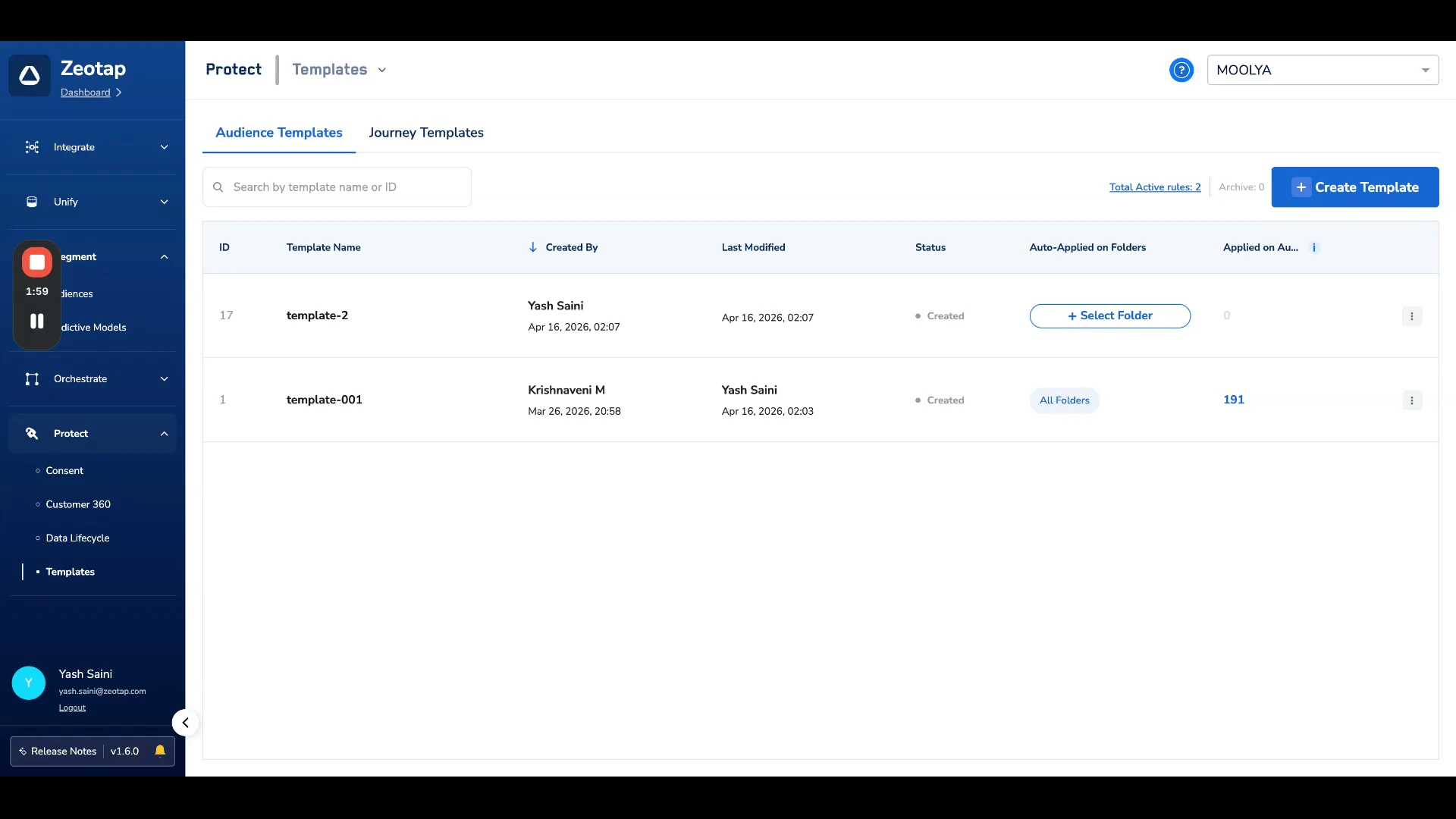 Admins can edit the auto-apply configuration for any template at any time. Removing a folder from the auto-apply settings will remove the template from all audiences under that folder.
## Use Templates in Audiences
When creating or editing an audience, templates can be selected and applied manually alongside any auto-applied templates.
In the audience builder, look for the **+ Add a template** option at the bottom of the condition blocks.
Admins can edit the auto-apply configuration for any template at any time. Removing a folder from the auto-apply settings will remove the template from all audiences under that folder.
## Use Templates in Audiences
When creating or editing an audience, templates can be selected and applied manually alongside any auto-applied templates.
In the audience builder, look for the **+ Add a template** option at the bottom of the condition blocks.
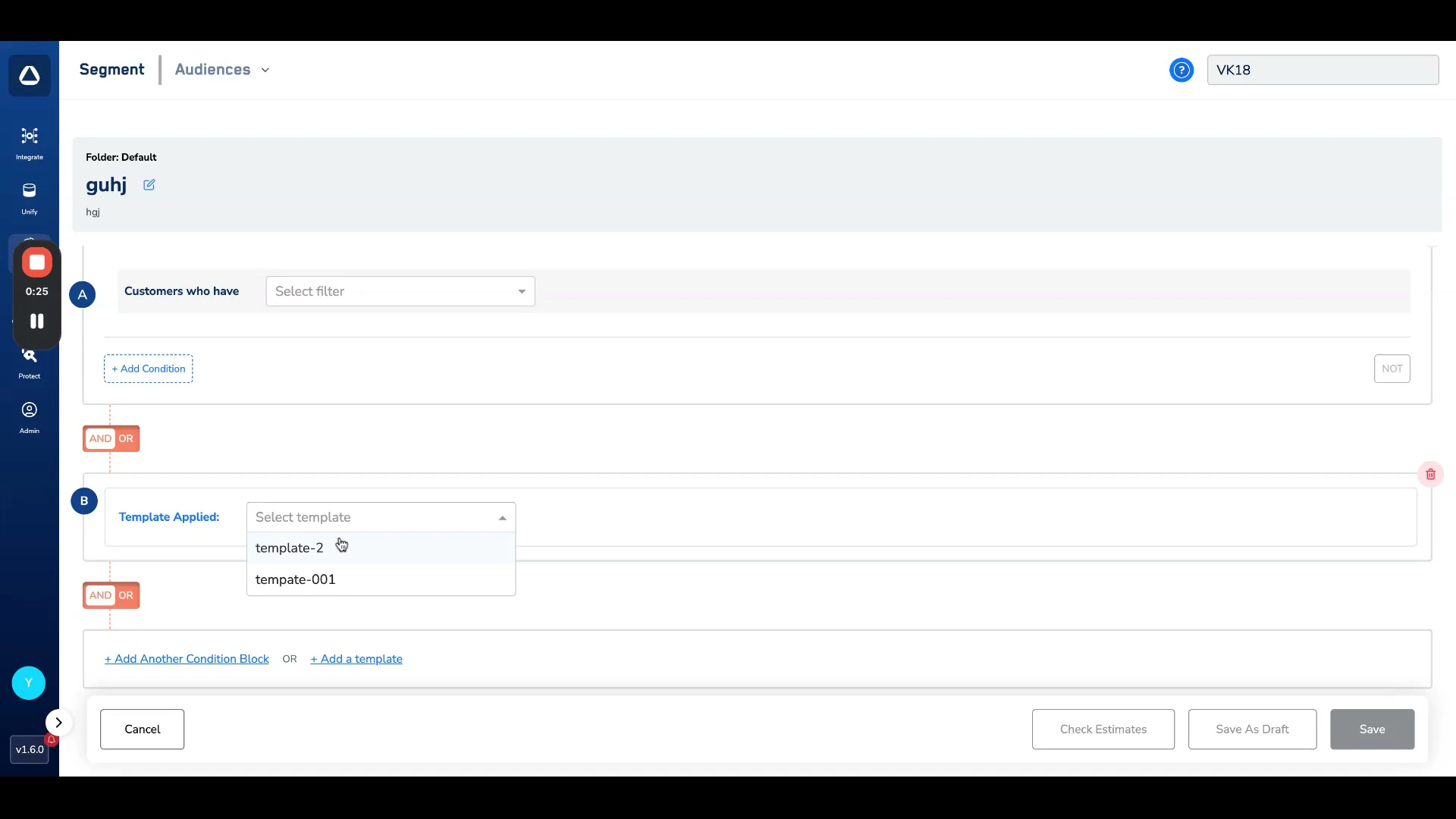 Select which template you want to apply from the dropdown. The template conditions are added as a separate block in the audience builder.
Auto-applied templates (folder-level and account-level) are also visible in the audience builder. These act as baseline conditions ensuring the audience complies with predefined standards.
Select which template you want to apply from the dropdown. The template conditions are added as a separate block in the audience builder.
Auto-applied templates (folder-level and account-level) are also visible in the audience builder. These act as baseline conditions ensuring the audience complies with predefined standards.
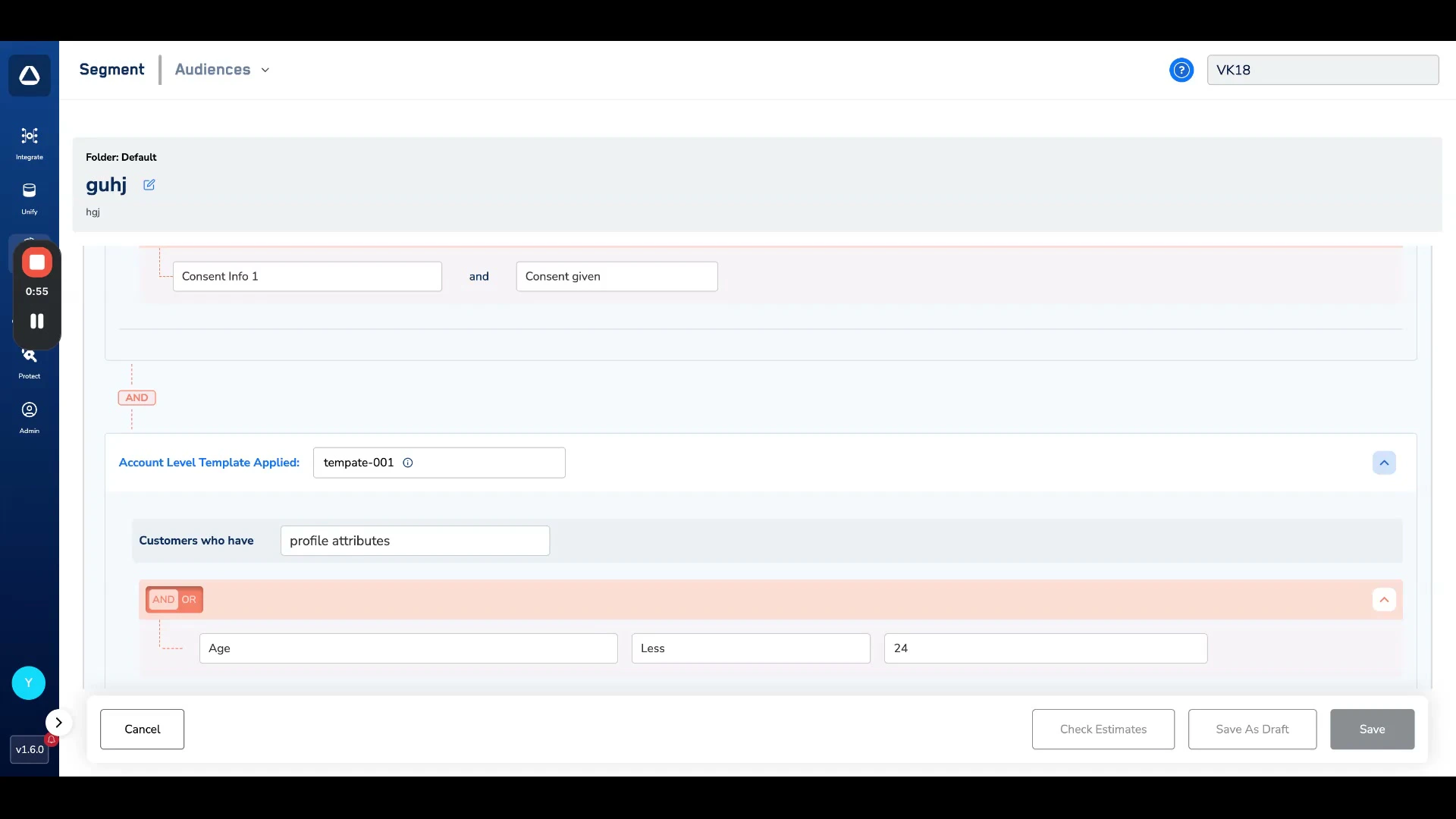 Continue building your audience on top of the template conditions. The audience estimator takes all templates into account — templates appear as separate entities alongside other condition blocks.
## Audience Templates and Consent Rules
With the introduction of audience templates, the **Audience Consent Rule** section in the Consent module is being retired. Previously, the Consent module provided an option to create a consent rule that was applied to all audiences from the backend.
The same rule can now be replicated as an audience template and applied at the account level, which provides:
* **More visibility** — Template conditions are visible during audience creation, so users can see exactly which rules are being applied.
* **More granularity** — Templates support a wider range of attributes beyond just consent, allowing for more flexible governance rules.
* **Folder-level control** — Consent rules can be redefined for specific audiences by following a folder structure, rather than applying a single rule globally.
For organisations that were using the Audience Consent Rule, existing rules will be migrated to audience templates without affecting any running processes.
## Audience Insights with Templates
In the **Audience Insights** section of an audience, you can see the count of users removed by templates. With audience templates, two separate counts are displayed:
* Users removed by the **account-level template**
* Users removed by the **folder-level template**
Continue building your audience on top of the template conditions. The audience estimator takes all templates into account — templates appear as separate entities alongside other condition blocks.
## Audience Templates and Consent Rules
With the introduction of audience templates, the **Audience Consent Rule** section in the Consent module is being retired. Previously, the Consent module provided an option to create a consent rule that was applied to all audiences from the backend.
The same rule can now be replicated as an audience template and applied at the account level, which provides:
* **More visibility** — Template conditions are visible during audience creation, so users can see exactly which rules are being applied.
* **More granularity** — Templates support a wider range of attributes beyond just consent, allowing for more flexible governance rules.
* **Folder-level control** — Consent rules can be redefined for specific audiences by following a folder structure, rather than applying a single rule globally.
For organisations that were using the Audience Consent Rule, existing rules will be migrated to audience templates without affecting any running processes.
## Audience Insights with Templates
In the **Audience Insights** section of an audience, you can see the count of users removed by templates. With audience templates, two separate counts are displayed:
* Users removed by the **account-level template**
* Users removed by the **folder-level template**
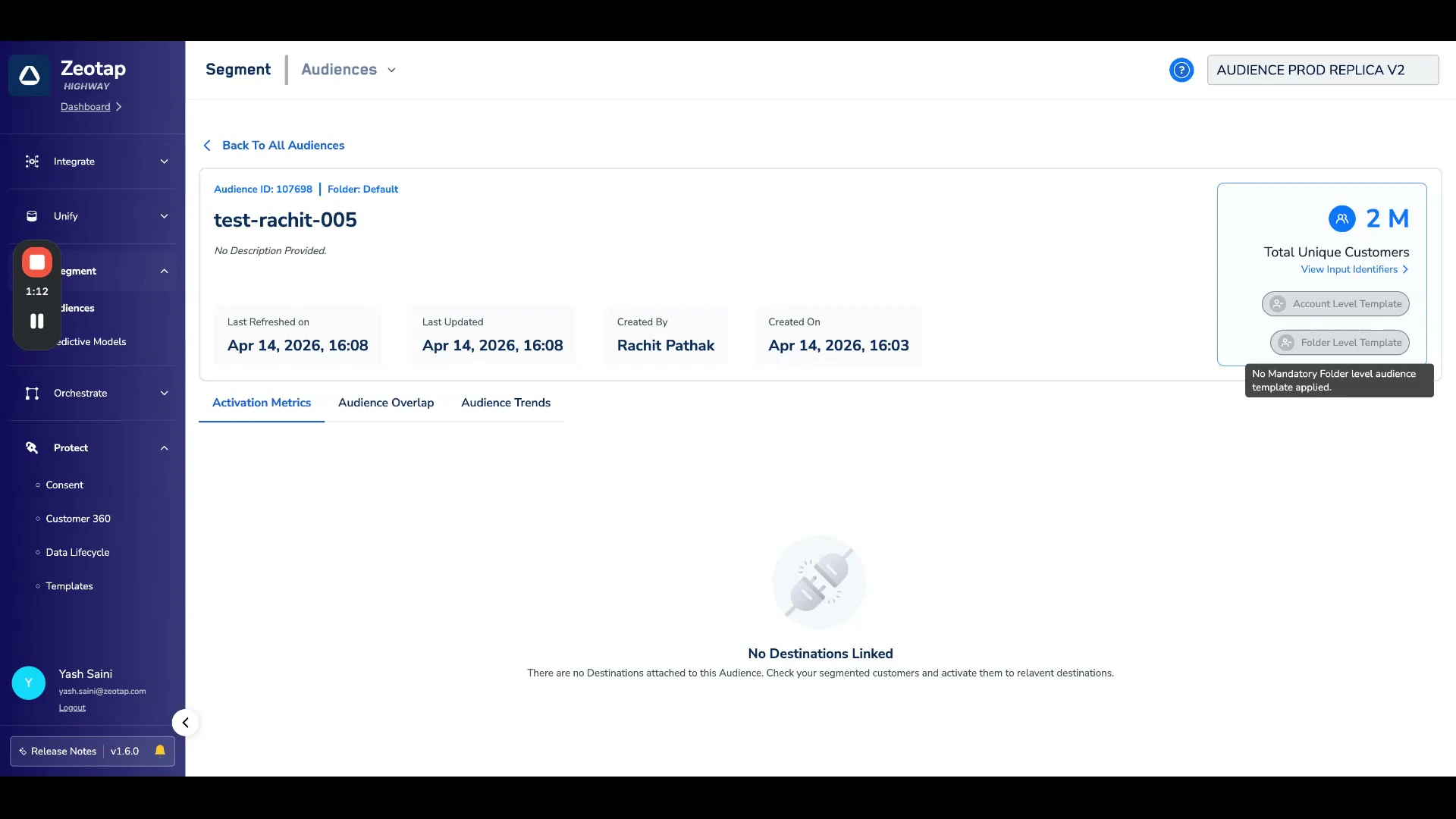 This replaces the previous single count that showed users removed due to the Audience Consent Rule.
## Related Topics
This replaces the previous single count that showed users removed due to the Audience Consent Rule.
## Related Topics