> ## Documentation Index
> Fetch the complete documentation index at: https://docs.zeotap.com/llms.txt
> Use this file to discover all available pages before exploring further.
# Audience Scheduling
> Control when your audience data syncs to each connected destination — set recurring cadences, push on demand, send a one-time snapshot, and edit live schedules.
Audience Scheduling gives you control over when your audience data syncs to each connected destination. You can configure a recurring refresh schedule, push data immediately on demand, or send a one-time snapshot — and set the timezone the schedule runs in. Schedules on live audiences are editable at any time, with no need to delete and re-create a destination link.
**Note:**
Scheduling is configured per destination, in the **Refresh Frequency** section of the **Destination Settings** panel.
## Editing a Live Audience
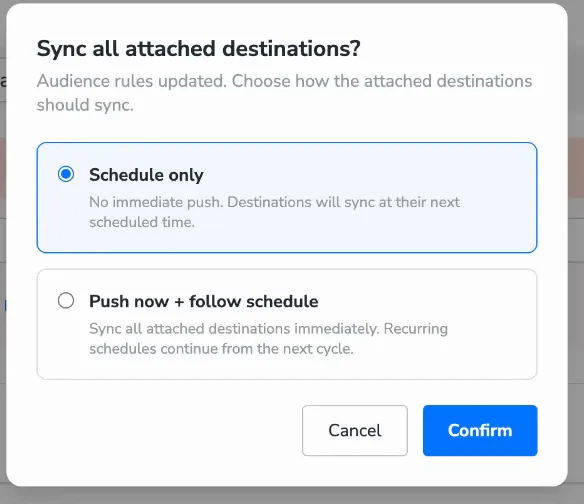
You can update an audience that is already live and syncing — both its rules and each destination's schedule — without deleting or re-creating the destination link. When you edit the **audience's rules** and save, a **Sync all attached destinations?** popup asks how *all* attached destinations should sync (the audience-level popup — distinct from the per-destination [Saving and Choosing How to Start](#saving-and-choosing-how-to-start) popup shown when you first save a single destination link):
| **Option** | **What happens** |
| :----------------------------- | :-------------------------------------------------------------------------------------------- |
| **Schedule only** | No immediate push. Each attached destination syncs at its next scheduled time. |
| **Push now + follow schedule** | Sync all attached destinations immediately. Recurring schedules continue from the next cycle. |
This gives you flexibility over how each change rolls out. Choose **Push now + follow schedule** when, for example, you are correcting a targeting error and need all destinations refreshed right away. Choose **Schedule only** when an audience-logic update can go out as per the regular schedule — each destination then picks up the change at its next scheduled cycle, with no immediate push.
 ## Getting Started
To open the schedule settings for an audience:
Go to **Segment → Audiences**.
Find the audience you want to configure.
Navigate to its destination linking screen.
In the **Destination Settings** panel, go to **Refresh Frequency**.
## One-Time Push
If you want to send the current audience data to a destination once without setting up a recurring schedule, check **One-time push** at the top of the Refresh Frequency step.
## Getting Started
To open the schedule settings for an audience:
Go to **Segment → Audiences**.
Find the audience you want to configure.
Navigate to its destination linking screen.
In the **Destination Settings** panel, go to **Refresh Frequency**.
## One-Time Push
If you want to send the current audience data to a destination once without setting up a recurring schedule, check **One-time push** at the top of the Refresh Frequency step.
 * By default, the audience data is sent to the destination immediately when you click **Save Destination**. If you want the single push to run at a particular time instead, set a **Start Date** and a specific time (and timezone) in the **Start Date and Time** section.
* No recurring schedule is created.
* The destination becomes inactive after the push completes.
**Note:**
When **One-time push** is selected, the recurring cadence and end date settings do not apply to a single sync and are hidden. You can still set a start date and a specific time so the push runs at a particular moment.
## Recurring Schedules
For ongoing audience syncs, configure a cadence. After saving, you are asked how you want the first sync to run.
### Choosing a Cadence
Select one of four cadence types:
| **Cadence** | **Best for** |
| :---------- | :------------------------------------------------------------ |
| **Hourly** | Near-real-time data freshness. |
| **Daily** | Regular syncs every 1, 2, 3, 5, or 7 days. |
| **Weekly** | Syncs on chosen days of the week, every 1–4 weeks. |
| **Monthly** | Once-a-month syncs anchored to the start date or a fixed day. |
* By default, the audience data is sent to the destination immediately when you click **Save Destination**. If you want the single push to run at a particular time instead, set a **Start Date** and a specific time (and timezone) in the **Start Date and Time** section.
* No recurring schedule is created.
* The destination becomes inactive after the push completes.
**Note:**
When **One-time push** is selected, the recurring cadence and end date settings do not apply to a single sync and are hidden. You can still set a start date and a specific time so the push runs at a particular moment.
## Recurring Schedules
For ongoing audience syncs, configure a cadence. After saving, you are asked how you want the first sync to run.
### Choosing a Cadence
Select one of four cadence types:
| **Cadence** | **Best for** |
| :---------- | :------------------------------------------------------------ |
| **Hourly** | Near-real-time data freshness. |
| **Daily** | Regular syncs every 1, 2, 3, 5, or 7 days. |
| **Weekly** | Syncs on chosen days of the week, every 1–4 weeks. |
| **Monthly** | Once-a-month syncs anchored to the start date or a fixed day. |
 ### Hourly
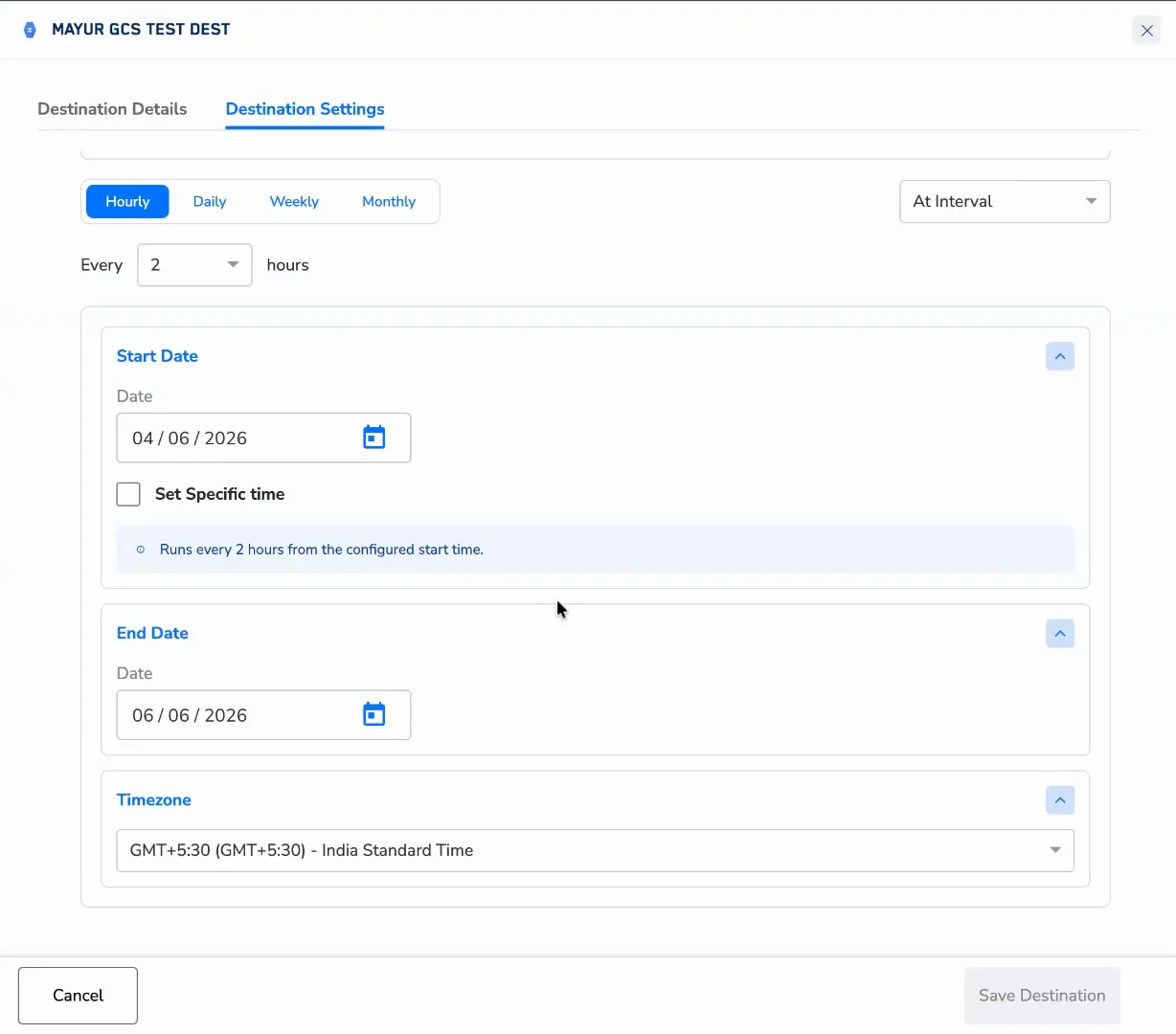
Hourly schedules have two modes.
**At interval** — Sync every fixed number of hours. Choose from every 1, 2, 4, 6, or 12 hours. The schedule anchors to the **Start Time** you configure in the **Start Date and Time** section. For example, if you set a start time of 02:00 and choose every 4 hours, the audience syncs at 02:00, 06:00, 10:00, 14:00, 18:00 and 22:00.
Hourly cadence would need to be exclusively enabled.
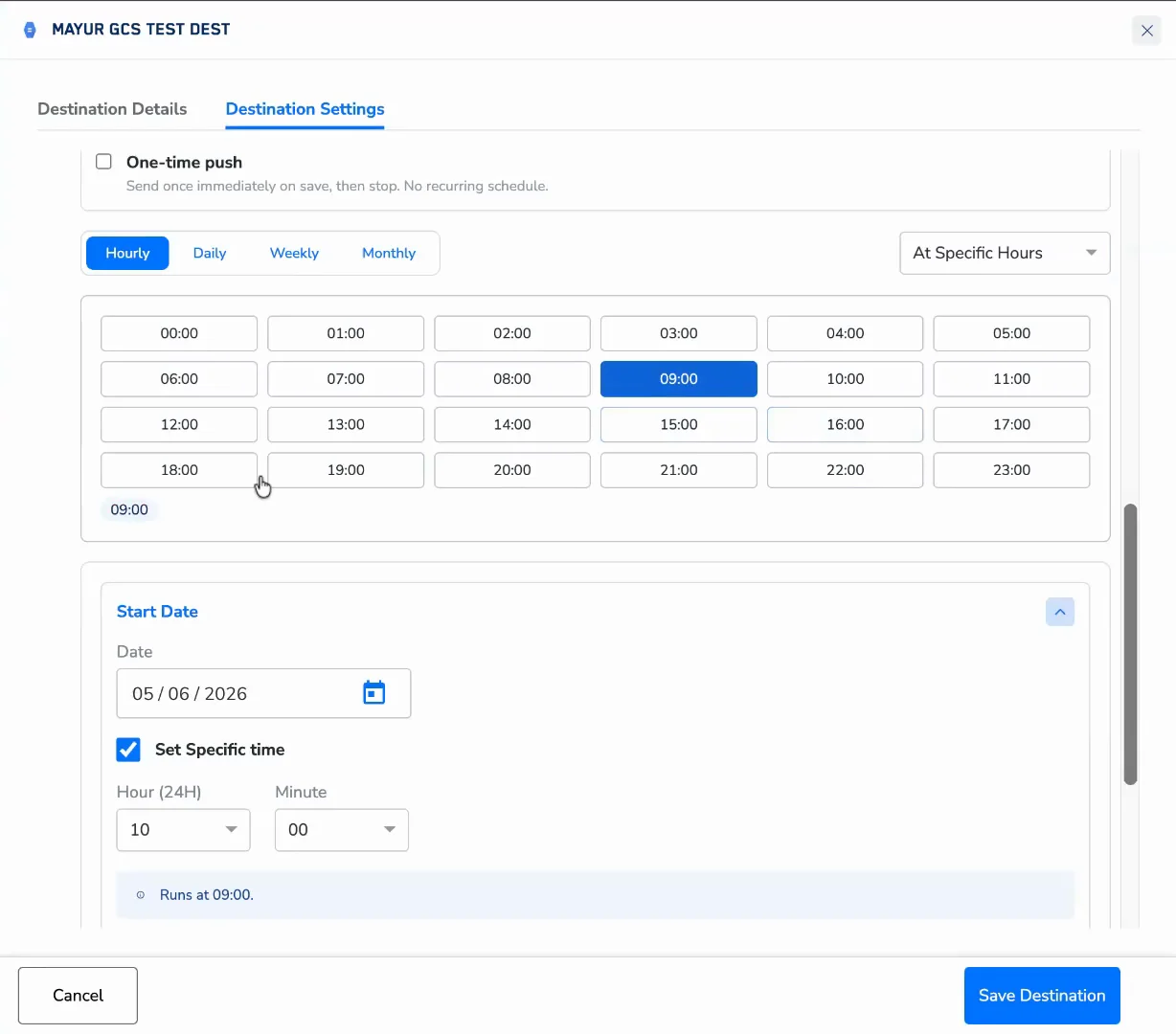
**At specific hours** — Choose exactly which hours of the day the sync should run. Click the **Select hours** field to open the hour picker. A grid of all 24 hours (00:00 – 23:00) appears — click any hour to select it. Selected hours appear as chips inside the field; remove individual hours by clicking × on each chip, or clear all at once. A preview below the picker confirms the full schedule, for example: "Runs at 02:00, 09:00, 14:00, 21:00."
### Hourly
Hourly schedules have two modes.
**At interval** — Sync every fixed number of hours. Choose from every 1, 2, 4, 6, or 12 hours. The schedule anchors to the **Start Time** you configure in the **Start Date and Time** section. For example, if you set a start time of 02:00 and choose every 4 hours, the audience syncs at 02:00, 06:00, 10:00, 14:00, 18:00 and 22:00.
Hourly cadence would need to be exclusively enabled.
**At specific hours** — Choose exactly which hours of the day the sync should run. Click the **Select hours** field to open the hour picker. A grid of all 24 hours (00:00 – 23:00) appears — click any hour to select it. Selected hours appear as chips inside the field; remove individual hours by clicking × on each chip, or clear all at once. A preview below the picker confirms the full schedule, for example: "Runs at 02:00, 09:00, 14:00, 21:00."
 Hourly cadences are compute-intensive. Use them only when near-real-time data freshness is required.
### Daily
Sync once every N days. Choose from every 1, 2, 3, 5, or 7 days. The sync fires at the time configured in the **Specific Time** section (optional). If no specific time is set, the platform runs it at a system-default time.
### Weekly
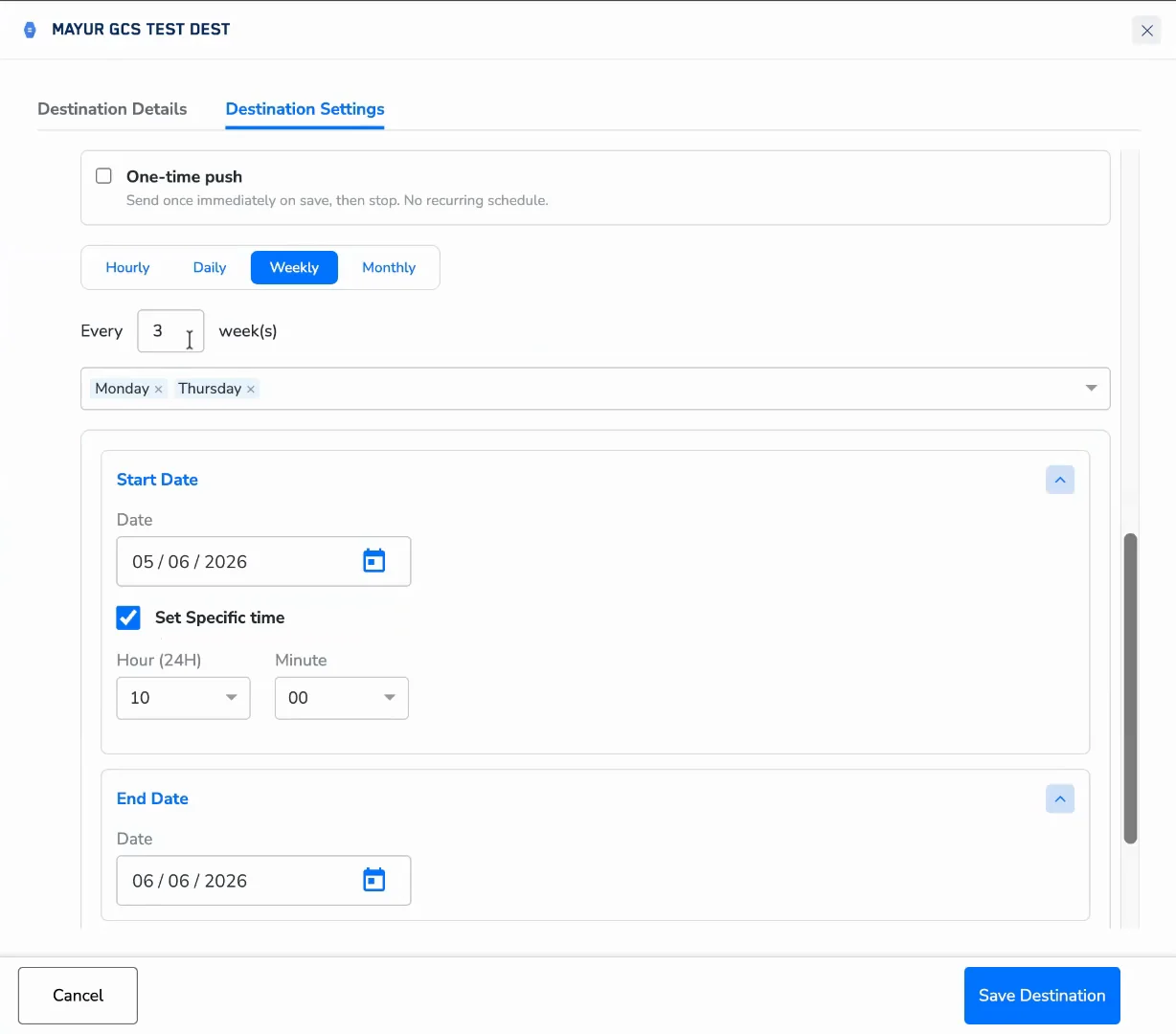
Sync on specific days of the week.
Choose how many weeks between cycles: every 1, 2, 3, or 4 weeks.
In the day grid, select one or more days (Mon – Sun).
At least one day must be selected before you can save.
Hourly cadences are compute-intensive. Use them only when near-real-time data freshness is required.
### Daily
Sync once every N days. Choose from every 1, 2, 3, 5, or 7 days. The sync fires at the time configured in the **Specific Time** section (optional). If no specific time is set, the platform runs it at a system-default time.
### Weekly
Sync on specific days of the week.
Choose how many weeks between cycles: every 1, 2, 3, or 4 weeks.
In the day grid, select one or more days (Mon – Sun).
At least one day must be selected before you can save.
 ### Monthly
Sync once a month. Choose between two options:
* **Every month on the Nth (recommended)** — Automatically derived from your start date. If your start date is April 9, the schedule runs on the 9th of every month. This option updates automatically if you change the start date.
* **On a specific day** — Choose a fixed day: 1st, 5th, 9th, 10th, 15th, 20th, or the Last day of the month.
For months with fewer days than the selected date (for example, February when the 30th is chosen), the sync runs on the last available day of that month.
### Monthly
Sync once a month. Choose between two options:
* **Every month on the Nth (recommended)** — Automatically derived from your start date. If your start date is April 9, the schedule runs on the 9th of every month. This option updates automatically if you change the start date.
* **On a specific day** — Choose a fixed day: 1st, 5th, 9th, 10th, 15th, 20th, or the Last day of the month.
For months with fewer days than the selected date (for example, February when the 30th is chosen), the sync runs on the last available day of that month.
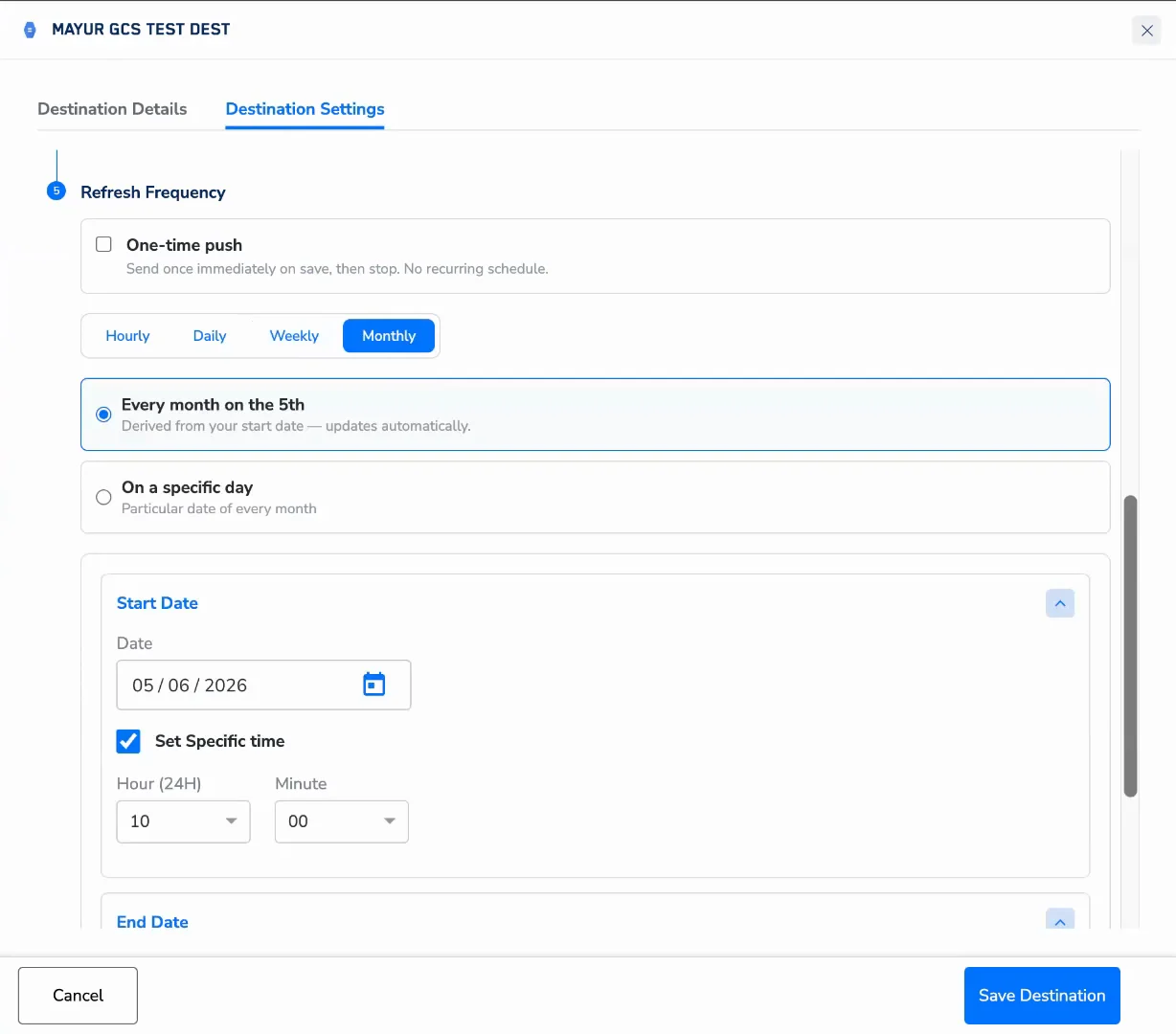 ## Start Date and Time
### Start Date (required)
Enter the date from which the schedule should begin, in DD / MM / YYYY format. The start time must be at least 2 hours in the future.
The start time must be at least **2 hours from now**. If you choose an earlier time, an error appears when you leave the field: *"Start time must be at least 2 hours from now."* When you edit a live schedule, your changes take effect from the next scheduled cycle — an in-progress sync is not interrupted.
### Specific Time (optional for daily, weekly, monthly)
By default, no specific time-of-day is set for daily, weekly and monthly cadences. To run the sync at a particular time:
Check **Set a specific time**.
Choose an **Hour** (00–23, 24-hour format) and a **Minute** (:00, :15, :30, :45).
Choose the **Timezone** this time applies to — the dropdown lists all standard IANA timezones. Your local time zone is selected by default (pre-filled from your browser's auto-detected timezone), and you can change it.
Syncs run at quarter-hour intervals only (:00, :15, :30, :45). For hourly cadences, the time and timezone fields are always visible, since they define when the interval sequence starts.
### Timezone
Choose the timezone for your schedule. The platform auto-detects your browser's timezone and pre-selects it. You can change it at any time by selecting from the dropdown, which includes all standard IANA timezones. UTC is always at the top.
### End Date (required)
Every schedule must have an end date. Enter the last date the sync should run, in DD / MM / YYYY format. The schedule stops after the sync that falls on or before this date — no further syncs are queued.
## Saving and Choosing How to Start
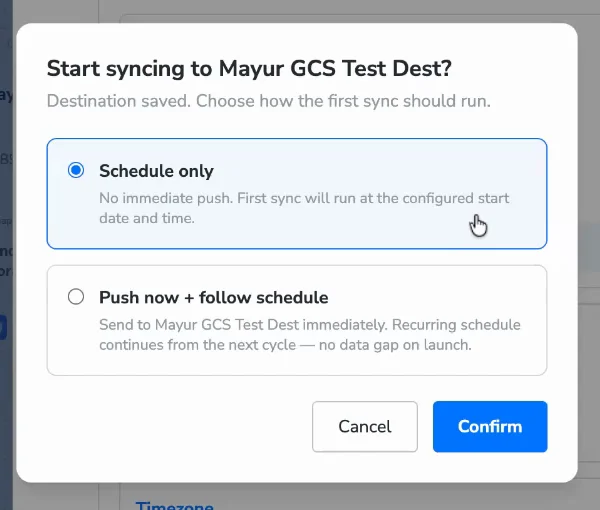
When you click **Save Destination**, a popup asks how the first sync should run:
| **Option** | **What happens** |
| :----------------------------- | :---------------------------------------------------------------------------------------------------------------------------------------------- |
| **Schedule only** | No immediate push. The first sync runs at the configured start date and time. |
| **Push now + follow schedule** | Sends the current audience data to the destination immediately. The recurring schedule continues from the next cycle — there is no gap in data. |
Choose the option that suits your campaign launch needs and click **Confirm**.
## Start Date and Time
### Start Date (required)
Enter the date from which the schedule should begin, in DD / MM / YYYY format. The start time must be at least 2 hours in the future.
The start time must be at least **2 hours from now**. If you choose an earlier time, an error appears when you leave the field: *"Start time must be at least 2 hours from now."* When you edit a live schedule, your changes take effect from the next scheduled cycle — an in-progress sync is not interrupted.
### Specific Time (optional for daily, weekly, monthly)
By default, no specific time-of-day is set for daily, weekly and monthly cadences. To run the sync at a particular time:
Check **Set a specific time**.
Choose an **Hour** (00–23, 24-hour format) and a **Minute** (:00, :15, :30, :45).
Choose the **Timezone** this time applies to — the dropdown lists all standard IANA timezones. Your local time zone is selected by default (pre-filled from your browser's auto-detected timezone), and you can change it.
Syncs run at quarter-hour intervals only (:00, :15, :30, :45). For hourly cadences, the time and timezone fields are always visible, since they define when the interval sequence starts.
### Timezone
Choose the timezone for your schedule. The platform auto-detects your browser's timezone and pre-selects it. You can change it at any time by selecting from the dropdown, which includes all standard IANA timezones. UTC is always at the top.
### End Date (required)
Every schedule must have an end date. Enter the last date the sync should run, in DD / MM / YYYY format. The schedule stops after the sync that falls on or before this date — no further syncs are queued.
## Saving and Choosing How to Start
When you click **Save Destination**, a popup asks how the first sync should run:
| **Option** | **What happens** |
| :----------------------------- | :---------------------------------------------------------------------------------------------------------------------------------------------- |
| **Schedule only** | No immediate push. The first sync runs at the configured start date and time. |
| **Push now + follow schedule** | Sends the current audience data to the destination immediately. The recurring schedule continues from the next cycle — there is no gap in data. |
Choose the option that suits your campaign launch needs and click **Confirm**.
 **Note:**
If you selected **One-time push**, this popup does not appear — the data is sent immediately on save.
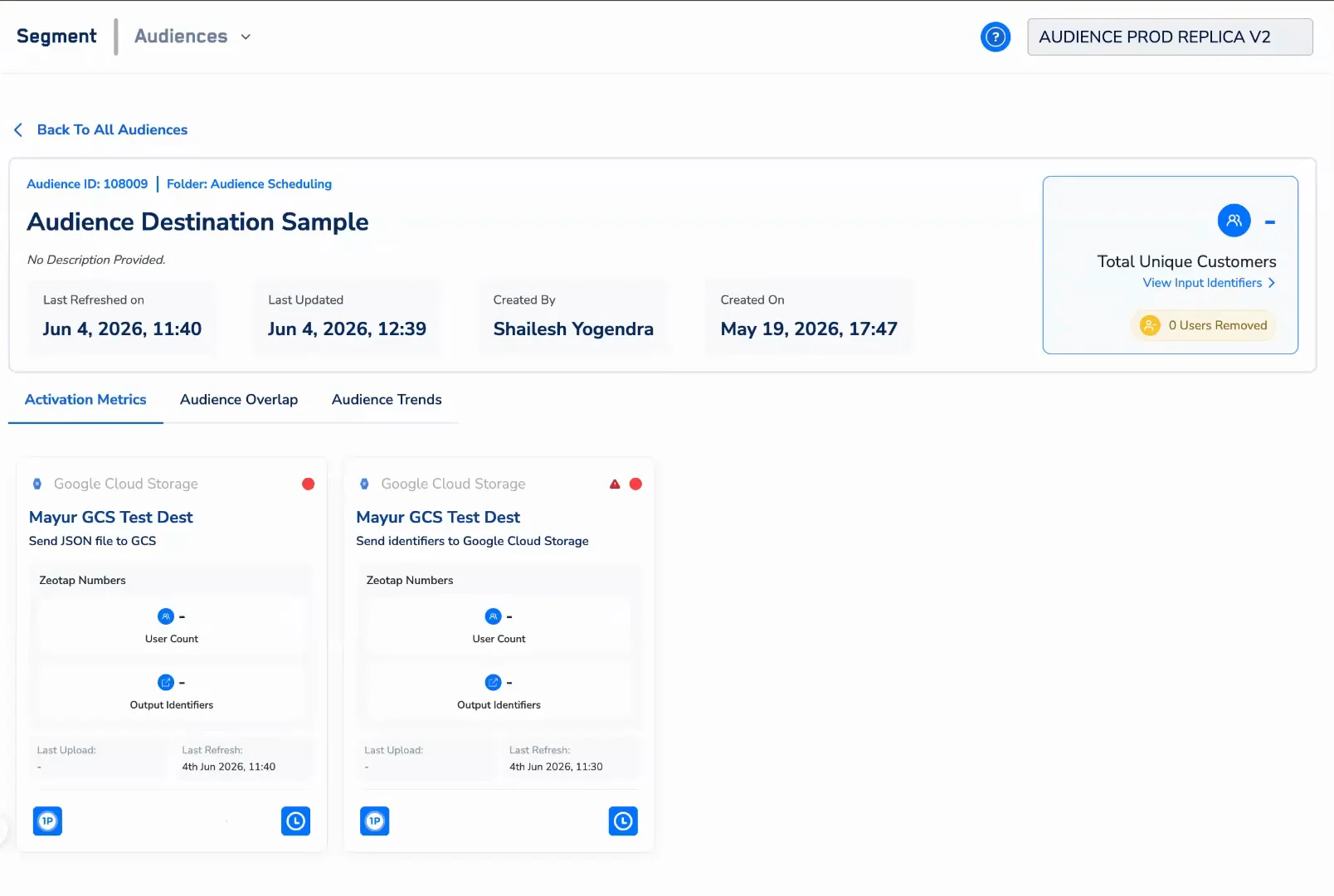
## The Last Refresh Column
The destination card in the Insights section now includes a **Last Refresh** column showing when each audience was last synced to that destination. For deeper monitoring of refresh runs and schedules, see [Audience Insights](/articles/segment-customer/audience-insights) and the [Observability Hub](/articles/labs-customer/observability-hub).
**Note:**
If you selected **One-time push**, this popup does not appear — the data is sent immediately on save.
## The Last Refresh Column
The destination card in the Insights section now includes a **Last Refresh** column showing when each audience was last synced to that destination. For deeper monitoring of refresh runs and schedules, see [Audience Insights](/articles/segment-customer/audience-insights) and the [Observability Hub](/articles/labs-customer/observability-hub).
 ## Schedule and Next Fire Time
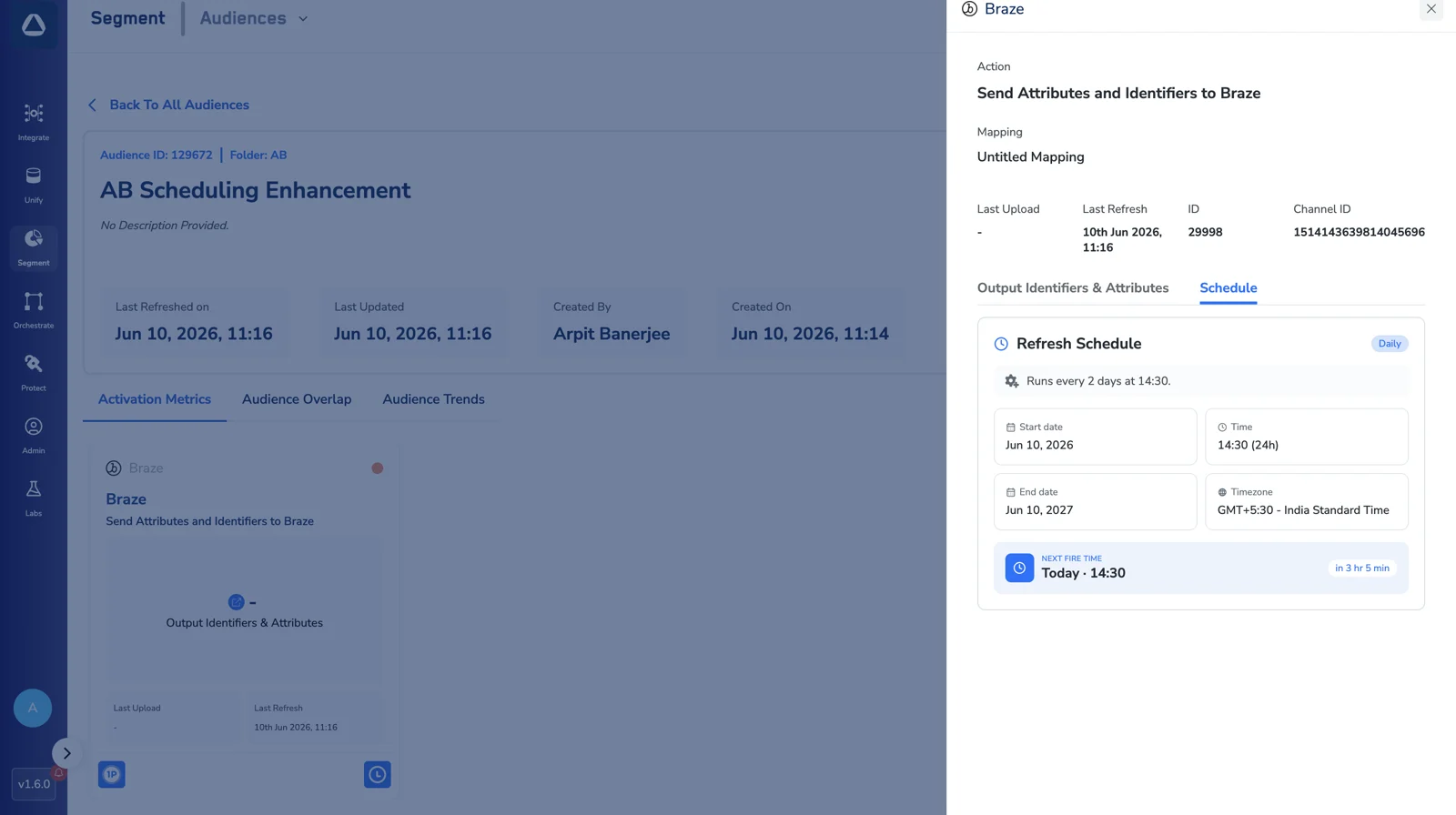
Open a destination's card in [Audience Insights](/articles/segment-customer/audience-insights) and select the **Schedule** tab to see the refresh schedule currently saved for that destination:
* The **Refresh Schedule** — the cadence in plain language (for example, "Runs every 2 days at 14:30"), with the **Start date**, **Time**, **End date** and **Timezone**.
* The **Next Fire Time** — when the next sync is scheduled to run, with a countdown (for example, "Today · 14:30 · in 3 hr 5 min").
## Schedule and Next Fire Time
Open a destination's card in [Audience Insights](/articles/segment-customer/audience-insights) and select the **Schedule** tab to see the refresh schedule currently saved for that destination:
* The **Refresh Schedule** — the cadence in plain language (for example, "Runs every 2 days at 14:30"), with the **Start date**, **Time**, **End date** and **Timezone**.
* The **Next Fire Time** — when the next sync is scheduled to run, with a countdown (for example, "Today · 14:30 · in 3 hr 5 min").
 ## Reading Destination State
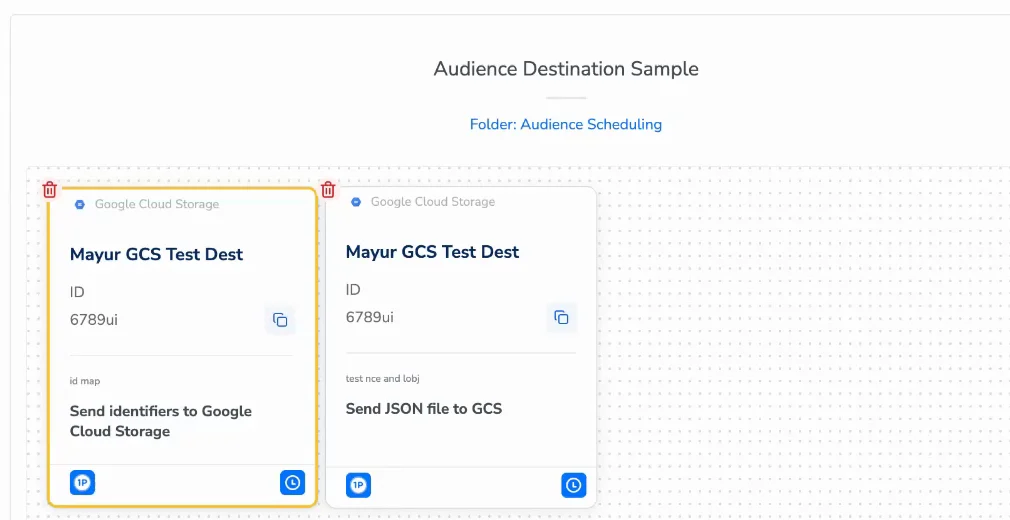
Each destination card in the Lifecycle Panel surfaces its current state at a glance.
### Yellow border — destination currently being edited
When a destination's settings modal is open and unsaved changes exist, that destination card in the Lifecycle Panel is highlighted with a yellow border. This makes it immediately clear which destination is in an edit state, especially useful when an audience has multiple destinations linked. The yellow border clears as soon as you save or discard the changes.
## Reading Destination State
Each destination card in the Lifecycle Panel surfaces its current state at a glance.
### Yellow border — destination currently being edited
When a destination's settings modal is open and unsaved changes exist, that destination card in the Lifecycle Panel is highlighted with a yellow border. This makes it immediately clear which destination is in an edit state, especially useful when an audience has multiple destinations linked. The yellow border clears as soon as you save or discard the changes.
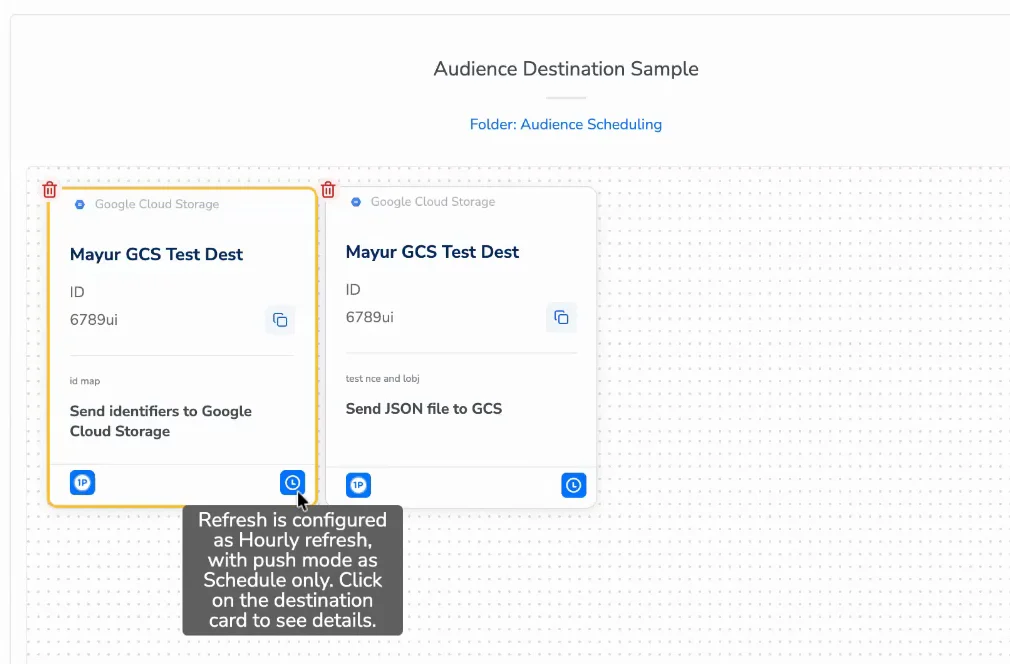
 ### Clock icon — current schedule configuration
Each destination card in the Lifecycle Panel shows a clock icon. Hovering over or clicking the clock shows a compact summary of the schedule currently saved for that destination. This is the confirmed saved configuration — not any in-progress edits. Use it to quickly verify what a destination is set to without opening the full settings modal.
### Clock icon — current schedule configuration
Each destination card in the Lifecycle Panel shows a clock icon. Hovering over or clicking the clock shows a compact summary of the schedule currently saved for that destination. This is the confirmed saved configuration — not any in-progress edits. Use it to quickly verify what a destination is set to without opening the full settings modal.
 ## Expired and Soon-to-Expire Destinations
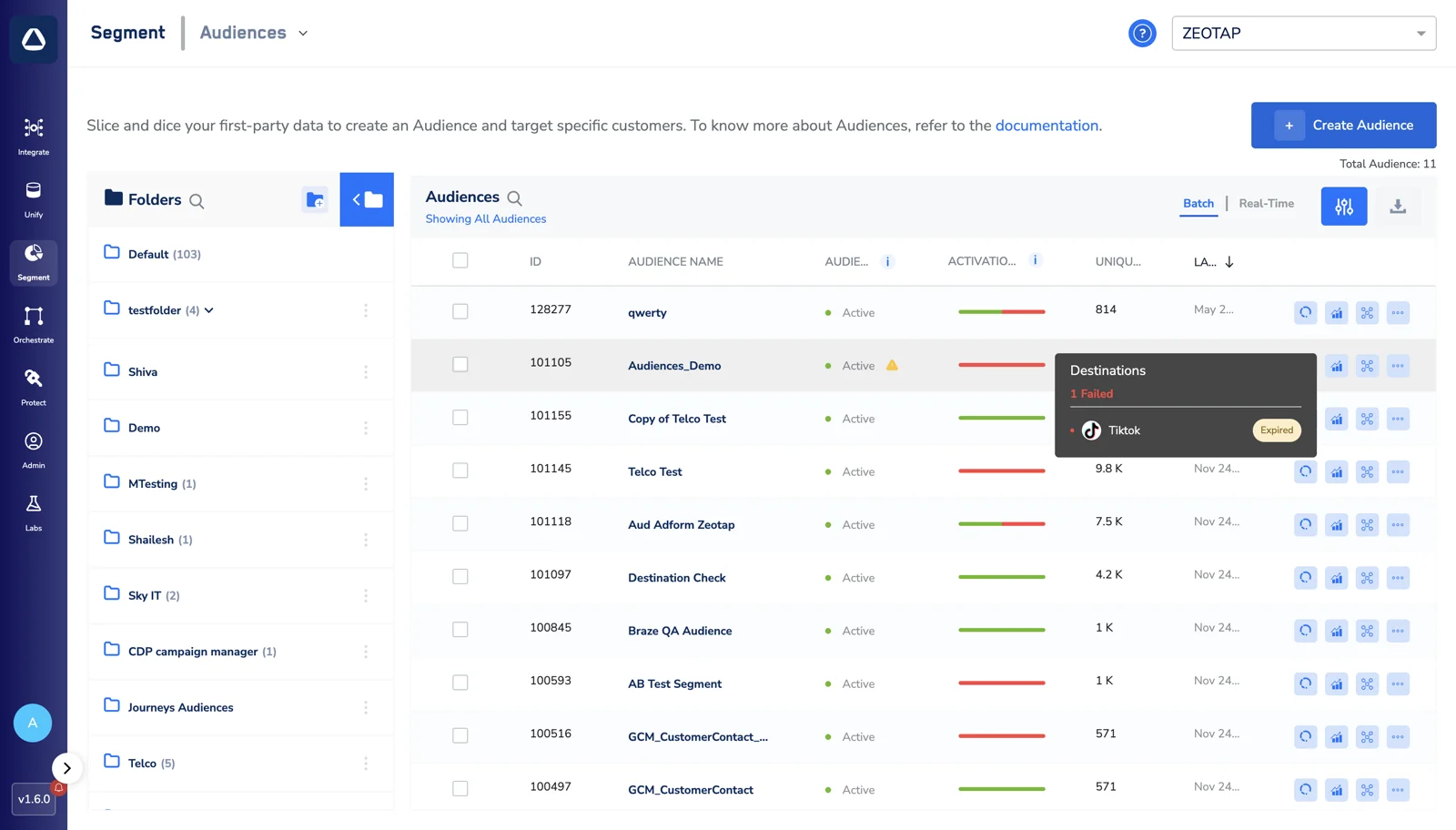
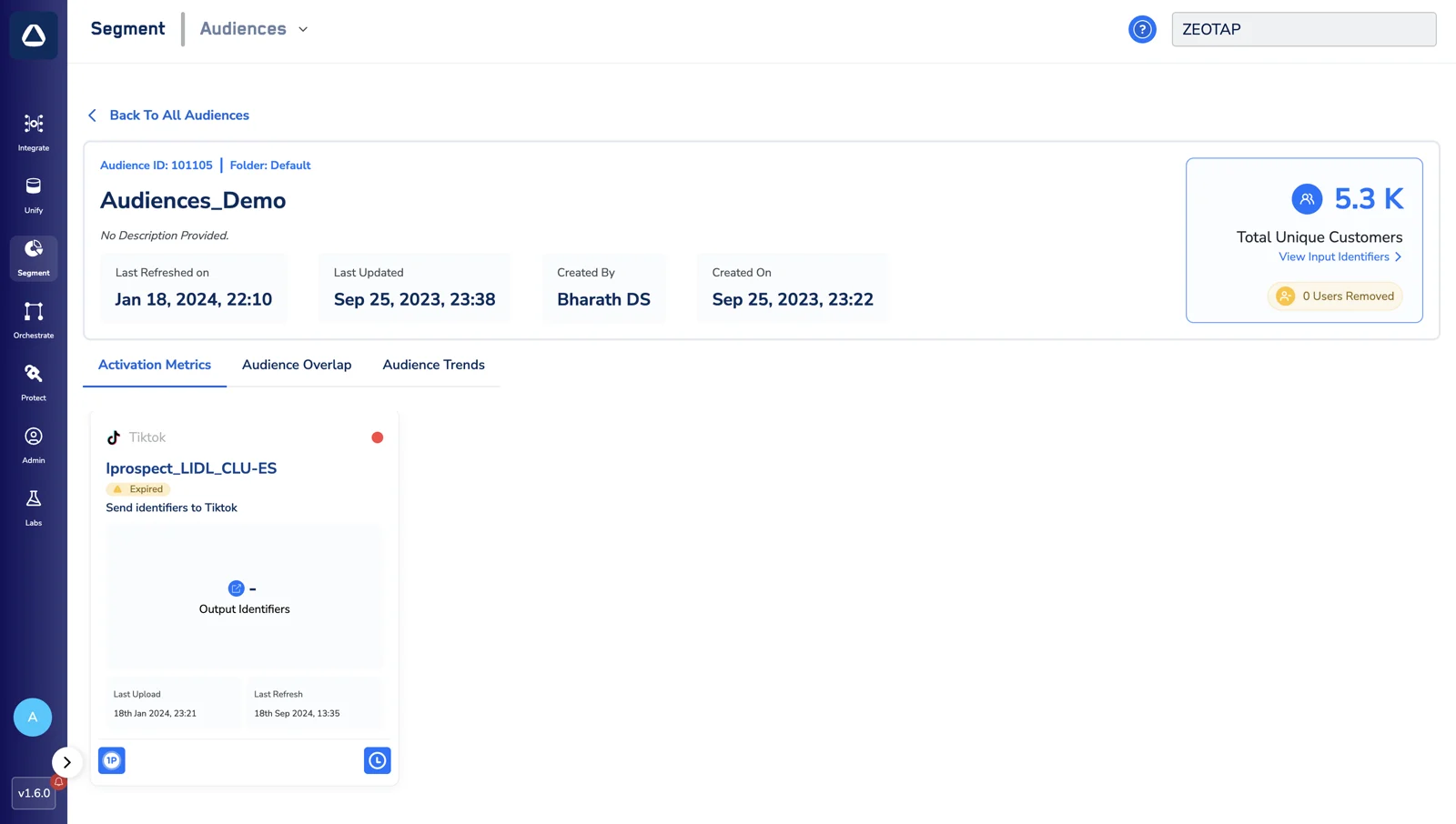
A destination can **expire** — for example, when its authorisation needs to be renewed — which stops it from receiving syncs. Zeotap warns you about destinations that have expired, or are soon to expire, so you can act before activation is affected. The warning appears in three places:
* **Audience listing screen** — audiences with an affected destination show a warning icon. Hover over it to see the affected destinations and their status (for example, *1 Failed — Tiktok · Expired*).
* **Destination card in Audience Insights** — the card shows an **Expired** badge.
* **Destination card in Link to Destination** — the same warning appears on the destination card while you link or edit it.
Re-authorise or update the destination to clear the warning and resume syncing.
## Expired and Soon-to-Expire Destinations
A destination can **expire** — for example, when its authorisation needs to be renewed — which stops it from receiving syncs. Zeotap warns you about destinations that have expired, or are soon to expire, so you can act before activation is affected. The warning appears in three places:
* **Audience listing screen** — audiences with an affected destination show a warning icon. Hover over it to see the affected destinations and their status (for example, *1 Failed — Tiktok · Expired*).
* **Destination card in Audience Insights** — the card shows an **Expired** badge.
* **Destination card in Link to Destination** — the same warning appears on the destination card while you link or edit it.
Re-authorise or update the destination to clear the warning and resume syncing.
 ## FAQs
Yes. Each destination link has its own independent schedule. One audience can sync to Braze weekly and to Google Ads daily.
No. A change saved while a sync is running takes effect from the next cycle. The in-progress sync completes normally.
The start time must be at least 2 hours in the future. If you choose an earlier time, an error message appears and the **Save** button is blocked until you pick a valid time.
It is recorded in Refresh History as a **Manual** trigger. It does not move or replace the next scheduled cycle.
The platform checked your source data before running and found that nothing had changed since the last successful sync. The sync was skipped to avoid unnecessary processing. This is normal behaviour.
Yes. Open the destination's settings and change the configuration — there is no need to create a new destination link.
## Related Topics
* To link an Audience to a Destination, refer [here](/articles/segment-customer/link-the-destination).
* To understand what affects how long a sync takes to reach a destination, refer to [Factors Influencing the Data Upload Time to Destinations](/articles/segment-customer/factors-influencing-the-data-upload-time-to-destinations).
* To view metrics and the destinations linked to an Audience, refer to [Audience Insights](/articles/segment-customer/audience-insights).
* For advanced refresh monitoring and lifecycle traces, refer to the [Observability Hub](/articles/labs-customer/observability-hub).
## FAQs
Yes. Each destination link has its own independent schedule. One audience can sync to Braze weekly and to Google Ads daily.
No. A change saved while a sync is running takes effect from the next cycle. The in-progress sync completes normally.
The start time must be at least 2 hours in the future. If you choose an earlier time, an error message appears and the **Save** button is blocked until you pick a valid time.
It is recorded in Refresh History as a **Manual** trigger. It does not move or replace the next scheduled cycle.
The platform checked your source data before running and found that nothing had changed since the last successful sync. The sync was skipped to avoid unnecessary processing. This is normal behaviour.
Yes. Open the destination's settings and change the configuration — there is no need to create a new destination link.
## Related Topics
* To link an Audience to a Destination, refer [here](/articles/segment-customer/link-the-destination).
* To understand what affects how long a sync takes to reach a destination, refer to [Factors Influencing the Data Upload Time to Destinations](/articles/segment-customer/factors-influencing-the-data-upload-time-to-destinations).
* To view metrics and the destinations linked to an Audience, refer to [Audience Insights](/articles/segment-customer/audience-insights).
* For advanced refresh monitoring and lifecycle traces, refer to the [Observability Hub](/articles/labs-customer/observability-hub).