> ## Documentation Index
> Fetch the complete documentation index at: https://docs.zeotap.com/llms.txt
> Use this file to discover all available pages before exploring further.
# Step 1 - Importing Zeotap Tag template via GTM Gallery
> Step-by-step guide to import the Zeotap Collect Tag Template to your Google Tag Manager workspace using the Community Template Gallery.
**Important:** Please ensure your CMP configuration includes new **Vendor ID 1469** for 1st Party data tracking. Additionally, include **Vendor ID 301** if cookie sync is enabled. [Learn more](/articles/sdks/web-js/configurations/consent-options#shouldcheckzeotapvendorconsent)
This method describes how to add the Zeotap Collect Tag Template to your Google Tag Manager (GTM) workspace by searching the Community Template Gallery.
Follow these steps:
1. **Log into your GTM Account**:
Access your Google Tag Manager account at [tagmanager.google.com](https://tagmanager.google.com/).
2. **Navigate to Templates**:
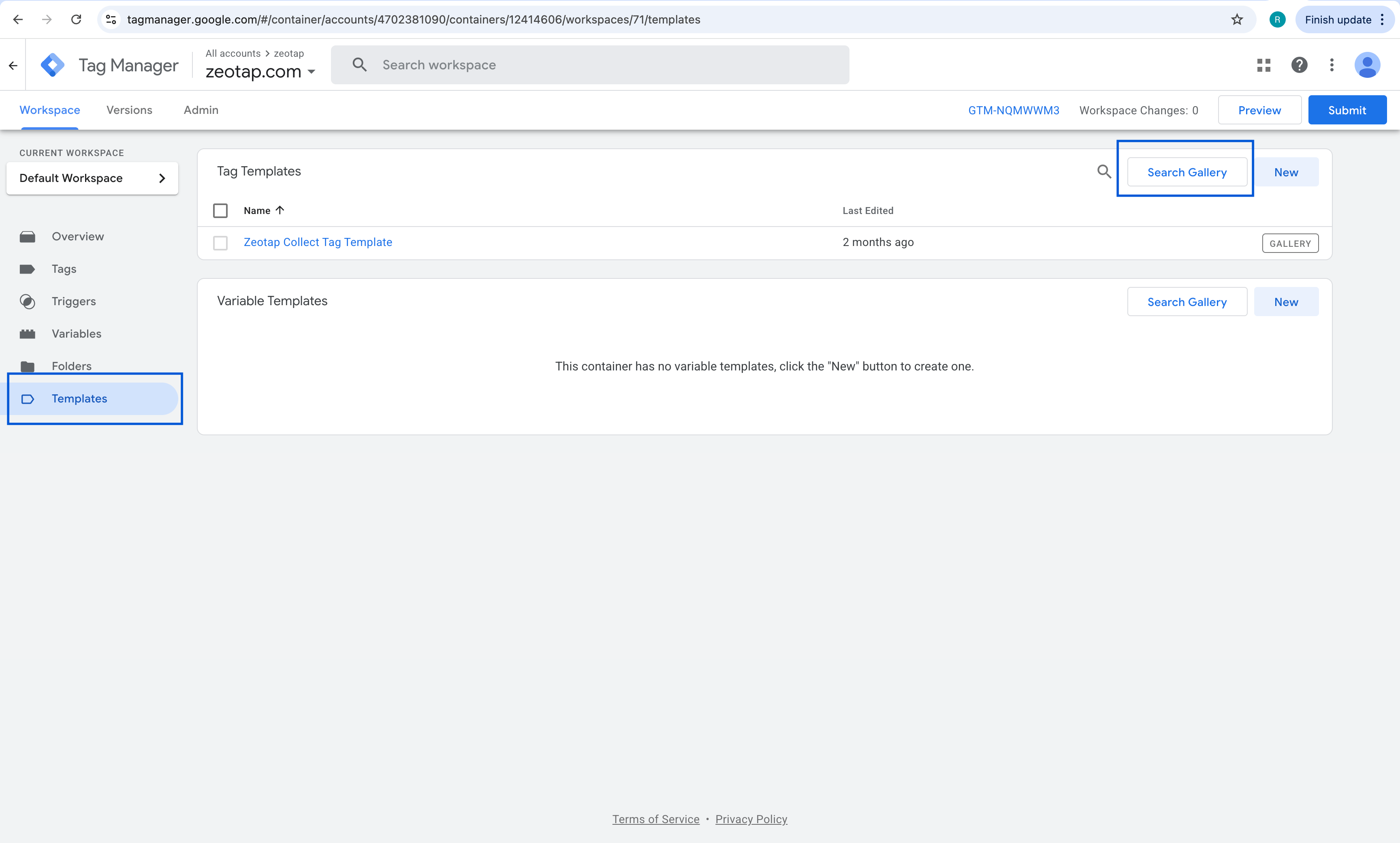
In the left-hand navigation menu of your GTM workspace, click on **Templates**.
 3. **Access the Template Gallery**:
Within the "Tag Templates" section, click on the **Search Gallery** button located on the top-right corner.
4. **Search for Zeotap Collect Tag**:
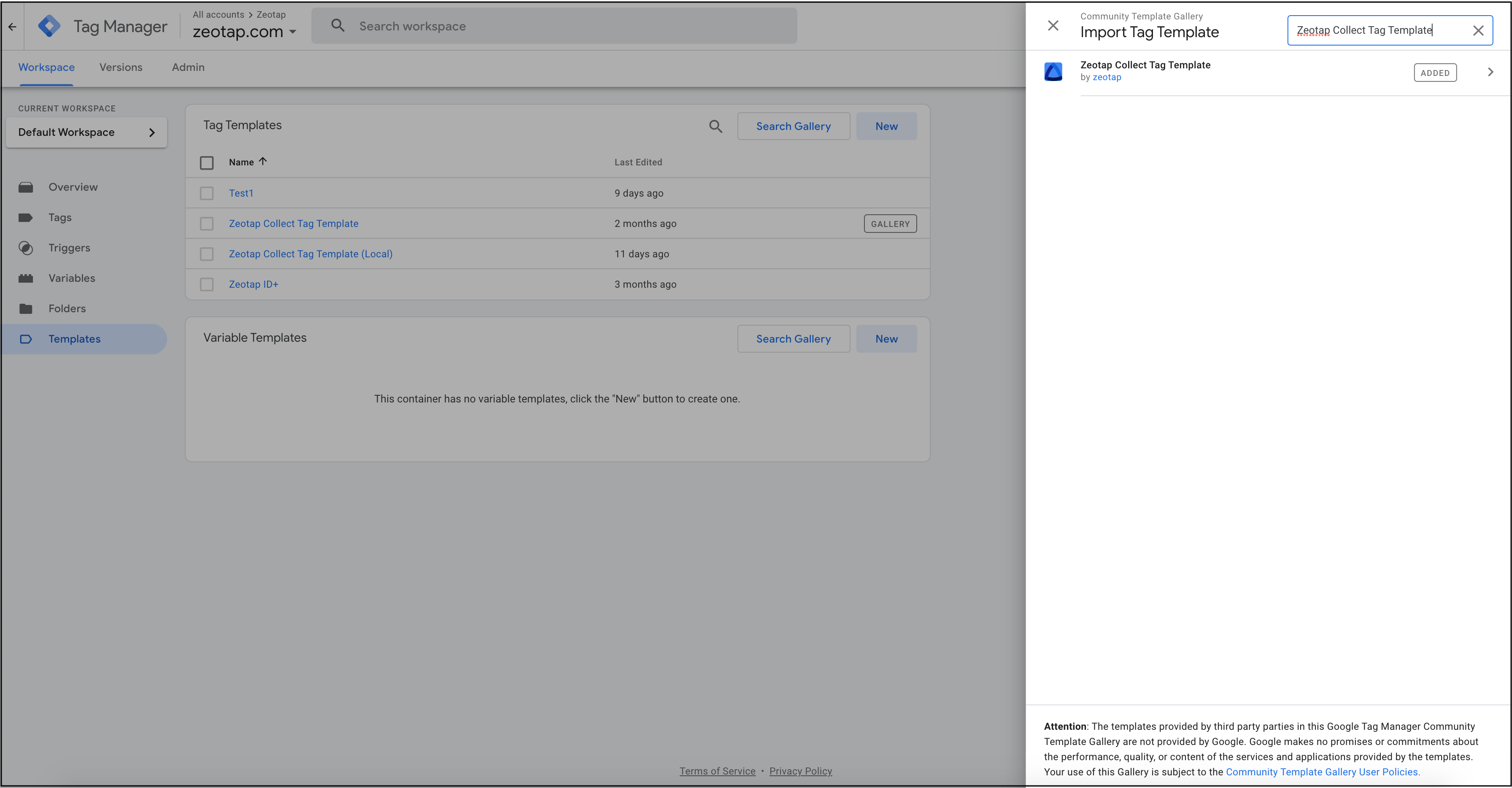
In the search bar that appears, type "Zeotap Collect Tag" and press Enter, or browse the list to find the **Zeotap Collect Tag Template**.
3. **Access the Template Gallery**:
Within the "Tag Templates" section, click on the **Search Gallery** button located on the top-right corner.
4. **Search for Zeotap Collect Tag**:
In the search bar that appears, type "Zeotap Collect Tag" and press Enter, or browse the list to find the **Zeotap Collect Tag Template**.
 5. **Select the Template**:
Once you find the "Zeotap Collect Tag Template" in the search results, click on it to open the template details.
6. **Add to Workspace**:
Click the **Add to workspace** button. GTM will ask you to review the permissions the template requires.
7. **Confirm Permissions**:
Review the API permissions requested by the template. If you agree, click **Add** to incorporate the template into your GTM workspace.
After completing these steps, the Zeotap Collect Tag Template will be available in your workspace, ready for you to use.
5. **Select the Template**:
Once you find the "Zeotap Collect Tag Template" in the search results, click on it to open the template details.
6. **Add to Workspace**:
Click the **Add to workspace** button. GTM will ask you to review the permissions the template requires.
7. **Confirm Permissions**:
Review the API permissions requested by the template. If you agree, click **Add** to incorporate the template into your GTM workspace.
After completing these steps, the Zeotap Collect Tag Template will be available in your workspace, ready for you to use.