> ## Documentation Index
> Fetch the complete documentation index at: https://docs.zeotap.com/llms.txt
> Use this file to discover all available pages before exploring further.
# Consent Orchestration
Consent Orchestration is a centralised process to define rules around consent and marketing preferences. It guides you on how to use the consent and marketing preferences that you have onboarded for your users. Zeotap allows you to define consent rules at the following two levels:
## Consent Rule at Audience Level
Using Zeotap’s consent orchestration, you can configure rules that get applied to all the segments under your Connect module. Each and every segment created under your account inherits this rule and filters the users who do not qualify for the filter conditions.
This feature is ideal for brands that receive global content and require that consent be applied to customer profiles for any further activation.
## Consent Rule at Channel Level
Zeotap provides the flexibility to configure consent and marketing preference rules at a granular level which gets applied during activation. You can define additional rules based on specific consent and marketing preferences collected from across sources. These rules can be scoped not only at the channel level but also at the destination and mapping levels within each channel.
This allows you to tailor consent enforcement precisely—ensuring that the right set of user profiles is activated for the right destinations and mappings under each channel. Once configured, these rules are automatically applied to all applicable profiles whenever data is pushed to the selected destinations. This one-time setup streamlines ongoing campaign execution, reducing the need to redefine rules for each activation.
## Understanding Consent Orchestration with an Example
Let us assume that a leading retail brand wants to create personalised messages for its high-valued customers. These high-valued customers have purchased item A and hence the brand wants to send them personalised messages containing coupons to encourage additional purchases.
For this, they have created an audience segment named high-value customers. Based on their chosen criteria and filters, the audience segment has a total of 10K qualified user profiles. Of these 10K users, only 3K have provided their marketing preference as Email.
The brand wants to run a real-time email marketing campaign on the customer engagement platform Braze. In this scenario, the brand can only activate the 3K user profiles. This is because, out of the 10K qualified high-valued customers, only 3K users consented to Email as their marketing preference. Hence, the brand can send personalised messages to only the 3K qualified high-valued customers.
## Setting up Consent Rules
This section details the steps involved in setting up consent rule(s) for your audiences and channels.
### Consent Rule for Audiences
Perform the following steps to set the consent rule for Audiences:
Under the **CONSENT** **RULE FOR AUDIENCES** section, click **EDIT**.
 Based on your requirement, you can change the selection to **GDPR consent**, **CCPA consent** or **Custom consent**.
Choose a Consent Purpose from the drop-down list that appears based on categories that you have created for your catalogue. For more information about how to add a consent category, refer [here](/articles/unify-customer/adding-a-consent-category).
Based on your requirement, you can change the selection to **GDPR consent**, **CCPA consent** or **Custom consent**.
Choose a Consent Purpose from the drop-down list that appears based on categories that you have created for your catalogue. For more information about how to add a consent category, refer [here](/articles/unify-customer/adding-a-consent-category).
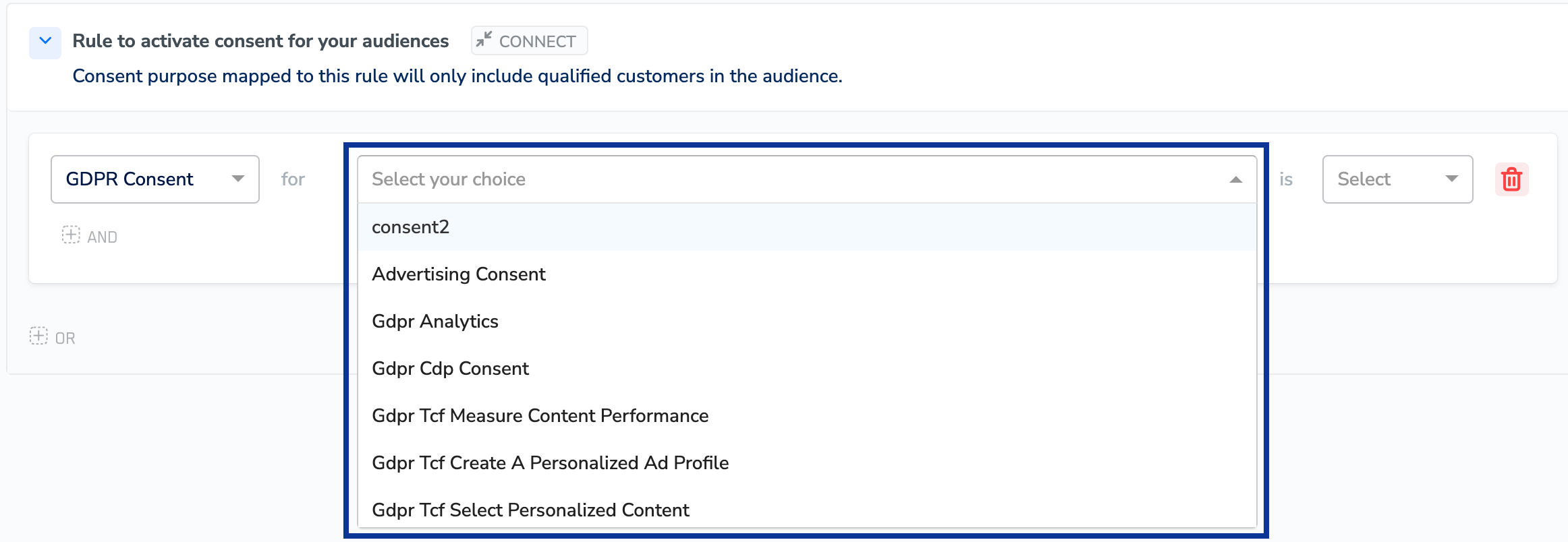 Use the **AND** and **OR** operators to further modify the rule. Note that,
* Within a rule set, all conditions have the AND operator.
* Within a rule, all rule sets have the OR operator.
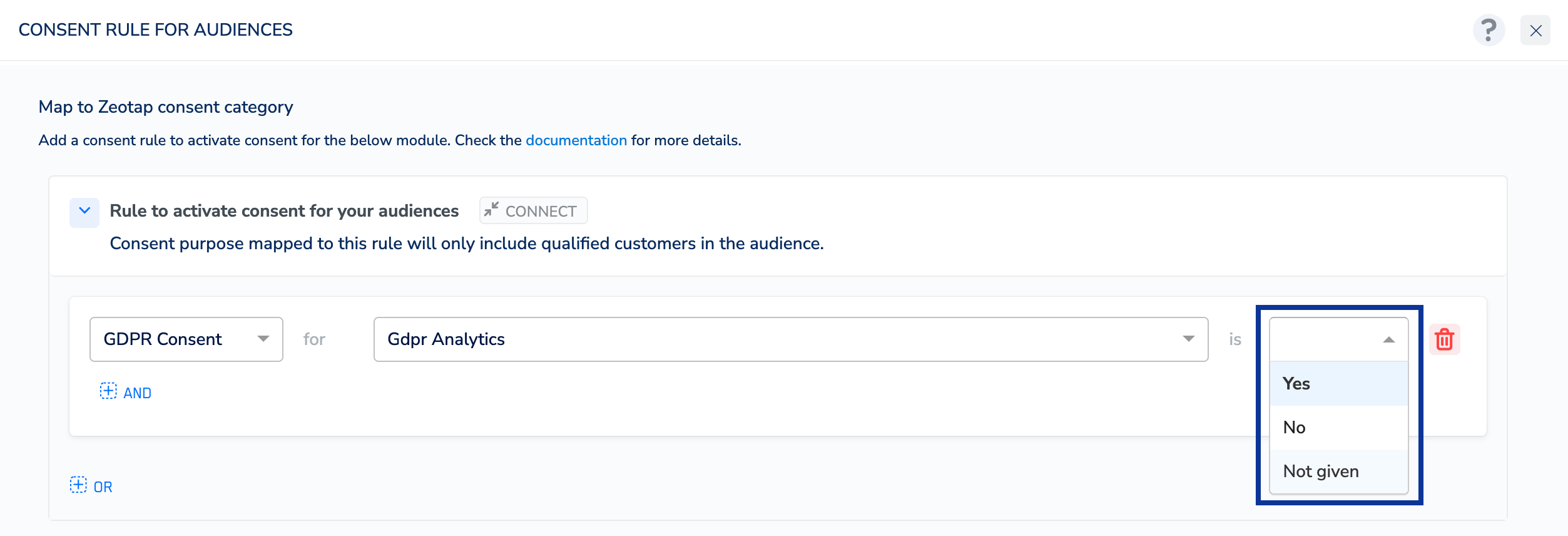
Choose one of the following options for the consent rule based on the customer's consent status:
* **Yes** – Use this option if the customer has provided their consent.
* **No** – Use this option if the customer has denied consent.
* **Not Given** – When there is no explicit consent recorded for the customer, it results in null value being stored for their consent attribute in Zeotap. Null value, which is typically interpreted as a No can avoid the customer from being targeted. To prevent this, you can choose **Not Given** as a condition for the rule and define the action for **Not Given** as per your use case. Note that the rule with **Not Given** condition is only supported in the [Audience](/articles/segment-customer/audience) and [Journeys](/articles/orchestrate-customer/orchestrate) applications.
Use the **AND** and **OR** operators to further modify the rule. Note that,
* Within a rule set, all conditions have the AND operator.
* Within a rule, all rule sets have the OR operator.
Choose one of the following options for the consent rule based on the customer's consent status:
* **Yes** – Use this option if the customer has provided their consent.
* **No** – Use this option if the customer has denied consent.
* **Not Given** – When there is no explicit consent recorded for the customer, it results in null value being stored for their consent attribute in Zeotap. Null value, which is typically interpreted as a No can avoid the customer from being targeted. To prevent this, you can choose **Not Given** as a condition for the rule and define the action for **Not Given** as per your use case. Note that the rule with **Not Given** condition is only supported in the [Audience](/articles/segment-customer/audience) and [Journeys](/articles/orchestrate-customer/orchestrate) applications.
 Save the changes.
### Consent Rule for Channel Activation
Perform the following steps to define consent rule(s) for specific channels:
Go to the **CONSENT** tab.
Under the **CONSENT RULES FOR CHANNEL ACTIVATION** section, click **+** **ADD RULE**.
Save the changes.
### Consent Rule for Channel Activation
Perform the following steps to define consent rule(s) for specific channels:
Go to the **CONSENT** tab.
Under the **CONSENT RULES FOR CHANNEL ACTIVATION** section, click **+** **ADD RULE**.
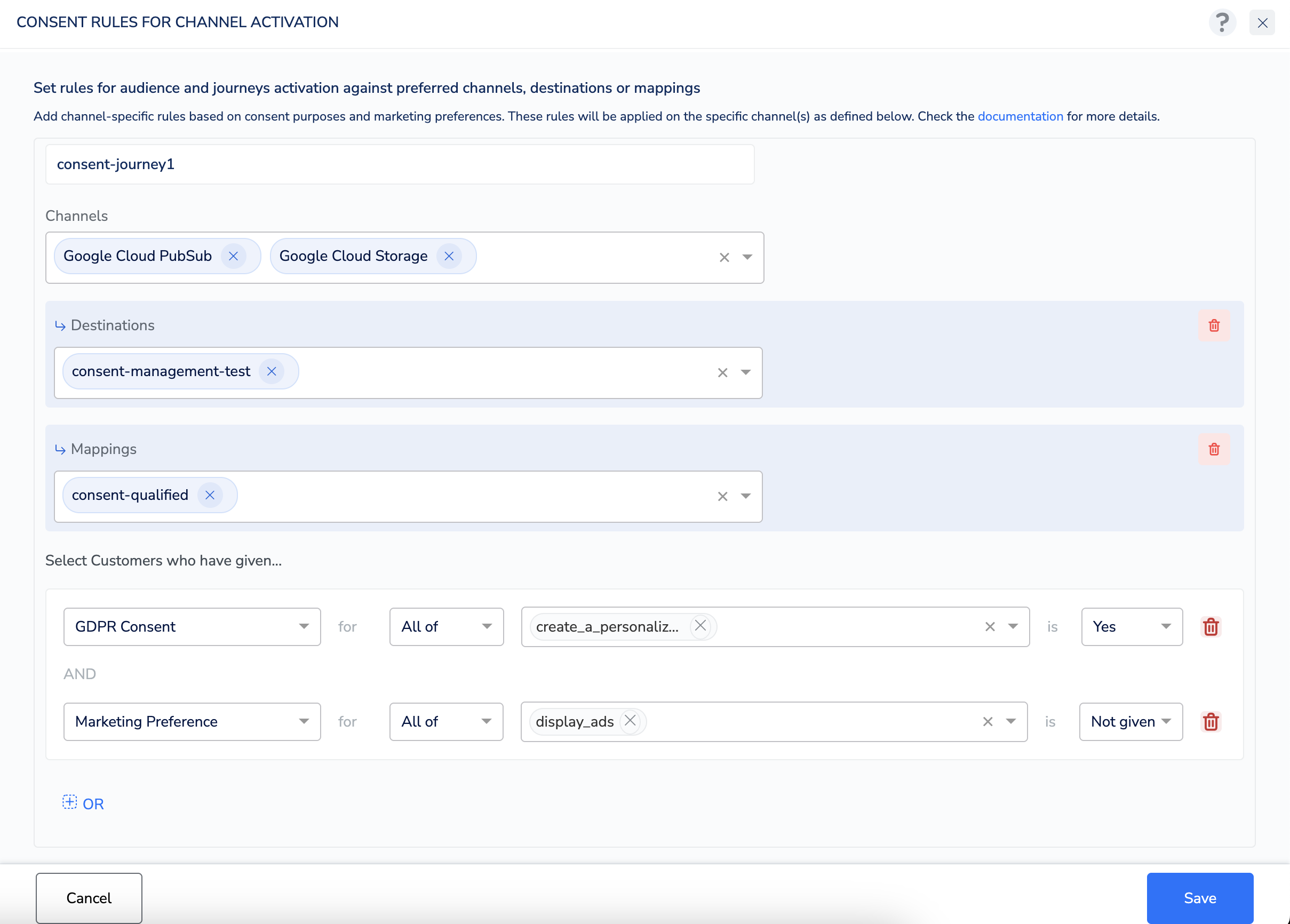
 In the screen that appears, enter the following details:
1. Provide a descriptive rule name.
2. Choose the channels to which you want to apply the rule. This channel list is populated based on the channels that were chosen while you creating your organisation.
3. (Optional) After selecting channels, you can specify one or more destinations under each selected channel. This allows you to narrow down the rule application to particular destinations.
4. (Optional) For any selected destination, you can further specify one or more mappings. This enables even more granular control, letting you create rules at the channel × destination × mapping level.
**Note:**
When multiple rules exist for the same channel with different levels of granularity (channel-only, channel × destination,or channel × destination × mapping), the **most granular rule** applicable to the activation will take precedence.For example, consider the following two rules created for the Braze channel:
In the screen that appears, enter the following details:
1. Provide a descriptive rule name.
2. Choose the channels to which you want to apply the rule. This channel list is populated based on the channels that were chosen while you creating your organisation.
3. (Optional) After selecting channels, you can specify one or more destinations under each selected channel. This allows you to narrow down the rule application to particular destinations.
4. (Optional) For any selected destination, you can further specify one or more mappings. This enables even more granular control, letting you create rules at the channel × destination × mapping level.
**Note:**
When multiple rules exist for the same channel with different levels of granularity (channel-only, channel × destination,or channel × destination × mapping), the **most granular rule** applicable to the activation will take precedence.For example, consider the following two rules created for the Braze channel:- Rule 1 is configured at the destination level for Braze Email Marketing, which has three mappings: mapping1, mapping2, and mapping3.
- Rule 2 is configured at the mapping level for the same destination (Braze Email Marketing), but specifically targets mapping1.
If user creates an audience and activates it via Braze Email Marketing → mapping1, Rule 2 (the more granular rule) will be applied.If the audience is activated via Braze Email Marketing → mapping2 or mapping3, Rule 1 will apply.If the audience is sent to another destination under the Braze channel (not covered by either rule), no rule will apply, as neither rule is configured for that destination.To prevent rule conflicts, system won't allow creation of multiple rules with same combination of channel, destination, and mapping.
5. The Consent Purposes and Marketing Preferences that appear in the respective drop-down are based on categories that you have created for your catalogue. To know more, refer to the [Adding a Consent Category](/articles/unify-customer/adding-a-consent-category) and [Adding a Marketing Preference Category](/articles/unify-customer/adding-a-marketing-preference-category) topics.
6. Note that,
* Within a rule set, all conditions have the AND operator
* Within a rule, all rule sets have the OR operator
7. Choose one of the following options for the consent rule and marketing preference based on the customer's status:
* **Yes** – Use this option if the customer has provided their consent.
* **No** – Use this option if the customer has denied consent.
* **Not Given** – When there is no explicit consent or marketing preference recorded for the customer, it results in null values being stored for their consent or marketing preference attributes in Zeotap. Null value, which is typically interpreted as a No, can avoid the customer from being targeted. To prevent this, you can choose **Not Given** as a condition for the rule and define the action for **Not Given** as per your use case. Note that the rule with **Not Given** condition is only supported in the [Audience](/articles/segment-customer/audience) and [Journeys](/articles/orchestrate-customer/orchestrate) applications.
 Save the changes.