> ## Documentation Index
> Fetch the complete documentation index at: https://docs.zeotap.com/llms.txt
> Use this file to discover all available pages before exploring further.
# Understand Metrics
> It is essential to have visibility into the number of events/users who have passed through each node of a workflow. This gives you clarity into the overall traffic reaching your workflow. It also provides you a means to check if the conditions that you have configured are working as expected or not.
Metrics are available for all workflows which are in published state.
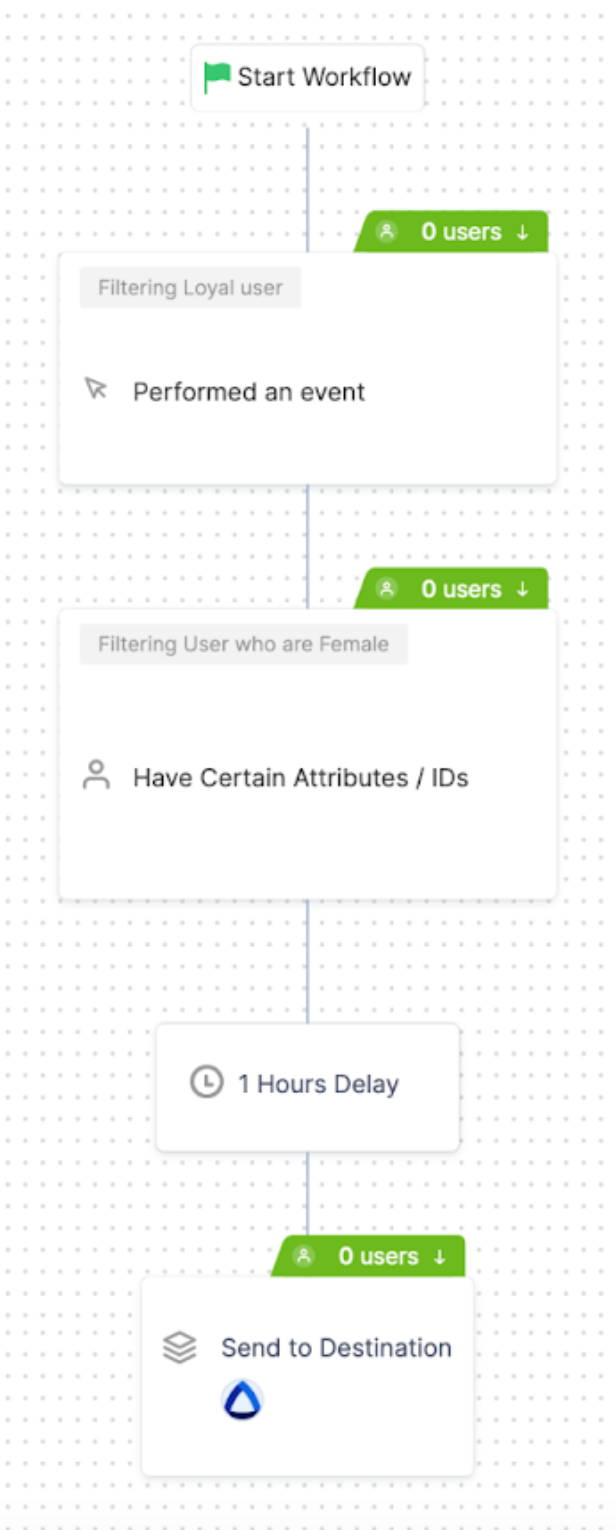 The number denotes users for the last 7 days.
* If a workflow is run for less than 7 days, then the number denotes users for as many days available
* If a workflow was paused for a part of the last 7 days, then the paused duration is considered towards the last 7 days.
**Note:**
To know about the total number of users sent out by the workflow (not just at the node level), refer to the **ACTIVATED USERS** column on the listing screen.
In the case of improperly mapped data or data type failure, an error appears showing the number of failed records. If a user is associated with multiple records, then all those records are included in the number that appears on the error message.
The number denotes users for the last 7 days.
* If a workflow is run for less than 7 days, then the number denotes users for as many days available
* If a workflow was paused for a part of the last 7 days, then the paused duration is considered towards the last 7 days.
**Note:**
To know about the total number of users sent out by the workflow (not just at the node level), refer to the **ACTIVATED USERS** column on the listing screen.
In the case of improperly mapped data or data type failure, an error appears showing the number of failed records. If a user is associated with multiple records, then all those records are included in the number that appears on the error message.