> ## Documentation Index
> Fetch the complete documentation index at: https://docs.zeotap.com/llms.txt
> Use this file to discover all available pages before exploring further.

# Create a Workflow

Perform the following steps to create and publish a workflow in Journeys:

<Steps>
  <Step>
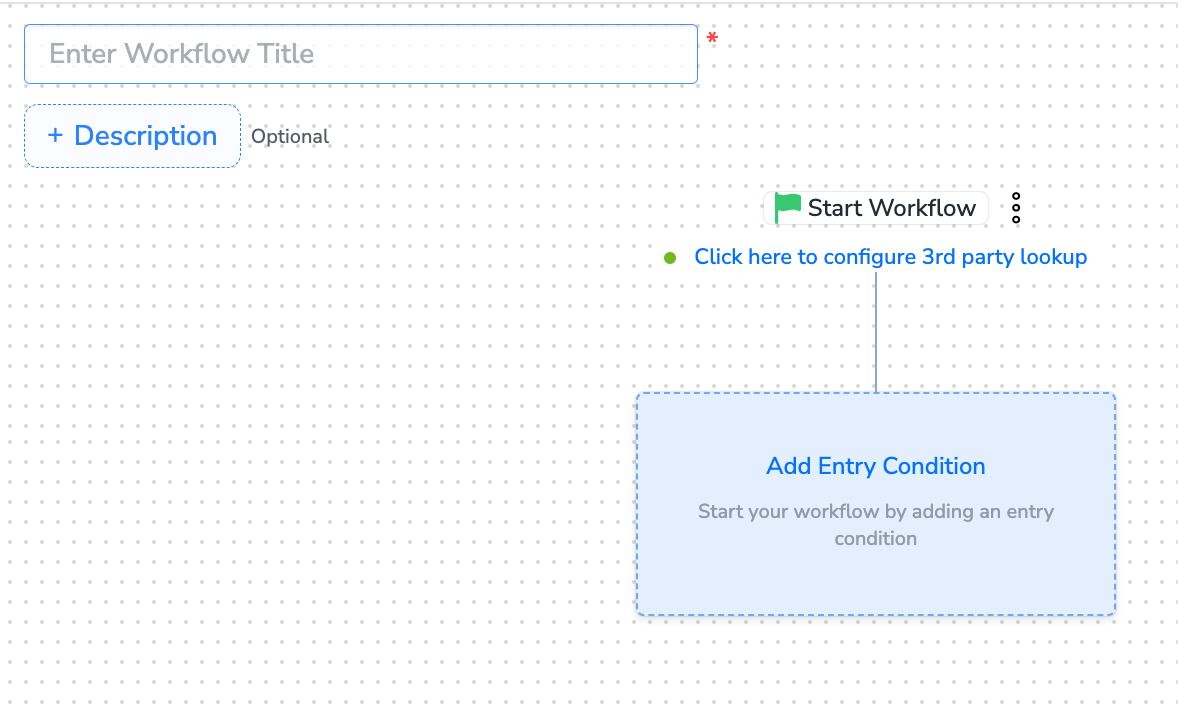
    Begin by adding an entry condition and providing the basic details, such as the **Workflow Title** and **Description**.
    <Frame>
      <img src="https://mintcdn.com/zeotap/muyEI6uT3T_zmJ6Z/articles/orchestrate-customer/Storage/orchestrate-customer/create-a-workflow/create-a-workflow-2024-08-09-8.png?fit=max&auto=format&n=muyEI6uT3T_zmJ6Z&q=85&s=a1856f0e85b40a6589b03c98e40ee8c4" alt="" width="1178" height="704" data-path="articles/orchestrate-customer/Storage/orchestrate-customer/create-a-workflow/create-a-workflow-2024-08-09-8.png" />
    </Frame>
  </Step>

  <Step>
    Perform Actions in Workflow Creation. The following actions are available during workflow creation:

    <CardGroup>
      <Card title="Add an Entry Condition" href="/articles/orchestrate-customer/add-an-entry-condition" icon="angles-right" iconType="solid" horizontal={true} />

      <Card title="Add a Delay" href="/articles/orchestrate-customer/add-a-delay" icon="angles-right" iconType="solid" horizontal={true} />

      <Card title="Add a Condition" href="/articles/orchestrate-customer/add-a-condition" icon="angles-right" iconType="solid" horizontal={true} />

      <Card title="Apply Multi-branch Split" href="/articles/orchestrate-customer/apply-multi-branch-split" icon="angles-right" iconType="solid" horizontal={true} />

      <Card title="Apply True/False Split" href="/articles/orchestrate-customer/apply-true-false-split" icon="angles-right" iconType="solid" horizontal={true} />

      <Card title="Save as Draft" href="/articles/orchestrate-customer/save-as-draft" icon="angles-right" iconType="solid" horizontal={true} />

      <Card title="Add or Delete a Node" href="/articles/orchestrate-customer/add-or-delete-a-node" icon="angles-right" iconType="solid" horizontal={true} />

      <Card title="Name a Node" href="/articles/orchestrate-customer/name-a-node" icon="angles-right" iconType="solid" horizontal={true} />

      <Card title="Add Re-entry Criteria" href="/articles/orchestrate-customer/add-re-entry-criteria" icon="angles-right" iconType="solid" horizontal={true} />

      <Card title="Understand Audience Logging" href="/articles/orchestrate-customer/understand-audience-logging" icon="angles-right" iconType="solid" horizontal={true} />
    </CardGroup>
  </Step>

  <Step>
    After adding conditions and filters for users, choose one of the following options:

    * **Save Draft**: Enables you to revisit and edit the workflow before publishing.
    * **Next: Re-entry Condition**: Determines whether a user can re-enter the same workflow.

    <Frame>
      <img src="https://mintcdn.com/zeotap/muyEI6uT3T_zmJ6Z/articles/orchestrate-customer/Storage/orchestrate-customer/create-a-workflow/create-a-workflow-2024-08-09-4.png?fit=max&auto=format&n=muyEI6uT3T_zmJ6Z&q=85&s=ff57667e73922a4dafa56582c80d004e" alt="" width="898" height="138" data-path="articles/orchestrate-customer/Storage/orchestrate-customer/create-a-workflow/create-a-workflow-2024-08-09-4.png" />
    </Frame>
  </Step>

  <Step>
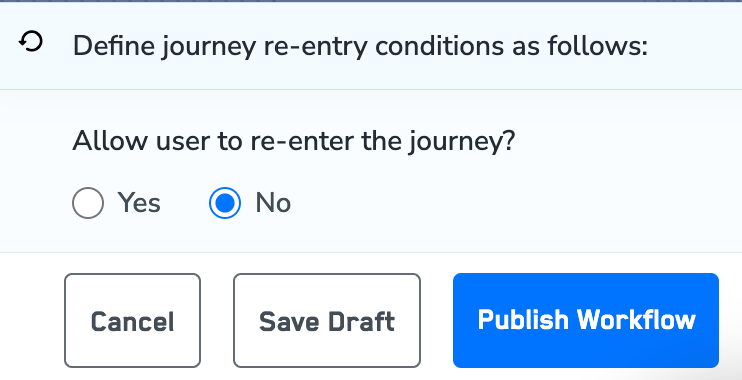
    After defining the re-entry criteria, click **Publish Workflow**. The workflow appears in the Workflow Listing screen with a **Published** status.
    <Frame>
      <img src="https://mintcdn.com/zeotap/muyEI6uT3T_zmJ6Z/articles/orchestrate-customer/Storage/orchestrate-customer/create-a-workflow/create-a-workflow-2024-08-09-3.png?fit=max&auto=format&n=muyEI6uT3T_zmJ6Z&q=85&s=d4453860006b2a4c074c03b7083b88b4" alt="" width="742" height="380" data-path="articles/orchestrate-customer/Storage/orchestrate-customer/create-a-workflow/create-a-workflow-2024-08-09-3.png" />
    </Frame>
  </Step>
</Steps>

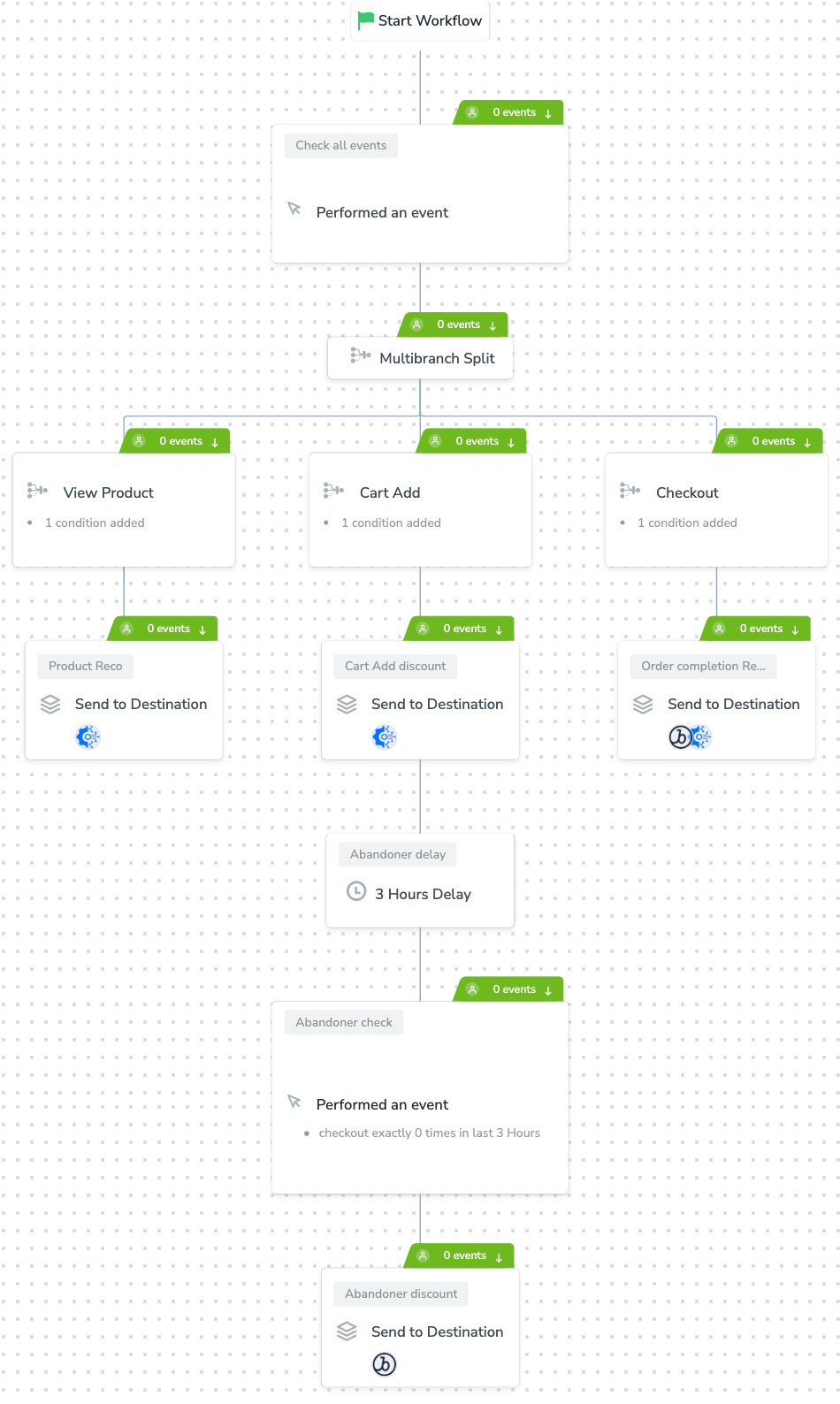
## Sample Workflow

<Frame>
  <img src="https://mintcdn.com/zeotap/muyEI6uT3T_zmJ6Z/articles/orchestrate-customer/Storage/orchestrate-customer/create-a-workflow/create-a-workflow-2024-08-09-5.png?fit=max&auto=format&n=muyEI6uT3T_zmJ6Z&q=85&s=666ed62e57fb3fe6531dd8bd7ead16a0" alt="" width="950" height="1588" data-path="articles/orchestrate-customer/Storage/orchestrate-customer/create-a-workflow/create-a-workflow-2024-08-09-5.png" />
</Frame>