> ## Documentation Index
> Fetch the complete documentation index at: https://docs.zeotap.com/llms.txt
> Use this file to discover all available pages before exploring further.
# Add an Entry Condition
> An entry condition is the criteria that a user must satisfy to qualify for the workflow. You can filter users based on the events they performed or based on their user attributes or ID. When you choose to filter using attributes only, then all the events coming from your source are considered for activation. The steps below summarise the process to add the entry condition.
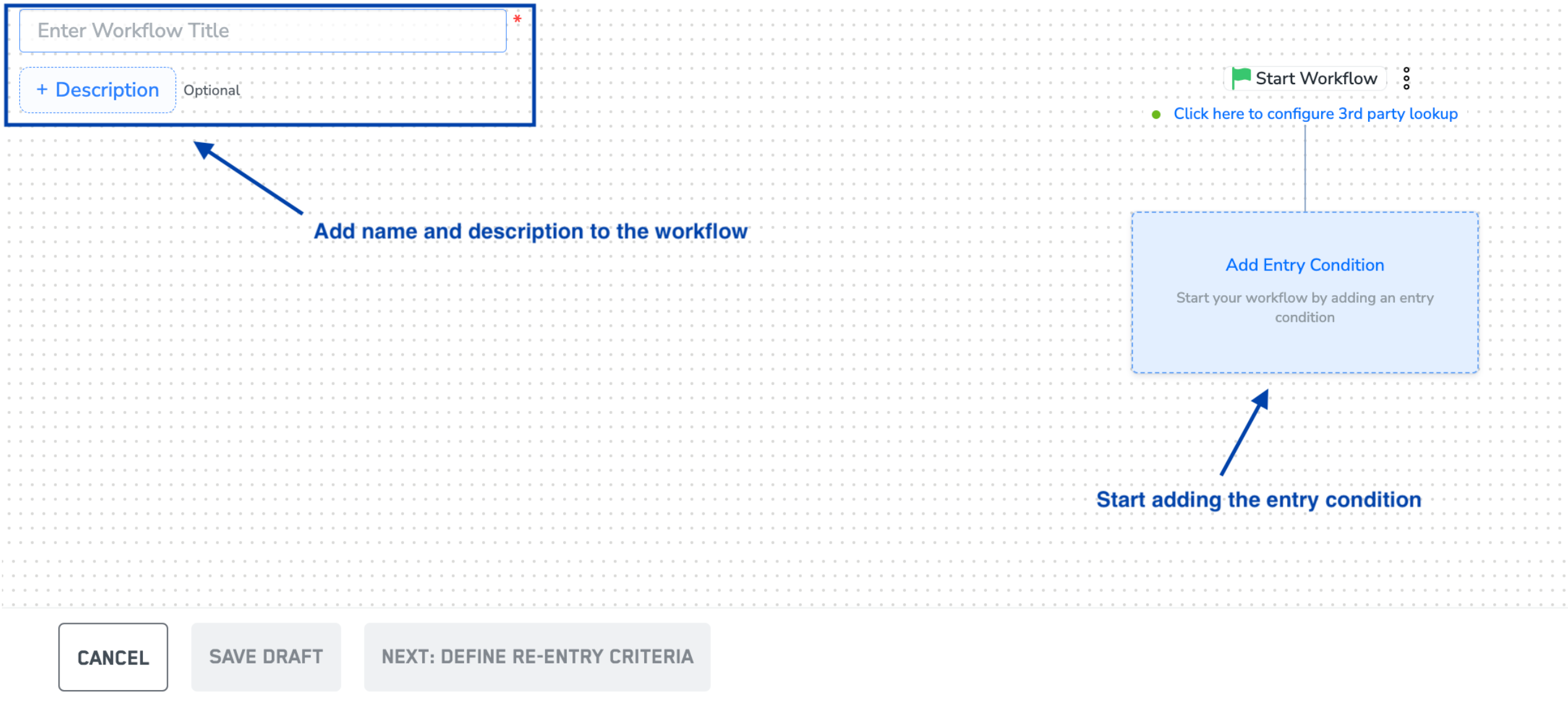
Enter a descriptive title to refer to the workflow.
In the Description field, enter a description to remember details about the workflow.
Click Add Entry Condition.
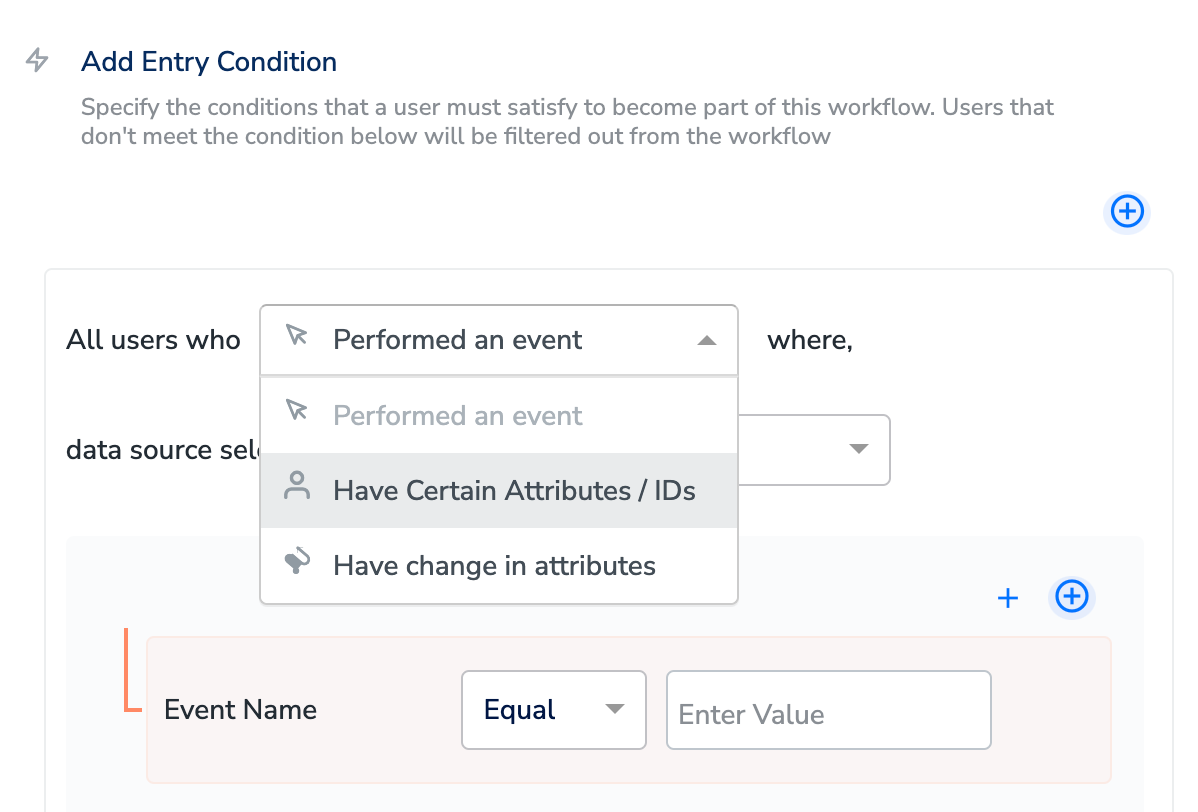
 Workflows work by filtering users coming in from real-time streaming sources. Select the real-time streaming source you want to work with from the drop-down menu. For a user journey across all your sources, select the 'All Sources' option.
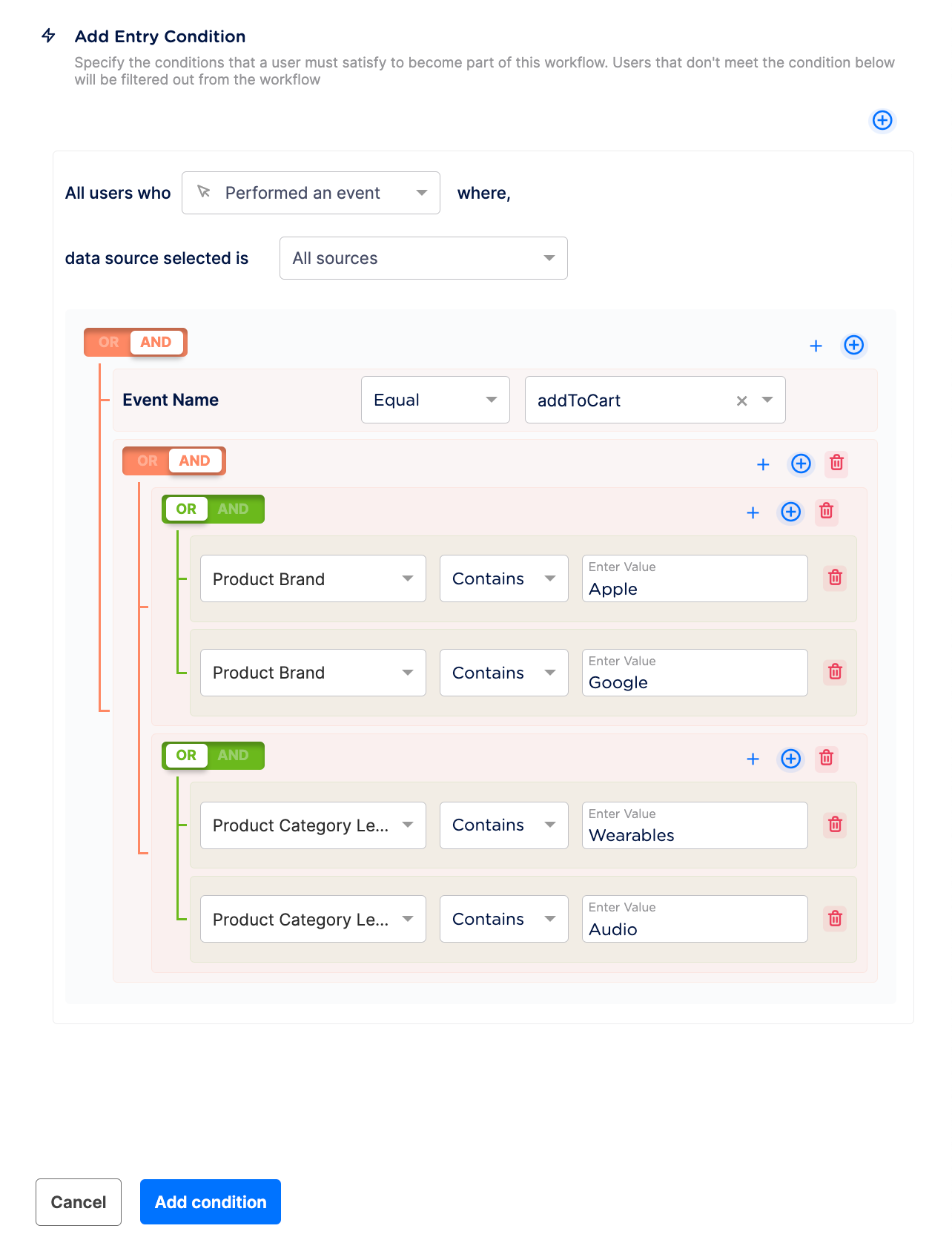
From the Performed an event drop-down menu, choose the event name and attributes with which you want to define the entry condition.
Workflows work by filtering users coming in from real-time streaming sources. Select the real-time streaming source you want to work with from the drop-down menu. For a user journey across all your sources, select the 'All Sources' option.
From the Performed an event drop-down menu, choose the event name and attributes with which you want to define the entry condition.
 **Note**
*You can add a maximum of ten event attribute filters. Note that it is compulsory to select the event name first. Within each attribute filter, you can add one condition or more than one condition block.*
Filter users based on the following options:
**Note**
*You can add a maximum of ten event attribute filters. Note that it is compulsory to select the event name first. Within each attribute filter, you can add one condition or more than one condition block.*
Filter users based on the following options:
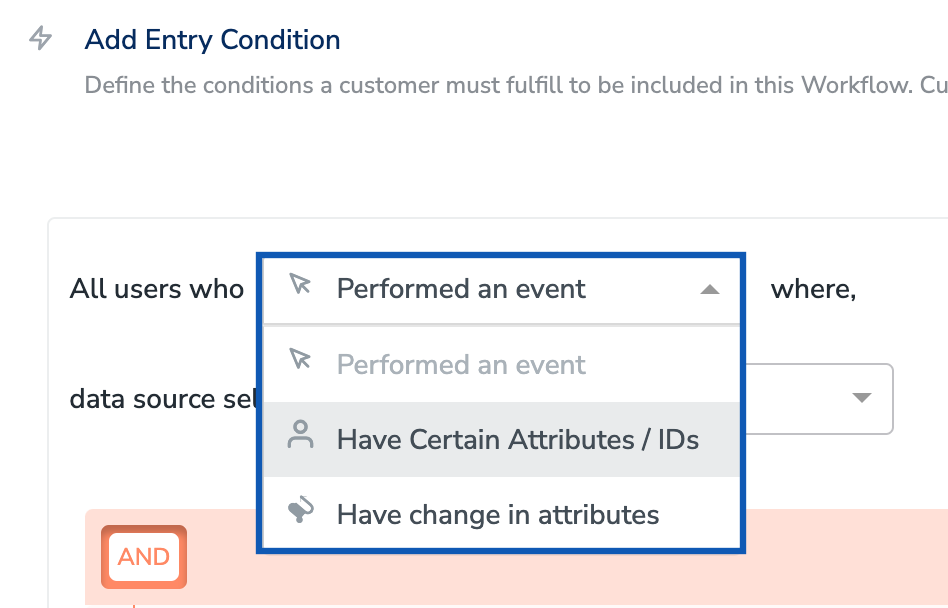 * **Performed an event** - Use this option to add an event name and attributes to be filtered. While defining a **Performed an event**condition, ensure that you specify the following items:
* The recent duration within which that event must have been performed.
* The number of times that event must have been performed. For example, performed `add_to_cart` event more than 2 times in last 4 hours.
* **Have Certain Attributes / IDs**- Use this option to specify the identifiers or attributes in a condition. Under **Have Certain Attributes / IDs,** apart from the standard identifiers and attributes, you can also choose from the data types, [Non-Customer Entity data](/articles/unify-customer/non-customer-entity-data) (NCE), [Objects](/articles/unify-customer/data-types-in-catalogue#object) and [List of Objects](/articles/unify-customer/data-types-in-catalogue#list-array-of-objects).
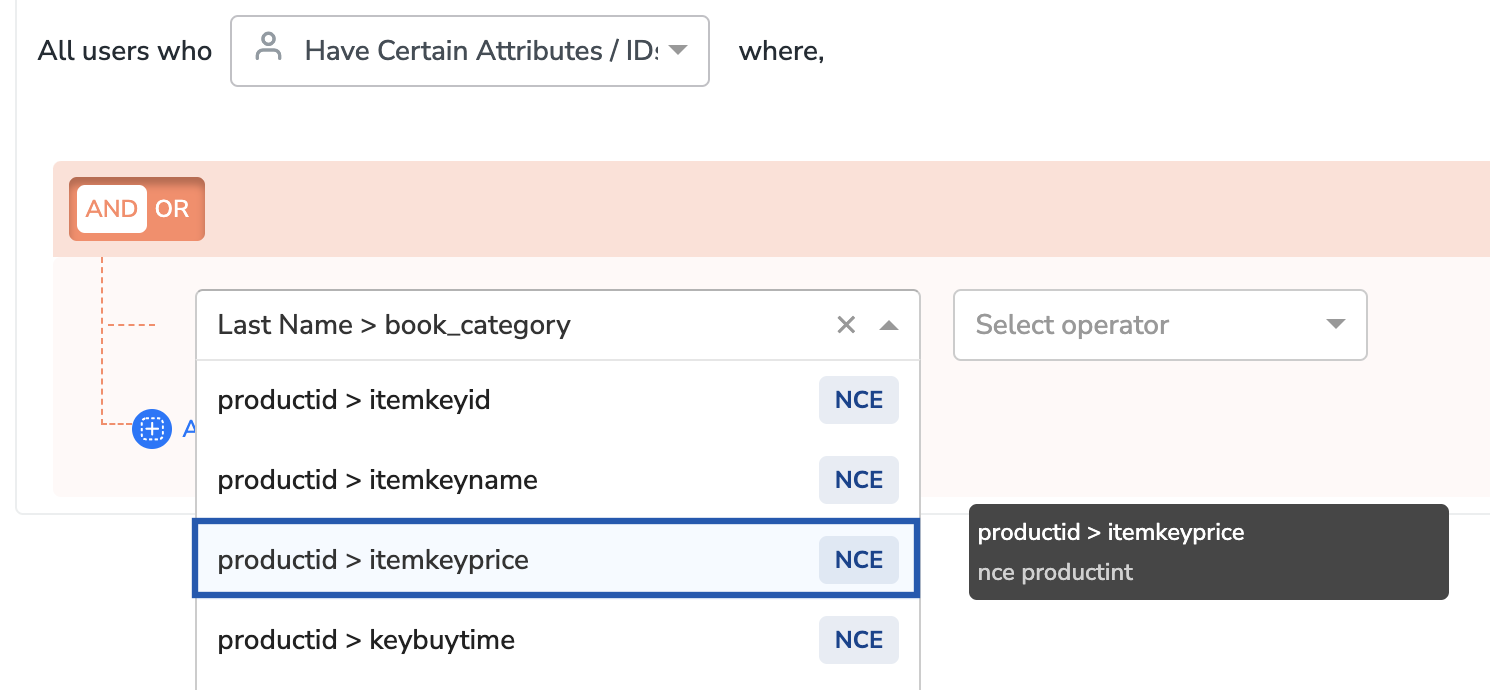
* The NCE attribute is displayed in the format: `Join Key > Attribute name` as shown in the image below. Here, the `nce productint` is the source field, `productid` is the *Join Key* and `itemkeyprice` is the *attribute name*. The NCE tag appears on the attributes for easy identification as shown below. For more information about how to create an NCE attribute and map it to catalogue, refer [here](/articles/unify-customer/map-the-catalogue-for-non-customer-entity-data).
* **Performed an event** - Use this option to add an event name and attributes to be filtered. While defining a **Performed an event**condition, ensure that you specify the following items:
* The recent duration within which that event must have been performed.
* The number of times that event must have been performed. For example, performed `add_to_cart` event more than 2 times in last 4 hours.
* **Have Certain Attributes / IDs**- Use this option to specify the identifiers or attributes in a condition. Under **Have Certain Attributes / IDs,** apart from the standard identifiers and attributes, you can also choose from the data types, [Non-Customer Entity data](/articles/unify-customer/non-customer-entity-data) (NCE), [Objects](/articles/unify-customer/data-types-in-catalogue#object) and [List of Objects](/articles/unify-customer/data-types-in-catalogue#list-array-of-objects).
* The NCE attribute is displayed in the format: `Join Key > Attribute name` as shown in the image below. Here, the `nce productint` is the source field, `productid` is the *Join Key* and `itemkeyprice` is the *attribute name*. The NCE tag appears on the attributes for easy identification as shown below. For more information about how to create an NCE attribute and map it to catalogue, refer [here](/articles/unify-customer/map-the-catalogue-for-non-customer-entity-data).
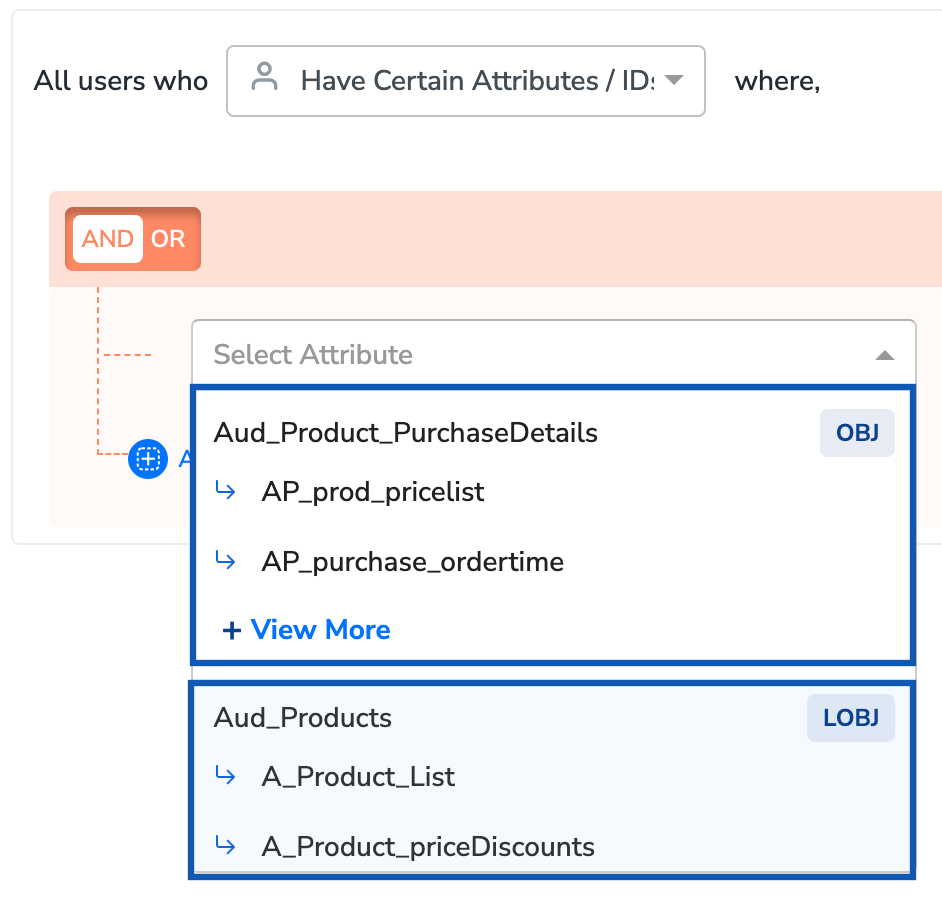
 * `Objects` and `List (Array) of Objects` are attribute types within the Zeotap Catalogue that can hold a JSON object or array of JSON objects that contains one or more key-value pairs, also called *properties*. You can identify an `Object` attribute and `List of Objects`, along with its properties with the `OBJ` and `LOBJ` tags respectively next to the attribute names as shown in the image below. To learn more about Objects and List of Objects along with use cases, refer [here](/articles/unify-customer/data-types-in-catalogue#object).
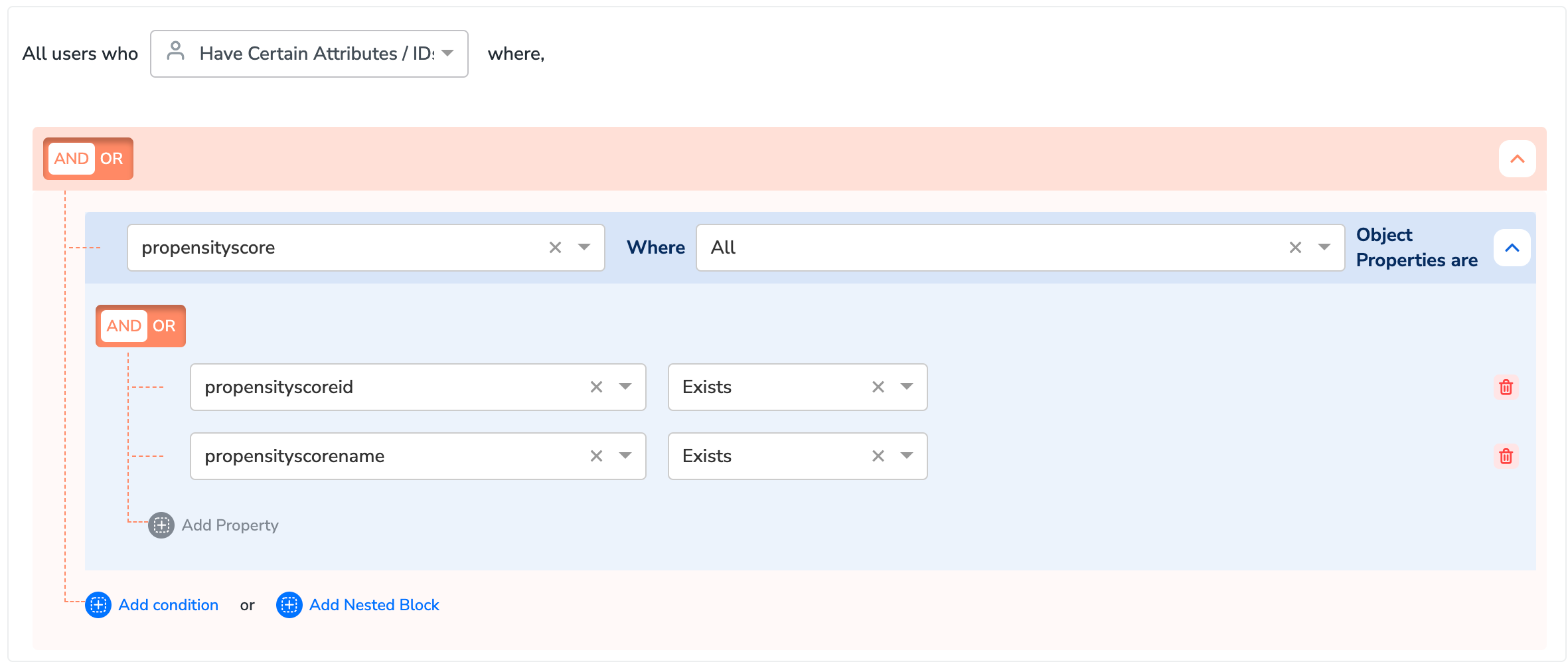
 * Note that upon selecting the `Objects` or `List of Objects` attribute, you need to choose either **ANY** or **ALL** as the operator based on requirement.
* **ANY** qualifies customers for your workflow if at least one of the `Objects` or `List of Objects` in the list meet the specified conditions.
* **ALL** qualifies customers for your workflow only if all the the `Objects` or `List of Objects` in the list meet the specified conditions.
* Note that upon selecting the `Objects` or `List of Objects` attribute, you need to choose either **ANY** or **ALL** as the operator based on requirement.
* **ANY** qualifies customers for your workflow if at least one of the `Objects` or `List of Objects` in the list meet the specified conditions.
* **ALL** qualifies customers for your workflow only if all the the `Objects` or `List of Objects` in the list meet the specified conditions.
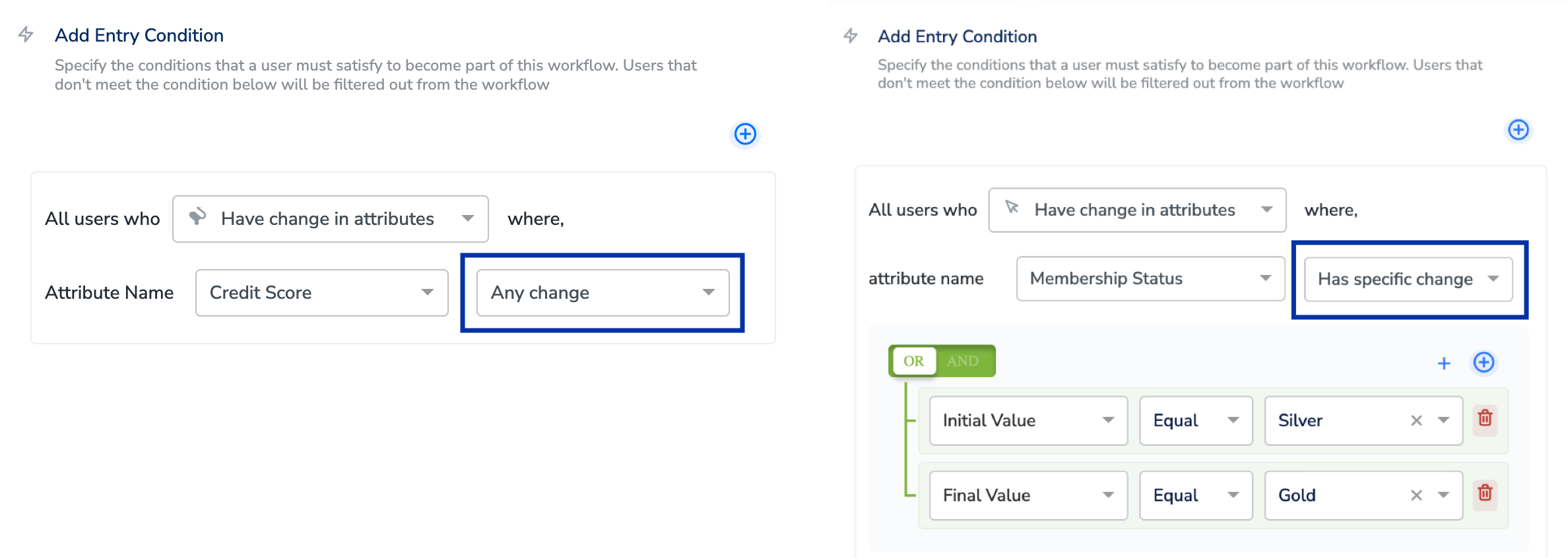
 * **Have change in attributes** - Use this option to track an attribute for any/specific change in its status. By choosing the **Attribute Name** and **Any Change** from the drop-down menu, you specify the attribute for which you want to track the change in its status. For example, suppose you want to keep a track on the credit score of a customer based on which you can create promotions. In this case, you can choose the **Attribute Name**as **Credit Score**and choose **Any change** from the drop-down menu beside it. For more precise tracking, you can choose **Has specific change** instead of **Any change**, and establish the required conditions according to your needs.
 **Note:**
*You can add a total of ten user attributes or calculated attributes filters. You can define an entry condition using just the attributes filter. Since Journeys works by processing events, in this case, all the events performed by the user are considered for the workflow.*
Click **Add Condition** to complete the first stage of workflow creation.
**Note:**
*You can add a total of ten user attributes or calculated attributes filters. You can define an entry condition using just the attributes filter. Since Journeys works by processing events, in this case, all the events performed by the user are considered for the workflow.*
Click **Add Condition** to complete the first stage of workflow creation.
 ## Operator Supports
### List Operators
| **Operator** | **Definition** | **Example Condition** | **User Profile** | **Filter throughJourney’s node** |
| :----------- | :----------------------------------------------------------------------------- | :-------------------------------------------------------------------------------------- | :------------------------------------------------------------------ | :------------------------------- |
| Contains All | Filters customers if their array attributecontains all of the specified values | `customer.completed_courses`Contains All `["Introduction","Advanced", "Certification"]` | Completed Courses =\[`"Introduction","Advanced", "Certification"` ] | Yes |
### Integer Data Types
| **Oerator** | **Definition** | **Example Condition** | **User Profile** | **Filter throughJourney’s node** |
| :---------- | :------------------------------------------------------------------------------------------- | :--------------------------------------- | :--------------- | :------------------------------- |
| In | Filters customers if their integer attributevalue is one of the specified list of values | `customer.age` In`[25, 30, 35, 40]` | Age - 30 | Yes |
| Not In | Filters customers if their integer attributevalue is not one of the specified list of values | `customer.age`Not In \[`25, 30, 35, 40]` | Age - 45 | Yes |
### String Data Types
| **Operator** | **Definition** | **Example Condition** | **User Profile** | **Filter throughJourney’s node** |
| :-------------- | :------------------------------------------------------------------------------------------- | :-------------------------------------------------------- | :------------------------------------------------------------------------------------------ | :------------------------------- |
| In | Filters customers if their string attributevalue is one of the specified list of values | `customer.preferred_channel`In `["Email", "SMS", "Push"]` | Age - 30 | Yes |
| Not In | Filters customers if their string attributevalue is not one of the specified list of values | `customer.subscription_tier`Not In `["Free", "Trial"]` | Age - 45 | No |
| Ends With | Filters customers if their string attributevalue ends with the specified substring | `customer.email` EndsWith `".edu"` | Customer email [-john.smith@uni.edu](mailto:-john.smith@uni.edu) | Yes |
| Not Ends With | Filters customers if their string attributevalue does not end with the specified substring | `customer.email` Not EndsWith `".edu"` | Customer email -[john.smith@uni.edu](mailto:john.smith@uni.edu "mailto:john.smith@uni.edu") | No |
| Begins With | Filters customers if their string attributevalue begins with the specified substring | `customer.product_SKU` BeginsWith `"PREM"` | Customer.Product\_SKU= PREMIUM | Yes |
| Not Begins With | Filters customers if their string attributevalue does not begin with the specified substring | `customer.account_id` NotBegins With `"DEMO"` | Customer.account\_id= DEMO | No |
### Timestamps Data Types
| **Operator** | **Definition** | **Example Condition** | **User Profile** | **FilterthroughJourney’snode** |
| --------------------------------------------------------------- | -------------------------------------------------------------------------------------------------- | ------------------------------------------------------------- | --------------------------------------------------------- | ------------------------------ |
| Between the last\ and\ Days/Weeks | Filters customers basedon timestamp valueswithin a specified rangefrom current date goingbackwards | `customer.last_login`Between the last 7 and 30 Days | `customer.last_login`= 2nd Aug ( Today = 3 aud ) | Yes |
| Between the next\ and\ Days/Weeks | Filters customers basedon timestamp valueswithin a specified rangefrom current date goingforwards | `customer.subscription_renewal`Between the next 7 and 14 Days | `customer.subscription_renewal`= 11 Aug ( Today = 3 Aug ) | Yes |
| Between dates\ - \ | Filters customers basedon timestamp valueswithin a specific date range | `customer.signup_date`Between dates2025-07-01 - 2025-07-31 | `customer.signup_date`= 2025-07-05 | Yes |
**Note:**
*After adding the entry criteria, you can apply conditional checks, delays or splits at any node in the workflow. You can also send the users to a Destination channel to activate them.*
## Operator Supports
### List Operators
| **Operator** | **Definition** | **Example Condition** | **User Profile** | **Filter throughJourney’s node** |
| :----------- | :----------------------------------------------------------------------------- | :-------------------------------------------------------------------------------------- | :------------------------------------------------------------------ | :------------------------------- |
| Contains All | Filters customers if their array attributecontains all of the specified values | `customer.completed_courses`Contains All `["Introduction","Advanced", "Certification"]` | Completed Courses =\[`"Introduction","Advanced", "Certification"` ] | Yes |
### Integer Data Types
| **Oerator** | **Definition** | **Example Condition** | **User Profile** | **Filter throughJourney’s node** |
| :---------- | :------------------------------------------------------------------------------------------- | :--------------------------------------- | :--------------- | :------------------------------- |
| In | Filters customers if their integer attributevalue is one of the specified list of values | `customer.age` In`[25, 30, 35, 40]` | Age - 30 | Yes |
| Not In | Filters customers if their integer attributevalue is not one of the specified list of values | `customer.age`Not In \[`25, 30, 35, 40]` | Age - 45 | Yes |
### String Data Types
| **Operator** | **Definition** | **Example Condition** | **User Profile** | **Filter throughJourney’s node** |
| :-------------- | :------------------------------------------------------------------------------------------- | :-------------------------------------------------------- | :------------------------------------------------------------------------------------------ | :------------------------------- |
| In | Filters customers if their string attributevalue is one of the specified list of values | `customer.preferred_channel`In `["Email", "SMS", "Push"]` | Age - 30 | Yes |
| Not In | Filters customers if their string attributevalue is not one of the specified list of values | `customer.subscription_tier`Not In `["Free", "Trial"]` | Age - 45 | No |
| Ends With | Filters customers if their string attributevalue ends with the specified substring | `customer.email` EndsWith `".edu"` | Customer email [-john.smith@uni.edu](mailto:-john.smith@uni.edu) | Yes |
| Not Ends With | Filters customers if their string attributevalue does not end with the specified substring | `customer.email` Not EndsWith `".edu"` | Customer email -[john.smith@uni.edu](mailto:john.smith@uni.edu "mailto:john.smith@uni.edu") | No |
| Begins With | Filters customers if their string attributevalue begins with the specified substring | `customer.product_SKU` BeginsWith `"PREM"` | Customer.Product\_SKU= PREMIUM | Yes |
| Not Begins With | Filters customers if their string attributevalue does not begin with the specified substring | `customer.account_id` NotBegins With `"DEMO"` | Customer.account\_id= DEMO | No |
### Timestamps Data Types
| **Operator** | **Definition** | **Example Condition** | **User Profile** | **FilterthroughJourney’snode** |
| --------------------------------------------------------------- | -------------------------------------------------------------------------------------------------- | ------------------------------------------------------------- | --------------------------------------------------------- | ------------------------------ |
| Between the last\ and\ Days/Weeks | Filters customers basedon timestamp valueswithin a specified rangefrom current date goingbackwards | `customer.last_login`Between the last 7 and 30 Days | `customer.last_login`= 2nd Aug ( Today = 3 aud ) | Yes |
| Between the next\ and\ Days/Weeks | Filters customers basedon timestamp valueswithin a specified rangefrom current date goingforwards | `customer.subscription_renewal`Between the next 7 and 14 Days | `customer.subscription_renewal`= 11 Aug ( Today = 3 Aug ) | Yes |
| Between dates\ - \ | Filters customers basedon timestamp valueswithin a specific date range | `customer.signup_date`Between dates2025-07-01 - 2025-07-31 | `customer.signup_date`= 2025-07-05 | Yes |
**Note:**
*After adding the entry criteria, you can apply conditional checks, delays or splits at any node in the workflow. You can also send the users to a Destination channel to activate them.*