> ## Documentation Index
> Fetch the complete documentation index at: https://docs.zeotap.com/llms.txt
> Use this file to discover all available pages before exploring further.
# Upload Files on GCloud Console
**Note:**
*Only users with the Editor role have access to this feature. Users with the Viewer role must contact Admins to upload files.*
Perform the following steps to upload files using the Google Cloud Storage browser:
Open the [Cloud Storage browser](https://console.cloud.google.com/storage/browser) in the Google Cloud Console.
Log in with the G Suite account specified in the access details for your dataset.
In the target project, select **Buckets**, then choose the desired bucket.
Here, use the following folder structures based on your [encryption](/articles/integrate-customer/pgp-encryption-in-sources) settings:
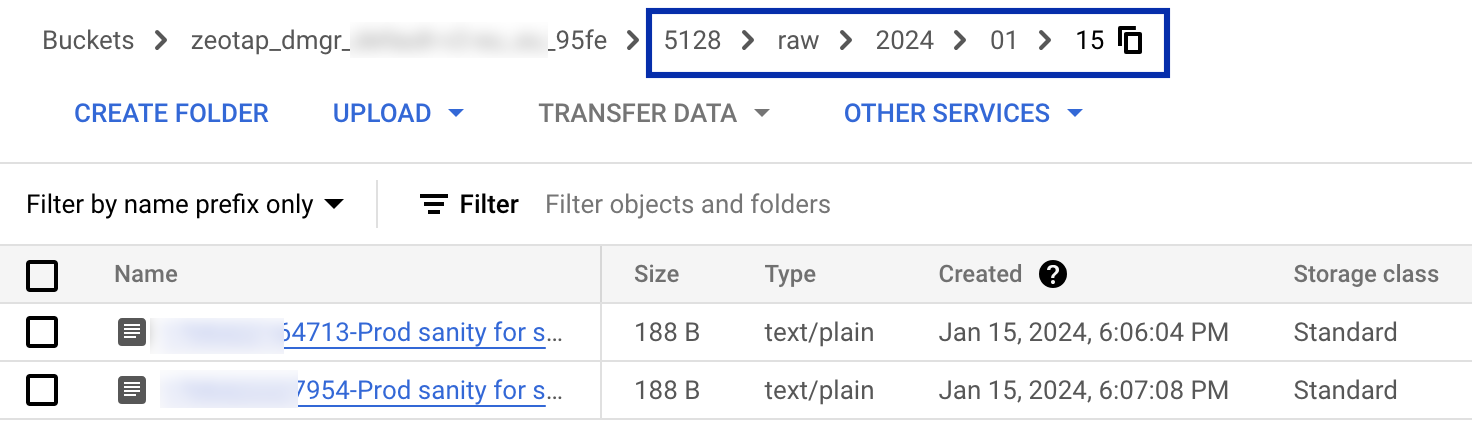
a. **Without PGP encryption**: Use the folder structure `/sourceid/raw/yyyy/mm/dd` (for example, `5121/raw/2025/01/15`).
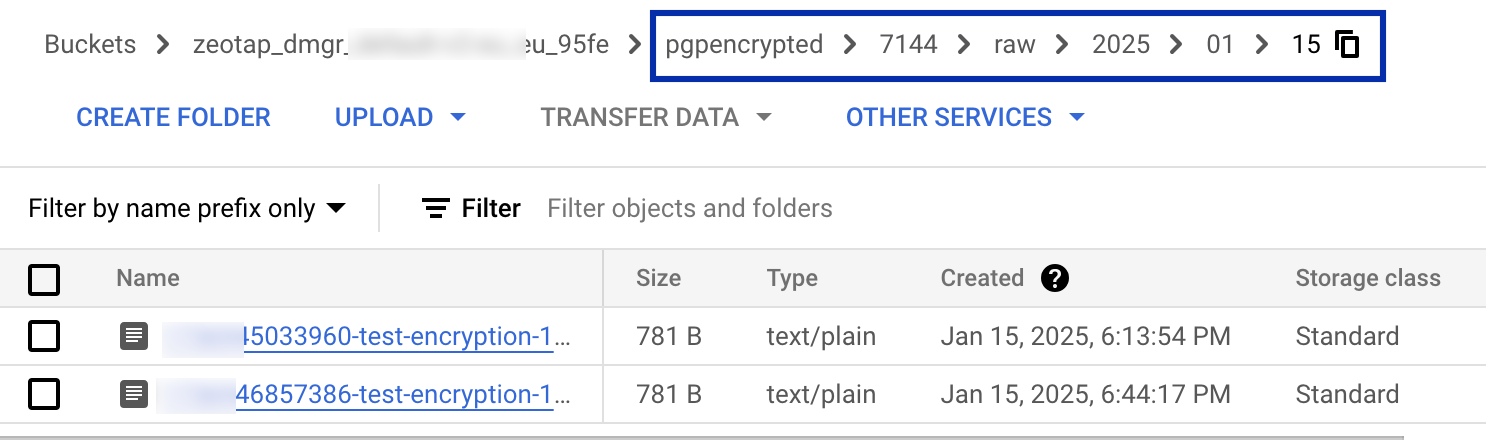
 b. **With [PGP encryption](/articles/integrate-customer/pgp-encryption-in-sources)**: Use the folder structure `pgpencrypted/sourceid/raw/yyyy/mm/dd` (for example, `pgpencrypted/5121/raw/2025/01/15`).
 After the folder restructure is created in the **OBJECTS** tab, perform either of the following steps:
a. Drag and drop the desired files from your desktop or file manager to the main pane in the Cloud Console.
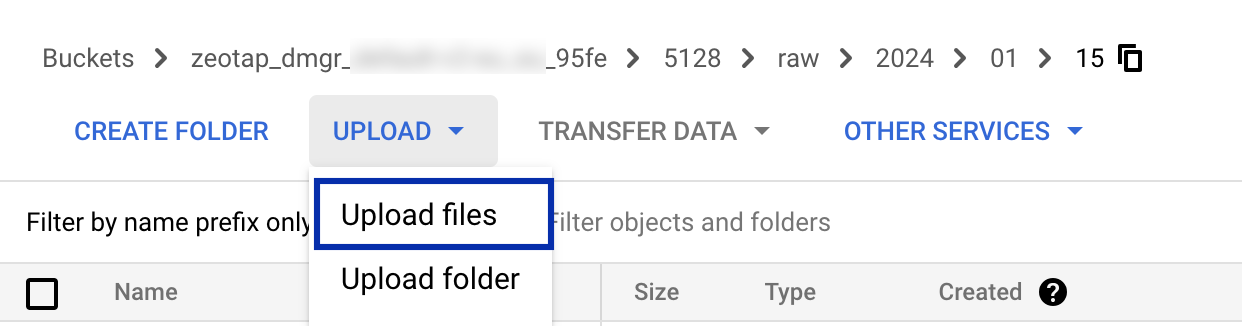
b. Click the **Upload Files** button, select the files you want to upload in the dialog that appears and then click **Open**.
After the folder restructure is created in the **OBJECTS** tab, perform either of the following steps:
a. Drag and drop the desired files from your desktop or file manager to the main pane in the Cloud Console.
b. Click the **Upload Files** button, select the files you want to upload in the dialog that appears and then click **Open**.
 **Note:**
*For PGP-encrypted sources, upload files only in the `.pgp` format.*
**Note:**
*For PGP-encrypted sources, upload files only in the `.pgp` format.*