> ## Documentation Index
> Fetch the complete documentation index at: https://docs.zeotap.com/llms.txt
> Use this file to discover all available pages before exploring further.
# TikTok Events
> The TikTok Events integration with Zeotap is a server-to-server connection that forwards conversion and events data to TikTok through the TikTok Events API, helping you improve measurement, attribution, and campaign optimisation using your first-party data.
## Overview
The TikTok Events API is a server-to-server method of sharing conversions and events with TikTok, without relying on browser-side pixels. The TikTok Events integration with Zeotap creates a direct, server-to-server connection that forwards your conversion and event data to TikTok, helping you improve measurement, attribution, and campaign optimisation using your first-party data.
**Note:**
This is a real-time, events-based integration. To send **custom audiences** to a TikTok Ad Account using the TikTok Marketing API instead, refer to the [TikTok](/articles/integrate-customer/tiktok) destination.
## Supported Identifiers
This integration sends the following fields under **User** data: SHA256 Hashed **Email**, SHA256 Hashed **Phone**, SHA256 Hashed **External Id**, **Ttclid** (TikTok click ID), **Ttp** (the `_ttp` cookie value), **IP**, **User Agent**, **Locale**, **Apple Advertiser ID**, **Apple Vendor Advertiser ID**, and **Google Advertiser ID**. You can also send event-level attributes using **Properties** and **Ad** fields, and an **Event Time** is required for every event.
**Note:**
Ensure that the **Email**, **Phone**, and **External Id** values you map are SHA-256 hashed before they are sent to TikTok.
## Available Actions
* Send Events to TikTok
## Prerequisites
Before you create a TikTok Events Destination in Zeotap CDP, ensure that you have the following:
* A TikTok Ads Manager account within a TikTok Business Center.
* A data source (dataset) set up in **TikTok Events Manager** with the **Events API** enabled.
* An **Access Token** generated for that data source. In TikTok Events Manager, open your data source's **Data connection** step, locate the **Events API** section, and select **Generate access token**, then copy the token.
For details on setting up the Events API, generating the access token, and the full list of **Standard Events** supported by TikTok (for example, `CompletePayment`, `AddToCart`, and `ViewContent`), refer to TikTok's [Supported Events guide](https://business-api.tiktok.com/portal/docs/supported-events/v1.3).
## Components of TikTok Events
Ensure that you have the details about the below component before creating a Destination.
### Access Token
This is the authorization token used to authenticate with the TikTok Business API and send events to your data source. Generate it in TikTok Events Manager from your data source's **Data connection** step, under the **Events API** section, by selecting **Generate access token**, then copy the token.
## Creating a Destination
Perform the following steps to create a Destination for TikTok Events:
Log into the **Zeotap CDP** App and go to the **DESTINATIONS** application.
Click **+ Create Destination**.
Under the **All Destinations** section, search for TikTok Events and click **TikTok Events**.
A screen appears displaying details about the Destination towards the left. On the right-hand side, provide the required details:
a. In the **Destination Name** field, enter a name for the Destination.
b. In the **Access Token** field, enter the access token generated in TikTok Events Manager for authentication with the TikTok Business API.
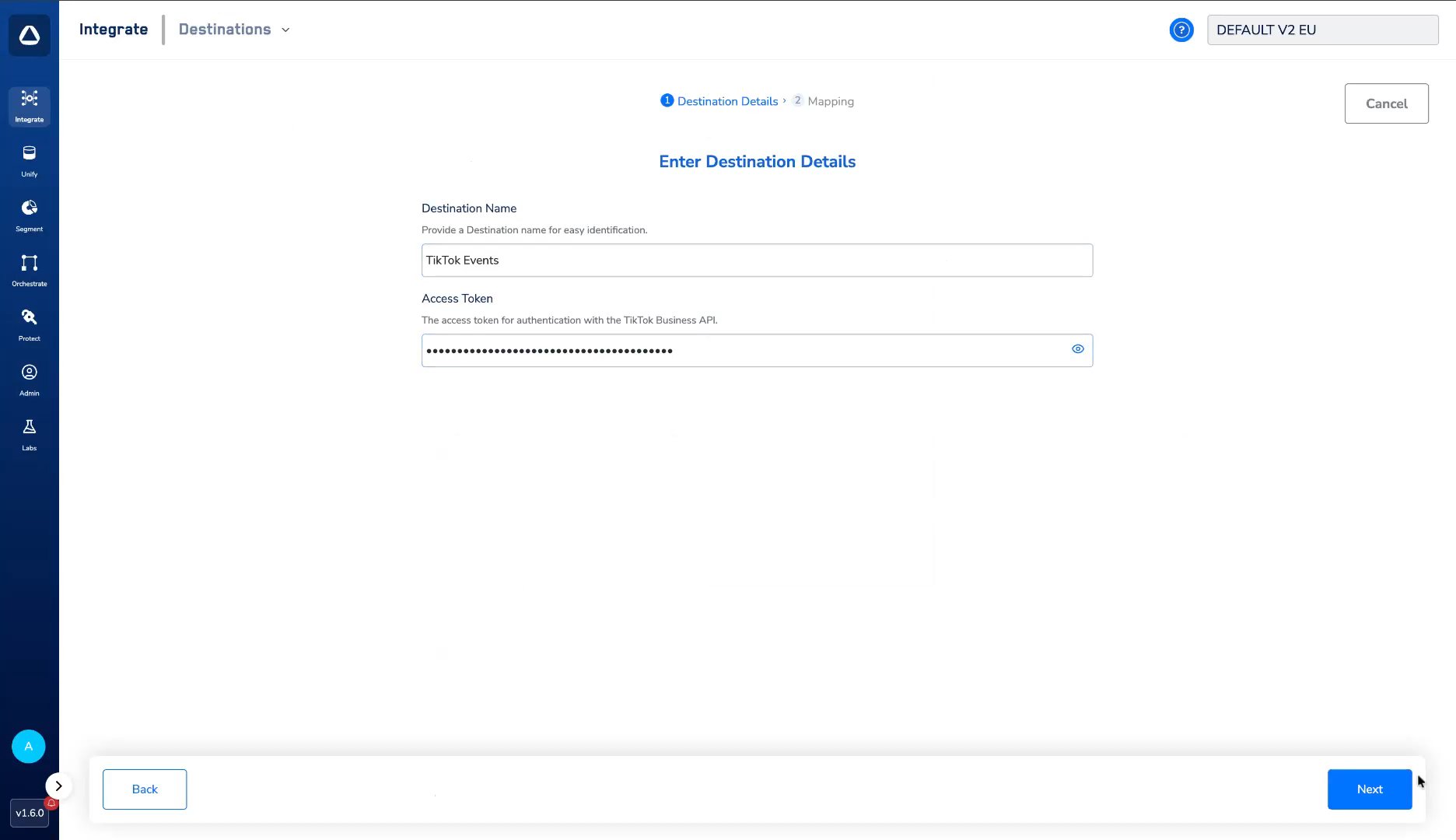 Click **Next** to proceed to the **Mapping** screen.
On the **Mapping** screen, configure the action and field mapping:
a. Under **Choose your Action**, select **Send Events to TikTok**. This action sends your conversion events to TikTok through Journeys.
b. Under **Map the Fields**, map the catalogue fields to the destination fields. The fields are grouped as follows:
i. **Attributes** — map the required **Event Time** (the value must be in **EPOCH seconds** format), along with **Event Id** and **Event Source ID**.
Click **Next** to proceed to the **Mapping** screen.
On the **Mapping** screen, configure the action and field mapping:
a. Under **Choose your Action**, select **Send Events to TikTok**. This action sends your conversion events to TikTok through Journeys.
b. Under **Map the Fields**, map the catalogue fields to the destination fields. The fields are grouped as follows:
i. **Attributes** — map the required **Event Time** (the value must be in **EPOCH seconds** format), along with **Event Id** and **Event Source ID**.
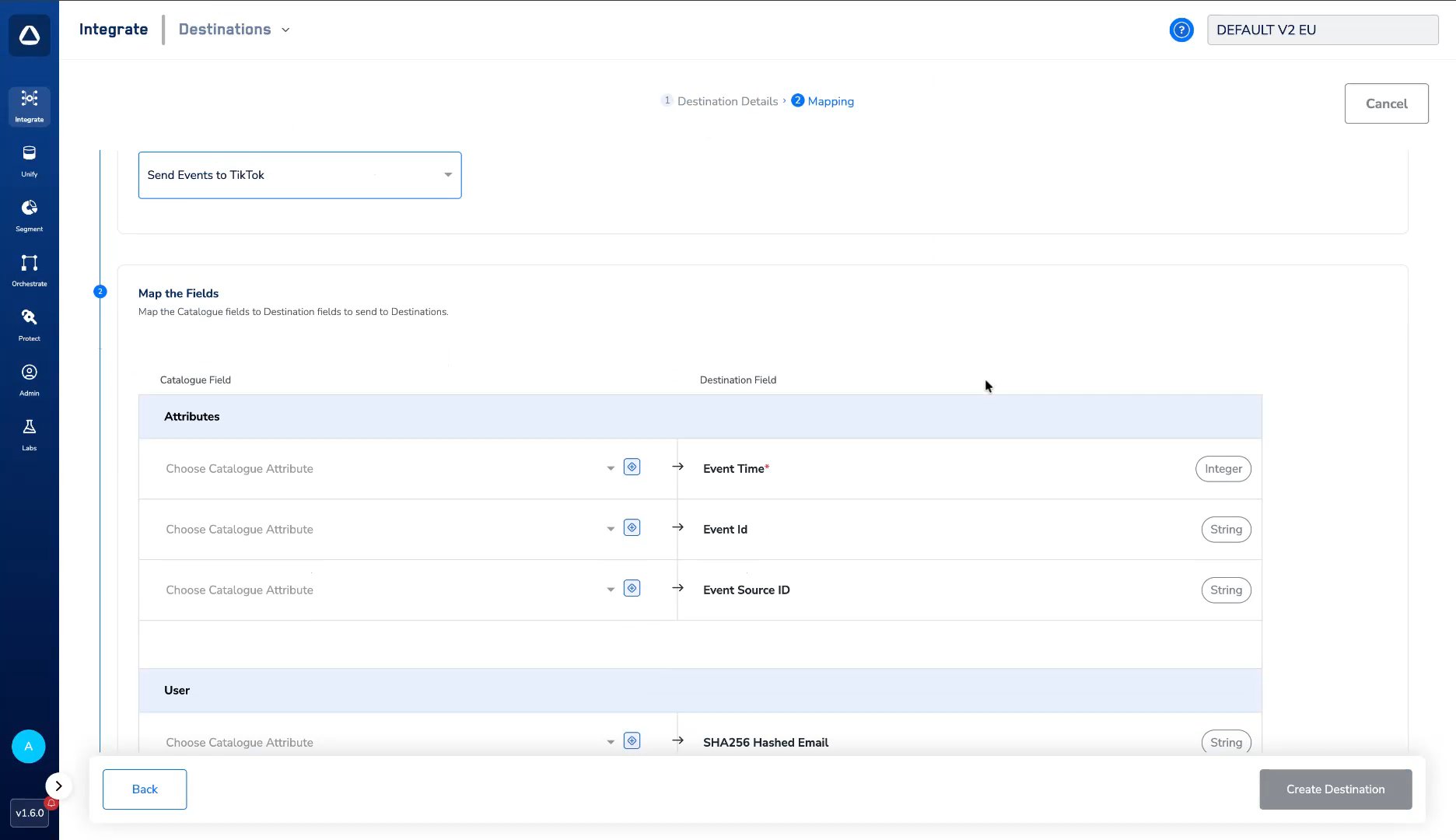 ii. **User** — map the identity fields you want to send: SHA256 Hashed Email, SHA256 Hashed Phone, SHA256 Hashed External Id, Ttclid, Ttp, IP, User Agent, Locale, Apple Advertiser ID, Apple Vendor Advertiser ID, and Google Advertiser ID.
iii. **Properties** — map event-level attributes such as Currency, Value, Content Type, Content Ids, Num Items, Order Id, and Shop Id.
ii. **User** — map the identity fields you want to send: SHA256 Hashed Email, SHA256 Hashed Phone, SHA256 Hashed External Id, Ttclid, Ttp, IP, User Agent, Locale, Apple Advertiser ID, Apple Vendor Advertiser ID, and Google Advertiser ID.
iii. **Properties** — map event-level attributes such as Currency, Value, Content Type, Content Ids, Num Items, Order Id, and Shop Id.
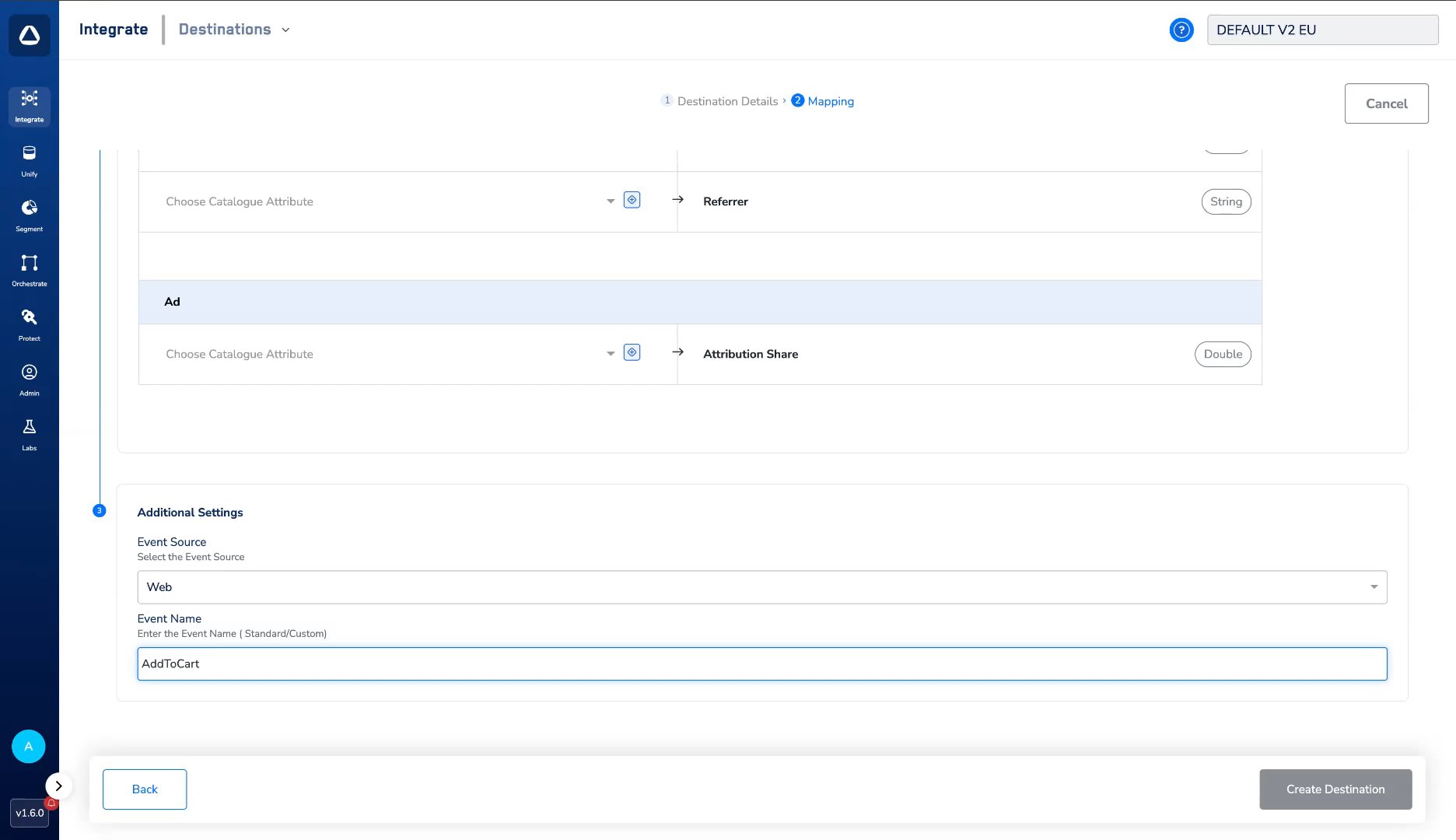
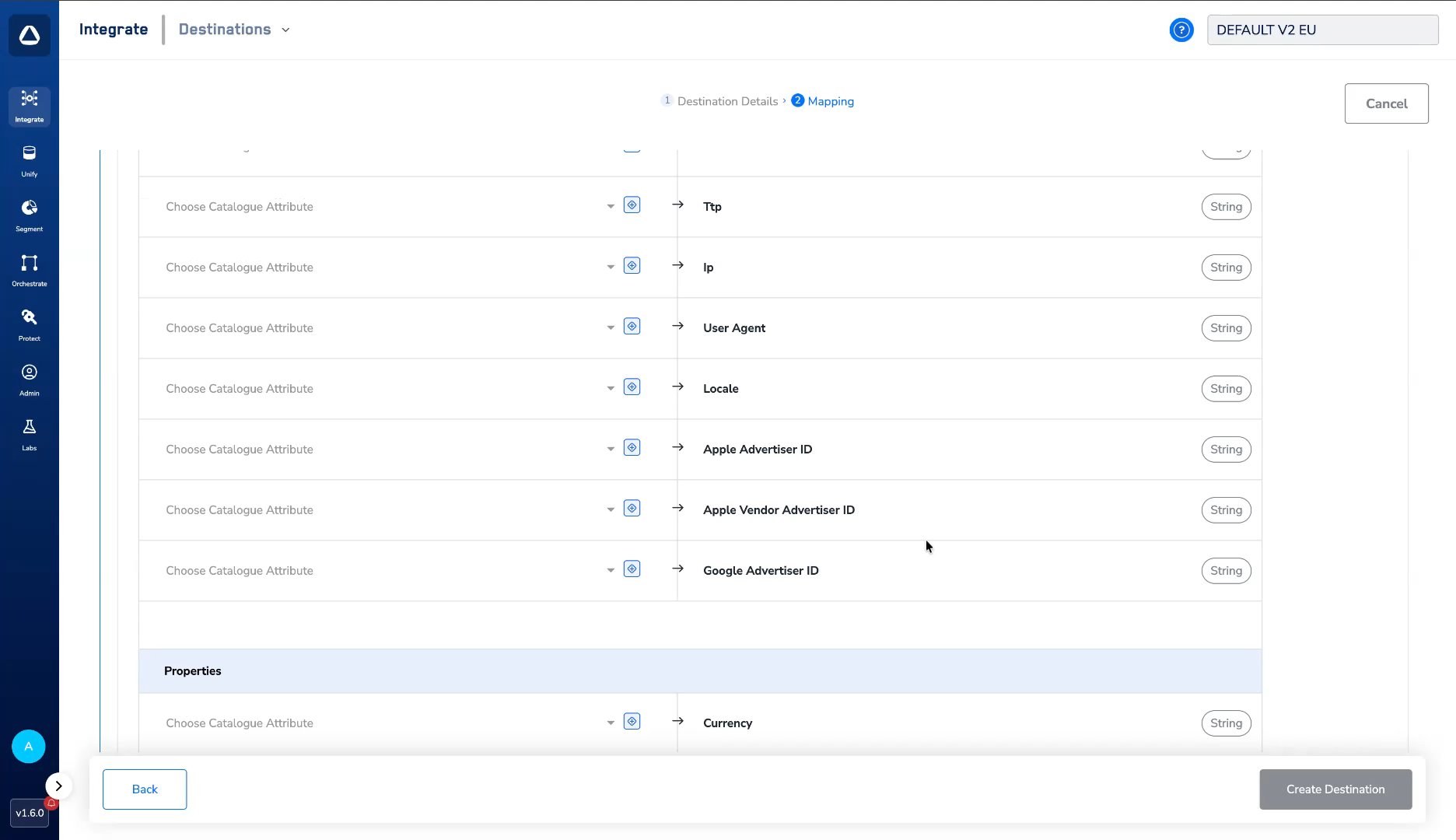 iv. **Ad** — map Attribution Share and Referrer.
Zeotap CDP transmits events to TikTok only for users who have provided the required advertising and data processing consent. Ensure that only consented users enter your journey criteria.
c. Under **Additional Settings**, configure the event details:
i. **Event Source** — select where the event originates: **Web**, **Offline**, **App**, or **CRM**.
iv. **Ad** — map Attribution Share and Referrer.
Zeotap CDP transmits events to TikTok only for users who have provided the required advertising and data processing consent. Ensure that only consented users enter your journey criteria.
c. Under **Additional Settings**, configure the event details:
i. **Event Source** — select where the event originates: **Web**, **Offline**, **App**, or **CRM**.
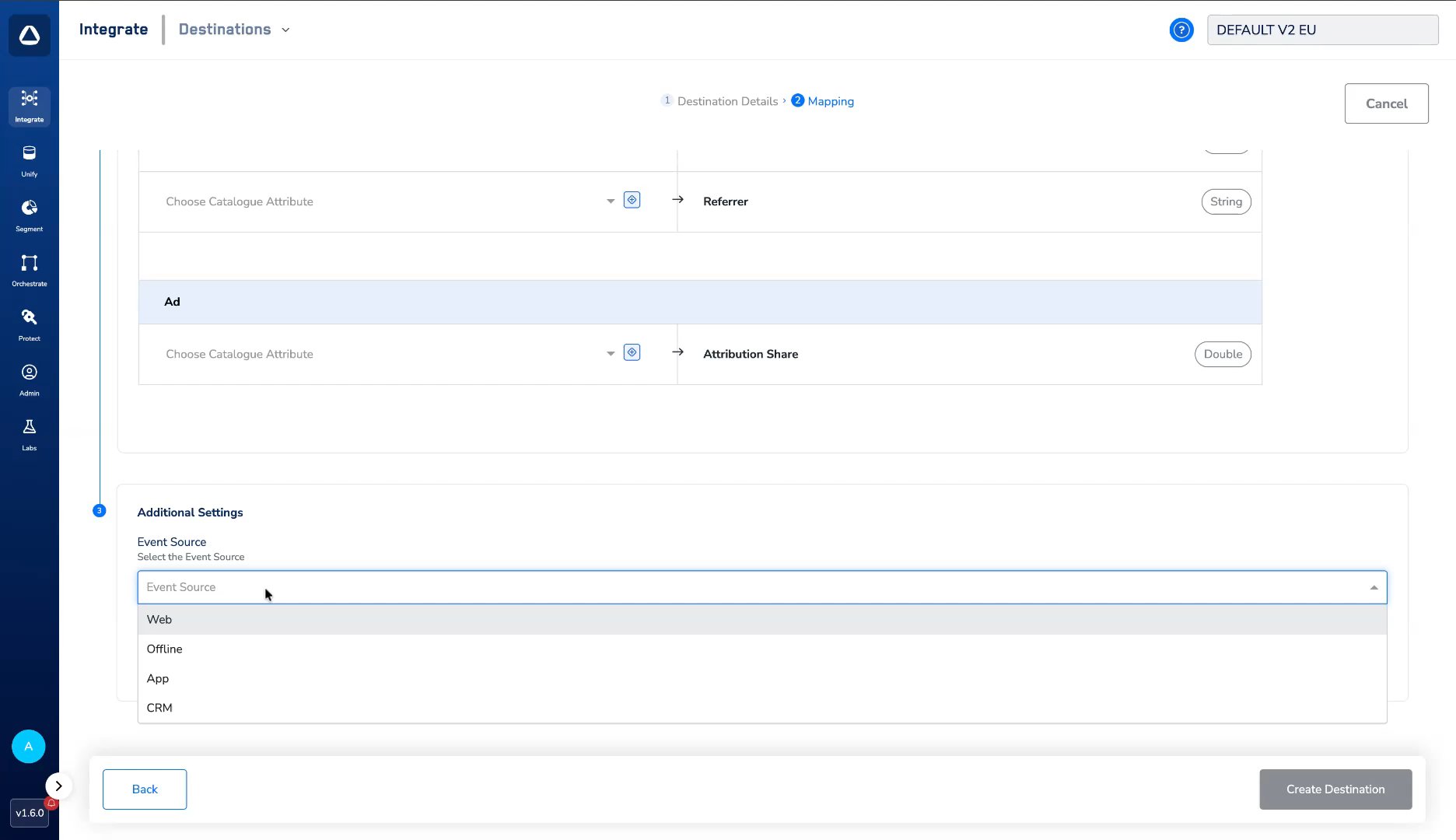 ii. **Event Name** — enter the name of the event you are sending. This can be a TikTok **Standard** event (for example, `AddToCart`) or a **Custom** event name.
 **Note:**
For the full list of Standard Events you can send and how to format event parameters, refer to TikTok's [Supported Events guide](https://business-api.tiktok.com/portal/docs/supported-events/v1.3).
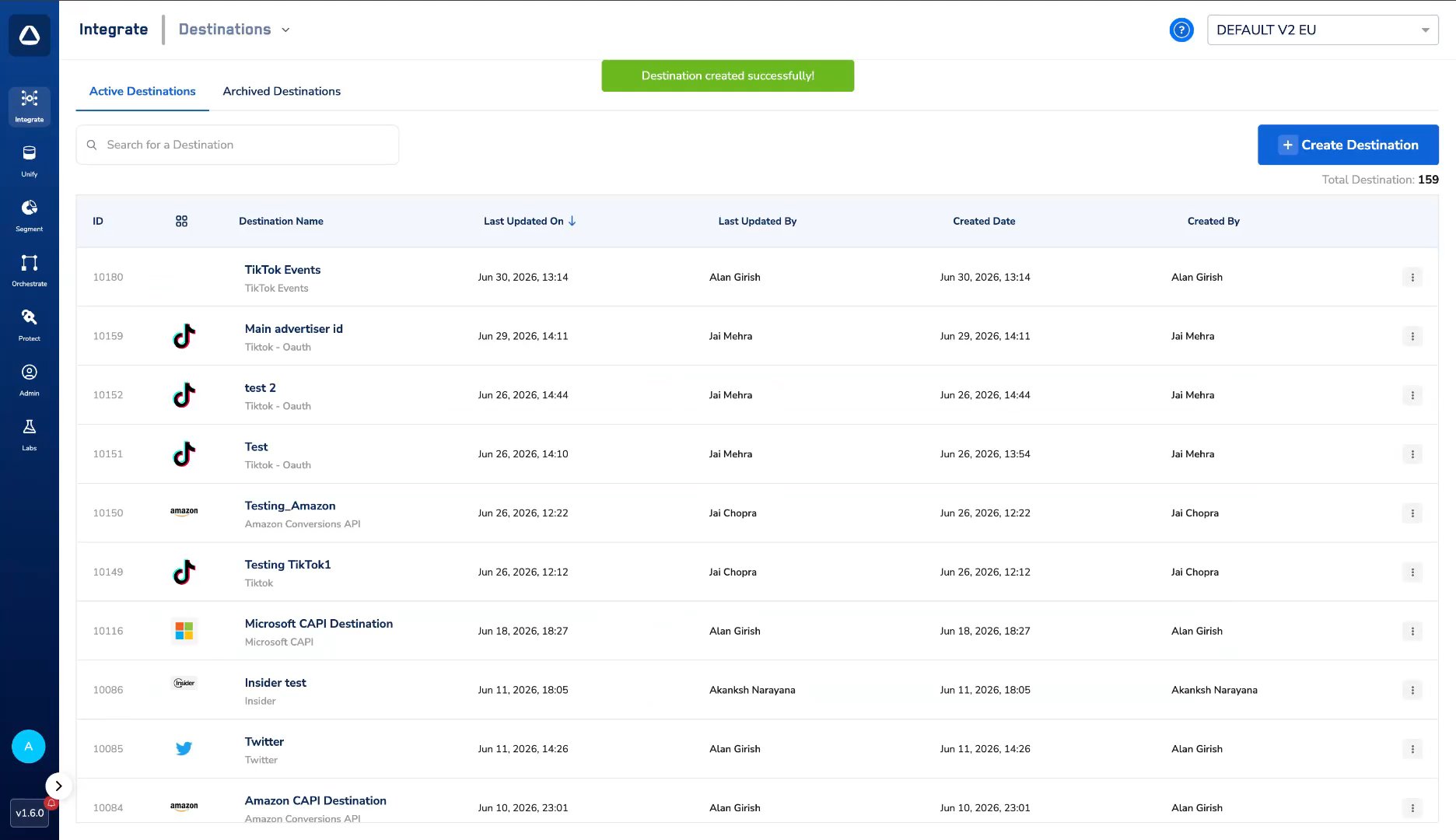
Click **Create Destination**. The created Destination is listed in the **Audiences** application and can be activated through Journeys.
**Note:**
For the full list of Standard Events you can send and how to format event parameters, refer to TikTok's [Supported Events guide](https://business-api.tiktok.com/portal/docs/supported-events/v1.3).
Click **Create Destination**. The created Destination is listed in the **Audiences** application and can be activated through Journeys.
 ## Activate the Destination on Journeys
The **Send Events to TikTok** action runs in Journeys. After creating the Destination, attach it using the **Send to Destinations** node within your workflow. For details on activating real-time destinations, refer [here](/articles/integrate-customer/activate-your-real-time-audiences).
## Viewing Events in TikTok Events Manager
Once the destination is activated and events begin flowing, you can verify them in TikTok Events Manager:
In TikTok Events Manager, open **Data sources** and select the data source linked to this destination.
The data source shows the **Total events** received. Use the **Overview**, **Test events**, and **Diagnostics** tabs to inspect the events and resolve any issues.
## Activate the Destination on Journeys
The **Send Events to TikTok** action runs in Journeys. After creating the Destination, attach it using the **Send to Destinations** node within your workflow. For details on activating real-time destinations, refer [here](/articles/integrate-customer/activate-your-real-time-audiences).
## Viewing Events in TikTok Events Manager
Once the destination is activated and events begin flowing, you can verify them in TikTok Events Manager:
In TikTok Events Manager, open **Data sources** and select the data source linked to this destination.
The data source shows the **Total events** received. Use the **Overview**, **Test events**, and **Diagnostics** tabs to inspect the events and resolve any issues.
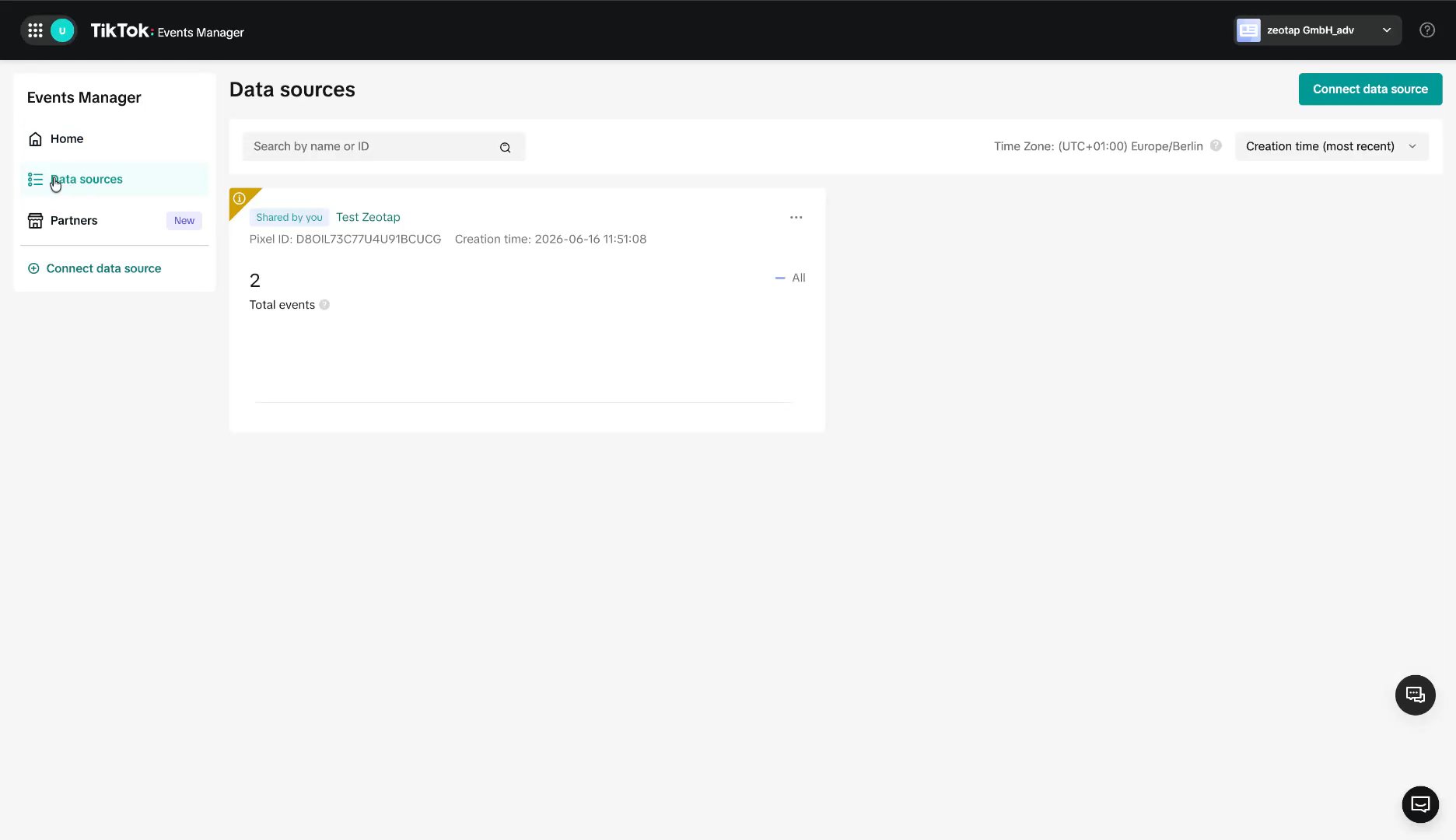 Until events are received, the view shows no activity; allow time for the first events to be processed before treating an empty view as an error.
**Note:**
The terms *Audiences* and *Segments* are used interchangeably to refer to customer cohorts belonging to a specific category. For example, an Audience or a segment could be a specific group of customers who are over 18 years of age and who have performed an `addToCart` event within the last 30 days.
## Related Topics
* [TikTok (Custom Audiences)](/articles/integrate-customer/tiktok)
* [Link an Audience to the Destination](/articles/integrate-customer/link-an-audience-to-the-destination)
* [Create a Destination](/articles/integrate-customer/create-a-destination)
* [Activate Your Real-time Audiences](/articles/integrate-customer/activate-your-real-time-audiences)
* [Destination Access Rules](/articles/integrate-customer/destination-access-rules)
Until events are received, the view shows no activity; allow time for the first events to be processed before treating an empty view as an error.
**Note:**
The terms *Audiences* and *Segments* are used interchangeably to refer to customer cohorts belonging to a specific category. For example, an Audience or a segment could be a specific group of customers who are over 18 years of age and who have performed an `addToCart` event within the last 30 days.
## Related Topics
* [TikTok (Custom Audiences)](/articles/integrate-customer/tiktok)
* [Link an Audience to the Destination](/articles/integrate-customer/link-an-audience-to-the-destination)
* [Create a Destination](/articles/integrate-customer/create-a-destination)
* [Activate Your Real-time Audiences](/articles/integrate-customer/activate-your-real-time-audiences)
* [Destination Access Rules](/articles/integrate-customer/destination-access-rules)