> ## Documentation Index
> Fetch the complete documentation index at: https://docs.zeotap.com/llms.txt
> Use this file to discover all available pages before exploring further.
# Snapchat OAuth 2.0
## Overview
Snapchat is a popular messaging application that lets users exchange pictures and videos (called snaps) that are meant to disappear after they're viewed. Integrated with Zeotap it allows marketers to reach a younger demographic and create engaging and interactive campaigns.
## Supported Identifiers
This channel supports email-SHA256, Mobile-SHA256 and MAIDs.
## Available Actions and Supported Features
The following table lists the available action types for the integration and the supported features for each action type:
| Action Name | [ID EXTENSION](/articles/segment-customer/extend-your-audience#id-extension) | [DELETE](https://docs.zeotap.com/articles/#!integrate-customer/delta-upload-and-delete-functions) | [DELTA UPLOAD](https://docs.zeotap.com/articles/#!integrate-customer/delta-upload-and-delete-functions) |
| :--------------------------- | :--------------------------------------------------------------------------- | :------------------------------------------------------------------------------------------------ | :------------------------------------------------------------------------------------------------------ |
| Send identifiers to Snapchat | ✅ | - | - |
## Components of Snapchat
Ensure that you have details about the Ad Account Id available before creating a Destination.
* Ad Account Id : This is the 16 digit Snapchat Ad Account ID. The ID number appears next to your Ad Account's name under Ad **Account ID**.
## Benefits of Snapchat oAuth 2.0 vs Snapchat
The **Snapchat OAuth 2.0 integration** simplifies connecting your Snapchat Ads account to Zeotap.
Previously, clients had to complete a manual **whitelisting process** — inviting Zeotap to their Business Manager and granting Ad Account access. With OAuth 2.0, this is replaced by a **quick, secure authorization flow**, allowing you to connect your account in just a few clicks.
## Create a Destination for Snapchat
Perform the following steps to create a Destination for Snapchat:
Log into the Zeotap CDP App and go to the **DESTINATIONS** application.
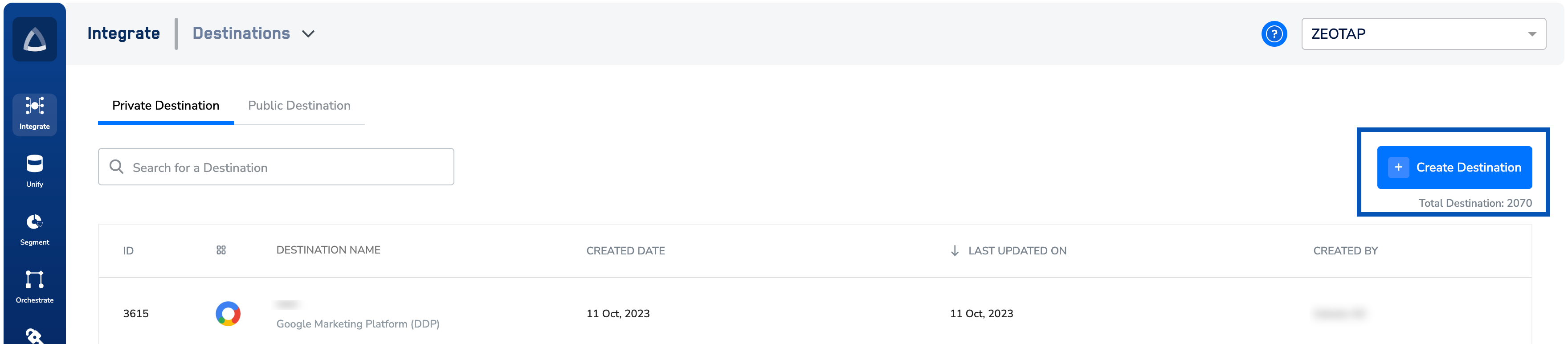
Click **+ Create Destination.**
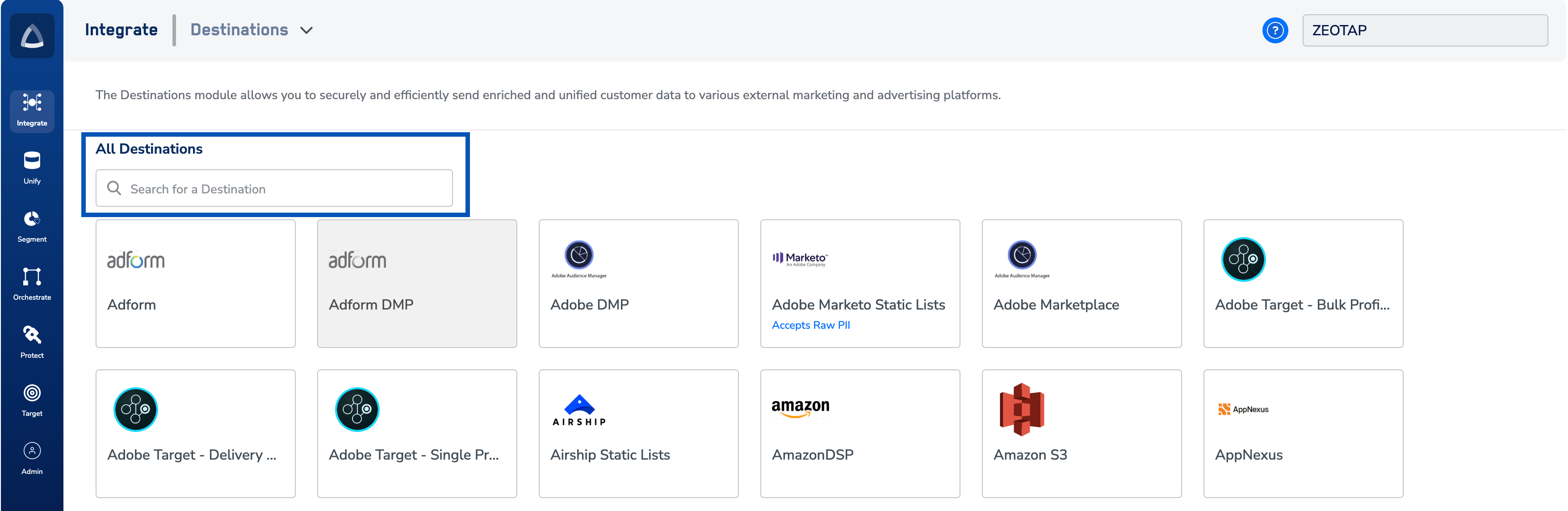
 Under **All Destinations**, search for **Snapchat.**
 Click **Snapchat** and enter the following details in the window that appears:
a. Enter a name for the Destination.
b. Enter the Ad Account Id number on which the client has requested the Segment.
c. Click **Connect Snapchat**. Make sure you're signed in with a Snapchat account that has access to Ads Manager so you can activate the segment.
i. This redirects you to the Snapchat login page, enter your credentials and click
ii. **Sign in**. Follow the instructions on the screen to allow the permissions.
Click **Snapchat** and enter the following details in the window that appears:
a. Enter a name for the Destination.
b. Enter the Ad Account Id number on which the client has requested the Segment.
c. Click **Connect Snapchat**. Make sure you're signed in with a Snapchat account that has access to Ads Manager so you can activate the segment.
i. This redirects you to the Snapchat login page, enter your credentials and click
ii. **Sign in**. Follow the instructions on the screen to allow the permissions.
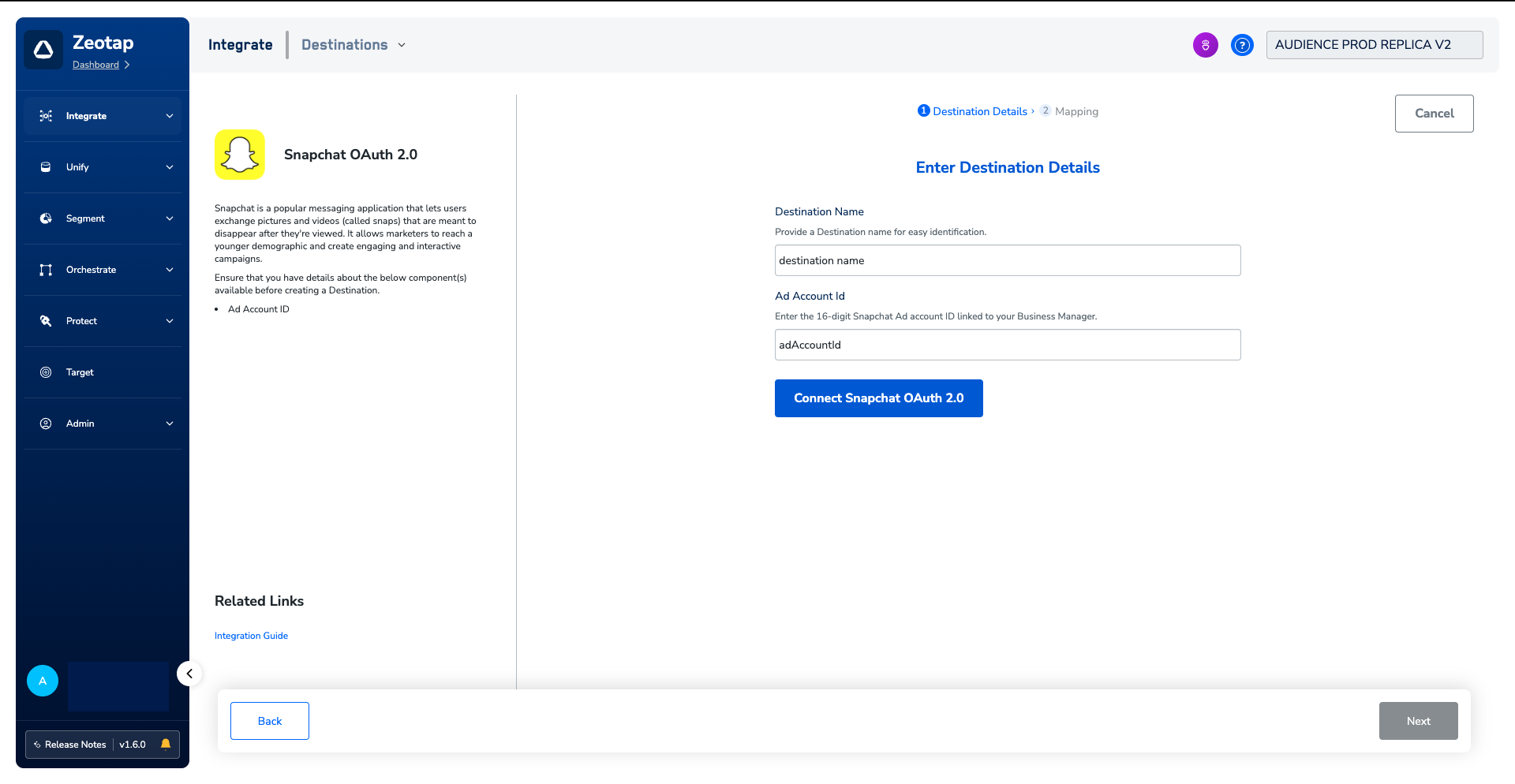 d. Upon successfully connecting to the Snapchat account, Click **Next** to proceed to **Mapping**
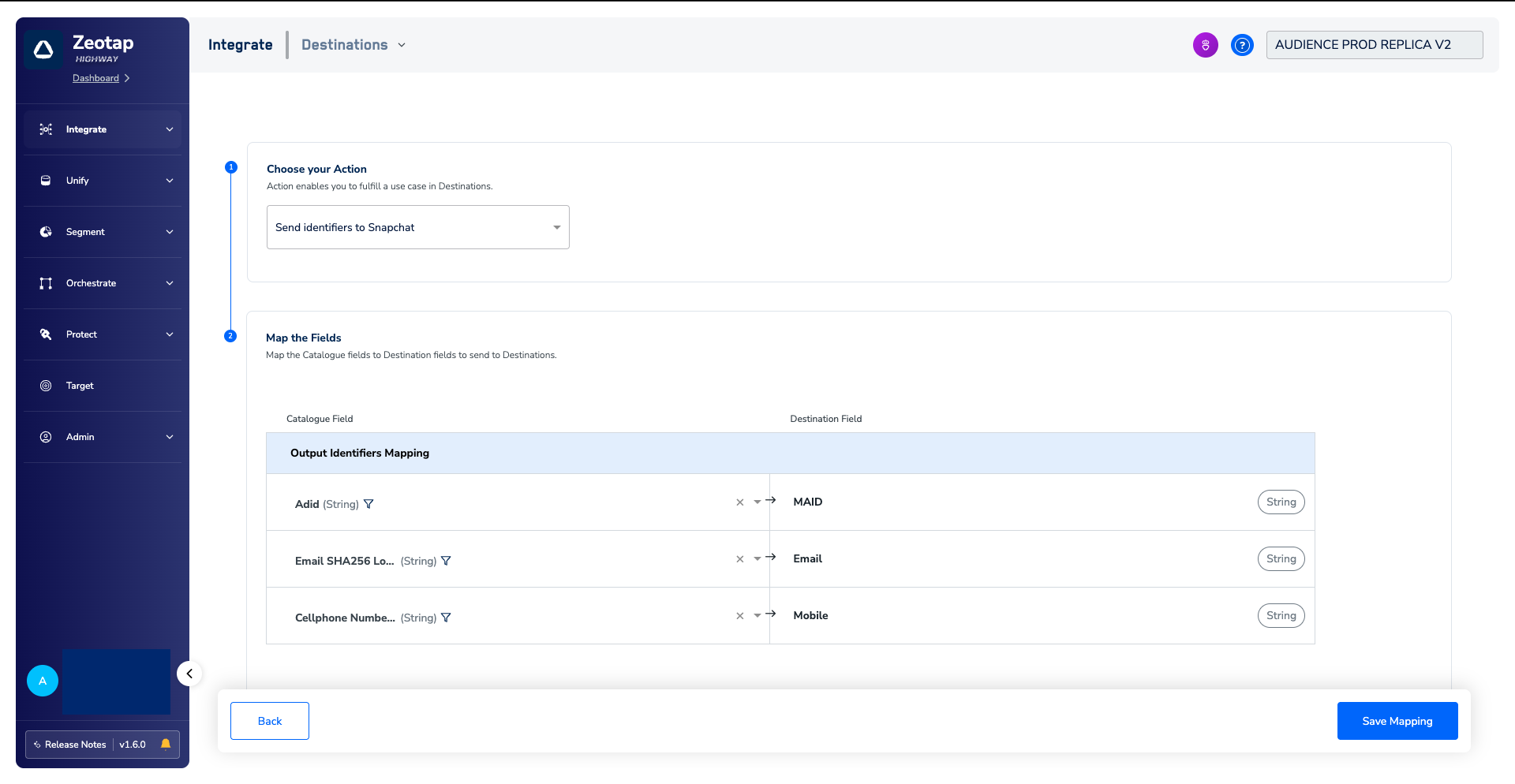
In the new screen that appears, choose the appropriate Action and mapping as explained below.
a. Choose the desired [action](/articles/integrate-customer/destinations#actions) under **Choose your Action** and then choose the corresponding identifiers under **Map the Fields**. By default, the [Output Identifiers](https://docs.zeotap.com/articles/segment-customer/choose-the-output-identifiers) that are accepted by the platform such as, MAIDs, Cookies, Email are displayed. However, you can edit, add or remove an identifier from the list. To do so, refer [here](/articles/integrate-customer/destinations#mappings).
b. Click **Create Destination**. The created Destination gets listed in the **Target** and **Audiences** applications, which can be linked to an Audience/segment.
d. Upon successfully connecting to the Snapchat account, Click **Next** to proceed to **Mapping**
In the new screen that appears, choose the appropriate Action and mapping as explained below.
a. Choose the desired [action](/articles/integrate-customer/destinations#actions) under **Choose your Action** and then choose the corresponding identifiers under **Map the Fields**. By default, the [Output Identifiers](https://docs.zeotap.com/articles/segment-customer/choose-the-output-identifiers) that are accepted by the platform such as, MAIDs, Cookies, Email are displayed. However, you can edit, add or remove an identifier from the list. To do so, refer [here](/articles/integrate-customer/destinations#mappings).
b. Click **Create Destination**. The created Destination gets listed in the **Target** and **Audiences** applications, which can be linked to an Audience/segment.
 ## Link an Audience to the Snapchat Destination
For information about how to link an Audience or segment to the created Destination in **Audiences** and **Target** applications, refer [here](/articles/integrate-customer/link-an-audience-to-the-destination). Note that it can take up to 24 hours for the segment to be available at the Snapchat seat.
**Note:**
The terms *Audiences* and *Segments* are used interchangeably to refer to customer cohorts belonging to a specific category. For example, an Audience or a segment can be a specific group of customers who are over 18 years of age and have performed an `addToCart` event within the last 30 days.
## View Audiences on Snapchat
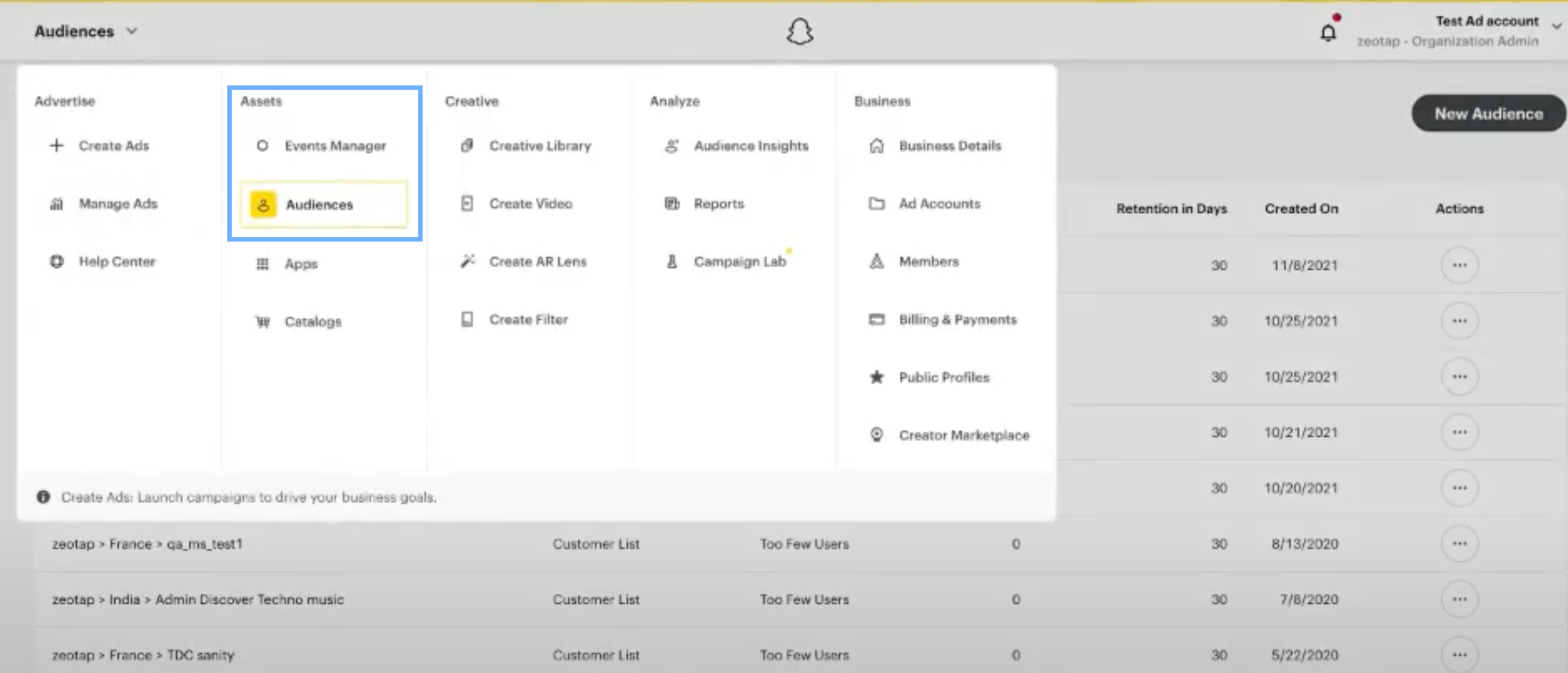
In the Snapchat Business Manager console, you can find the pushed segments under **Assets** → **Audiences**.
## Link an Audience to the Snapchat Destination
For information about how to link an Audience or segment to the created Destination in **Audiences** and **Target** applications, refer [here](/articles/integrate-customer/link-an-audience-to-the-destination). Note that it can take up to 24 hours for the segment to be available at the Snapchat seat.
**Note:**
The terms *Audiences* and *Segments* are used interchangeably to refer to customer cohorts belonging to a specific category. For example, an Audience or a segment can be a specific group of customers who are over 18 years of age and have performed an `addToCart` event within the last 30 days.
## View Audiences on Snapchat
In the Snapchat Business Manager console, you can find the pushed segments under **Assets** → **Audiences**.