> ## Documentation Index
> Fetch the complete documentation index at: https://docs.zeotap.com/llms.txt
> Use this file to discover all available pages before exploring further.
# RTB House
## Overview
RTB House is a DSP platform that specialises in targeted advertising including retargeting and real-time bidding (RTB) strategies. Integrated with Zeotap, it helps the clients send Audiences created in Zeotap CDP to the S3 bucket provided by RTB house, enabling effective targeting.
## Prerequisites
Ensure that you enable Cookie syncing with RTB House to use this Destination.
## Supported Identifiers
This integration supports RTB House Cookies.
## Available Actions and Supported Features
The following table lists the available action types for the integration and the supported features for each action type:
| Action Name | [ID EXTENSION](/articles/segment-customer/extend-your-audience#id-extension) | [DELETE](https://docs.zeotap.com/articles/#!integrate-customer/delta-upload-and-delete-functions) | [DELTA UPLOAD](https://docs.zeotap.com/articles/#!integrate-customer/delta-upload-and-delete-functions) |
| :---------------------------- | :--------------------------------------------------------------------------- | :------------------------------------------------------------------------------------------------ | :------------------------------------------------------------------------------------------------------ |
| Send Identifiers to RTB House | ✅ | ✅ | - |
## Components of RTB House
Ensure that you have the details about the below components of RTB House account before creating a Destination.
### Tagging Hash ID
This is the Tagging Hash associated with your RTB House account. Reach out to RTB House POC to obtain this information.
### Client Name
This is the Client Name for your RTB House account. You can find it by navigating to the RTB House console.
## Create a Destination for RTB House
Perform the following steps to create a Destination for RTB House:
Log into the Zeotap CDP App and go to the **DESTINATIONS** application.
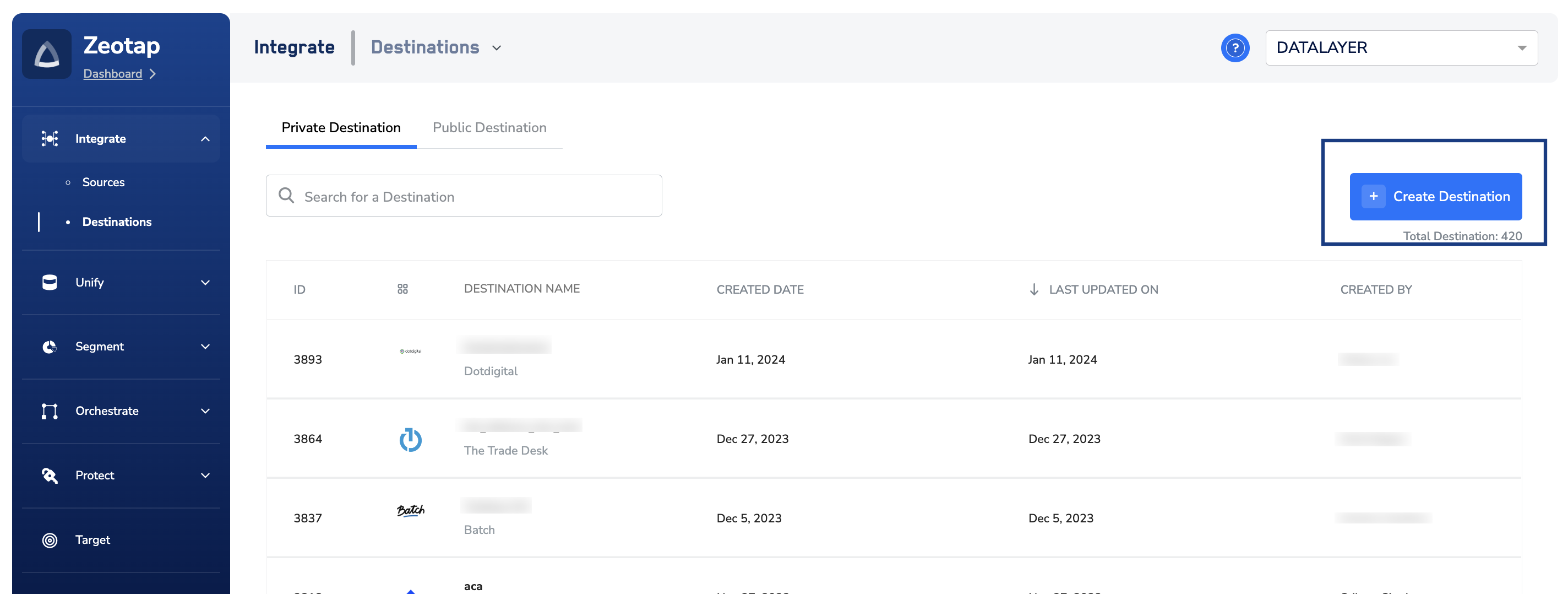
Click **+ Create Destination**.
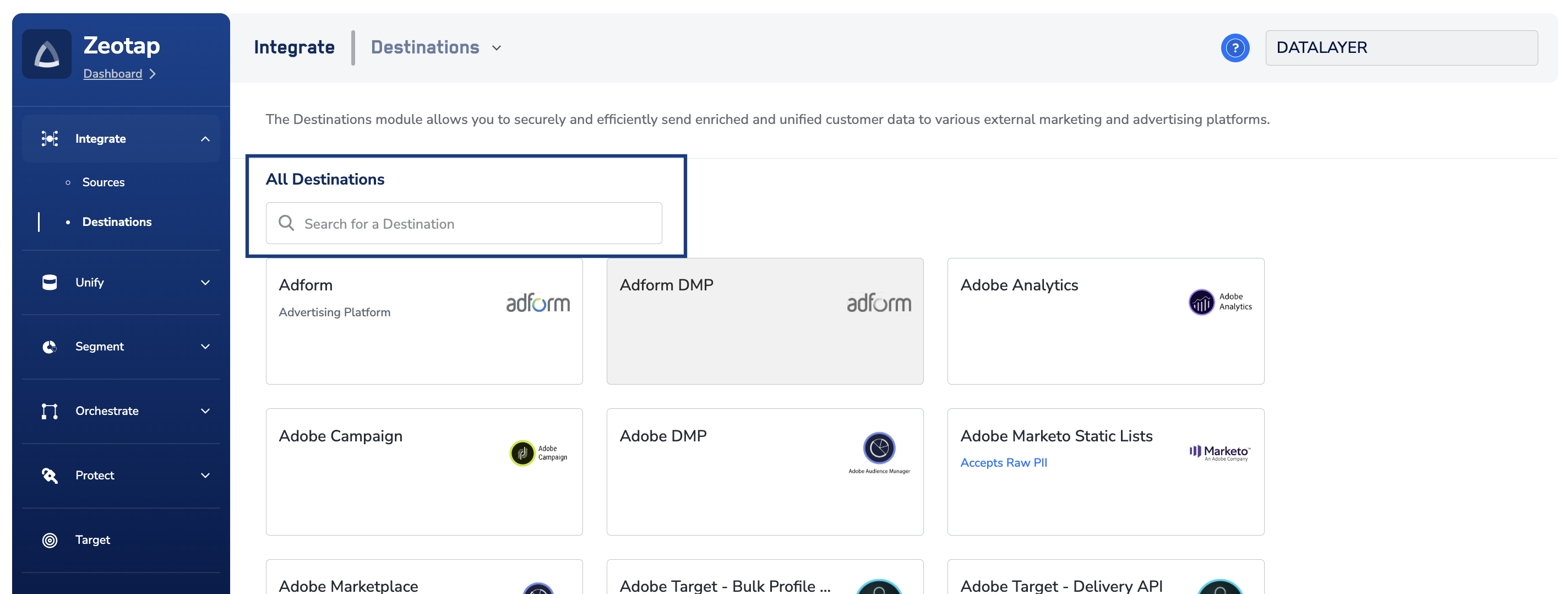
 Under the **All Destinations** section, search for **RTB House**.
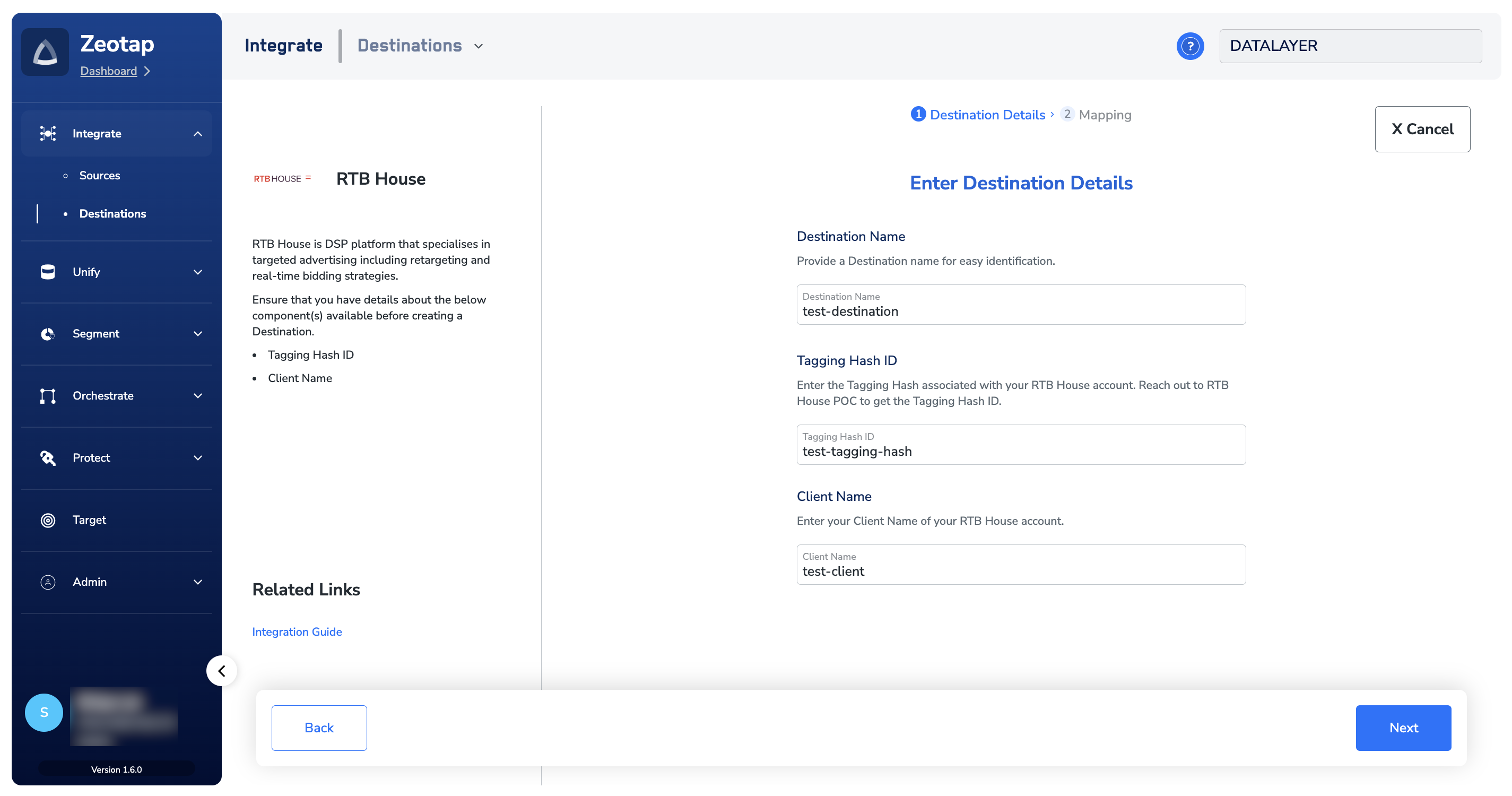
 Click **RTB House**. A screen appears displaying details about the particular destination towards the left. On the right-hand side of the screen find a list of fields that are required for the integration to be established. Enter the required details as mentioned in the following steps:
a. Enter a name for the Destination.
Click **RTB House**. A screen appears displaying details about the particular destination towards the left. On the right-hand side of the screen find a list of fields that are required for the integration to be established. Enter the required details as mentioned in the following steps:
a. Enter a name for the Destination.
b. Enter the **Tagging Hash ID** associated with your RTB House account.
c. Enter the **Client Name** of your RTB House account.
d. Review all the values entered above and then click **Next** to proceed.
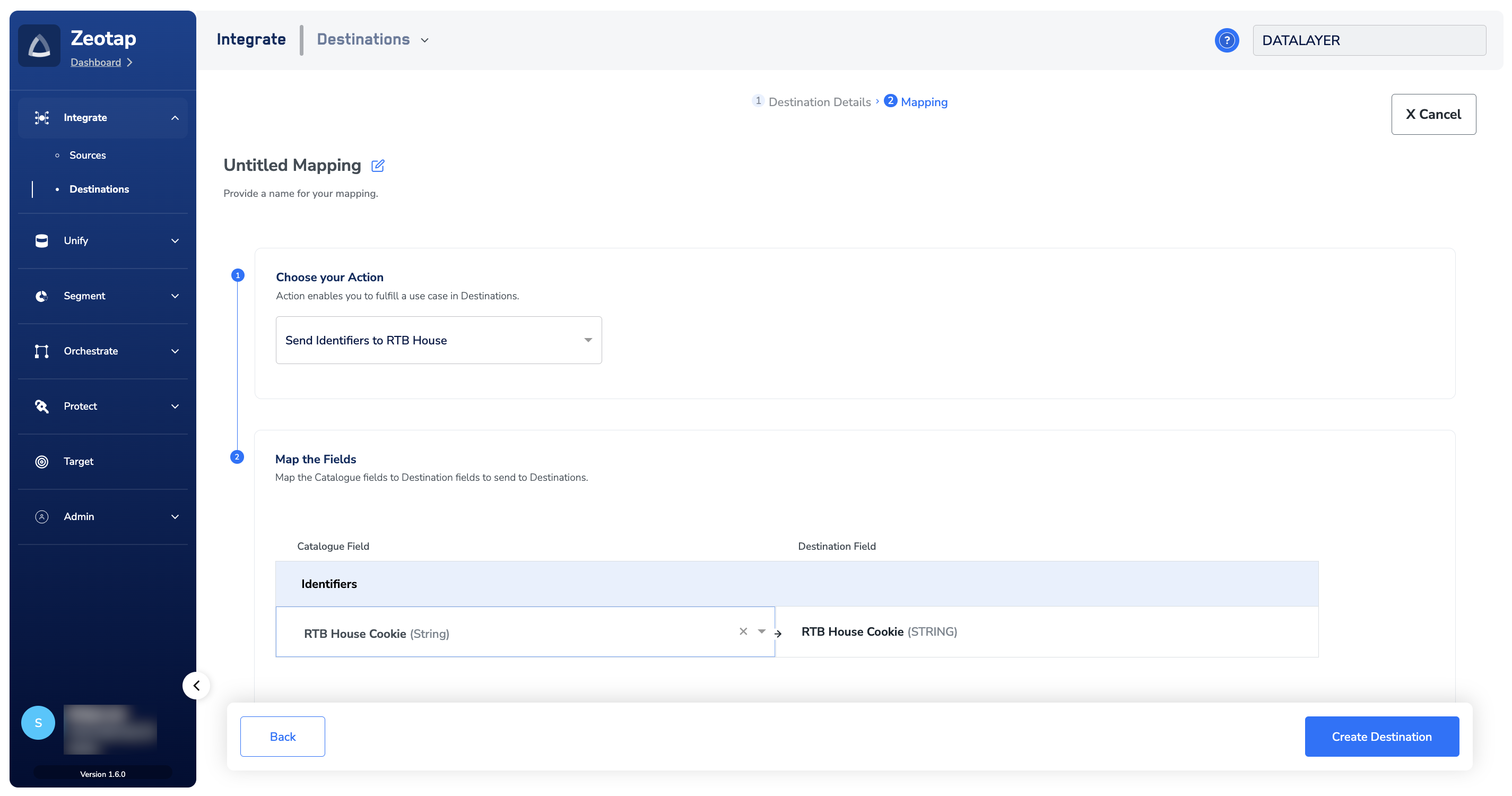
 In the new screen that appears, choose the appropriate Action and Mapping as explained below.
a. Choose the desired [action](/articles/integrate-customer/destinations#actions) under **Choose your Action** and then choose the corresponding identifiers under **Map the Fields**. By default, the [Output Identifiers](https://docs.zeotap.com/articles/segment-customer/choose-the-output-identifiers) that are accepted by the platform such as, MAIDs, Cookies, email Ids and more are displayed. However, you can edit, add or remove an identifier from the list. To do so, refer [here](/articles/integrate-customer/destinations#mappings).
In the new screen that appears, choose the appropriate Action and Mapping as explained below.
a. Choose the desired [action](/articles/integrate-customer/destinations#actions) under **Choose your Action** and then choose the corresponding identifiers under **Map the Fields**. By default, the [Output Identifiers](https://docs.zeotap.com/articles/segment-customer/choose-the-output-identifiers) that are accepted by the platform such as, MAIDs, Cookies, email Ids and more are displayed. However, you can edit, add or remove an identifier from the list. To do so, refer [here](/articles/integrate-customer/destinations#mappings).
b. Click **Create Destination**. The created Destination gets listed in the **Audiences** application, which can be linked to an Audience/segment.
 ## Link an Audience to the RTB House Destination
For information about how to link an Audience or segment to the created Destination in the **Audiences** application, refer [here](/articles/integrate-customer/link-an-audience-to-the-destination).
**Note:**
The terms *Audiences* and *Segments* are used interchangeably to refer to customer cohorts belonging to a specific category. For example, an Audience or a segment could be a specific group of customers who are over 18 years of age and who have performed an *`addToCart`* event within the last 30 days.
## Link an Audience to the RTB House Destination
For information about how to link an Audience or segment to the created Destination in the **Audiences** application, refer [here](/articles/integrate-customer/link-an-audience-to-the-destination).
**Note:**
The terms *Audiences* and *Segments* are used interchangeably to refer to customer cohorts belonging to a specific category. For example, an Audience or a segment could be a specific group of customers who are over 18 years of age and who have performed an *`addToCart`* event within the last 30 days.