> ## Documentation Index
> Fetch the complete documentation index at: https://docs.zeotap.com/llms.txt
> Use this file to discover all available pages before exploring further.
# Payload Preview for Destination Mappings
> Generate a sample payload from the destination mapping screen to see exactly what Zeotap will send, and verify field values, structure and format before the mapping goes live.
**Payload Preview** lets you see exactly what data Zeotap will send to a destination before your mapping goes live. Instead of activating the destination and waiting to find out whether the data arrived correctly, you generate a sample payload while you are still on the mapping screen and check the field values, structure and format upfront.
It is available on the mapping screen for both **audience (batch)** and **real-time** destinations.
This is not the same as the **Preview Data** tab on a source, which shows the data Zeotap has *ingested*. Payload Preview shows the payload Zeotap would *send out* to a destination. For the source-side view, see [Knowing the Fields on the Preview Data Tab](/articles/integrate-customer/knowing-the-fields-on-the-preview-data-tab).
## Generate a preview
Go to **Integrate → Destinations** and open the destination you want to check. On the **Mapping** tab, open an existing mapping or create a new one.
Pick the action under **Choose your Action**, then map your Catalogue fields to the destination fields under **Map the Fields**.
**Generate Preview** sits at the bottom of the mapping screen, next to **Save Mapping**.
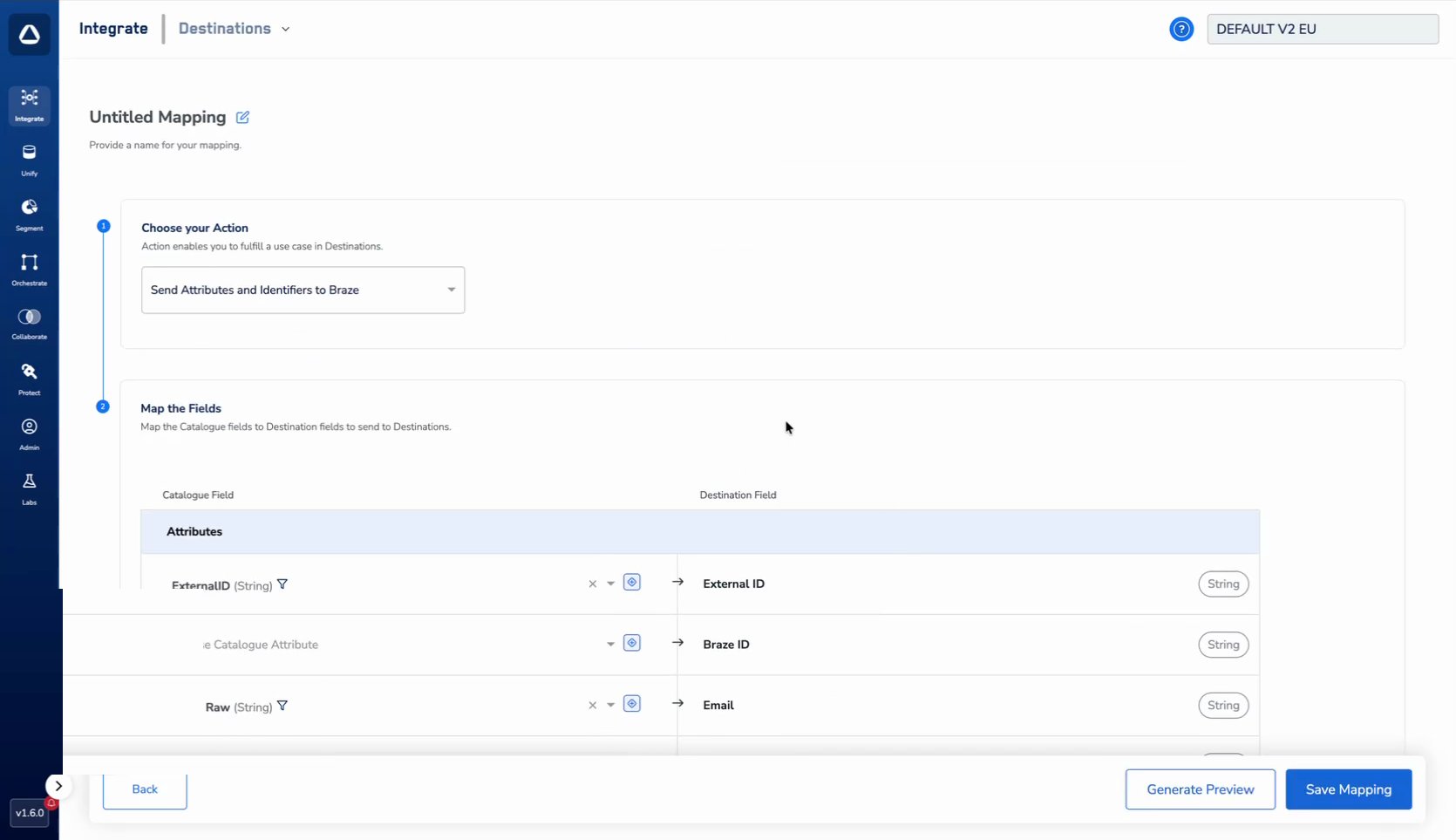 **Generate Preview** stays disabled until at least one field is mapped.
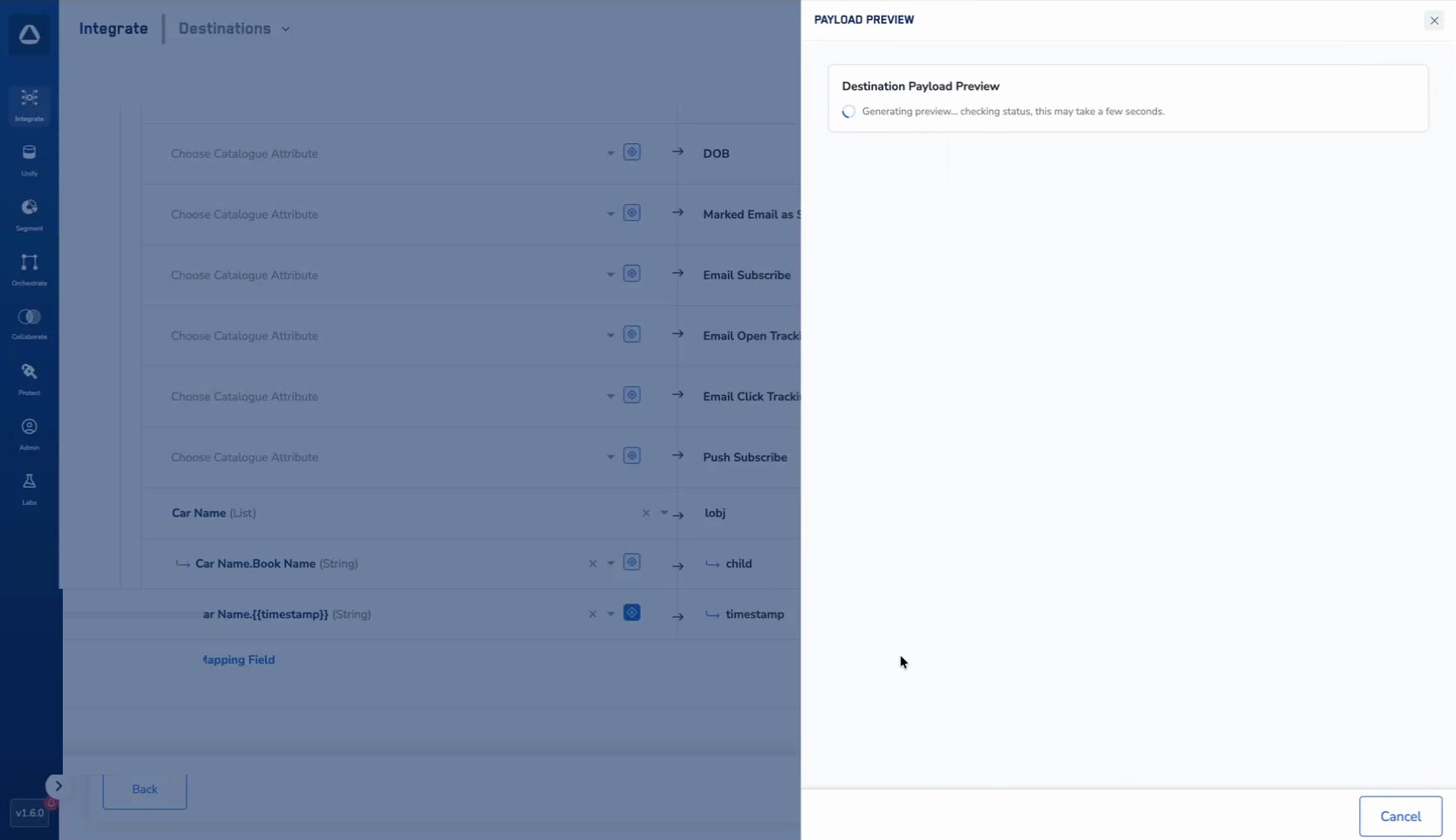
The **Payload Preview** panel opens on the right and reports its status while Zeotap pulls a sample record from your Catalogue to populate the fields. Generating the payload takes around a minute.
**Generate Preview** stays disabled until at least one field is mapped.
The **Payload Preview** panel opens on the right and reports its status while Zeotap pulls a sample record from your Catalogue to populate the fields. Generating the payload takes around a minute.
 ## Read the preview
Once generation finishes, the panel shows the sample payload structured exactly as it would be sent to the destination. Click **Cancel** to close the panel and return to the mapping.
## Read the preview
Once generation finishes, the panel shows the sample payload structured exactly as it would be sent to the destination. Click **Cancel** to close the panel and return to the mapping.
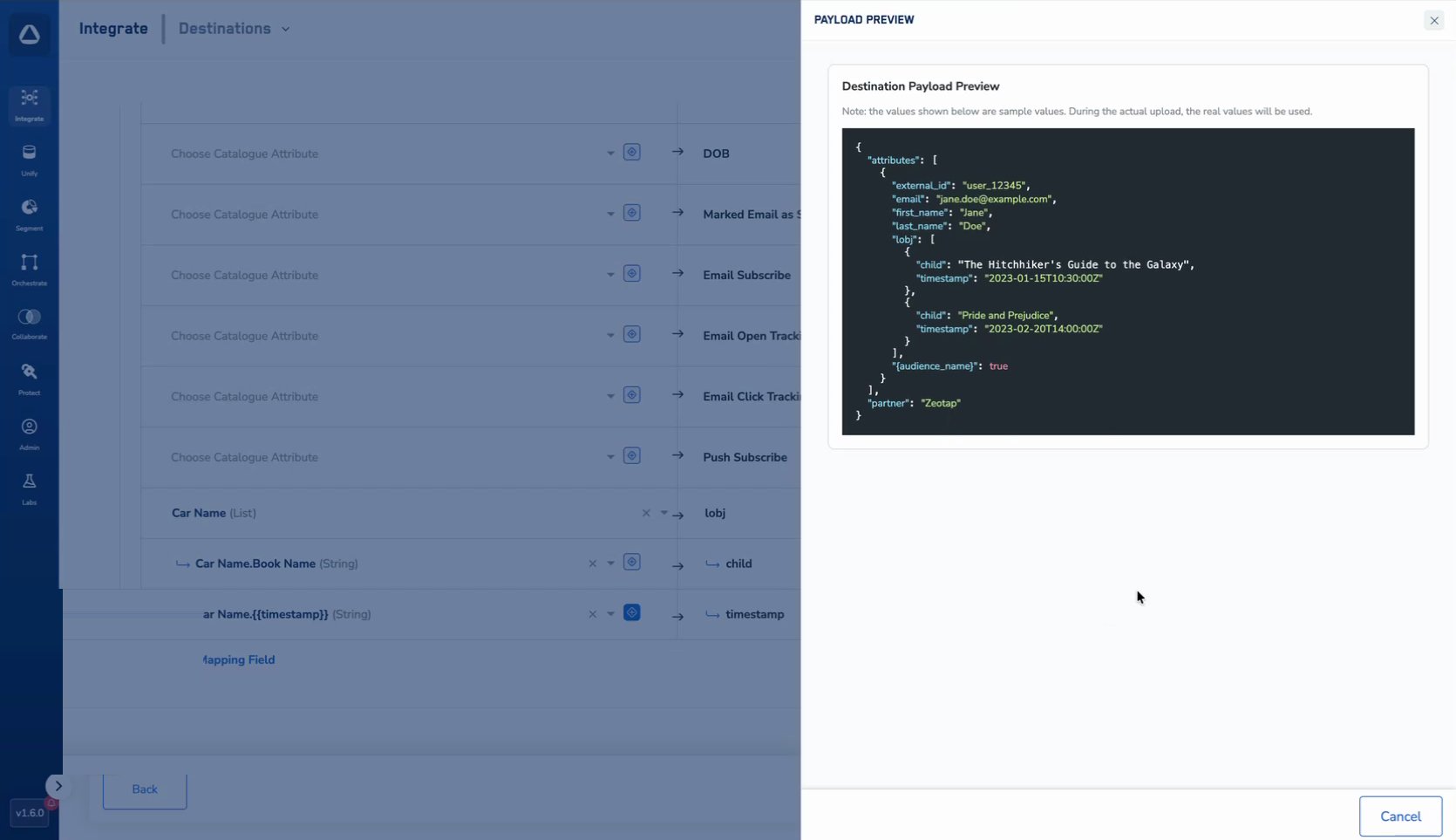 The payload includes:
* **Mapped identifier fields** — such as `external_id` and `email`.
* **Profile attributes** — such as `first_name` and `last_name`.
* **Mapped lists, objects, and nested custom attributes** — a mapped list of objects appears as a nested array in the payload.
* **Timestamps added by any [enrichers](/articles/segment-customer/enrichers-in-destination-mapping)** applied to the mapping.
* **Destination-specific attributes** — for example, for Braze destinations the audience-name key is set to `true` automatically.
A Braze payload built from a mapping that includes a list of objects and a timestamp enricher looks like this:
```json theme={null}
{
"attributes": [
{
"external_id": "user_12345",
"email": "jane.doe@example.com",
"first_name": "Jane",
"last_name": "Doe",
"lobj": [
{
"child": "The Hitchhiker's Guide to the Galaxy",
"timestamp": "2023-01-15T10:30:00Z"
},
{
"child": "Pride and Prejudice",
"timestamp": "2023-02-20T14:00:00Z"
}
],
"{audience_name}": true
}
],
"partner": "Zeotap"
}
```
## What to check in the preview
**Values appear as expected.** Confirm that each destination field is populated with the correct Catalogue field value. If a field is empty or shows an unexpected value, go back to **Map the Fields** and review the mapping for that field.
**Type mismatches.** If a Catalogue field has a different data type than the destination field expects — for example a value mapped as a string where the destination requires an integer — the field may come through empty in the preview. That is a signal to either correct the field type in your Catalogue or adjust the mapping.
**All required fields are present.** Mandatory fields left unmapped do not appear in the payload at all. Review the mapping and make sure every required destination field is covered before you activate.
## Things to note
The preview uses **sample data only**. No real customer records are sent to the destination while the preview is generated.
The preview reflects the mapping **at the time it was generated**. If you change the mapping afterwards, generate a new preview to see the updated payload.
Payload Preview is available for **server-side destinations** only.
## Next steps
* [Learn how mappings are defined →](/articles/integrate-customer/destinations#define-the-mapping)
* [Create a Destination →](/articles/integrate-customer/create-a-destination)
* [Customise fields with Enrichers in Destination Mapping →](/articles/segment-customer/enrichers-in-destination-mapping)
* [Activate your batch audiences →](/articles/integrate-customer/link-an-audience-to-the-destination)
* [Activate your real-time audiences →](/articles/integrate-customer/activate-your-real-time-audiences)
The payload includes:
* **Mapped identifier fields** — such as `external_id` and `email`.
* **Profile attributes** — such as `first_name` and `last_name`.
* **Mapped lists, objects, and nested custom attributes** — a mapped list of objects appears as a nested array in the payload.
* **Timestamps added by any [enrichers](/articles/segment-customer/enrichers-in-destination-mapping)** applied to the mapping.
* **Destination-specific attributes** — for example, for Braze destinations the audience-name key is set to `true` automatically.
A Braze payload built from a mapping that includes a list of objects and a timestamp enricher looks like this:
```json theme={null}
{
"attributes": [
{
"external_id": "user_12345",
"email": "jane.doe@example.com",
"first_name": "Jane",
"last_name": "Doe",
"lobj": [
{
"child": "The Hitchhiker's Guide to the Galaxy",
"timestamp": "2023-01-15T10:30:00Z"
},
{
"child": "Pride and Prejudice",
"timestamp": "2023-02-20T14:00:00Z"
}
],
"{audience_name}": true
}
],
"partner": "Zeotap"
}
```
## What to check in the preview
**Values appear as expected.** Confirm that each destination field is populated with the correct Catalogue field value. If a field is empty or shows an unexpected value, go back to **Map the Fields** and review the mapping for that field.
**Type mismatches.** If a Catalogue field has a different data type than the destination field expects — for example a value mapped as a string where the destination requires an integer — the field may come through empty in the preview. That is a signal to either correct the field type in your Catalogue or adjust the mapping.
**All required fields are present.** Mandatory fields left unmapped do not appear in the payload at all. Review the mapping and make sure every required destination field is covered before you activate.
## Things to note
The preview uses **sample data only**. No real customer records are sent to the destination while the preview is generated.
The preview reflects the mapping **at the time it was generated**. If you change the mapping afterwards, generate a new preview to see the updated payload.
Payload Preview is available for **server-side destinations** only.
## Next steps
* [Learn how mappings are defined →](/articles/integrate-customer/destinations#define-the-mapping)
* [Create a Destination →](/articles/integrate-customer/create-a-destination)
* [Customise fields with Enrichers in Destination Mapping →](/articles/segment-customer/enrichers-in-destination-mapping)
* [Activate your batch audiences →](/articles/integrate-customer/link-an-audience-to-the-destination)
* [Activate your real-time audiences →](/articles/integrate-customer/activate-your-real-time-audiences)