> ## Documentation Index
> Fetch the complete documentation index at: https://docs.zeotap.com/llms.txt
> Use this file to discover all available pages before exploring further.
# Ongage
## Overview
Ongage is an email marketing platform that helps your business personalise engagements and drive conversions through data. Integrated with Zeotap, it facilitates you to seamlessly transfer audiences (segments) from Zeotap CDP to Ongage. This integration empowers users to leverage these audiences for targeted and personalised campaigns within the Ongage platform.
## Supported Identifiers
This integration supports Email addresses, Phone numbers, Country, First Name, Last Name, Address, Gender, IP and any custom attribute that you have created in Ongage.
## Available Actions and Supported Features
The following table lists the available action types for the integration and the supported features for each action type:
| Action Name | [ID EXTENSION](https://docs.zeotap.com/articles/#!segment-customer/extend-your-audience/a/h2_1167151146) | [DELETE](https://docs.zeotap.com/articles/#!integrate-customer/delta-upload-and-delete-functions) | [DELTA UPLOAD](https://docs.zeotap.com/articles/#!integrate-customer/delta-upload-and-delete-functions) |
| :---------------------------------------- | :------------------------------------------------------------------------------------------------------- | :------------------------------------------------------------------------------------------------ | :------------------------------------------------------------------------------------------------------ |
| Send attributes and identifiers to Ongage | - | - | - |
## Prerequisites
Ensure that you have the license to use API with reasonable RPS (requests per second) limits. To do so, perform the following steps:
Log into the Ongage platform from your Admin account.
Navigate to the [Account Profile](https://connect.ongage.net/account/settings) page.
Locate the line item labelled **# of API Calls**.
* If the account does not have API access, the "Current limit" column will display "Disabled".
* If the account has API access, the "Current limit" column will display the number of API calls per minute allowed.
## Components of Ongage
Ensure that you have the details about the below components of the Ongage before creating a Destination.
* Username, Password and Account Code
* List ID
* S3 Bucket
* S3 Region
* Folder
* Access Token and Secret Access Token
### Username, Password and Account Code
In order to connect to your Ongage account via the API, you need the following credentials:
* **Username** - The Ongage User's username.
* **Password** - The Ongage User's password.
* **Account Code** - You can find the **Account Code** in Ongage by performing the following steps:
Go to your Ongage dashboard.
Click your account name in the top right corner.
Select **Profile** from the drop-down menu.
The Account Code appears below **Company & Contact Information**. Your email will also be listed there.
### List ID
The List ID is a unique identifier assigned to your database on Ongage where you can send data from Zeotap CDP. You can obtain the List ID from your Ongage account by performing the following steps:
Go to your Ongage dashboard.
In the left navigation panel, click the name of the **List** that you have created. For example, *Test List*.
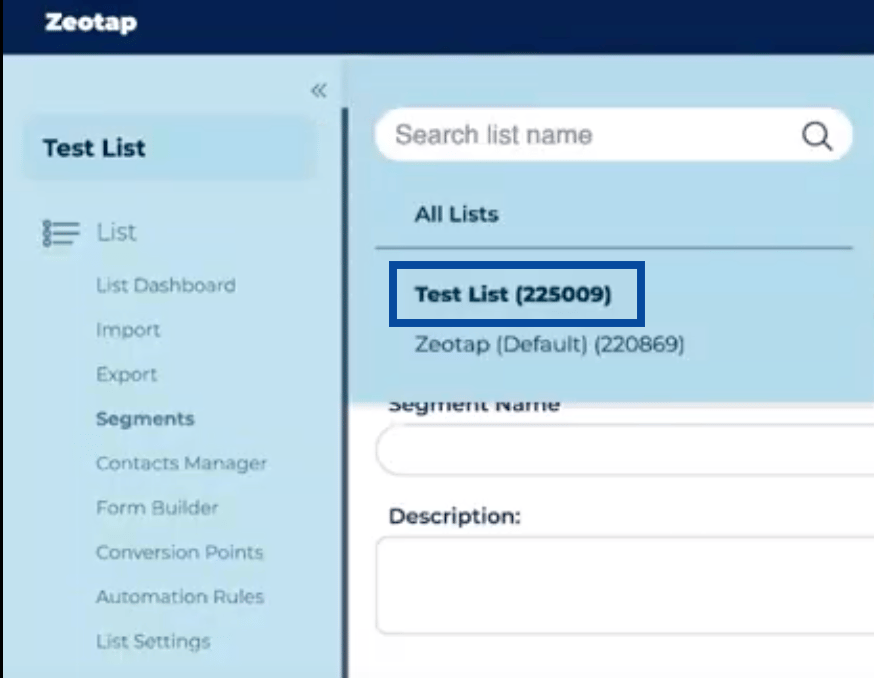 In the window that appears, find the List ID beside the List name. For example, in the screenshot above, the List ID for the "Test List" is 225009.
### Bucket
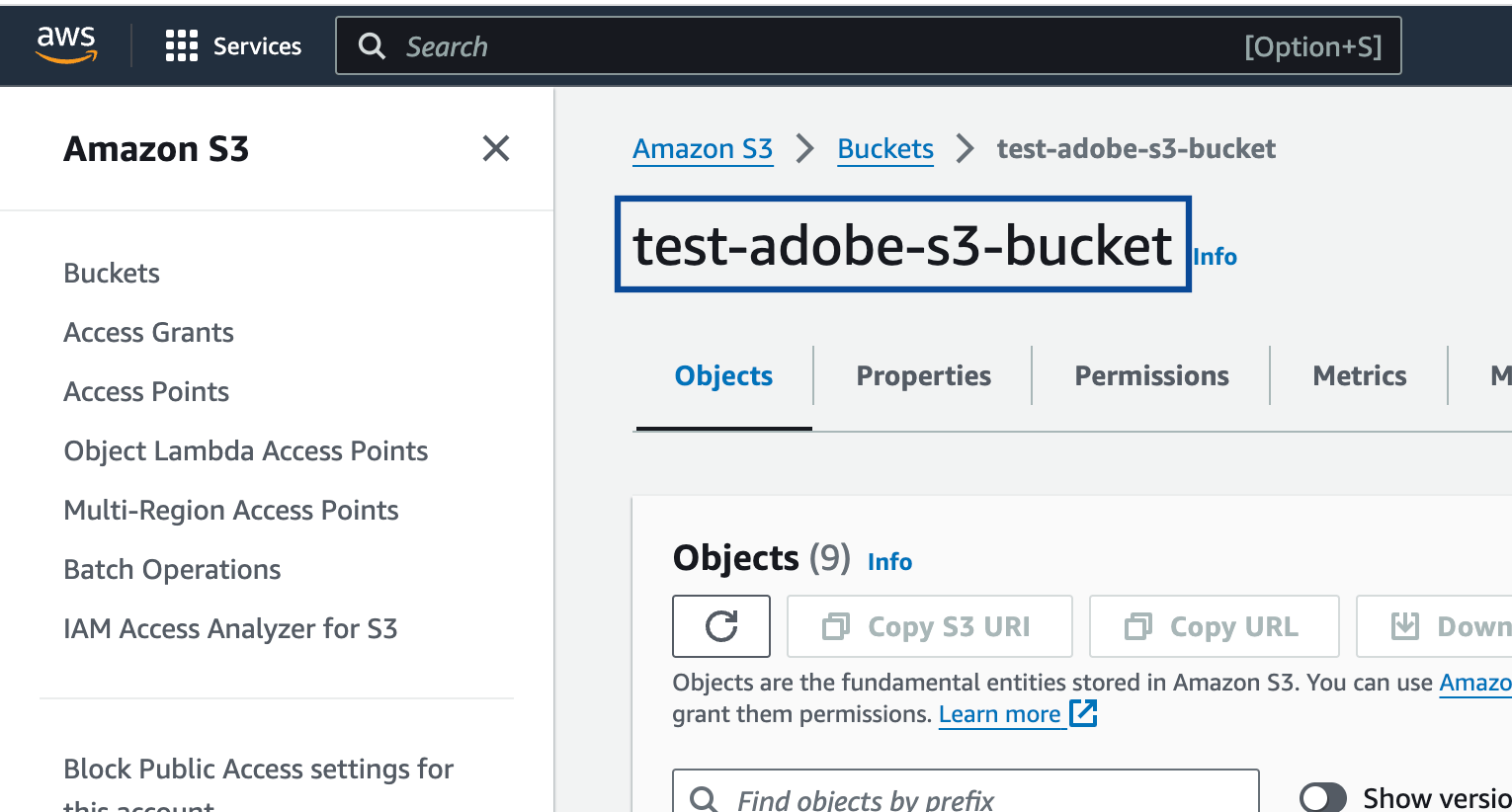
This is the name of your S3 bucket. You can obtain this information on your Amazon S3 account by navigating to **Buckets**. In the example shown below, **test-adobe-s3-bucket** is the bucket name.
In the window that appears, find the List ID beside the List name. For example, in the screenshot above, the List ID for the "Test List" is 225009.
### Bucket
This is the name of your S3 bucket. You can obtain this information on your Amazon S3 account by navigating to **Buckets**. In the example shown below, **test-adobe-s3-bucket** is the bucket name.
 ### S3 Bucket Region
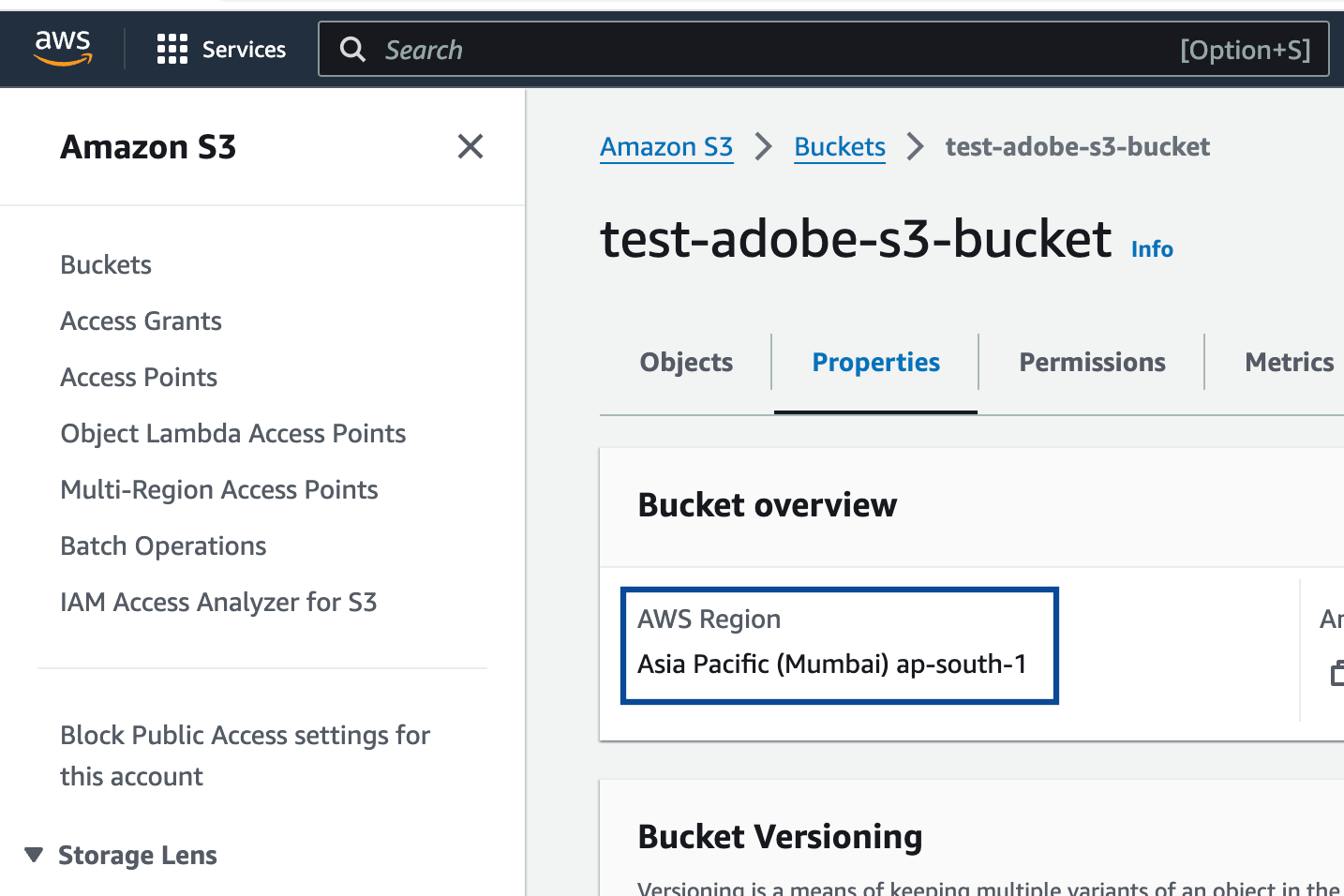
This is the geographical location where the Amazon S3 storage is available. You can obtain this information by navigating to the **Properties** tab under the Amazon S3 bucket as shown in the image below.
### S3 Bucket Region
This is the geographical location where the Amazon S3 storage is available. You can obtain this information by navigating to the **Properties** tab under the Amazon S3 bucket as shown in the image below.
 ### Folder
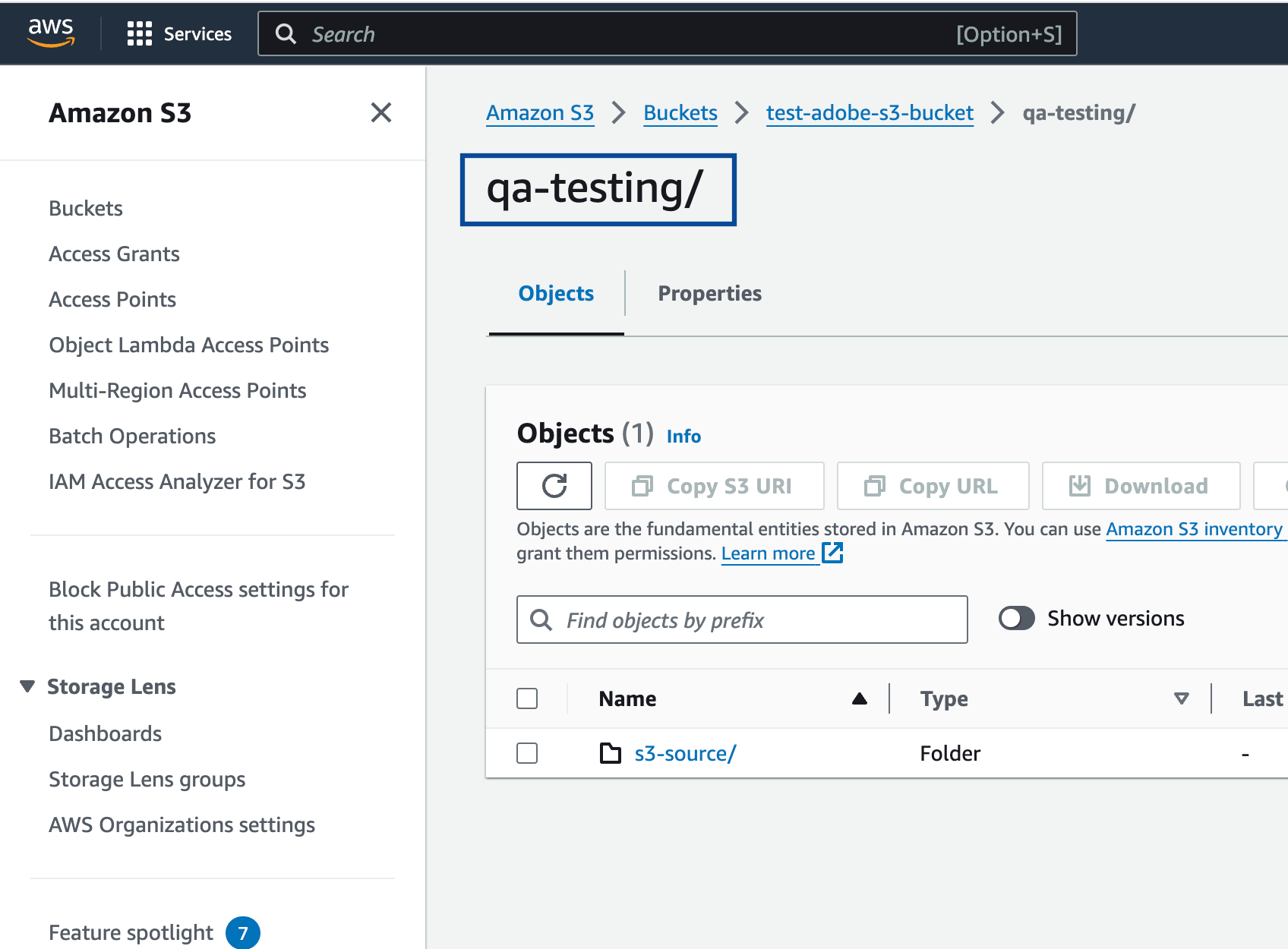
In Amazon S3, a folder serves as a logical container for organising stored objects within a bucket. In reality, there are no actual folders in Amazon S3. Instead, the folder concept is emulated by employing object key names containing slashes ("/") to replicate a hierarchical arrangement. You can obtain this information from your Amazon S3 account by navigating to the **Objects** tab under the Amazon S3 bucket as shown in the image below.
Ensure that you follow the folder structure shown below.
`folder_name/sub_folder_name/`
### Folder
In Amazon S3, a folder serves as a logical container for organising stored objects within a bucket. In reality, there are no actual folders in Amazon S3. Instead, the folder concept is emulated by employing object key names containing slashes ("/") to replicate a hierarchical arrangement. You can obtain this information from your Amazon S3 account by navigating to the **Objects** tab under the Amazon S3 bucket as shown in the image below.
Ensure that you follow the folder structure shown below.
`folder_name/sub_folder_name/`
 ### Access Token and Secret Access Token
These are the security tokens that provide secure access to your Amazon S3 resources. You can obtain the Access Token and Secret Access Token by navigating to the **AWS IAM Credentials** tab under **Security credentials** in your Amazon S3 account.
If you have to whitelist specific IPs due your security policy, then use the "aws:SourceIp" and whitelist the following IPs:
```
[outboundips-space-cidr.ongage.net](http://outboundips-space-cidr.ongage.net/) text = "107.170.213.132/32 107.170.213.133/32 107.170.213.134/32"
[outboundips-space-cidr.ongage.net](http://outboundips-space-cidr.ongage.net/) text = "107.170.213.135/32 107.170.213.136/32 107.170.213.137/32"
[outboundips-space-cidr.ongage.net](http://outboundips-space-cidr.ongage.net/) text = "107.170.213.138/32 107.170.213.139/32 107.170.213.140/32"
[outboundips-space-cidr.ongage.net](http://outboundips-space-cidr.ongage.net/) text = "107.21.59.147/32 107.23.10.125/32 107.23.12.93/32"
[outboundips-space-cidr.ongage.net](http://outboundips-space-cidr.ongage.net/) text = "107.23.14.88/32 107.23.177.90/32 107.23.178.47/32"
[outboundips-space-cidr.ongage.net](http://outboundips-space-cidr.ongage.net/) text = "108.161.135.135/32 108.161.135.37/32 178.128.139.133/32"
[outboundips-space-cidr.ongage.net](http://outboundips-space-cidr.ongage.net/) text = "18.200.73.114/32 18.200.73.64/26 192.241.212.130/32"
[outboundips-space-cidr.ongage.net](http://outboundips-space-cidr.ongage.net/) text = "198.199.88.38/32 206.189.241.97/32 207.244.103.131/32"
[outboundips-space-cidr.ongage.net](http://outboundips-space-cidr.ongage.net/) text = "207.244.103.201/32 207.244.103.202/32 207.244.104.119/32"
[outboundips-space-cidr.ongage.net](http://outboundips-space-cidr.ongage.net/) text = "207.244.104.120/32 207.244.104.121/32 207.244.104.122/32"
[outboundips-space-cidr.ongage.net](http://outboundips-space-cidr.ongage.net/) text = "207.244.104.201/32 207.244.104.202/32 207.244.68.218/32"
[outboundips-space-cidr.ongage.net](http://outboundips-space-cidr.ongage.net/) text = "209.208.109.152/32 209.208.111.38/32 209.208.26.69/32"
[outboundips-space-cidr.ongage.net](http://outboundips-space-cidr.ongage.net/) text = "209.208.78.150/32 23.20.201.102/32 23.21.219.19/32"
[outboundips-space-cidr.ongage.net](http://outboundips-space-cidr.ongage.net/) text = "23.23.212.1/32 3.238.207.64/26 3.251.95.192/26"
[outboundips-space-cidr.ongage.net](http://outboundips-space-cidr.ongage.net/) text = "34.224.117.198/32 34.225.42.120/32 34.226.5.95/32"
[outboundips-space-cidr.ongage.net](http://outboundips-space-cidr.ongage.net/) text = "34.227.41.239/32 34.231.210.31/32 34.231.44.192/26"
[outboundips-space-cidr.ongage.net](http://outboundips-space-cidr.ongage.net/) text = "34.232.157.165/32 34.245.82.192/26 34.245.82.199/32"
[outboundips-space-cidr.ongage.net](http://outboundips-space-cidr.ongage.net/) text = "34.245.82.204/32 34.245.82.233/32 34.245.82.234/32"
[outboundips-space-cidr.ongage.net](http://outboundips-space-cidr.ongage.net/) text = "34.245.82.236/32 34.245.82.237/32 34.245.82.244/32"
[outboundips-space-cidr.ongage.net](http://outboundips-space-cidr.ongage.net/) text = "34.245.82.246/32 34.245.82.247/32 34.245.82.248/32"
[outboundips-space-cidr.ongage.net](http://outboundips-space-cidr.ongage.net/) text = "35.153.84.250/32 50.19.198.209/32 50.56.240.150/32"
[outboundips-space-cidr.ongage.net](http://outboundips-space-cidr.ongage.net/) text = "5.79.106.181/32 69.28.92.114/32 69.28.92.155/32"
[outboundips-space-cidr.ongage.net](http://outboundips-space-cidr.ongage.net/) text = "52.0.251.22/32 52.0.56.158/32 52.1.57.9/32"
[outboundips-space-cidr.ongage.net](http://outboundips-space-cidr.ongage.net/) text = "52.1.99.254/32 52.201.178.193/32 52.204.236.101/32"
[outboundips-space-cidr.ongage.net](http://outboundips-space-cidr.ongage.net/) text = "52.208.21.200/32 52.21.252.120/32 52.2.154.228/32"
[outboundips-space-cidr.ongage.net](http://outboundips-space-cidr.ongage.net/) text = "52.21.93.98/32 52.5.100.202/32 52.7.119.14/32"
[outboundips-space-cidr.ongage.net](http://outboundips-space-cidr.ongage.net/) text = "52.86.21.217/32 54.158.206.24/32 54.165.140.21/32"
[outboundips-space-cidr.ongage.net](http://outboundips-space-cidr.ongage.net/) text = "54.173.254.154/32 54.175.238.172/32 54.205.215.51/32"
[outboundips-space-cidr.ongage.net](http://outboundips-space-cidr.ongage.net/) text = "54.208.127.76/32 54.208.164.47/32 54.208.99.126/32"
[outboundips-space-cidr.ongage.net](http://outboundips-space-cidr.ongage.net/) text = "54.209.202.108/32 54.209.204.31/32 54.209.205.54/32"
[outboundips-space-cidr.ongage.net](http://outboundips-space-cidr.ongage.net/) text = "54.209.208.240/32 54.209.210.149/32 54.209.213.207/32"
[outboundips-space-cidr.ongage.net](http://outboundips-space-cidr.ongage.net/) text = "54.209.232.207/32 54.209.238.30/32 54.209.247.123/32"
[outboundips-space-cidr.ongage.net](http://outboundips-space-cidr.ongage.net/) text = "54.209.247.137/32 54.209.252.68/32 54.209.253.24/32"
[outboundips-space-cidr.ongage.net](http://outboundips-space-cidr.ongage.net/) text = "54.209.253.50/32 54.236.65.189/32 54.236.73.137/32"
[outboundips-space-cidr.ongage.net](http://outboundips-space-cidr.ongage.net/) text = "54.236.83.142/32 54.86.137.29/32 54.88.127.35/32"
[outboundips-space-cidr.ongage.net](http://outboundips-space-cidr.ongage.net/) text = "69.28.93.182/32 69.28.94.223/32 69.28.95.55/32"
[outboundips-space-cidr.ongage.net](http://outboundips-space-cidr.ongage.net/) text = "69.28.95.62/32 81.171.19.60/32 95.85.17.120/32"
```
## Create a Destination for Ongage
Perform the following steps to create a Destination for Ongage:
Log into the Zeotap CDP App and go to the **DESTINATIONS** application.
Click **+ Create Destination.**
### Access Token and Secret Access Token
These are the security tokens that provide secure access to your Amazon S3 resources. You can obtain the Access Token and Secret Access Token by navigating to the **AWS IAM Credentials** tab under **Security credentials** in your Amazon S3 account.
If you have to whitelist specific IPs due your security policy, then use the "aws:SourceIp" and whitelist the following IPs:
```
[outboundips-space-cidr.ongage.net](http://outboundips-space-cidr.ongage.net/) text = "107.170.213.132/32 107.170.213.133/32 107.170.213.134/32"
[outboundips-space-cidr.ongage.net](http://outboundips-space-cidr.ongage.net/) text = "107.170.213.135/32 107.170.213.136/32 107.170.213.137/32"
[outboundips-space-cidr.ongage.net](http://outboundips-space-cidr.ongage.net/) text = "107.170.213.138/32 107.170.213.139/32 107.170.213.140/32"
[outboundips-space-cidr.ongage.net](http://outboundips-space-cidr.ongage.net/) text = "107.21.59.147/32 107.23.10.125/32 107.23.12.93/32"
[outboundips-space-cidr.ongage.net](http://outboundips-space-cidr.ongage.net/) text = "107.23.14.88/32 107.23.177.90/32 107.23.178.47/32"
[outboundips-space-cidr.ongage.net](http://outboundips-space-cidr.ongage.net/) text = "108.161.135.135/32 108.161.135.37/32 178.128.139.133/32"
[outboundips-space-cidr.ongage.net](http://outboundips-space-cidr.ongage.net/) text = "18.200.73.114/32 18.200.73.64/26 192.241.212.130/32"
[outboundips-space-cidr.ongage.net](http://outboundips-space-cidr.ongage.net/) text = "198.199.88.38/32 206.189.241.97/32 207.244.103.131/32"
[outboundips-space-cidr.ongage.net](http://outboundips-space-cidr.ongage.net/) text = "207.244.103.201/32 207.244.103.202/32 207.244.104.119/32"
[outboundips-space-cidr.ongage.net](http://outboundips-space-cidr.ongage.net/) text = "207.244.104.120/32 207.244.104.121/32 207.244.104.122/32"
[outboundips-space-cidr.ongage.net](http://outboundips-space-cidr.ongage.net/) text = "207.244.104.201/32 207.244.104.202/32 207.244.68.218/32"
[outboundips-space-cidr.ongage.net](http://outboundips-space-cidr.ongage.net/) text = "209.208.109.152/32 209.208.111.38/32 209.208.26.69/32"
[outboundips-space-cidr.ongage.net](http://outboundips-space-cidr.ongage.net/) text = "209.208.78.150/32 23.20.201.102/32 23.21.219.19/32"
[outboundips-space-cidr.ongage.net](http://outboundips-space-cidr.ongage.net/) text = "23.23.212.1/32 3.238.207.64/26 3.251.95.192/26"
[outboundips-space-cidr.ongage.net](http://outboundips-space-cidr.ongage.net/) text = "34.224.117.198/32 34.225.42.120/32 34.226.5.95/32"
[outboundips-space-cidr.ongage.net](http://outboundips-space-cidr.ongage.net/) text = "34.227.41.239/32 34.231.210.31/32 34.231.44.192/26"
[outboundips-space-cidr.ongage.net](http://outboundips-space-cidr.ongage.net/) text = "34.232.157.165/32 34.245.82.192/26 34.245.82.199/32"
[outboundips-space-cidr.ongage.net](http://outboundips-space-cidr.ongage.net/) text = "34.245.82.204/32 34.245.82.233/32 34.245.82.234/32"
[outboundips-space-cidr.ongage.net](http://outboundips-space-cidr.ongage.net/) text = "34.245.82.236/32 34.245.82.237/32 34.245.82.244/32"
[outboundips-space-cidr.ongage.net](http://outboundips-space-cidr.ongage.net/) text = "34.245.82.246/32 34.245.82.247/32 34.245.82.248/32"
[outboundips-space-cidr.ongage.net](http://outboundips-space-cidr.ongage.net/) text = "35.153.84.250/32 50.19.198.209/32 50.56.240.150/32"
[outboundips-space-cidr.ongage.net](http://outboundips-space-cidr.ongage.net/) text = "5.79.106.181/32 69.28.92.114/32 69.28.92.155/32"
[outboundips-space-cidr.ongage.net](http://outboundips-space-cidr.ongage.net/) text = "52.0.251.22/32 52.0.56.158/32 52.1.57.9/32"
[outboundips-space-cidr.ongage.net](http://outboundips-space-cidr.ongage.net/) text = "52.1.99.254/32 52.201.178.193/32 52.204.236.101/32"
[outboundips-space-cidr.ongage.net](http://outboundips-space-cidr.ongage.net/) text = "52.208.21.200/32 52.21.252.120/32 52.2.154.228/32"
[outboundips-space-cidr.ongage.net](http://outboundips-space-cidr.ongage.net/) text = "52.21.93.98/32 52.5.100.202/32 52.7.119.14/32"
[outboundips-space-cidr.ongage.net](http://outboundips-space-cidr.ongage.net/) text = "52.86.21.217/32 54.158.206.24/32 54.165.140.21/32"
[outboundips-space-cidr.ongage.net](http://outboundips-space-cidr.ongage.net/) text = "54.173.254.154/32 54.175.238.172/32 54.205.215.51/32"
[outboundips-space-cidr.ongage.net](http://outboundips-space-cidr.ongage.net/) text = "54.208.127.76/32 54.208.164.47/32 54.208.99.126/32"
[outboundips-space-cidr.ongage.net](http://outboundips-space-cidr.ongage.net/) text = "54.209.202.108/32 54.209.204.31/32 54.209.205.54/32"
[outboundips-space-cidr.ongage.net](http://outboundips-space-cidr.ongage.net/) text = "54.209.208.240/32 54.209.210.149/32 54.209.213.207/32"
[outboundips-space-cidr.ongage.net](http://outboundips-space-cidr.ongage.net/) text = "54.209.232.207/32 54.209.238.30/32 54.209.247.123/32"
[outboundips-space-cidr.ongage.net](http://outboundips-space-cidr.ongage.net/) text = "54.209.247.137/32 54.209.252.68/32 54.209.253.24/32"
[outboundips-space-cidr.ongage.net](http://outboundips-space-cidr.ongage.net/) text = "54.209.253.50/32 54.236.65.189/32 54.236.73.137/32"
[outboundips-space-cidr.ongage.net](http://outboundips-space-cidr.ongage.net/) text = "54.236.83.142/32 54.86.137.29/32 54.88.127.35/32"
[outboundips-space-cidr.ongage.net](http://outboundips-space-cidr.ongage.net/) text = "69.28.93.182/32 69.28.94.223/32 69.28.95.55/32"
[outboundips-space-cidr.ongage.net](http://outboundips-space-cidr.ongage.net/) text = "69.28.95.62/32 81.171.19.60/32 95.85.17.120/32"
```
## Create a Destination for Ongage
Perform the following steps to create a Destination for Ongage:
Log into the Zeotap CDP App and go to the **DESTINATIONS** application.
Click **+ Create Destination.**
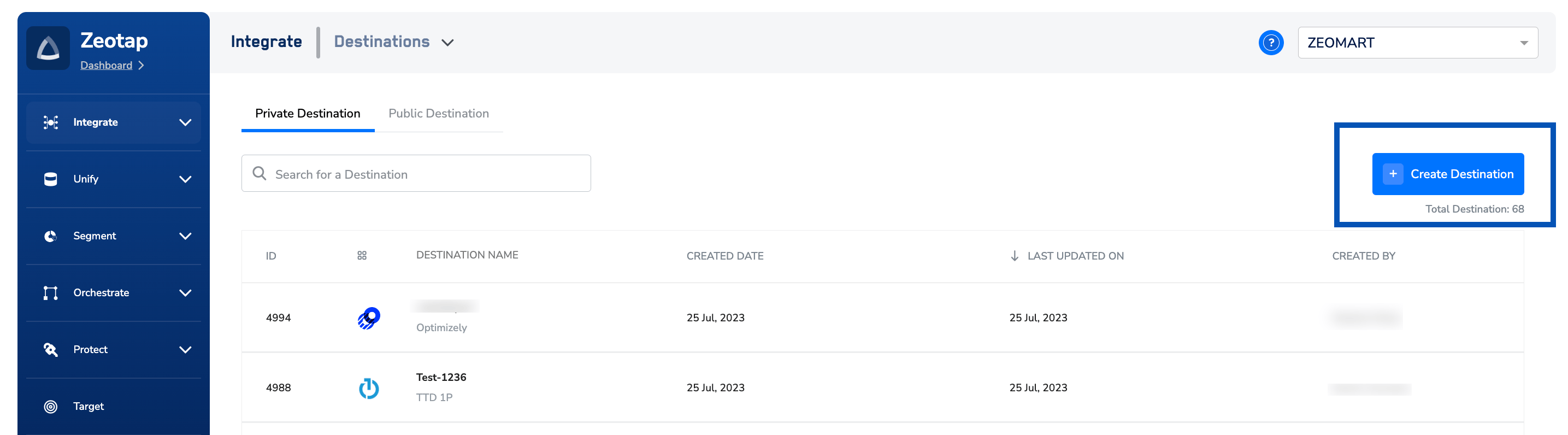 Under the **All Destinations** section, search for **Ongage**.
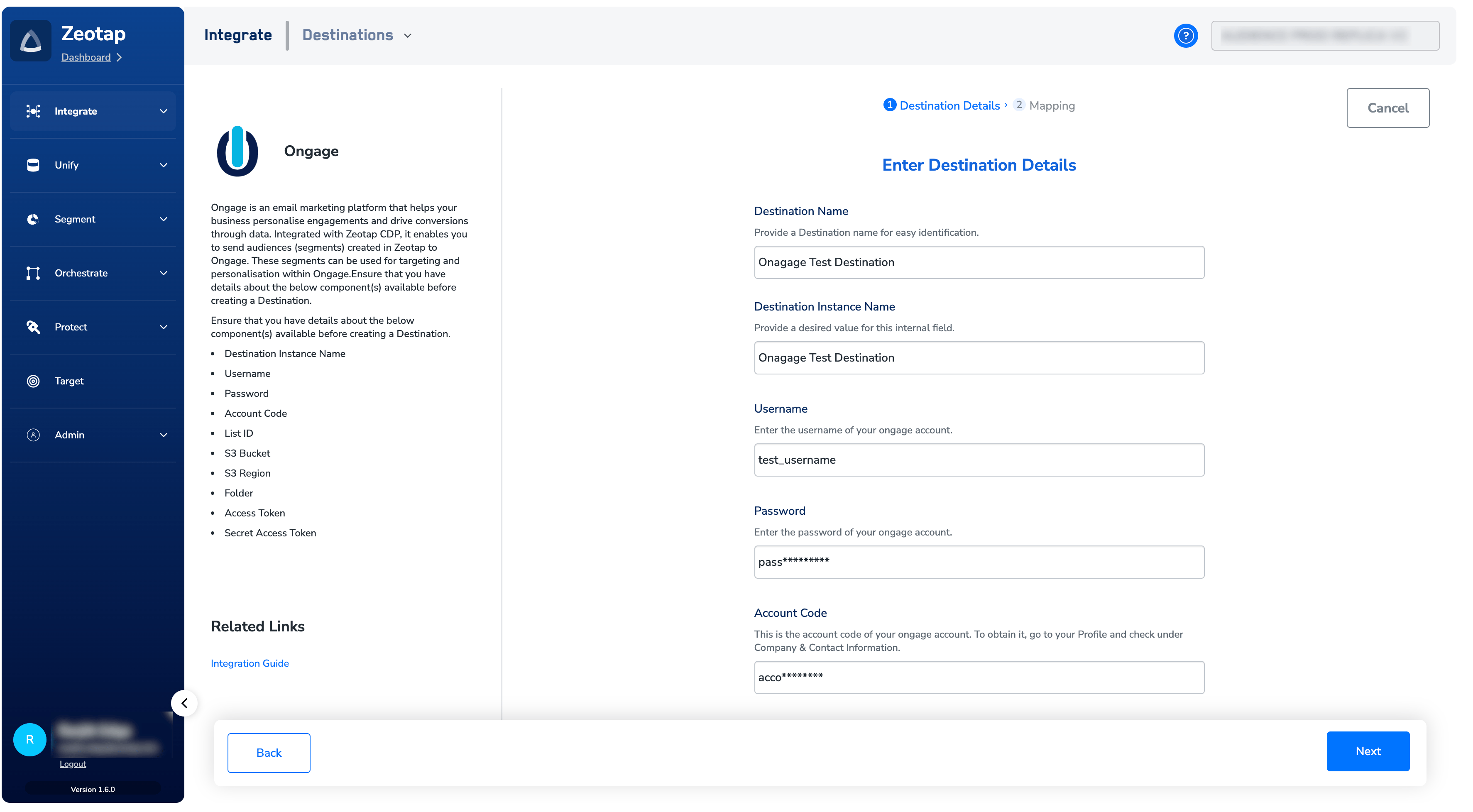
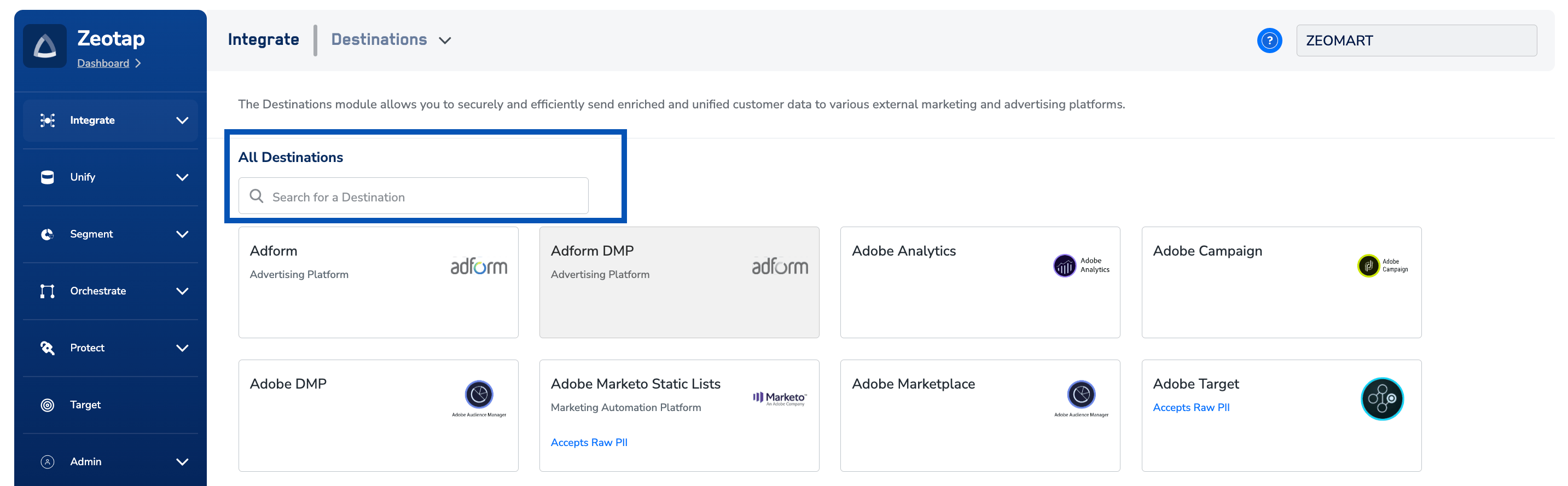 Click **Ongage**. A screen appears displaying details about the particular destination towards the left. On the right-hand side of the screen find a list of fields that are required for the integration to be established. Enter the required details as mentioned in the following steps:
a. Enter a name for the Destination.
b. Enter the **Destination Instance Name**.
c. Enter the **Username**, **Password**, **Account Code** and **List ID** that you obtained from your Ongage account.
d. In the **Bucket** field, provide the name of the Amazon S3 Bucket.
e. In the **S3 Bucket Region** field, provide the geographical region where your Amazon S3 bucket is available.
f. In the **Folder** field, provide the folder path in your storage location where Zeotap CDP can store your exported data.
g. Enter **Access Token** and **Secret Access Token** that you obtained from your Amazon S3 account.
h. Review all the values entered above and then click **Next** to proceed.
Click **Ongage**. A screen appears displaying details about the particular destination towards the left. On the right-hand side of the screen find a list of fields that are required for the integration to be established. Enter the required details as mentioned in the following steps:
a. Enter a name for the Destination.
b. Enter the **Destination Instance Name**.
c. Enter the **Username**, **Password**, **Account Code** and **List ID** that you obtained from your Ongage account.
d. In the **Bucket** field, provide the name of the Amazon S3 Bucket.
e. In the **S3 Bucket Region** field, provide the geographical region where your Amazon S3 bucket is available.
f. In the **Folder** field, provide the folder path in your storage location where Zeotap CDP can store your exported data.
g. Enter **Access Token** and **Secret Access Token** that you obtained from your Amazon S3 account.
h. Review all the values entered above and then click **Next** to proceed.
 In the new screen that appears, under **Choose your Action**, choose **Send Attributes and Identifiers to Ongage** as your action. This populates the the [Output Identifiers](https://docs.zeotap.com/articles/segment-customer/choose-the-output-identifiers) and attributes that are accepted by the platform such as Email addresses, Phone numbers, Country, First Name, Last Name, Address, Gender and IP, under **Map the Fields**. You can edit or remove the mapping as per your requirement.
Click **Create Destination**. The created Destination gets listed in the **Audiences** application, which can be linked to an audience (segment).
## Link an Audience to the Ongage Destination
For information about how to link an Audience or segment to the created Destination in **Audiences** application, refer [here](/articles/integrate-customer/link-an-audience-to-the-destination#h3_64671714).
**Note:**
*The terms Audiences and Segments are used interchangeably to refer to customer cohorts
belonging to a specific category. For example, an Audience or a segment could be a specific
group of customers who are over 18 years of age and who have performed an `addToCart`
event within the last 30 days.*
In the new screen that appears, under **Choose your Action**, choose **Send Attributes and Identifiers to Ongage** as your action. This populates the the [Output Identifiers](https://docs.zeotap.com/articles/segment-customer/choose-the-output-identifiers) and attributes that are accepted by the platform such as Email addresses, Phone numbers, Country, First Name, Last Name, Address, Gender and IP, under **Map the Fields**. You can edit or remove the mapping as per your requirement.
Click **Create Destination**. The created Destination gets listed in the **Audiences** application, which can be linked to an audience (segment).
## Link an Audience to the Ongage Destination
For information about how to link an Audience or segment to the created Destination in **Audiences** application, refer [here](/articles/integrate-customer/link-an-audience-to-the-destination#h3_64671714).
**Note:**
*The terms Audiences and Segments are used interchangeably to refer to customer cohorts
belonging to a specific category. For example, an Audience or a segment could be a specific
group of customers who are over 18 years of age and who have performed an `addToCart`
event within the last 30 days.*