> ## Documentation Index
> Fetch the complete documentation index at: https://docs.zeotap.com/llms.txt
> Use this file to discover all available pages before exploring further.
# Microsoft Ads Customer Match
## Overview
Microsoft Customer Match is a platform that lets businesses use email addresses that they collected with user's consent \[no enrichment], to reengage with them across Microsoft Search Network and Audience Network. Integrated with Zeotap it impacts marketers with its large volume of search traffic and any incremental percentage lift in conversion rate.
## Supported Identifiers
This integration supports hashed email addresses only.
## Available Actions and Supported Features
The following table lists the available action types for the integration and the supported features for each action type:
| Action Name | [ID EXTENSION](/articles/segment-customer/extend-your-audience#id-extension) | [DELETE](https://docs.zeotap.com/articles/#!integrate-customer/delta-upload-and-delete-functions) | [DELTA UPLOAD](https://docs.zeotap.com/articles/#!integrate-customer/delta-upload-and-delete-functions) |
| :----------------------------------------------- | :--------------------------------------------------------------------------- | :------------------------------------------------------------------------------------------------ | :------------------------------------------------------------------------------------------------------ |
| Send identifiers to Microsoft Ads Customer Match | ✅ | ✅ | - |
## Components of Microsoft Ads Customer Match
Ensure that you have details about the **Account ID**, **Customer ID** and **Developer Token** of the Microsoft Ads Customer Match account available before creating a Destination.
### Account ID and Customer ID
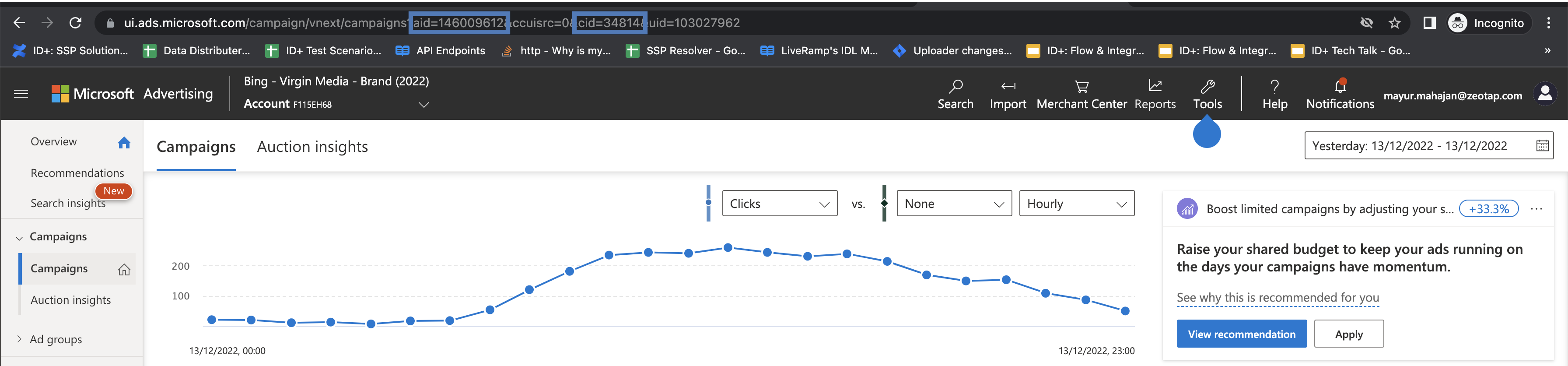
To get a user's Customer ID and Account ID, you can sign in to the Microsoft Advertising web application and click on the **Campaigns** tab. The URL that contains a *cid* key/value pair in the query string, identifies your Customer ID, and an *aid* key/value pair identifies your Account ID.
For example, In the URL mentioned in the below image, **aid=146009612** is the Account ID and **cid=34814** is the Customer ID.
 For more information on Account ID and Customer ID, refer [here](https://learn.microsoft.com/en-us/advertising/guides/get-started?view=bingads-13#get-ids).
## Developer Token
To use the Microsoft Ads Customer Match APIs, you must have a Developer token and valid Super Admin credentials. For information on how to get a Developer token, refer [here](https://learn.microsoft.com/en-us/advertising/guides/get-started?view=bingads-13#get-developer-token).
## Create a Destination for Microsoft Ads Customer Match
To create a destination for Microsoft Ads Customer Match, perform the following steps:
Log into the Zeotap CDP App and go to the **DESTINATIONS** application.
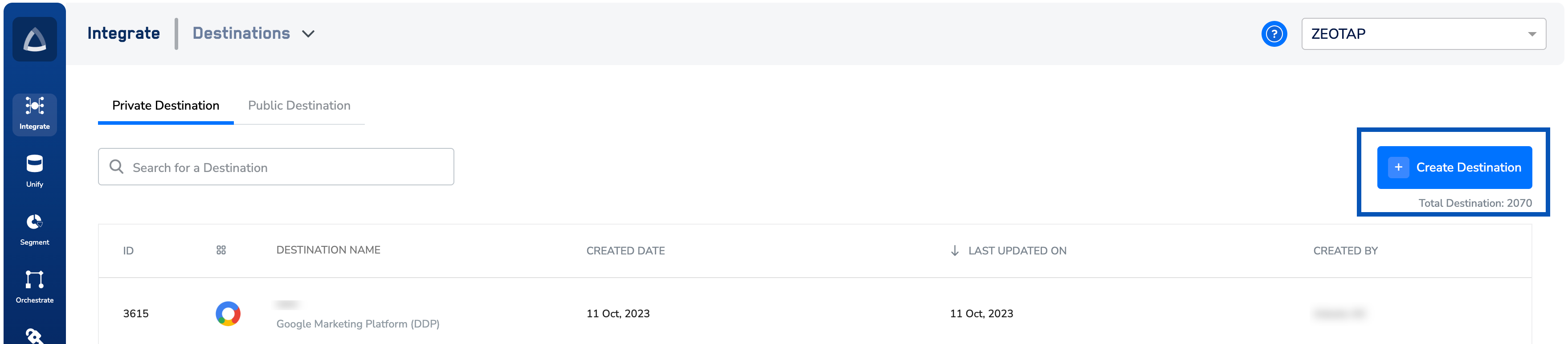
Click **+ Create Destination.**
For more information on Account ID and Customer ID, refer [here](https://learn.microsoft.com/en-us/advertising/guides/get-started?view=bingads-13#get-ids).
## Developer Token
To use the Microsoft Ads Customer Match APIs, you must have a Developer token and valid Super Admin credentials. For information on how to get a Developer token, refer [here](https://learn.microsoft.com/en-us/advertising/guides/get-started?view=bingads-13#get-developer-token).
## Create a Destination for Microsoft Ads Customer Match
To create a destination for Microsoft Ads Customer Match, perform the following steps:
Log into the Zeotap CDP App and go to the **DESTINATIONS** application.
Click **+ Create Destination.**
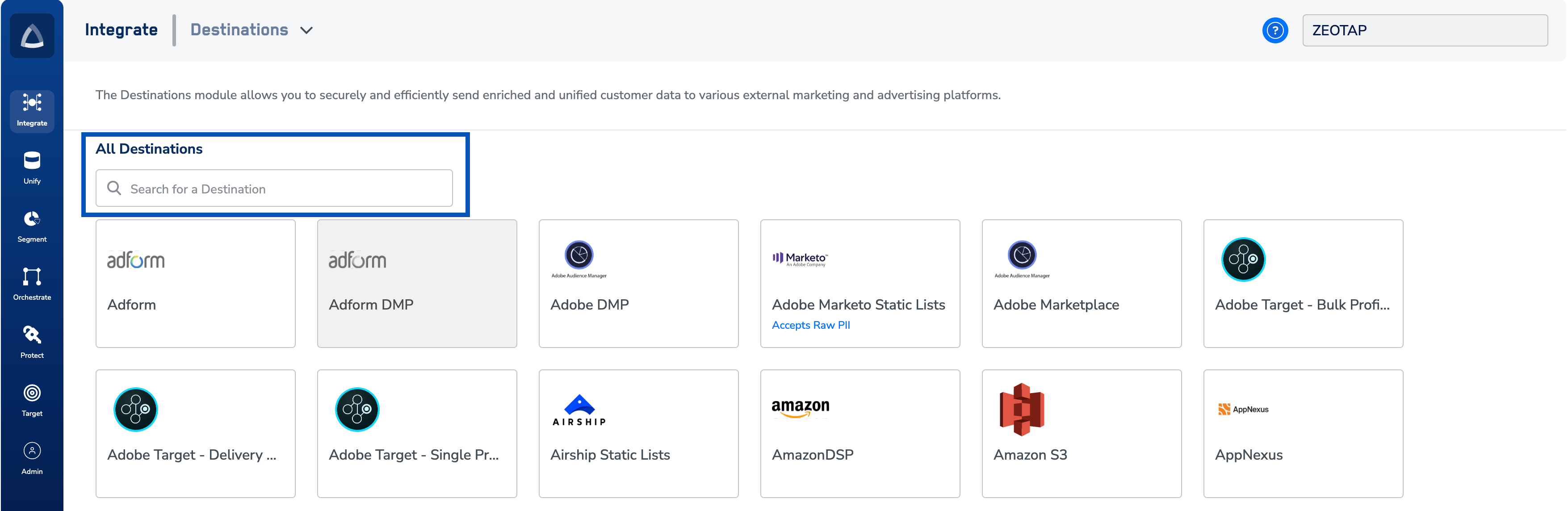
 Under **All Destinations**, search for **Microsoft Ads Customer Match**.
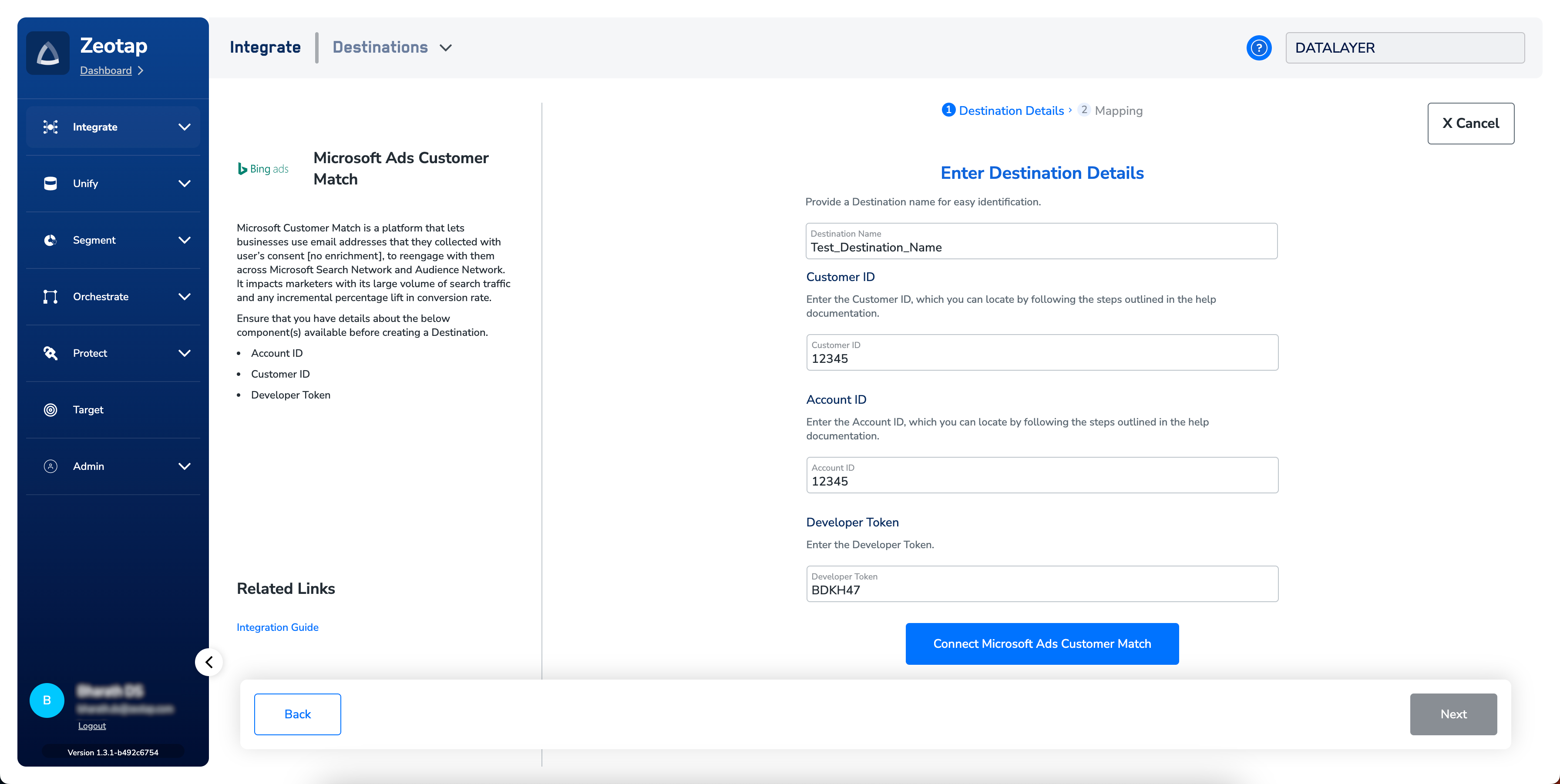
 Click **Microsoft Ads Customer Match**. A screen appears displaying details about the particular destination towards the left. On the right-hand side of the screen find a list of fields that are required for the integration to be established. Enter the required details as mentioned in the following steps:
a. Enter a name for the Destination.
b. Enter the **Account ID.** Refer to the [Account ID and Customer ID](/articles/integrate-customer/microsoft-ads-customer-match#h3__1070972562) section mentioned above.
c. Enter the **Customer ID.** Refer to the [Account ID and Customer ID](/articles/integrate-customer/microsoft-ads-customer-match#h3__1070972562) section mentioned above.
d. Enter the [Developer Token](/articles/integrate-customer/microsoft-ads-customer-match#h2_1933541889).
e. Click **Connect Microsoft Ads Customer Match.** Ensure that you have a Microsoft account handy that has access to your Microsoft Advertiser platform where you can activate the segment.
Click **Microsoft Ads Customer Match**. A screen appears displaying details about the particular destination towards the left. On the right-hand side of the screen find a list of fields that are required for the integration to be established. Enter the required details as mentioned in the following steps:
a. Enter a name for the Destination.
b. Enter the **Account ID.** Refer to the [Account ID and Customer ID](/articles/integrate-customer/microsoft-ads-customer-match#h3__1070972562) section mentioned above.
c. Enter the **Customer ID.** Refer to the [Account ID and Customer ID](/articles/integrate-customer/microsoft-ads-customer-match#h3__1070972562) section mentioned above.
d. Enter the [Developer Token](/articles/integrate-customer/microsoft-ads-customer-match#h2_1933541889).
e. Click **Connect Microsoft Ads Customer Match.** Ensure that you have a Microsoft account handy that has access to your Microsoft Advertiser platform where you can activate the segment.
 f. Follow the instructions on the screen to allow the permissions.
**Note:**
You must have the permission level of a **Super admin** within the advertiser's instance of Microsoft Advertising to perform the authentication.
Prior to authenticating, ensure that you accept the customer match terms that appear within the Microsoft Advertising UI. To do so, you need to manually create a customer match segment (can use a blank file) by navigating to **Tools** > **Audiences** > **Create** > **Customer Match**. Otherwise, the authentication will fail.
g. Upon successfully connecting to the Microsoft Advertiser account, the **Access Token** and **Refresh Tokens** are populated on the destination creation screen. In addition, the expiry period of the access and refresh tokens are also populated.
f. Follow the instructions on the screen to allow the permissions.
**Note:**
You must have the permission level of a **Super admin** within the advertiser's instance of Microsoft Advertising to perform the authentication.
Prior to authenticating, ensure that you accept the customer match terms that appear within the Microsoft Advertising UI. To do so, you need to manually create a customer match segment (can use a blank file) by navigating to **Tools** > **Audiences** > **Create** > **Customer Match**. Otherwise, the authentication will fail.
g. Upon successfully connecting to the Microsoft Advertiser account, the **Access Token** and **Refresh Tokens** are populated on the destination creation screen. In addition, the expiry period of the access and refresh tokens are also populated.
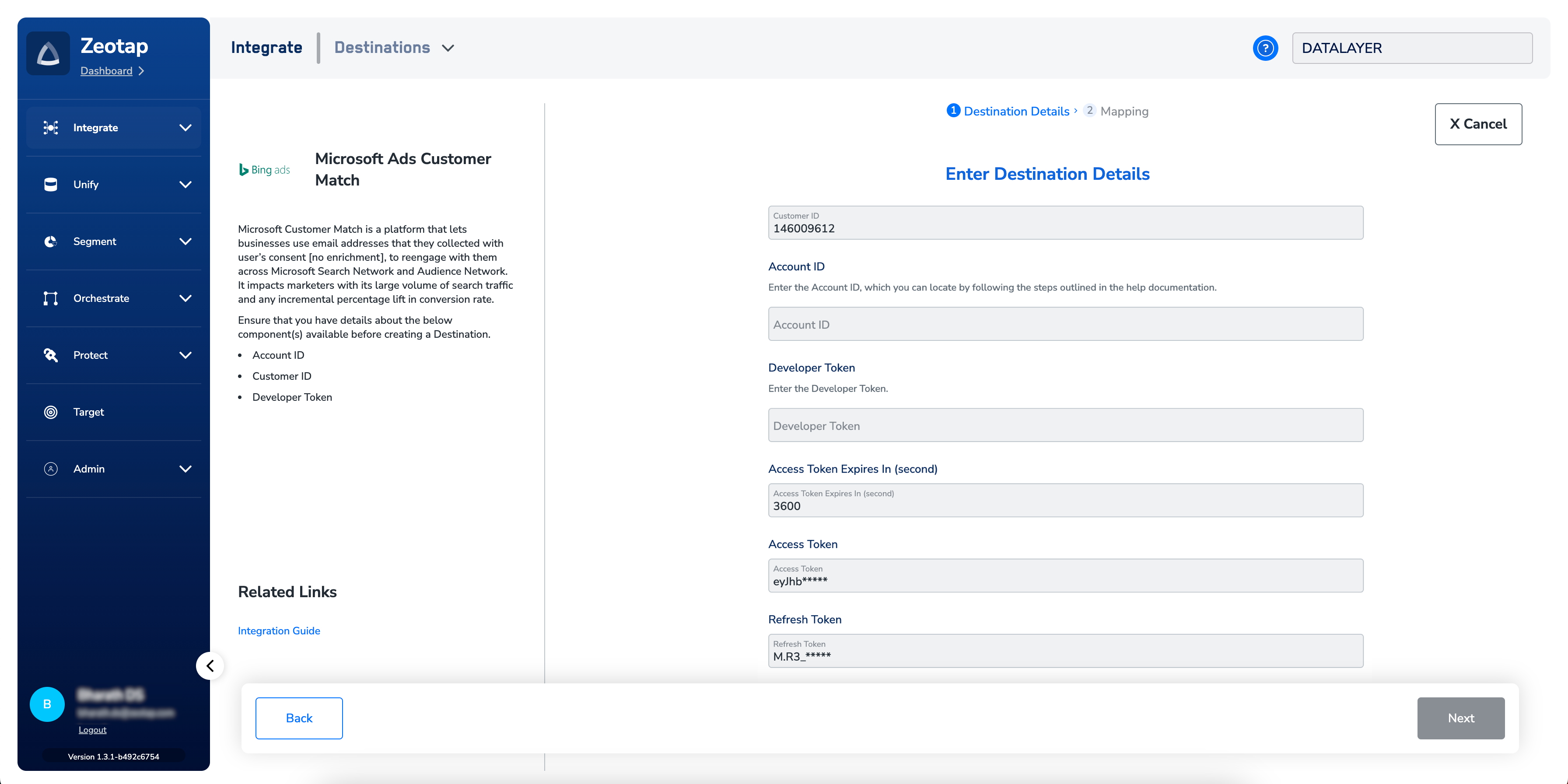 h. Click **Next** to proceed to mapping.
**Note:**
The following are some useful information related to destination creation:
* When the client clicks **Connect Microsoft Ads Customer Match**, they have to go through OAuth flow to generate Access and Refresh tokens. The Access Token is then used by Zeotap to create audiences within Microsoft Advertiser Platform.
* As the steps for creating a destination for Microsoft Ads Customer Match involves logging into the client's Microsoft Advertiser account, we recommended that the client themselves create the destinations. However, the TAM/CSM can create a destination, only if they are provided with the login credentials for the client's Microsoft Advertiser account.
* If you have a working or active destination, we recommend that you do not create another destination with the same details.
* Access token is short lived while Refresh tokens are long-lived (up to 90 days). Hence, Zeotap uses Refresh token to regenerate the Access token as and when they expire. However, once the Refresh token expires/revoked, the authorisation service returns an invalid grant error. Hence, a new destination needs to be created.
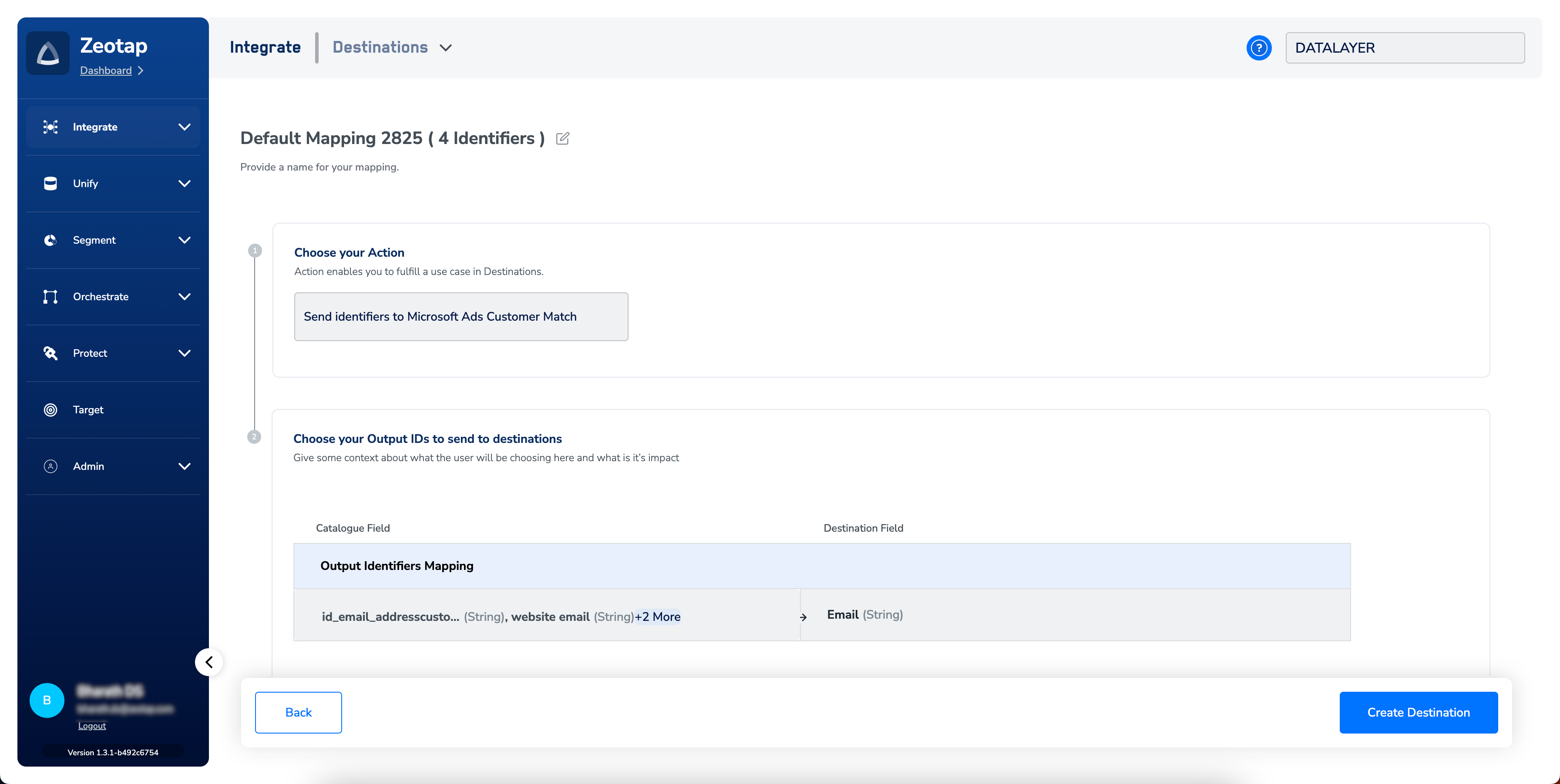
In the new screen that appears, choose the appropriate Action and mapping as explained below.
a. Choose the desired [action](/articles/integrate-customer/destinations#actionsanchor) under **Choose your Action** and then choose the corresponding identifiers under **Map the Fields**. By default, the [Output Identifiers](https://docs.zeotap.com/articles/segment-customer/choose-the-output-identifiers) that are accepted by the platform such as, MAIDs, Cookies, email Ids and more are displayed. However, you can edit, add or remove an identifier from the list. To do so, refer [here](/articles/integrate-customer/destinations#mappingsanchor).
b. Click **Create Destination**. The created Destination gets listed in the **Audiences** application, which can be linked to an Audience/segment.
h. Click **Next** to proceed to mapping.
**Note:**
The following are some useful information related to destination creation:
* When the client clicks **Connect Microsoft Ads Customer Match**, they have to go through OAuth flow to generate Access and Refresh tokens. The Access Token is then used by Zeotap to create audiences within Microsoft Advertiser Platform.
* As the steps for creating a destination for Microsoft Ads Customer Match involves logging into the client's Microsoft Advertiser account, we recommended that the client themselves create the destinations. However, the TAM/CSM can create a destination, only if they are provided with the login credentials for the client's Microsoft Advertiser account.
* If you have a working or active destination, we recommend that you do not create another destination with the same details.
* Access token is short lived while Refresh tokens are long-lived (up to 90 days). Hence, Zeotap uses Refresh token to regenerate the Access token as and when they expire. However, once the Refresh token expires/revoked, the authorisation service returns an invalid grant error. Hence, a new destination needs to be created.
In the new screen that appears, choose the appropriate Action and mapping as explained below.
a. Choose the desired [action](/articles/integrate-customer/destinations#actionsanchor) under **Choose your Action** and then choose the corresponding identifiers under **Map the Fields**. By default, the [Output Identifiers](https://docs.zeotap.com/articles/segment-customer/choose-the-output-identifiers) that are accepted by the platform such as, MAIDs, Cookies, email Ids and more are displayed. However, you can edit, add or remove an identifier from the list. To do so, refer [here](/articles/integrate-customer/destinations#mappingsanchor).
b. Click **Create Destination**. The created Destination gets listed in the **Audiences** application, which can be linked to an Audience/segment.
 ## Link an Audience to Microsoft Ads Customer Match
For information about how to link an Audience or segment to the created Destination in the **Audiences** application, refer [here](/articles/integrate-customer/link-an-audience-to-the-destination). Note that it can take up to three business days for segments to be available at the Microsoft Ads Customer Match seat.
**Note:**
The terms *Audiences* and *Segments* are used interchangeably to refer to customer cohorts belonging to a specific category. For example, an Audience or a segment can be a specific group of customers who are over 18 years of age and have performed an `addToCart` event within the last 30 days.
## View Audiences on the Microsoft Advertising Platform
To view the segments pushed by Zeotap on the Microsoft Advertising platform, perform the following steps:
Log into the Microsoft Advertising platform.
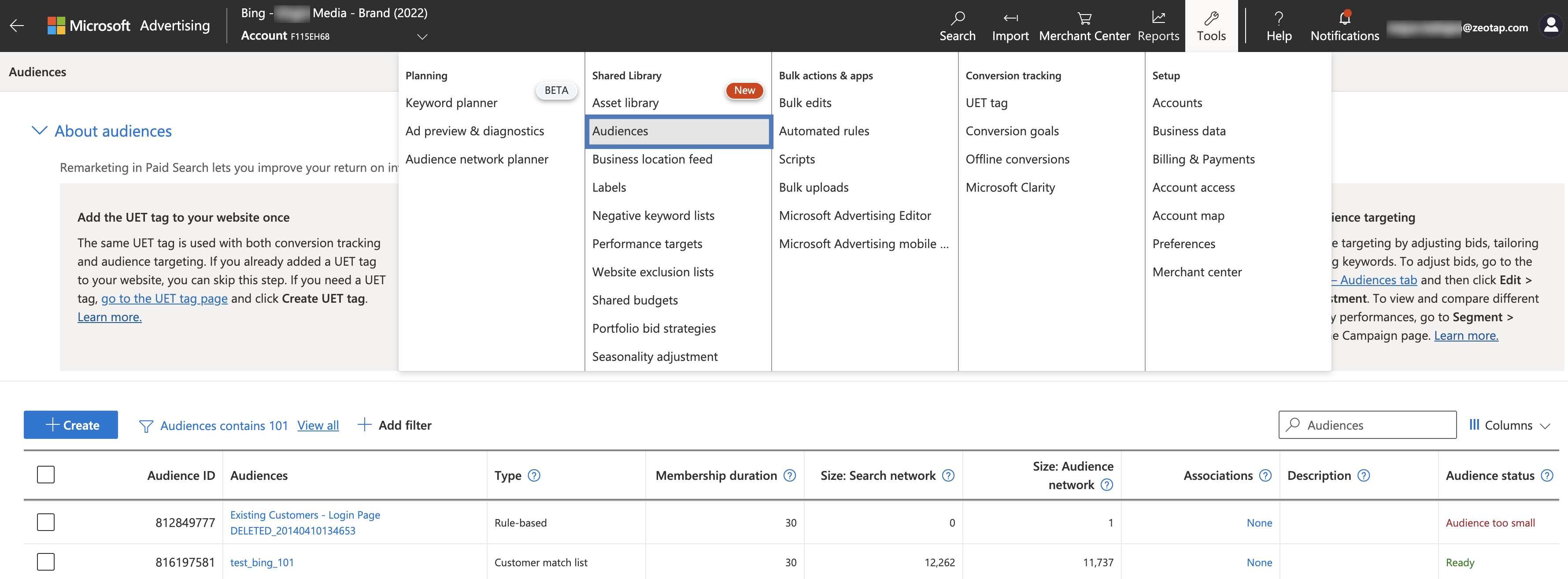
Go to **Tools** and then click **Audiences**. A list of all Zeotap audiences appear. Here, you can search for the audience pushed through the **Audiences** application.
## Link an Audience to Microsoft Ads Customer Match
For information about how to link an Audience or segment to the created Destination in the **Audiences** application, refer [here](/articles/integrate-customer/link-an-audience-to-the-destination). Note that it can take up to three business days for segments to be available at the Microsoft Ads Customer Match seat.
**Note:**
The terms *Audiences* and *Segments* are used interchangeably to refer to customer cohorts belonging to a specific category. For example, an Audience or a segment can be a specific group of customers who are over 18 years of age and have performed an `addToCart` event within the last 30 days.
## View Audiences on the Microsoft Advertising Platform
To view the segments pushed by Zeotap on the Microsoft Advertising platform, perform the following steps:
Log into the Microsoft Advertising platform.
Go to **Tools** and then click **Audiences**. A list of all Zeotap audiences appear. Here, you can search for the audience pushed through the **Audiences** application.
 ## Work with Campaigns
Once the segments are available under the Audiences tab, you can link them and create campaigns based on your requirement. To edit a campaign, log into the Microsoft Advertising platform and perform the following steps:
Select the campaign that you want to edit, then click **Edit** > **Associate with audiences**.
## Work with Campaigns
Once the segments are available under the Audiences tab, you can link them and create campaigns based on your requirement. To edit a campaign, log into the Microsoft Advertising platform and perform the following steps:
Select the campaign that you want to edit, then click **Edit** > **Associate with audiences**.
 Based on whether you want to use the audience for **Campaign targeting** or **Campaign exclusion**, go to the respective section and select **Customer match lists** from the drop-down menu.
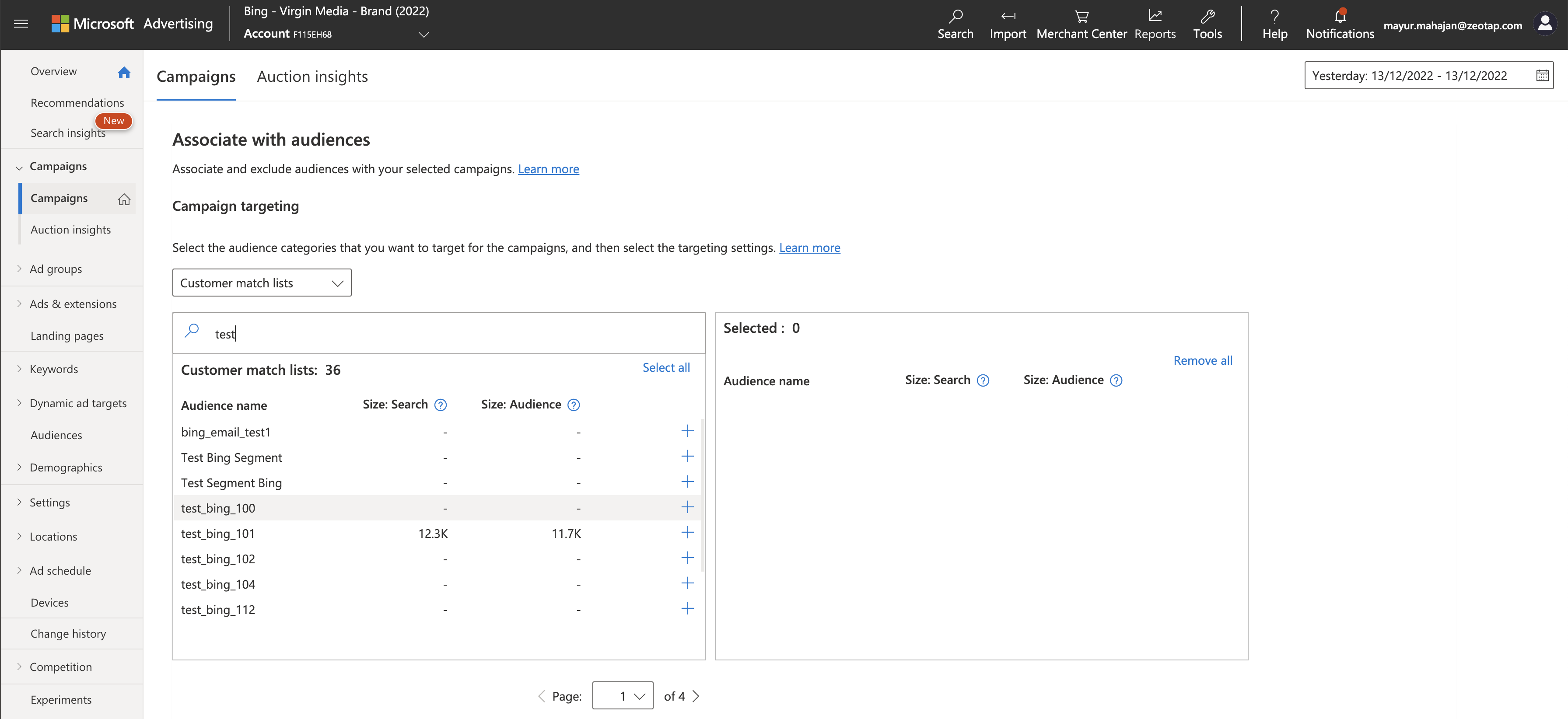 Search and **select** the Audience list that you want to include/exclude in the campaign.
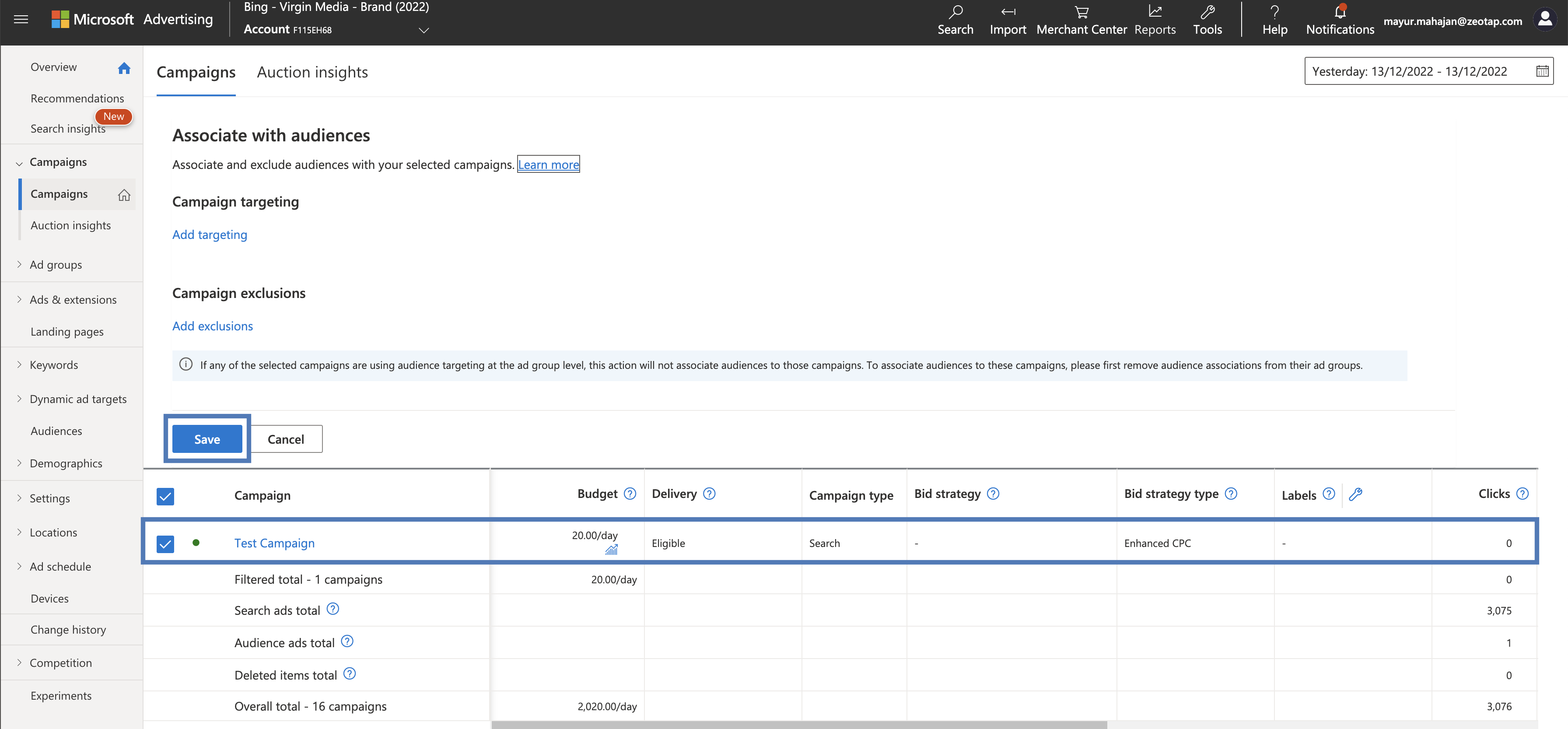 click **Save**.
## Troubleshooting
| **Error** | **Resolution** |
| :------------------------------------------------------------------------------------------------------------------------------------------------------------------------------------------------------------------------------------------------------------------------------------------------------------------------------------------------------------------------------------------------------------------------------------------------------------------------------------------------------------------------------------ | :------------------------------------------------------------------------------------------------------------------------------------------------------------------------------------------------------------------------------------------------------------------------------------------------------------------------------------------------------------------------------------------------------------------------------------------------------------------------------------------------------------------------ |
| `AADSTS650052: The app is trying to access a service 'c136dfc93-d475-491d-b4fd-6fcdff8c68fd'(Microsoft Advertising API Service) that your organization '74545ah834-46f3-430e-a7a1-8f8rg54088224' lacks a service principal for. Contact your IT Admin to review the configuration of your service subscriptions or consent to the application in order to create the required service principal. Trace ID: ae23ea5a-0a8f-49cf-9f27-bd930d3a3d00 Correlation ID: adf8cd889-3ae9-422f-abfb-003dae6fc9f7 Timestamp:2023-03-07 09:37:307` | In the case of this error, ensure that you have at least one of the Admin users from your Azure AAD tenant added and enabled for [work accounts](https://help.ads.microsoft.com/#apex/3/en/60043/-1) in the [https://ads.microsoft.com/?fdmkt=en-us\&fdiso=us\&fdtz=-8](https://ads.microsoft.com/?fdmkt=en-us\&fdiso=us\&fdtz=-8). Reach out to [support](https://learn.microsoft.com/en-us/advertising/guides/handle-service-errors-exceptions?view=bingads-13#contact-support) for further assistance. |
**Note:**
For more information about plausible errors and resolutions, refer [here](https://learn.microsoft.com/en-us/advertising/guides/handle-service-errors-exceptions?view=bingads-13#aadsts650052).
## User Disqualification from Audiences
This integration supports user disqualification from audiences. That is, a user can be disqualified from an audience (segment) for various reasons, such as not meeting audience criteria, consent requirements or other conditions set for a particular audience.
* When a user disqualifies from an audience, Zeotap CDP initiates a user deletion request in the next refresh cycle. These requests are sent to the audiences linked to the specific destination.
* The disqualified users are excluded from the audiences based on the configured refresh frequency for a particular audience.
* User disqualification is a programmatic process that works automatically. You do not need to specify anything to trigger the disqualification and exclusion of users from audiences.
click **Save**.
## Troubleshooting
| **Error** | **Resolution** |
| :------------------------------------------------------------------------------------------------------------------------------------------------------------------------------------------------------------------------------------------------------------------------------------------------------------------------------------------------------------------------------------------------------------------------------------------------------------------------------------------------------------------------------------ | :------------------------------------------------------------------------------------------------------------------------------------------------------------------------------------------------------------------------------------------------------------------------------------------------------------------------------------------------------------------------------------------------------------------------------------------------------------------------------------------------------------------------ |
| `AADSTS650052: The app is trying to access a service 'c136dfc93-d475-491d-b4fd-6fcdff8c68fd'(Microsoft Advertising API Service) that your organization '74545ah834-46f3-430e-a7a1-8f8rg54088224' lacks a service principal for. Contact your IT Admin to review the configuration of your service subscriptions or consent to the application in order to create the required service principal. Trace ID: ae23ea5a-0a8f-49cf-9f27-bd930d3a3d00 Correlation ID: adf8cd889-3ae9-422f-abfb-003dae6fc9f7 Timestamp:2023-03-07 09:37:307` | In the case of this error, ensure that you have at least one of the Admin users from your Azure AAD tenant added and enabled for [work accounts](https://help.ads.microsoft.com/#apex/3/en/60043/-1) in the [https://ads.microsoft.com/?fdmkt=en-us\&fdiso=us\&fdtz=-8](https://ads.microsoft.com/?fdmkt=en-us\&fdiso=us\&fdtz=-8). Reach out to [support](https://learn.microsoft.com/en-us/advertising/guides/handle-service-errors-exceptions?view=bingads-13#contact-support) for further assistance. |
**Note:**
For more information about plausible errors and resolutions, refer [here](https://learn.microsoft.com/en-us/advertising/guides/handle-service-errors-exceptions?view=bingads-13#aadsts650052).
## User Disqualification from Audiences
This integration supports user disqualification from audiences. That is, a user can be disqualified from an audience (segment) for various reasons, such as not meeting audience criteria, consent requirements or other conditions set for a particular audience.
* When a user disqualifies from an audience, Zeotap CDP initiates a user deletion request in the next refresh cycle. These requests are sent to the audiences linked to the specific destination.
* The disqualified users are excluded from the audiences based on the configured refresh frequency for a particular audience.
* User disqualification is a programmatic process that works automatically. You do not need to specify anything to trigger the disqualification and exclusion of users from audiences.