> ## Documentation Index
> Fetch the complete documentation index at: https://docs.zeotap.com/llms.txt
> Use this file to discover all available pages before exploring further.
# Upload Files on Zeotap Google Cloud Storage
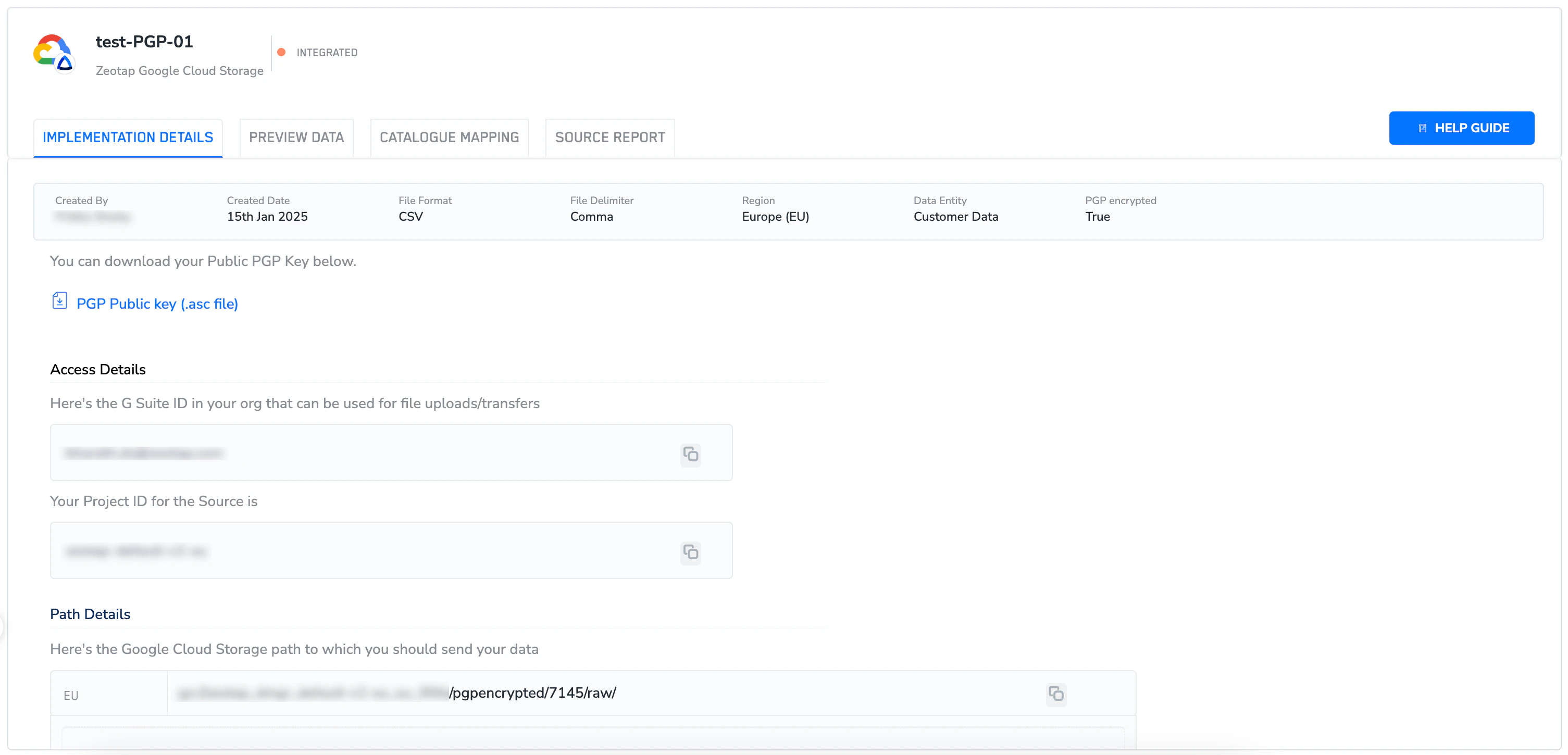
> After creating a Zeotap Google Cloud Storage source, go to the **IMPLEMENTATION DETAILS** tab. On this page, along with the basic details such as source `created date`, `create by`, `file format`, `region` and so on, you can also find the following information:
* If you have selected **PGP encrypted** as **true** while creating the source, then you will see a downloadable **Public PGP Key** as shown in the image below.
* In the **Access Details** section, you can find-
* G Suite ID in your organisation that can be used for file uploads/transfers
* Your Project ID for the Source
* In the **Path Details** section, you can find-
* Google Cloud Storage path to which you can send the data.
**Note:**
*For [PGP-encrypted](/articles/integrate-customer/pgp-encryption-in-sources) sources, upload files only in the `.pgp` format.* |
* The **+ ADD FILES** option to upload files directly from your local machines to the designated path.
Users with the *Editor* role only, have access to this feature. Users with the *Viewer* role must reach out to the Admins to upload files.