> ## Documentation Index
> Fetch the complete documentation index at: https://docs.zeotap.com/llms.txt
> Use this file to discover all available pages before exploring further.
# Destination Access Rules
> Block specific destinations from individual audience and journey folders. Govern which activation channels each team can send to. Part of Zeotap's Access Rules governance model.
## Overview
**Destination Access Rules** let admins control which destinations are available for activation from specific audience and journey folders. They govern which channels each team can send to, ensuring that high-value, regulated, or cost-sensitive activation channels are only used in the right contexts.
For the broader governance model — including how Destination Access Rules relate to Folder Access Control and Mandatory Templates — see [Access Rules](/articles/admin-customer/access-rules).
Unlike [Source Access Rules](/articles/integrate-customer/source-access-rules), Destination Access Rules apply to the **entire destination**. There is no mapping-level or attribute-level granularity — the governance concern here is about which channels a team can activate to, not the specific data being sent.
## When to use Destination Access Rules
**Restrict premium or high-cost channels.** Your org uses a premium DMP that carries significant activation costs. You want to ensure only compliance-reviewed, high-quality audiences can be sent to it. Block it from all marketing folders and keep it available only in the compliance folder.
**Prevent unauthorised channel use.** Certain destinations — for example, a channel used exclusively for regulated financial communications — should only be available to specific teams. Blocking it from other folders prevents accidental or unauthorised sends.
**Enforce channel governance by region.** A destination configured for a specific market should not be available to teams building audiences for other markets. Destination Access Rules let you scope activation channels to the folders where they are relevant.
**Protect brand safety.** High-reach or high-visibility channels can be restricted to folders where audiences have been properly reviewed, preventing untested or incomplete audience segments from reaching those channels.
## How Destination Access Rules work
### Default state
By default, every destination is available across all folders. No restrictions are applied unless explicitly configured by an admin.
### Blocklist behaviour
When a blocklist rule is configured for a destination:
* The destination is blocked from the folders explicitly named in the rule.
* All other folders retain access by default.
* Subfolders automatically inherit the same restrictions as their parent folder.
* New folders created after the rule is set retain full access. The new folder must be explicitly added to the rule for the restriction to apply.
## Configure Destination Access Rules
### Create a Destination Access Rule
Navigate to **Destinations** and open the specific destination you want to configure an access rule for.
Select the **Access Rule** tab. If no rules exist yet, you'll see the **No Permission Configured** empty state.
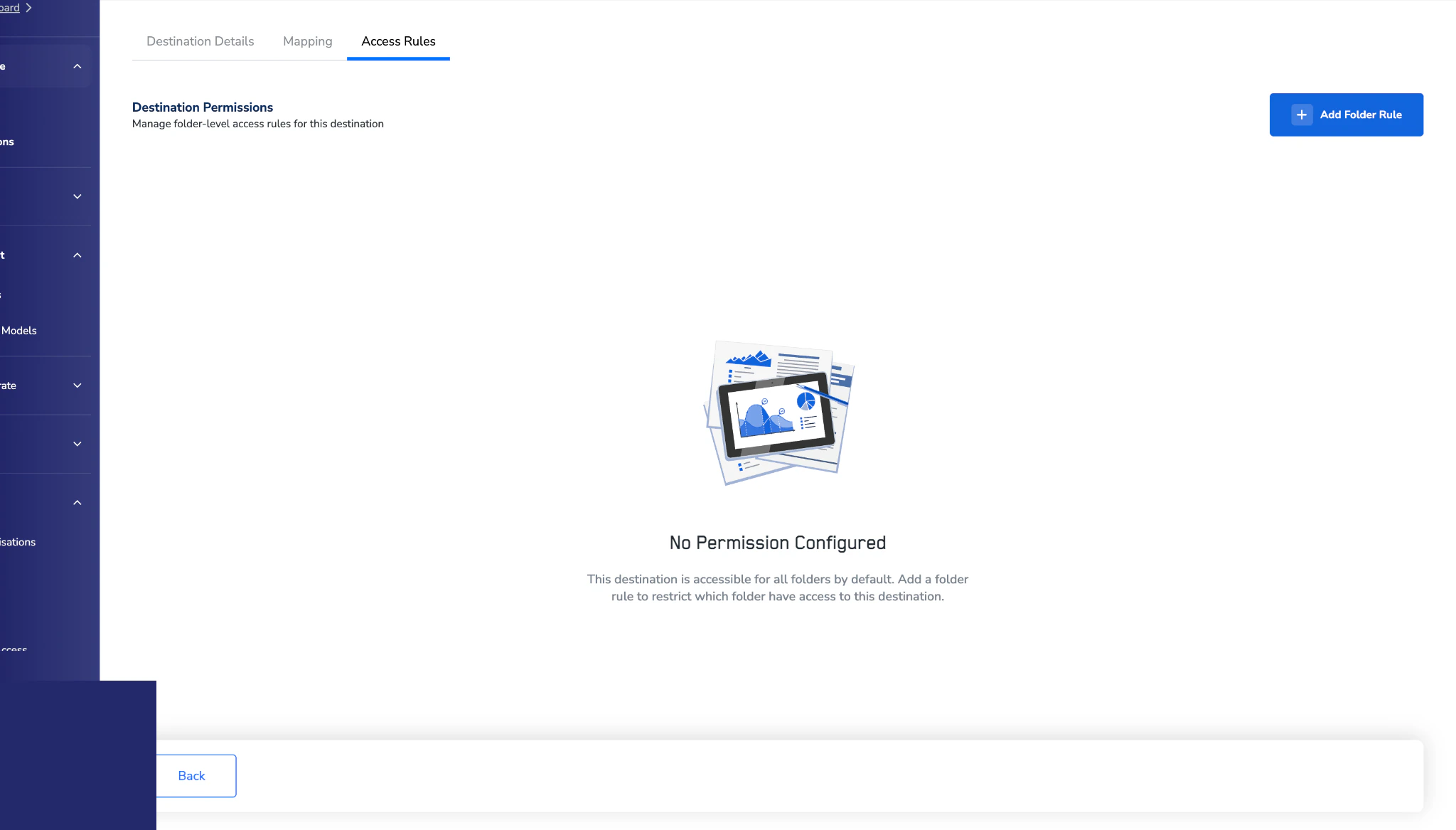 Click **+ Add Folder Rule** and choose the audience and journey folders where the destination should be blocked.
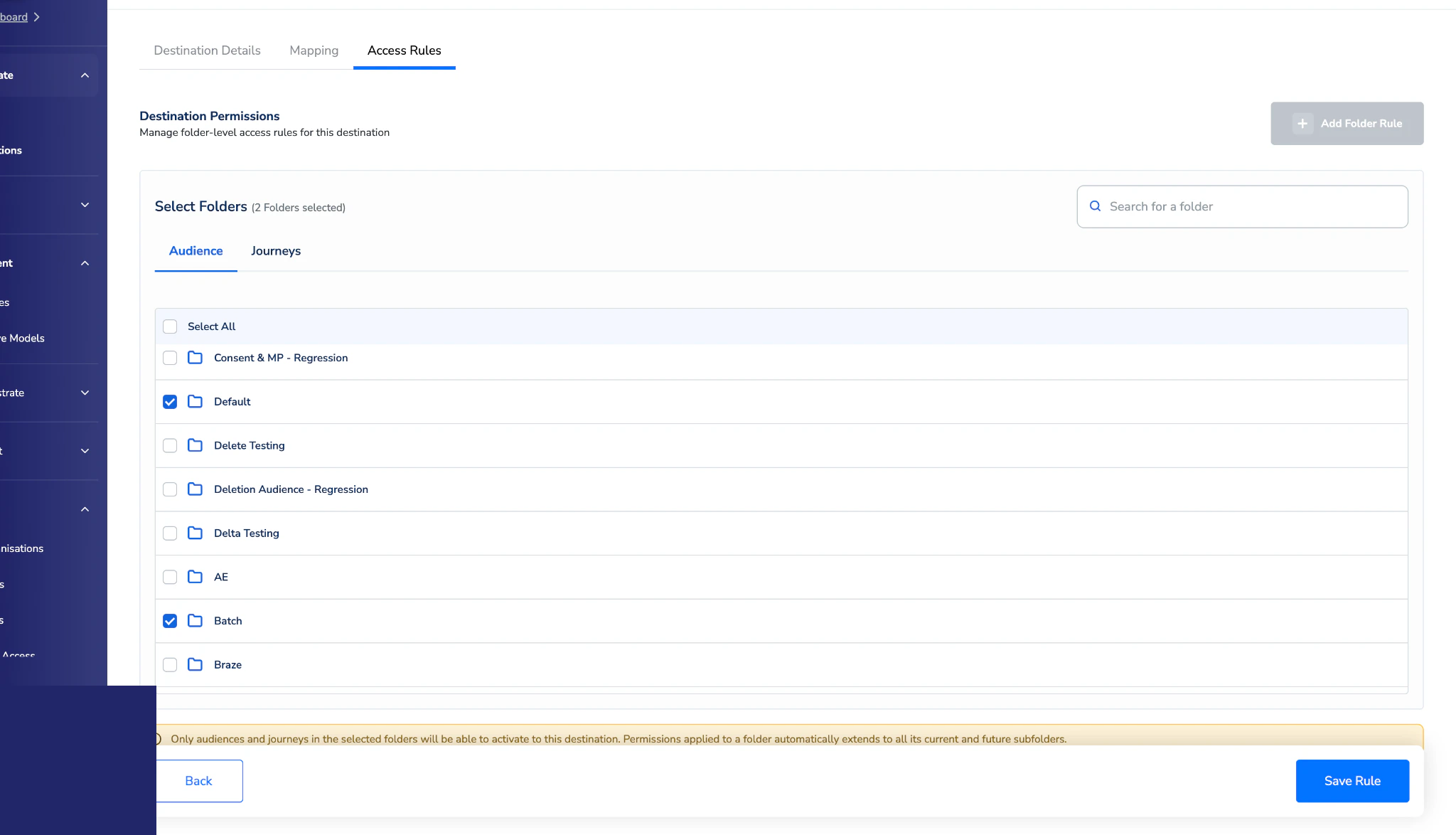 Click **Save Rule**. The rule appears on the Access Rule tab with the audience and journey folders it applies to.
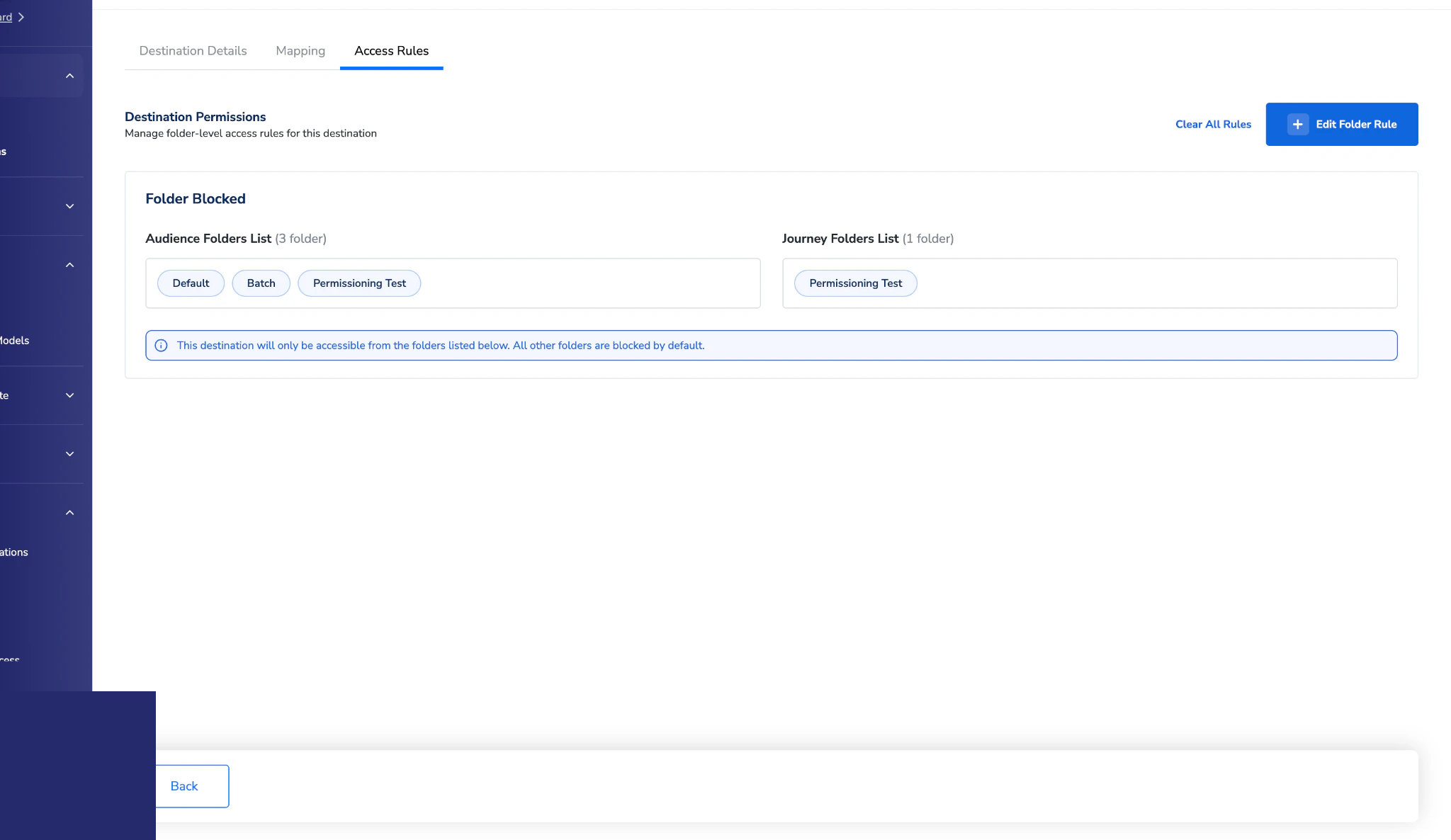 ### Edit an existing rule
Navigate to **Destinations**, open the destination, and select the **Access Rule** tab.
Click **Edit Folder Rules** to add or remove folders. Save when done.
### Delete a rule
Navigate to **Destinations**, open the destination, and select the **Access Rule** tab.
Click **Clear All Rules** to remove every folder rule. To remove specific folders only, click **Edit Folder Rules** and use the cross icon next to the folders you want to remove.
## What users see when a destination is restricted
### In the audience activation panel
A blocked destination does not appear in the activation destination list for that folder.
**Existing audiences affected by a new rule:** Existing audiences continue running without interruption. However, any audience using a now-restricted destination is flagged with a warning status on both the folder and the audience definition page.
### In the Journey Builder
A blocked destination does not appear in the activation destination list for that folder.
**Existing journeys affected by a new rule:** Existing journeys continue running without interruption. However, any journey using a now-restricted destination is flagged with a warning status on both the folder and the journey definition page.
### Edit an existing rule
Navigate to **Destinations**, open the destination, and select the **Access Rule** tab.
Click **Edit Folder Rules** to add or remove folders. Save when done.
### Delete a rule
Navigate to **Destinations**, open the destination, and select the **Access Rule** tab.
Click **Clear All Rules** to remove every folder rule. To remove specific folders only, click **Edit Folder Rules** and use the cross icon next to the folders you want to remove.
## What users see when a destination is restricted
### In the audience activation panel
A blocked destination does not appear in the activation destination list for that folder.
**Existing audiences affected by a new rule:** Existing audiences continue running without interruption. However, any audience using a now-restricted destination is flagged with a warning status on both the folder and the audience definition page.
### In the Journey Builder
A blocked destination does not appear in the activation destination list for that folder.
**Existing journeys affected by a new rule:** Existing journeys continue running without interruption. However, any journey using a now-restricted destination is flagged with a warning status on both the folder and the journey definition page.
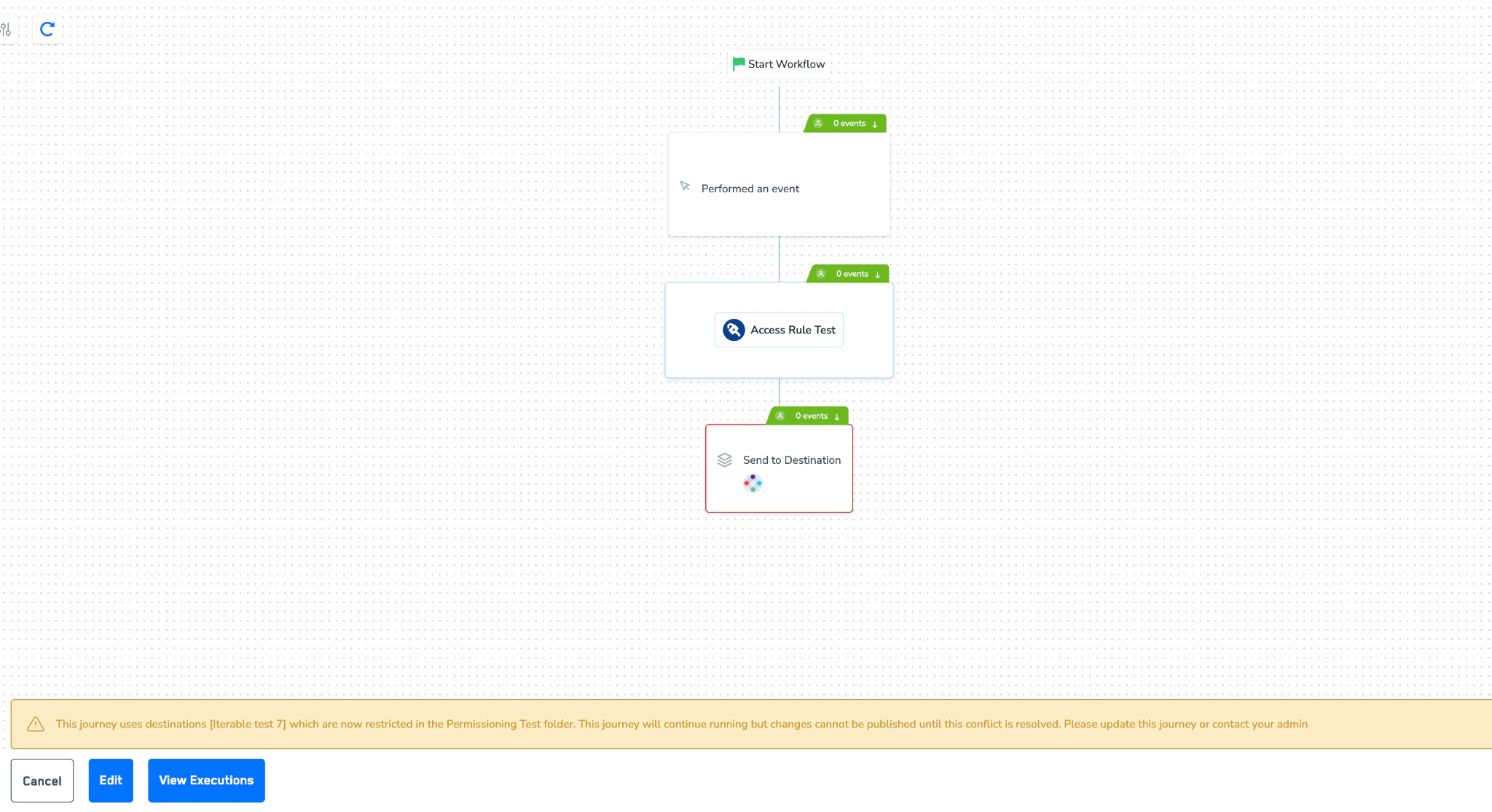 Users cannot publish changes to a flagged journey until the conflict is resolved — either by removing the restricted destination from the journey definition, or by an admin updating the rule.