> ## Documentation Index
> Fetch the complete documentation index at: https://docs.zeotap.com/llms.txt
> Use this file to discover all available pages before exploring further.
# Create an SFTP (Push) Source
**Note:**
Refer to [SFTP Source](/articles/integrate-customer/sftp-secure-file-transfer-protocol) to know more about this source.
Use the SFTP (Push) source when the SFTP folder is hosted at Zeotap CDP's end, and you need to push data to it. Perform the following steps to create an SFTP (Push) source:
In the Zeotap CDP App, navigate to the **Sources** application under **Integrate.**
Click **Create Source**.
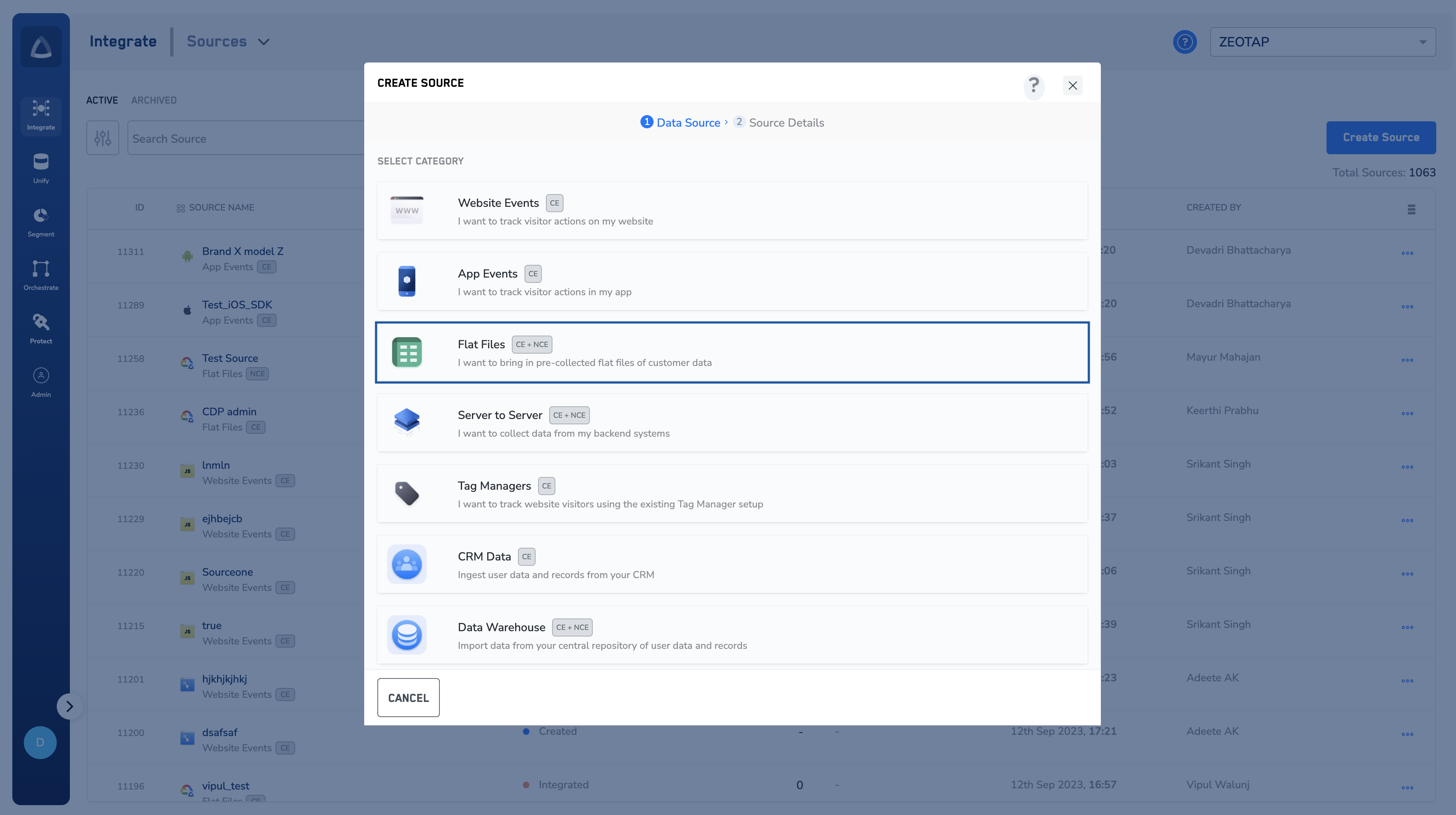
Choose **Flat Files** as the Category.
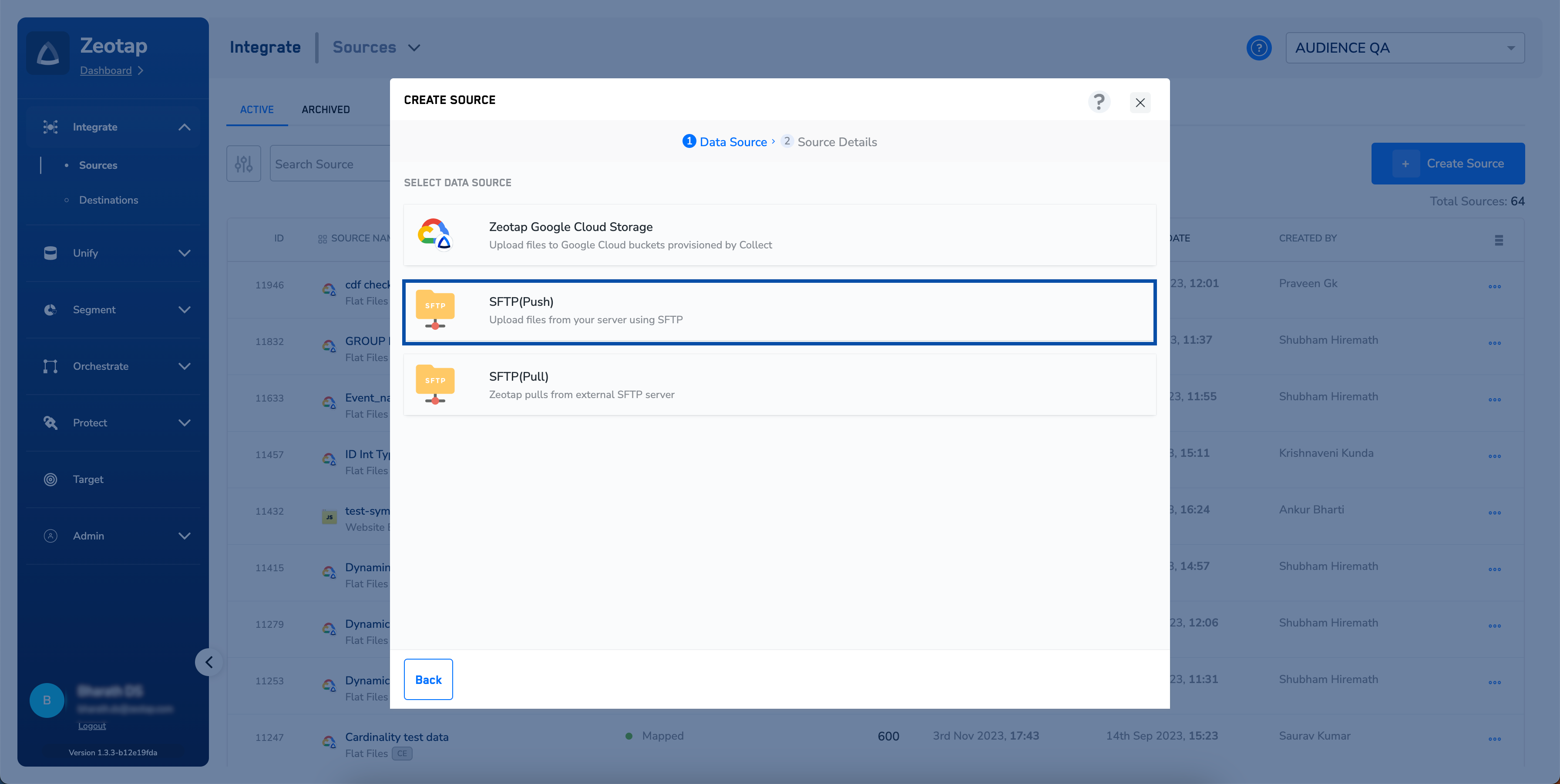
 Click **SFTP** as the Data Source.
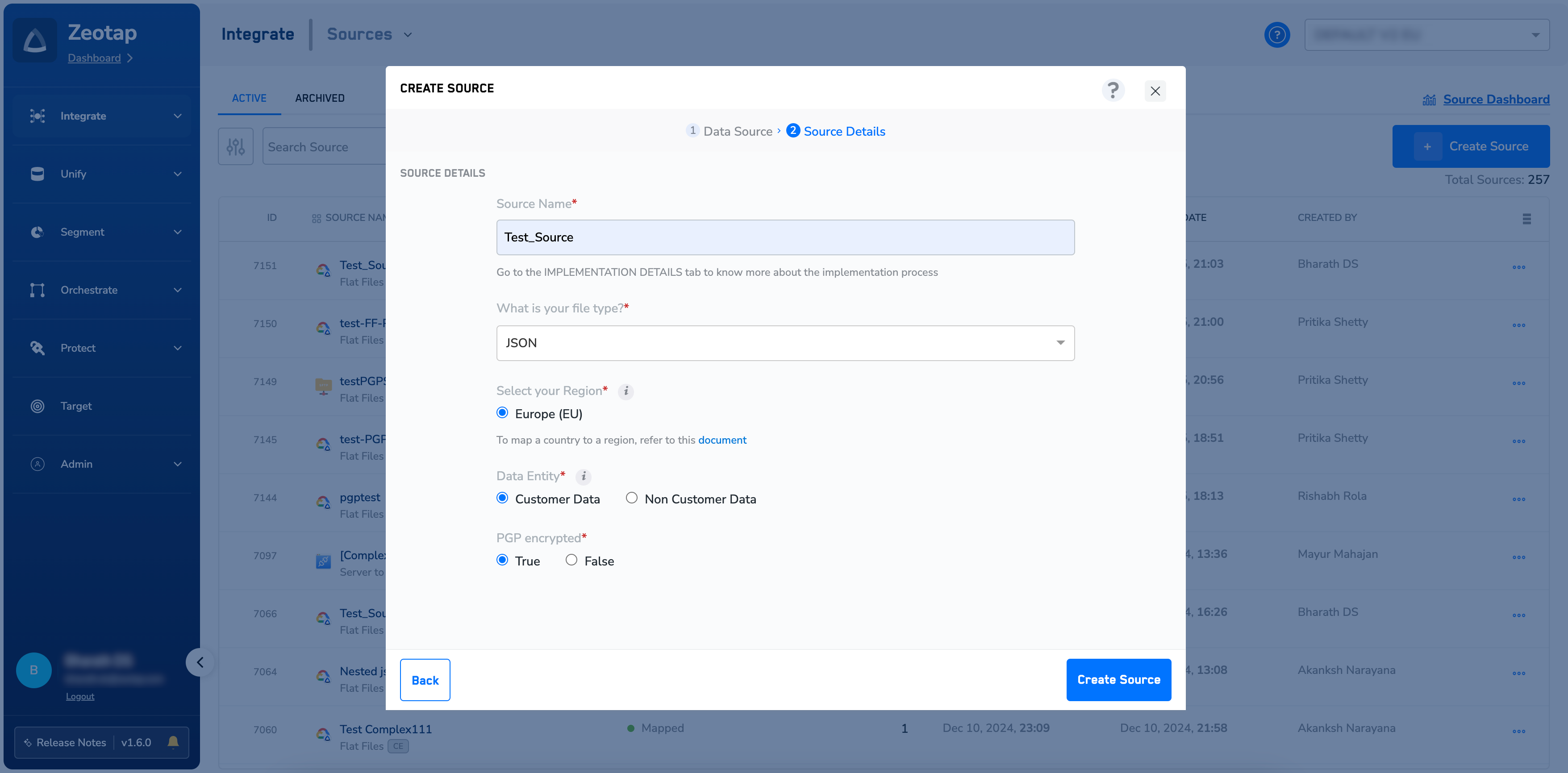
 In the new window that appears, provide the following details:
a. Enter a short and descriptive name for the source.
b. Choose the file format for sending data to Zeotap CDP using the drop-down menu.
c. Choose the **delimiter** and **region** of upload.
d. Under **Data Entity**, depending on the type of data that you want to ingest, choose either **Customer Data** or **Non Customer Data** and proceed with the source creation. To know more about Customer Data and Non Customer Data, refer [here](https://docs.zeotap.com/smart/project-unify/supported-data-entities).
e. Under **PGP Encrypted**, select **True** or **False**, depending on whether you want to encrypt your data before sending it to Zeotap CDP. If you select **True**, then you can download the PGP Public key from the **Implementation Details** tab after source creation. To learn more about PGP encryption, refer [here](/articles/integrate-customer/pgp-encryption-in-sources).
In the new window that appears, provide the following details:
a. Enter a short and descriptive name for the source.
b. Choose the file format for sending data to Zeotap CDP using the drop-down menu.
c. Choose the **delimiter** and **region** of upload.
d. Under **Data Entity**, depending on the type of data that you want to ingest, choose either **Customer Data** or **Non Customer Data** and proceed with the source creation. To know more about Customer Data and Non Customer Data, refer [here](https://docs.zeotap.com/smart/project-unify/supported-data-entities).
e. Under **PGP Encrypted**, select **True** or **False**, depending on whether you want to encrypt your data before sending it to Zeotap CDP. If you select **True**, then you can download the PGP Public key from the **Implementation Details** tab after source creation. To learn more about PGP encryption, refer [here](/articles/integrate-customer/pgp-encryption-in-sources).
 Click **Create Source**.
**Note:**
Follow these guidelines for successful source implementation:
* After you have created an SFTP source, ensure to raise a ticket with Zeotap’s Support Team to complete the source creation process. To know more about how to implement an SFTP Source, refer to [Implementing SFTP Source](/articles/integrate-customer/implementing-sftp-push-source).
* Note that you can create a maximum of five NCE sources in an account. This default limit applies to both archived and active NCE sources within an organisation.
## Related Topics
* For information about how to map the Catalogue for Customer Data (CE), refer [here](https://docs.zeotap.com/articles/unify-customer/map-the-catalogue-for-customer-data).
* For information about how to map the Catalogue for Non-Customer Entity (NCE) data, refer [here](https://docs.zeotap.com/articles/unify-customer/map-the-catalogue-for-non-customer-entity-data).
* For information about how to add a Non-Customer Entity (NCE) attribute in the Catalogue, refer [here](https://docs.zeotap.com/articles/unify-customer/adding-a-non-customer-entity-category).
* For information about Join Key Enricher and how to configure it, refer [here](https://docs.zeotap.com/articles/unify-customer/configuring-the-join-key-enricher).
Click **Create Source**.
**Note:**
Follow these guidelines for successful source implementation:
* After you have created an SFTP source, ensure to raise a ticket with Zeotap’s Support Team to complete the source creation process. To know more about how to implement an SFTP Source, refer to [Implementing SFTP Source](/articles/integrate-customer/implementing-sftp-push-source).
* Note that you can create a maximum of five NCE sources in an account. This default limit applies to both archived and active NCE sources within an organisation.
## Related Topics
* For information about how to map the Catalogue for Customer Data (CE), refer [here](https://docs.zeotap.com/articles/unify-customer/map-the-catalogue-for-customer-data).
* For information about how to map the Catalogue for Non-Customer Entity (NCE) data, refer [here](https://docs.zeotap.com/articles/unify-customer/map-the-catalogue-for-non-customer-entity-data).
* For information about how to add a Non-Customer Entity (NCE) attribute in the Catalogue, refer [here](https://docs.zeotap.com/articles/unify-customer/adding-a-non-customer-entity-category).
* For information about Join Key Enricher and how to configure it, refer [here](https://docs.zeotap.com/articles/unify-customer/configuring-the-join-key-enricher).