> ## Documentation Index
> Fetch the complete documentation index at: https://docs.zeotap.com/llms.txt
> Use this file to discover all available pages before exploring further.
# Create an SFTP (Pull) Source
**Note:**
*Refer to [SFTP Source](/articles/integrate-customer/sftp-secure-file-transfer-protocol) to know more about this source.*
Use the SFTP (Pull) source if the SFTP folder is hosted at your end, and Zeotap CDP will pull the data by authenticating using either User ID/Password or SSH keys (Public and Private Key). In this case, perform the following steps to create an SFTP (Pull) source:
In the Zeotap CDP App, navigate to the **Sources** application under **Integrate.**
Click **Create Source**.
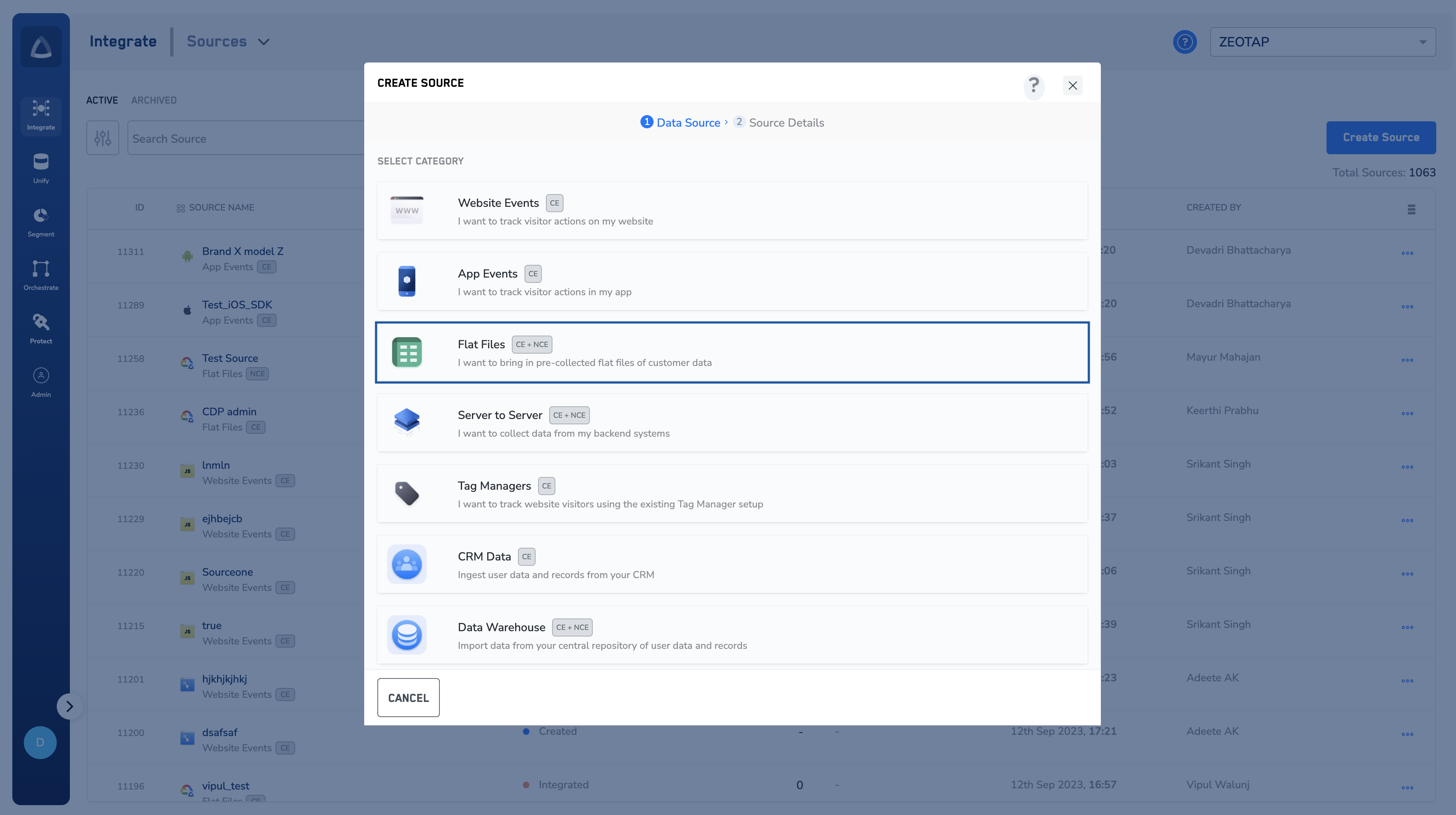
Choose **Flat Files** as the Category.
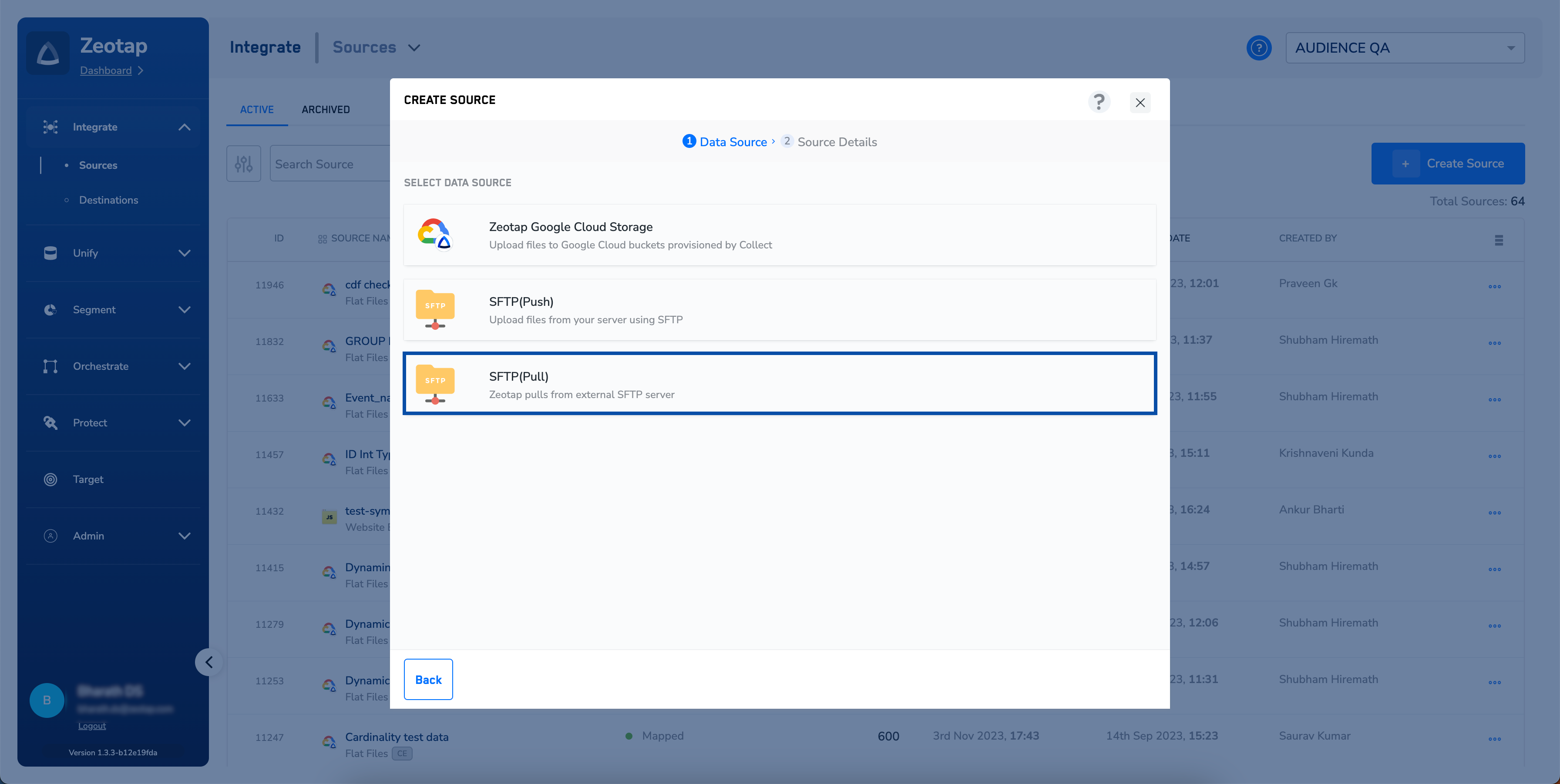
 Click **SFTP(Pull)** as the Data Source.
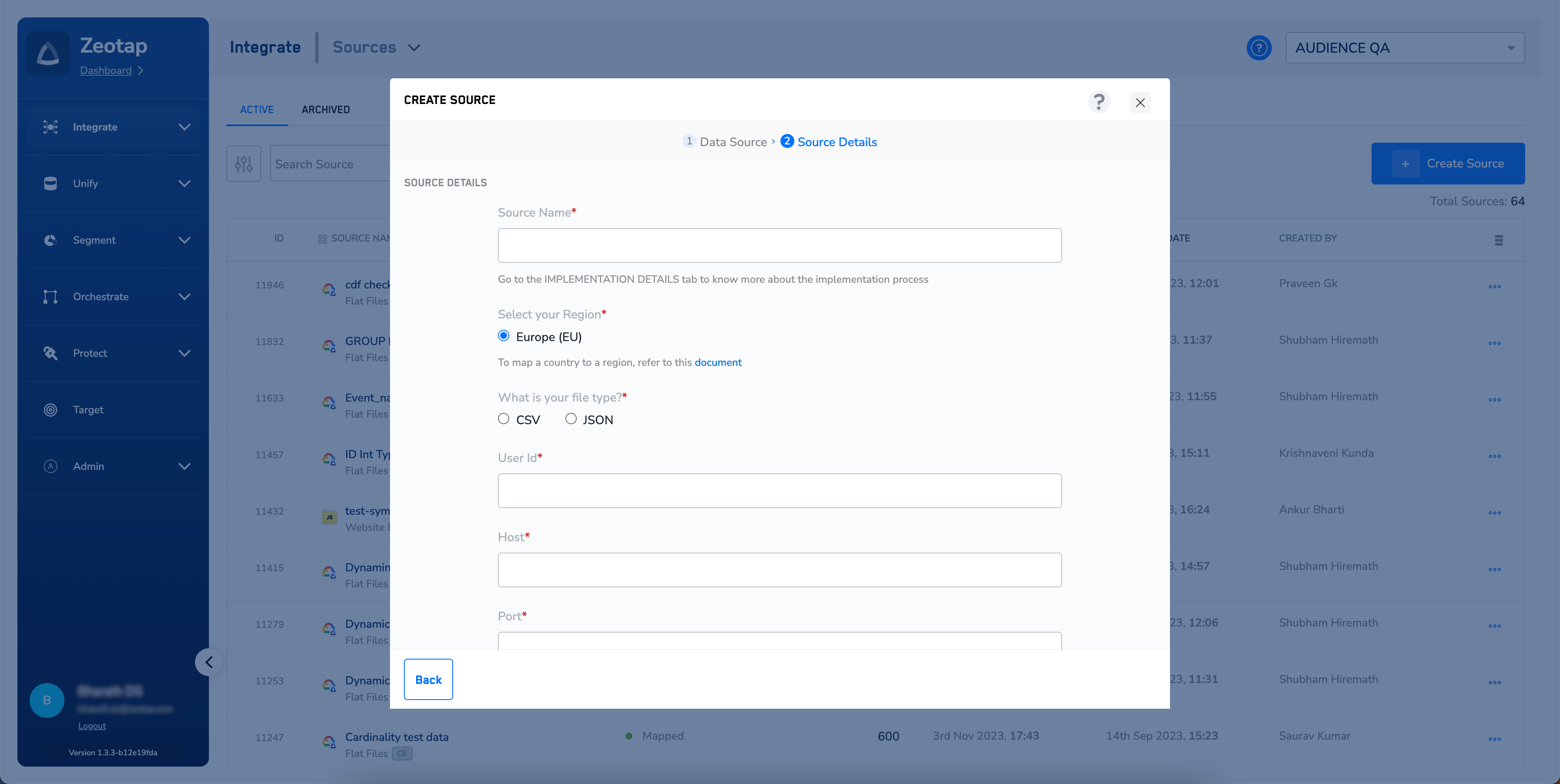
 In the new window that appears, provide the following details:
a. Enter a short and descriptive name for the source.
b. Choose the file format in which you will store data using the drop-down menu.
c. Enter the **User Id**, **Host** and **Port** details of your SFTP source.
* **User Id** is a credential that Zeotap CDP can use to authenticate and authorise access to your SFTP server.
* **Host** represents the server or the computer where the SFTP service is running. It is typically an IP address or a domain name.
* **Port** is a specific communication endpoint on the host that the SFTP service uses.
d. Under **Folder**, enter the file path of your SFTP storage location from which Zeotap CDP will pull your data. Ensure that the folder path is an absolute path like /home/user/data/, not a relative path like `../data/`.
e. Choose the **Sync Frequency** for pulling data using the drop-down menu.
f. Set **Delta Query Selection** to either **true** or **false** based on your requirement.
i. If you select **false**, then Zeotap CDP pulls all files in the configured folder during each run.
ii. If you select **true**, then Zeotap CDP pulls only the files created after the previous pull.
g. Under **Data Entity**, depending on the type of data that you want to ingest, choose either **Customer Data** or **Non Customer Data** and proceed with the source creation. To know more about Customer Data and Non Customer Data, refer [here](https://docs.zeotap.com/smart/project-unify/supported-data-entities).
In the new window that appears, provide the following details:
a. Enter a short and descriptive name for the source.
b. Choose the file format in which you will store data using the drop-down menu.
c. Enter the **User Id**, **Host** and **Port** details of your SFTP source.
* **User Id** is a credential that Zeotap CDP can use to authenticate and authorise access to your SFTP server.
* **Host** represents the server or the computer where the SFTP service is running. It is typically an IP address or a domain name.
* **Port** is a specific communication endpoint on the host that the SFTP service uses.
d. Under **Folder**, enter the file path of your SFTP storage location from which Zeotap CDP will pull your data. Ensure that the folder path is an absolute path like /home/user/data/, not a relative path like `../data/`.
e. Choose the **Sync Frequency** for pulling data using the drop-down menu.
f. Set **Delta Query Selection** to either **true** or **false** based on your requirement.
i. If you select **false**, then Zeotap CDP pulls all files in the configured folder during each run.
ii. If you select **true**, then Zeotap CDP pulls only the files created after the previous pull.
g. Under **Data Entity**, depending on the type of data that you want to ingest, choose either **Customer Data** or **Non Customer Data** and proceed with the source creation. To know more about Customer Data and Non Customer Data, refer [here](https://docs.zeotap.com/smart/project-unify/supported-data-entities).
 Click **CREATE SOURCE**.
**Note:**
Follow these guidelines for successful source implementation:
* After you have created an SFTP source, ensure to raise a ticket with Zeotap's Support Team to complete the source creation process. To know more about how to implement an SFTP Source, refer to [Implementing SFTP Source.](/articles/integrate-customer/implement-the-sftp-pull-source)
* Note that you can create a maximum of five NCE sources in an account. This default limit applies to both archivedand active NCE sources within an organisation.
## Related Topics
* For information about how to map the Catalogue for Customer Data (CE), refer [here](https://docs.zeotap.com/articles/unify-customer/map-the-catalogue-for-customer-data).
* For information about how to map the Catalogue for Non-Customer Entity (NCE) data, refer [here](https://docs.zeotap.com/articles/unify-customer/map-the-catalogue-for-non-customer-entity-data).
* For information about how to add a Non-Customer Entity (NCE) attribute in the Catalogue, refer [here](https://docs.zeotap.com/articles/unify-customer/adding-a-non-customer-entity-category).
* For information about Join Key Enricher and how to configure it, refer [here](https://docs.zeotap.com/articles/unify-customer/configuring-the-join-key-enricher).
Click **CREATE SOURCE**.
**Note:**
Follow these guidelines for successful source implementation:
* After you have created an SFTP source, ensure to raise a ticket with Zeotap's Support Team to complete the source creation process. To know more about how to implement an SFTP Source, refer to [Implementing SFTP Source.](/articles/integrate-customer/implement-the-sftp-pull-source)
* Note that you can create a maximum of five NCE sources in an account. This default limit applies to both archivedand active NCE sources within an organisation.
## Related Topics
* For information about how to map the Catalogue for Customer Data (CE), refer [here](https://docs.zeotap.com/articles/unify-customer/map-the-catalogue-for-customer-data).
* For information about how to map the Catalogue for Non-Customer Entity (NCE) data, refer [here](https://docs.zeotap.com/articles/unify-customer/map-the-catalogue-for-non-customer-entity-data).
* For information about how to add a Non-Customer Entity (NCE) attribute in the Catalogue, refer [here](https://docs.zeotap.com/articles/unify-customer/adding-a-non-customer-entity-category).
* For information about Join Key Enricher and how to configure it, refer [here](https://docs.zeotap.com/articles/unify-customer/configuring-the-join-key-enricher).