> ## Documentation Index
> Fetch the complete documentation index at: https://docs.zeotap.com/llms.txt
> Use this file to discover all available pages before exploring further.
# Create an Adjust source
> Create a Server-to-Server source in Zeotap CDP and enable the Zeotap module in Adjust, so mobile app activity measured by Adjust flows into the CDP automatically.
## What this is
Adjust is a mobile measurement partner that attributes and records what happens in your mobile app. This integration brings that activity **into Zeotap CDP** — installs, reattributions, sessions, events, reinstalls and uninstalls — so it sits alongside the rest of your customer data and can be used to build audiences, apply consent filters and activate to your downstream channels.
The integration has two halves:
1. **In Zeotap CDP**, you create a Server-to-Server source. On creation, Zeotap generates a **write key** for that source, shown on its **IMPLEMENTATION DETAILS** tab.
2. **In Adjust**, you enable the Zeotap module in Campaign Lab and paste that write key in. From then on, Adjust sends a callback to Zeotap each time the activity occurs.
No Adjust credentials are entered in Zeotap CDP, and no engineering work is needed in your app — authentication runs the other way round, with Adjust authenticating to Zeotap using the write key this page generates for you.
Adjust treats Zeotap as a **partner it shares data with**, which is what makes this a **source** in Zeotap CDP. If you are used to thinking of Adjust as a destination, note that the data flows from Adjust to Zeotap, not the other way.
## Prerequisites
Before you start, confirm the following:
**In Zeotap CDP:**
* **Access to the Sources application** under **Integrate**, with permission to create a source.
* **The region for this source**, decided in advance. It has to correspond to the **Region** you select in Adjust. See [Region of storage](/articles/integrate-customer/region-of-storage).
* **The data entity for this source** — **Customer Data** or **Non Customer Data**. See [Supported Data Entities](/articles/unify-customer/supported-data-entities).
**In Adjust:**
* **Access to Campaign Lab** in the Adjust dashboard, with permission to enable partner integrations and edit data-sharing settings.
* **The app you want to share data for**, and the platform — Android, iOS, or both.
* **The in-app events you want to map**, if you plan to share events.
## Create the Server-to-Server source in Zeotap CDP
This is where the write key comes from. For the full reference on this source type, see [Create and Implement the Server-to-Server Source](/articles/integrate-customer/implementing-server-to-server-source-2665709918).
Log into the Zeotap CDP app, open the **Sources** application under **Integrate**, and click **+ Create Source**.
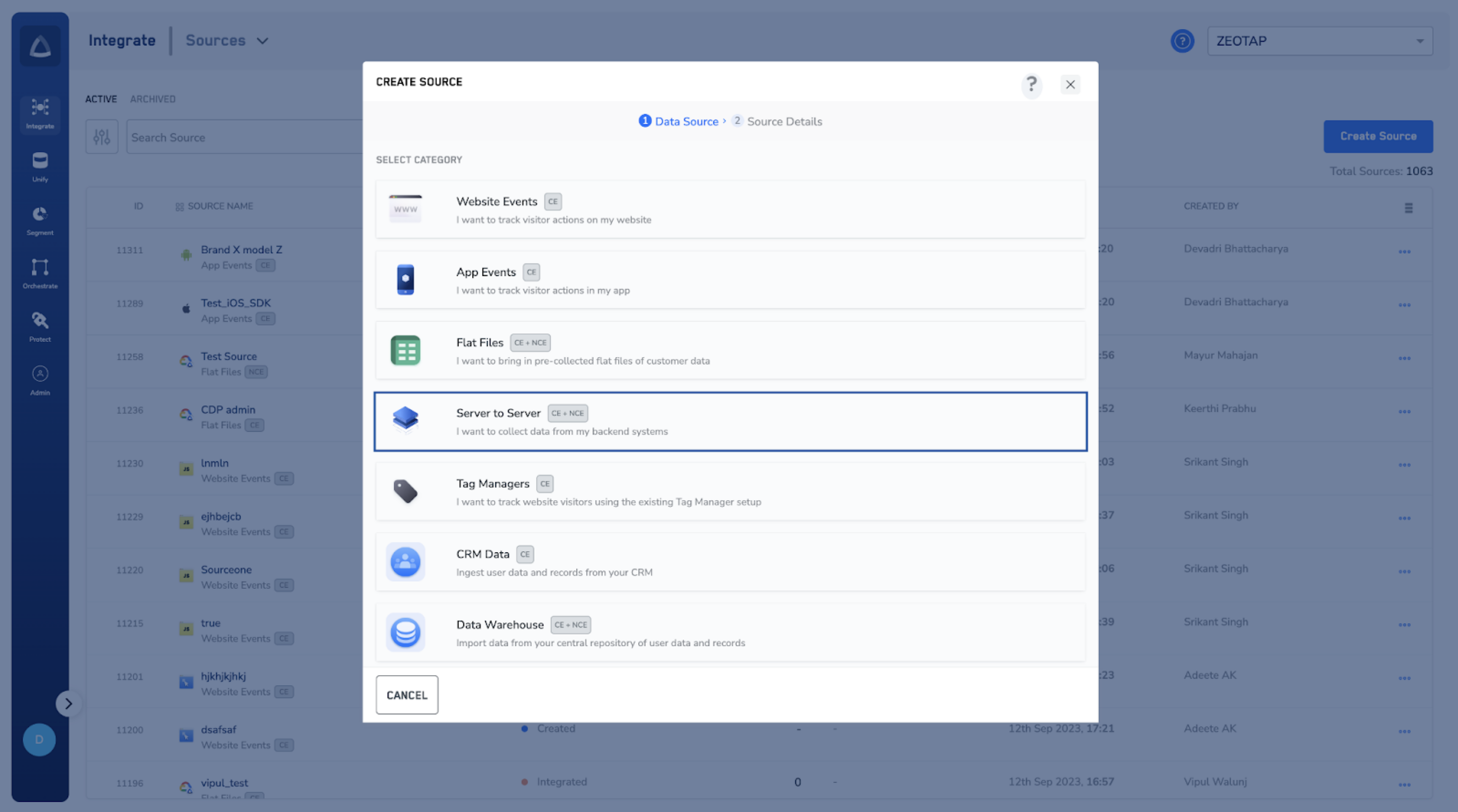
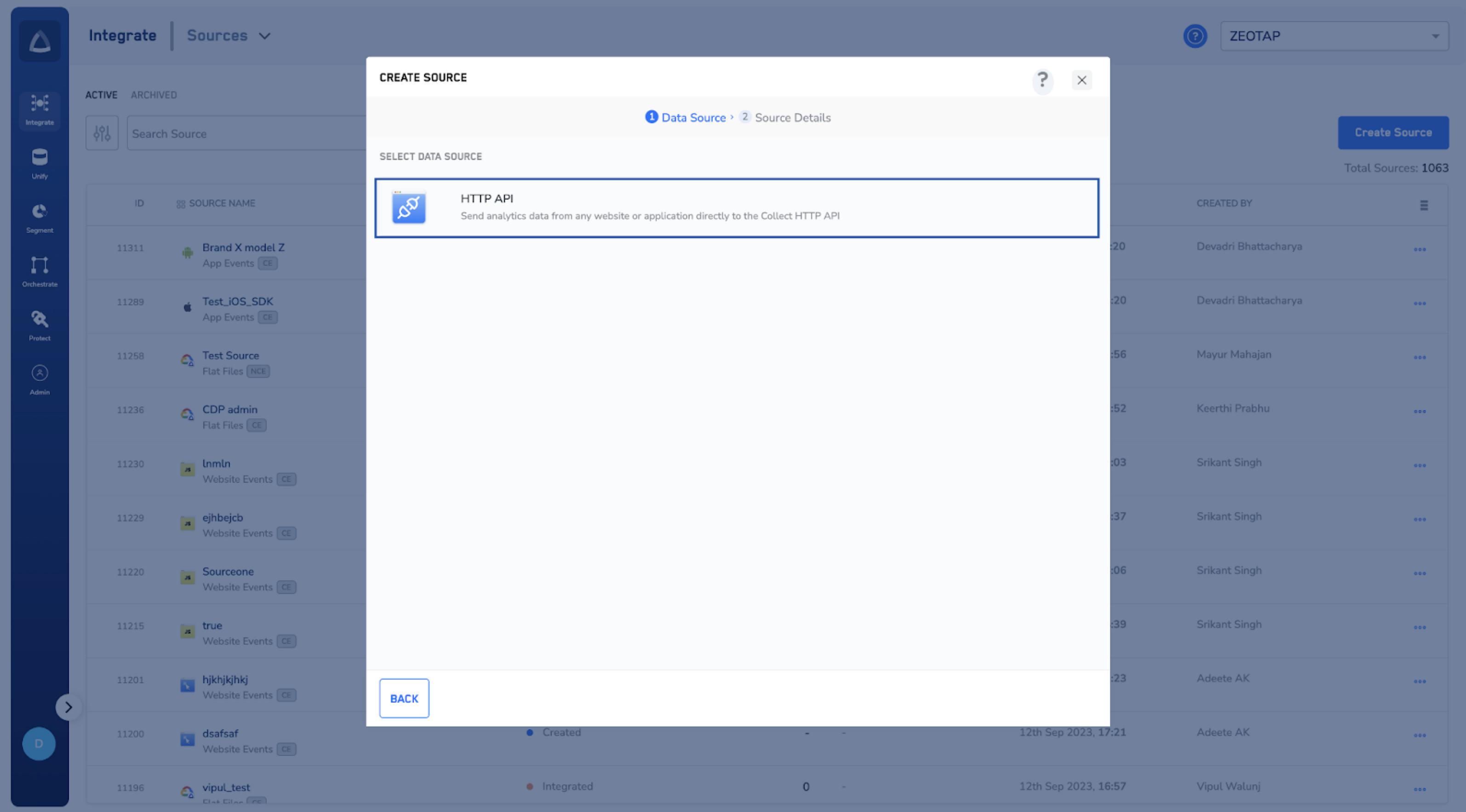
Choose **Server to Server** as the Category, then click **HTTP API** as the Data Source.
 In the source creation window, enter:
1. A short, descriptive **name** that makes the origin obvious — for example, `Adjust - Android - Installs`.
2. The **region** of upload where the data will be stored. It has to correspond to the **Region** you select in Adjust. See [Region of storage](/articles/integrate-customer/region-of-storage) for guidance.
3. Under **Data Entity**, choose **Customer Data** or **Non Customer Data**, depending on the payload.
In the source creation window, enter:
1. A short, descriptive **name** that makes the origin obvious — for example, `Adjust - Android - Installs`.
2. The **region** of upload where the data will be stored. It has to correspond to the **Region** you select in Adjust. See [Region of storage](/articles/integrate-customer/region-of-storage) for guidance.
3. Under **Data Entity**, choose **Customer Data** or **Non Customer Data**, depending on the payload.
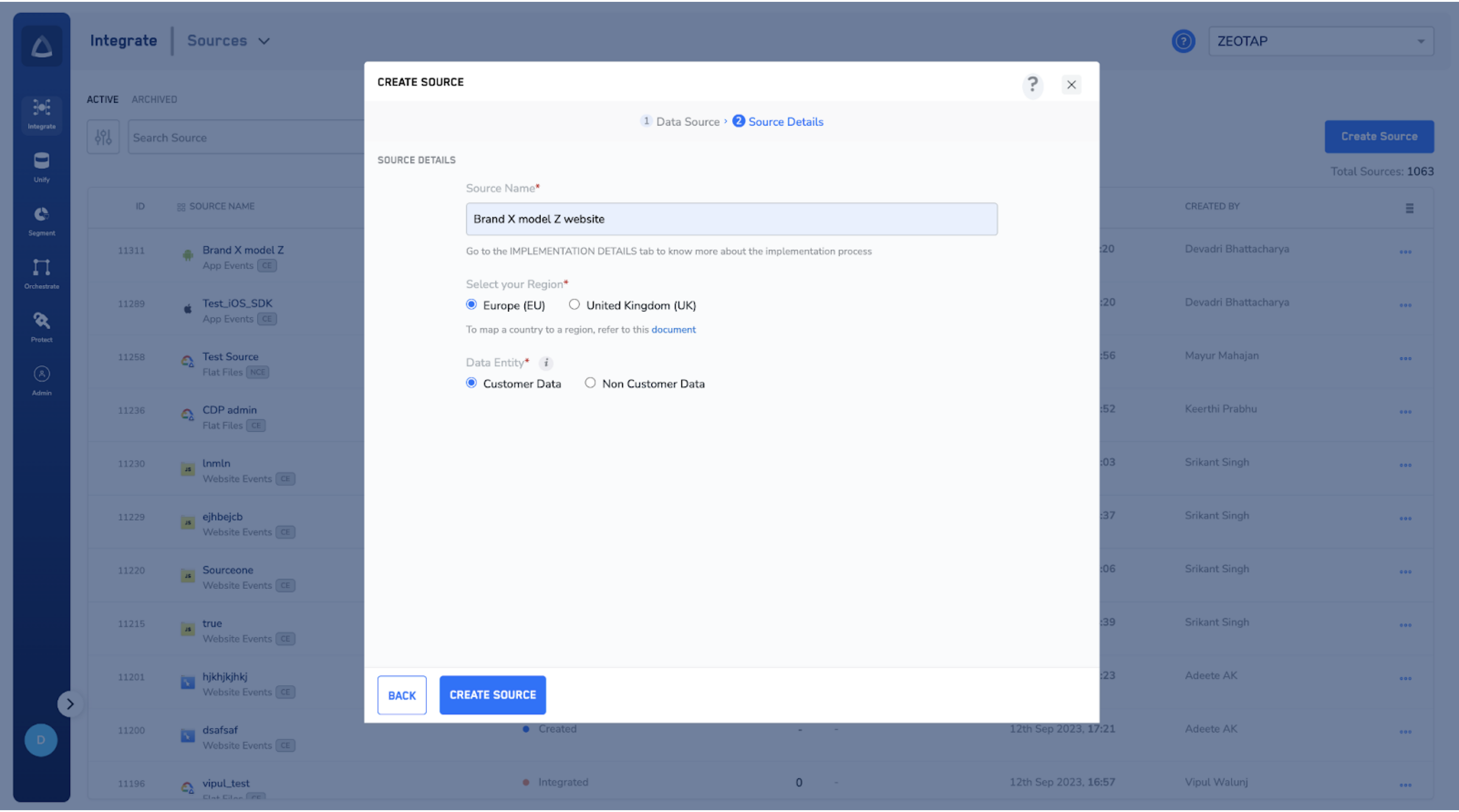 Click **CREATE SOURCE**. The new source appears on the source listing page with the **Created** status.
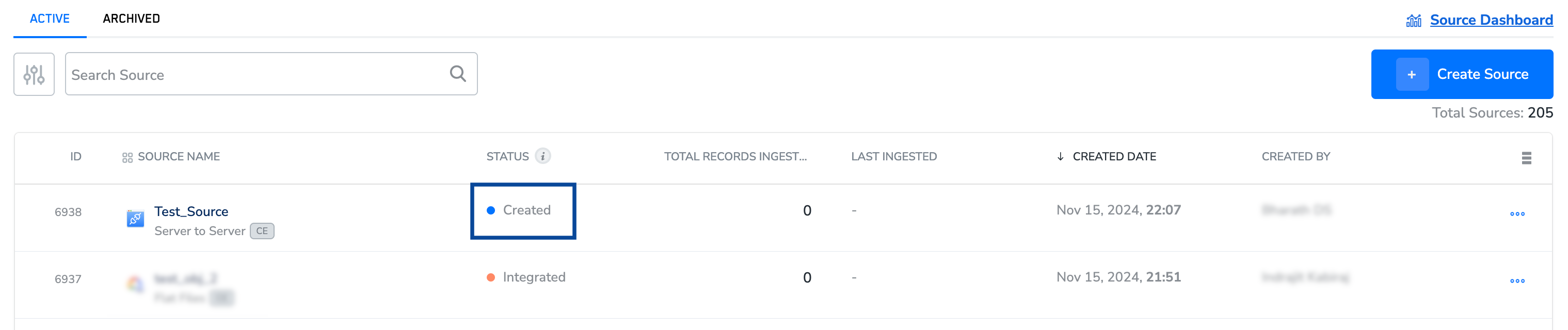 Open the source and go to the **IMPLEMENTATION DETAILS** tab. Copy the **write key** — for this integration it is the only value you need, as Adjust supplies the endpoint itself.
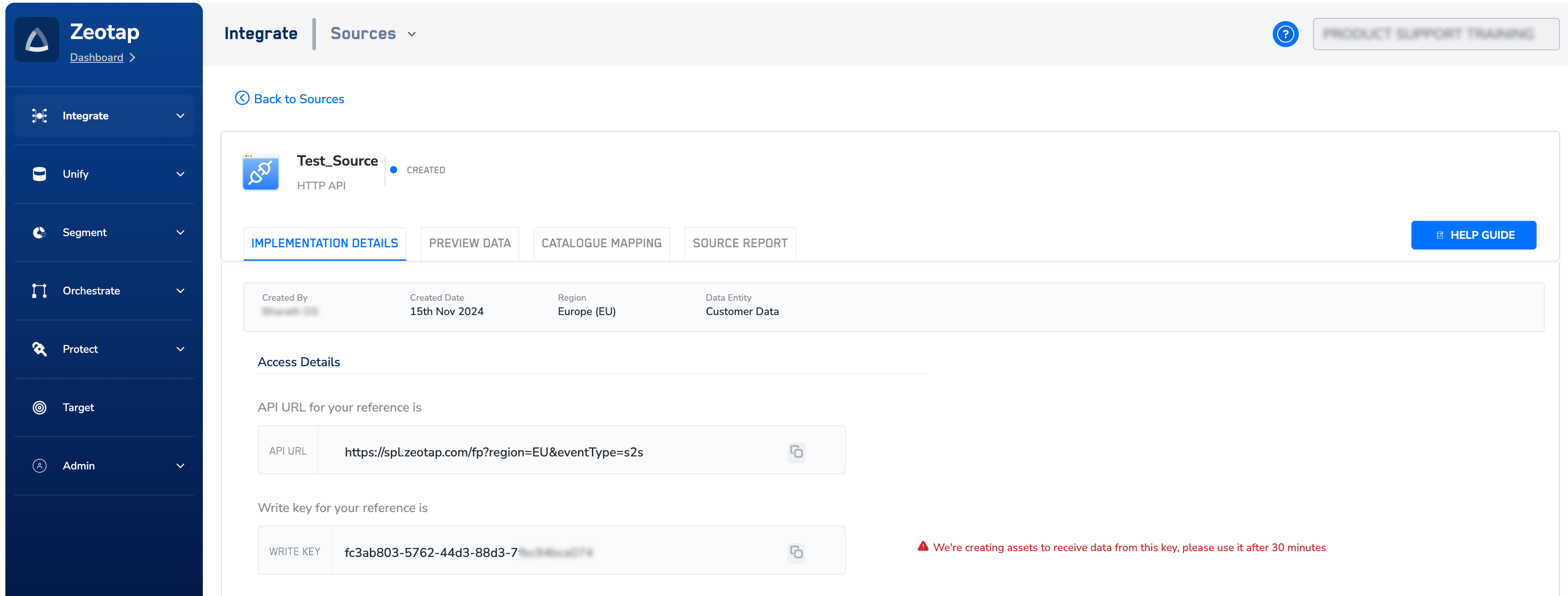 Treat the write key as a secret: copy it straight into Adjust rather than pasting it into a ticket, an email or a shared document.
Wait 30 minutes after source creation before using the write key. Requests made before the key propagates will fail authentication.
## Decide how many sources you need
Each write key belongs to one source. You can point several activity types at the same source by reusing its write key, or keep them apart by creating a source per activity type.
* **Installs and reattributions share one write key.** They use the same schema, and in Adjust they are controlled by a single field.
* **Sessions, events, reinstalls, reattribution reinstalls and uninstalls each have their own field** in Adjust. Give a field a write key if you want that activity, and leave it blank if you do not.
Repeat the steps above for each source you decide to create, and keep a note of which write key belongs to which activity.
## Configure the Zeotap module in Adjust
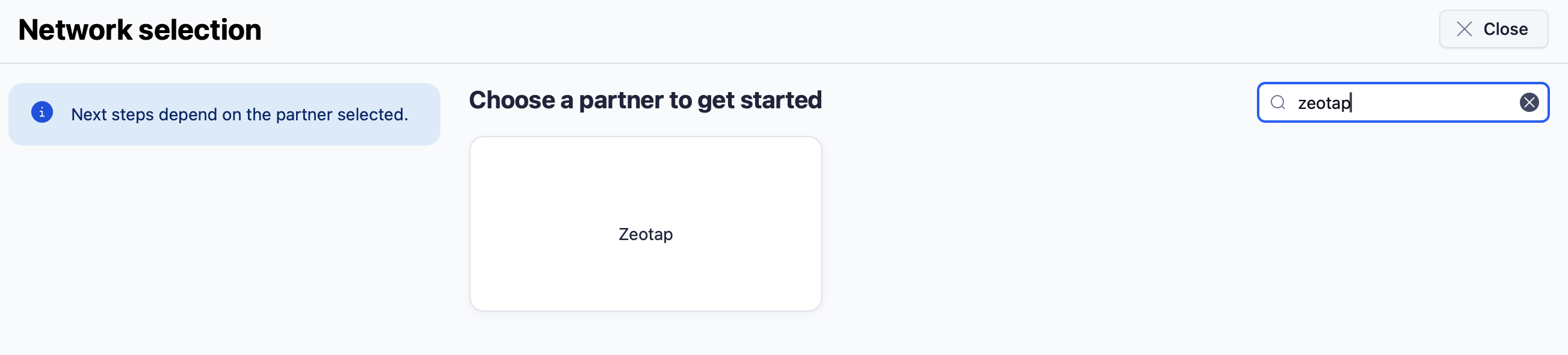
In the Adjust dashboard, open **Campaign Lab** and open the **Network selection** screen. Search for **Zeotap**, select it, and click **Next**.
Treat the write key as a secret: copy it straight into Adjust rather than pasting it into a ticket, an email or a shared document.
Wait 30 minutes after source creation before using the write key. Requests made before the key propagates will fail authentication.
## Decide how many sources you need
Each write key belongs to one source. You can point several activity types at the same source by reusing its write key, or keep them apart by creating a source per activity type.
* **Installs and reattributions share one write key.** They use the same schema, and in Adjust they are controlled by a single field.
* **Sessions, events, reinstalls, reattribution reinstalls and uninstalls each have their own field** in Adjust. Give a field a write key if you want that activity, and leave it blank if you do not.
Repeat the steps above for each source you decide to create, and keep a note of which write key belongs to which activity.
## Configure the Zeotap module in Adjust
In the Adjust dashboard, open **Campaign Lab** and open the **Network selection** screen. Search for **Zeotap**, select it, and click **Next**.
 On the **App selection** screen, choose the app you want to share data for, then click **Next**.
The **Enable data sharing** window has a separate section for **Android** and for **iOS**. Complete each platform you want to send data for, then click **Enable**.
On the **App selection** screen, choose the app you want to share data for, then click **Next**.
The **Enable data sharing** window has a separate section for **Android** and for **iOS**. Complete each platform you want to send data for, then click **Enable**.
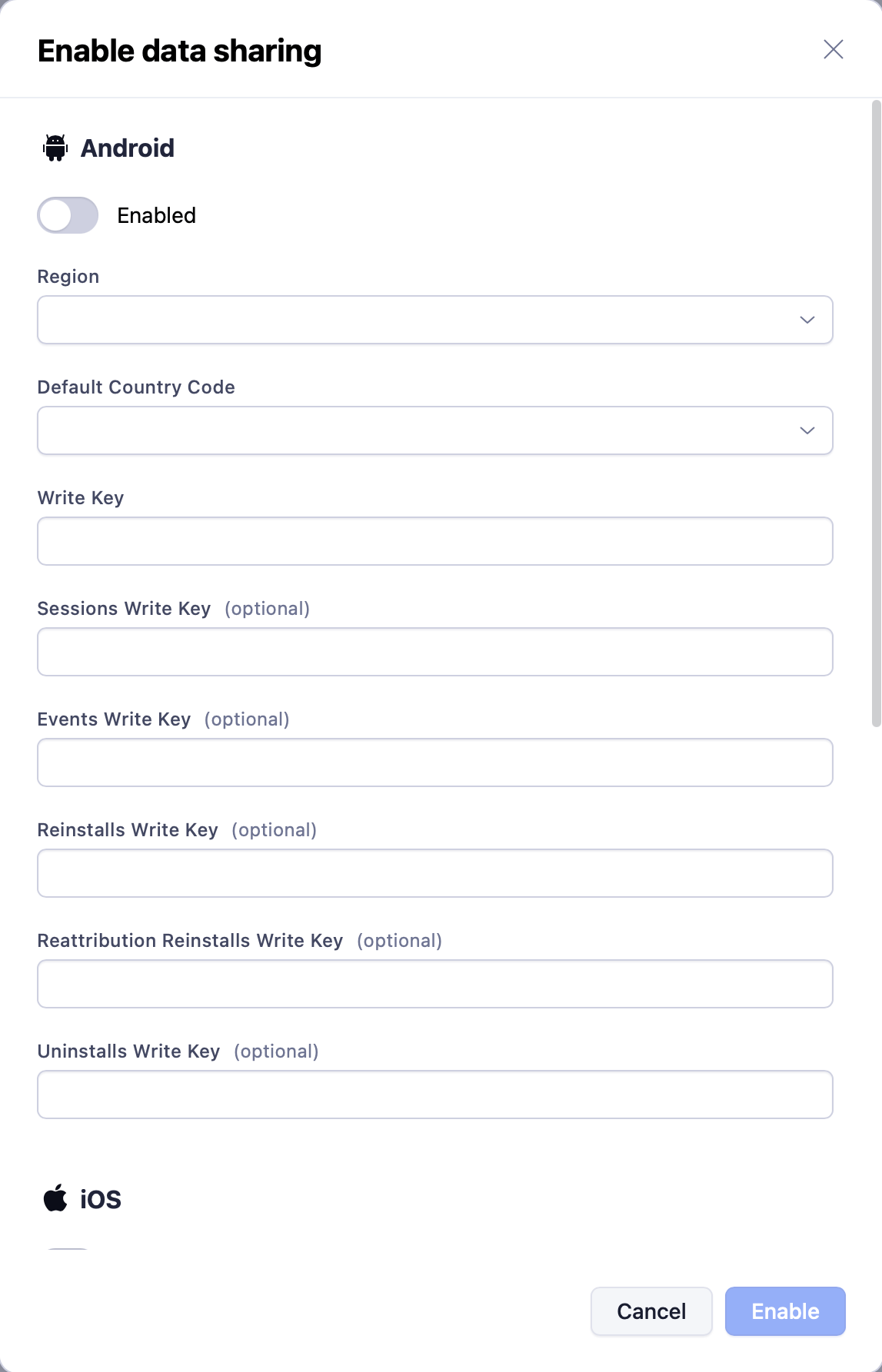 1. Turn the **Enabled** toggle on for the platform.
2. Select your **Region** — **eu** or **us**. This has to match the region of your Zeotap source.
3. Select a **Default Country Code**.
4. Enter your **Write Key**. This is the main key, and it covers **installs and reattributions**.
5. Enter the optional write keys for any other activity you want to share, and leave blank anything you do not: **Sessions Write Key**, **Events Write Key**, **Reinstalls Write Key**, **Reattribution Reinstalls Write Key**, **Uninstalls Write Key**.
1. Turn the **Enabled** toggle on for the platform.
2. Select your **Region** — **eu** or **us**. This has to match the region of your Zeotap source.
3. Select a **Default Country Code**.
4. Enter your **Write Key**. This is the main key, and it covers **installs and reattributions**.
5. Enter the optional write keys for any other activity you want to share, and leave blank anything you do not: **Sessions Write Key**, **Events Write Key**, **Reinstalls Write Key**, **Reattribution Reinstalls Write Key**, **Uninstalls Write Key**.
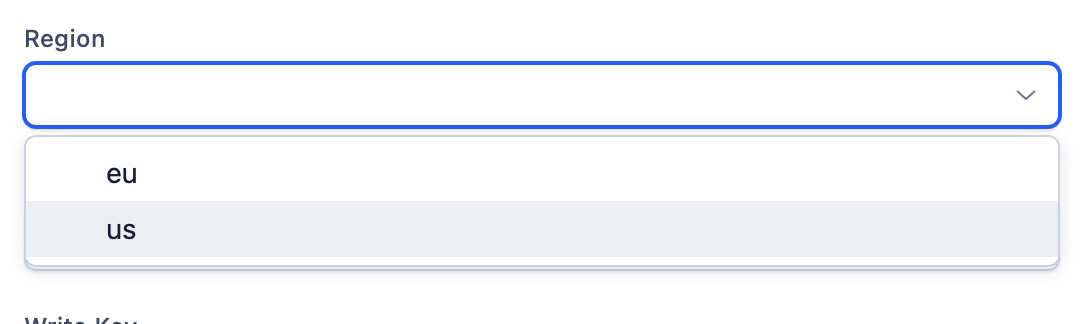 **Region is mandatory.** If no region is selected, the module is not enabled at all.
Adjust offers only **eu** and **us**. If the region on your Zeotap source is not one of those two, check with your Zeotap account manager which Adjust region to select before you enable the module — sending to the wrong region means the data is not accepted.
**Region is mandatory.** If no region is selected, the module is not enabled at all.
Adjust offers only **eu** and **us**. If the region on your Zeotap source is not one of those two, check with your Zeotap account manager which Adjust region to select before you enable the module — sending to the wrong region means the data is not accepted.
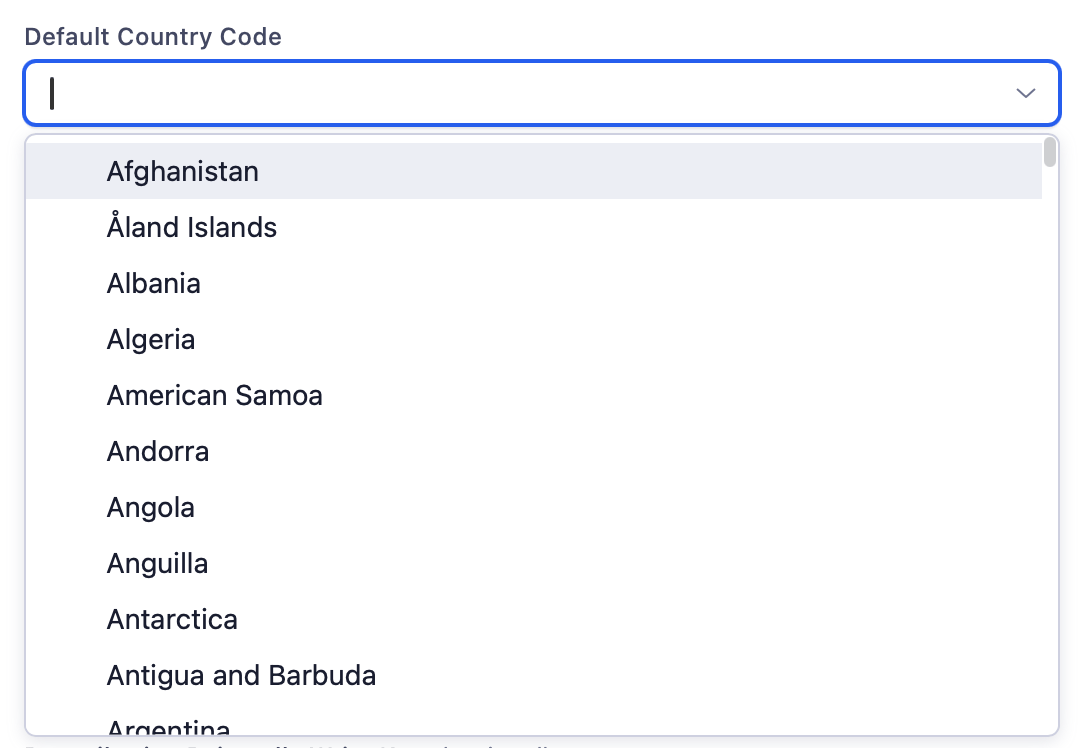 **Why a default country code is required.** Zeotap needs a country value on every record, and Adjust cannot always determine one — on server-to-server activities, for example, where no IP address is shared. When Adjust has no country for a record it sends this default instead, so the record is accepted rather than dropped.
Once the module is enabled, control what is shared on the **Select data sharing options** screen. For what each option covers on Adjust's side, see Adjust's [Choose data sharing options](https://help.adjust.com/en/article/data-sharing-ad-network). **Installs** and **Reattributions** are shared by default, from all attribution sources. Tick any additional activity you want — **Send ad revenue**, **Sessions**, **Uninstalls and reinstalls**, or **In-app revenue (from in-app purchases)**.
**Why a default country code is required.** Zeotap needs a country value on every record, and Adjust cannot always determine one — on server-to-server activities, for example, where no IP address is shared. When Adjust has no country for a record it sends this default instead, so the record is accepted rather than dropped.
Once the module is enabled, control what is shared on the **Select data sharing options** screen. For what each option covers on Adjust's side, see Adjust's [Choose data sharing options](https://help.adjust.com/en/article/data-sharing-ad-network). **Installs** and **Reattributions** are shared by default, from all attribution sources. Tick any additional activity you want — **Send ad revenue**, **Sessions**, **Uninstalls and reinstalls**, or **In-app revenue (from in-app purchases)**.
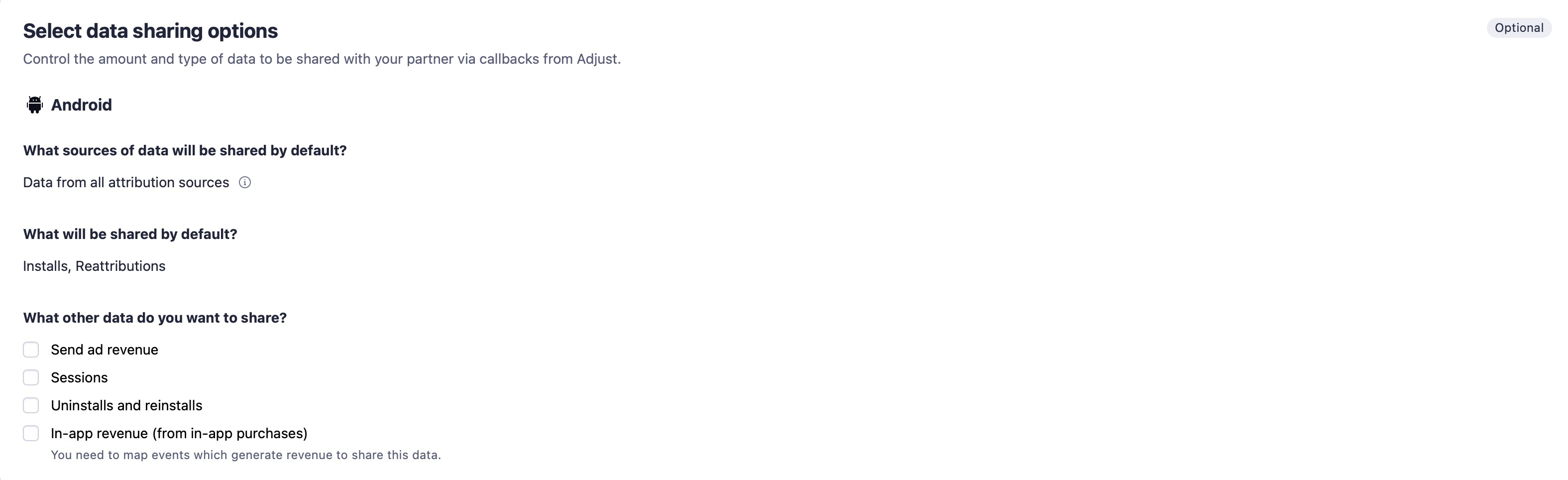 Ticking a box here is not enough on its own. Enabling an activity tells Adjust you want it, but the callback only fires once the corresponding **write key** has been entered. To share **In-app revenue**, Adjust additionally requires that you map the events which generate revenue.
Only needed if you are sharing in-app events. Go to **Map your events**, select the events you want to share, map them to the values you want Zeotap to receive, and save the mapping.
Data for any event you have not mapped is not sent, even with the **Events Write Key** in place.
**Write key format.** Adjust validates each write key as a UUID — 32 hexadecimal characters in an `8-4-4-4-12` pattern, for example `550e8400-e29b-41d4-a716-446655440000`. Paste the key exactly as Zeotap generated it, with no leading or trailing spaces.
## What Adjust sends to Zeotap
Each activity arrives as five groups of fields — **event**, **page**, **user**, **consent** and **device**. None of this needs configuring: Adjust populates and sends it once the module is enabled.
| Group | Fields | Notes |
| :---------- | :------------------------------------------------------------------------------------------ | :--------------------------------------------------------------------------------------------------------------- |
| **event** | `activity_kind`, `event`, `created_at`, `created_at_milli` | What happened and when |
| **event** | `installed_at`, `reattributed_at`, `reinstalled_at`, `uninstalled_at`, `last_session_time` | Lifecycle timestamps |
| **event** | `click_time`, `impression_time`, `engagement_time` | Engagement timestamps |
| **event** | `conversion_duration`, `time_to_uninstall`, `time_to_reinstall` | Elapsed time measures |
| **event** | `network_name`, `campaign_name`, `adgroup_name`, `creative_name`, `search_term` | Campaign attribution |
| **event** | `tracker_name`, `is_organic`, `match_type` | Link and attribution quality |
| **page** | `app_name`, `app_id`, `app_version_short`, `platform`, `environment`, `store`, `store_type` | App and store context |
| **user** | `adid`, `idfa`, `idfv`, `gps_adid`, `android_id` | Device identifiers. At least one has to be present |
| **user** | `country` | **Mandatory.** Two-letter ISO country code. Falls back to your **Default Country Code** when Adjust has no value |
| **consent** | `tracking_enabled` | `1` if tracking is enabled, `0` if not |
| **device** | `device_type`, `device_name`, `device_model`, `device_manufacturer` | Device hardware |
| **device** | `os_name`, `os_version`, `sdk_version` | OS and SDK |
| **device** | `isp`, `connection_type`, `ip_address`, `proxy_ip_address` | Connectivity and IP |
| **device** | `country`, `country_subdivision`, `city`, `postal_code`, `region`, `language` | Geography and locale |
## Verify data is arriving
Trigger the activity in your app — a fresh install is the simplest test, since installs are shared by default.
The source's status on the Sources listing tells you how far the integration has progressed:
| Status | What it means |
| :------------- | :----------------------------------------------------------------------------------------------------------------------------------------------------------------------- |
| **Created** | The source exists in Zeotap CDP but has not received any data yet. |
| **Integrated** | Data has started flowing into the source, but taxonomy standardisation has not been applied yet. You can preview the incoming data on the source's **PREVIEW DATA** tab. |
| **Mapped** | At least one data collection has been created on top of the integrated source, based on the common taxonomy. |
For the full set of statuses and the other columns on the listing, see [Components of the Source Listing Page](/articles/integrate-customer/components-of-the-source-listing-page).
Once the status reaches **Integrated**, check the data itself:
* The **PREVIEW DATA** tab shows a sample of the data received. See [Components of the Preview Data Tab](/articles/integrate-customer/knowing-the-fields-on-the-preview-data-tab).
* The **SOURCE REPORT** tab gives the ingestion health and status of the source. See [Exploring Source Reports](/articles/integrate-customer/exploring-source-reports).
## Troubleshoot the integration
| What you see | What it means | What to do |
| :------------------------------------------------------------------------- | :------------------------------------------------------------------------------------- | :------------------------------------------------------------------------------------------------------------------------------------------------------------ |
| The source stays at **Created** and no data arrives | The source exists but nothing has reached it yet | Confirm 30 minutes have passed since the source was created, and that the write key in Adjust matches the one on this source's **IMPLEMENTATION DETAILS** tab |
| Records arrive for some activities but not others | A write key was left blank for that activity, so Adjust never fires the callback | Enter the write key for that activity in the Adjust module |
| An activity is ticked under data-sharing options but still does not arrive | Ticking the option enables it in Adjust, but the callback needs the matching write key | Enter the corresponding write key, and for events confirm the event is mapped |
| Events do not arrive although the **Events Write Key** is set | Unmapped events are not shared | Map the event under **Map your events** in Adjust |
| Data appears to be going somewhere else | The **Region** in Adjust does not match the region of the Zeotap source | Correct one of the two so they agree |
| No preview is available on the **PREVIEW DATA** tab | An error message is displayed stating the reason | Fix the issue reported, then try again after some time |
If you need further assistance, contact Zeotap support at **[support@zeotap.com](mailto:support@zeotap.com)** with the source name and its ID from the Sources listing. For questions about the Adjust dashboard itself, contact Adjust support.
## Limitations
* **Three fields are not shared by Adjust.** Adjust does not pass `att_status`, `event_token` or `tracker_token` to partners. You still receive the event name (`event`) and the tracker name (`tracker_name`), so in most cases nothing is lost.
* **ATT status needs app development work.** Because Adjust does not forward ATT status alongside device identifiers, the only way to receive it is to pass it as a partner parameter from your app, which requires a change in the app on both platforms — see Adjust's documentation on global partner parameters for [iOS](https://dev.adjust.com/en/sdk/ios/features/session-parameters/#global-partner-parameters) and [Android](https://dev.adjust.com/en/sdk/android/features/session-parameters/#global-partner-parameters). If you do not need ATT status, `tracking_enabled` gives you a simpler signal — but the two are not equivalent: ATT status has four values (0 Not determined, 1 Restricted, 2 Denied, 3 Authorized) where `tracking_enabled` has two.
* **A blank write key means no data, by design.** Zeotap does not accept data without a valid write key, so Adjust skips that callback rather than sending it.
## Next steps
* [Explore the Server-to-Server source in full →](/articles/integrate-customer/implementing-server-to-server-source-2665709918)
* [Map the ingested data to the Catalogue →](/articles/unify-customer/map-the-catalogue-for-customer-data)
* [Explore what the Preview Data tab shows →](/articles/integrate-customer/knowing-the-fields-on-the-preview-data-tab)
* [Explore the source report →](/articles/integrate-customer/exploring-source-reports)
Ticking a box here is not enough on its own. Enabling an activity tells Adjust you want it, but the callback only fires once the corresponding **write key** has been entered. To share **In-app revenue**, Adjust additionally requires that you map the events which generate revenue.
Only needed if you are sharing in-app events. Go to **Map your events**, select the events you want to share, map them to the values you want Zeotap to receive, and save the mapping.
Data for any event you have not mapped is not sent, even with the **Events Write Key** in place.
**Write key format.** Adjust validates each write key as a UUID — 32 hexadecimal characters in an `8-4-4-4-12` pattern, for example `550e8400-e29b-41d4-a716-446655440000`. Paste the key exactly as Zeotap generated it, with no leading or trailing spaces.
## What Adjust sends to Zeotap
Each activity arrives as five groups of fields — **event**, **page**, **user**, **consent** and **device**. None of this needs configuring: Adjust populates and sends it once the module is enabled.
| Group | Fields | Notes |
| :---------- | :------------------------------------------------------------------------------------------ | :--------------------------------------------------------------------------------------------------------------- |
| **event** | `activity_kind`, `event`, `created_at`, `created_at_milli` | What happened and when |
| **event** | `installed_at`, `reattributed_at`, `reinstalled_at`, `uninstalled_at`, `last_session_time` | Lifecycle timestamps |
| **event** | `click_time`, `impression_time`, `engagement_time` | Engagement timestamps |
| **event** | `conversion_duration`, `time_to_uninstall`, `time_to_reinstall` | Elapsed time measures |
| **event** | `network_name`, `campaign_name`, `adgroup_name`, `creative_name`, `search_term` | Campaign attribution |
| **event** | `tracker_name`, `is_organic`, `match_type` | Link and attribution quality |
| **page** | `app_name`, `app_id`, `app_version_short`, `platform`, `environment`, `store`, `store_type` | App and store context |
| **user** | `adid`, `idfa`, `idfv`, `gps_adid`, `android_id` | Device identifiers. At least one has to be present |
| **user** | `country` | **Mandatory.** Two-letter ISO country code. Falls back to your **Default Country Code** when Adjust has no value |
| **consent** | `tracking_enabled` | `1` if tracking is enabled, `0` if not |
| **device** | `device_type`, `device_name`, `device_model`, `device_manufacturer` | Device hardware |
| **device** | `os_name`, `os_version`, `sdk_version` | OS and SDK |
| **device** | `isp`, `connection_type`, `ip_address`, `proxy_ip_address` | Connectivity and IP |
| **device** | `country`, `country_subdivision`, `city`, `postal_code`, `region`, `language` | Geography and locale |
## Verify data is arriving
Trigger the activity in your app — a fresh install is the simplest test, since installs are shared by default.
The source's status on the Sources listing tells you how far the integration has progressed:
| Status | What it means |
| :------------- | :----------------------------------------------------------------------------------------------------------------------------------------------------------------------- |
| **Created** | The source exists in Zeotap CDP but has not received any data yet. |
| **Integrated** | Data has started flowing into the source, but taxonomy standardisation has not been applied yet. You can preview the incoming data on the source's **PREVIEW DATA** tab. |
| **Mapped** | At least one data collection has been created on top of the integrated source, based on the common taxonomy. |
For the full set of statuses and the other columns on the listing, see [Components of the Source Listing Page](/articles/integrate-customer/components-of-the-source-listing-page).
Once the status reaches **Integrated**, check the data itself:
* The **PREVIEW DATA** tab shows a sample of the data received. See [Components of the Preview Data Tab](/articles/integrate-customer/knowing-the-fields-on-the-preview-data-tab).
* The **SOURCE REPORT** tab gives the ingestion health and status of the source. See [Exploring Source Reports](/articles/integrate-customer/exploring-source-reports).
## Troubleshoot the integration
| What you see | What it means | What to do |
| :------------------------------------------------------------------------- | :------------------------------------------------------------------------------------- | :------------------------------------------------------------------------------------------------------------------------------------------------------------ |
| The source stays at **Created** and no data arrives | The source exists but nothing has reached it yet | Confirm 30 minutes have passed since the source was created, and that the write key in Adjust matches the one on this source's **IMPLEMENTATION DETAILS** tab |
| Records arrive for some activities but not others | A write key was left blank for that activity, so Adjust never fires the callback | Enter the write key for that activity in the Adjust module |
| An activity is ticked under data-sharing options but still does not arrive | Ticking the option enables it in Adjust, but the callback needs the matching write key | Enter the corresponding write key, and for events confirm the event is mapped |
| Events do not arrive although the **Events Write Key** is set | Unmapped events are not shared | Map the event under **Map your events** in Adjust |
| Data appears to be going somewhere else | The **Region** in Adjust does not match the region of the Zeotap source | Correct one of the two so they agree |
| No preview is available on the **PREVIEW DATA** tab | An error message is displayed stating the reason | Fix the issue reported, then try again after some time |
If you need further assistance, contact Zeotap support at **[support@zeotap.com](mailto:support@zeotap.com)** with the source name and its ID from the Sources listing. For questions about the Adjust dashboard itself, contact Adjust support.
## Limitations
* **Three fields are not shared by Adjust.** Adjust does not pass `att_status`, `event_token` or `tracker_token` to partners. You still receive the event name (`event`) and the tracker name (`tracker_name`), so in most cases nothing is lost.
* **ATT status needs app development work.** Because Adjust does not forward ATT status alongside device identifiers, the only way to receive it is to pass it as a partner parameter from your app, which requires a change in the app on both platforms — see Adjust's documentation on global partner parameters for [iOS](https://dev.adjust.com/en/sdk/ios/features/session-parameters/#global-partner-parameters) and [Android](https://dev.adjust.com/en/sdk/android/features/session-parameters/#global-partner-parameters). If you do not need ATT status, `tracking_enabled` gives you a simpler signal — but the two are not equivalent: ATT status has four values (0 Not determined, 1 Restricted, 2 Denied, 3 Authorized) where `tracking_enabled` has two.
* **A blank write key means no data, by design.** Zeotap does not accept data without a valid write key, so Adjust skips that callback rather than sending it.
## Next steps
* [Explore the Server-to-Server source in full →](/articles/integrate-customer/implementing-server-to-server-source-2665709918)
* [Map the ingested data to the Catalogue →](/articles/unify-customer/map-the-catalogue-for-customer-data)
* [Explore what the Preview Data tab shows →](/articles/integrate-customer/knowing-the-fields-on-the-preview-data-tab)
* [Explore the source report →](/articles/integrate-customer/exploring-source-reports)