> ## Documentation Index
> Fetch the complete documentation index at: https://docs.zeotap.com/llms.txt
> Use this file to discover all available pages before exploring further.
# Create a Pub/Sub Stream Source
**Note:**
*Refer to [Pub/Sub Stream](/articles/integrate-customer/pub-sub-stream) Source to know more about this Source.*
## Prerequisites
Ensure that the following prerequisites are obtained before starting this integration:
### Topic ID
A Topic ID in Google Pub/Sub represents the unique identifier for the topic. Topics enable the categorisation or grouping of messages according to specific subjects or themes. It allows consumers to selectively subscribe to and receive messages based on their interest in specific topics. To obtain the Topic ID, navigate to the Pub/Sub catalog on the Google cloud, locate the desired topic and click on its name to view its details, where you can find the Topic ID. **Note that while creating a source in Zeotap CDP, you need to furnish the fully qualified Topic ID in the format:** `project/folder/topic/topic_id`**.**
**Note:**
We recommend using different Topic IDs for Pub/Sub batch and stream sources. If you use the same Topic ID for both sources, you will receive the same data in both sources.
### Service Account
In Pub/Sub, a service account is a type of identity that is used to authenticate and authorise communication between Zeotap CDP and Pub/Sub account. You can find the service account details while creating a source for Pub/Sub Stream in Zeotap CDP. In addition, note that you need to provide the following permission to this service account in your PubSub instance:
`Attach a subscription to a topic: pubsub.topics.attachSubscription`
### Data Format
When sending data from the PubSub streaming source to Zeotap CDP, ensure that you adhere to the following format:
```json Code theme={null}
{
"event": {
"id": "MnaBHikPVjICP5OZgyAL1",
"eventName": "selectCategory",
"categoryName": "Chairs",
"eventTimestamp": 1715084201414
},
"user": {
"zs": "60212de5-252a-4219-a05c-c6efcc973365",
"zi": "0836edce-84bf-48c3-8db9-b6bda6b129d1",
"zi_domain": ".zeotap.com",
"country": "FRA"
},
"page": {
"path": "/otis-malt-sofa",
"referrer": "",
"url": "https://demosdk.zeotap.com/otis-malt-sofa",
"page_category": "Otis Malt Sofa",
"page_category_level": "2",
"page_name": "Otis Malt Sofa",
"page_domain": "demosdk.zeotap.com",
"id": "Kzc4PTvs09DVQd8U1XAxL"
},
"meta": {},
"version": "4.3.5"
}
```
## Step-by-Step Process
Perform the following steps to create a Pub/Sub Streaming Source:
Log into the Zeotap CDP App and navigate to the **Sources** application under **Integrate.**
Click **CREATE SOURCE**.
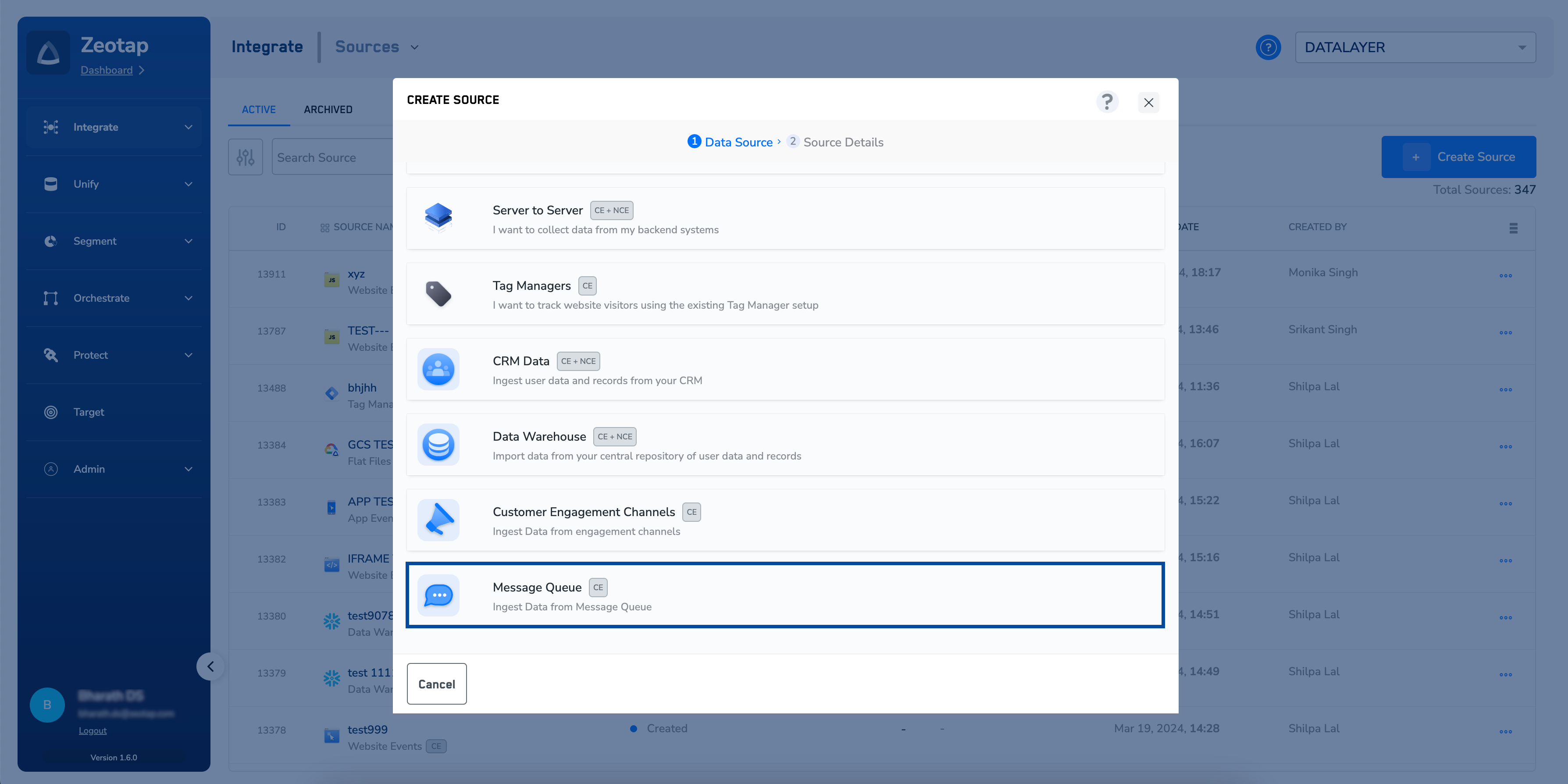
Choose **Message Queue** as the Category.
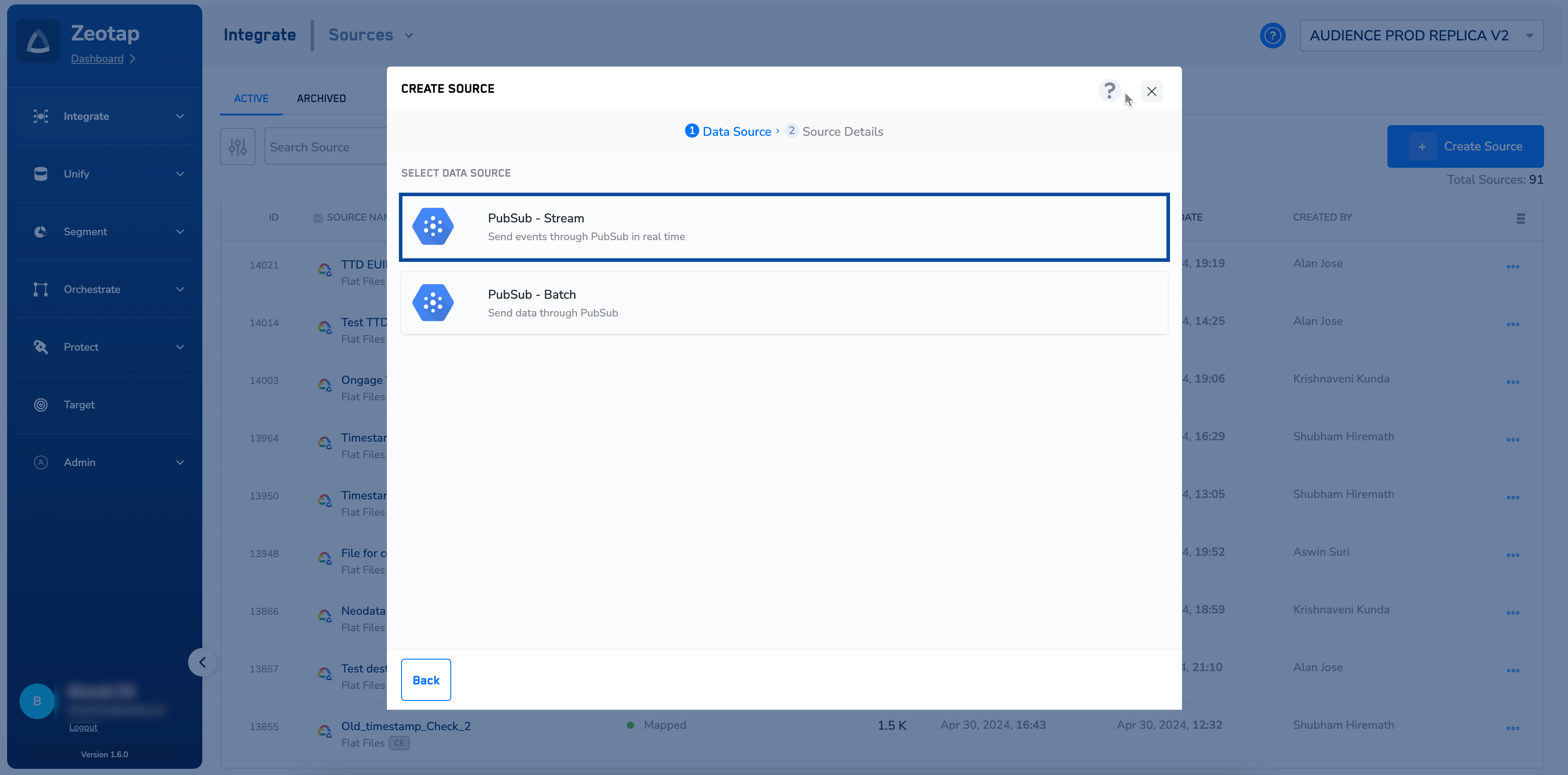
 Click **Pub/Sub Stream** as the Data Source.
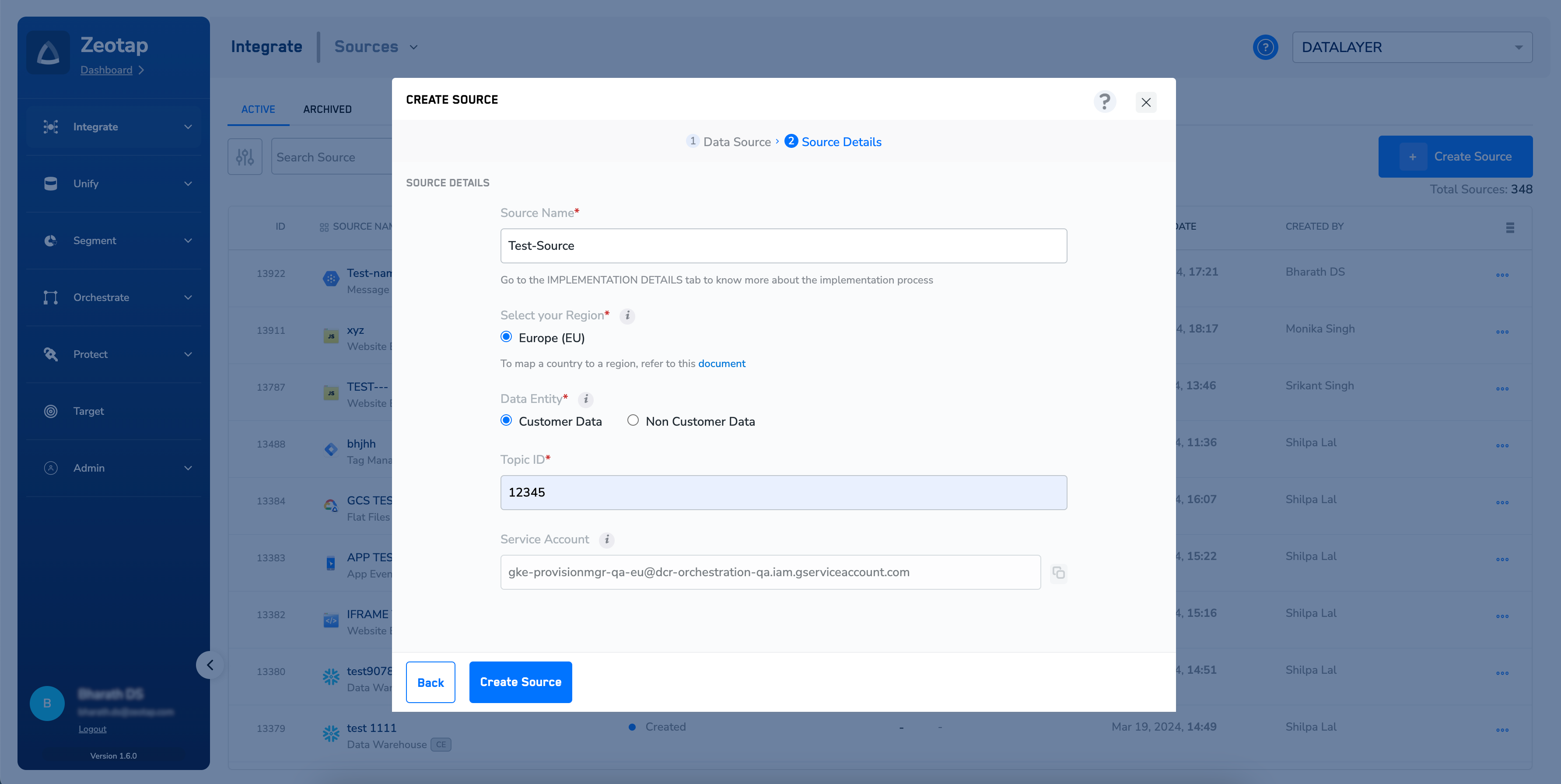
 Enter a short and descriptive name for the source.
By default, the **region** is chosen as **Europe (EU)**.
Under **Data Entity**, depending on the type of data that you want to ingest, choose either **Customer Data** or **Non Customer Data** and proceed with the source creation. To know more about Customer Data and Non Customer Data, refer [here](https://docs.zeotap.com/smart/project-unify/supported-data-entities).
Enter the **Topic ID** obtained from your Pub/Sub account as mentioned in the prerequisites section.
Under **Service Account**, the Zeotap service account will be displayed as shown in the image below. Ensure that you provide access to that service account on the Google cloud. This will allow Zeotap CDP to fetch source from Pub/Sub.
Enter a short and descriptive name for the source.
By default, the **region** is chosen as **Europe (EU)**.
Under **Data Entity**, depending on the type of data that you want to ingest, choose either **Customer Data** or **Non Customer Data** and proceed with the source creation. To know more about Customer Data and Non Customer Data, refer [here](https://docs.zeotap.com/smart/project-unify/supported-data-entities).
Enter the **Topic ID** obtained from your Pub/Sub account as mentioned in the prerequisites section.
Under **Service Account**, the Zeotap service account will be displayed as shown in the image below. Ensure that you provide access to that service account on the Google cloud. This will allow Zeotap CDP to fetch source from Pub/Sub.
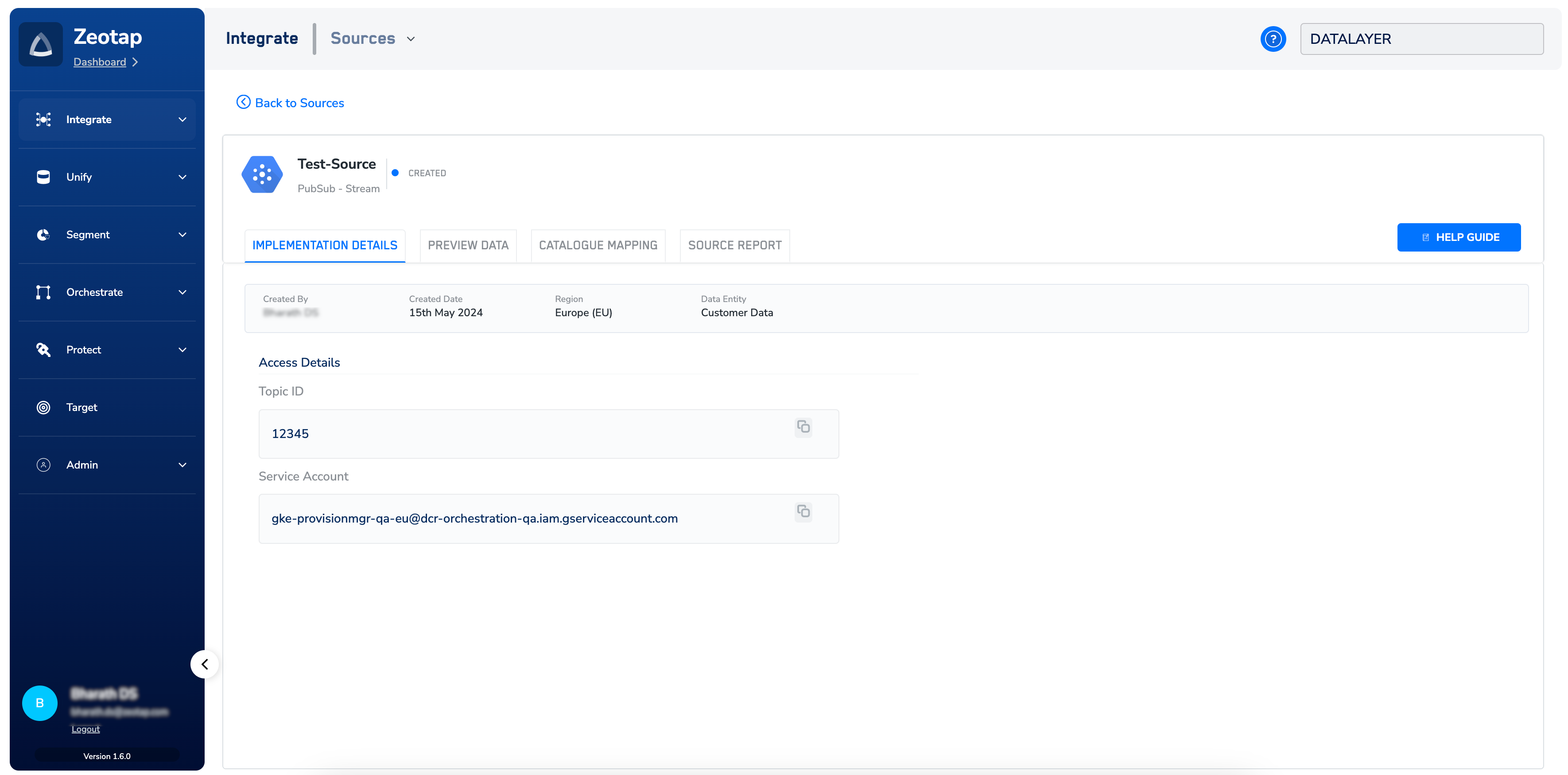
 Click **CREATE SOURCE**. Upon successful creation, the **Topic ID** and Service Account used for the integration are displayed under the **IMPLEMENTATION DETAILS** tab along with all the important information related to the integration, as shown in the image below.
 **Note:**
*The records for the `country` and `city` columns are blacklisted for ingestion because SPL uses the user's IP address to find out the `country` and `city` automatically. For the complete list of blacklisted fields, click [here](/articles/integrate-customer/blacklisted-fields-for-data-ingestion).*
*If you need any assistance to set up this integration, you can reach out to your Zeotap POC.*
**Note:**
*The records for the `country` and `city` columns are blacklisted for ingestion because SPL uses the user's IP address to find out the `country` and `city` automatically. For the complete list of blacklisted fields, click [here](/articles/integrate-customer/blacklisted-fields-for-data-ingestion).*
*If you need any assistance to set up this integration, you can reach out to your Zeotap POC.*