> ## Documentation Index
> Fetch the complete documentation index at: https://docs.zeotap.com/llms.txt
> Use this file to discover all available pages before exploring further.
# Create a Dotdigital Source
**Note:**
Refer to [Dotdigital Source](/articles/integrate-customer/dotdigital) to know more about this source.
## Prerequisites
For you to create a Dotdigital source, ensure that you have the following details available:
### Dotdigital API Account
To use the [Dotdigital developer platform](https://developer.dotdigital.com/reference) or access Dotdigital's public APIs, create an API user account in Dotdigital before proceeding with this integration. To learn about how to create an API account in Dotdigital, refer [here](https://support.dotdigital.com/hc/en-gb/articles/115001718730-Create-an-API-user).
Once you have obtained your Dotdigital account credentials (User Id and Password), you can establish a connection with Dotdigital through Zeotap.
### User ID and Password
When you create an API account in Dotdigital, each API user is assigned a Username and Password that is used to authenticate an operation or call.
### Sync Frequency
The first data sync takes place once you create the source. However, the subsequent syncs take place based on the sync frequency that you select. Currently, we support the following sync frequencies:
* Daily
* Weekly
* Monthly
### Standard Object
Ensure that you choose one the following scopes in Dotdigital before creating a source in Zeotap:
* Contacts
* Campaigns
* Preferences
* Campaign Opens
* Campaign Clicks
* Campaign Page Views
## Create a Source
Perform the following steps to establish a connection with Dotdigital by using their built-in connector through Sources:
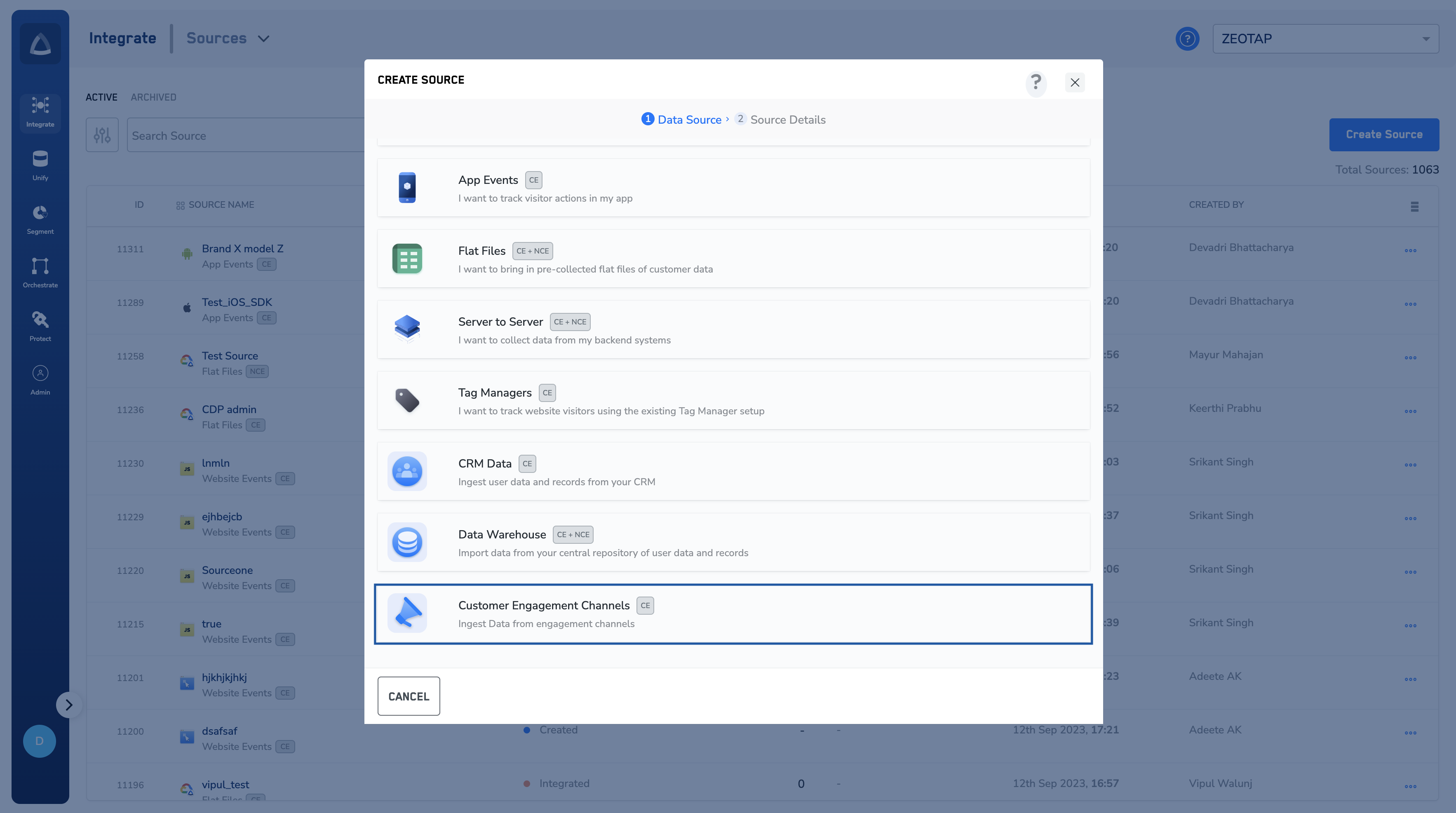
Navigate to the **Sources** application under **Integrate**, in the Zeotap CDP App.
Click **CREATE SOURCE**.
Choose **Customer Engagement Channels** as the Category.
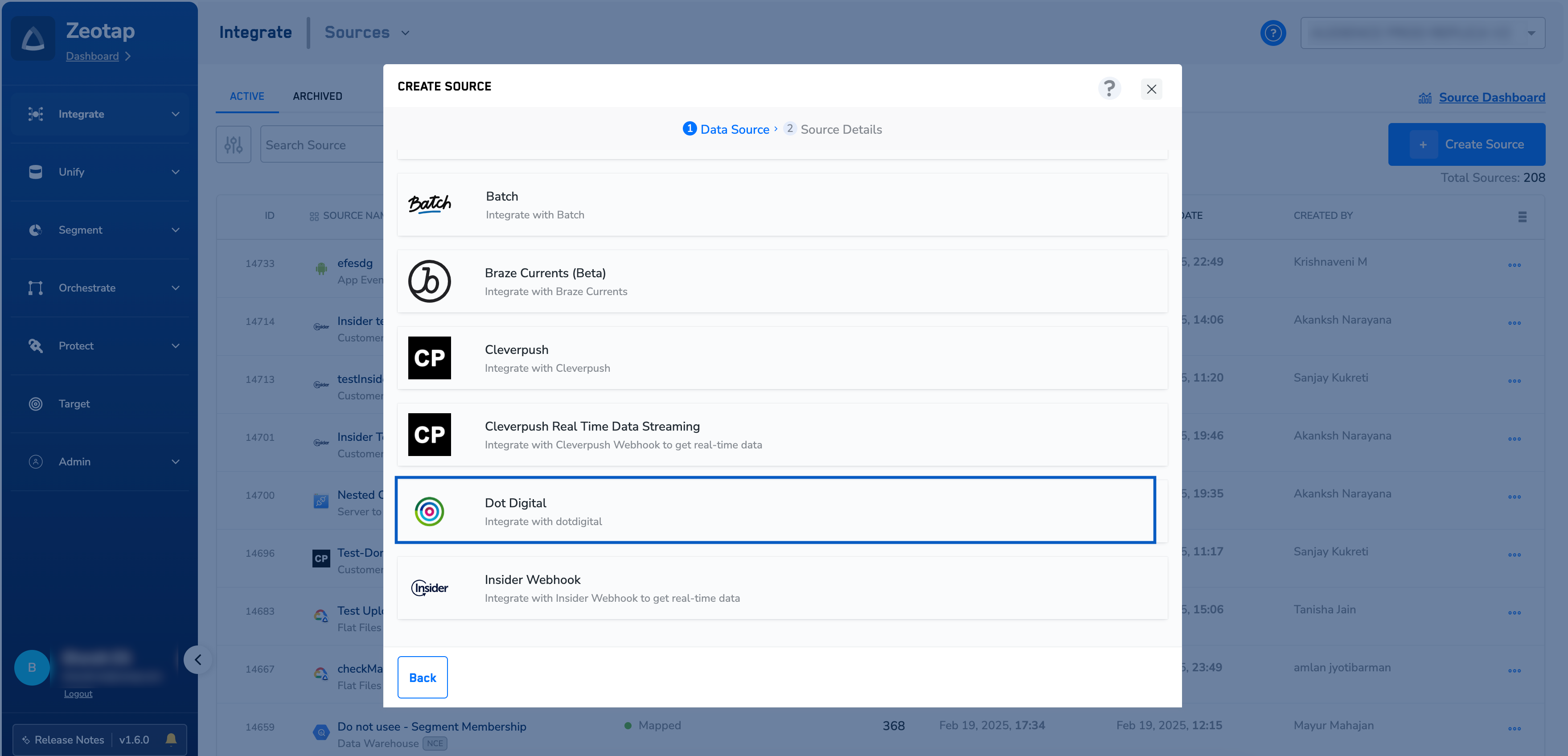
 Click **Dotdigital** as the Data Source.
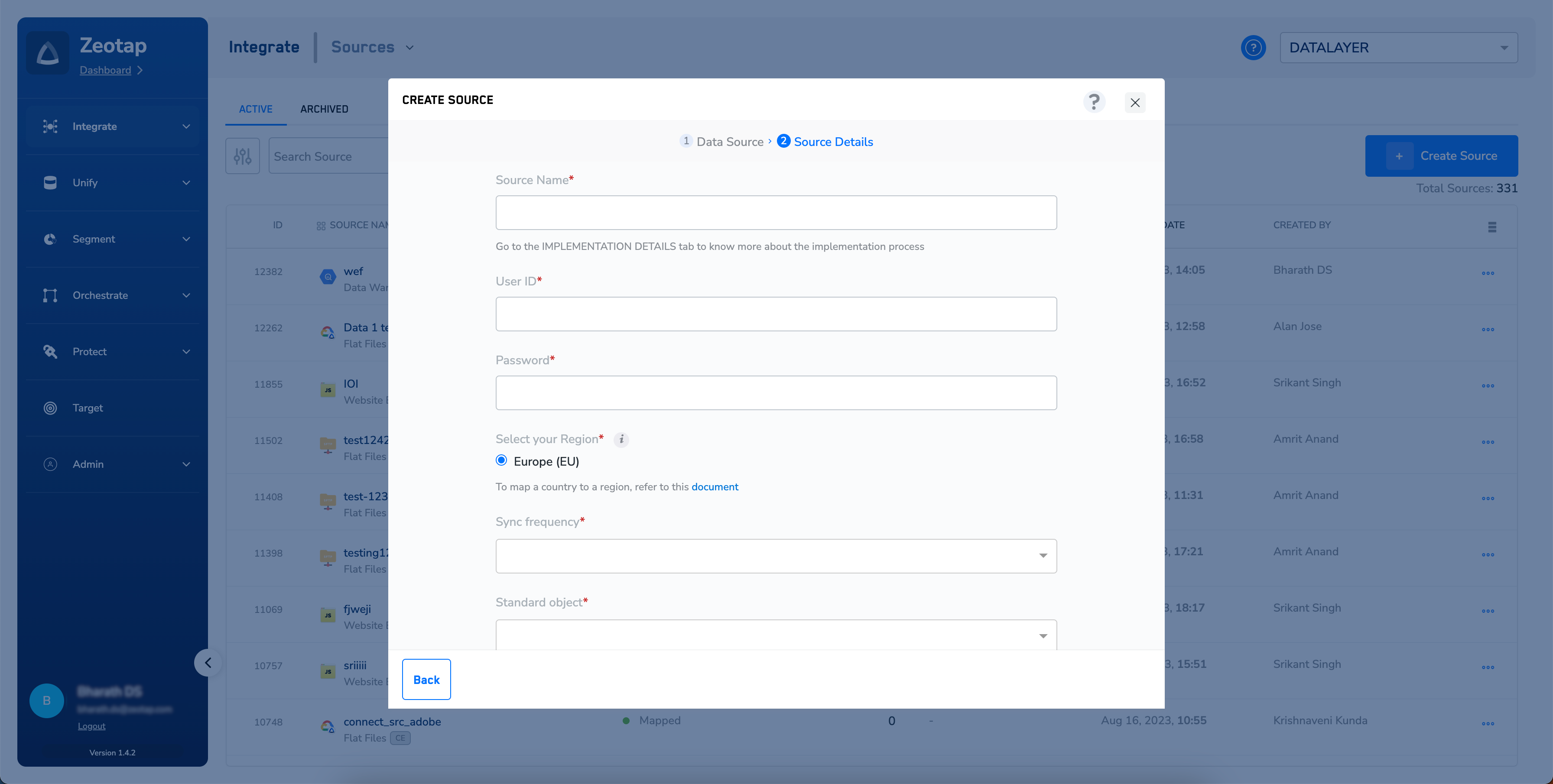
 In the window that appears, provide the following details:
a. Enter a name for the source.
b. Enter the appropriate **User ID** and **Password** that you obtained from Dotdigital.
c. Select a **Region** by using the option button.
d. Choose the desired **Sync Frequency** from the drop-down list. This feature enables you to set the frequency to auto-update the data into Zeotap.
e. Choose the appropriate **Standard Object** for the source from the drop-down list.
In the window that appears, provide the following details:
a. Enter a name for the source.
b. Enter the appropriate **User ID** and **Password** that you obtained from Dotdigital.
c. Select a **Region** by using the option button.
d. Choose the desired **Sync Frequency** from the drop-down list. This feature enables you to set the frequency to auto-update the data into Zeotap.
e. Choose the appropriate **Standard Object** for the source from the drop-down list.
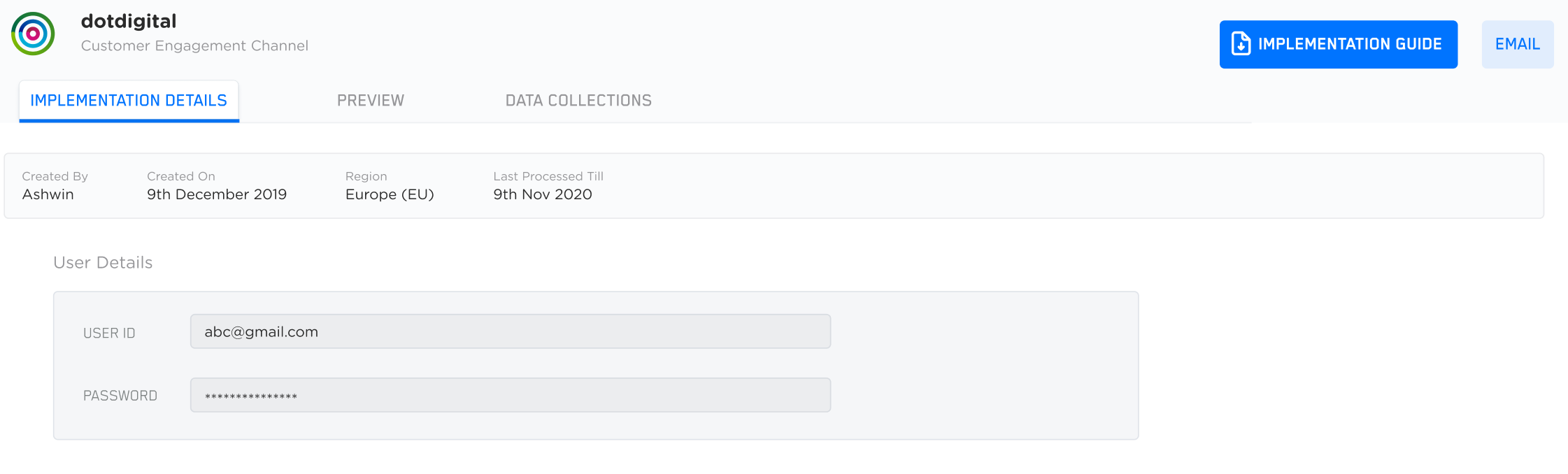
 Click **CREATE SOURCE**. Upon successful creation, you can find details about the User Id and Password under the **IMPLEMENTATION DETAILS** tab. Zeotap uses the User Id and Password to make API calls and fetch the target data from Dotdigital.