> ## Documentation Index
> Fetch the complete documentation index at: https://docs.zeotap.com/llms.txt
> Use this file to discover all available pages before exploring further.
# Create a Cleverpush Real-Time Source
**Note:**
Refer to [Cleverpush Real-Time Source](/articles/integrate-customer/cleverpush-real-time-source) to know more about this Source.
Perform the following steps to create a Cleverpush Real-Time Source
Log into the Zeotap CDP App and navigate to the **Sources** application under Integrate.
Click **CREATE SOURCE**.
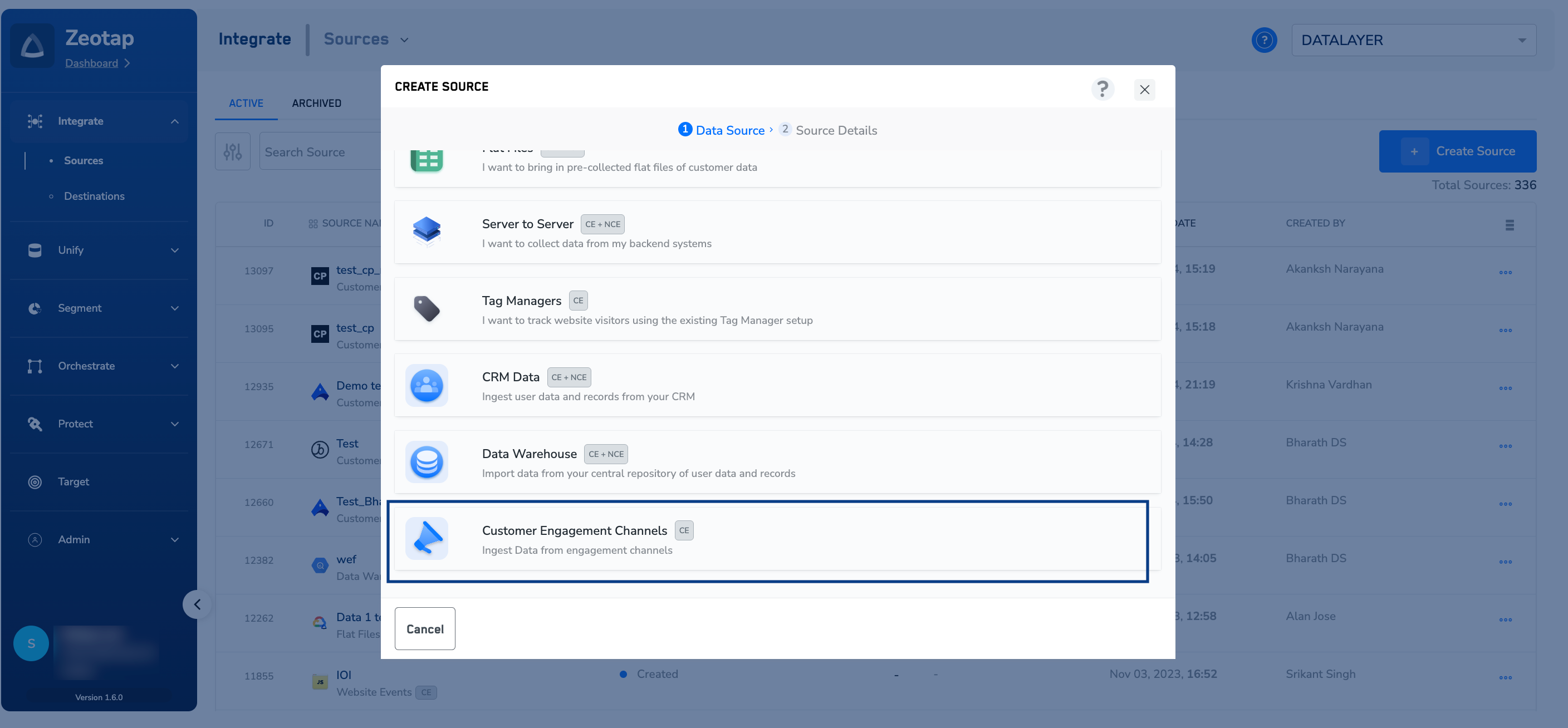
Choose **Customer Engagement Channels** as the Category.
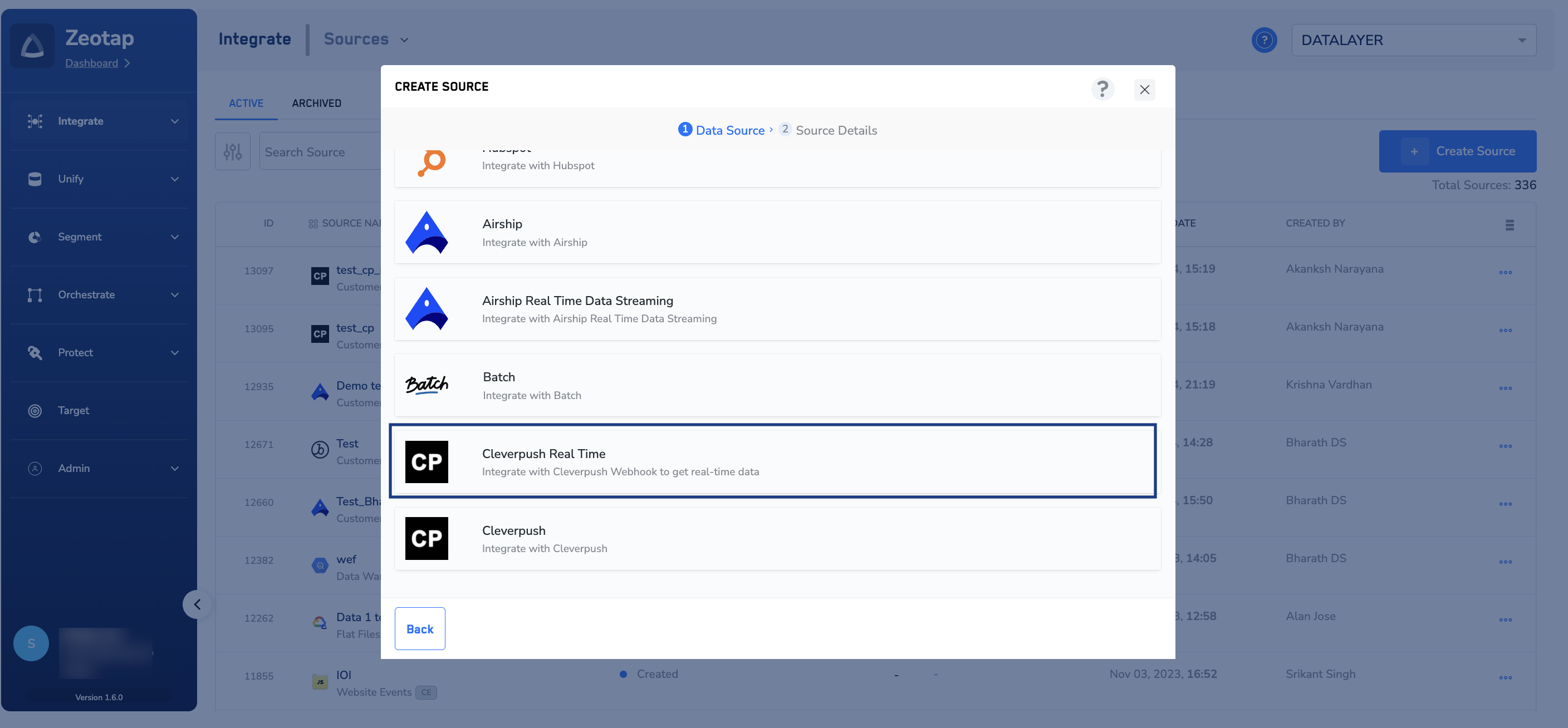
 Click **Cleverpush Real-Time** as the **Data Source**.
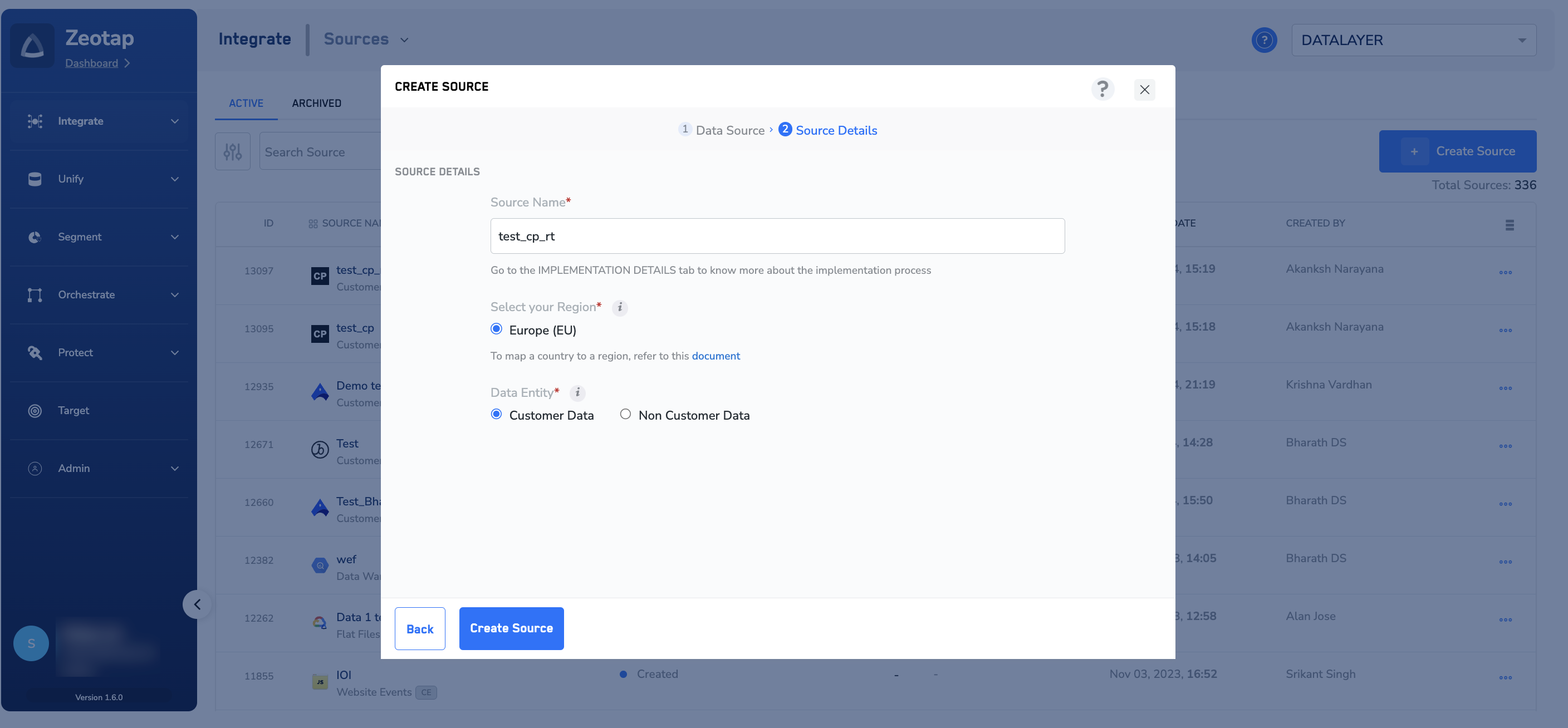
 Enter a short and descriptive name for the source.
Select a **Region** using the option button provided.
Under **Data Entity**, depending on the type of data that you want to ingest, choose either **Customer Data** or **Non Customer Data** and proceed with the source creation. To know more about Customer Data and Non Customer Data, refer [here](https://docs.zeotap.com/articles/unify-customer/supported-data-entities).
Enter a short and descriptive name for the source.
Select a **Region** using the option button provided.
Under **Data Entity**, depending on the type of data that you want to ingest, choose either **Customer Data** or **Non Customer Data** and proceed with the source creation. To know more about Customer Data and Non Customer Data, refer [here](https://docs.zeotap.com/articles/unify-customer/supported-data-entities).
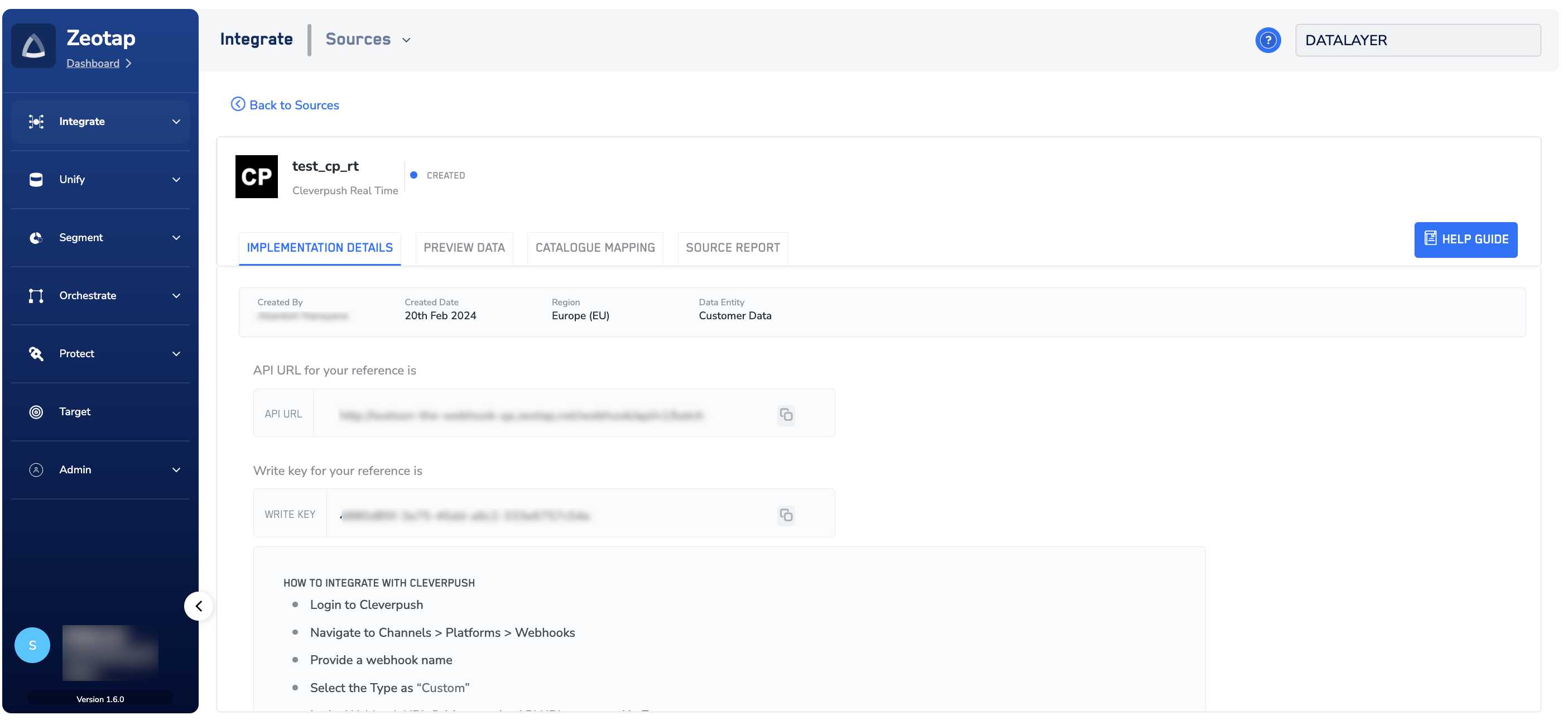
 Click **CREATE SOURCE**. Upon successful creation, an **API URL** and a **Write Key** is generated and is available under the **IMPLEMENTATION DETAILS** tab as shown in the image below. The API URL and Write Key are essential for the implementation of this integration.