> ## Documentation Index
> Fetch the complete documentation index at: https://docs.zeotap.com/llms.txt
> Use this file to discover all available pages before exploring further.
# Create a Cleverpush (Batch) Source
**Note:**
*Refer to [Cleverpush (Batch) Source](/articles/integrate-customer/cleverpush-batch-source) to know about this source.*
## Prerequisites
Ensure that you take care of the following prerequisites before creating a Cleverpush (Batch) Source:
* **Private API Key** - A Private API Key is a unique identifier associated with your Cleverpush account that is used to authenticate and authorise access to certain features or APIs of Cleverpush.
Perform the following steps to obtain the Private API Key from Cleverpush:
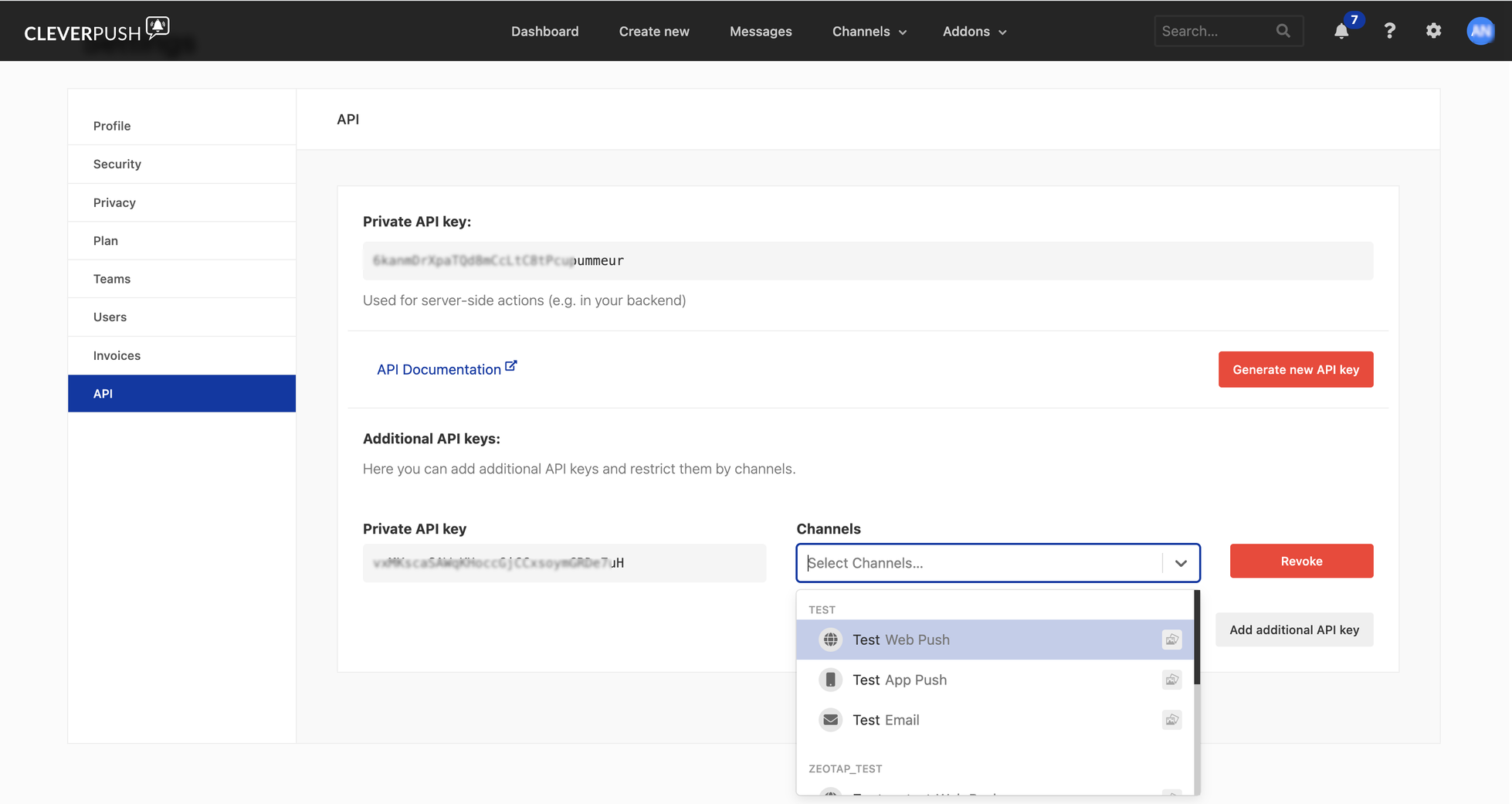
Log into the Cleverpush console and navigate to **Settings**.
In the left panel, click **API** and copy the **Private API Key** displayed on the screen.
If you wish to add an additional API key, click **Add Additional API key** and select the channel where you intend to use this key.
 * **Channel ID** - A Channel ID is a unique identifier assigned to the push notification channel that you create within Cleverpush. Perform the following steps to obtain the Channel ID in Cleverpush:
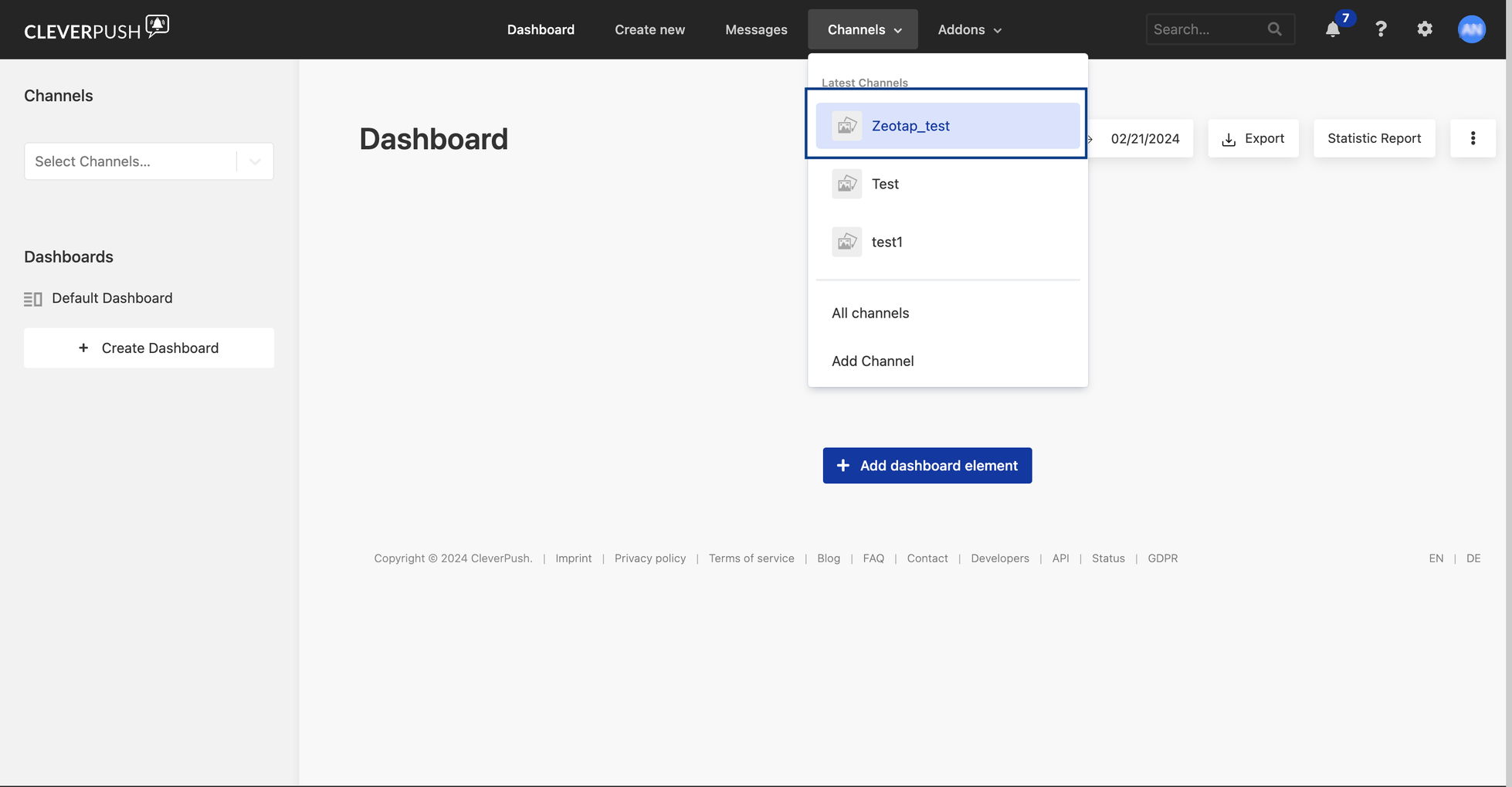
Log into Cleverpush console and navigate to **Channels** on the top navigation bar.
Under Channels, click the channel that you wish to use for sending push notifications. If the desired channel is not available, then you can create one by clicking **Add Channel** from the drop-down menu. For more information on how to create a channel in Cleverpush, refer [here](/articles/integrate-customer/cleverpush_appendix#create-a-new-channel-in-cleverpush).
* **Channel ID** - A Channel ID is a unique identifier assigned to the push notification channel that you create within Cleverpush. Perform the following steps to obtain the Channel ID in Cleverpush:
Log into Cleverpush console and navigate to **Channels** on the top navigation bar.
Under Channels, click the channel that you wish to use for sending push notifications. If the desired channel is not available, then you can create one by clicking **Add Channel** from the drop-down menu. For more information on how to create a channel in Cleverpush, refer [here](/articles/integrate-customer/cleverpush_appendix#create-a-new-channel-in-cleverpush).
 Once the channel is created, you need to setup the platforms on which you want to send notifications. The following are the platforms that Zeotap CDP supports:
* Web Push
* App Push
* Email Push
**Note:**
For more information about how to set up these platforms, refer [here](/articles/integrate-customer/cleverpush_appendix#setup-web-push-in-cleverpush).
Once the channel is created, you need to setup the platforms on which you want to send notifications. The following are the platforms that Zeotap CDP supports:
* Web Push
* App Push
* Email Push
**Note:**
For more information about how to set up these platforms, refer [here](/articles/integrate-customer/cleverpush_appendix#setup-web-push-in-cleverpush).
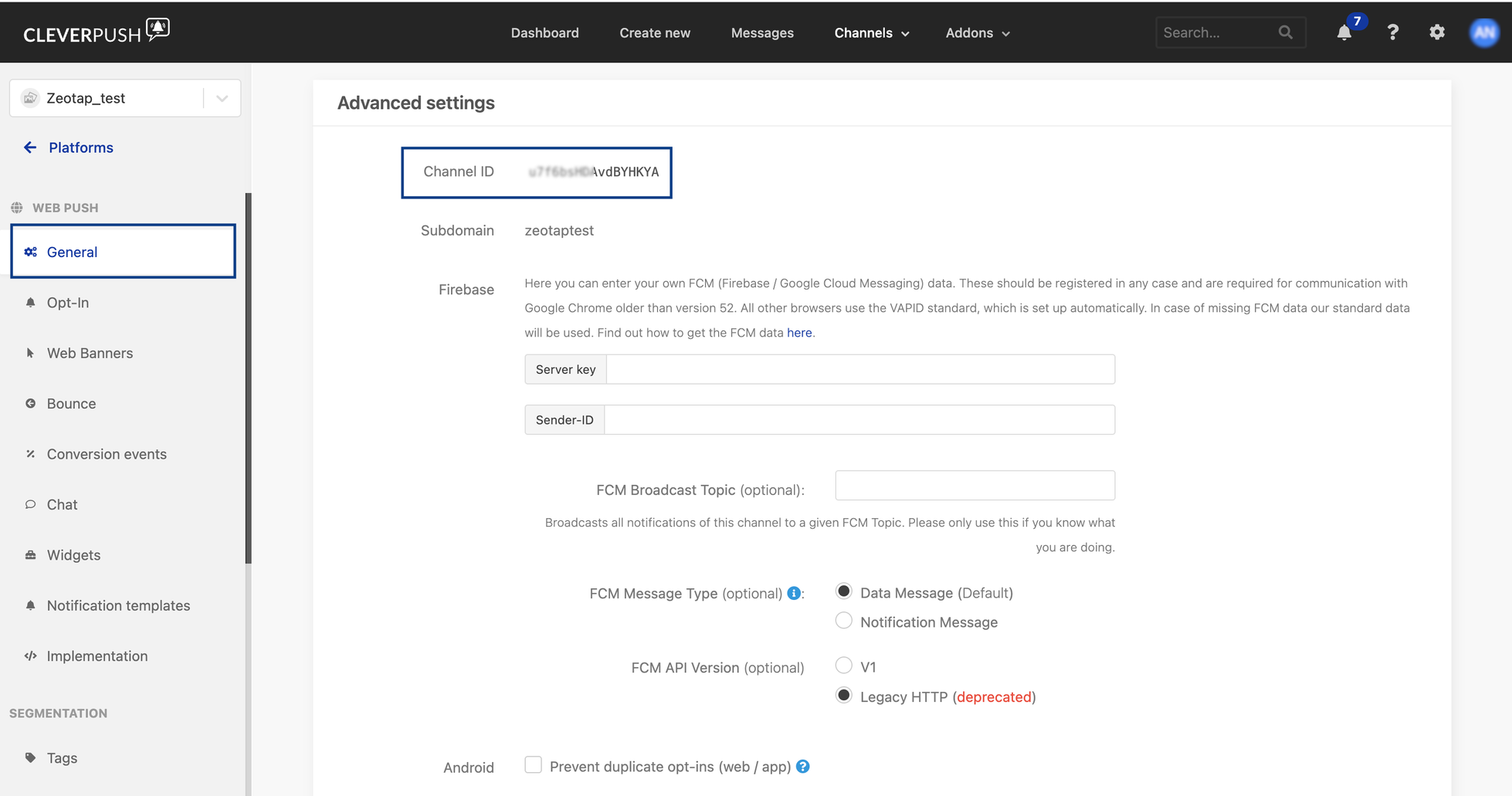
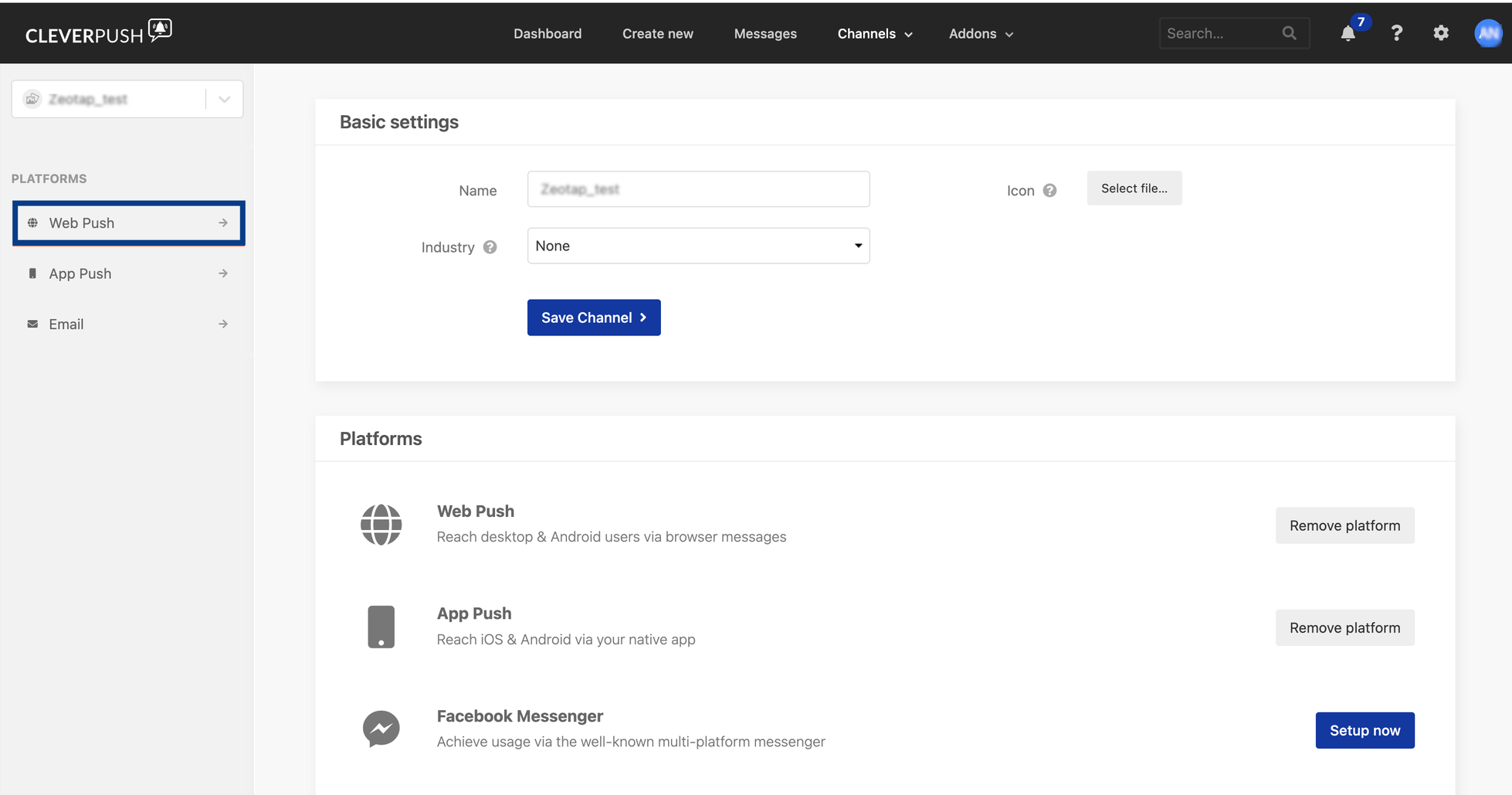 Click the desired platform and navigate to **General > Advance Settings > Channel ID**.
 ## Create a Cleverpush (Batch) Source
Once you have all the necessary information mentioned above, perform the following steps to create a Cleverpush (Batch) source:
Navigate to the **Sources** application under **Integrate**, in the Zeotap CDP App.
Click **CREATE SOURCE**.
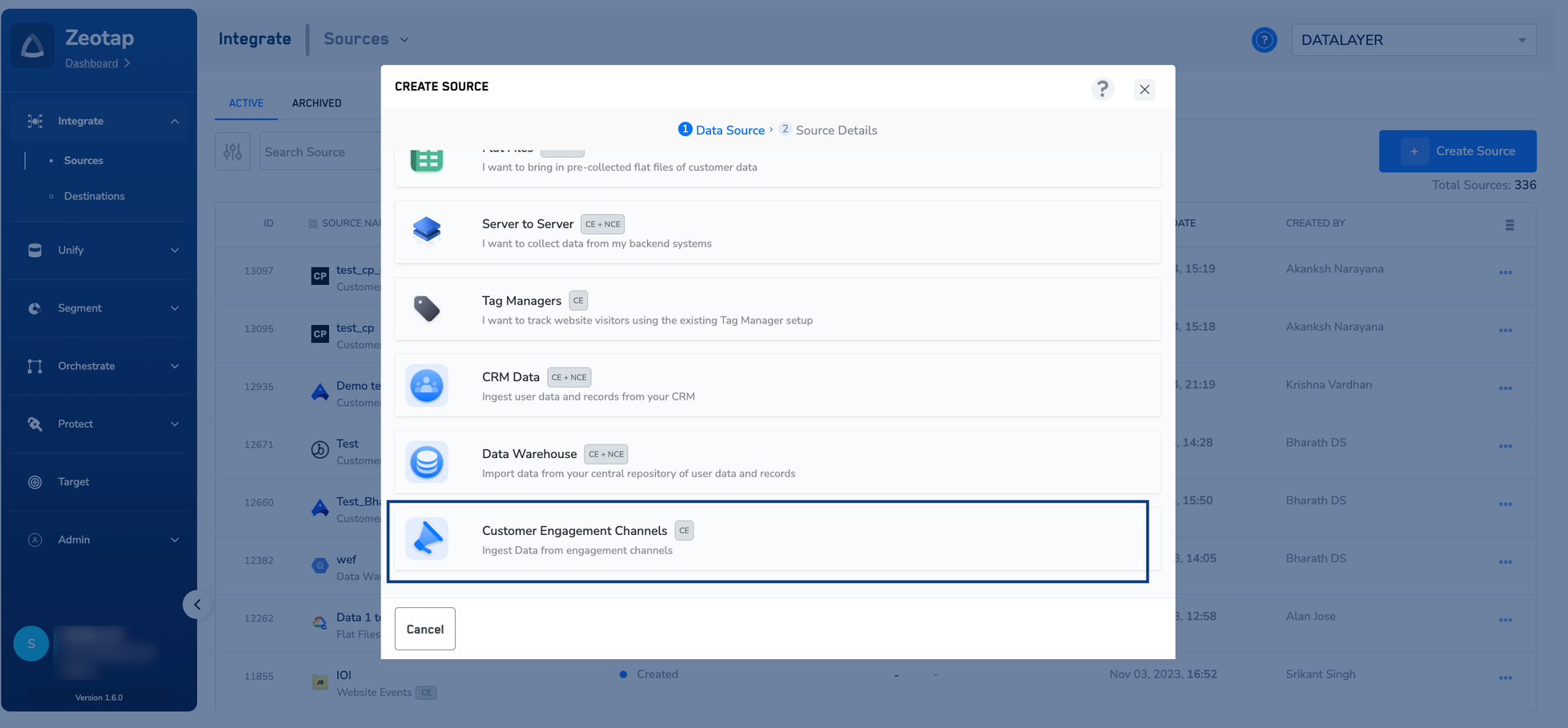
Choose **Customer Engagement Channels** as the Category.
## Create a Cleverpush (Batch) Source
Once you have all the necessary information mentioned above, perform the following steps to create a Cleverpush (Batch) source:
Navigate to the **Sources** application under **Integrate**, in the Zeotap CDP App.
Click **CREATE SOURCE**.
Choose **Customer Engagement Channels** as the Category.
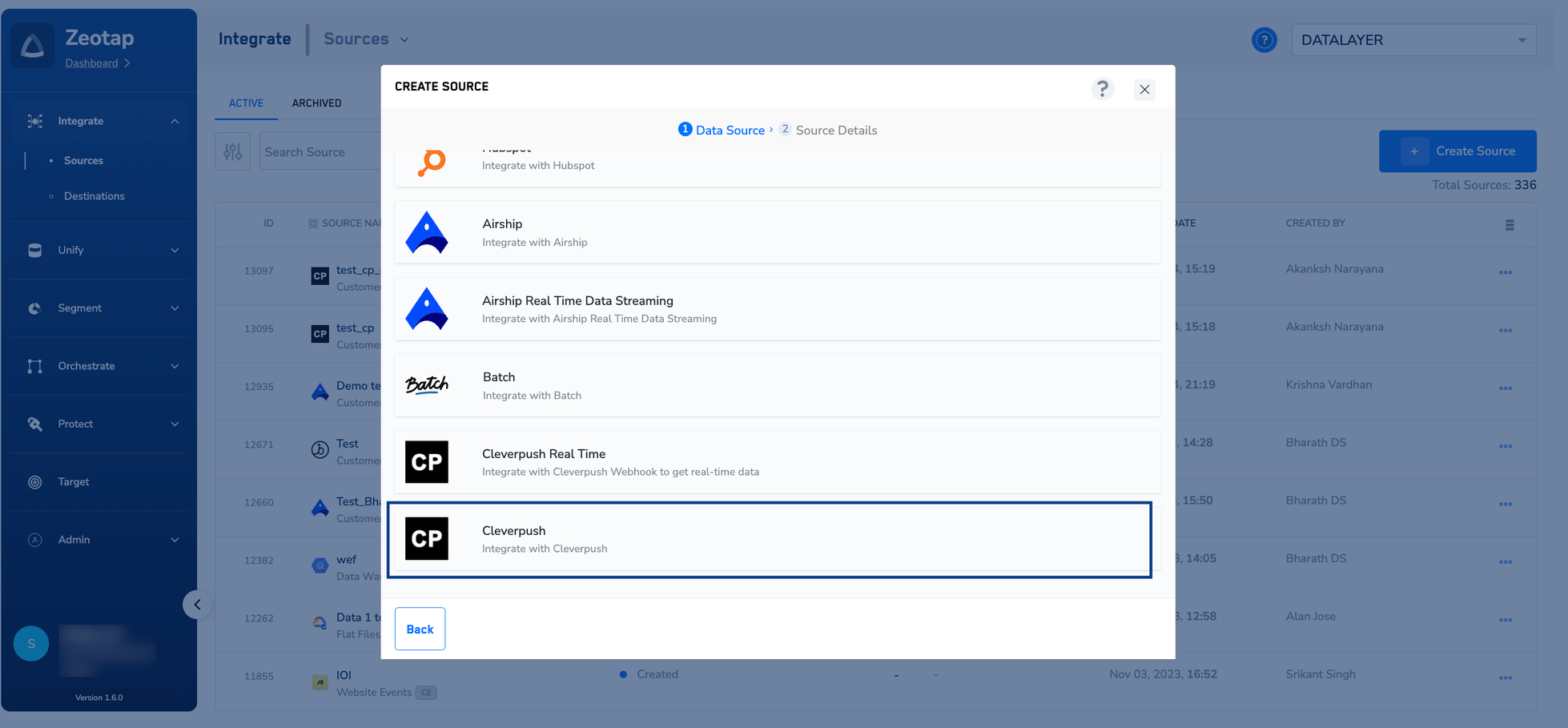
 Click **Cleverpush** as the Data Source.
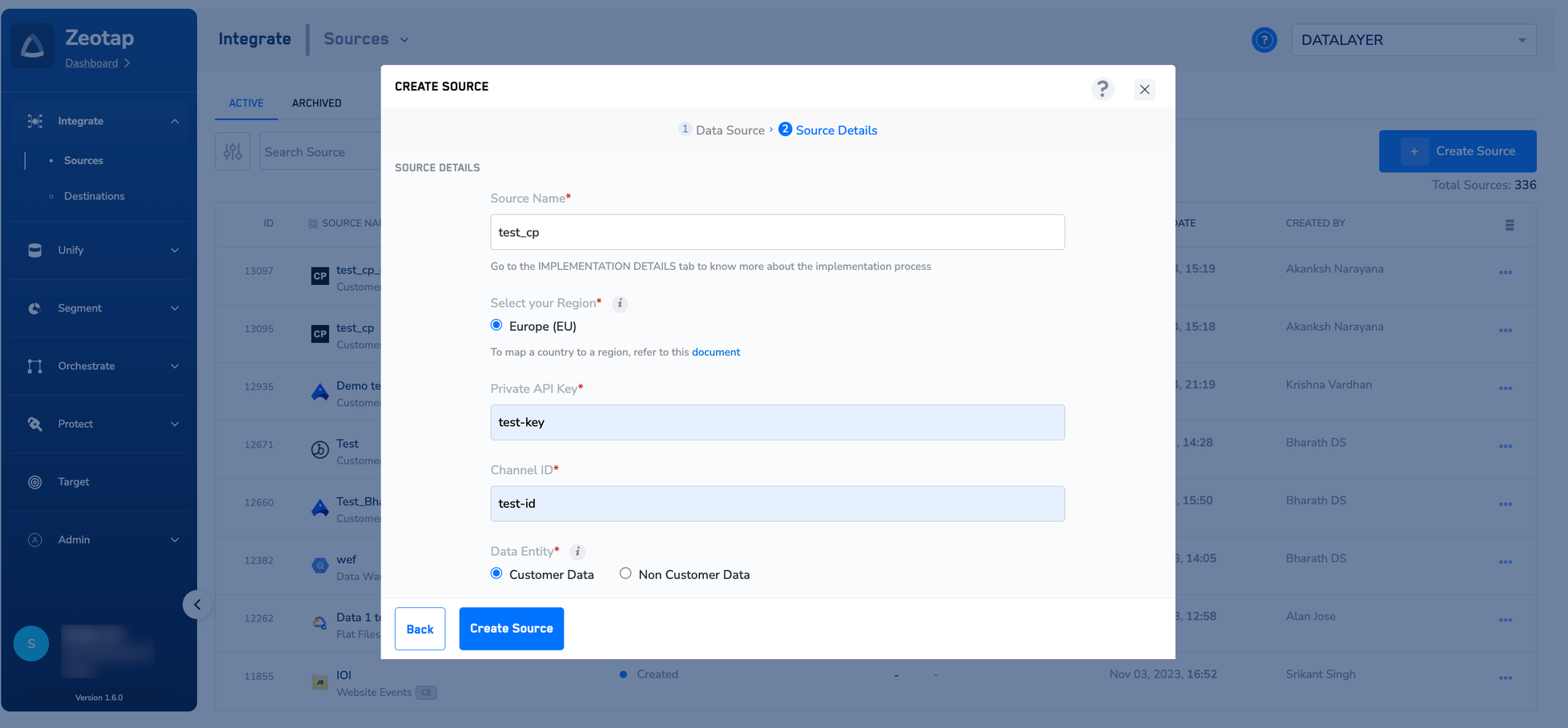
 Enter a short and descriptive name for the Source.
Select the **Region** of upload.
Enter the **Private API Key** that you obtained from the Cleverpush account.
Enter the **Channel ID** that you obtained from the Cleverpush account.
Under **Data Entity**, depending on the type of data that you want to ingest, choose either **Customer Data** or **Non Customer Data** and proceed with the source creation. To know more about Customer Data and Non Customer Data, refer [here](https://docs.zeotap.com/articles/unify-customer/supported-data-entities).
Click **CREATE SOURCE**.
Enter a short and descriptive name for the Source.
Select the **Region** of upload.
Enter the **Private API Key** that you obtained from the Cleverpush account.
Enter the **Channel ID** that you obtained from the Cleverpush account.
Under **Data Entity**, depending on the type of data that you want to ingest, choose either **Customer Data** or **Non Customer Data** and proceed with the source creation. To know more about Customer Data and Non Customer Data, refer [here](https://docs.zeotap.com/articles/unify-customer/supported-data-entities).
Click **CREATE SOURCE**.
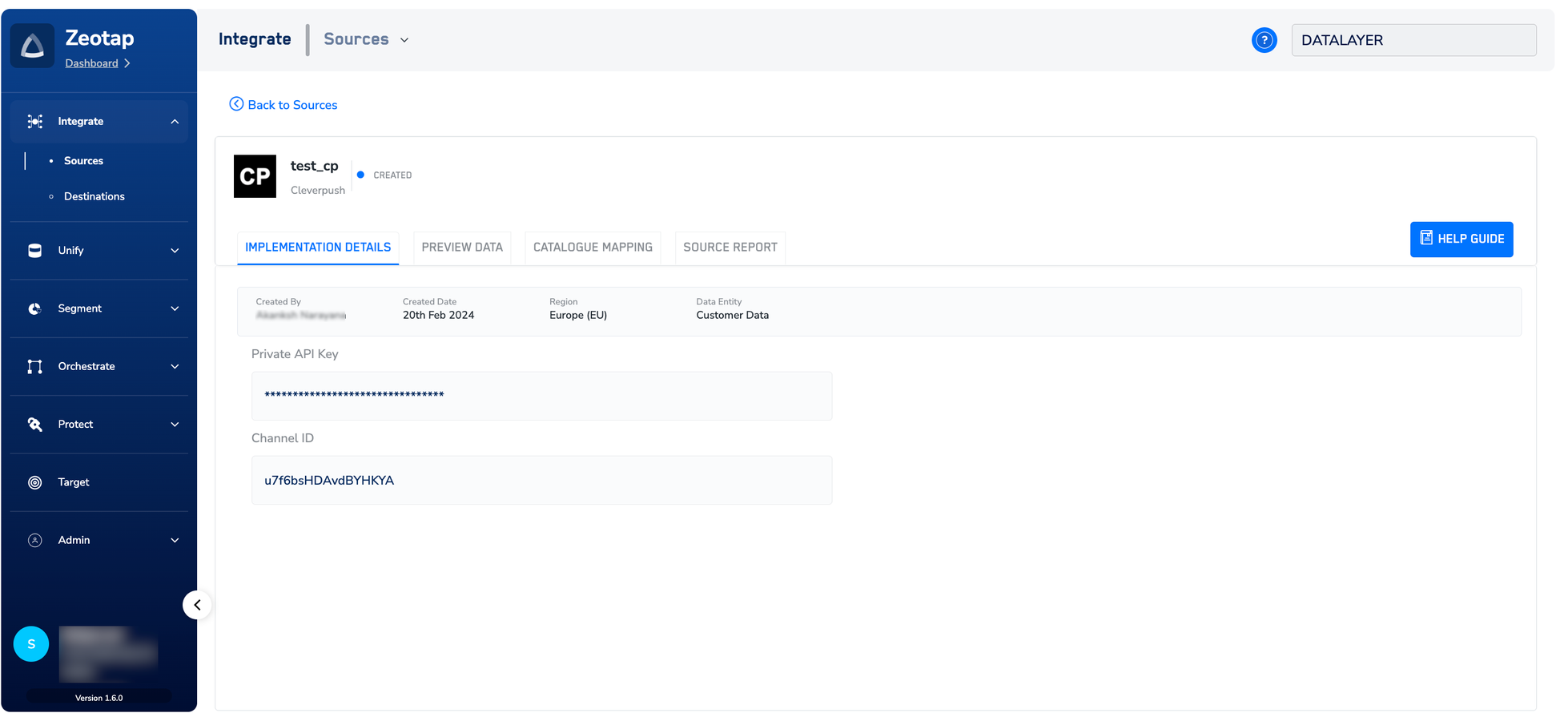
 Upon successfully creating the source, it appears on the **SOURCES** listing page. You can open the created source and find essential details about the created source such as Private API Key, Channel ID, Created By, Created on information and more under the **IMPLEMENTATION DETAILS** tab.
 **Note:**
Once the connection between Zeotap and Cleverpush is successfully established, you can view the data flowing into the system under the **[PREVIEW DATA](/articles/integrate-customer/knowing-the-fields-on-the-preview-data-tab)** tab. For further assistance to implement this source, reach out to your Zeotap POC.
**Note:**
Once the connection between Zeotap and Cleverpush is successfully established, you can view the data flowing into the system under the **[PREVIEW DATA](/articles/integrate-customer/knowing-the-fields-on-the-preview-data-tab)** tab. For further assistance to implement this source, reach out to your Zeotap POC.