> ## Documentation Index
> Fetch the complete documentation index at: https://docs.zeotap.com/llms.txt
> Use this file to discover all available pages before exploring further.
# Create a Batch Source
## Prerequisites
For you to create a Batch source, ensure that you have obtained the following details on the Batch console. To do so, perform the following steps:
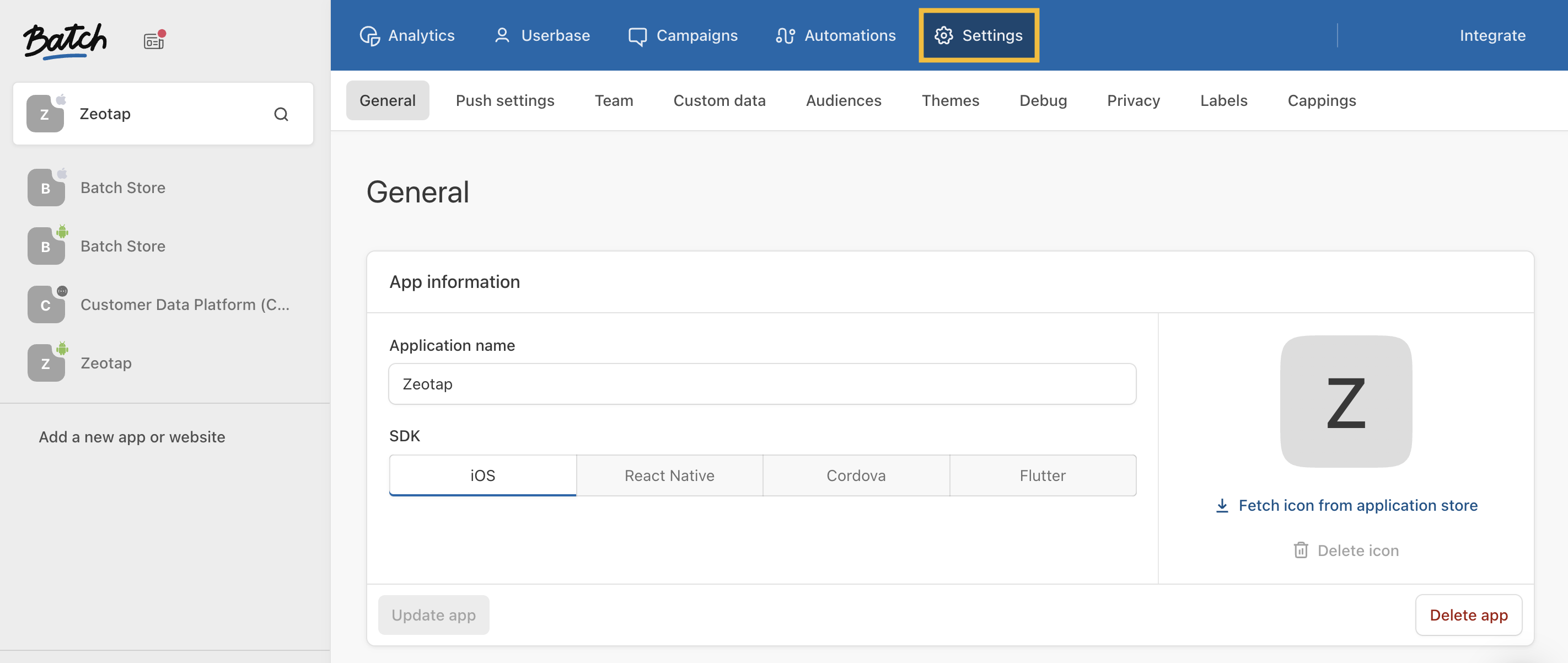
Navigate to the Batch Dashboard and click **SETTINGS** from the top panel as shown below.
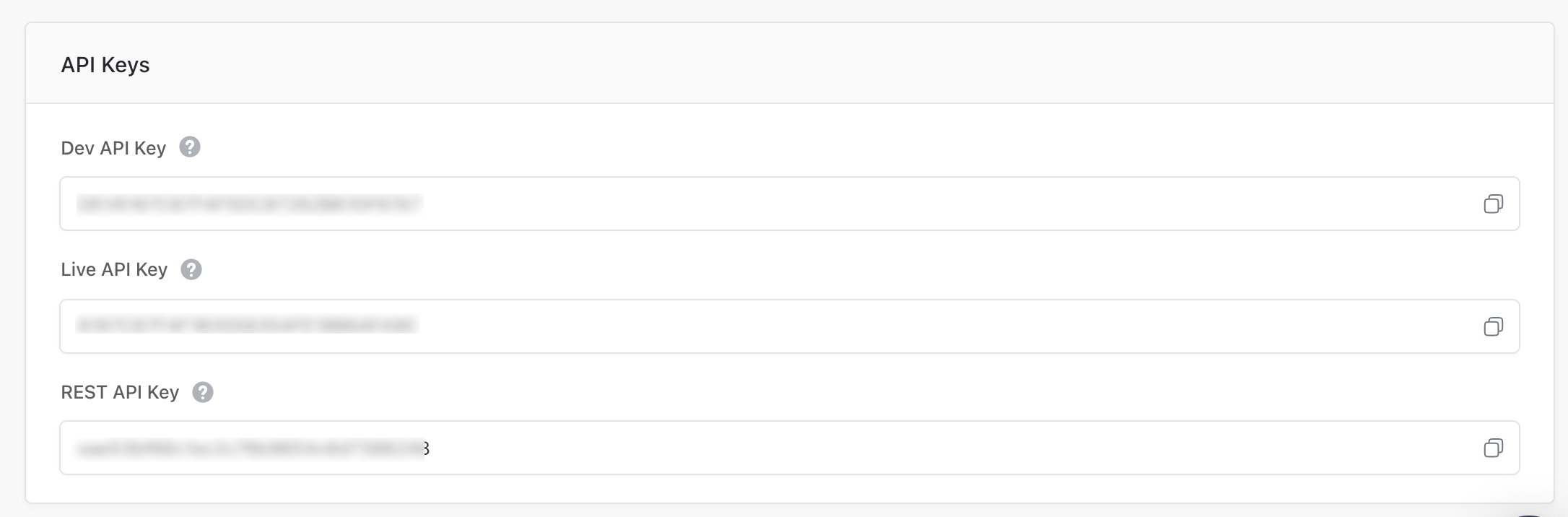
 The **General** tab of the **SETTINGS** page displays the API keys. Copy the **Live API Key** and **REST API Key** and use them while creating the Destination.
 ## Create a Source
Perform the following steps to establish a connection with Batch by using their built-in connector through Sources:
Navigate to the **Sources** application under **Integrate**, in the Zeotap CDP App.
Click **CREATE SOURCE**.
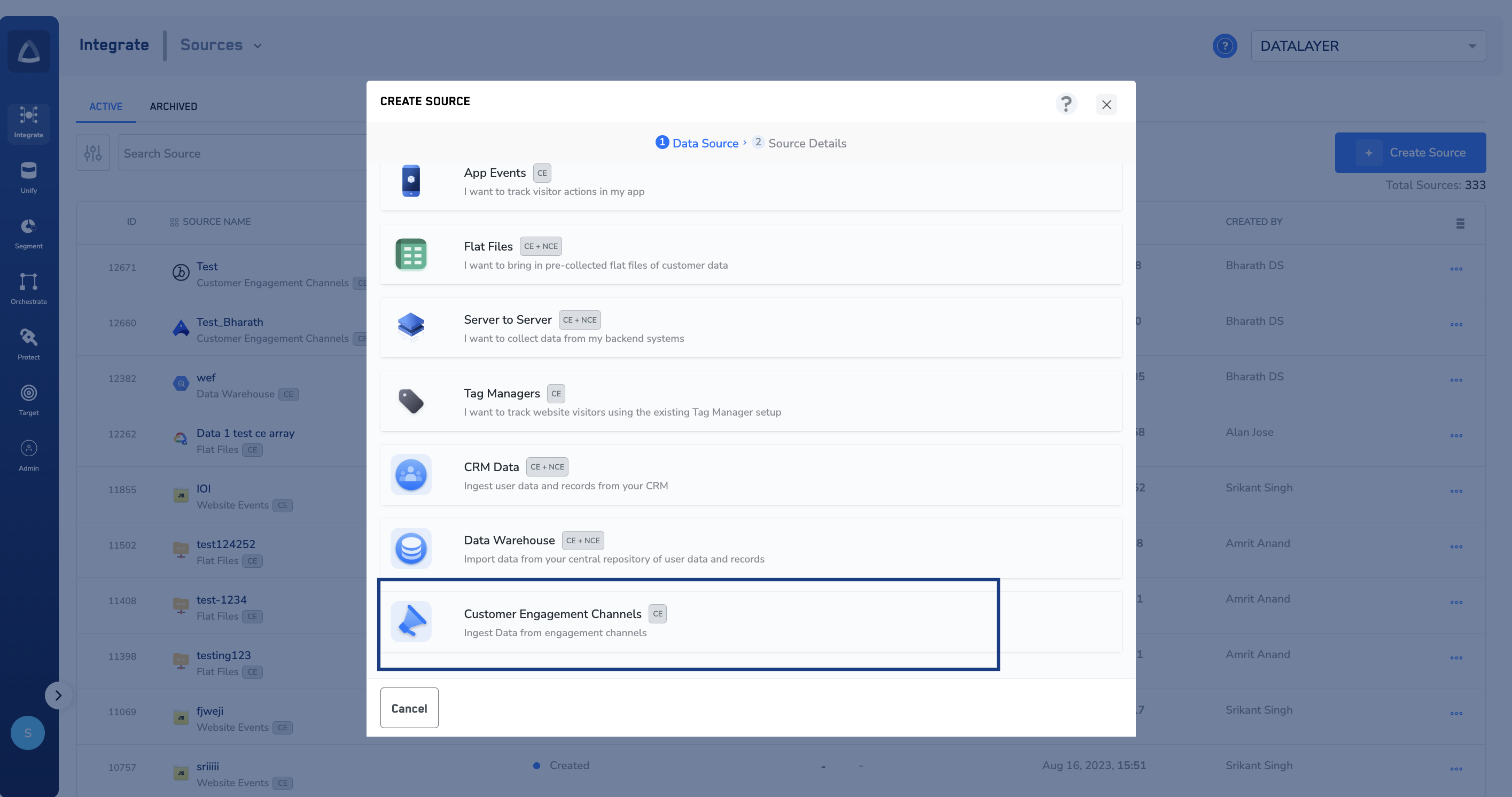
Choose **Customer Engagement Channels** as the Category.
## Create a Source
Perform the following steps to establish a connection with Batch by using their built-in connector through Sources:
Navigate to the **Sources** application under **Integrate**, in the Zeotap CDP App.
Click **CREATE SOURCE**.
Choose **Customer Engagement Channels** as the Category.
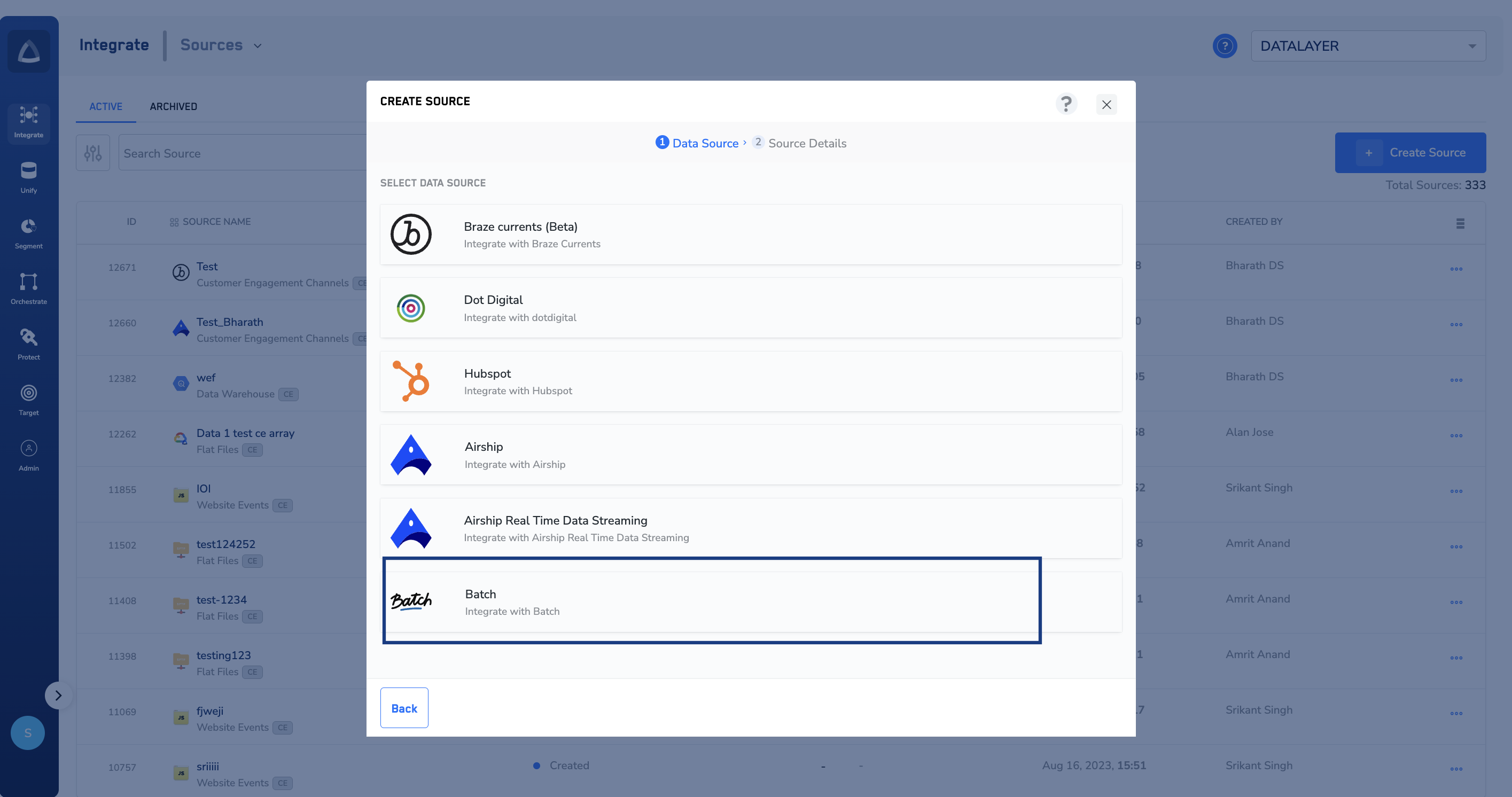
 Click **Batch** as the Data Source.
 In the window that appears, provide the following details:
a. Enter a name for the Source.
b. Enter the **Rest API Key** and **Live API Key** that you obtained from Batch.
c. Under **Data Entity**, depending on the type of data that you want to ingest, choose either **Customer Data** or **Non Customer Data** and proceed with the source creation. To know more about Customer Data and Non Customer Data, refer [here](https://docs.zeotap.com/smart/project-unify/supported-data-entities).
d. Select the **Region** of upload.
e. Choose the desired **Sync Frequency** from the drop-down list. The first data sync takes place once you create the source. However, the subsequent syncs take place based on the sync frequency that you select. Currently, we support the following sync frequencies:
* Daily
* Weekly
* Monthly
f. Choose either **JSON** or **CSV** as the **File Type** from the drop-down menu. Note that if you choose **CSV** as the file type, you must provide the **file delimiter** as well. A file delimiter is a character or sequence of characters used to separate individual data fields within a file. This can be a **comma**, **tab** or **semicolon**.
In the window that appears, provide the following details:
a. Enter a name for the Source.
b. Enter the **Rest API Key** and **Live API Key** that you obtained from Batch.
c. Under **Data Entity**, depending on the type of data that you want to ingest, choose either **Customer Data** or **Non Customer Data** and proceed with the source creation. To know more about Customer Data and Non Customer Data, refer [here](https://docs.zeotap.com/smart/project-unify/supported-data-entities).
d. Select the **Region** of upload.
e. Choose the desired **Sync Frequency** from the drop-down list. The first data sync takes place once you create the source. However, the subsequent syncs take place based on the sync frequency that you select. Currently, we support the following sync frequencies:
* Daily
* Weekly
* Monthly
f. Choose either **JSON** or **CSV** as the **File Type** from the drop-down menu. Note that if you choose **CSV** as the file type, you must provide the **file delimiter** as well. A file delimiter is a character or sequence of characters used to separate individual data fields within a file. This can be a **comma**, **tab** or **semicolon**.
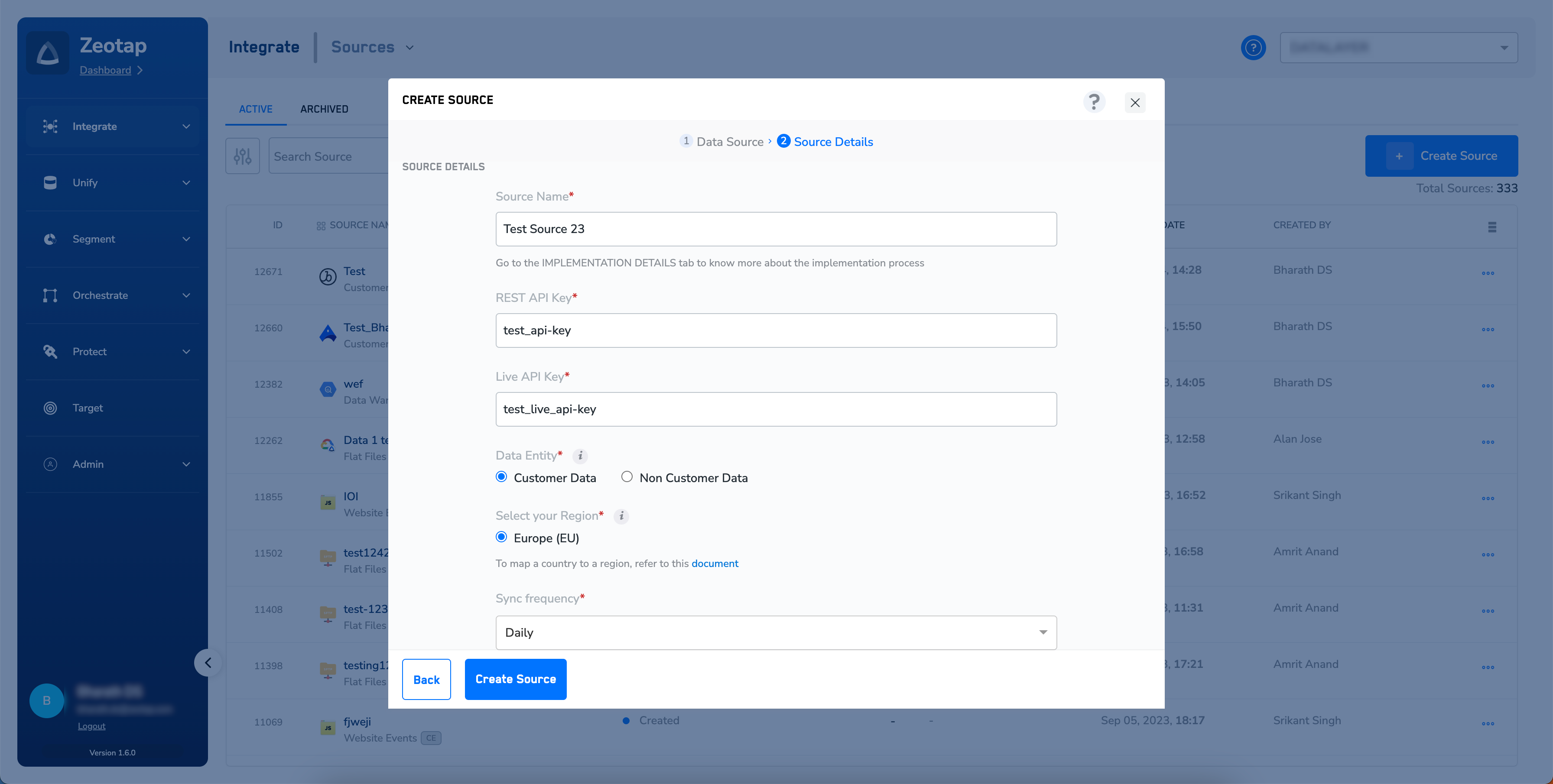 Click **CREATE SOURCE**. Upon successfully creating the source, it appears on the **SOURCES** listing page. You can open the created source and find essential details about the created source under the **IMPLEMENTATION DETAILS** tab.