> ## Documentation Index
> Fetch the complete documentation index at: https://docs.zeotap.com/llms.txt
> Use this file to discover all available pages before exploring further.

# Appendix

## Create a New Channel in Cleverpush

Perform the following steps to create a new channel in Cleverpush:

<Steps>
  <Step>
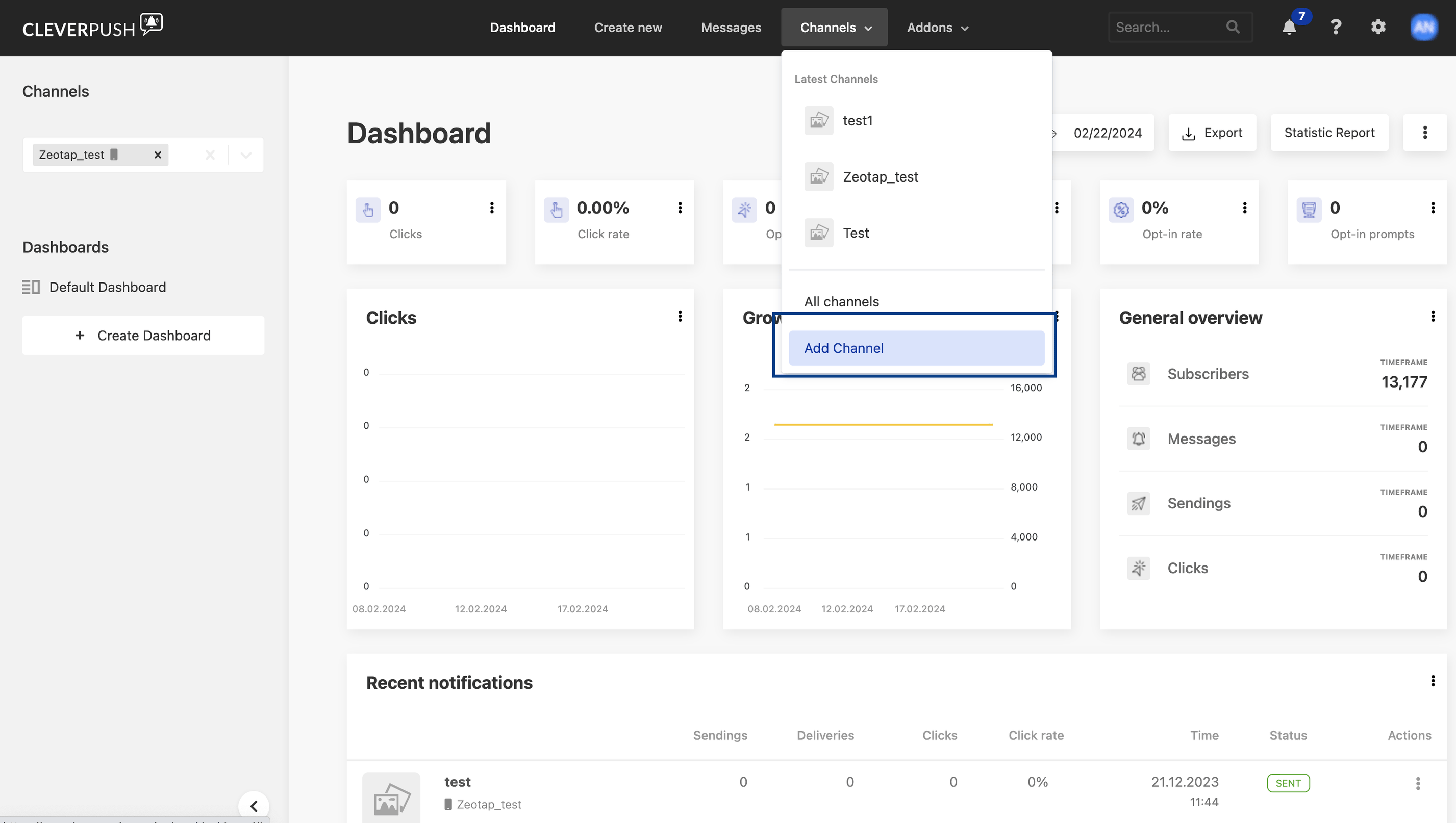
    Log into the Cleverpush console and navigate to **Channels** on the top navigation bar.
  </Step>

  <Step>
    Under **Channels**, click **Add Channel** as shown in the image below.
    <Frame>
      <img src="https://mintcdn.com/zeotap/xcJBv790xp5wo6aA/articles/integrate-customer/Storage/integrate-customer/create-a-cleverpush-batch-source/appendix_1.png?fit=max&auto=format&n=xcJBv790xp5wo6aA&q=85&s=1d9704a20a7aab593d2df1c5b3672698" width="2854" height="1614" data-path="articles/integrate-customer/Storage/integrate-customer/create-a-cleverpush-batch-source/appendix_1.png" />
    </Frame>
  </Step>

  <Step>
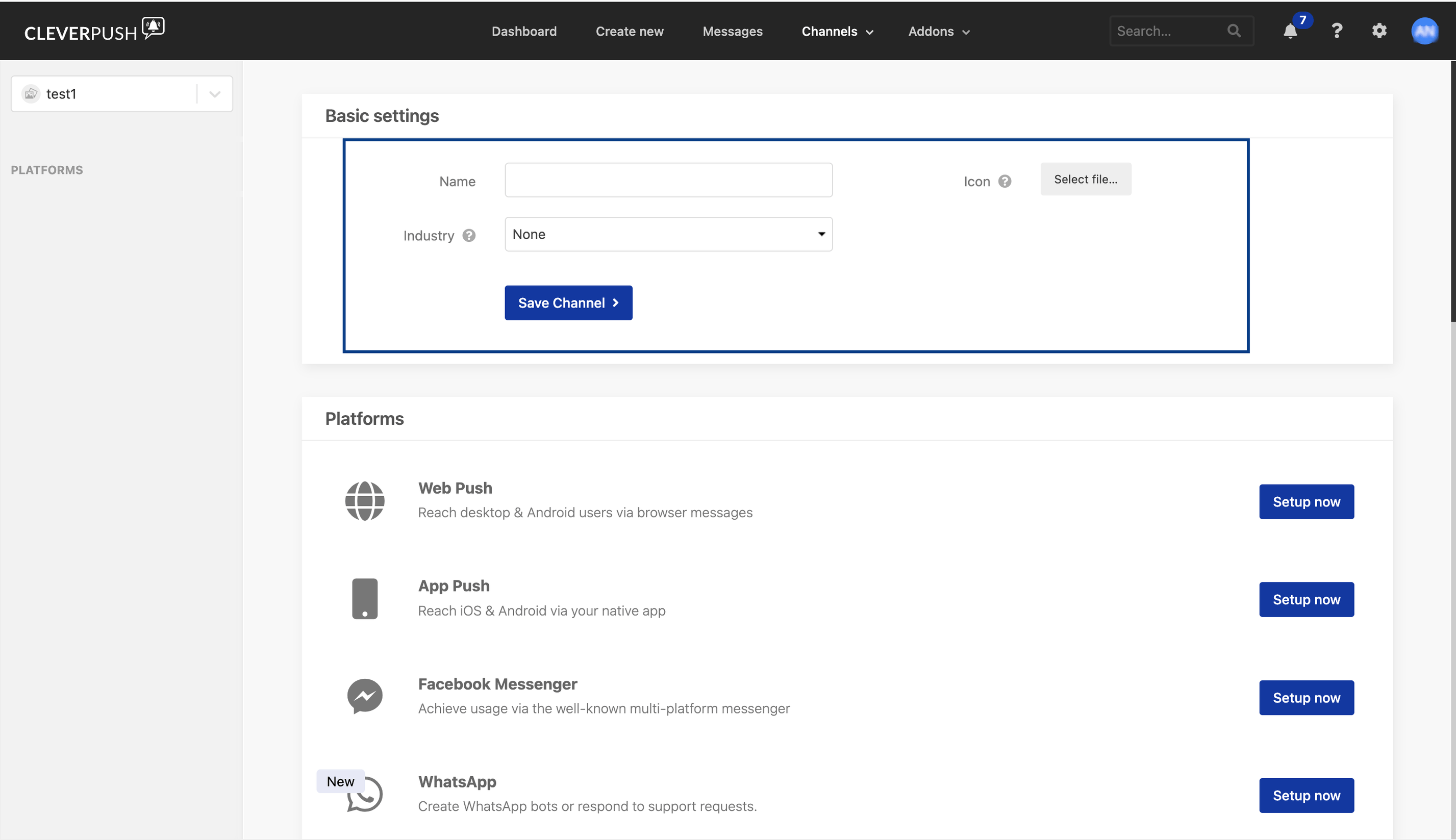
    Under **Basic Settings**, provide the following details:

    a. Enter a descriptive name for the channel. <br />
    b. Click **Select file** to upload an icon for the channel. <br />
    c. Choose the desired **Industry** from the drop-down menu. <br />
    d. Click **Save Channel**.

    <Frame>
      <img src="https://mintcdn.com/zeotap/xcJBv790xp5wo6aA/articles/integrate-customer/Storage/integrate-customer/create-a-cleverpush-batch-source/appendix_2.png?fit=max&auto=format&n=xcJBv790xp5wo6aA&q=85&s=ac914d5e7186661618decfb2051eb8f5" width="2854" height="1647" data-path="articles/integrate-customer/Storage/integrate-customer/create-a-cleverpush-batch-source/appendix_2.png" />
    </Frame>
  </Step>
</Steps>

## Setup Web Push in Cleverpush

Once you have created a channel, perform the following steps to setup **Web Push** in Cleverpush:

<Steps>
  <Step>
    Log into the Cleverpush console and navigate to **Channels** in the top navigation bar.
  </Step>

  <Step>
    Select the Channel you created and navigate to **Platforms**.
  </Step>

  <Step>
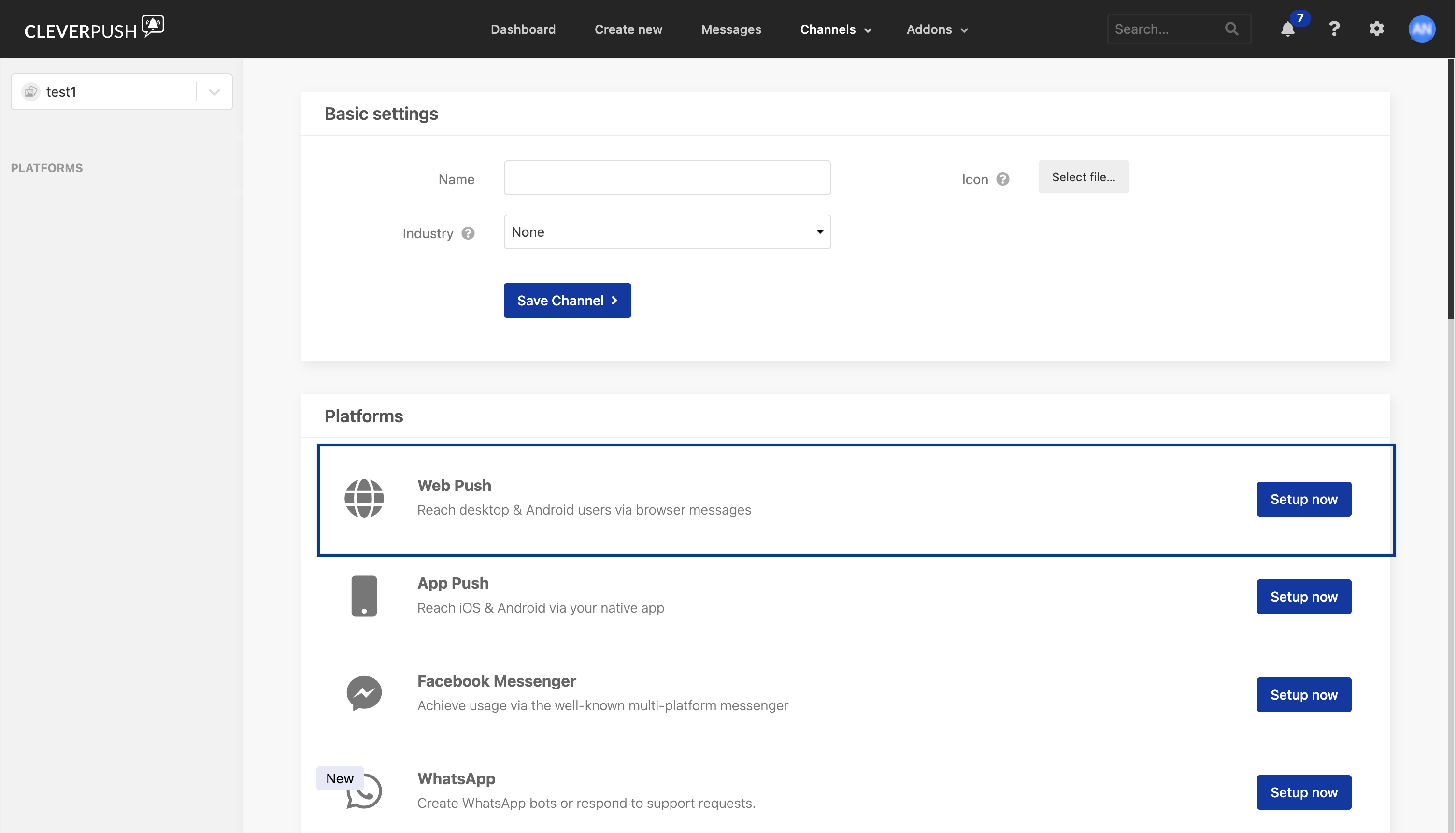
    Click **Setup now** next to Web Push.

    <Frame>
      <img src="https://mintcdn.com/zeotap/PbPkxJRQX6AvIPbW/articles/integrate-customer/Storage/integrate-customer/cleverpush_appendix/web_push_1.png?fit=max&auto=format&n=PbPkxJRQX6AvIPbW&q=85&s=3aad1d04cc6a9f765bb95cc9e34669b8" width="3014" height="1724" data-path="articles/integrate-customer/Storage/integrate-customer/cleverpush_appendix/web_push_1.png" />
    </Frame>
  </Step>

  <Step>
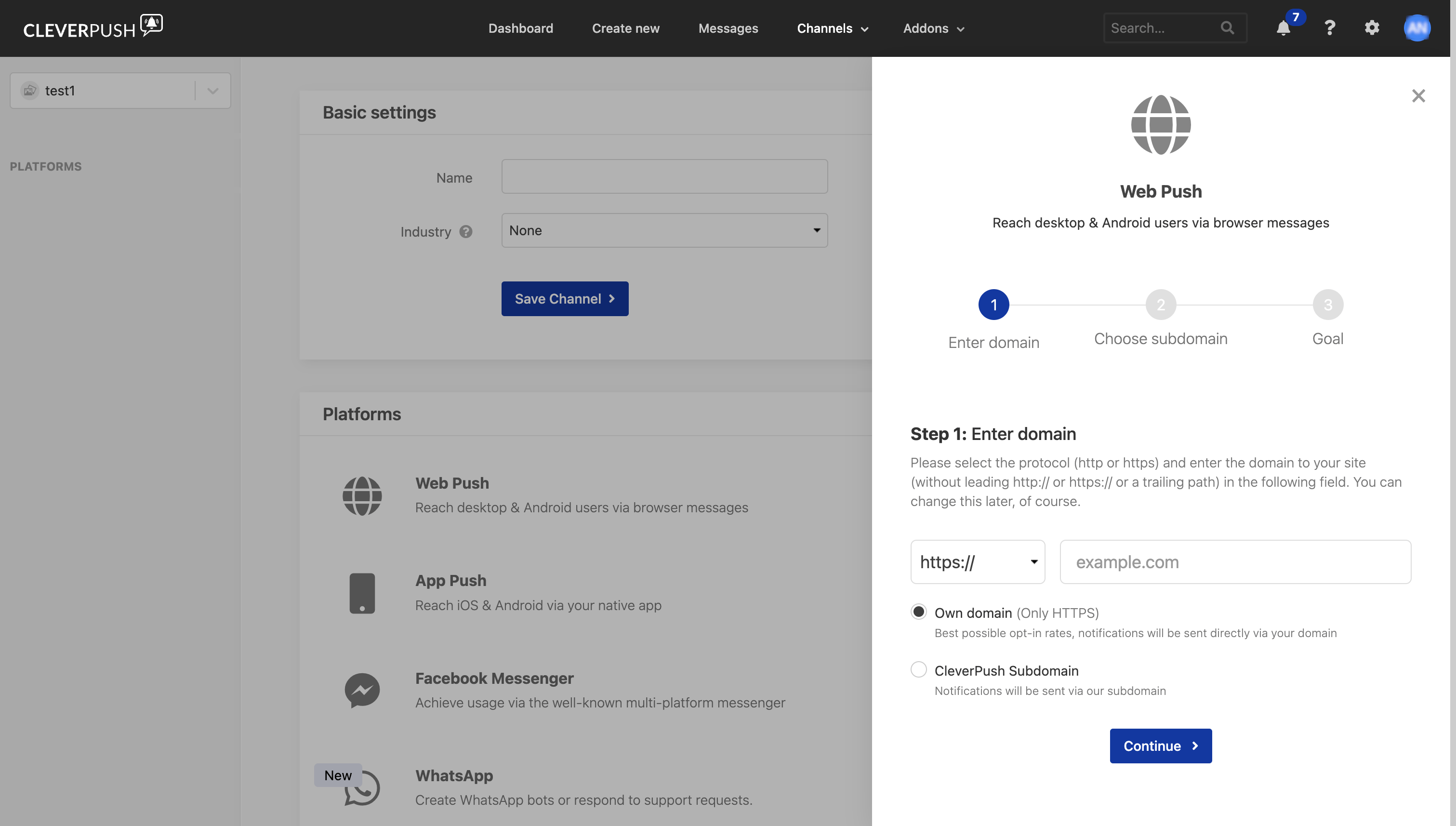
    Enter the **Domain Name**.
  </Step>

  <Step>
    Choose **Own Domain** or **Cleverpush Subdomain** and click **Continue**.
    <Frame>
      <img src="https://mintcdn.com/zeotap/PbPkxJRQX6AvIPbW/articles/integrate-customer/Storage/integrate-customer/cleverpush_appendix/Web_Push_2.png?fit=max&auto=format&n=PbPkxJRQX6AvIPbW&q=85&s=0cabf8d5d5c9653b018168c61c11e241" width="3022" height="1714" data-path="articles/integrate-customer/Storage/integrate-customer/cleverpush_appendix/Web_Push_2.png" />
    </Frame>
  </Step>

  <Step>
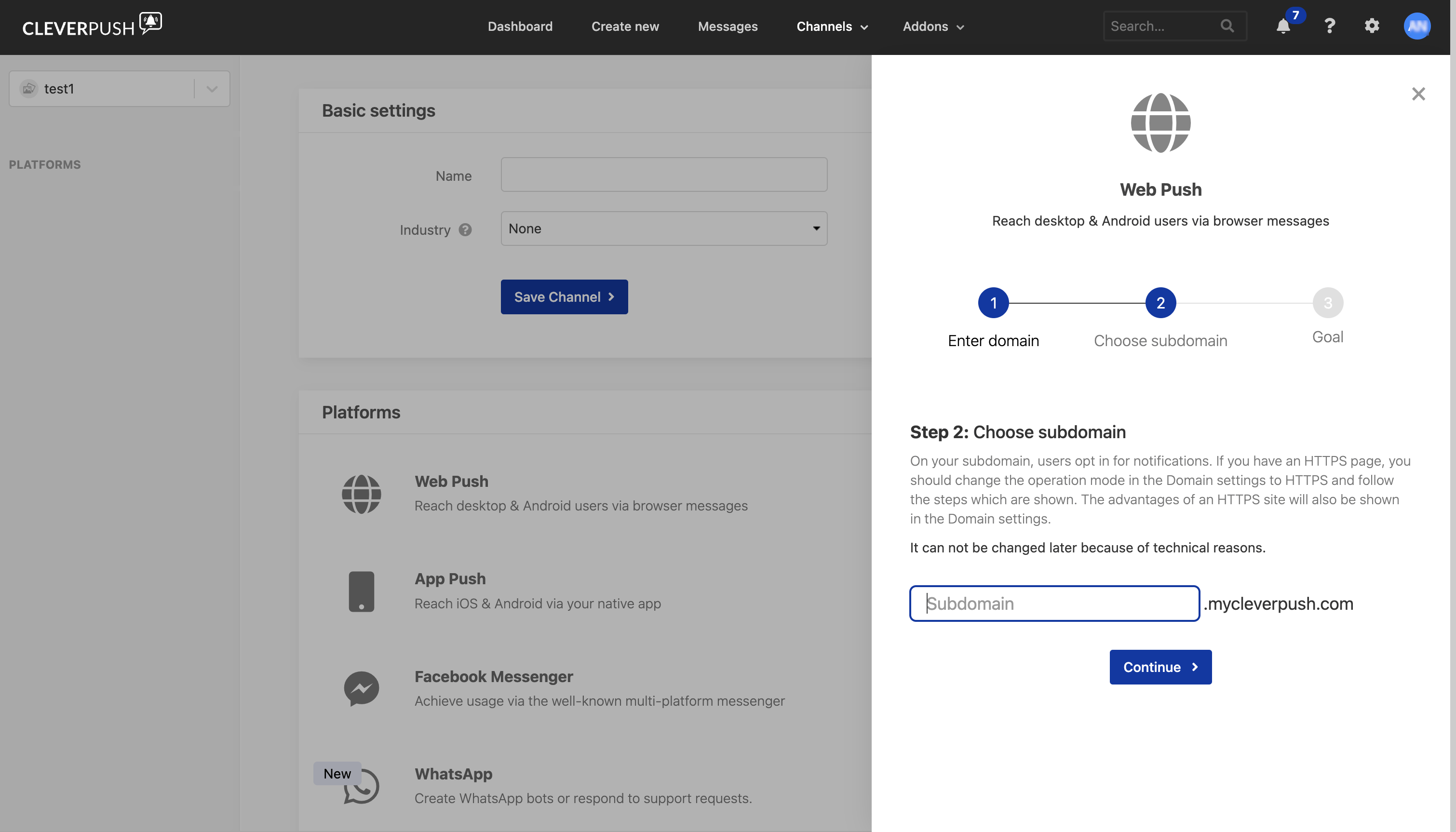
    Enter a **Subdomain name** and click **Continue**.
    <Frame>
      <img src="https://mintcdn.com/zeotap/PbPkxJRQX6AvIPbW/articles/integrate-customer/Storage/integrate-customer/cleverpush_appendix/web_push_3.png?fit=max&auto=format&n=PbPkxJRQX6AvIPbW&q=85&s=6b46136f186f1380e47a47c616959439" width="3020" height="1726" data-path="articles/integrate-customer/Storage/integrate-customer/cleverpush_appendix/web_push_3.png" />
    </Frame>
  </Step>

  <Step>
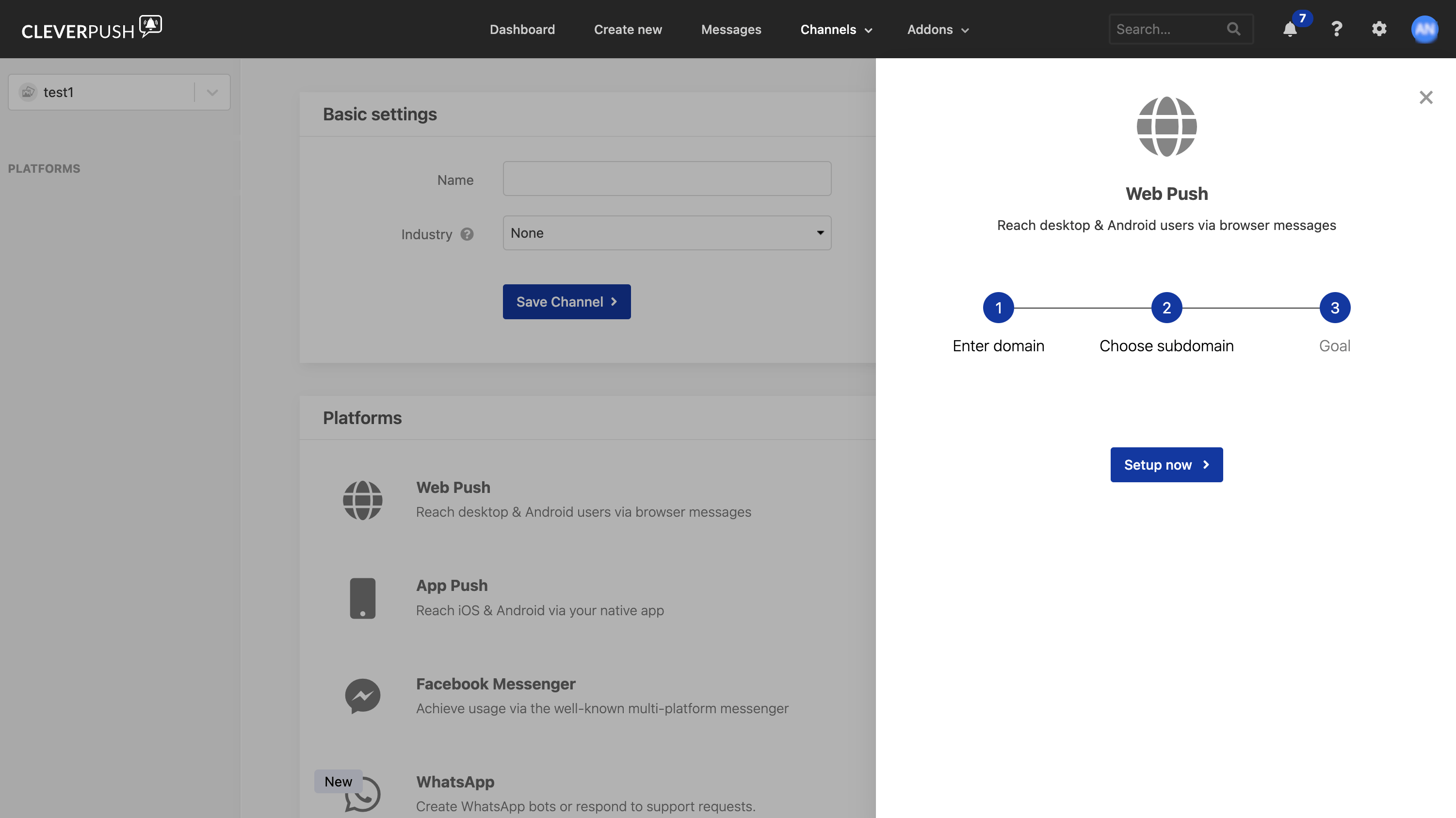
    Click **Setup now**.

    <Frame>
      <img src="https://mintcdn.com/zeotap/PbPkxJRQX6AvIPbW/articles/integrate-customer/Storage/integrate-customer/cleverpush_appendix/web_push_4.png?fit=max&auto=format&n=PbPkxJRQX6AvIPbW&q=85&s=2e3868a9bc0600c6b396f8c8ad40b6bc" width="3002" height="1686" data-path="articles/integrate-customer/Storage/integrate-customer/cleverpush_appendix/web_push_4.png" />
    </Frame>
  </Step>
</Steps>

## Setup App Push in Cleverpush

Perform the following steps to setup App Push in Cleverpush:

<Steps>
  <Step>
    Log into the Cleverpush console and navigate to **Channels** in the top navigation bar.
  </Step>

  <Step>
    Select the Channel you created and navigate to **Platforms**.
  </Step>

  <Step>
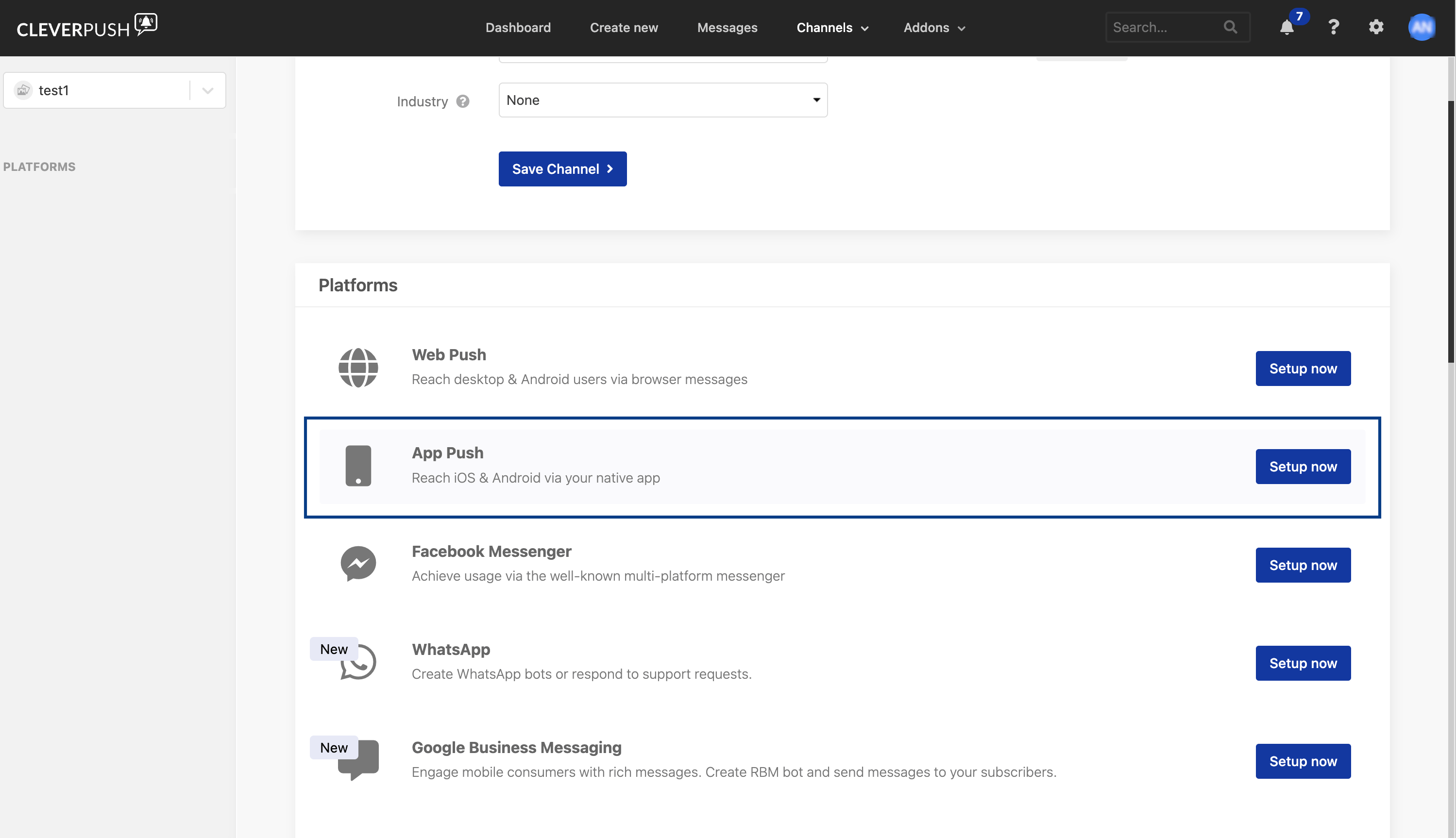
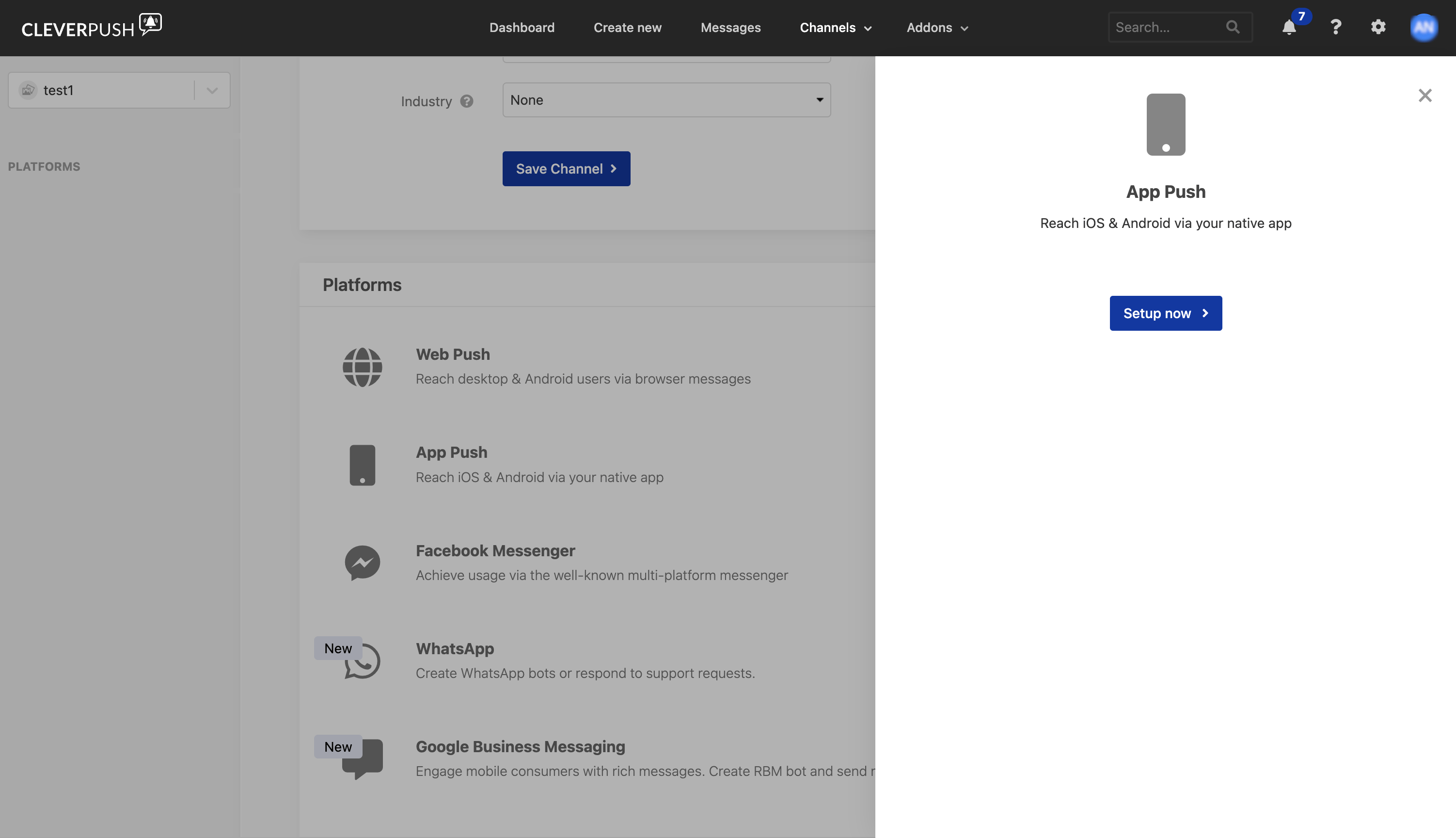
    Click **Setup now** next to App Push.

    <Frame>
      <img src="https://mintcdn.com/zeotap/PbPkxJRQX6AvIPbW/articles/integrate-customer/Storage/integrate-customer/cleverpush_appendix/App_push_1.png?fit=max&auto=format&n=PbPkxJRQX6AvIPbW&q=85&s=bfdcb69c2b9d43ab369664bd5751897a" width="2998" height="1726" data-path="articles/integrate-customer/Storage/integrate-customer/cleverpush_appendix/App_push_1.png" />
    </Frame>
  </Step>

  <Step>
    Click **Setup now**.

    <Frame>
      <img src="https://mintcdn.com/zeotap/PbPkxJRQX6AvIPbW/articles/integrate-customer/Storage/integrate-customer/cleverpush_appendix/app_push_2.png?fit=max&auto=format&n=PbPkxJRQX6AvIPbW&q=85&s=3e2af0317db26fe3a2c77b81c7436a6b" width="3004" height="1728" data-path="articles/integrate-customer/Storage/integrate-customer/cleverpush_appendix/app_push_2.png" />
    </Frame>
  </Step>

  <Step>
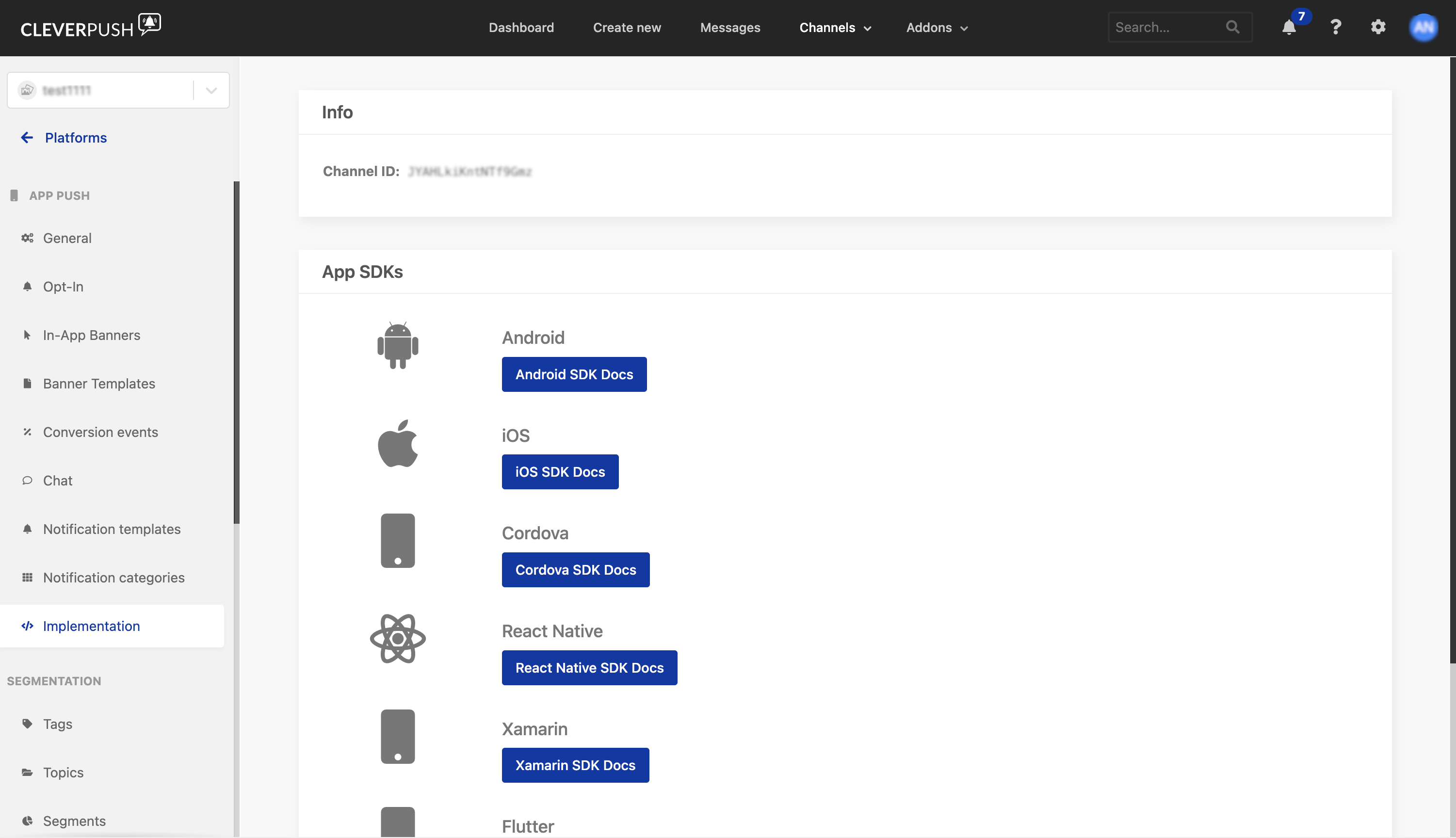
    Choose the relevant SDK documents to setup App Push.
    <Frame>
      <img src="https://mintcdn.com/zeotap/PbPkxJRQX6AvIPbW/articles/integrate-customer/Storage/integrate-customer/cleverpush_appendix/app_push_3.png?fit=max&auto=format&n=PbPkxJRQX6AvIPbW&q=85&s=1ba6cd3e59854d3b939dece637b4ad38" width="3002" height="1728" data-path="articles/integrate-customer/Storage/integrate-customer/cleverpush_appendix/app_push_3.png" />
    </Frame>
  </Step>
</Steps>

## Setup Email Push in Cleverpush

Perform the following steps to setup Email Push in Cleverpush:

<Steps>
  <Step>
    Log into the Cleverpush console and navigate to **Channels** in the top navigation bar.
  </Step>

  <Step>
    Select the Channel you created and navigate to **Platforms**.
  </Step>

  <Step>
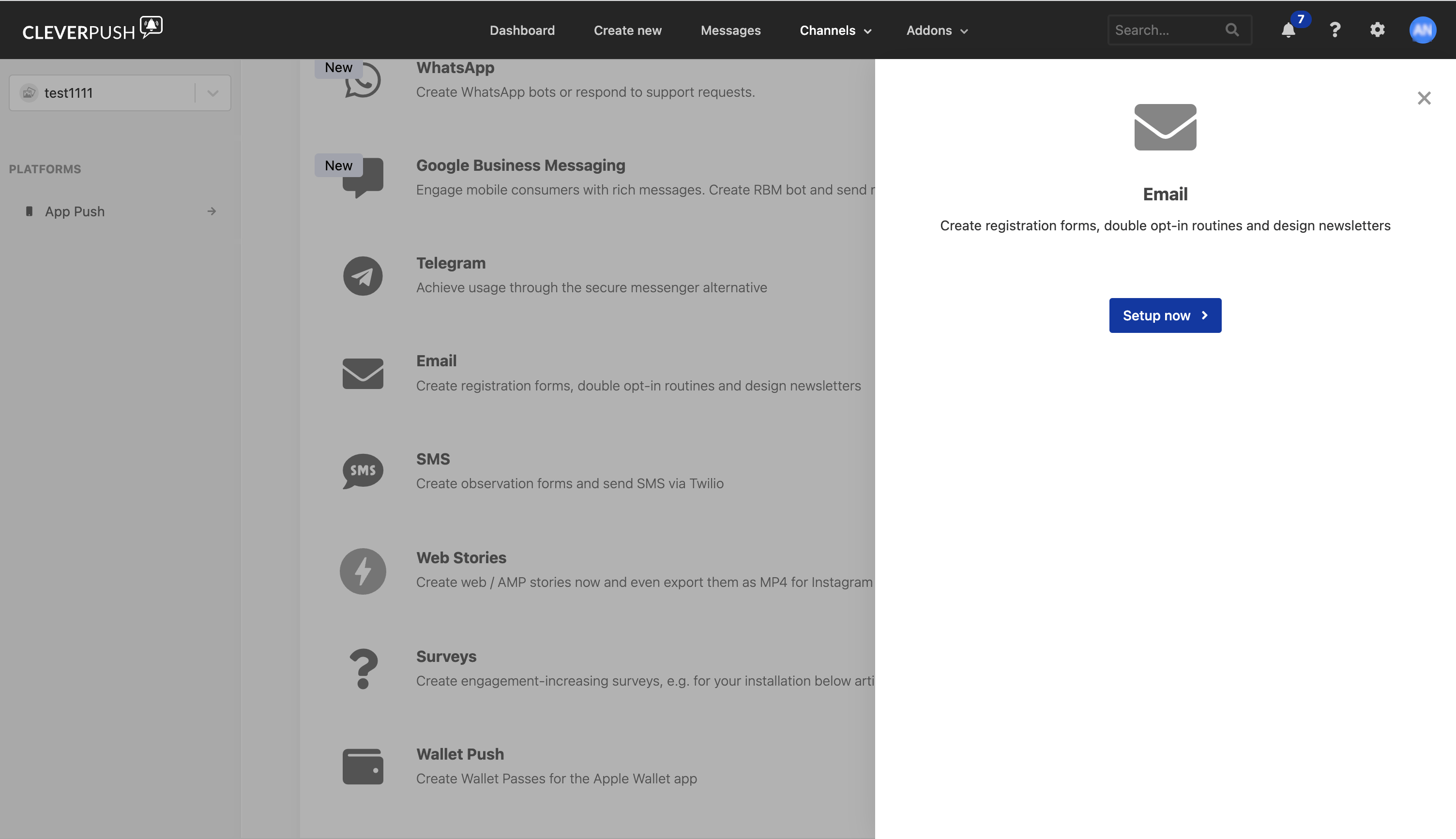
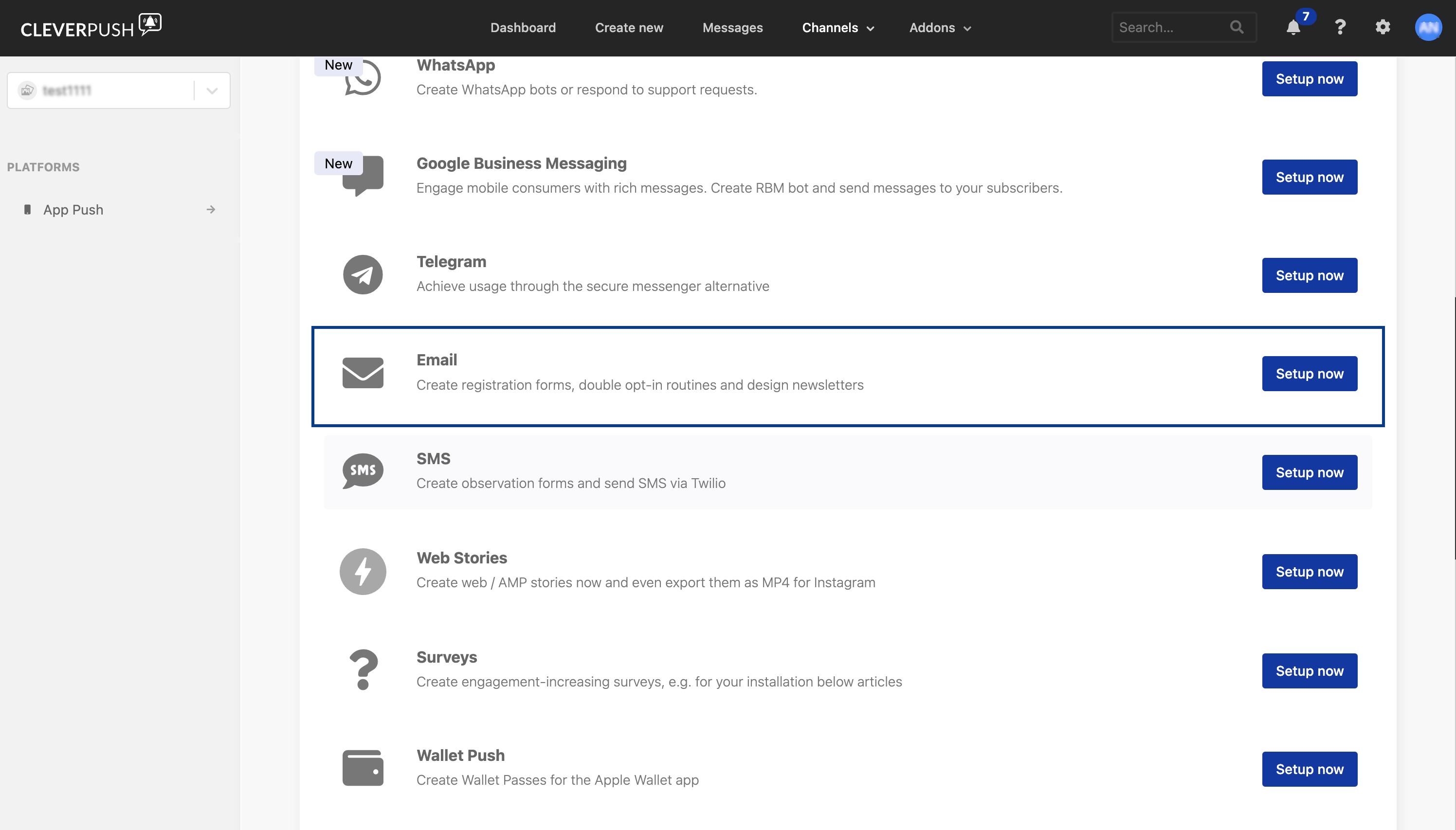
    Click **Setup now** next to Email Push.
    <Frame>
      <img src="https://mintcdn.com/zeotap/PbPkxJRQX6AvIPbW/articles/integrate-customer/Storage/integrate-customer/cleverpush_appendix/email_push_1.png?fit=max&auto=format&n=PbPkxJRQX6AvIPbW&q=85&s=4a90e7f64de4e577525e9948dd212c97" width="2992" height="1706" data-path="articles/integrate-customer/Storage/integrate-customer/cleverpush_appendix/email_push_1.png" />
    </Frame>
  </Step>

  <Step>
    Click **Setup now**.

    <Frame>
      <img src="https://mintcdn.com/zeotap/PbPkxJRQX6AvIPbW/articles/integrate-customer/Storage/integrate-customer/cleverpush_appendix/email_push_2.png?fit=max&auto=format&n=PbPkxJRQX6AvIPbW&q=85&s=7d795d081673f35f8b732a8312dbff0b" width="3008" height="1734" data-path="articles/integrate-customer/Storage/integrate-customer/cleverpush_appendix/email_push_2.png" />
    </Frame>
  </Step>
</Steps>