> ## Documentation Index
> Fetch the complete documentation index at: https://docs.zeotap.com/llms.txt
> Use this file to discover all available pages before exploring further.
# Batch Real Time Destination Integration
## Overview
Batch is a mobile marketing automation platform that enables marketers to engage with their mobile app users through push notifications, in-app messaging and email. Integrated with Zeotap it provides a range of features and capabilities that enable marketers to create personalised and relevant experiences for their users and drive engagement, retention and revenue. Use this real-time integration to send custom audiences to Batch. A custom audience can contain a list of custom user IDs, advertising IDs (GAID or IDFA) or install IDs.
## Prerequisites
Ensure that the following prerequisites are taken care of before proceeding with this integration:
* Ensure that you have a Batch account. After logging into the Batch account you are redirected to the Batch dashboard.
* Ensure that you have integrated or set up your mobile applications with Batch. The already integrated mobile applications appear on the Batch dashboard.
## Components of Batch
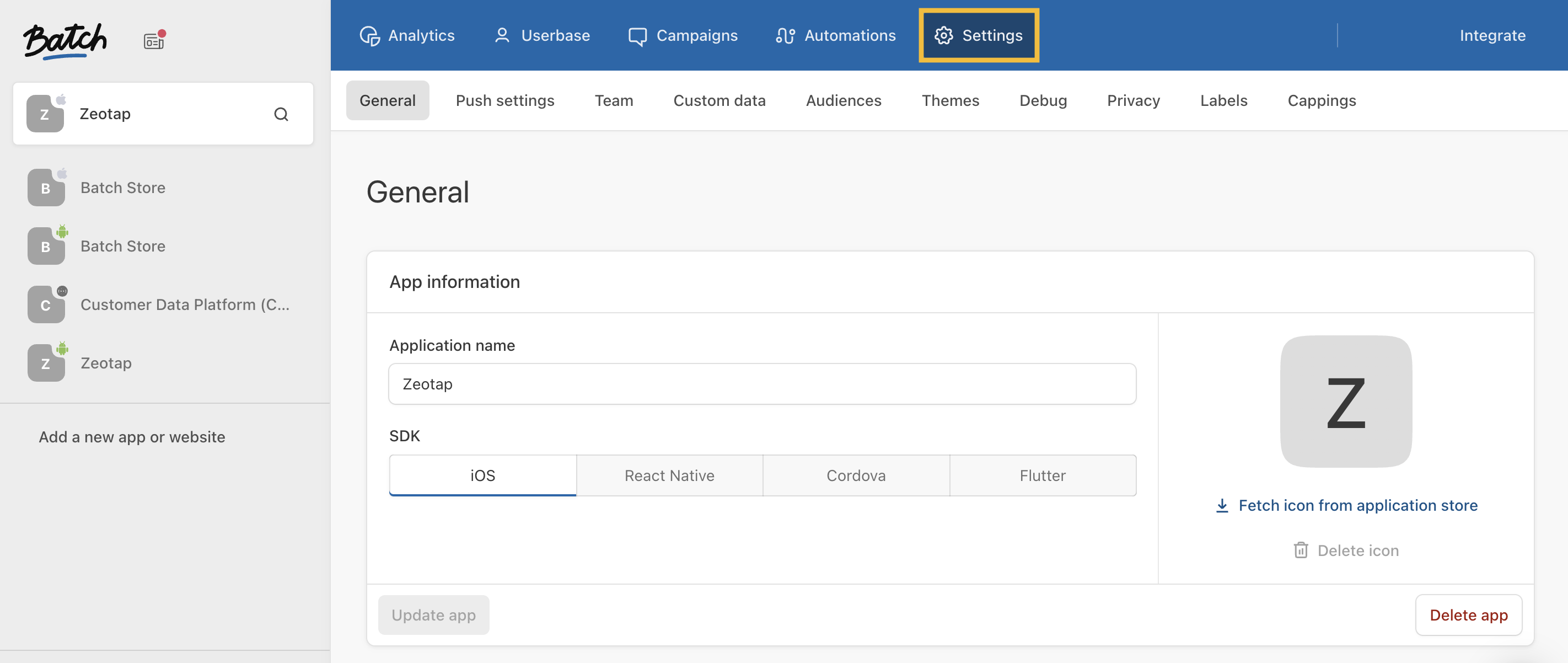
To understand the components of Batch, navigate to the Batch Dashboard and click SETTINGS from the top panel as shown below.
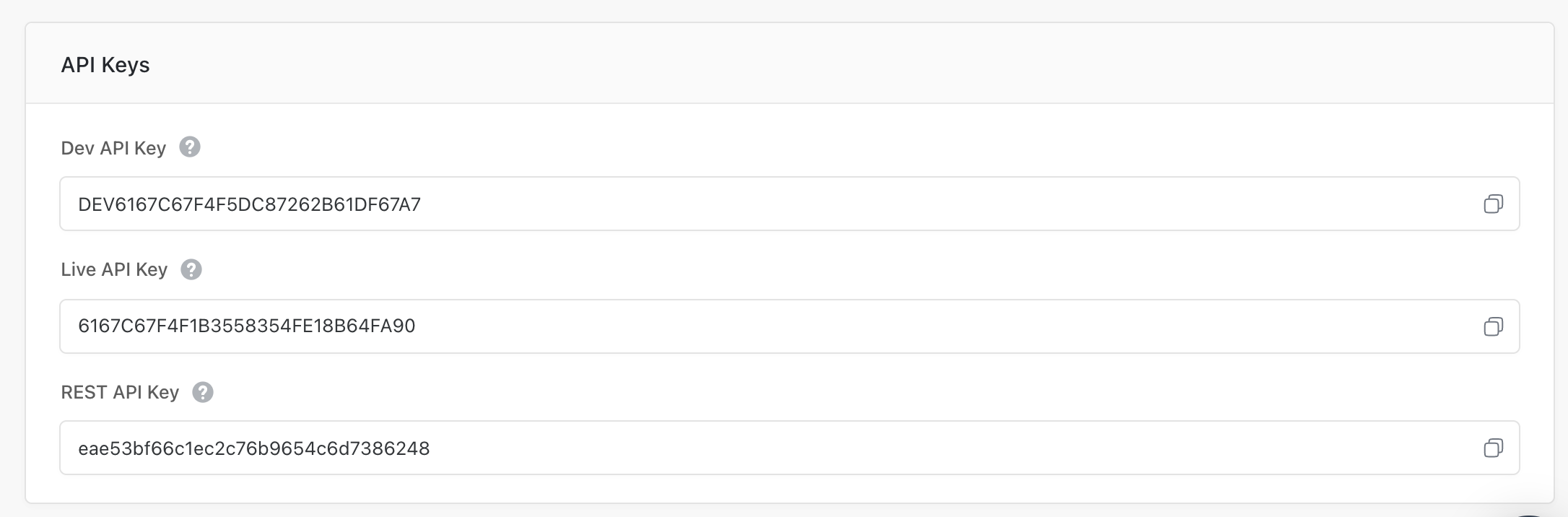
 The **General tab** of the **SETTINGS** page displays the API keys. Copy the **Live API Key** and **REST API Key** and use them while creating the destination.
 ## Destination Setup
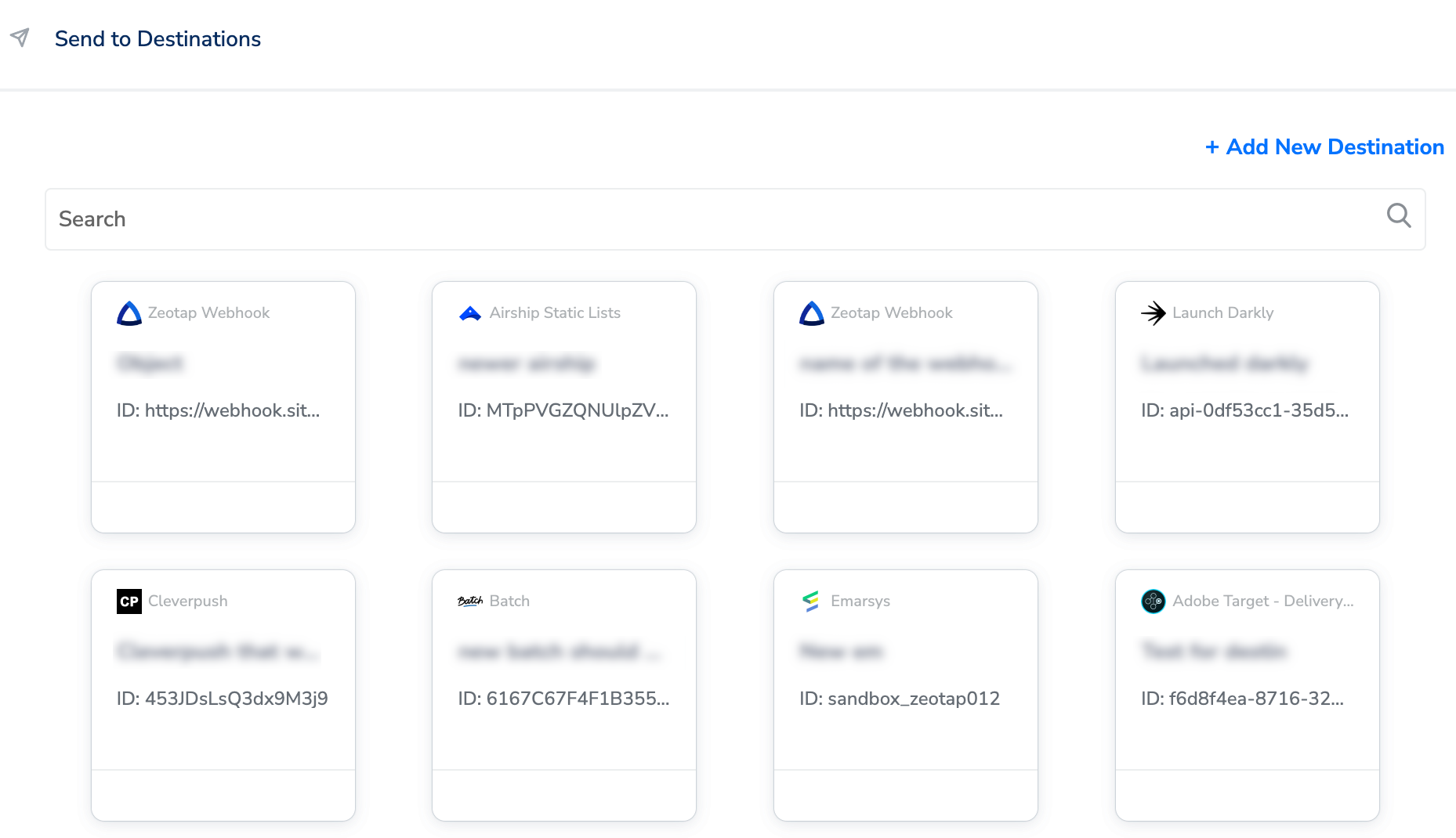
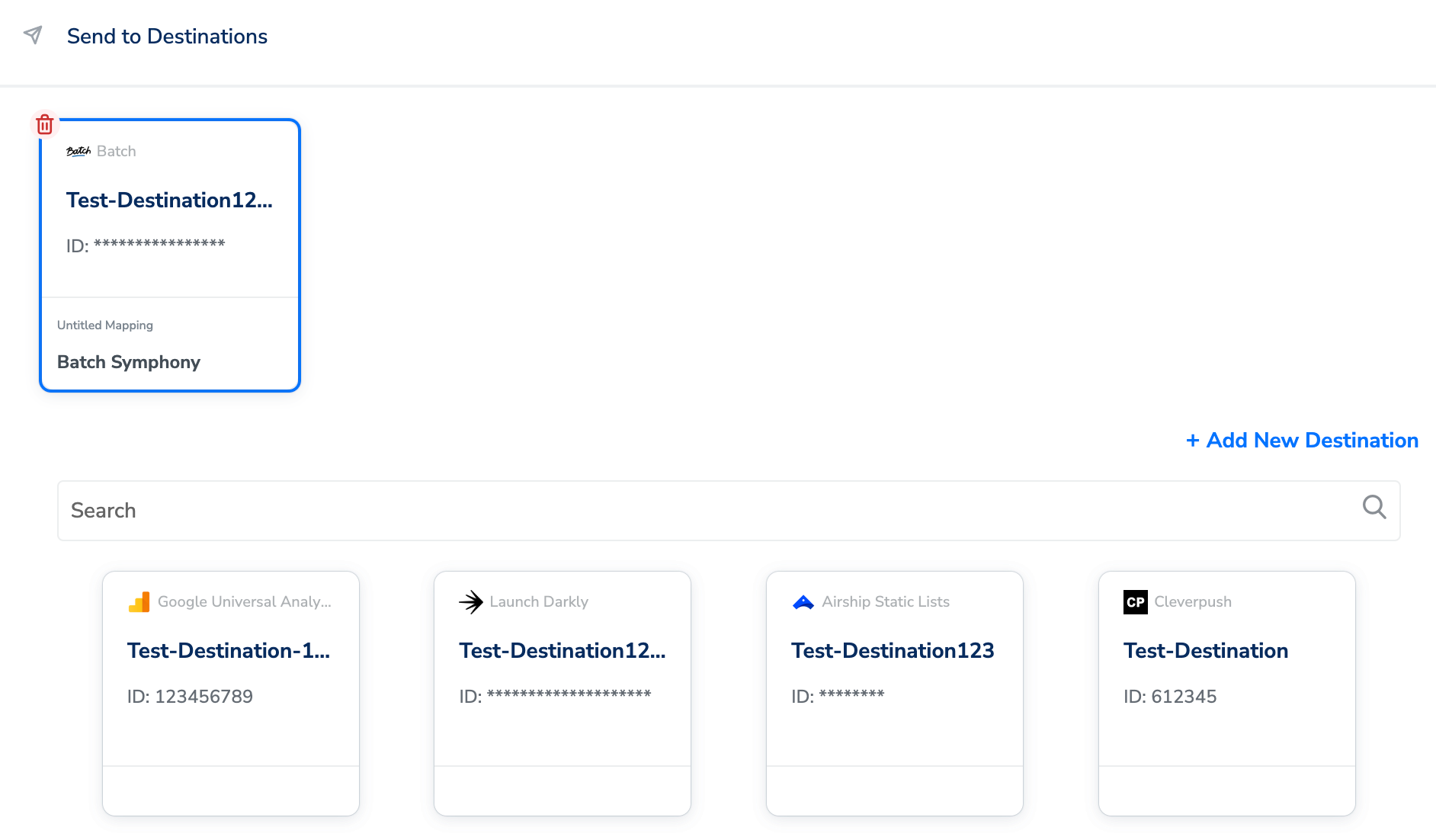
After you have applied filters or added conditions for your users in Journeys, you can activate them in Batch under **Send to Destinations.** A new window appears, where you can set up your destination. You can use an already existing destination from the list of available Destinations or create a new one by clicking **+ Add New Destination**.
## Destination Setup
After you have applied filters or added conditions for your users in Journeys, you can activate them in Batch under **Send to Destinations.** A new window appears, where you can set up your destination. You can use an already existing destination from the list of available Destinations or create a new one by clicking **+ Add New Destination**.
 ### Add New Destination
Perform the following steps to add a new destination:
Click **Add New Destination.**
Search for **Batch.**
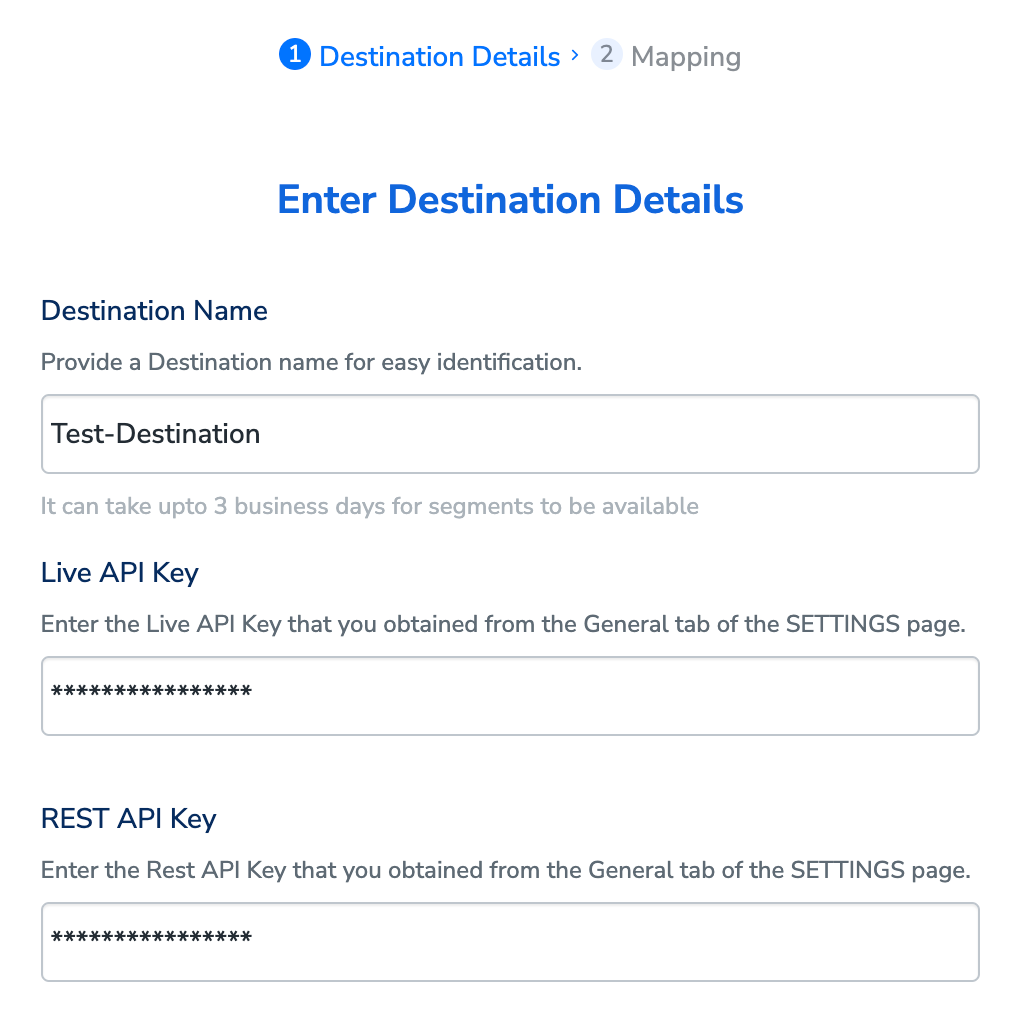
Click **Batch** and enter a name for the Destination.
Add the **Live API Key** and **Rest API Key** that you obtained from Batch and click **Next**. [Learn more](/articles/integrate-customer/batch-real-time-destination-integration#h1__1215361119)
### Add New Destination
Perform the following steps to add a new destination:
Click **Add New Destination.**
Search for **Batch.**
Click **Batch** and enter a name for the Destination.
Add the **Live API Key** and **Rest API Key** that you obtained from Batch and click **Next**. [Learn more](/articles/integrate-customer/batch-real-time-destination-integration#h1__1215361119)
 In the mapping screen that appears, under **Choose your Action**, select **Batch Symphony** as the action for sending data from the workflow created in Journeys. Under **Map the Fields**, map the Catalogue fields to relevant Destination fields as per your requirement.
**Note:**
When mapping fields in event attributes, make sure you use lower case. The values allowed here are a-z0-9\_
In the mapping screen that appears, under **Choose your Action**, select **Batch Symphony** as the action for sending data from the workflow created in Journeys. Under **Map the Fields**, map the Catalogue fields to relevant Destination fields as per your requirement.
**Note:**
When mapping fields in event attributes, make sure you use lower case. The values allowed here are a-z0-9\_
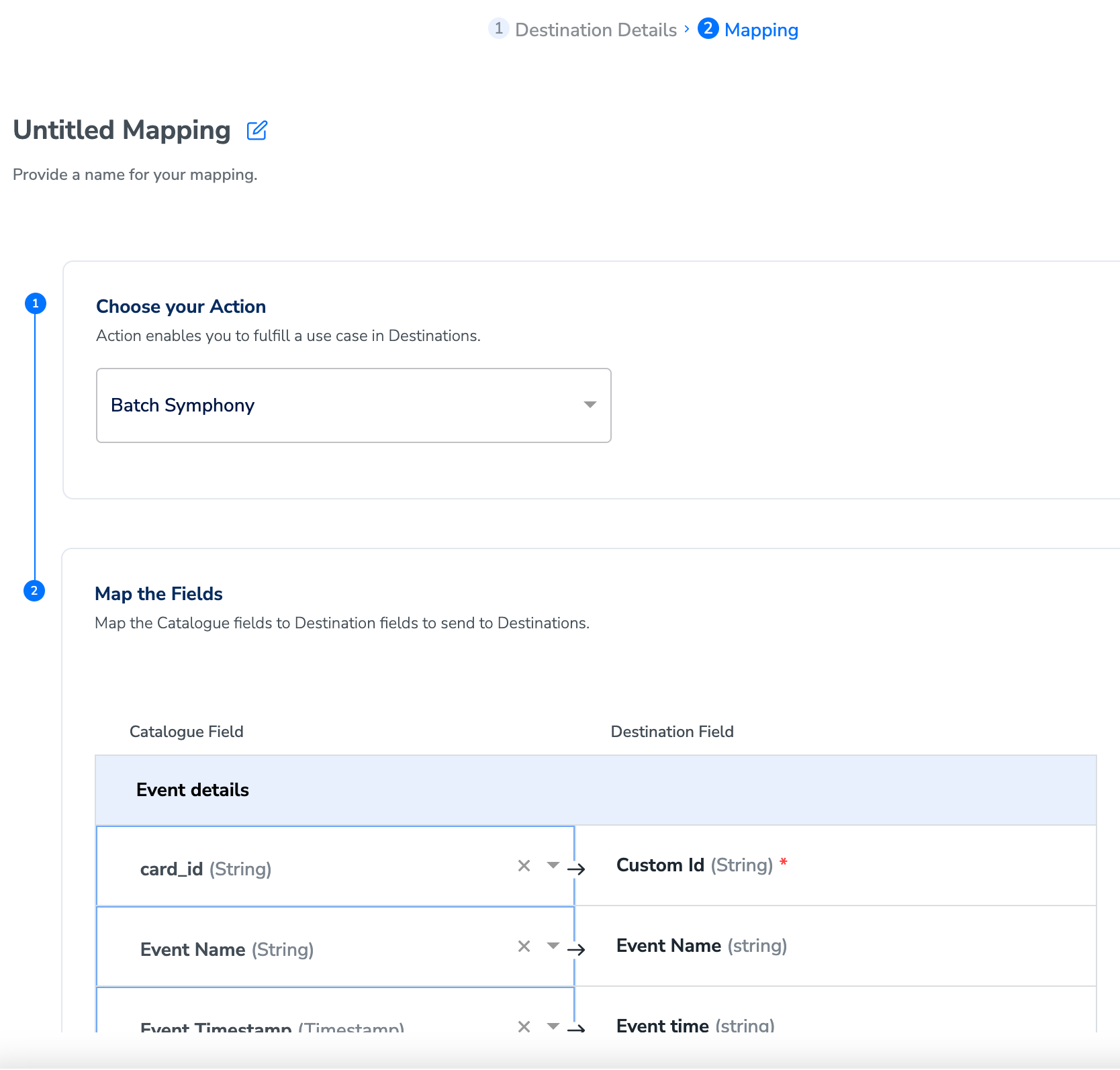 Once the mapping is complete, click **Create Destination**. The destination is created and made available for activation on Journeys.
## Activate the Destination on Journeys
After creating a destination, next, you need to link it in the **Send to Destination** node within the workflow, as explained below.
In the workflow, click **+** and choose **Send to Destinations**.
Once the mapping is complete, click **Create Destination**. The destination is created and made available for activation on Journeys.
## Activate the Destination on Journeys
After creating a destination, next, you need to link it in the **Send to Destination** node within the workflow, as explained below.
In the workflow, click **+** and choose **Send to Destinations**.
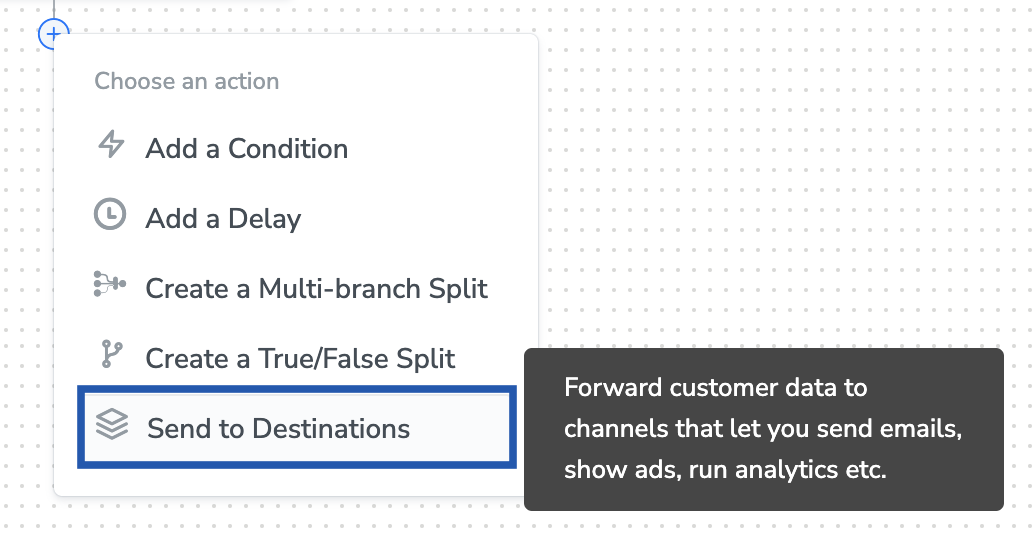 Choose the destination from the list of available destinations by using the search feature.
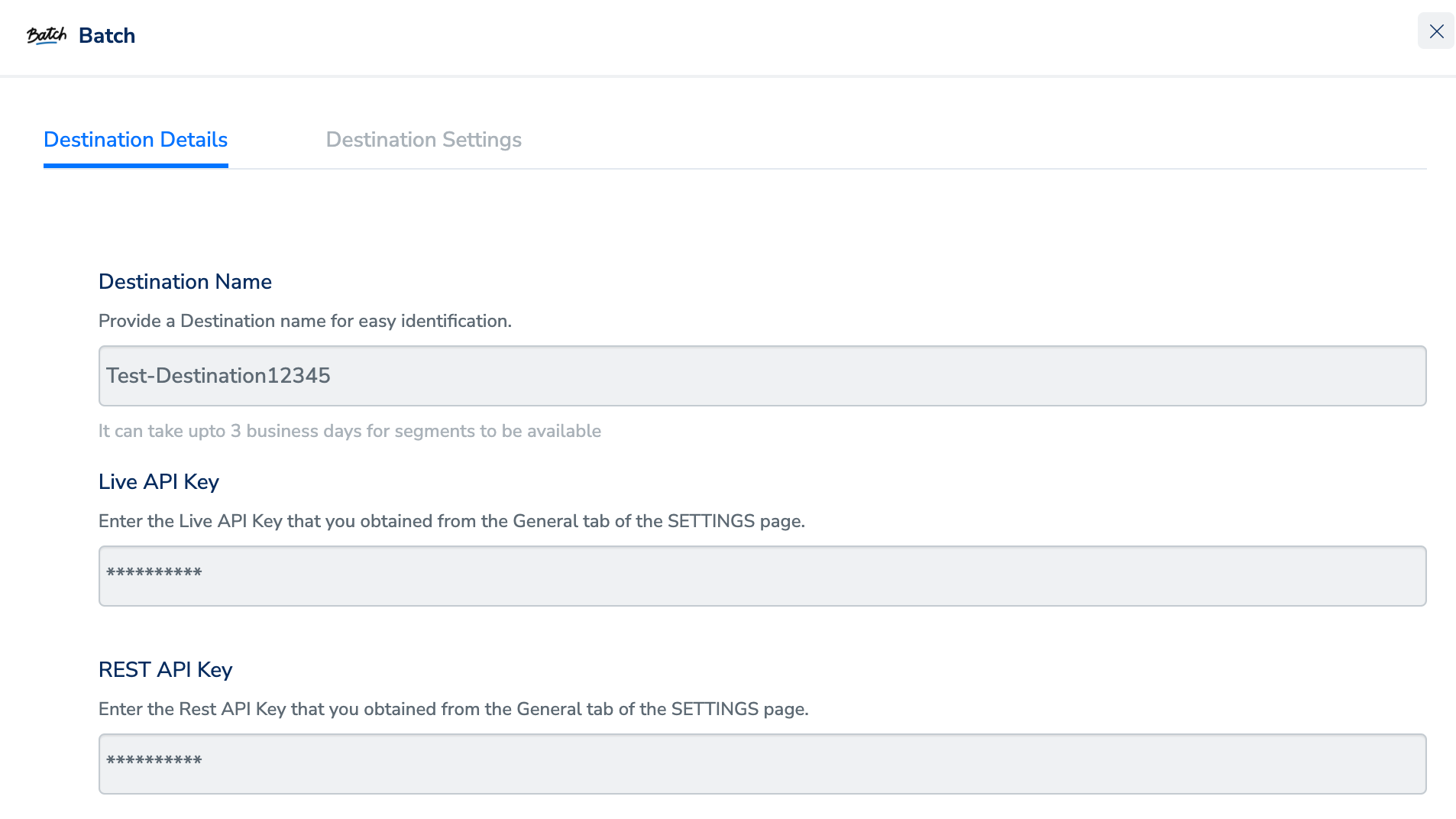
Under the **Destination Details** tab, the **Live API Key** and **Rest API Keys** fields are automatically populated based on the value that you had entered while creating the destination. However, under the **Audiences** field, you need to enter a name to categorise your users.
Choose the destination from the list of available destinations by using the search feature.
Under the **Destination Details** tab, the **Live API Key** and **Rest API Keys** fields are automatically populated based on the value that you had entered while creating the destination. However, under the **Audiences** field, you need to enter a name to categorise your users.
 Under the **Destination Settings** tab, choose the Action and mapping as per your requirement.
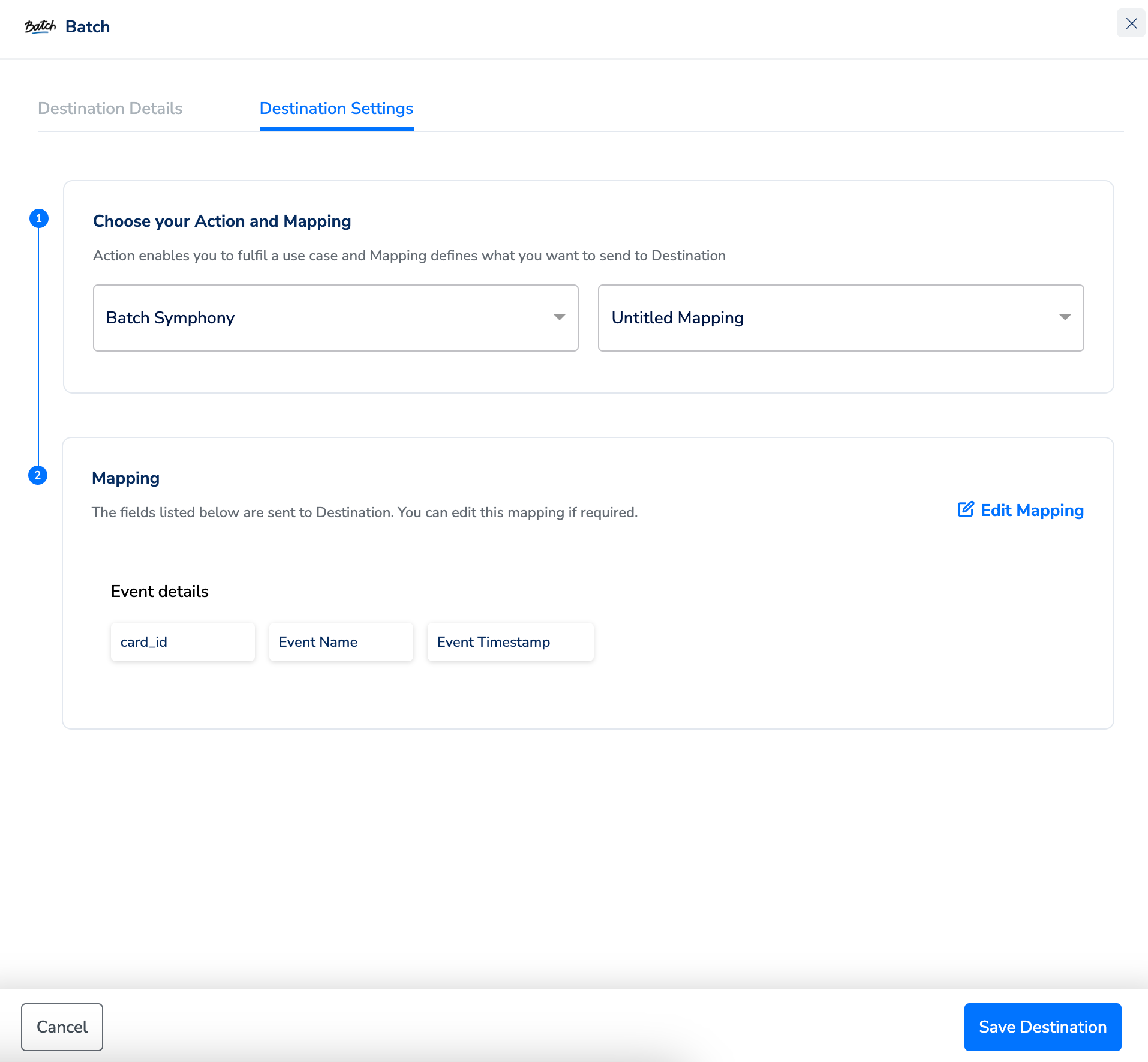 Upon clicking **Save Destination**. The destination is attached as shown in the image below.
 ## View Events Sent on Batch Dashboard
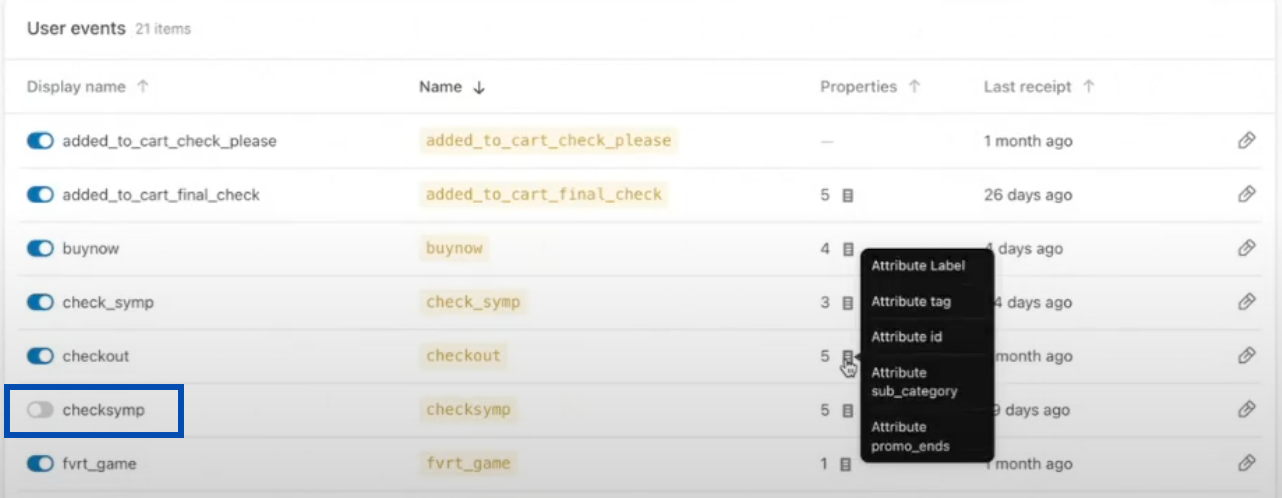
In the Batch dashboard, you can find all the User Traits, Events and other attributes shared from Zeotap to Batch under **Settings** > **Custom data**.
## View Events Sent on Batch Dashboard
In the Batch dashboard, you can find all the User Traits, Events and other attributes shared from Zeotap to Batch under **Settings** > **Custom data**.
 Ensure that you enable these events and attributes to view them on the **Userbase**, where you can create automations. To do so, click the toggle button against the attribute and click **save** when prompted. Note that by hovering the cursor on the **Properties** of the attributes, you can view all the event details that are sent along.
 ## Create Push Trigger Automation in Batch
To create a push trigger automation in Batch, perform the following steps:
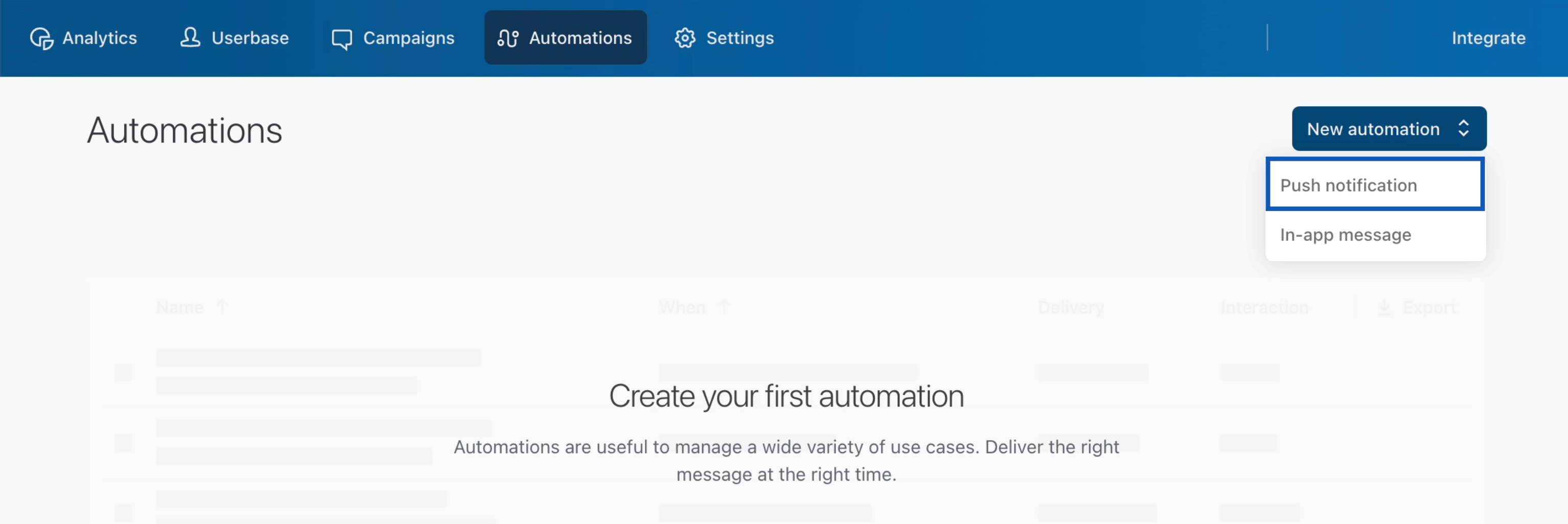
In the Batch dashboard, go to **Automations** and click **New Automation.**
Choose either **Push notification** or **I** **n-app message** as per your requirement.
## Create Push Trigger Automation in Batch
To create a push trigger automation in Batch, perform the following steps:
In the Batch dashboard, go to **Automations** and click **New Automation.**
Choose either **Push notification** or **I** **n-app message** as per your requirement.
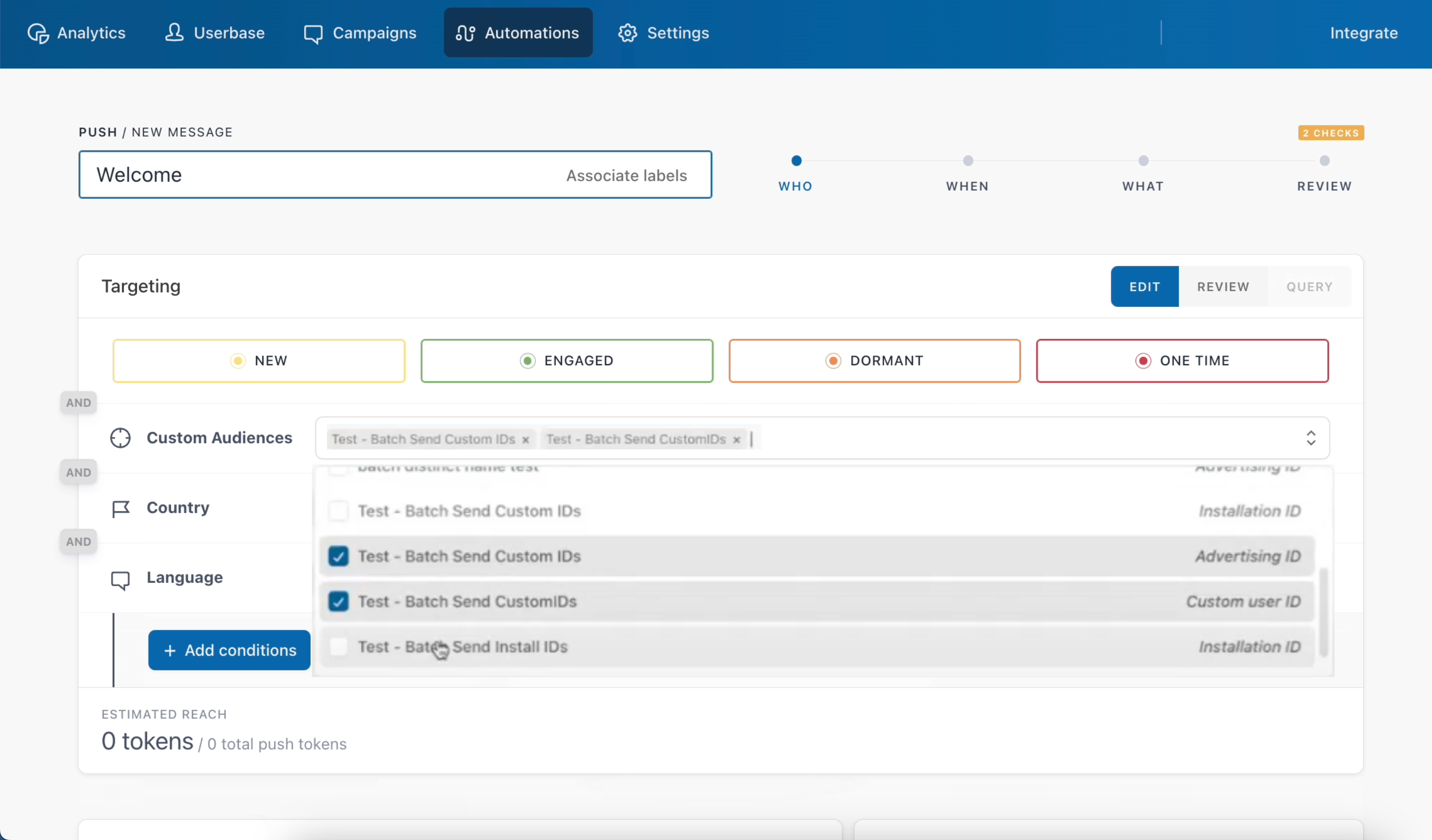
 Based on the campaign type you choose, enter the required details as mentioned in the following steps:
a. Enter a descriptive name for the automation.
b. Under Custom Audiences, choose the desired audiences using the drop-down menu. This is an optional step.
Based on the campaign type you choose, enter the required details as mentioned in the following steps:
a. Enter a descriptive name for the automation.
b. Under Custom Audiences, choose the desired audiences using the drop-down menu. This is an optional step.
 c. Choose the event following which, the notification must be sent.
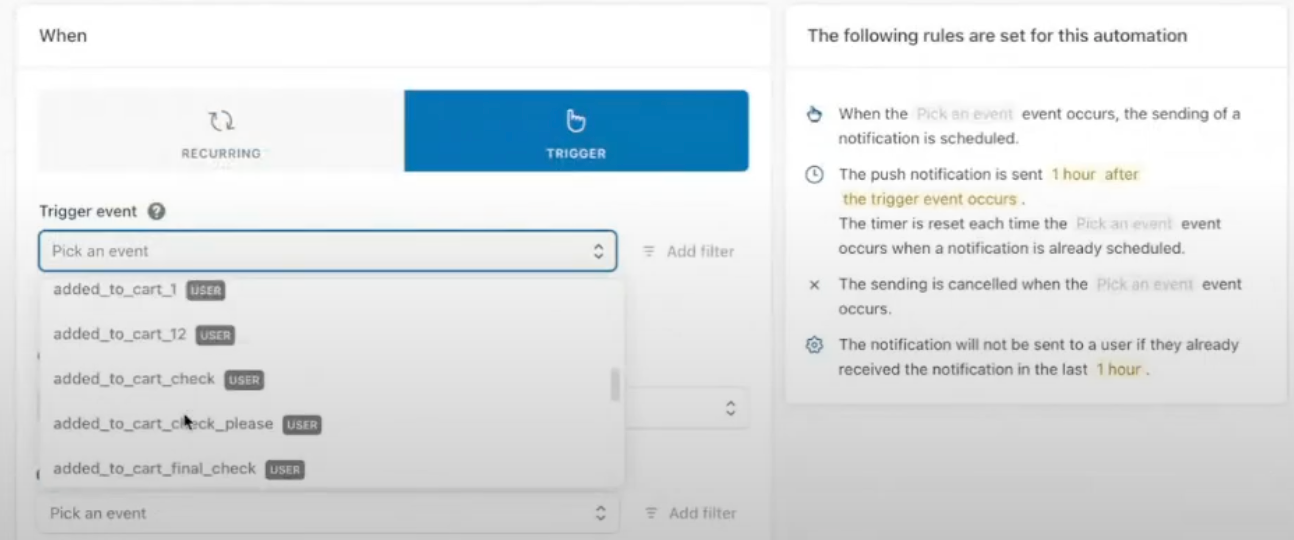 d. Enter the message to be shared with the customers in the notification, once the event is triggered.
Click **Save and run** to start the automation. You can tailor the automation configurations according to your specific requirements.
**Note:**
Below are some important links from Batch documentation.
* To learn more about how to create a push trigger automation in Batch, click [here](https://help.batch.com/en/articles/8304310-how-to-create-a-push-trigger-automation).
* To learn more about how to create your first email trigger automation in Batch, click [here](https://help.batch.com/en/articles/8281909-how-to-create-your-first-email-trigger-automation-on-the-dashboard).
d. Enter the message to be shared with the customers in the notification, once the event is triggered.
Click **Save and run** to start the automation. You can tailor the automation configurations according to your specific requirements.
**Note:**
Below are some important links from Batch documentation.
* To learn more about how to create a push trigger automation in Batch, click [here](https://help.batch.com/en/articles/8304310-how-to-create-a-push-trigger-automation).
* To learn more about how to create your first email trigger automation in Batch, click [here](https://help.batch.com/en/articles/8281909-how-to-create-your-first-email-trigger-automation-on-the-dashboard).