> ## Documentation Index
> Fetch the complete documentation index at: https://docs.zeotap.com/llms.txt
> Use this file to discover all available pages before exploring further.
# Archived Source
As a Zeotap Admin, you can archive and unarchive a source from the Source listing page. After archiving a source, Zeotap does not delete the already ingested data for that source. However, all future ingestions are paused for the archived source.
## Archiving a Source
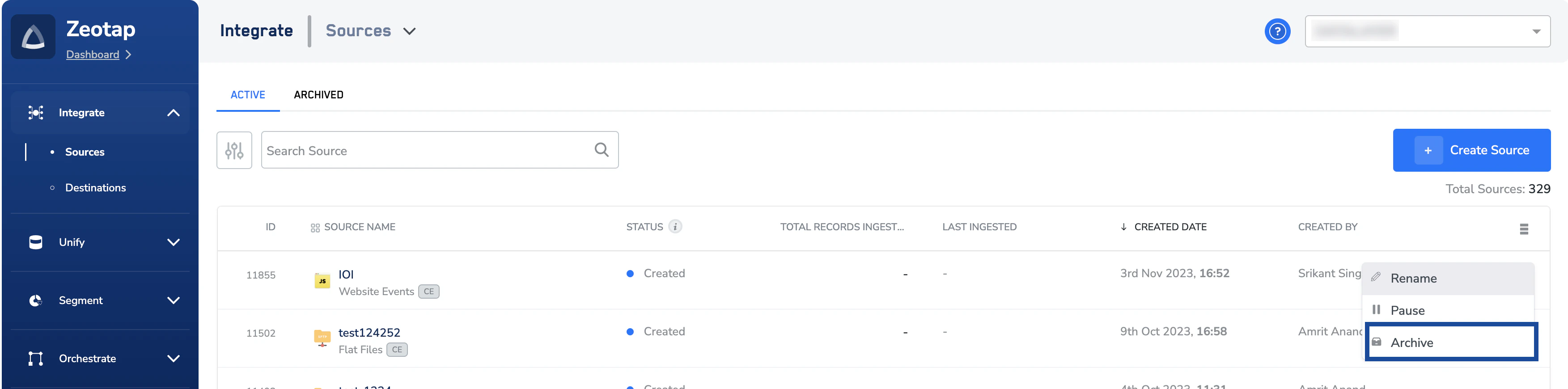
To archive a source, click the More option and then choose **ARCHIVE** from the drop-down menu.
 The **SOURCES** tab is now sub-divided into **ACTIVE** and **ARCHIVED** tabs. The archived source appears under the **ARCHIVED** tab. As mentioned above, all future ingestions to this source are paused. For streaming sources, ensure to remove the Zeotap pixel/SDK from your pages.
## Unarchiving a Source
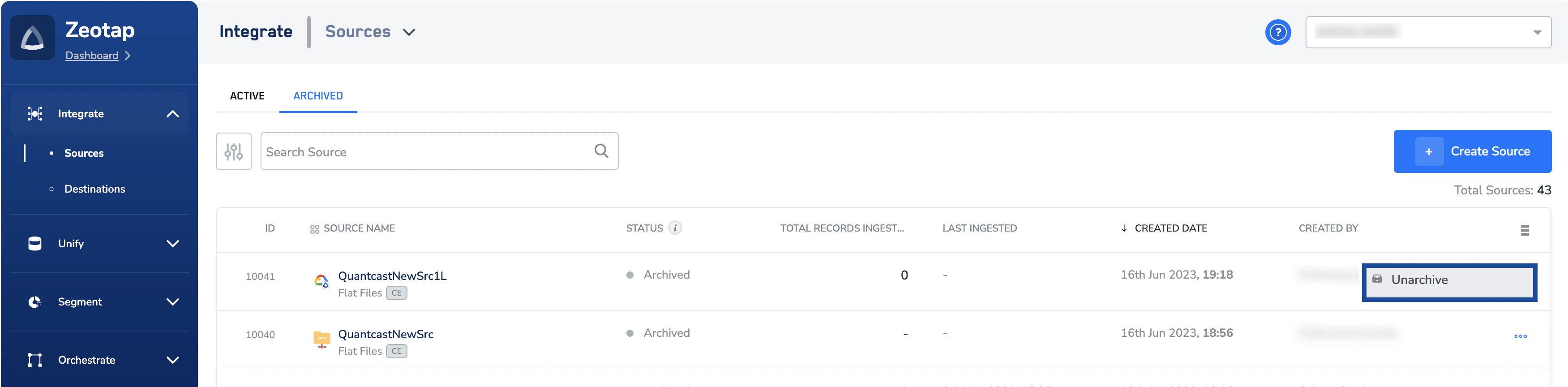
You can any time choose to unarchive an already archived source. To unarchive, click the More option and then choose **UNARCHIVE** from the drop-down menu. Once the source is unarchived, the file ingestion is resumed if there are files to ingest. Note that if the Zeotap tag was pushing any streaming data, then the same is resumed from the moment the source is unarchived.
The **SOURCES** tab is now sub-divided into **ACTIVE** and **ARCHIVED** tabs. The archived source appears under the **ARCHIVED** tab. As mentioned above, all future ingestions to this source are paused. For streaming sources, ensure to remove the Zeotap pixel/SDK from your pages.
## Unarchiving a Source
You can any time choose to unarchive an already archived source. To unarchive, click the More option and then choose **UNARCHIVE** from the drop-down menu. Once the source is unarchived, the file ingestion is resumed if there are files to ingest. Note that if the Zeotap tag was pushing any streaming data, then the same is resumed from the moment the source is unarchived.