> ## Documentation Index
> Fetch the complete documentation index at: https://docs.zeotap.com/llms.txt
> Use this file to discover all available pages before exploring further.
# Amazon Marketing Cloud (AMC)
## Overview
Amazon Marketing Cloud (AMC) offers a secure, privacy-safe, cloud-based clean room environment. AMC enables partners and advertisers to analyse pseudonymised data, generate custom queries and develop audiences for campaign execution. It supports creating reports based on event-level Amazon Ads data, such as impressions, clicks and purchase events.
By integrating Zeotap CDP with AMC, advertisers can transfer strategic CDP segments to AMC in a pseudonymised format. This integration combines CDP data with Amazon Ads signals, delivering insights on media impact, audience segmentation, segment overlap and customer journeys while maintaining privacy. It improves campaign targeting and optimisation.
## Supported Identifiers/Attributes
This integration supports the following identifiers and attributes:
* External User ID
* Hashed Email Addresses (SHA256)
* Hashed Cellphone Numbers (SHA256)
* First Name
* Last Name
* Address
* City
* State
* Postal
* Country Code
## Available Actions and Supported Features
The following table lists the available action types for the integration and the supported features for each action type:
| Action Name | [ID EXTENSION](/articles/segment-customer/extend-your-audience#id-extension) | [DELETE](https://docs.zeotap.com/articles/#!integrate-customer/delta-upload-and-delete-functions) | [DELTA UPLOAD](https://docs.zeotap.com/articles/#!integrate-customer/delta-upload-and-delete-functions) |
| :----------------------------------------------- | :--------------------------------------------------------------------------- | :------------------------------------------------------------------------------------------------ | :------------------------------------------------------------------------------------------------------ |
| Send Identifiers and Attributes to AMC Audiences | - | - | - |
## Components of Amazon Marketing Cloud
Ensure that you have the following details about the Amazon Marketing Cloud available before creating a Destination:
* Connection ID
* Audience Country
* Region
### Connection ID
Connections are objects managed by Amazon Ads that store the mapping of AMC instances and Amazon DSP advertiser IDs. These connections serve as targets for audience creation, targeting and activation.
AMC accounts come in two types:
* Account fully managed by Amazon
* Self-serve account
For accounts that are fully managed by Amazon, the Amazon POC creates a Connection ID on your behalf. You need to obtain that ID and provide it while creating a Destination in Zeotap CDP.
For self-serve accounts, you must set up a connection between the partner (Zeotap CDP) and your AMC instances and/or DSP advertisers to send audiences to AMC. To do this, make an API call to the AMC API mentioned below with the necessary parameters and schema. The response will include the Connection ID, which needs to be provided for Destination creation in Zeotap CDP. For more information about generating the Connection ID, refer [here](https://advertising.amazon.com/API/docs/en-us/amc-advertiser-audience#tag/Connections/operation/AmcpLinkAddConnectionV2).
```bash theme={null}
application/vnd.amcaudiencesconnections.v1+json
```
### Country
This is the country where the customer data is collected (for example, Belgium and Switzerland). You can choose the country from the drop-down menu. However, we convert it into 2-character string in the ISO 3166 format as required by AMC.
You can set the country at the following two levels:
* **audience metadata-level -** This is the country that you choose while creating a Destination. This field applies to all customers who qualify for a particular audience linked to the Destination.
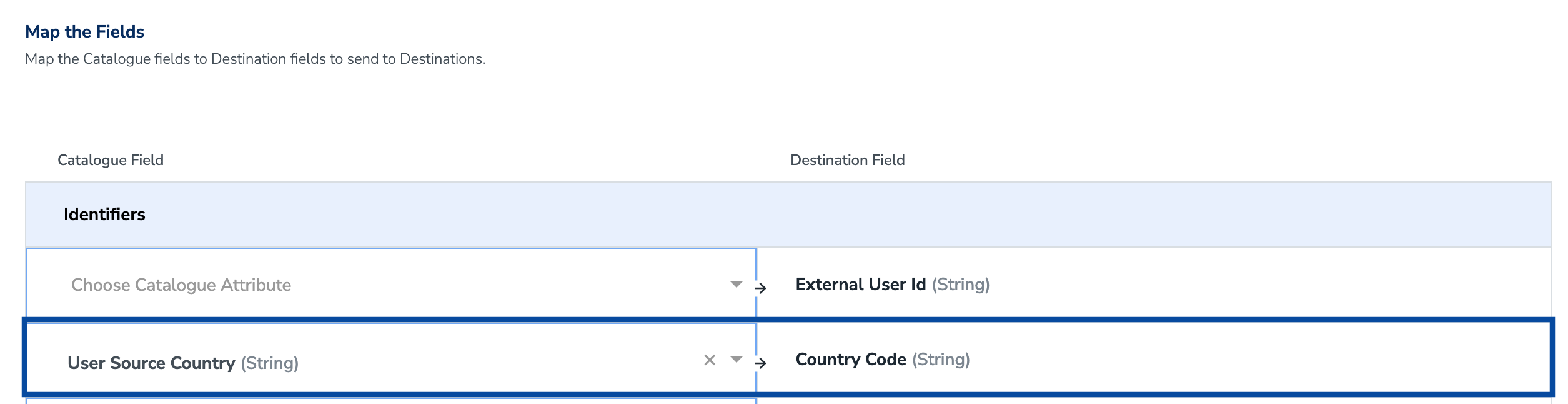
* **record-level** - This is the field that you map for Country Code in the **Actions and Mapping** screen. Note that we support a catalogue field named User Source Country, which continuously updates with the latest country information of the customer entering the system. We recommend mapping User Source Country to Country Code to get the latest record-level information.
 **Note:**
A country code added at the record-level will supersede a country code added at the Audience level when there is a conflict.
### Region
This is the region to which your Amazon Marketing Cloud instance is subscribed. To manage Amazon DSP audiences, choose the appropriate region based on your Amazon DSP Advertiser Account region (North America or Europe). Note that audiences are sent to connected AMC instances regardless of the endpoint region provided.
## Create a Destination for Audience Marketing Cloud (AMC)
Perform the following steps to create a Destination for Audience Marketing Cloud (AMC):
Log into the Zeotap CDP App and go to the **DESTINATIONS** application.
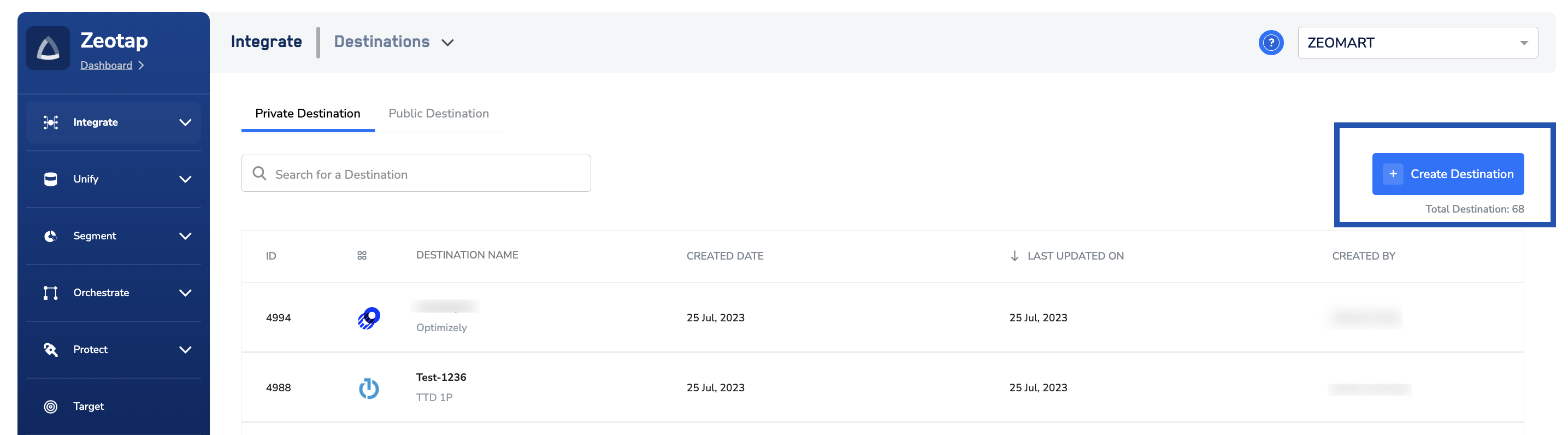
Click **+ Create Destination.**
**Note:**
A country code added at the record-level will supersede a country code added at the Audience level when there is a conflict.
### Region
This is the region to which your Amazon Marketing Cloud instance is subscribed. To manage Amazon DSP audiences, choose the appropriate region based on your Amazon DSP Advertiser Account region (North America or Europe). Note that audiences are sent to connected AMC instances regardless of the endpoint region provided.
## Create a Destination for Audience Marketing Cloud (AMC)
Perform the following steps to create a Destination for Audience Marketing Cloud (AMC):
Log into the Zeotap CDP App and go to the **DESTINATIONS** application.
Click **+ Create Destination.**
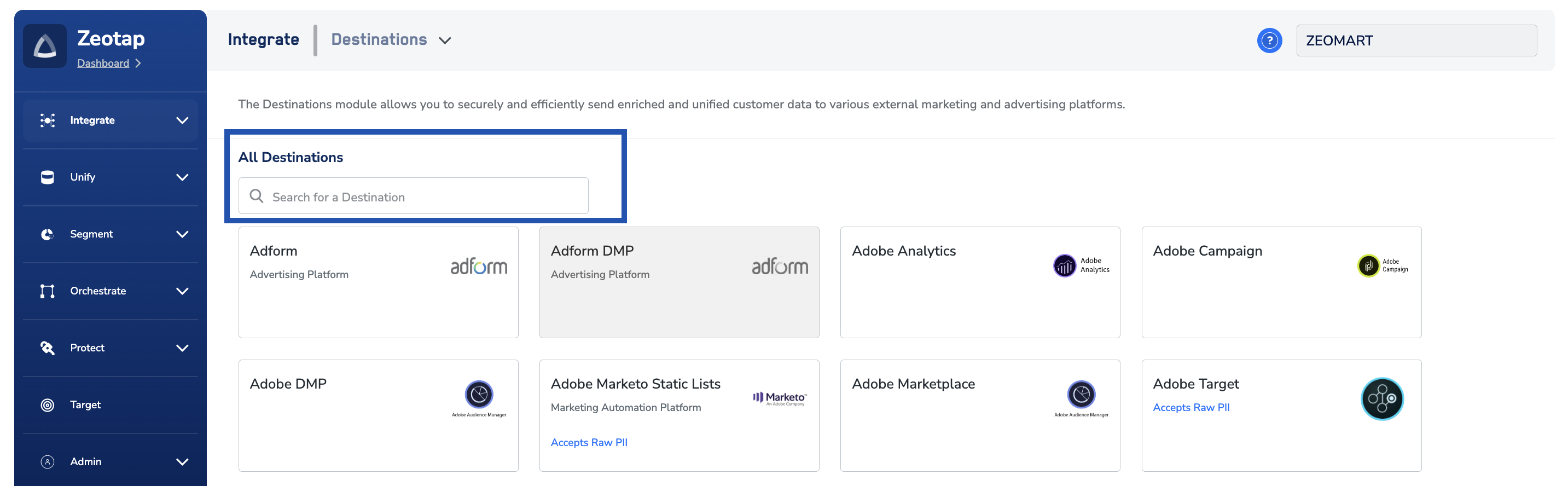
 Under the **All Destinations** section, search for **Audience Marketing Cloud (AMC)**.
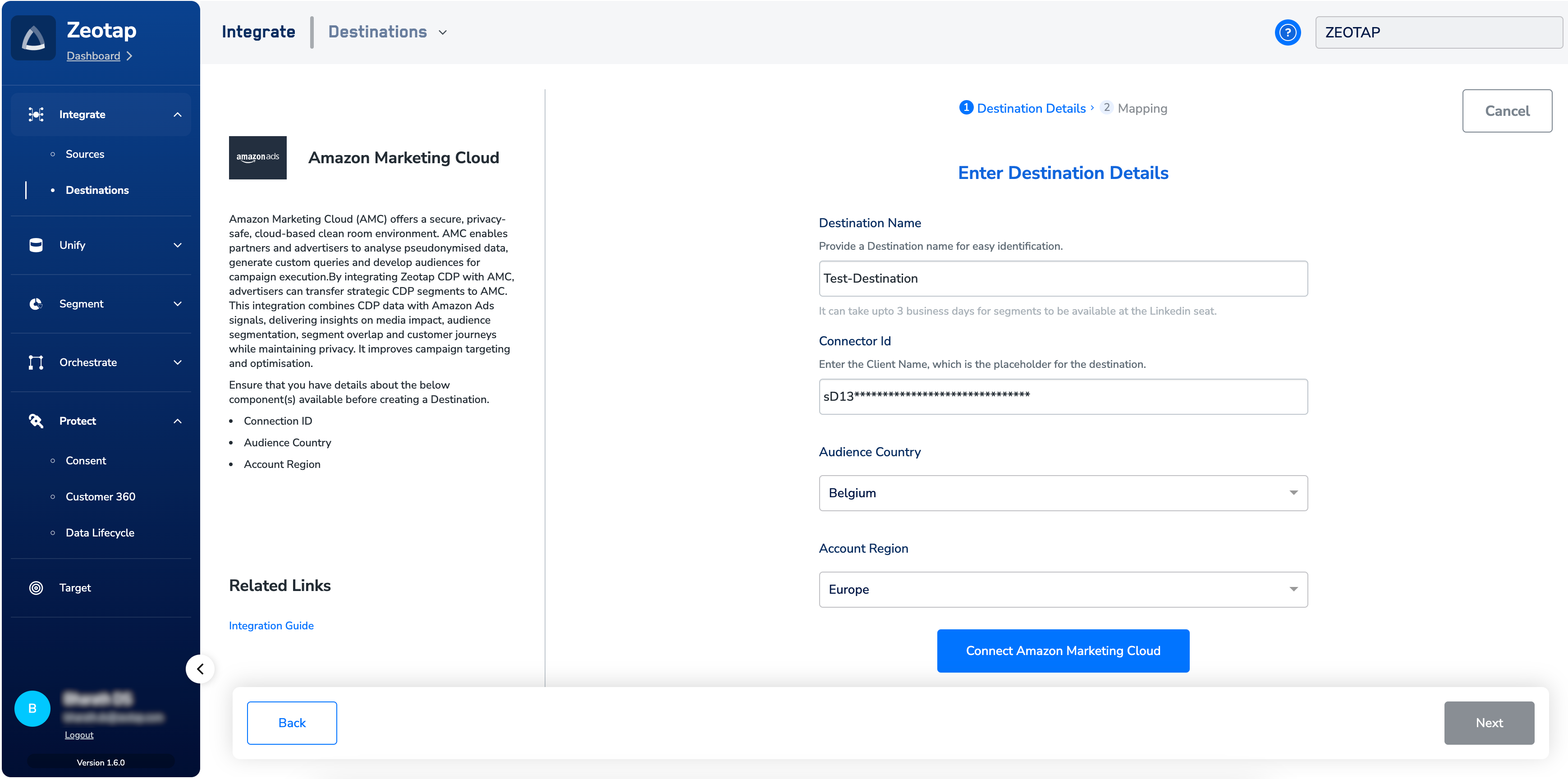
 Click **Audience Marketing Cloud (AMC)**. A screen appears displaying details about the particular destination towards the left. On the right-hand side of the screen find a list of fields that are required for the integration to be established. Enter the required details as mentioned in the following steps:
a. Enter a name for the Destination.
b. Enter the **Connection ID** for your advertiser account on AMC. For more information about how to obtain it, refer [here](https://zeotap.atlassian.net/wiki/spaces/DD/pages/edit-v2/3993239583#Connection-ID).
c. Choose the **country** where the customer data is collected.
d. Choose the **region** to which your Amazon Marketing Cloud instance is subscribed.
e. Click **Connect to Amazon Marketing Cloud**.
Click **Audience Marketing Cloud (AMC)**. A screen appears displaying details about the particular destination towards the left. On the right-hand side of the screen find a list of fields that are required for the integration to be established. Enter the required details as mentioned in the following steps:
a. Enter a name for the Destination.
b. Enter the **Connection ID** for your advertiser account on AMC. For more information about how to obtain it, refer [here](https://zeotap.atlassian.net/wiki/spaces/DD/pages/edit-v2/3993239583#Connection-ID).
c. Choose the **country** where the customer data is collected.
d. Choose the **region** to which your Amazon Marketing Cloud instance is subscribed.
e. Click **Connect to Amazon Marketing Cloud**.
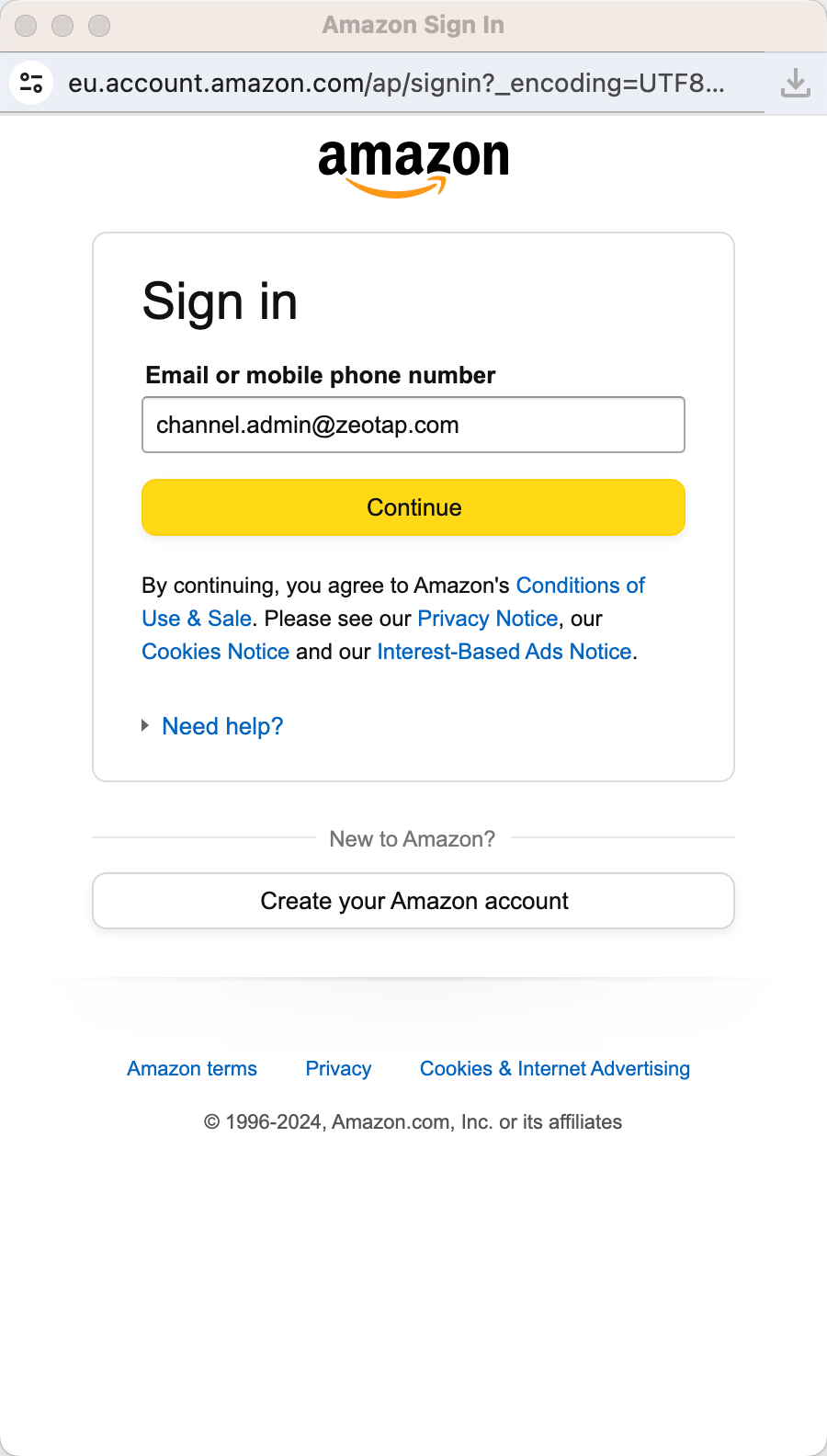
 In the new screen that appears, log into the Amazon Marketing Cloud account using your credentials.
 Once the connection is successfully established between the Zeotap CDP app and your AMC account, you are redirected to the Zeotap environment. Here, you can find that the **Access Token** and **Refresh Tokens** are automatically populated, along with the expiry period for the Access Token. Note that through this connection, you grant permission to Zeotap CDP to manage your AMC instance.
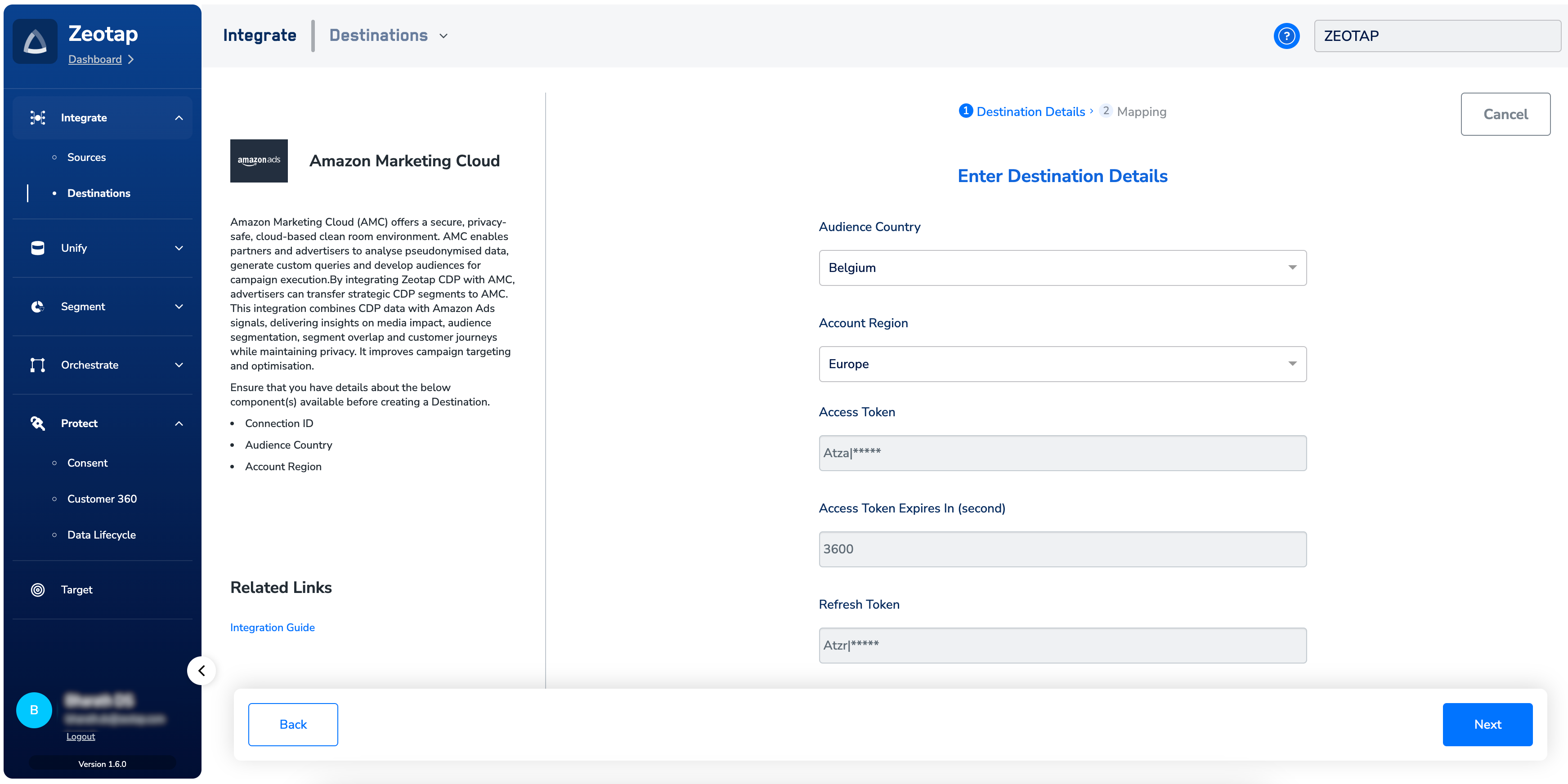 Click **Next** to proceed.
In the **Actions and Mapping** screen that appears, under **Choose your Action**, select **Send Identifiers and Attributes to AMC Audiences** as the action for activating your audience (segment) on the Audiences module.
Under **Map the Fields**, the system lists all the identifiers and attributes that AMC supports. Map the Catalogue fields to the Destination fields accordingly.
Click **Next** to proceed.
In the **Actions and Mapping** screen that appears, under **Choose your Action**, select **Send Identifiers and Attributes to AMC Audiences** as the action for activating your audience (segment) on the Audiences module.
Under **Map the Fields**, the system lists all the identifiers and attributes that AMC supports. Map the Catalogue fields to the Destination fields accordingly.
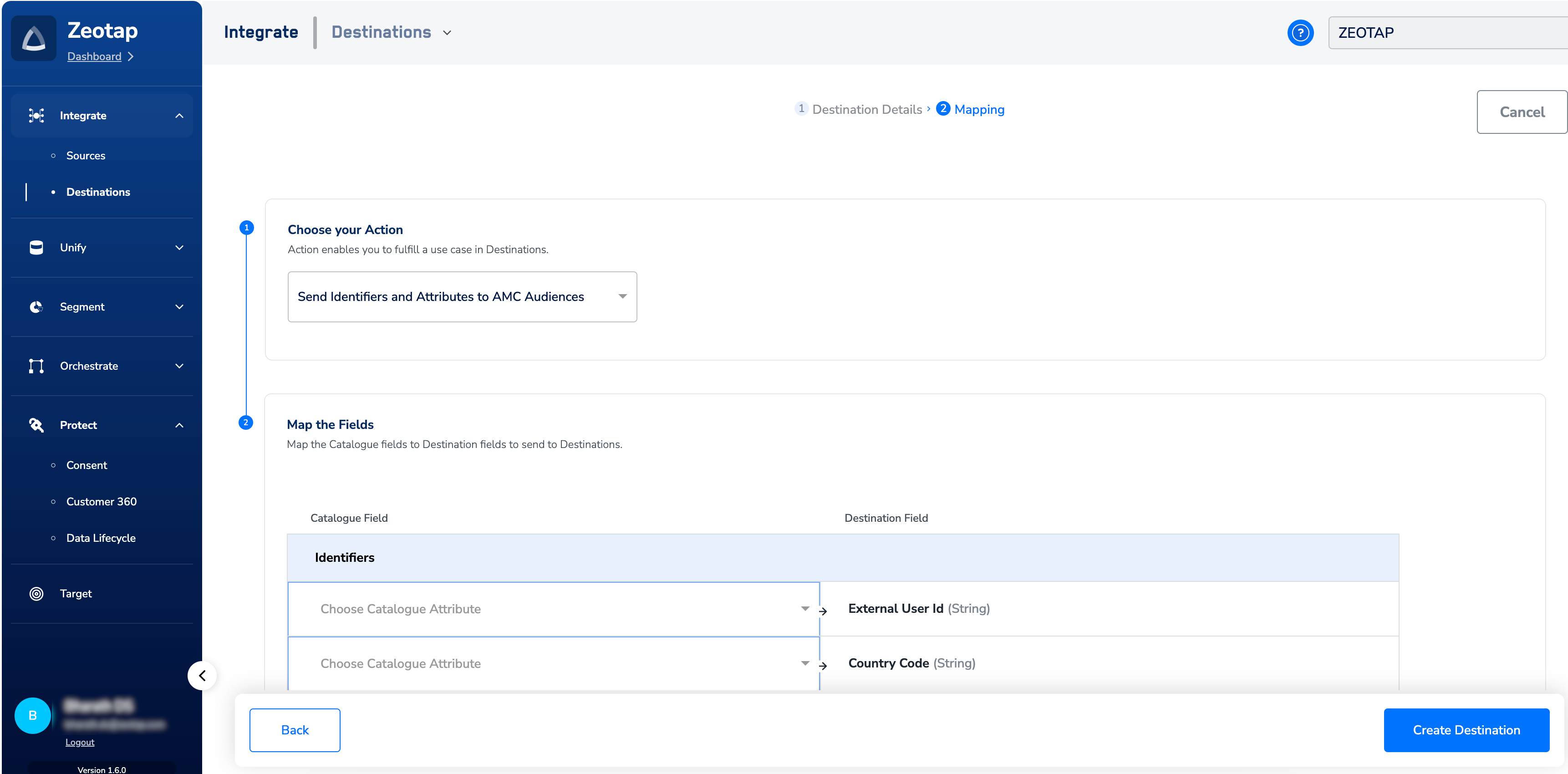 After reviewing the mapping and click **Create Destination**. The created Destination gets listed in the **Audiences** application, which can be linked to an audience (segment).
## Link an Audience to the Amazon Marketing Cloud Destination
For information about how to link an Audience or segment to the created Destination in **Audiences** application, refer [here](/articles/integrate-customer/link-an-audience-to-the-destination#h3_64671714).
**Note:**
The terms *Audiences* and *Segments* are used interchangeably to refer to customer cohorts belonging to a specific category. For example, an Audience or a segment could be a specific group of customers who are over 18 years of age and who have performed an *addToCart* event within the last 30 days.
After reviewing the mapping and click **Create Destination**. The created Destination gets listed in the **Audiences** application, which can be linked to an audience (segment).
## Link an Audience to the Amazon Marketing Cloud Destination
For information about how to link an Audience or segment to the created Destination in **Audiences** application, refer [here](/articles/integrate-customer/link-an-audience-to-the-destination#h3_64671714).
**Note:**
The terms *Audiences* and *Segments* are used interchangeably to refer to customer cohorts belonging to a specific category. For example, an Audience or a segment could be a specific group of customers who are over 18 years of age and who have performed an *addToCart* event within the last 30 days.