> ## Documentation Index
> Fetch the complete documentation index at: https://docs.zeotap.com/llms.txt
> Use this file to discover all available pages before exploring further.
# Amazon DSP
**Important Notice**
Effective February 7, 2025, Amazon recommends including a consent string or Amazon Consent Signal (`amazonAdStorage`, `amazonUserData`) for users in the European Economic Area (EEA) and the United Kingdom (UK). Refer to the [Amazon consent signal requirements](https://advertising.amazon.com/resources/ad-policy/consent-signal-requirements) for details. Audience uploads without consent information are rejected.
To ensure compliance, Zeotap CDP transmits the **GRANTED** Amazon Consent Signal for users who qualify in an audience. Use one of the following methods to include only consented users in an audience:
* Apply consent filters in [Zeotap's Consent Orchestration Tool](https://docs.zeotap.com/smart/project-protect/consent-orchestration-2830401643) within Protect
* Apply consent filters while [creating an audience](https://docs.zeotap.com/articles/segment-customer/apply-attributes-to-your-audience/a/h2__379464276)
## Overview
Amazon DSP is a programmatic advertising platform that allows marketers to buy display and video ads across Amazon-owned and 3P websites and mobile apps. Integrated with Zeotap provides a range of targeting options and features that enable marketers to reach their ideal audiences and optimise their campaigns in real-time.
## Supported Identifiers
This integration supports Zeotap Cookies for Amazon and MAIDs.
## Available Actions and Supported Features
The following table lists the available action types for the integration and the supported features for each action type:
| Action Name | [ID EXTENSION](/articles/segment-customer/extend-your-audience#id-extension) | [DELETE](https://docs.zeotap.com/articles/#!integrate-customer/delta-upload-and-delete-functions) | [DELTA UPLOAD](https://docs.zeotap.com/articles/#!integrate-customer/delta-upload-and-delete-functions) |
| :----------------------------- | :--------------------------------------------------------------------------- | :------------------------------------------------------------------------------------------------ | :------------------------------------------------------------------------------------------------------ |
| Send identifiers to Amazon DSP | ✅ | ✅ | - |
## Components of Amazon DSP
Ensure that you have the Advertiser Id details of Amazon DSP available before creating a Destination.
### Advertiser Id
This is your Amazon DSP Ad Account ID. The Advertiser ID is the only detail that you must enter to complete this integration.
## Create a Destination for Amazon DSP
Perform the following steps to create a Destination for Amazon DSP:
Log into the Zeotap CDP App and go to the **DESTINATIONS** application.
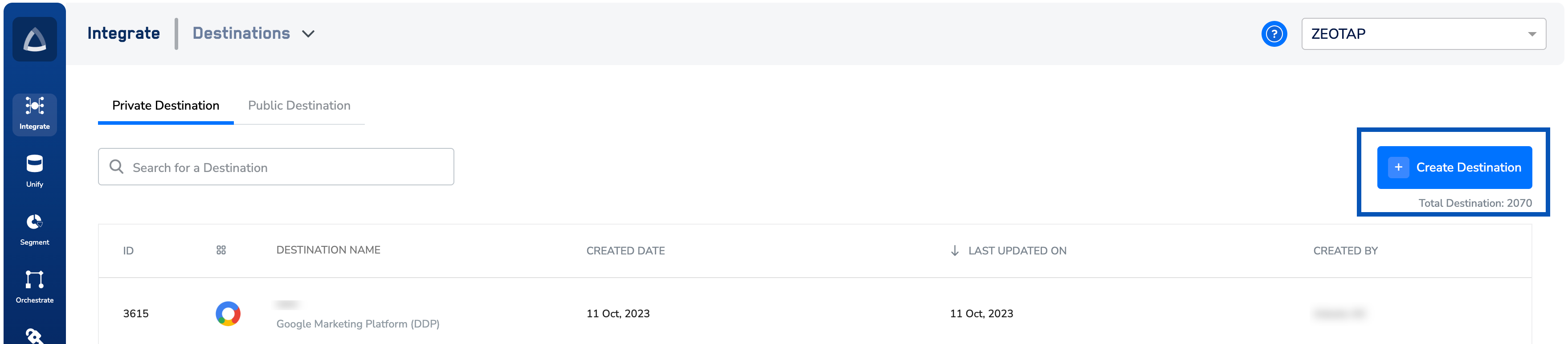
Click **+ Create Destination.**
 Under **All Destinations**, search for **Amazon DSP**.
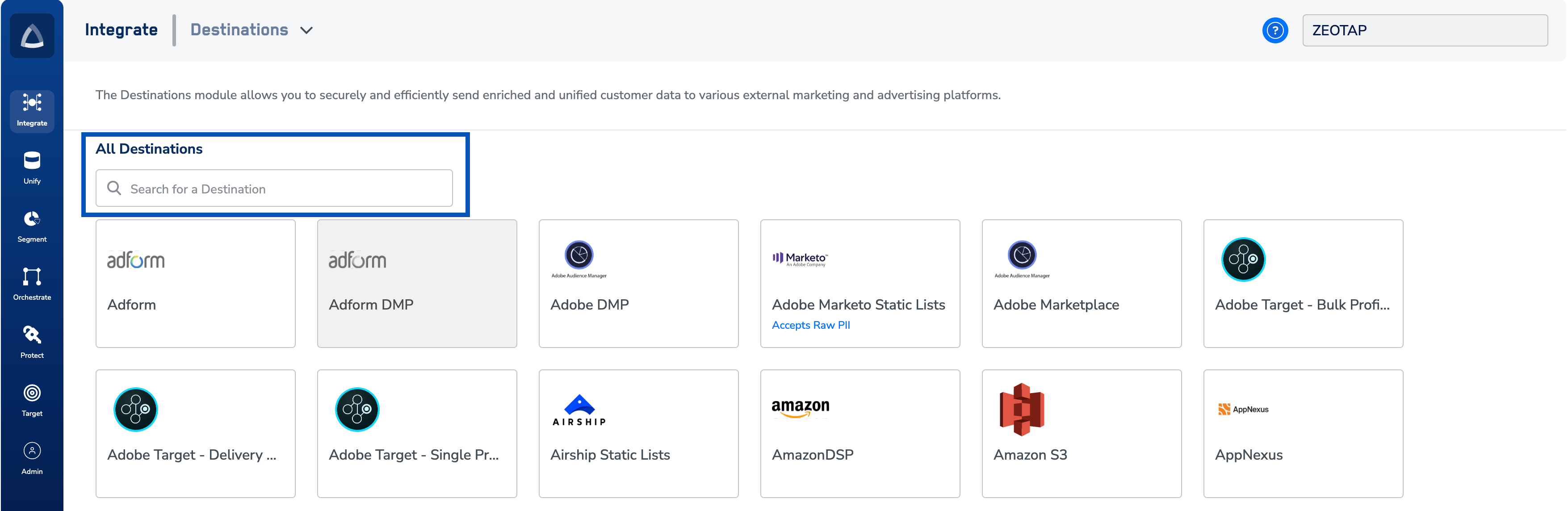 Click **Amazon DSP**.
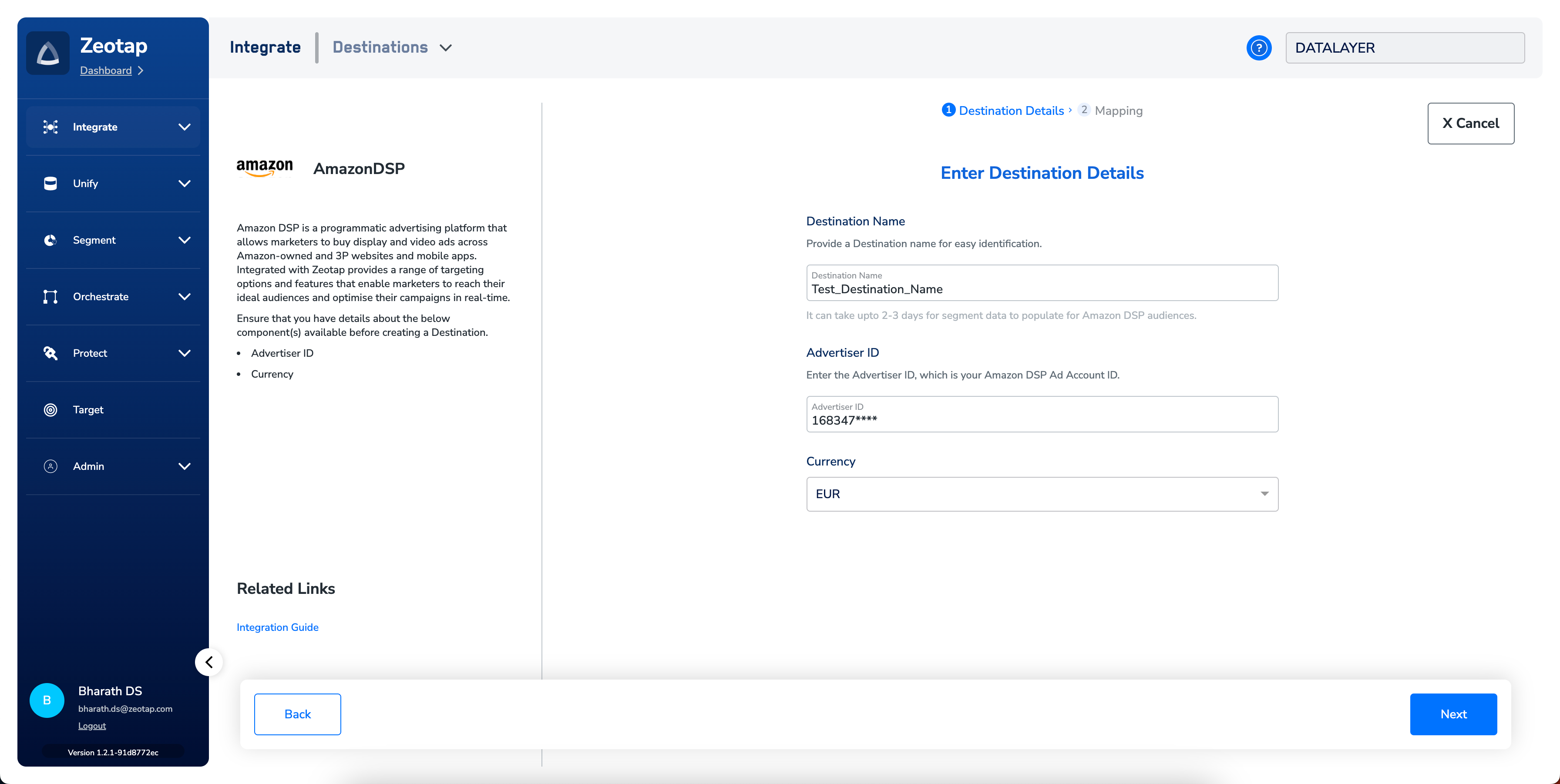
A screen appears displaying details about the particular destination towards the left. On the right-hand side of the screen find a list of fields that are required for the integration to be established. Enter the required details as mentioned in the following steps:
a. Enter a name for the Destination.
b. Enter the **Advertiser Id** number on which the client has requested the Segment.
c. Choose the **Currency** type from the drop-down menu.
d. Click **Next** to proceed to mapping.
Click **Amazon DSP**.
A screen appears displaying details about the particular destination towards the left. On the right-hand side of the screen find a list of fields that are required for the integration to be established. Enter the required details as mentioned in the following steps:
a. Enter a name for the Destination.
b. Enter the **Advertiser Id** number on which the client has requested the Segment.
c. Choose the **Currency** type from the drop-down menu.
d. Click **Next** to proceed to mapping.
 In the new screen that appears, choose the appropriate Action and mapping as explained below.
a. Choose the desired [action](/articles/integrate-customer/destinations#actionsanchor) under **Choose your Action** and then choose the corresponding identifiers/attributes under **Map the Fields**. Here, you can map the identifiers and attributes that you wish to send from Zeotap CDP to Amazon DSP.
b. Click **Create Destination**. The created Destination gets listed in the **Audiences** application, which can be linked to an audience (segment).
## Link an Audience to the Amazon DSP Destination
For information about how to link an Audience to the created Destination in the **Audiences** application, refer [here](/articles/integrate-customer/link-an-audience-to-the-destination). Note that it can take up to two-three days for audience data to populate at the Amazon DSP seat.
**Note:**
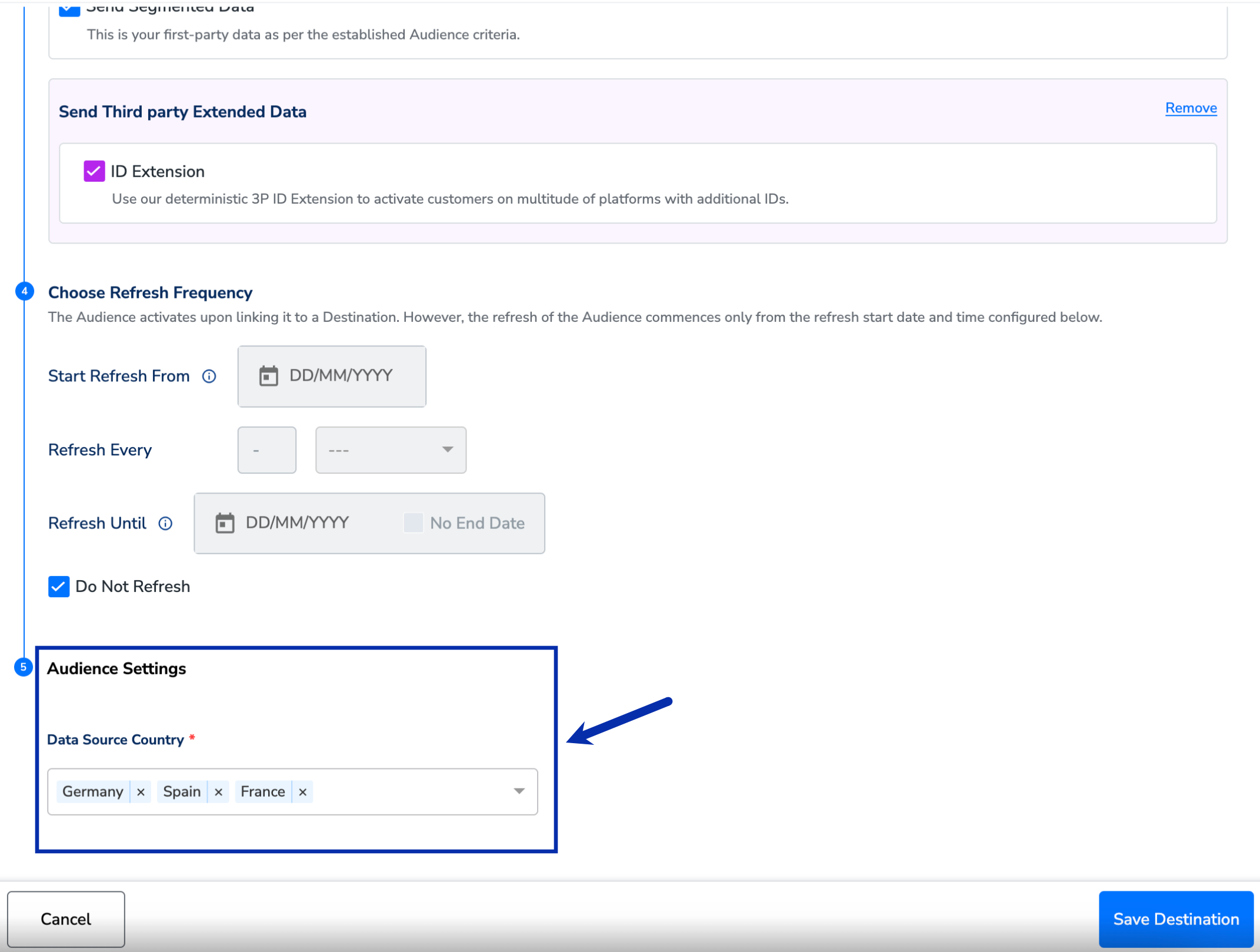
After creating an Amazon DSP Destination and linking it to an Audience, enter the **Data Source Country** values under **Audience Settings** in the Activation screen, as shown below.
In the new screen that appears, choose the appropriate Action and mapping as explained below.
a. Choose the desired [action](/articles/integrate-customer/destinations#actionsanchor) under **Choose your Action** and then choose the corresponding identifiers/attributes under **Map the Fields**. Here, you can map the identifiers and attributes that you wish to send from Zeotap CDP to Amazon DSP.
b. Click **Create Destination**. The created Destination gets listed in the **Audiences** application, which can be linked to an audience (segment).
## Link an Audience to the Amazon DSP Destination
For information about how to link an Audience to the created Destination in the **Audiences** application, refer [here](/articles/integrate-customer/link-an-audience-to-the-destination). Note that it can take up to two-three days for audience data to populate at the Amazon DSP seat.
**Note:**
After creating an Amazon DSP Destination and linking it to an Audience, enter the **Data Source Country** values under **Audience Settings** in the Activation screen, as shown below.
 ## View Audiences on Amazon DSP
In the *Amazon Campaign Manager* console, you can view both standard and custom segments (audiences) based on your requirement. To do so, perform the following steps:
Log into **Amazon Campaign Manager** and navigate to the **Audiences** tab.
Based on the type of segment (audience) you wish to view, under **OTHER SOURCES,** select the appropriate checkboxes.
a. To view the standard segments, select the checkboxes for **Third-party** and **Zeotap.** These segments are pre-created by Zeotap and are available for consumption once Targeting is enabled for your organisation. A standard segment contains only one attribute and not a cluster of attributes.
b. To view the custom segments, select the checkboxes for **Advertiser audiences** and **DMP**.
## View Audiences on Amazon DSP
In the *Amazon Campaign Manager* console, you can view both standard and custom segments (audiences) based on your requirement. To do so, perform the following steps:
Log into **Amazon Campaign Manager** and navigate to the **Audiences** tab.
Based on the type of segment (audience) you wish to view, under **OTHER SOURCES,** select the appropriate checkboxes.
a. To view the standard segments, select the checkboxes for **Third-party** and **Zeotap.** These segments are pre-created by Zeotap and are available for consumption once Targeting is enabled for your organisation. A standard segment contains only one attribute and not a cluster of attributes.
b. To view the custom segments, select the checkboxes for **Advertiser audiences** and **DMP**.
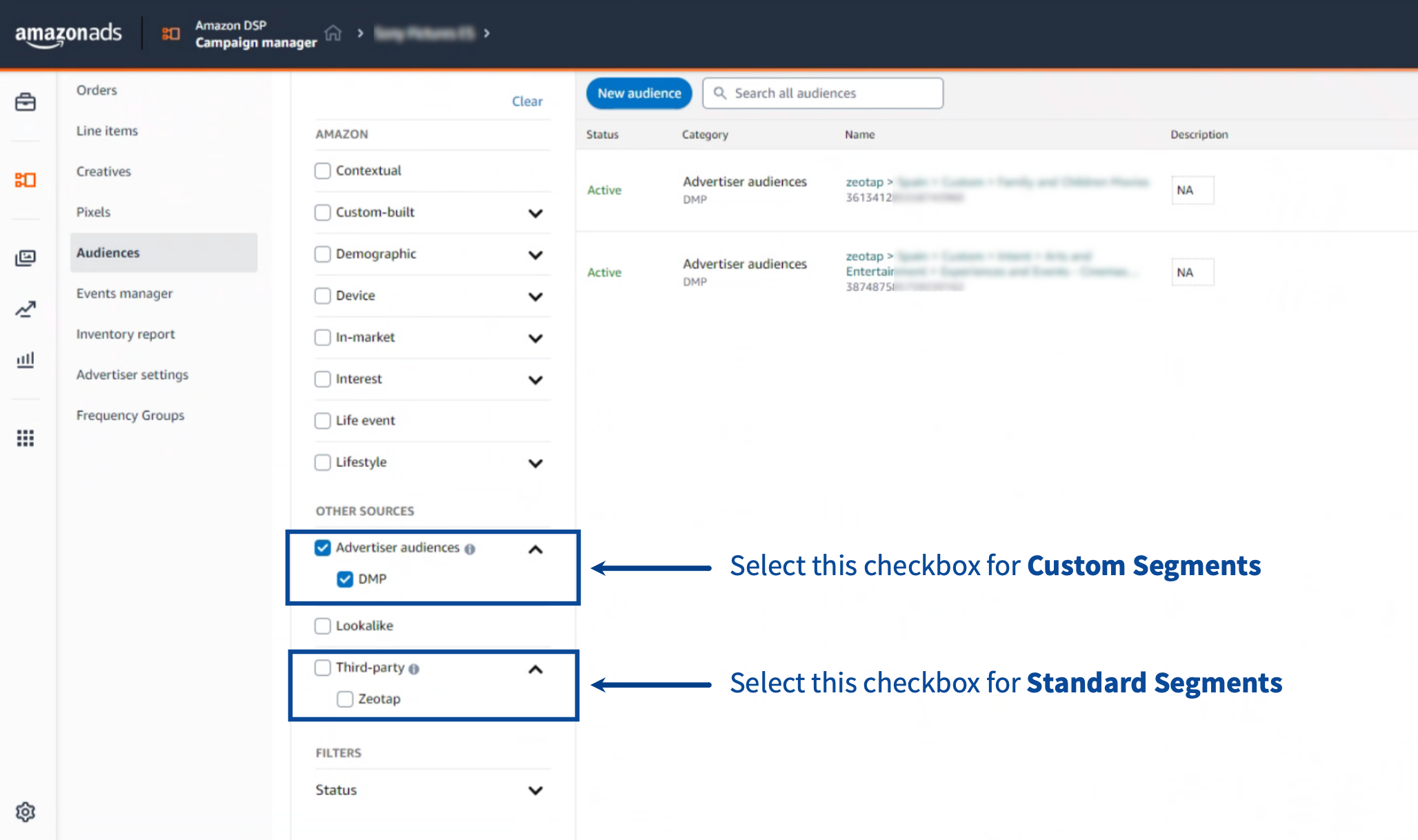 These segments are created based on your specific requirement and hence may contain more than one attribute as it may suit you.
## User Disqualification from Audiences
This integration supports user disqualification from audiences. That is, a user can be disqualified from an audience (segment) for various reasons, such as not meeting audience criteria, consent requirements or other conditions set for a particular audience.
* When a user disqualifies from an audience, Zeotap CDP initiates a user deletion request in the next refresh cycle. These requests are sent to the audiences linked to the specific destination.
* The disqualified users are excluded from the audiences based on the configured refresh frequency for a particular audience.
* User disqualification is a programmatic process that works automatically. You do not need to specify anything to trigger the disqualification and exclusion of users from audiences.
These segments are created based on your specific requirement and hence may contain more than one attribute as it may suit you.
## User Disqualification from Audiences
This integration supports user disqualification from audiences. That is, a user can be disqualified from an audience (segment) for various reasons, such as not meeting audience criteria, consent requirements or other conditions set for a particular audience.
* When a user disqualifies from an audience, Zeotap CDP initiates a user deletion request in the next refresh cycle. These requests are sent to the audiences linked to the specific destination.
* The disqualified users are excluded from the audiences based on the configured refresh frequency for a particular audience.
* User disqualification is a programmatic process that works automatically. You do not need to specify anything to trigger the disqualification and exclusion of users from audiences.