> ## Documentation Index
> Fetch the complete documentation index at: https://docs.zeotap.com/llms.txt
> Use this file to discover all available pages before exploring further.
# Amazon DSP - DP Audience
## Overview
Amazon DSP is a programmatic advertising platform that allows marketers to buy display and video ads across Amazon-owned and 3P websites and mobile apps. Integrated with Zeotap provides a range of targeting options and features that enable marketers to reach their ideal audiences and optimise their campaigns in real-time.
## Supported Identifiers
This integration supports Zeotap Cookies for Amazon and MAIDs.
## Components of Amazon DSP - DP Audience
Ensure that you have the Advertiser Id details of Amazon DSP available before creating a Destination.
### Advertiser Id
This is your Amazon DSP Ad Account ID. The Advertiser ID is the only detail that you must enter to complete this integration.
## Create a Destination for Amazon DSP - DP Audience
Perform the following steps to create a Destination for Amazon DSP:
Log into the Zeotap CDP App and go to the **DESTINATIONS** application.
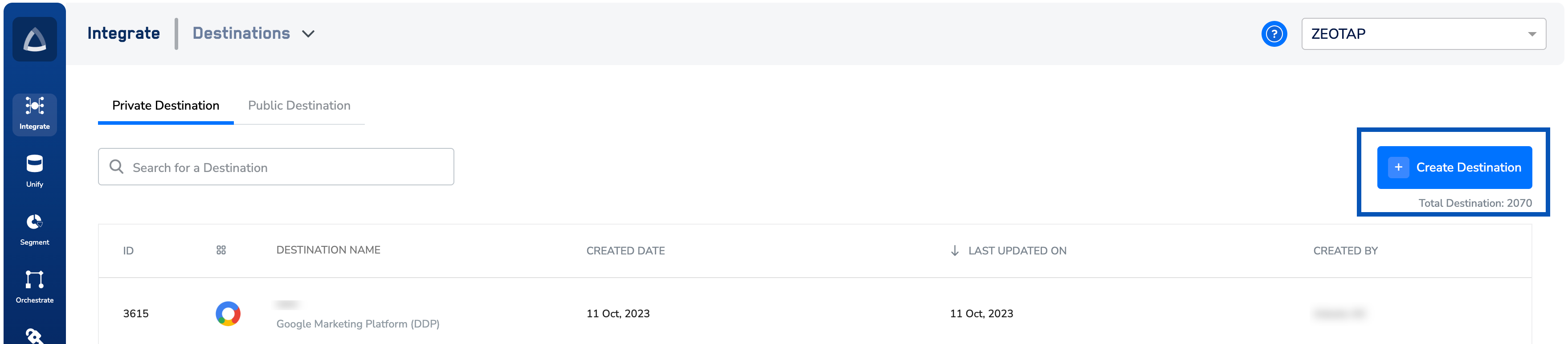
Click **+ Create Destination.**
 Under **All Destinations**, search for **Amazon DSP - DP Audience**.
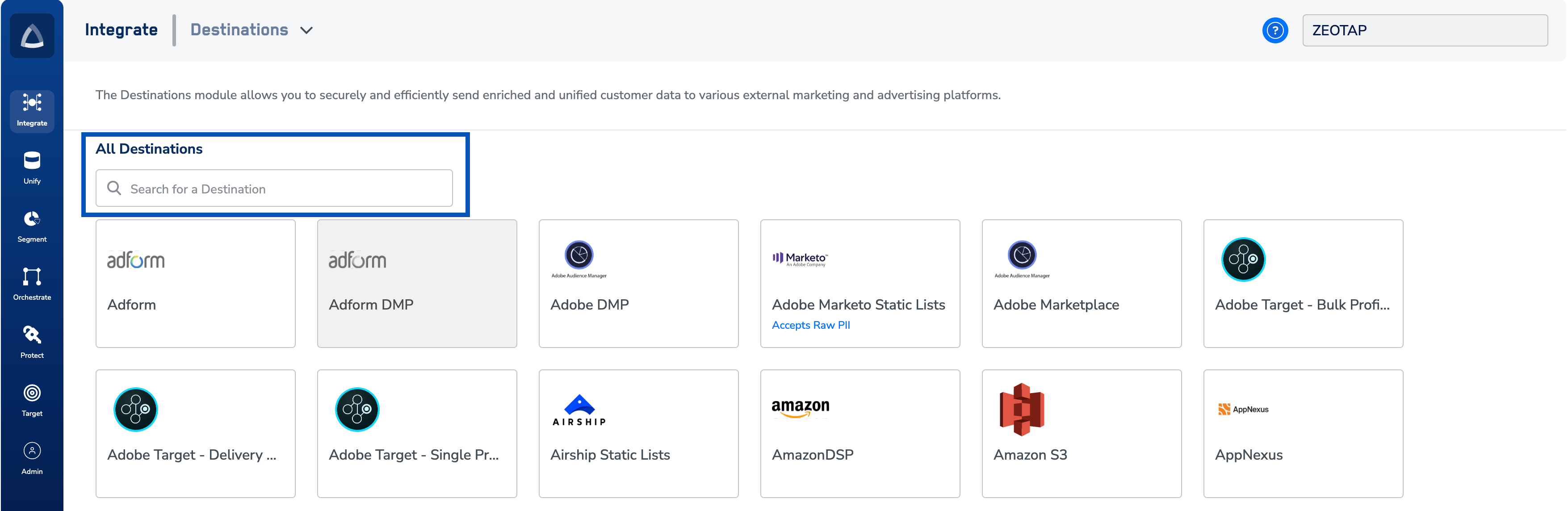 Click **Amazon DSP - DP Audience**.
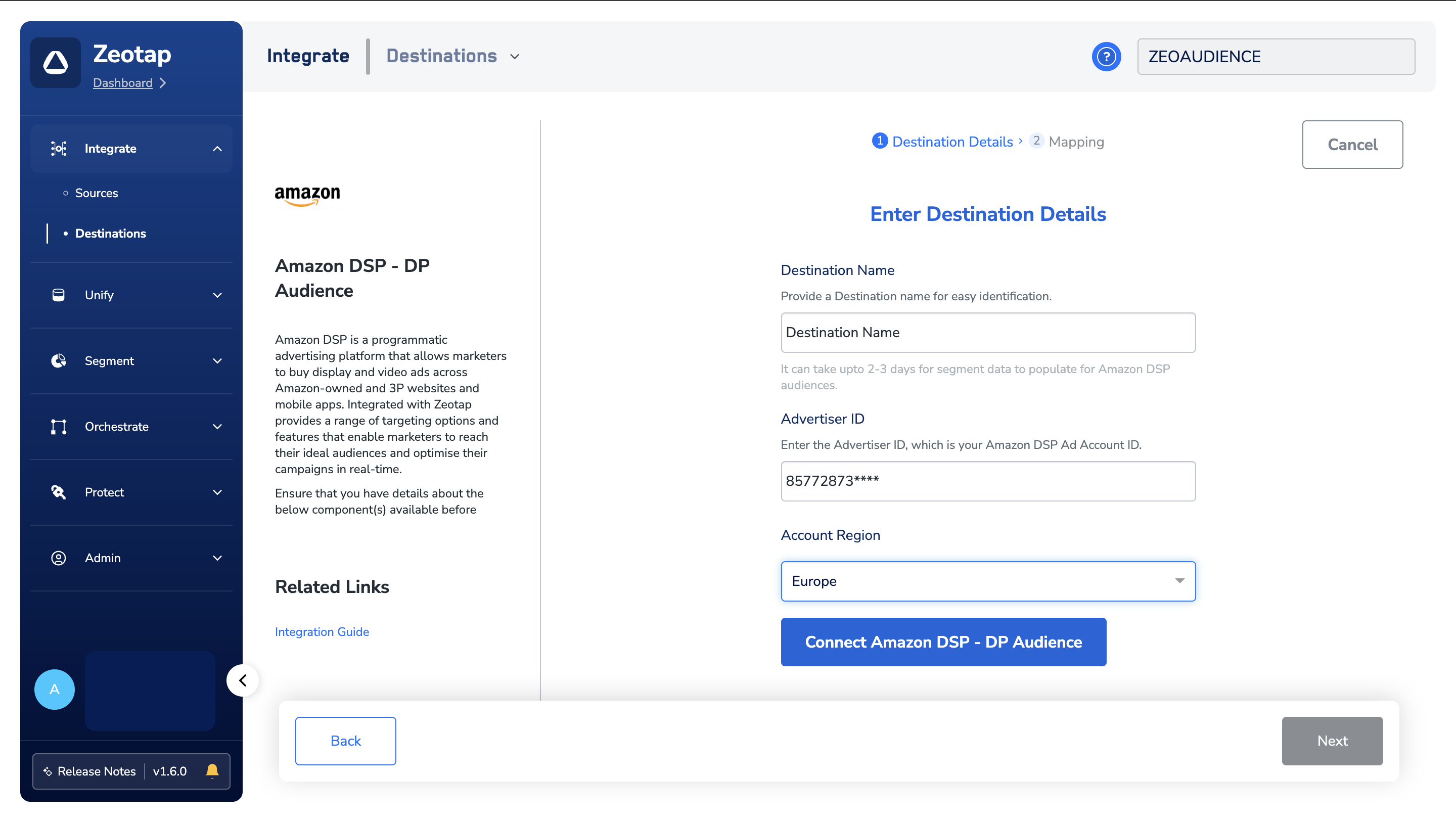
A screen appears displaying details about the particular destination towards the left. On the right-hand side of the screen find a list of fields that are required for the integration to be established. Enter the required details as mentioned in the following steps:
a. Enter a name for the Destination.
b. Enter the **Advertiser ID** number on which the client has requested the Segment.
c. Choose the **Account Region** from the drop-down menu.
d. Click **Connect to Amazon DSP - DP Destination** to authenticate with your Amazon DSP account. After a successful login, click **Next** to proceed to the mapping section..
Click **Amazon DSP - DP Audience**.
A screen appears displaying details about the particular destination towards the left. On the right-hand side of the screen find a list of fields that are required for the integration to be established. Enter the required details as mentioned in the following steps:
a. Enter a name for the Destination.
b. Enter the **Advertiser ID** number on which the client has requested the Segment.
c. Choose the **Account Region** from the drop-down menu.
d. Click **Connect to Amazon DSP - DP Destination** to authenticate with your Amazon DSP account. After a successful login, click **Next** to proceed to the mapping section..
 In the new screen that appears, choose the appropriate Action and mapping as explained below.
a. Choose the desired [action](/articles/integrate-customer/destinations#actionsanchor) under **Choose your Action** and then choose the corresponding identifiers/attributes under **Map the Fields**. Here, you can map the identifiers and attributes that you wish to send from Zeotap CDP to Amazon DSP.
b. Navigate to the **Additional Settings** section to select the appropriate **Data Source Country**.
c. Click **Create Destination**. The created Destination gets listed in the **Audiences** application, which can be linked to an audience (segment).
## Link an Audience to the Amazon DSP Destination
For information about how to link an Audience to the created Destination in the **Audiences** application, refer [here](/articles/integrate-customer/link-an-audience-to-the-destination). Note that it can take up to two-three days for audience data to populate at the Amazon DSP seat.
**Note:**
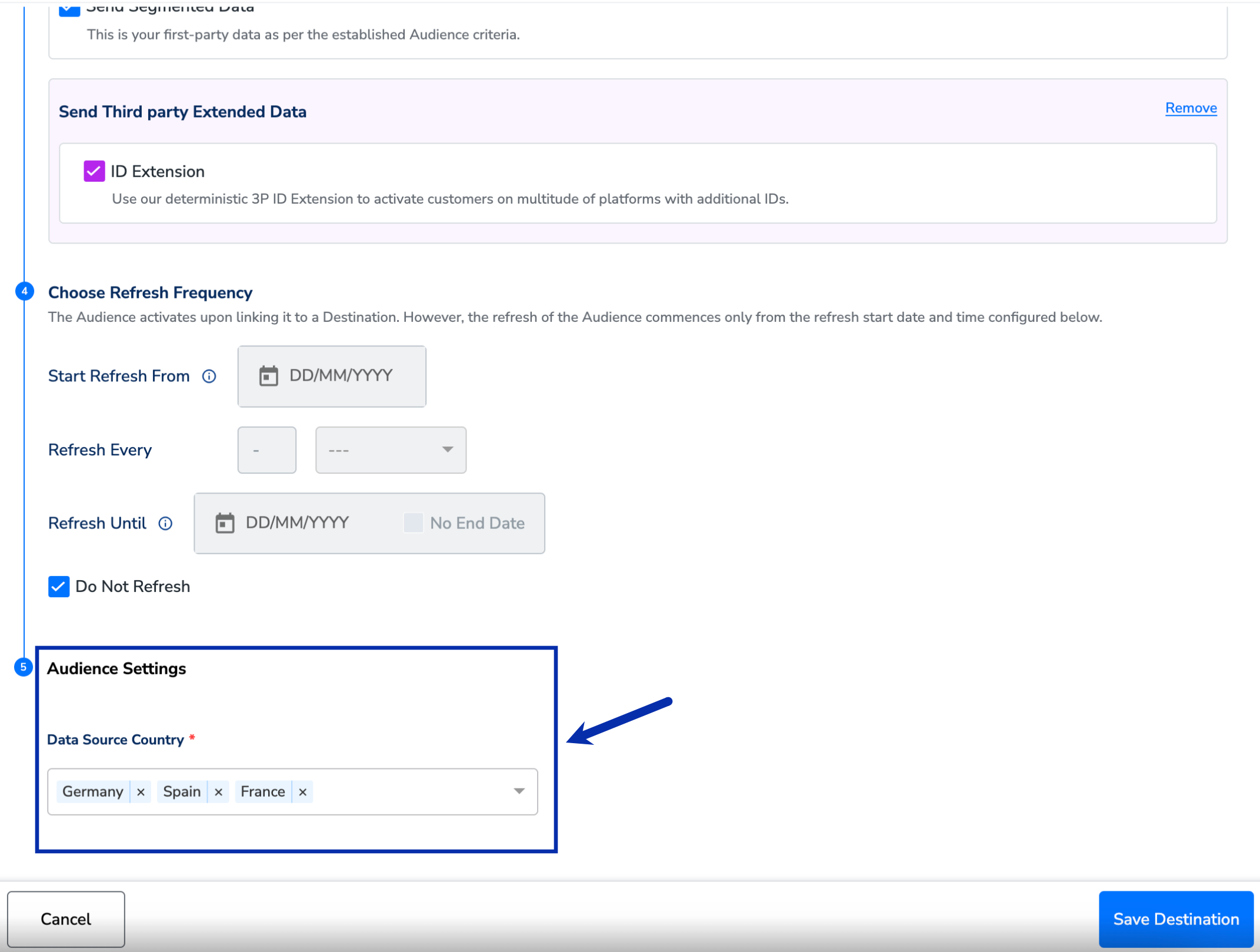
After creating an Amazon DSP Destination and linking it to an Audience, enter the **Data Source Country** values under **Audience Setting** **s** in the Activation screen, as shown below.
In the new screen that appears, choose the appropriate Action and mapping as explained below.
a. Choose the desired [action](/articles/integrate-customer/destinations#actionsanchor) under **Choose your Action** and then choose the corresponding identifiers/attributes under **Map the Fields**. Here, you can map the identifiers and attributes that you wish to send from Zeotap CDP to Amazon DSP.
b. Navigate to the **Additional Settings** section to select the appropriate **Data Source Country**.
c. Click **Create Destination**. The created Destination gets listed in the **Audiences** application, which can be linked to an audience (segment).
## Link an Audience to the Amazon DSP Destination
For information about how to link an Audience to the created Destination in the **Audiences** application, refer [here](/articles/integrate-customer/link-an-audience-to-the-destination). Note that it can take up to two-three days for audience data to populate at the Amazon DSP seat.
**Note:**
After creating an Amazon DSP Destination and linking it to an Audience, enter the **Data Source Country** values under **Audience Setting** **s** in the Activation screen, as shown below.
 ## View Audiences on Amazon DSP
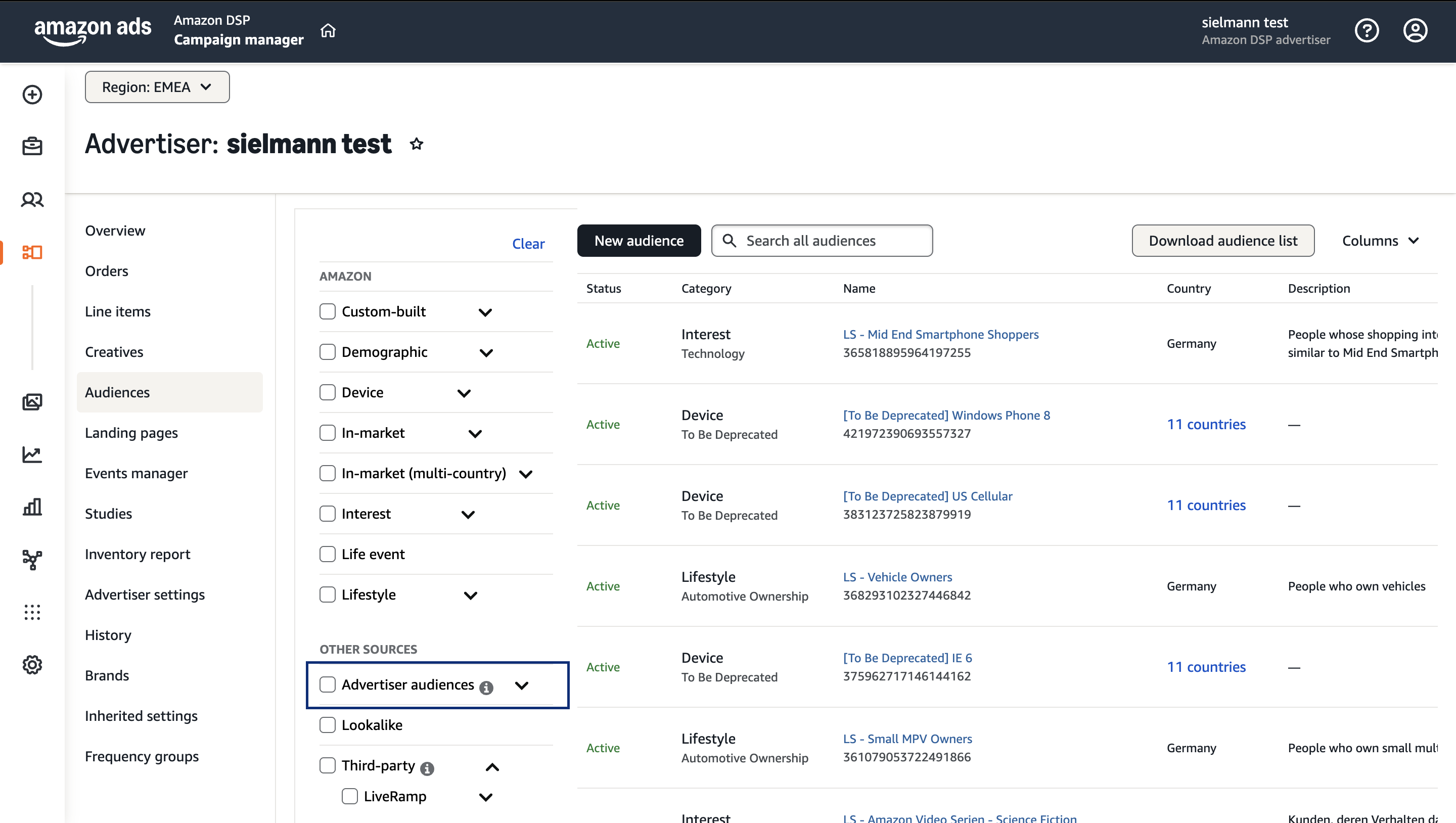
Log in to the Amazon DSP console.
Navigate to the Campaign Manager via the administration toolbar.
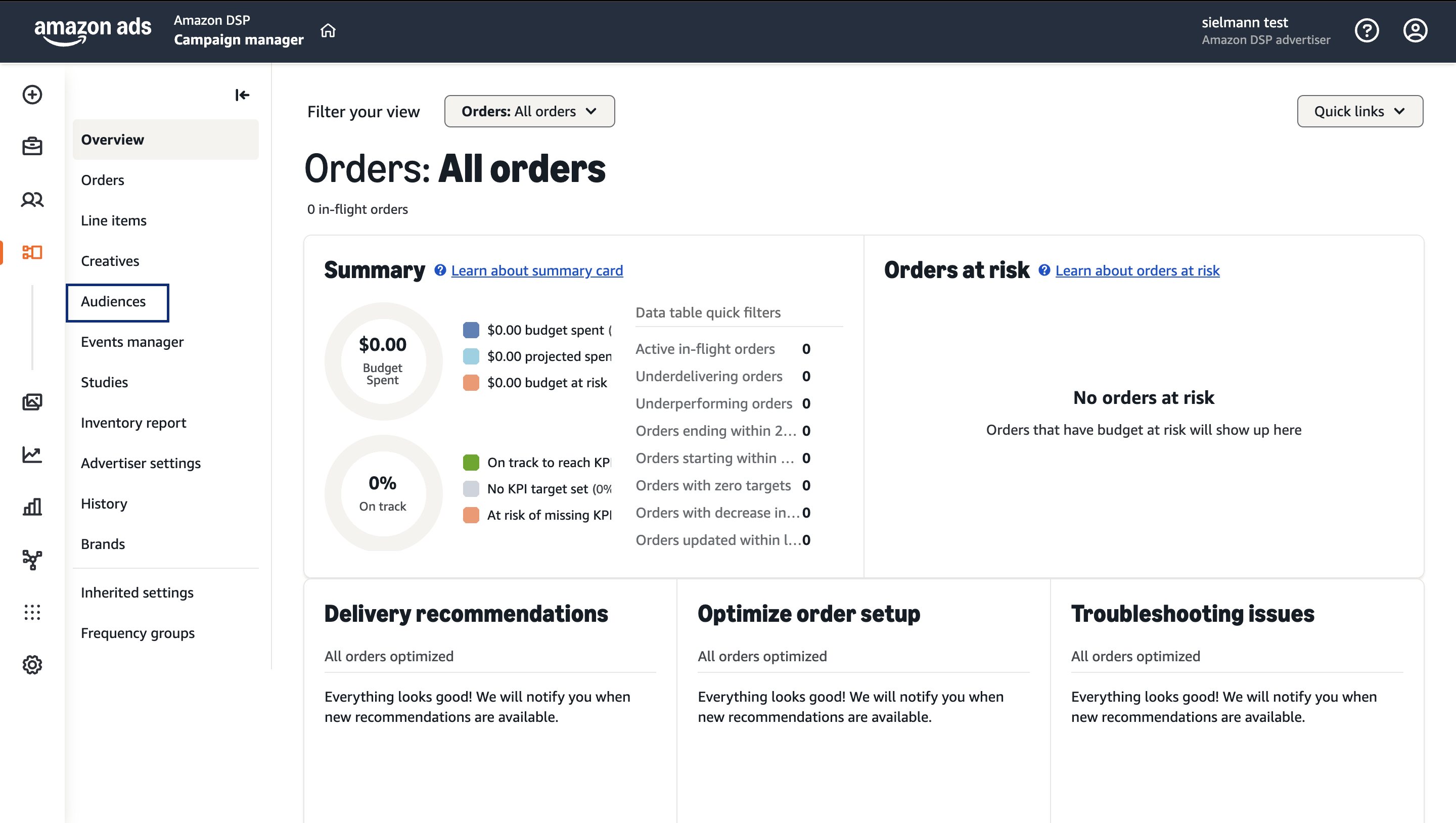
In the left-hand navigation sidebar, click Audiences.
## View Audiences on Amazon DSP
Log in to the Amazon DSP console.
Navigate to the Campaign Manager via the administration toolbar.
In the left-hand navigation sidebar, click Audiences.
 Locate the "Source" filter on the left and check the box for Advertiser Audiences.
**Note:**
This filters out Amazon's native segments and displays only the first-party data you have ingested.
Locate the "Source" filter on the left and check the box for Advertiser Audiences.
**Note:**
This filters out Amazon's native segments and displays only the first-party data you have ingested.