> ## Documentation Index
> Fetch the complete documentation index at: https://docs.zeotap.com/llms.txt
> Use this file to discover all available pages before exploring further.
# Amazon Conversions API
## Overview
Amazon DSP is a programmatic advertising platform that allows marketers to buy display and video ads across Amazon-owned and third-party websites and mobile apps. The Amazon Conversions API integration with Zeotap creates a direct, server-to-server connection that forwards your conversion events to Amazon DSP, enabling you to reach your ideal audiences and optimise your campaigns in real-time.
## Supported Identifiers
This integration sends the following identity fields as **Match Keys**: Email, Phone Number, MAID, First Name, and Last Name. You can also send additional attributes using **Custom Data Fields**, and an **Event Timestamp** is required for every event.
**Note:**
Ensure that the **Email**, **MAID**, **First Name**, and **Last Name** values you map are SHA-256 hashed before they are sent to Amazon Conversions API.
## Prerequisites
Before you create an Amazon Conversions API Destination in Zeotap CDP, ensure that you have the following:
* An Amazon DSP (Amazon Ads) account.
* Your **Advertiser ID** (Amazon DSP Ad Account ID) and account **Currency** available.
* Permission to authorize Zeotap to access your Amazon Ads account through the Amazon sign-in (OAuth) flow.
## Components of Amazon Conversions API
Ensure that you have the details about the below components before creating a Destination.
### Advertiser ID
This is your Amazon DSP Ad Account ID. You can obtain it from your Amazon DSP account.
### Account Region
This is the geographical region in which your Amazon DSP account operates — either **North America** or **Europe**.
## Creating a Destination
Perform the following steps to create a Destination for Amazon Conversions API:
Log into the **Zeotap CDP** App and go to the **DESTINATIONS** application.
Click **+ Create Destination**.
Under the **All Destinations** section, search for Amazon Conversions API and click **Amazon Conversions API**.
A screen appears displaying details about the Destination towards the left. On the right-hand side, provide the required details:
a. In the **Destination Name** field, enter a name for the Destination.
b. In the **Advertiser ID** field, enter your Amazon DSP Ad Account ID.
c. Under **Account Region**, select the region where your Amazon DSP account operates (North America or Europe).
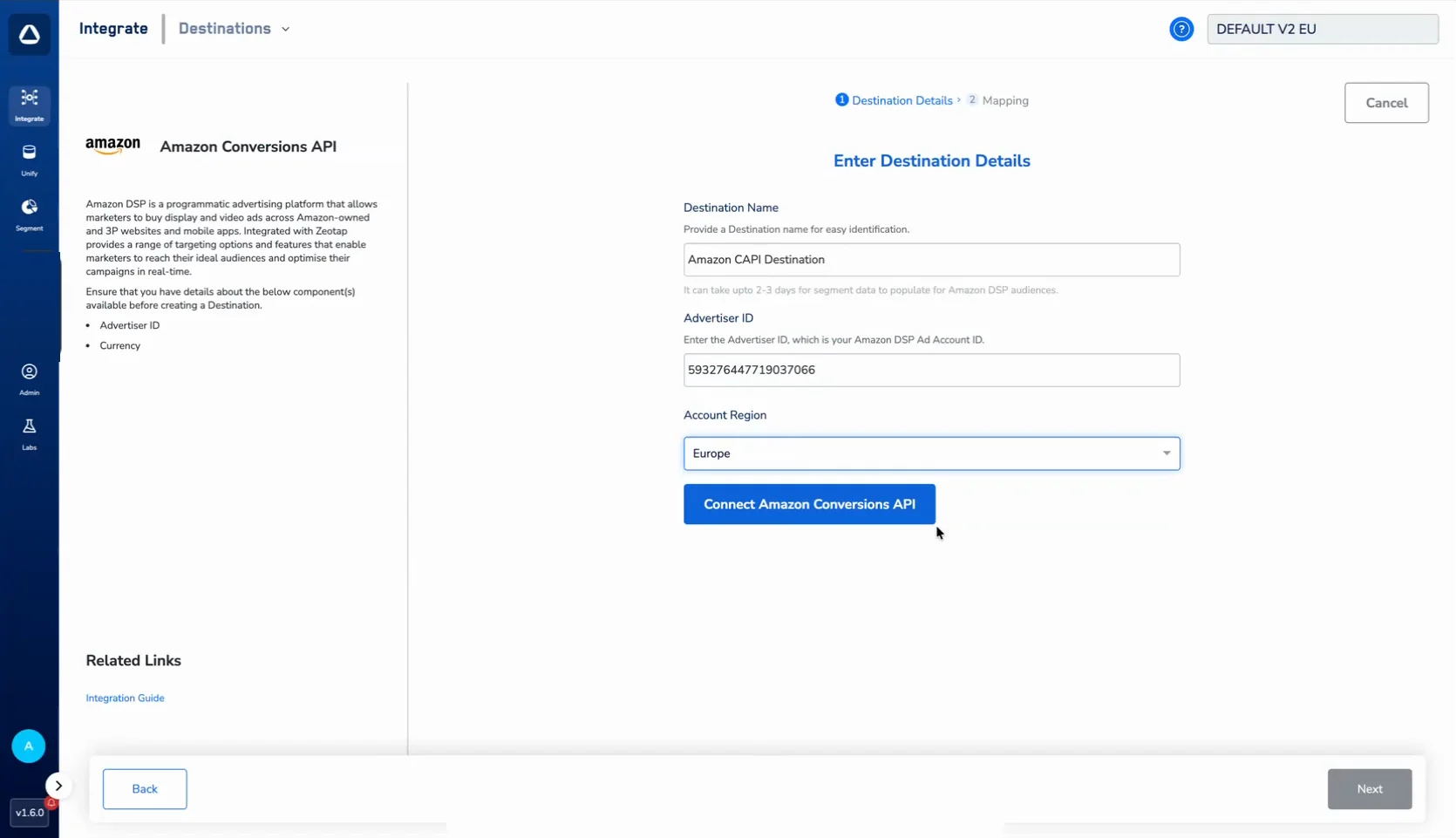 Click **Connect Amazon Conversions API**. In the Amazon sign-in window that opens, click **Allow** to authorize Zeotap to access your Amazon Ads account.
Once authorization is complete, the Destination screen confirms the connection. Click **Next** to proceed to the **Mapping** screen.
Click **Connect Amazon Conversions API**. In the Amazon sign-in window that opens, click **Allow** to authorize Zeotap to access your Amazon Ads account.
Once authorization is complete, the Destination screen confirms the connection. Click **Next** to proceed to the **Mapping** screen.
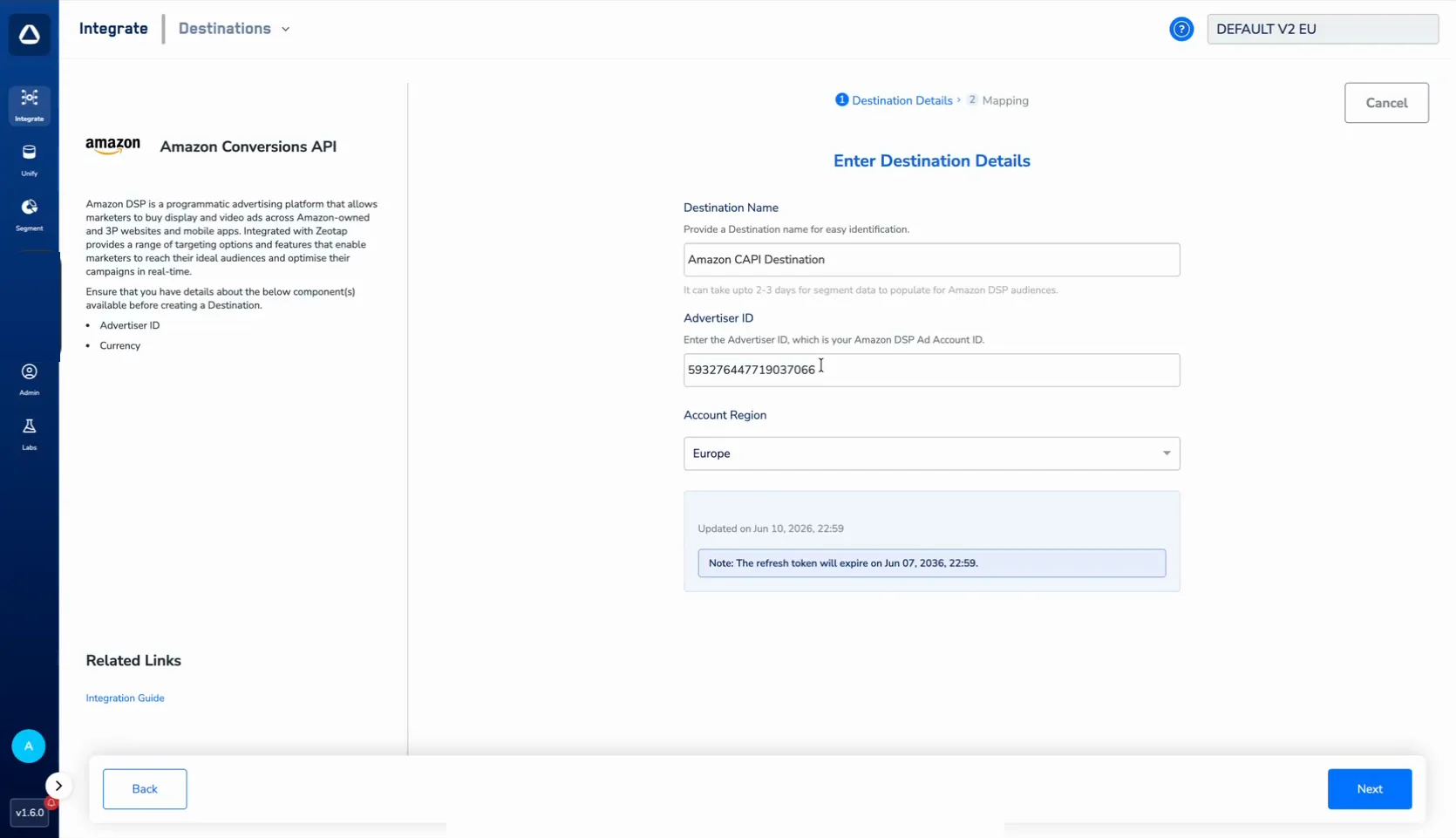 On the **Mapping** screen, provide a name for your mapping and configure the action and field mapping:
a. Under **Choose your Action**, select **Send Events to Amazon**. This action sends your conversion events to Amazon DSP through Journeys.
On the **Mapping** screen, provide a name for your mapping and configure the action and field mapping:
a. Under **Choose your Action**, select **Send Events to Amazon**. This action sends your conversion events to Amazon DSP through Journeys.
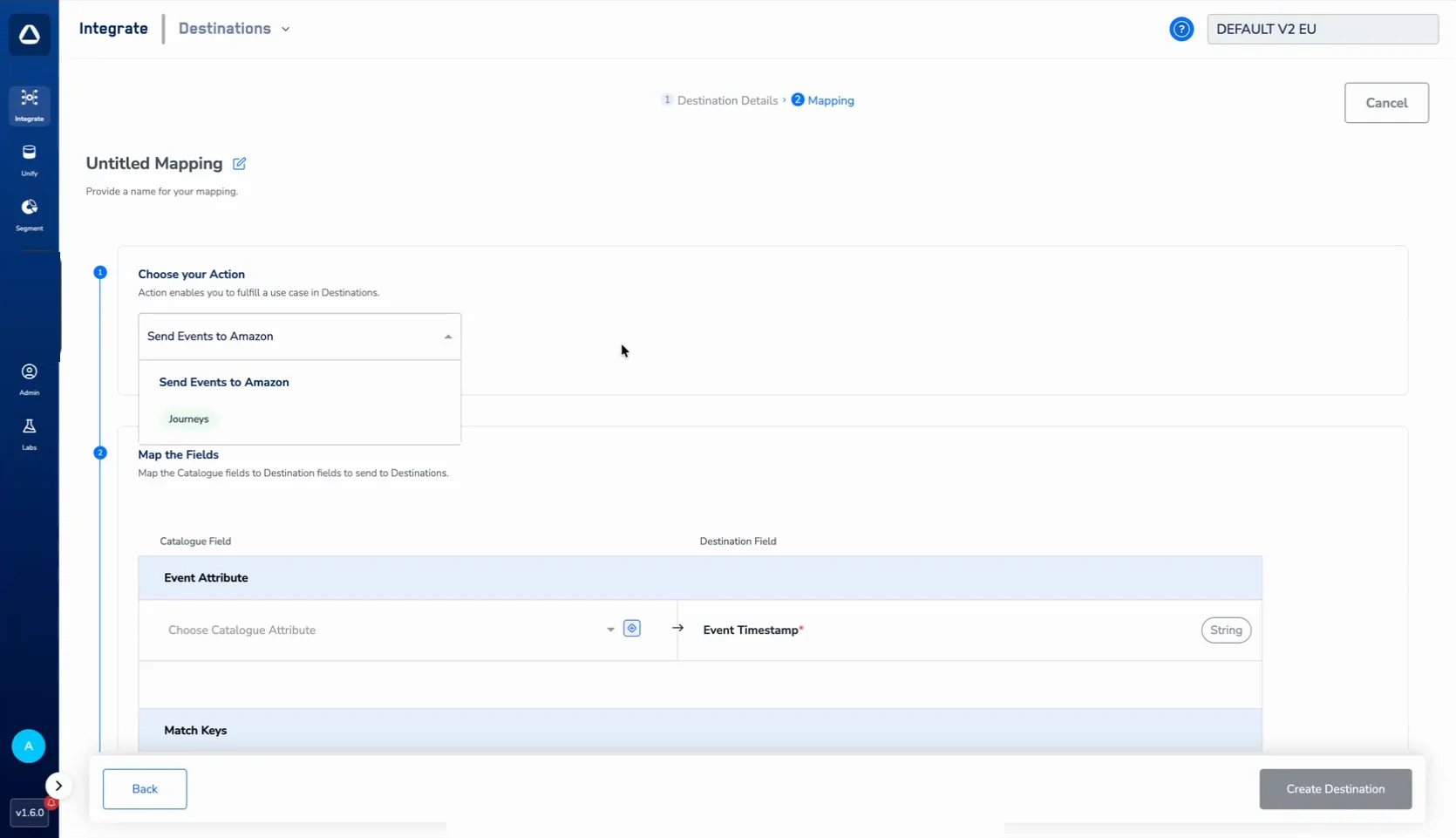 b. Under **Map the Fields**, map the catalogue fields to the destination fields:
i. **Event Attribute** — map the required **Event Timestamp** field.
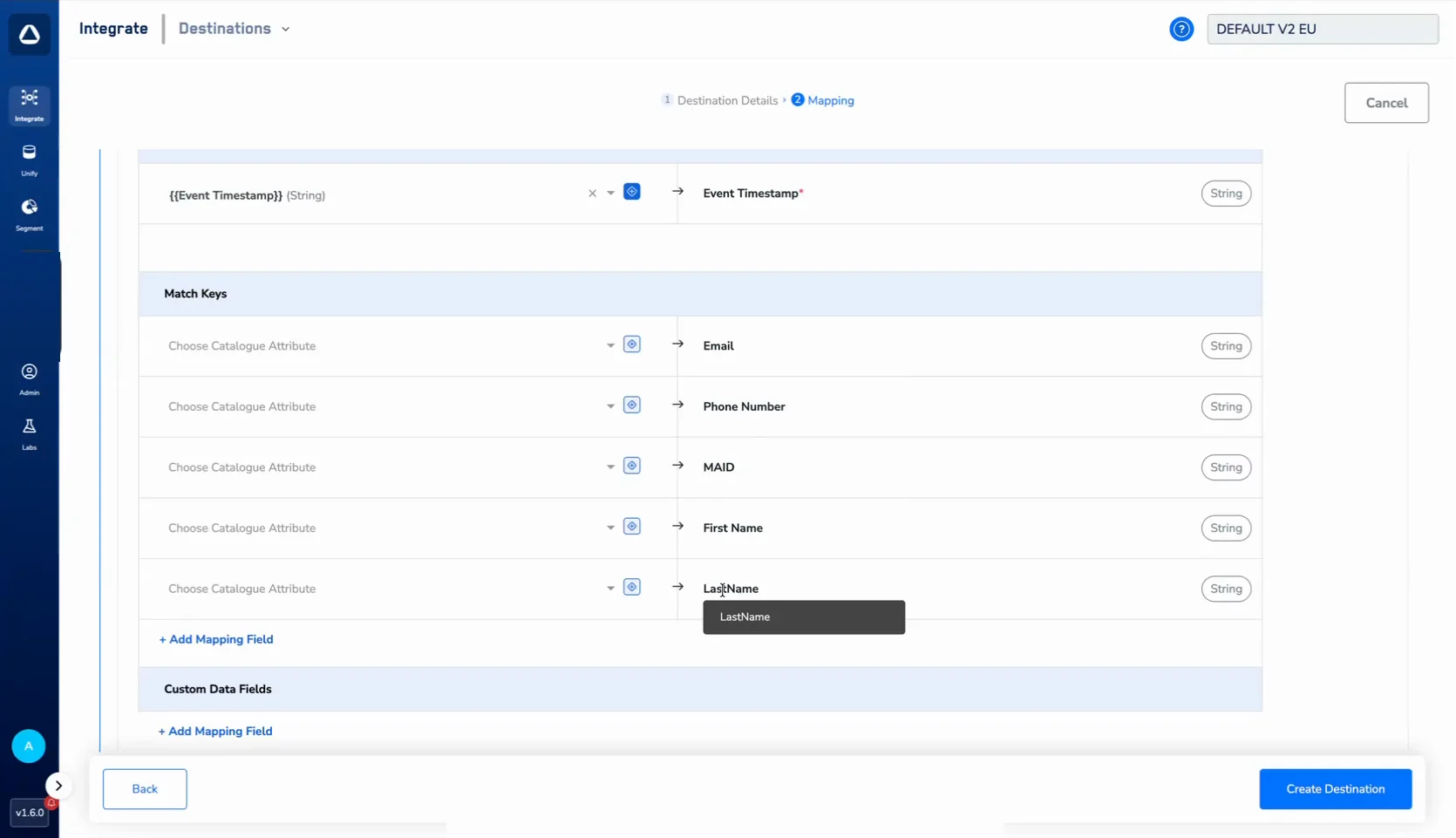
ii. **Match Keys** — map the identity fields you want to send: Email, Phone Number, MAID, First Name, and Last Name.
iii. **Custom Data Fields** — use **+ Add Mapping Field** to send any additional attributes.
b. Under **Map the Fields**, map the catalogue fields to the destination fields:
i. **Event Attribute** — map the required **Event Timestamp** field.
ii. **Match Keys** — map the identity fields you want to send: Email, Phone Number, MAID, First Name, and Last Name.
iii. **Custom Data Fields** — use **+ Add Mapping Field** to send any additional attributes.
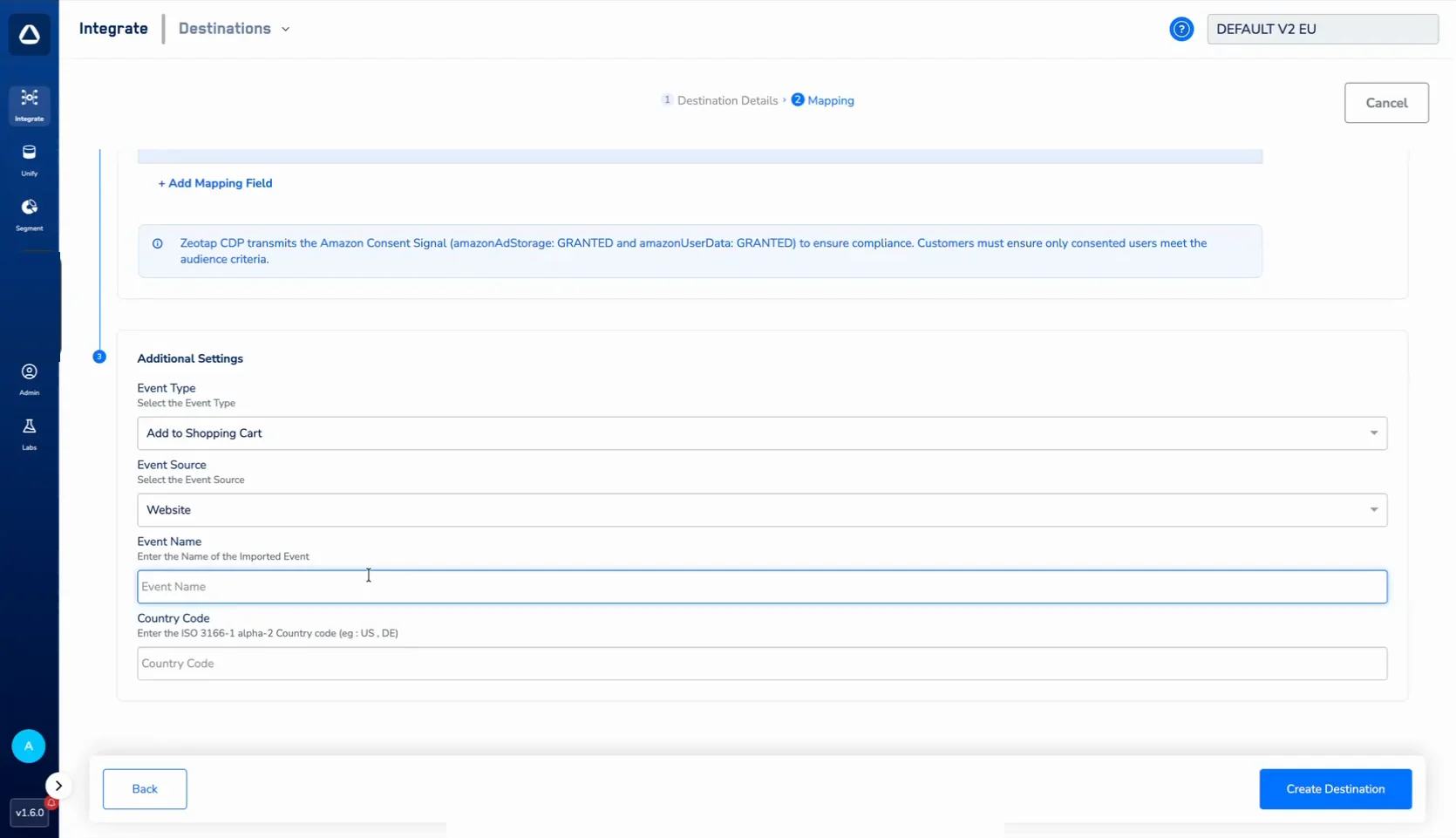
 Zeotap CDP transmits the Amazon Consent Signal (`amazonAdStorage: GRANTED` and `amazonUserData: GRANTED`) to ensure compliance. Ensure that only consented users meet your audience criteria.
c. Under **Additional Settings**, configure the event details:
i. **Event Type** — select the type of conversion event (for example, **Add to Shopping Cart**).
ii. **Event Source** — select where the event originates (for example, **Website**).
iii. **Event Name** — enter the name of the imported event.
iv. **Country Code** — enter the ISO 3166-1 alpha-2 country code (for example, `US` or `DE`).
**Note:**
Keep the **Event Name** consistent for a given **Event Type**. Once an event type (for example, *Add to Shopping Cart*) is configured with a specific Event Name, use the same Event Name for all future occurrences of that event type to ensure accurate tracking and attribution.
Zeotap CDP transmits the Amazon Consent Signal (`amazonAdStorage: GRANTED` and `amazonUserData: GRANTED`) to ensure compliance. Ensure that only consented users meet your audience criteria.
c. Under **Additional Settings**, configure the event details:
i. **Event Type** — select the type of conversion event (for example, **Add to Shopping Cart**).
ii. **Event Source** — select where the event originates (for example, **Website**).
iii. **Event Name** — enter the name of the imported event.
iv. **Country Code** — enter the ISO 3166-1 alpha-2 country code (for example, `US` or `DE`).
**Note:**
Keep the **Event Name** consistent for a given **Event Type**. Once an event type (for example, *Add to Shopping Cart*) is configured with a specific Event Name, use the same Event Name for all future occurrences of that event type to ensure accurate tracking and attribution.
 Click **Create Destination**. The created Destination is listed in the **Audiences** application and can be activated through Journeys.
## Activate the Destination on Journeys
The **Send Events to Amazon** action runs in Journeys. After creating the Destination, attach it using the **Send to Destinations** node within your workflow. For details on activating real-time destinations, refer [here](/articles/integrate-customer/activate-your-real-time-audiences).
## Viewing Conversion Events in Amazon Ads
Once the destination is activated and events begin flowing, you can verify them in the Amazon Ads console:
In the Amazon Ads console, open the advertiser linked to this destination.
From the left navigation, open **Events manager**.
Open the **Conversions** tab to see the conversion events received through the Conversions API. Each row shows the **Data source** (Conversions API), the **Conversion name** and **Conversion type**, the **Count method**, and the **Event count**.
Click **Create Destination**. The created Destination is listed in the **Audiences** application and can be activated through Journeys.
## Activate the Destination on Journeys
The **Send Events to Amazon** action runs in Journeys. After creating the Destination, attach it using the **Send to Destinations** node within your workflow. For details on activating real-time destinations, refer [here](/articles/integrate-customer/activate-your-real-time-audiences).
## Viewing Conversion Events in Amazon Ads
Once the destination is activated and events begin flowing, you can verify them in the Amazon Ads console:
In the Amazon Ads console, open the advertiser linked to this destination.
From the left navigation, open **Events manager**.
Open the **Conversions** tab to see the conversion events received through the Conversions API. Each row shows the **Data source** (Conversions API), the **Conversion name** and **Conversion type**, the **Count method**, and the **Event count**.
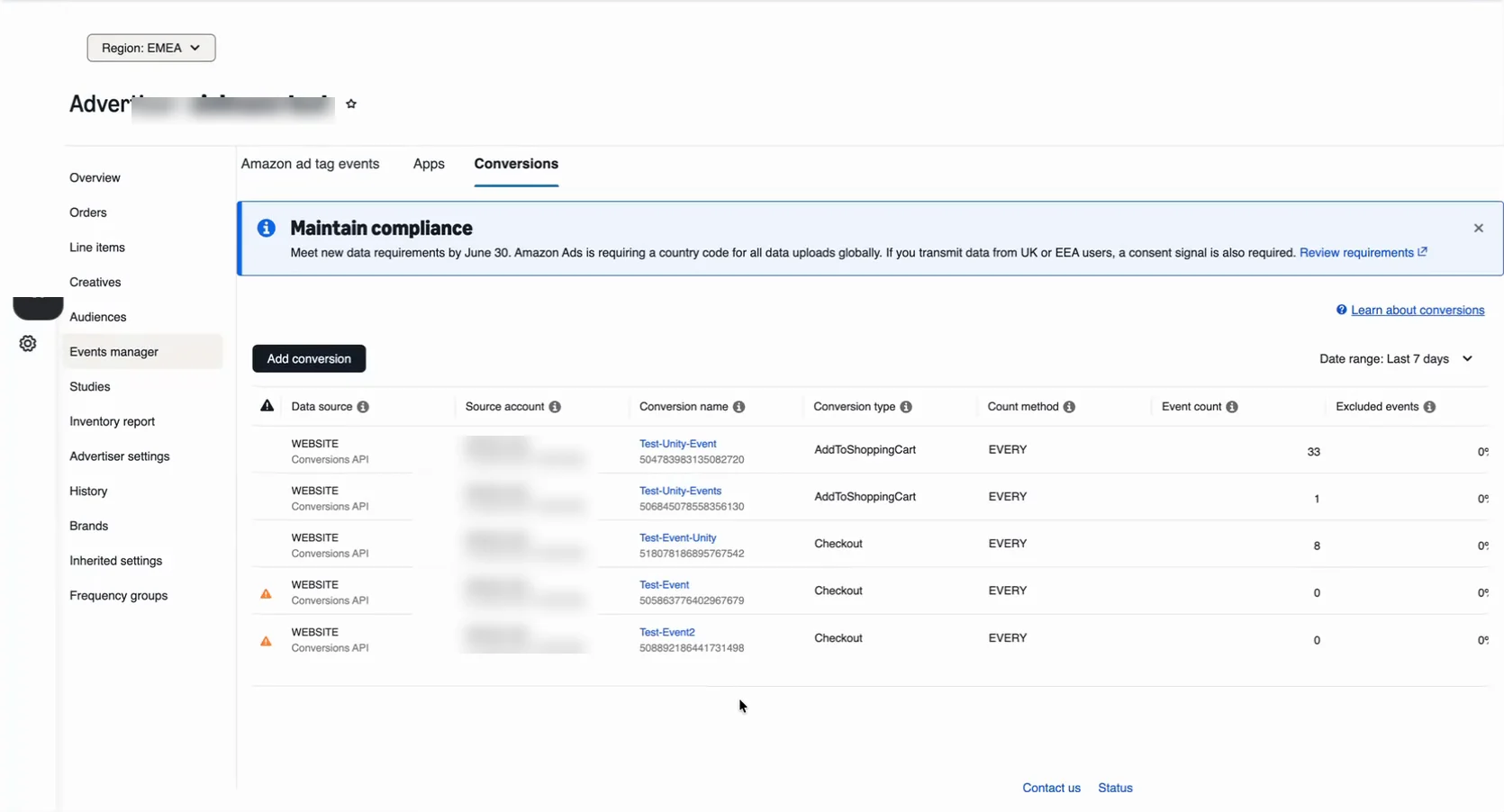 The **Amazon ad tag events** tab in Events manager lists tag-based events. Until events are received, it shows "No activity yet"; allow time for the first events to be processed before treating an empty view as an error.
**Note:**
The terms *Audiences* and *Segments* are used interchangeably to refer to customer cohorts belonging to a specific category. For example, an Audience or a segment could be a specific group of customers who are over 18 years of age and who have performed an `addToCart` event within the last 30 days.
## Related Topics
* [Link an Audience to the Destination](/articles/integrate-customer/link-an-audience-to-the-destination)
* [Create a Destination](/articles/integrate-customer/create-a-destination)
* [Activate Your Real-time Audiences](/articles/integrate-customer/activate-your-real-time-audiences)
* [Destination Access Rules](/articles/integrate-customer/destination-access-rules)
The **Amazon ad tag events** tab in Events manager lists tag-based events. Until events are received, it shows "No activity yet"; allow time for the first events to be processed before treating an empty view as an error.
**Note:**
The terms *Audiences* and *Segments* are used interchangeably to refer to customer cohorts belonging to a specific category. For example, an Audience or a segment could be a specific group of customers who are over 18 years of age and who have performed an `addToCart` event within the last 30 days.
## Related Topics
* [Link an Audience to the Destination](/articles/integrate-customer/link-an-audience-to-the-destination)
* [Create a Destination](/articles/integrate-customer/create-a-destination)
* [Activate Your Real-time Audiences](/articles/integrate-customer/activate-your-real-time-audiences)
* [Destination Access Rules](/articles/integrate-customer/destination-access-rules)