> ## Documentation Index
> Fetch the complete documentation index at: https://docs.zeotap.com/llms.txt
> Use this file to discover all available pages before exploring further.
# Adform DMP
## Overview
Adform is a powerful and safe media buying platform that enables major brands, agencies and publishers to create, buy and sell digital advertising globally. Having pushed the boundaries through augmented intelligence and an industry-leading identity solution, Adform has consistently changed the game for digital advertisers. Integrated with Zeotap CDP, you can upload audiences directly into your Adform DMP account and use it for targeting in your programmatic campaigns.
## Supported Identifiers
This integration supports MAIDs, Adform Cookies and ID5.
## Available Actions and Supported Features
The following table lists the available action types for the integration and the supported features for each action type:
| Action Name | [ID EXTENSION](/articles/segment-customer/extend-your-audience#id-extension) | [DELETE](https://docs.zeotap.com/articles/#!integrate-customer/delta-upload-and-delete-functions) | [DELTA UPLOAD](https://docs.zeotap.com/articles/#!integrate-customer/delta-upload-and-delete-functions) |
| :----------------------------- | :--------------------------------------------------------------------------- | :------------------------------------------------------------------------------------------------ | :------------------------------------------------------------------------------------------------------ |
| Send identifiers to Adform DMP | ✅ | - | - |
## Prerequisites
Ensure that the following prerequisites are taken care of before starting this integration:
### Adform DMP Account
Ensure that you have an Adform DMP account set up before starting this integration. If you do not have an account, contact your Adform Account Manager to set one up.
### Adform DMP Account ID
Have your Adform DMP Account ID handy to set up this integration. If you do not know your Account ID, contact [dmp@adform.com](mailto:dmp@adform.com).
### External Platform Connection
Ensure that you add Zeotap CDP as an external platform for your Adform DMP account to establish a connection between them. To do this, contact [dmp@adform.com](mailto:dmp@adform.com) with your account details and request to connect Zeotap CDP as an external platform.
### Adform API Credentials
You need to register as an [OAuth](https://api.adform.com/help/guides/getting-started/authorization-guide) client with the Adform DMP by providing the following details of the client to the Adform support team at [dmp@adform.com](mailto:dmp@adform.com):
* Username
* Description — Provide a description, such as "To facilitate the segment creation process through APIs"
* Authorisation flow — Client Credentials
* Scopes — [https://api.adform.com/scope/dmp.segments](https://api.adform.com/scope/dmp.segments) and [https://api.adform.com/scope/dmp.categories](https://api.adform.com/scope/dmp.categories)
Note that Upon successful registration, the credentials will be shared through email to the mentioned username.
## Create a Destination for Adform DMP
Log into the Zeotap CDP App and go to the **DESTINATIONS** application.
Click **+ Create Destination**.
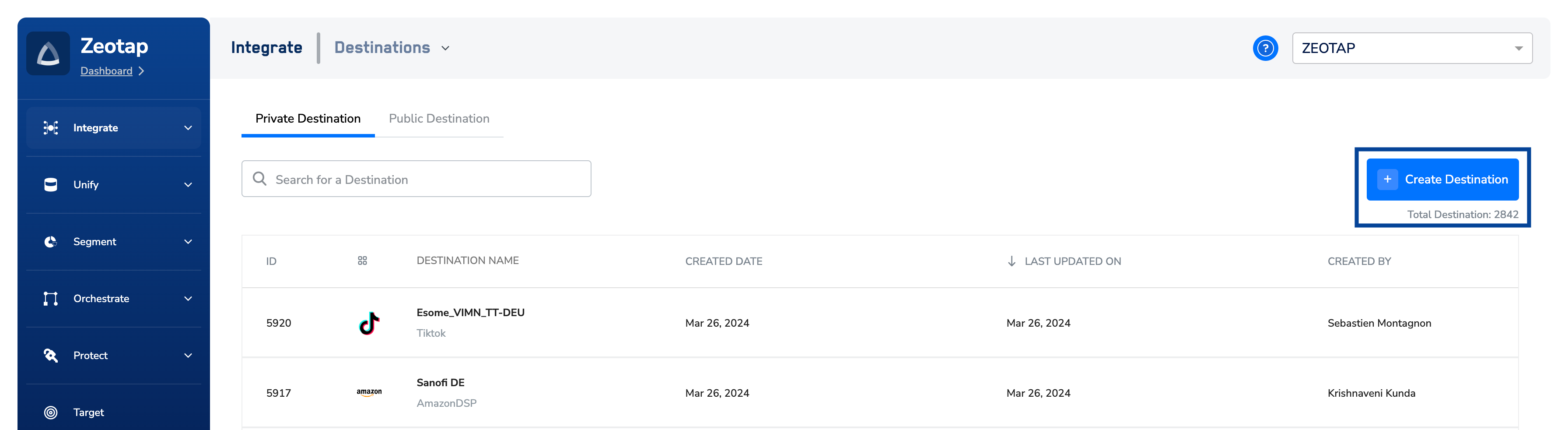 Under the **All Destinations** section, search for **Adform DMP**.
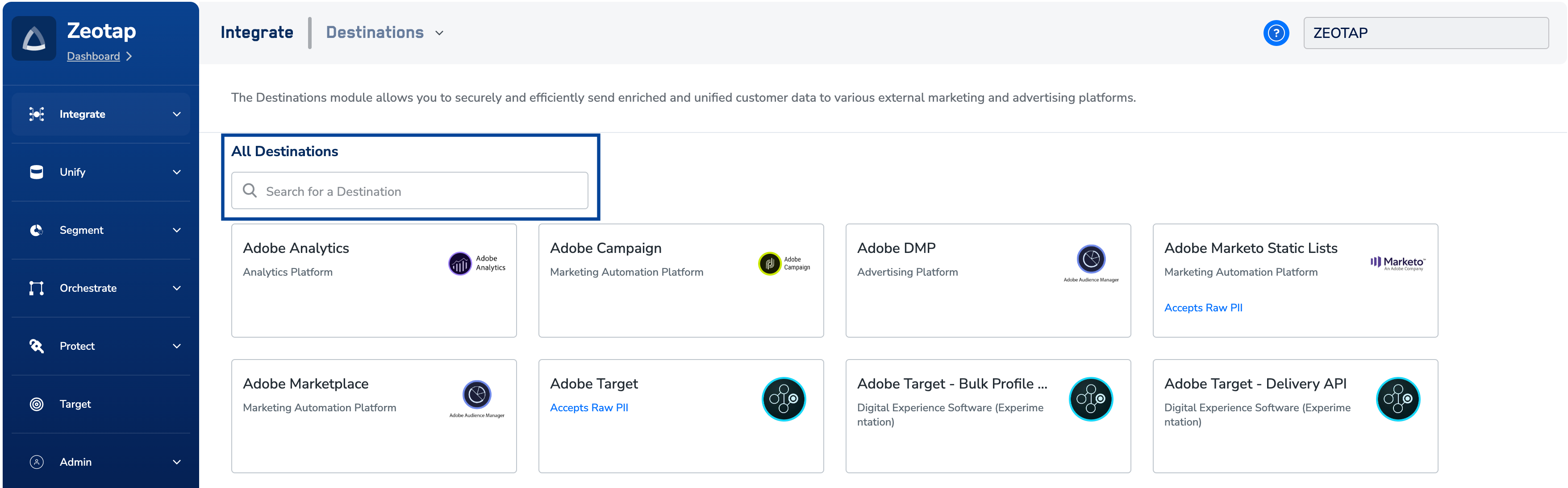 Click **Adform DMP**. A screen appears displaying details about the particular destination towards the left. On the right-hand side of the screen find a list of fields that are required for the integration to be established. Enter the required details as mentioned in the following steps:
a. Enter a name for the Destination.
b. Enter the **API Username and API Password** obtained from Adform.
c. Enter the **Data Provider ID** obtained from your Adform DMP account. This is the Account ID obtained from your Adform account.
In the new screen that appears, choose the appropriate Action and mapping as explained below.
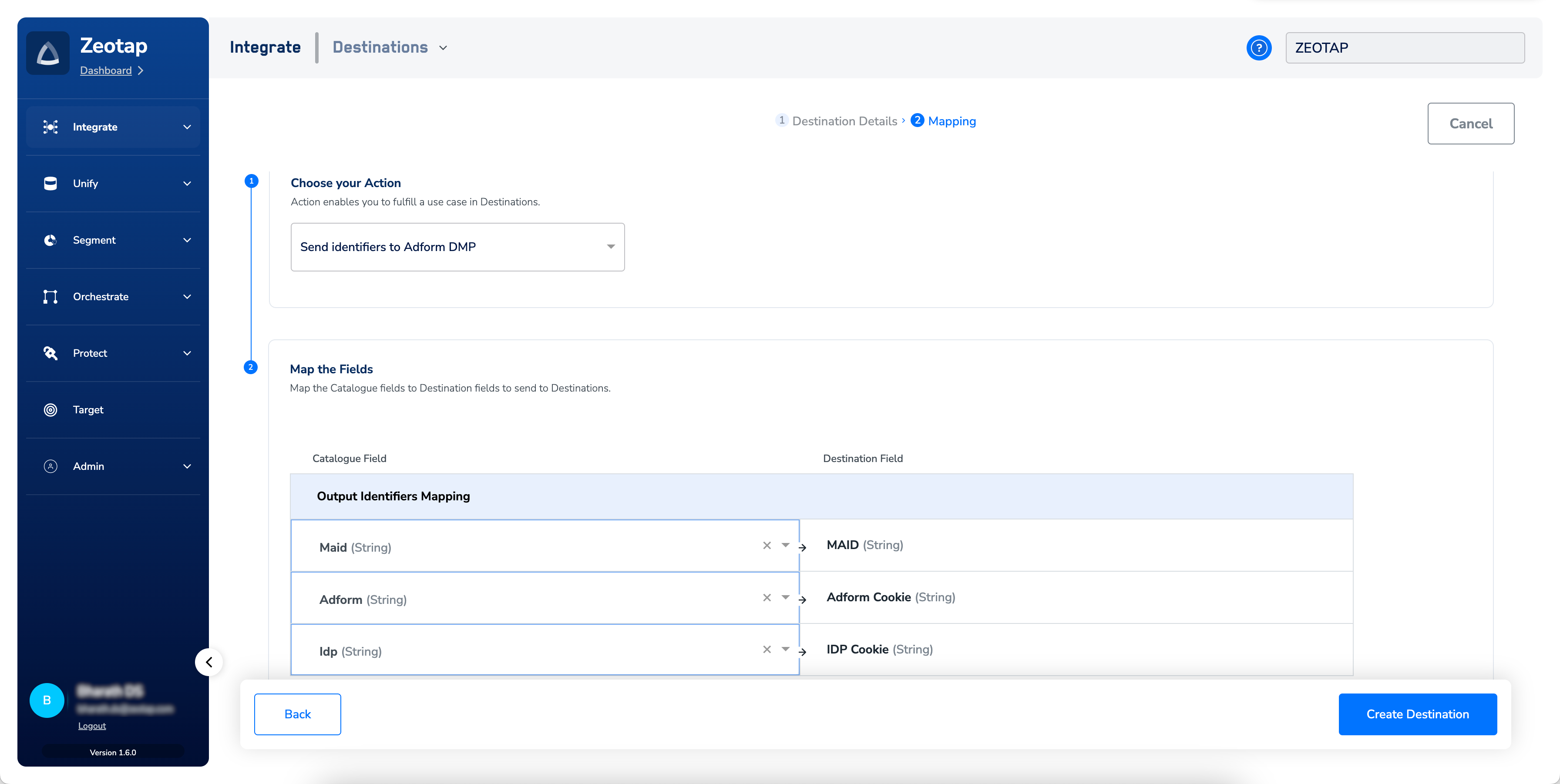
a. Choose **Send Identifiers to Adform DMP** as [action](/articles/integrate-customer/destinations#actionsanchor) under **Choose your Action** and then choose the corresponding identifiers under **Map the Fields**. By default, the [Output Identifiers](https://docs.zeotap.com/articles/segment-customer/choose-the-output-identifiers) that are accepted by the platform such as MAIDs, Cookies, and more are displayed. However, you can edit, add or remove an identifier from the list. To do so, refer [here](/articles/integrate-customer/destinations#mappingsanchor).
**Note:**
This integration supports [ID extension](https://docs.zeotap.com/articles/segment-customer/extend-your-audience/a/h2_1167151146) for the action **Send identifiers to Adform DMP**.
b. Click **Create Destination**. The created Destination gets listed in the **Audiences** application, which can be linked to an Audience/segment.
Click **Adform DMP**. A screen appears displaying details about the particular destination towards the left. On the right-hand side of the screen find a list of fields that are required for the integration to be established. Enter the required details as mentioned in the following steps:
a. Enter a name for the Destination.
b. Enter the **API Username and API Password** obtained from Adform.
c. Enter the **Data Provider ID** obtained from your Adform DMP account. This is the Account ID obtained from your Adform account.
In the new screen that appears, choose the appropriate Action and mapping as explained below.
a. Choose **Send Identifiers to Adform DMP** as [action](/articles/integrate-customer/destinations#actionsanchor) under **Choose your Action** and then choose the corresponding identifiers under **Map the Fields**. By default, the [Output Identifiers](https://docs.zeotap.com/articles/segment-customer/choose-the-output-identifiers) that are accepted by the platform such as MAIDs, Cookies, and more are displayed. However, you can edit, add or remove an identifier from the list. To do so, refer [here](/articles/integrate-customer/destinations#mappingsanchor).
**Note:**
This integration supports [ID extension](https://docs.zeotap.com/articles/segment-customer/extend-your-audience/a/h2_1167151146) for the action **Send identifiers to Adform DMP**.
b. Click **Create Destination**. The created Destination gets listed in the **Audiences** application, which can be linked to an Audience/segment.
 ## Link an Audience to the Adform DMP Destination
For information about how to link an Audience or segment to the created Destination in **Audiences** application, refer [here](/articles/integrate-customer/link-an-audience-to-the-destination).
*The terms Audiences and Segments are used interchangeably to refer to customer cohorts
belonging to a specific category.For example, an Audience or a segment could be a specific
group of customers who are over 18 years of age and who have performed an addToCart
event within the last 30 days.*
## Link an Audience to the Adform DMP Destination
For information about how to link an Audience or segment to the created Destination in **Audiences** application, refer [here](/articles/integrate-customer/link-an-audience-to-the-destination).
*The terms Audiences and Segments are used interchangeably to refer to customer cohorts
belonging to a specific category.For example, an Audience or a segment could be a specific
group of customers who are over 18 years of age and who have performed an addToCart
event within the last 30 days.*