> ## Documentation Index
> Fetch the complete documentation index at: https://docs.zeotap.com/llms.txt
> Use this file to discover all available pages before exploring further.
# Quick Start: Your First Partnership
> Set up a Collaborate partnership from scratch and run your first Discover, Activate, and Suppress analyses. The whole process takes around 15 minutes once both parties are ready.
This guide walks both the Contributor and the Subscriber through setting up a Collaborate partnership from scratch and running your first Discover, Activate, and Suppress analyses. The whole process takes around 15 minutes once both parties are ready.
## Admin setup — complete once before your first partnership
These steps are done once per organisation. If your org has already done this, skip ahead to Step 1.
* **Enable the Collaborate module** — Contact your Zeotap account team to have the Collaborate module activated on your org. It will not appear in the left navigation until this is done.
* **Confirm composable CDP plan** — Subscriber orgs must be on the Zeotap composable CDP plan (warehouse-native BigQuery setup). Confirm this with your account team if unsure.
* **Enable collaboration consent** — Your org must opt in to data collaboration on Zeotap before it can appear in another org's partner dropdown. Ask your account team to enable this.
* **Notify CDP admins** — When a Contributor creates a partnership, the invitation email goes to all CDP admins of the Subscriber org. Make sure the right people have admin access so they receive it. Contact the support team if you need to change this setting.
## Before you begin
Make sure both organisations have completed the admin setup above, and that:
* You have **at least one ID-type attribute in common** — for example, both sides hold Email MD5 data.
* The Contributor has a data source onboarded, and the Subscriber has a source tagged as a **customer parent model**.
## Step 1 — Contributor: Create the partnership
In Zeotap CDP, navigate to **Collaborate → Partnerships** in the left sidebar.
Click **+ Create Partnership** in the top right.
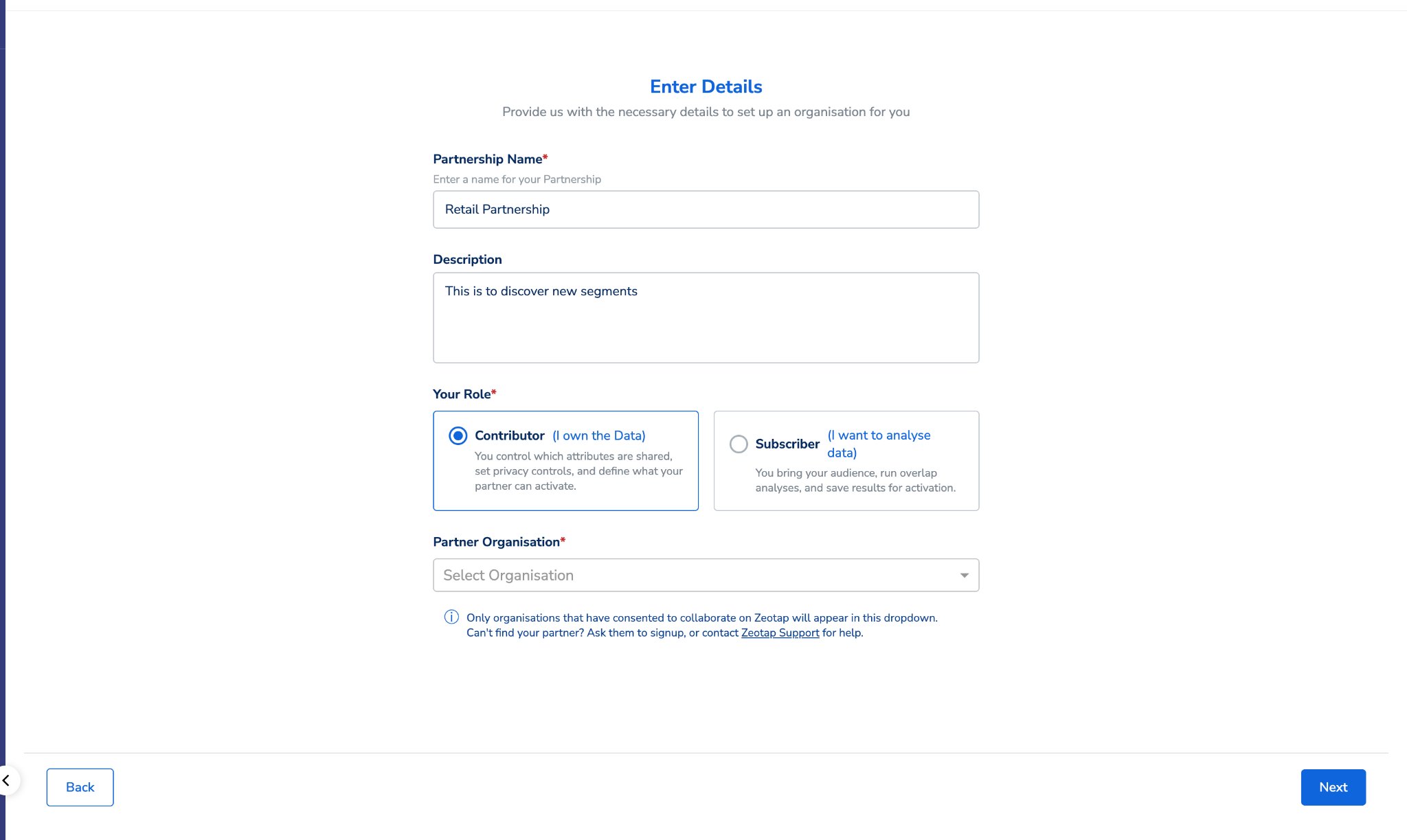
Fill in:
* **Partnership Name** — choose something descriptive that both teams will recognise.
* **Description** (optional) — a brief note on the purpose.
* **Your Role** — select **Contributor (I own the Data)**.
* **Partner Organisation** — select your partner from the dropdown. Only organisations with collaboration consent enabled appear here. If you cannot find your partner, ask them to contact their Zeotap account team.
Click **Next**.
 The partnership is created with **Pending** status. An **invitation email is sent automatically to the CDP admins of your partner's organisation** — they do not need to look for it; it comes to them. You are taken to the configuration screen, where you can start your side of the setup immediately.
## Step 2 — Contributor: Configure data sharing
You will see a two-step configuration wizard.
### Step 1 of 2 — Data Collaboration
Browse your available composable data sources on the left and expand a source to see its attributes.
For each attribute you want to share:
* **Enable Join Key** — turn this on for the identity attribute that will be used to match records with your partner. Join keys are available on ID-type attributes (such as Email MD5 or Phone MD5) and on the primary key column of composable datasets. At least one join key is required to proceed.
* **Insight Dimension** — turn this on for any attribute you want your partner to use in segment analysis (for example, gender, age group, or loyalty tier).
The partnership is created with **Pending** status. An **invitation email is sent automatically to the CDP admins of your partner's organisation** — they do not need to look for it; it comes to them. You are taken to the configuration screen, where you can start your side of the setup immediately.
## Step 2 — Contributor: Configure data sharing
You will see a two-step configuration wizard.
### Step 1 of 2 — Data Collaboration
Browse your available composable data sources on the left and expand a source to see its attributes.
For each attribute you want to share:
* **Enable Join Key** — turn this on for the identity attribute that will be used to match records with your partner. Join keys are available on ID-type attributes (such as Email MD5 or Phone MD5) and on the primary key column of composable datasets. At least one join key is required to proceed.
* **Insight Dimension** — turn this on for any attribute you want your partner to use in segment analysis (for example, gender, age group, or loyalty tier).
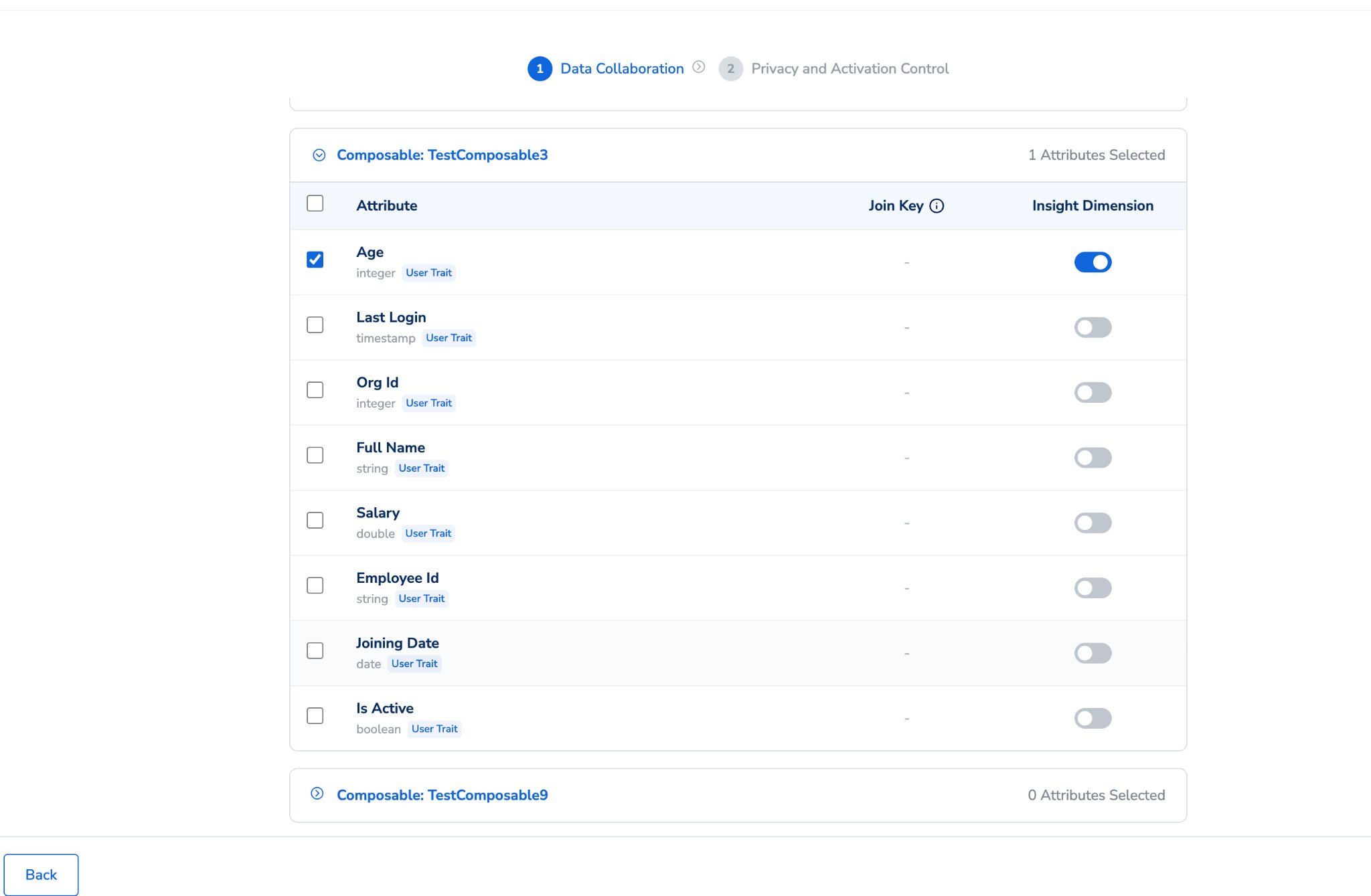 Click **Next** when done. If you click **Next** without selecting at least one join key, you will see an inline error — select a join key to proceed.
**Choosing the right attributes as insight dimensions:** Insight dimensions are used for group-level analysis — your partner sees a count of matched users per value (for example, "Female: 11,800 users"). Use them for categorical attributes with a limited set of values. Do **not** enable individual-level attributes (such as a customer ID, email, or any attribute that varies per person) as insight dimensions. Even though results are protected by the aggregate threshold, surfacing granular per-individual attributes is not suitable for analysis and will not produce meaningful results.
Publishers can only share attributes either from composable sources **or** from ingested sources — not a combination of both. Sharing both types together may result in duplicate records.
### Step 2 of 2 — Privacy and Activation Control
**Aggregate Threshold** — the minimum group size for a cohort to appear in analysis results. Cohorts smaller than this are not shown to your partner. The default is 1,000. This ensures that overlaps below a certain size are not exposed, to avoid user re-identification.
**Activation Settings** — select **Allow Activation** if you want your partner to be able to save overlap results as audiences, then select which channels they can activate to.
Click **Next** when done. If you click **Next** without selecting at least one join key, you will see an inline error — select a join key to proceed.
**Choosing the right attributes as insight dimensions:** Insight dimensions are used for group-level analysis — your partner sees a count of matched users per value (for example, "Female: 11,800 users"). Use them for categorical attributes with a limited set of values. Do **not** enable individual-level attributes (such as a customer ID, email, or any attribute that varies per person) as insight dimensions. Even though results are protected by the aggregate threshold, surfacing granular per-individual attributes is not suitable for analysis and will not produce meaningful results.
Publishers can only share attributes either from composable sources **or** from ingested sources — not a combination of both. Sharing both types together may result in duplicate records.
### Step 2 of 2 — Privacy and Activation Control
**Aggregate Threshold** — the minimum group size for a cohort to appear in analysis results. Cohorts smaller than this are not shown to your partner. The default is 1,000. This ensures that overlaps below a certain size are not exposed, to avoid user re-identification.
**Activation Settings** — select **Allow Activation** if you want your partner to be able to save overlap results as audiences, then select which channels they can activate to.
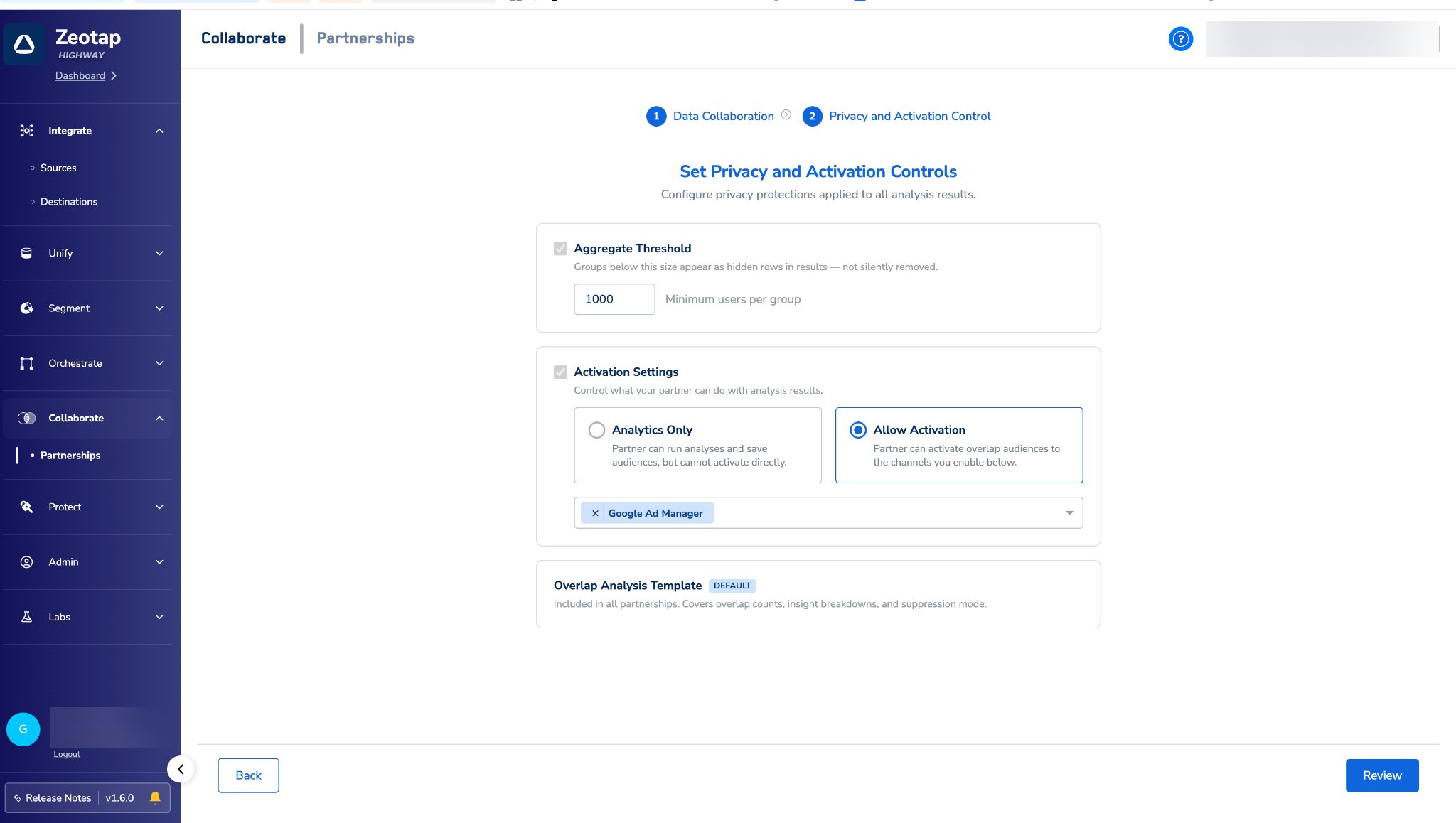 Click **Submit**.
## Step 3 — Subscriber: Accept the invitation
Your CDP admins received an invitation email when the Contributor created the partnership. To accept:
Navigate to **Collaborate → Partnerships**.
Find the partnership with **Pending** status and your role as **Subscriber**.
Click the partnership name, then click **Accept Invitation**.
Once accepted, the partnership status moves to **In Setup** and you can begin your configuration.
## Step 4 — Subscriber: Map your join keys
The configuration screen shows the join keys the Contributor has set on their side. You map each to the equivalent attribute in your data.
The Subscriber configuration step is only available once the Contributor has completed their configuration. If the Contributor has not yet submitted their side, you will not see the mapping screen.
For each partner join key shown (for example, "Email MD5 Lowercase"), select the matching attribute from your own data.
Map all available join keys if possible — each mapped key increases the chance of finding matches.
Click **Submit**.
## Step 3 — Subscriber: Accept the invitation
Your CDP admins received an invitation email when the Contributor created the partnership. To accept:
Navigate to **Collaborate → Partnerships**.
Find the partnership with **Pending** status and your role as **Subscriber**.
Click the partnership name, then click **Accept Invitation**.
Once accepted, the partnership status moves to **In Setup** and you can begin your configuration.
## Step 4 — Subscriber: Map your join keys
The configuration screen shows the join keys the Contributor has set on their side. You map each to the equivalent attribute in your data.
The Subscriber configuration step is only available once the Contributor has completed their configuration. If the Contributor has not yet submitted their side, you will not see the mapping screen.
For each partner join key shown (for example, "Email MD5 Lowercase"), select the matching attribute from your own data.
Map all available join keys if possible — each mapped key increases the chance of finding matches.
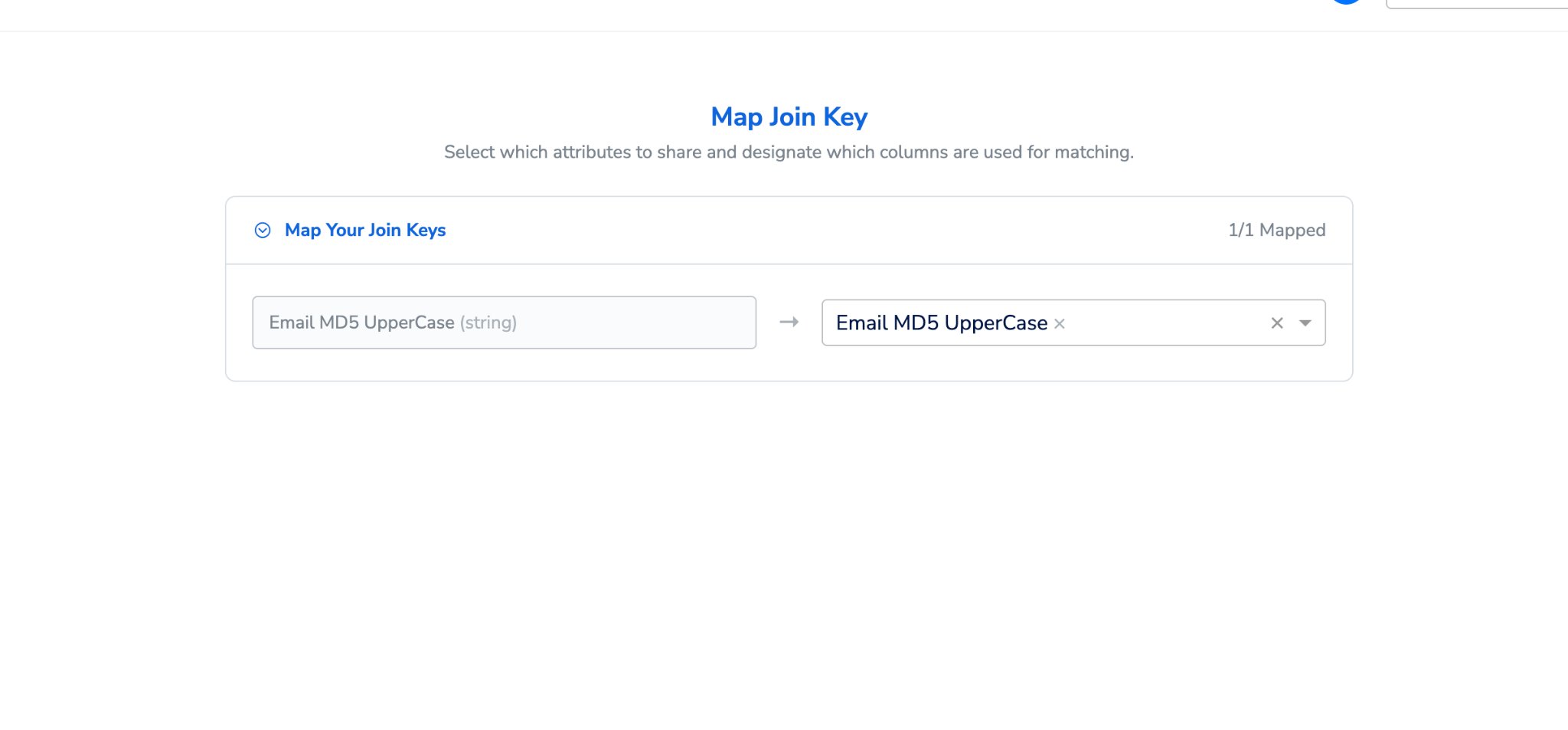 Click **Submit**.
Once both sides have submitted, the partnership status becomes **Active**.
## Step 5 — Subscriber: Discover
Discover is the overlap analysis step — understand how your audience aligns with your partner's and what those shared customers look like.
Open the **Active** partnership and click the **Analysis** tab.
Under **Matching on**, select the join key to use for this run.
Click **Run Analysis**.
Click **Submit**.
Once both sides have submitted, the partnership status becomes **Active**.
## Step 5 — Subscriber: Discover
Discover is the overlap analysis step — understand how your audience aligns with your partner's and what those shared customers look like.
Open the **Active** partnership and click the **Analysis** tab.
Under **Matching on**, select the join key to use for this run.
Click **Run Analysis**.
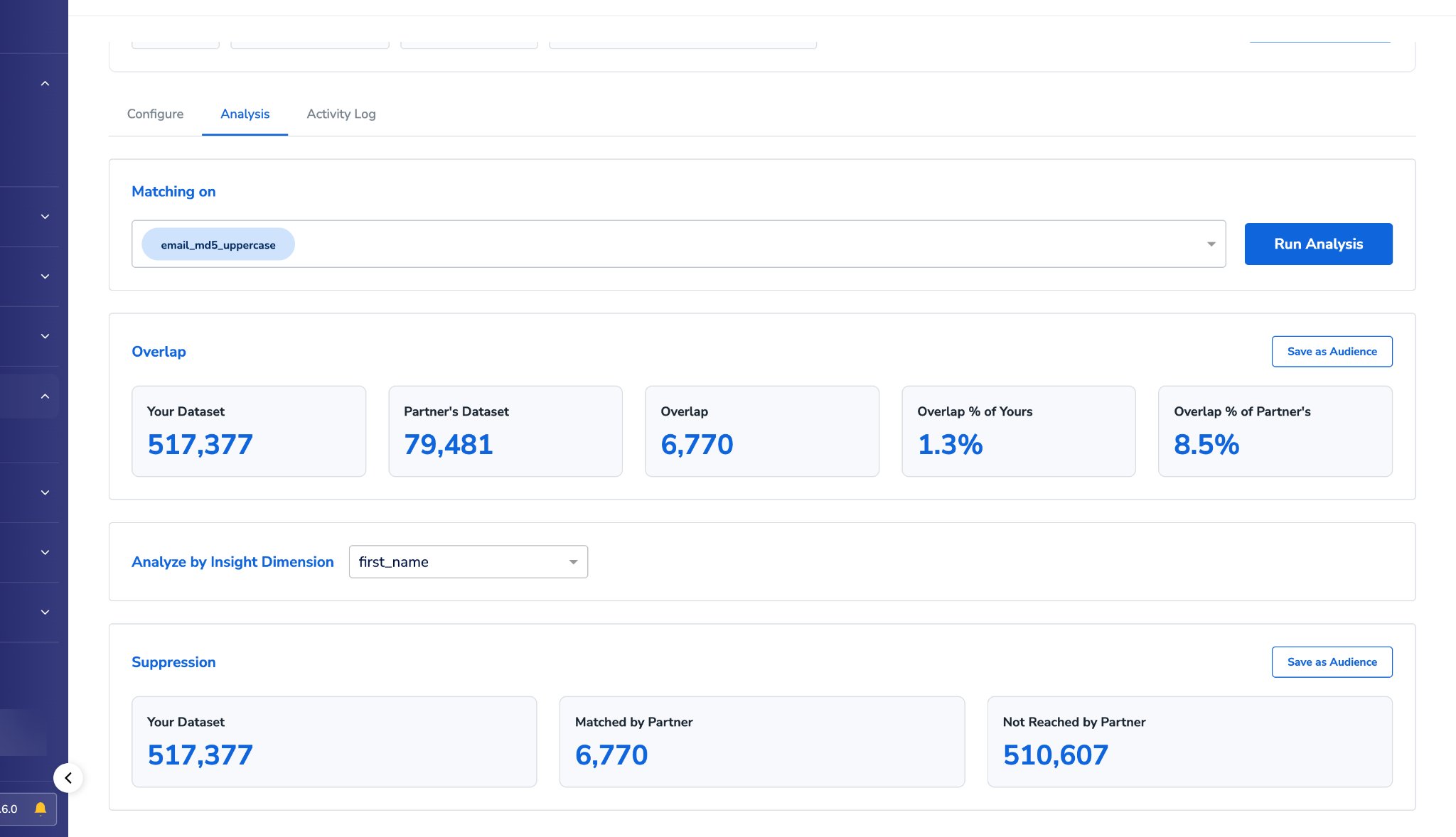 Analysis typically completes within a few minutes. When done, the page displays:
| Metric | What it shows |
| :--------------------- | :---------------------------------------------------------- |
| Your Dataset | Total records in your data. |
| Partner's Dataset | Total records in the Contributor's data. |
| Overlap | Records matched between both datasets. |
| Overlap % of Yours | Matched records as a percentage of your total. |
| Overlap % of Partner's | Matched records as a percentage of the Contributor's total. |
Use **Analyse by Insight Dimension** to select an insight dimension from the dropdown and see the overlap broken down by that attribute (for example, Gender: Male 11,678 / Female 11,800). Cohorts below the Contributor's aggregate threshold are not shown.
## Step 6 — Subscriber: Activate
Activate — save matched segments as audiences and push them to ad channels.
In the **Overlap** section, click **Save as Audience** to save the full matched population.
Analysis typically completes within a few minutes. When done, the page displays:
| Metric | What it shows |
| :--------------------- | :---------------------------------------------------------- |
| Your Dataset | Total records in your data. |
| Partner's Dataset | Total records in the Contributor's data. |
| Overlap | Records matched between both datasets. |
| Overlap % of Yours | Matched records as a percentage of your total. |
| Overlap % of Partner's | Matched records as a percentage of the Contributor's total. |
Use **Analyse by Insight Dimension** to select an insight dimension from the dropdown and see the overlap broken down by that attribute (for example, Gender: Male 11,678 / Female 11,800). Cohorts below the Contributor's aggregate threshold are not shown.
## Step 6 — Subscriber: Activate
Activate — save matched segments as audiences and push them to ad channels.
In the **Overlap** section, click **Save as Audience** to save the full matched population.
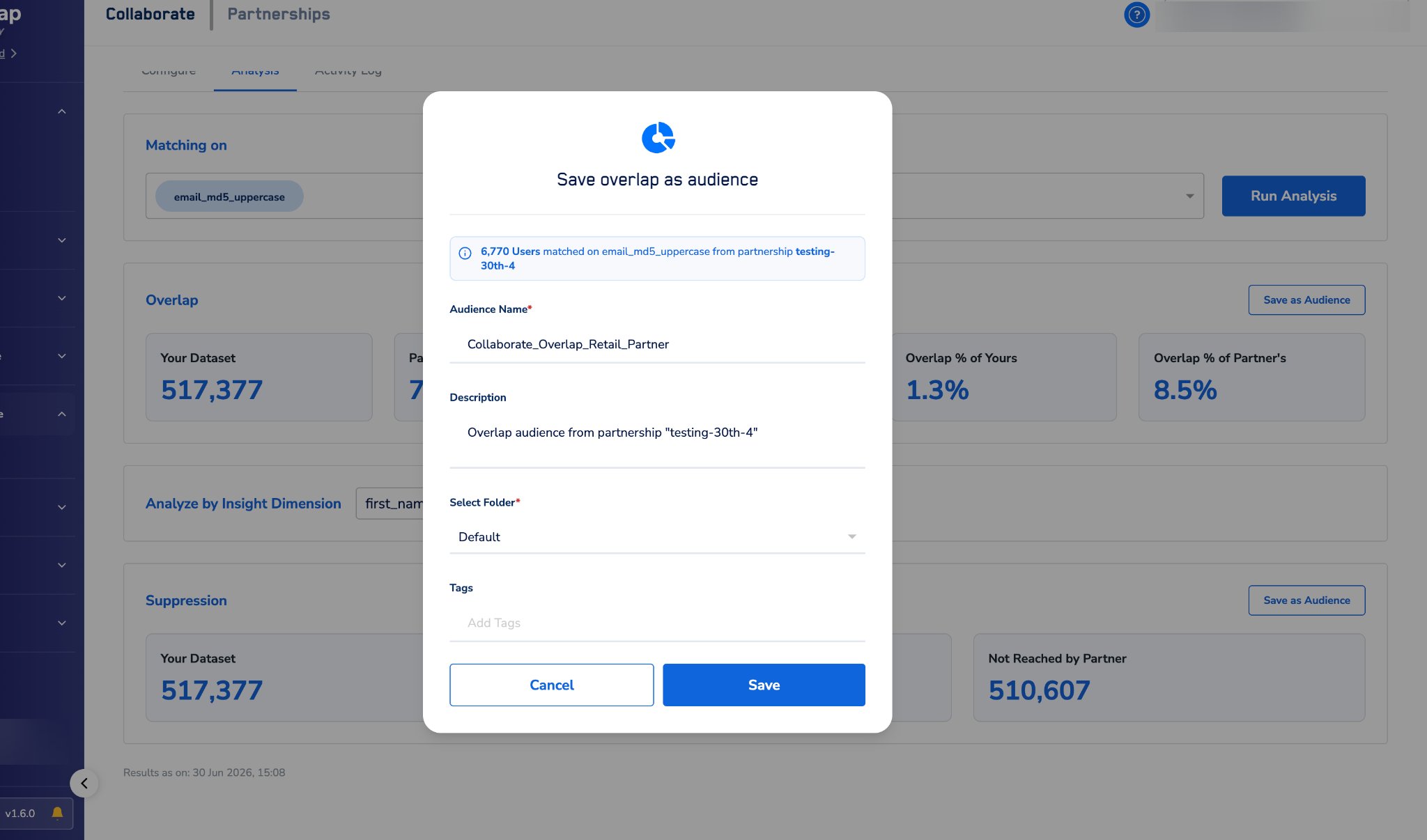 In the **Analyse by Insight Dimension** table, click **Save as Audience** next to a specific segment to save that breakdown as a separate audience (for example, save "Female" matched users only).
Saved audiences appear in **Segment → Audiences** and can be activated to any channel the Contributor has permitted.
Cohorts below the aggregate threshold (default 1,000 users) cannot be saved. The **Save as Audience** button is disabled for those rows.
## Step 7 — Subscriber: Suppress
Suppress — identify customers not reached by your partner, for exclusion targeting or incrementality measurement.
In the **Suppression** section of the Analysis tab, view the count of users in your dataset who were *not* matched by the Contributor.
Click **Save as Audience** to save this non-overlapping population as a separate audience.
Use this audience to exclude already-reached customers from campaigns, or to measure incremental reach.
## Tracking progress
Both sides can monitor the partnership at any time via the **Activity Log** tab. As you work through the steps above, you will see these events appear in the log:
* **Invite Sent** — when the Contributor created the partnership.
* **Invite Accepted** — when the Subscriber accepted.
* **Configuration Saved** — when either side submits their configuration.
* **Analysis Run** — when an analysis run completed, with the overlap count.
* **Audience Saved** — when the Subscriber saved an audience.
## What's next?
In the **Analyse by Insight Dimension** table, click **Save as Audience** next to a specific segment to save that breakdown as a separate audience (for example, save "Female" matched users only).
Saved audiences appear in **Segment → Audiences** and can be activated to any channel the Contributor has permitted.
Cohorts below the aggregate threshold (default 1,000 users) cannot be saved. The **Save as Audience** button is disabled for those rows.
## Step 7 — Subscriber: Suppress
Suppress — identify customers not reached by your partner, for exclusion targeting or incrementality measurement.
In the **Suppression** section of the Analysis tab, view the count of users in your dataset who were *not* matched by the Contributor.
Click **Save as Audience** to save this non-overlapping population as a separate audience.
Use this audience to exclude already-reached customers from campaigns, or to measure incremental reach.
## Tracking progress
Both sides can monitor the partnership at any time via the **Activity Log** tab. As you work through the steps above, you will see these events appear in the log:
* **Invite Sent** — when the Contributor created the partnership.
* **Invite Accepted** — when the Subscriber accepted.
* **Configuration Saved** — when either side submits their configuration.
* **Analysis Run** — when an analysis run completed, with the overlap count.
* **Audience Saved** — when the Subscriber saved an audience.
## What's next?