> ## Documentation Index
> Fetch the complete documentation index at: https://docs.zeotap.com/llms.txt
> Use this file to discover all available pages before exploring further.
# Contributor Guide
> As the Contributor, you own the data in a Collaborate partnership. Create the partnership, decide which attributes your partner can see, set the privacy controls that govern analysis results, and manage the partnership throughout its lifetime.
As the Contributor (displayed as **Publisher** in most parts of the product), you own the data in a Collaborate partnership. You create the partnership, decide which attributes your partner can see, set the privacy controls that govern what they can do with analysis results, and manage the partnership throughout its lifetime.
## Prerequisites
Before creating a partnership, confirm that:
* Your organisation is on the **Zeotap composable CDP plan** and has the Collaborate module enabled.
* Your organisation has given **collaboration consent** (contact your account team if unsure).
* You have at least one **data source** onboarded.
* That data source contains at least one **ID-type attribute** (for example, Email MD5 or Phone MD5) to serve as the join key, or you have a primary key column on a composable dataset.
* You know which Zeotap organisation your partner belongs to, and they have also consented to collaborate.
## Creating a partnership
In Zeotap CDP, navigate to **Collaborate → Partnerships** in the left sidebar.
Click **+ Create Partnership** in the top right.
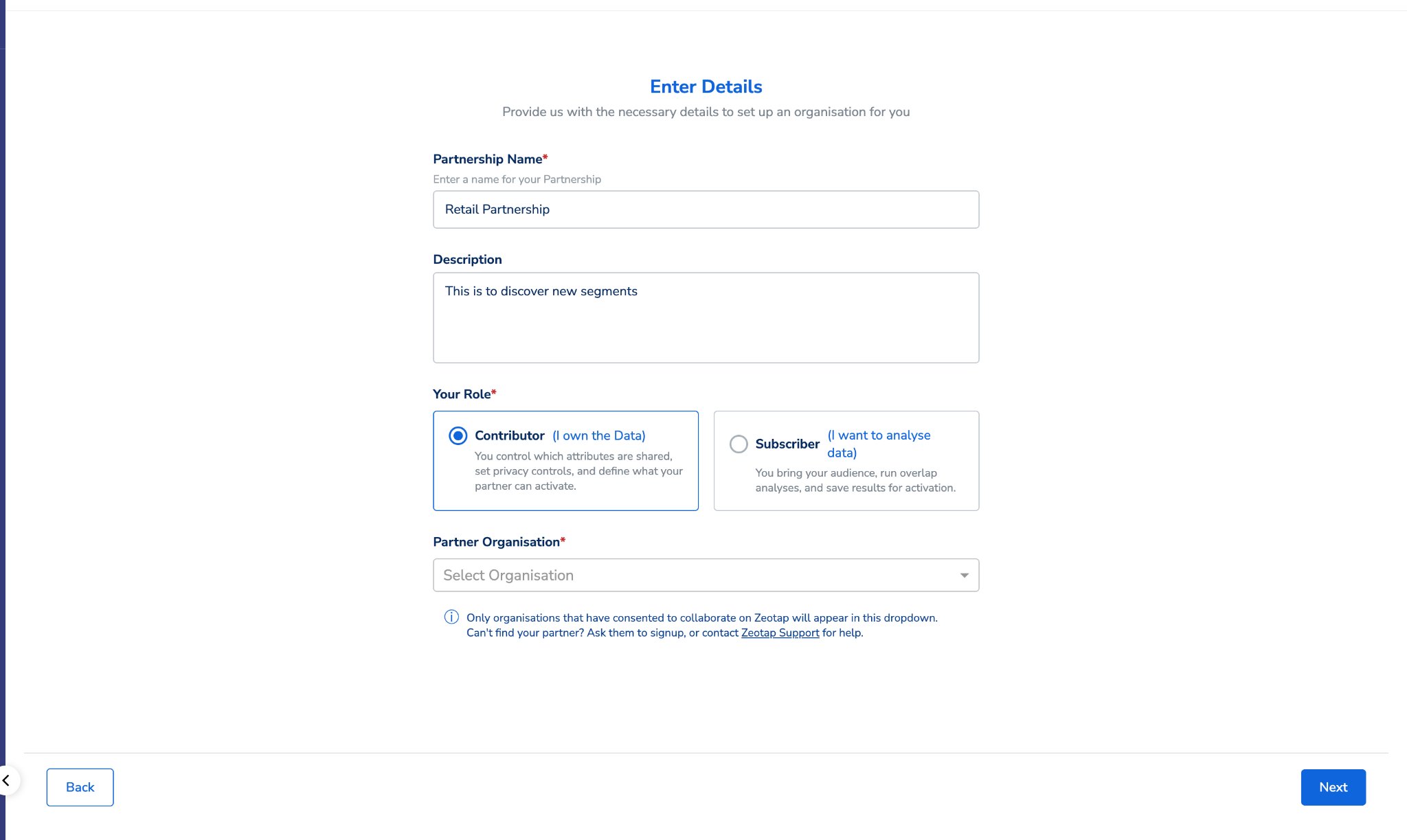
Fill in the following fields:
| Field | What to enter |
| :------------------------- | :-------------------------------------------------------------------------------------------------------- |
| **Partnership Name** | Choose a name meaningful to both teams — for example, "BrandX × RetailerY — Summer 2024". |
| **Description** (optional) | A short note on the purpose. Visible to both sides. |
| **Your Role** | Select **Contributor (I own the Data)**. |
| **Partner Organisation** | Select your partner from the dropdown. Only organisations with collaboration consent enabled appear here. |
Click **Next**.
 The partnership is created with **Pending** status, and an invitation email is sent immediately to all CDP admins of your partner's organisation. You can continue with the data configuration to begin your side of the setup straight away, without waiting for the Subscriber to accept.
## Configuring data sharing
The configuration wizard has two steps. Complete both before your Subscriber can begin their side.
### Step 1 — Data Collaboration
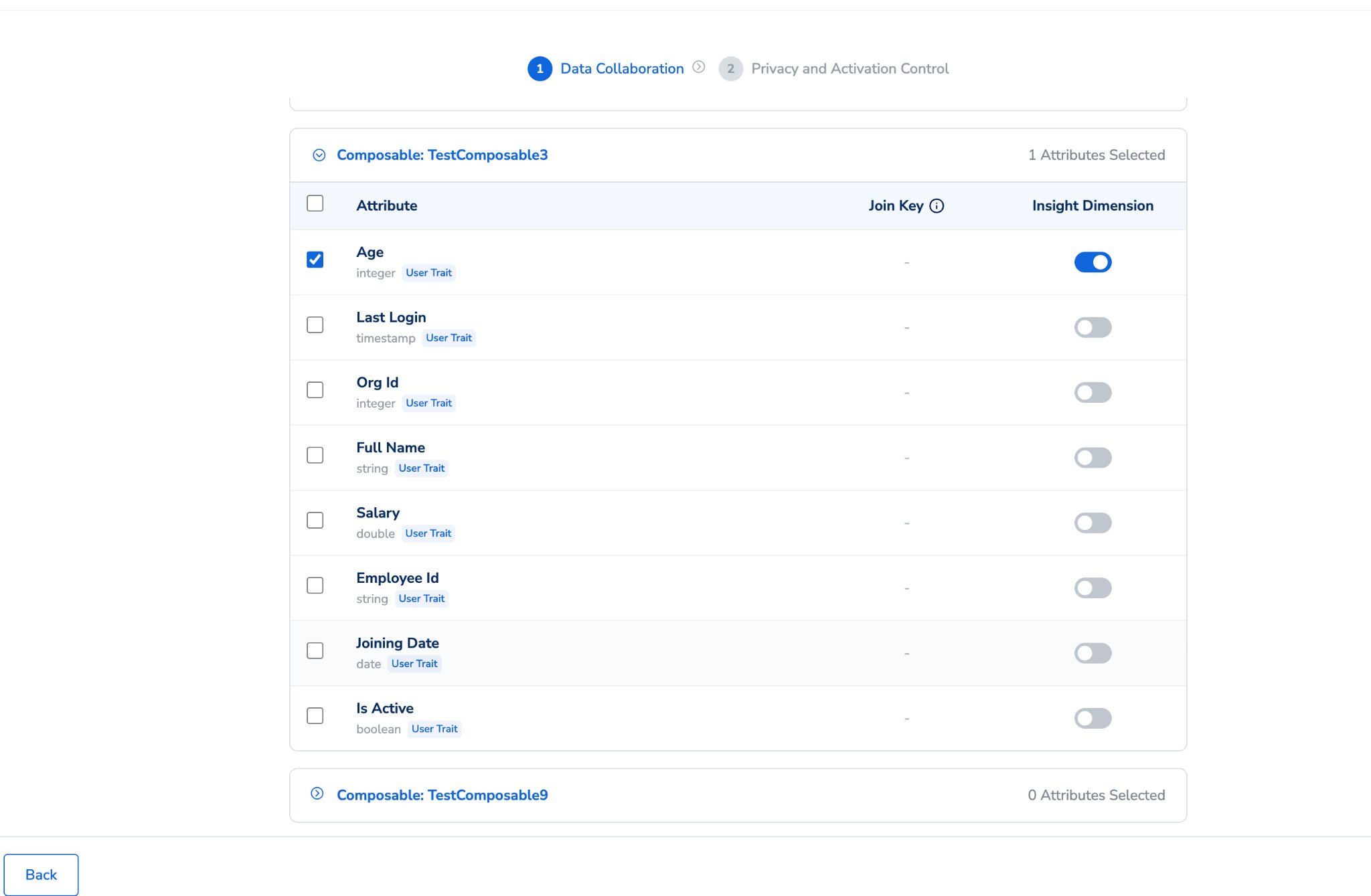
This is where you choose which attributes your partner can use for identity matching and segment analysis. Your available composable data sources are listed on the left. Expand a source to see its attributes, then toggle on the attributes you want to share.
The partnership is created with **Pending** status, and an invitation email is sent immediately to all CDP admins of your partner's organisation. You can continue with the data configuration to begin your side of the setup straight away, without waiting for the Subscriber to accept.
## Configuring data sharing
The configuration wizard has two steps. Complete both before your Subscriber can begin their side.
### Step 1 — Data Collaboration
This is where you choose which attributes your partner can use for identity matching and segment analysis. Your available composable data sources are listed on the left. Expand a source to see its attributes, then toggle on the attributes you want to share.
 **Setting join keys**
At least one attribute must be designated as a **Join Key** — the identity attribute used to match records between your organisation and your partner's. The **Enable Join Key** toggle is available on:
* **ID-type attributes** — such as Email MD5 Lowercase, Phone MD5, and similar hashed identifiers.
* **Primary key columns** of composable datasets.
Your partner will map their equivalent attribute to each join key you set here. Only mapped join keys are used when analysis runs.
Once submitted, you **cannot remove** a join key from the partnership. The only way to remove it is to archive the partnership.
**Setting insight dimensions**
Insight dimensions are attributes you share for segment analysis. Your partner sees aggregated counts broken down by these attributes — for example, a count of matched users by gender — but never individual-level values. Toggle **Insight Dimension** on for categorical attributes you want to expose: age group, purchase category, loyalty tier, interest segment, and similar.
**Choosing the right attributes as insight dimensions:** Only use categorical attributes with a limited set of values (for example, gender, age band, region). Do **not** enable individual-level attributes (such as customer IDs, precise location, or any field that varies at an individual level) as insight dimensions. Even though results are protected by the aggregate threshold, attributes that differ at the individual level are not suitable for group-by analysis and will produce results of limited value. This applies whether you are using a composable or an ingested source.
**Minimum requirement**
At least one join key must be enabled. Clicking **Next** without a join key will show an inline error. Click **Next** to proceed.
### Step 2 — Privacy and Activation Control
**Aggregate Threshold**
The minimum number of matched users required for a cohort to appear in analysis results. Any segment bucket smaller than this number is not shown to your partner — it does not appear as a low number, it is suppressed entirely. The default is **1,000**. You can increase this for stronger privacy protection.
**Example:** If the threshold is 2,000 and your partner runs a gender breakdown, a bucket showing "Female: 1,450" would be hidden. "Male: 3,200" would be visible.
**Activation Settings**
Controls whether your partner can save overlap results as audiences and activate them.
* **Allow Activation** — toggle on to permit your partner to save audiences from analysis results.
* **Activation Channels** — if activation is enabled, select which channels your partner may activate to (for example, TTD or Google DV360).
**Setting join keys**
At least one attribute must be designated as a **Join Key** — the identity attribute used to match records between your organisation and your partner's. The **Enable Join Key** toggle is available on:
* **ID-type attributes** — such as Email MD5 Lowercase, Phone MD5, and similar hashed identifiers.
* **Primary key columns** of composable datasets.
Your partner will map their equivalent attribute to each join key you set here. Only mapped join keys are used when analysis runs.
Once submitted, you **cannot remove** a join key from the partnership. The only way to remove it is to archive the partnership.
**Setting insight dimensions**
Insight dimensions are attributes you share for segment analysis. Your partner sees aggregated counts broken down by these attributes — for example, a count of matched users by gender — but never individual-level values. Toggle **Insight Dimension** on for categorical attributes you want to expose: age group, purchase category, loyalty tier, interest segment, and similar.
**Choosing the right attributes as insight dimensions:** Only use categorical attributes with a limited set of values (for example, gender, age band, region). Do **not** enable individual-level attributes (such as customer IDs, precise location, or any field that varies at an individual level) as insight dimensions. Even though results are protected by the aggregate threshold, attributes that differ at the individual level are not suitable for group-by analysis and will produce results of limited value. This applies whether you are using a composable or an ingested source.
**Minimum requirement**
At least one join key must be enabled. Clicking **Next** without a join key will show an inline error. Click **Next** to proceed.
### Step 2 — Privacy and Activation Control
**Aggregate Threshold**
The minimum number of matched users required for a cohort to appear in analysis results. Any segment bucket smaller than this number is not shown to your partner — it does not appear as a low number, it is suppressed entirely. The default is **1,000**. You can increase this for stronger privacy protection.
**Example:** If the threshold is 2,000 and your partner runs a gender breakdown, a bucket showing "Female: 1,450" would be hidden. "Male: 3,200" would be visible.
**Activation Settings**
Controls whether your partner can save overlap results as audiences and activate them.
* **Allow Activation** — toggle on to permit your partner to save audiences from analysis results.
* **Activation Channels** — if activation is enabled, select which channels your partner may activate to (for example, TTD or Google DV360).
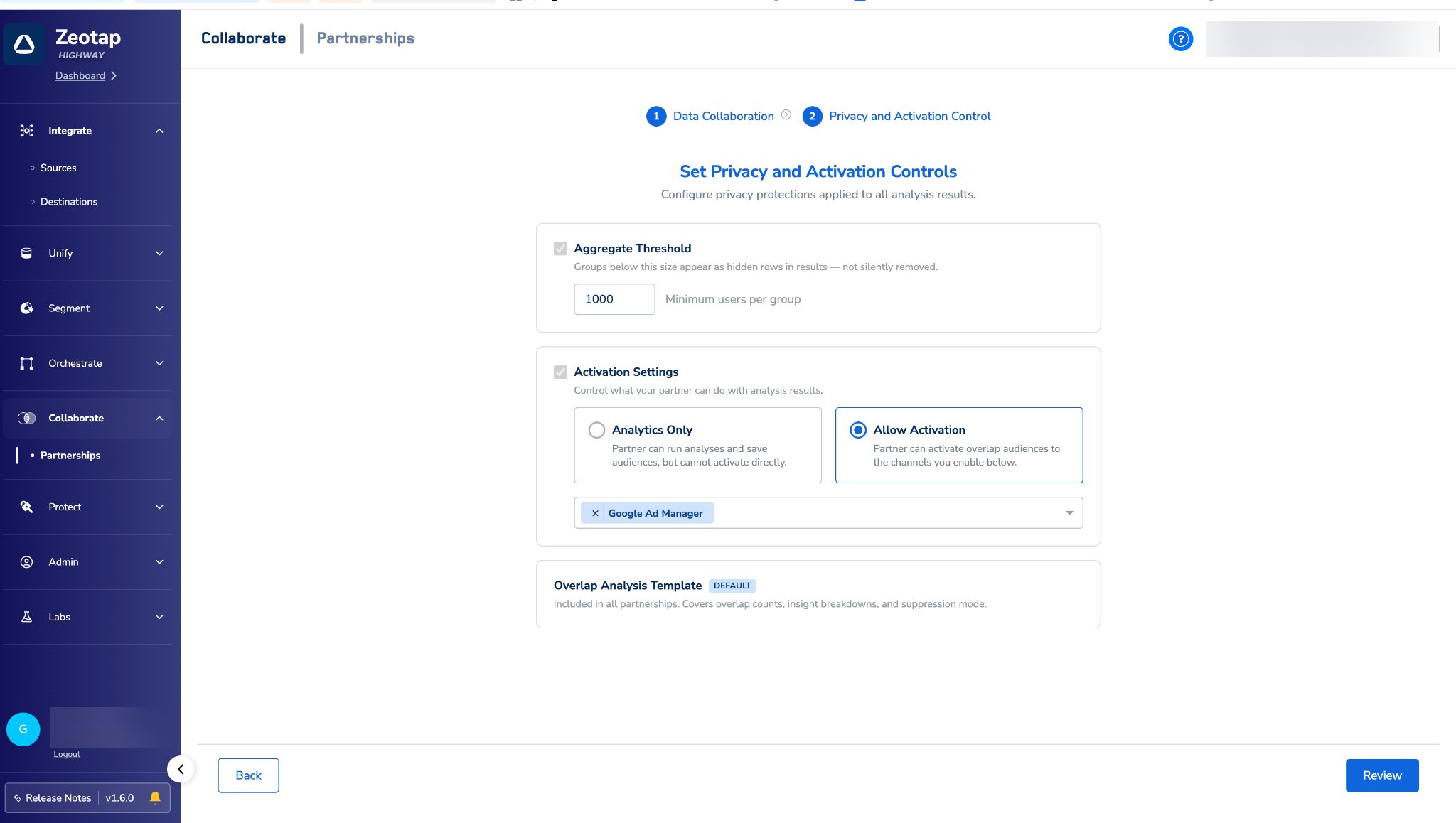 When activation is enabled, your partner can:
* Save the full overlap as an audience.
* Save individual insight dimension breakdowns as separate audiences (for example, save just the "Female" matched segment).
* Activate those audiences to the channels you have permitted.
Your partner **cannot** copy the saved audiences to other destinations beyond what you have permitted, and they have no access to the raw individual-level values that make up those audiences.
Click **Submit** to complete configuration.
## After you submit
Your partner's invitation remains open for them to accept. Once they accept, the partnership status moves to **In Setup**. The Subscriber can begin mapping their join keys once you have submitted your configuration.
When both sides have submitted, the partnership becomes **Active**. You can track progress in the **Activity Log** tab.
## Activity log
The **Activity Log** tab records all key events for the partnership, visible to both sides. As the Contributor, you will see events generated by both you and your Subscriber in the same log:
* Invite Sent
* Invite Accepted
* Invite Declined
* Configuration Saved (both sides)
* Analysis Run
* Audience Saved
* Partnership Terminated
For a full explanation of what each event means, when it fires, and what information it shows, see [Key Concepts](/articles/collaborate-customer/key-concepts#activity-log).
## Editing your configuration
You can edit your configuration at any time, including while the partnership is **Active**.
Open the partnership and go to the **Configure** tab.
Click **Edit Configuration**.
Make your changes — you can add more attributes, adjust the threshold, or change activation settings.
Click **Submit**.
* Updated settings do **not** apply to audiences that subscribers have already saved.
* You **cannot** remove join keys once they are added to the partnership.
* Editing your configuration may require the Subscriber to re-run analysis to see results based on the updated attribute set.
## Archiving a partnership
When a partnership is no longer needed, you can archive it from the partnership detail view. Both organisations receive an email notification when the partnership is archived.
Archived partnerships **cannot be reactivated** and no new analysis can be run in them. Audiences that have already been saved continue to run.
## Constraints and limitations
* A combination of attributes across **composable data sources** and **ingested sources** cannot be shared in a single partnership. At any time, you can share either ingested attributes or attributes across composable sources — not both.
* A partnership has exactly **one Contributor and one Subscriber**.
* The Subscriber can only start their configuration after you have submitted yours.
* Join keys must be ID-type attributes or primary key columns on composable datasets.
* Your partner can only activate to channels you have **explicitly permitted**.
## Related guides
When activation is enabled, your partner can:
* Save the full overlap as an audience.
* Save individual insight dimension breakdowns as separate audiences (for example, save just the "Female" matched segment).
* Activate those audiences to the channels you have permitted.
Your partner **cannot** copy the saved audiences to other destinations beyond what you have permitted, and they have no access to the raw individual-level values that make up those audiences.
Click **Submit** to complete configuration.
## After you submit
Your partner's invitation remains open for them to accept. Once they accept, the partnership status moves to **In Setup**. The Subscriber can begin mapping their join keys once you have submitted your configuration.
When both sides have submitted, the partnership becomes **Active**. You can track progress in the **Activity Log** tab.
## Activity log
The **Activity Log** tab records all key events for the partnership, visible to both sides. As the Contributor, you will see events generated by both you and your Subscriber in the same log:
* Invite Sent
* Invite Accepted
* Invite Declined
* Configuration Saved (both sides)
* Analysis Run
* Audience Saved
* Partnership Terminated
For a full explanation of what each event means, when it fires, and what information it shows, see [Key Concepts](/articles/collaborate-customer/key-concepts#activity-log).
## Editing your configuration
You can edit your configuration at any time, including while the partnership is **Active**.
Open the partnership and go to the **Configure** tab.
Click **Edit Configuration**.
Make your changes — you can add more attributes, adjust the threshold, or change activation settings.
Click **Submit**.
* Updated settings do **not** apply to audiences that subscribers have already saved.
* You **cannot** remove join keys once they are added to the partnership.
* Editing your configuration may require the Subscriber to re-run analysis to see results based on the updated attribute set.
## Archiving a partnership
When a partnership is no longer needed, you can archive it from the partnership detail view. Both organisations receive an email notification when the partnership is archived.
Archived partnerships **cannot be reactivated** and no new analysis can be run in them. Audiences that have already been saved continue to run.
## Constraints and limitations
* A combination of attributes across **composable data sources** and **ingested sources** cannot be shared in a single partnership. At any time, you can share either ingested attributes or attributes across composable sources — not both.
* A partnership has exactly **one Contributor and one Subscriber**.
* The Subscriber can only start their configuration after you have submitted yours.
* Join keys must be ID-type attributes or primary key columns on composable datasets.
* Your partner can only activate to channels you have **explicitly permitted**.
## Related guides