> ## Documentation Index
> Fetch the complete documentation index at: https://docs.zeotap.com/llms.txt
> Use this file to discover all available pages before exploring further.
# Audit Logs
> Audit Logs are records that provide details about user activities within your organization. They capture actions performed by users in the Zeotap CDP app and display these actions in a table. This enhances transparency, accountability, and user trust by providing a detailed record of user actions.
**Note:**
For a complete list of audit log event names and their logging conditions, click [here](/articles/admin-customer/events-tracked-in-zeotap-cdp). Note that only the users with 'Admin' permissions can view audit logs.
## Viewing the Audit Logs
Perform the following steps to view Audit Logs for your Organisation on Zeotap CDP:
Log into the Zeotap CDP App and go to **Admin**.
Under the **Admin** module, click **Audit Logs**.
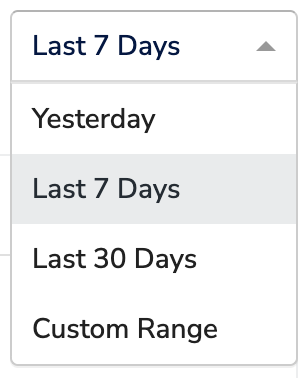
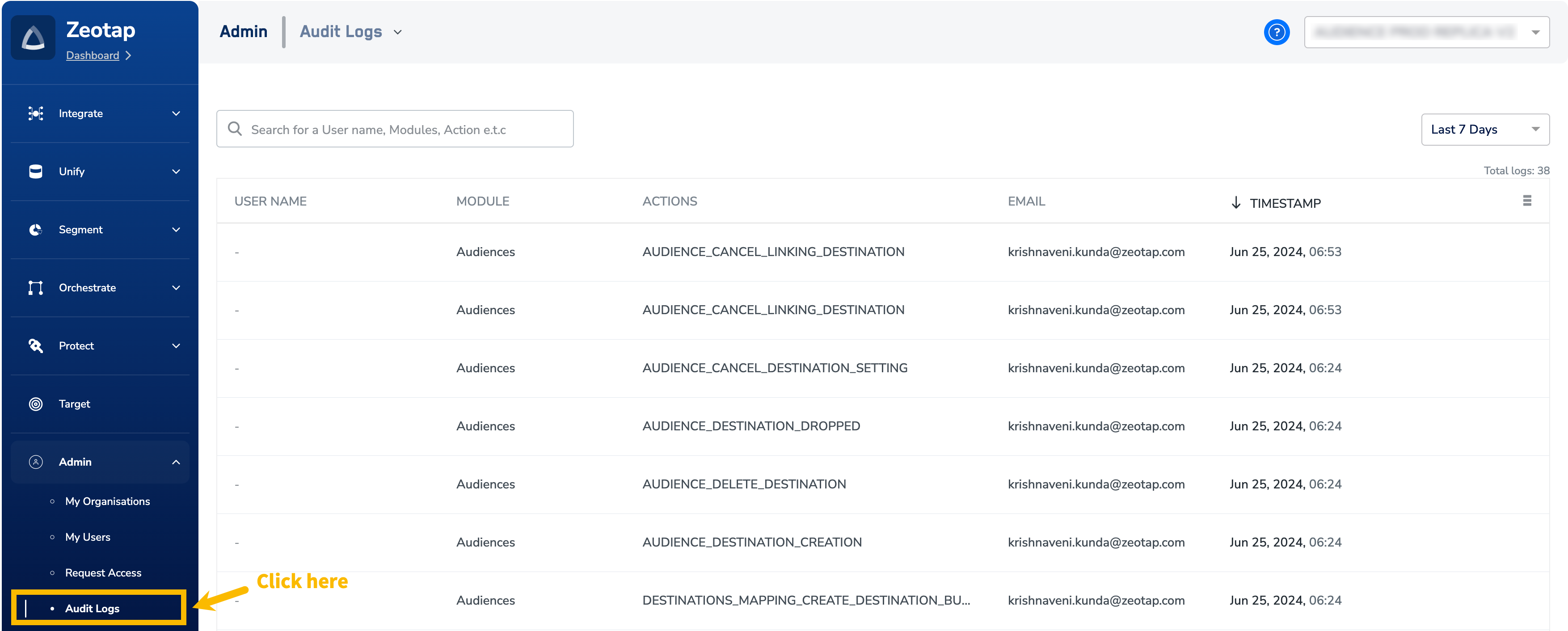 In the new screen that appears, you can view the list of log entries for your Organisation for the last 7 days. You can adjust the dates as per your preference. Note that you can choose the time period for which you wish to view the log entries using the drop-down menu as shown below.
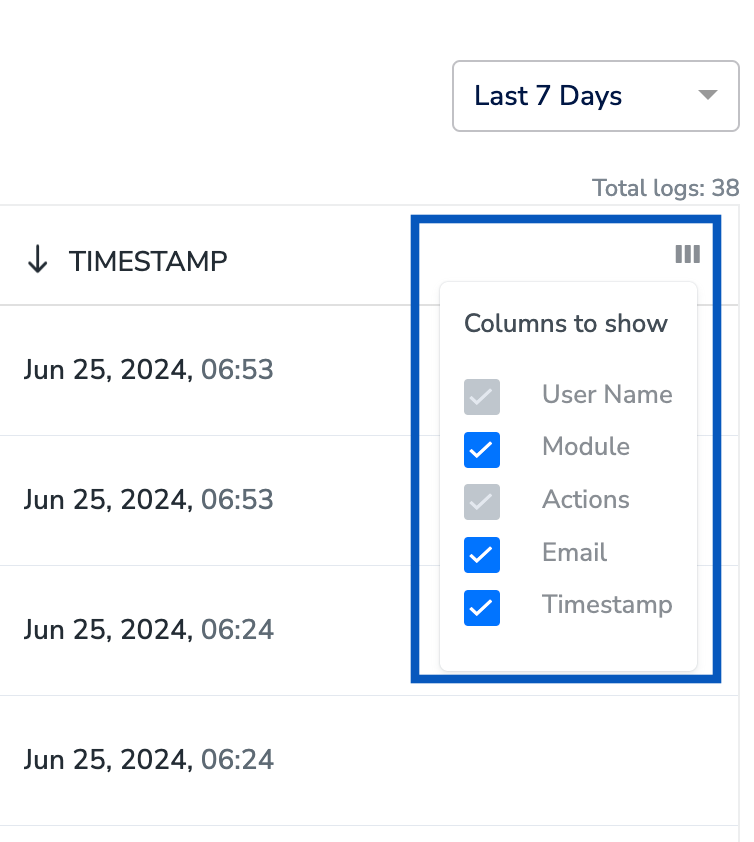
 Use the **Filters** to select columns such as User Name, Module, Actions, Email and/or Timestamp to find specific entries.