> ## Documentation Index
> Fetch the complete documentation index at: https://docs.zeotap.com/llms.txt
> Use this file to discover all available pages before exploring further.
# Alerts & Notifications
> Monitor the health of your CDP by email. Manage the default alerts for the Audience and Source modules, set thresholds and lookback windows, scope alerts with filters, and choose who gets notified.
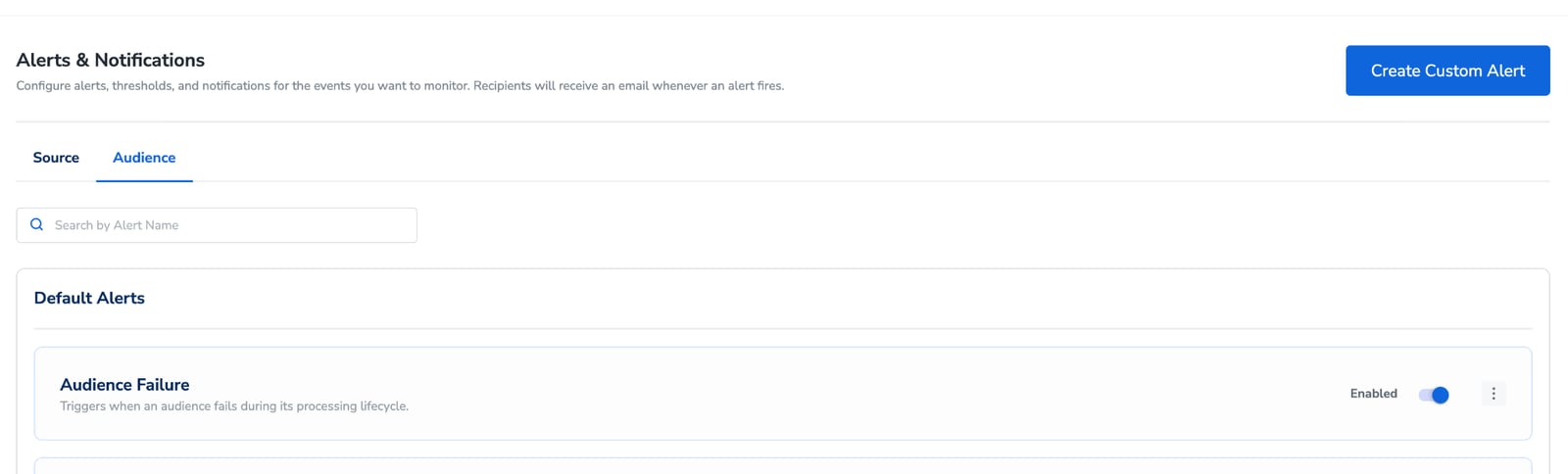
Alerts & Notifications lets you monitor the health of your CDP without watching dashboards. When something you care about happens — or fails to happen, such as a source missing its scheduled pull — the platform emails the people you nominate.
Every alert follows the same shape:
> **When** an event occurs or fails to occur → **notify** the recipients you choose → **via** email.
Alerts currently cover the **Audience** and **Source** modules, with more to follow in future releases.
 ## Who can manage alerts
| Role | What they can do |
| ------------------------------ | --------------------------------------------------------------- |
| **Admin** for the Admin module | Create, edit and delete alerts, and change their enabled state. |
| **Partner** | Read-only — view existing alerts without changing them. |
See [User Roles and Access](/articles/admin-customer/user-roles-and-access) for how roles are assigned.
## Where to find it
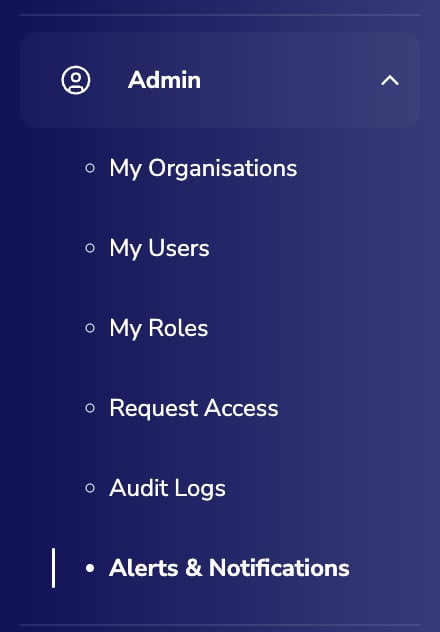
Go to **Admin → Alerts & Notifications** in the left sidebar. The page opens with two tabs — **Source** and **Audience** — and each tab has its own **Default Alerts** and **Custom Alerts** sections. Use **Search by Alert Name** to jump to an alert once you have a few.
## Who can manage alerts
| Role | What they can do |
| ------------------------------ | --------------------------------------------------------------- |
| **Admin** for the Admin module | Create, edit and delete alerts, and change their enabled state. |
| **Partner** | Read-only — view existing alerts without changing them. |
See [User Roles and Access](/articles/admin-customer/user-roles-and-access) for how roles are assigned.
## Where to find it
Go to **Admin → Alerts & Notifications** in the left sidebar. The page opens with two tabs — **Source** and **Audience** — and each tab has its own **Default Alerts** and **Custom Alerts** sections. Use **Search by Alert Name** to jump to an alert once you have a few.
 ## Default alerts
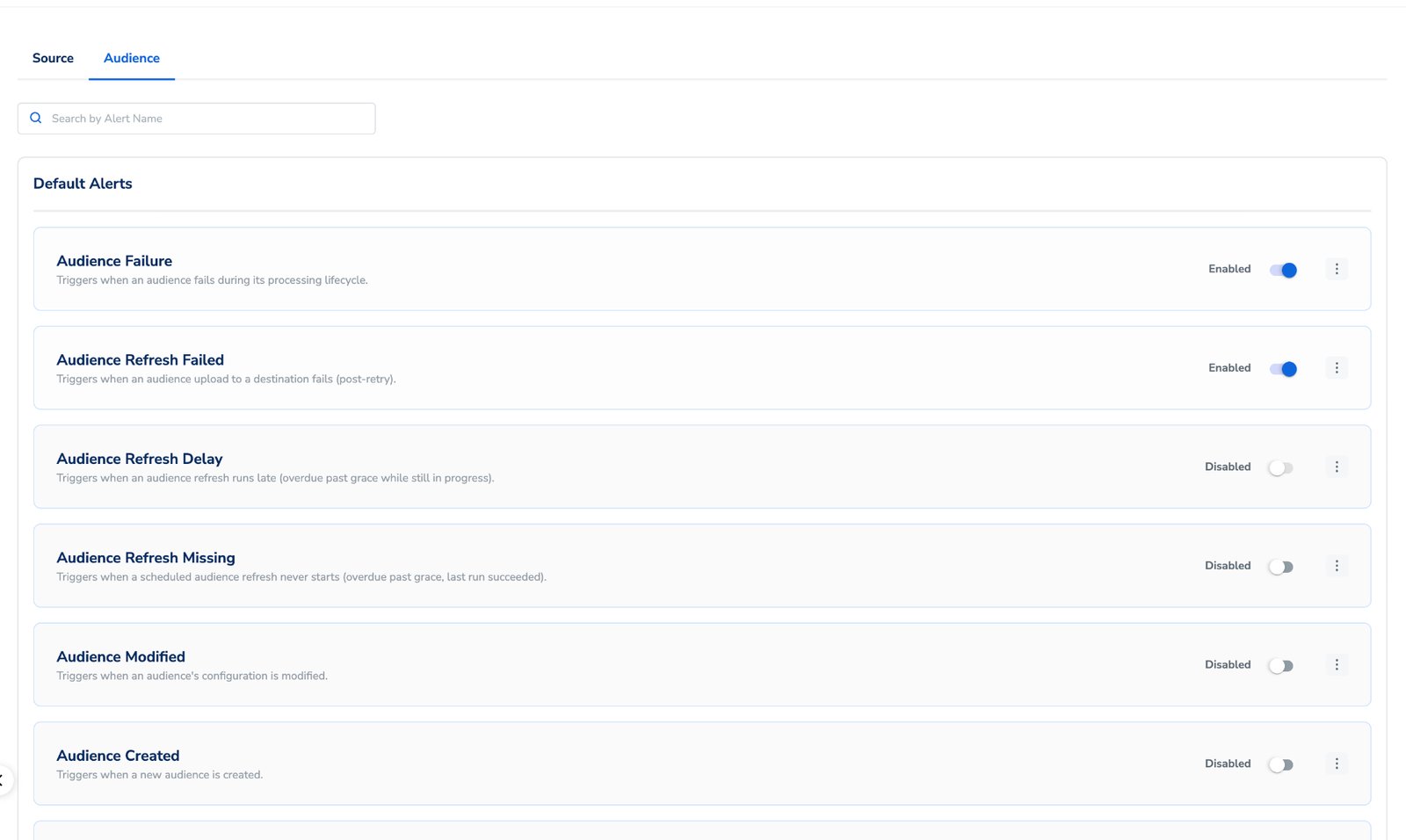
Default alerts are pre-configured by Zeotap, so you have monitoring coverage without setting anything up. The failure alerts are on out of the box; the rest are off until you enable them. You can toggle any of them, change their recipients, or narrow them with filters.
## Default alerts
Default alerts are pre-configured by Zeotap, so you have monitoring coverage without setting anything up. The failure alerts are on out of the box; the rest are off until you enable them. You can toggle any of them, change their recipients, or narrow them with filters.
 ### Audience alerts
| Alert | Default state | Fires when |
| ------------------------------ | ------------- | -------------------------------------------------------------------------------------------------------------- |
| **Audience Failure** | Enabled | An audience fails during its processing lifecycle. |
| **Audience Refresh Failed** | Enabled | An audience upload to a destination fails, after retries. |
| **Audience Refresh Delay** | Disabled | An audience refresh runs late — overdue past its grace period while still in progress. |
| **Audience Refresh Missing** | Disabled | A scheduled audience refresh never starts — overdue past its grace period, with the last run having succeeded. |
| **Audience Modified** | Disabled | An audience's configuration is modified. |
| **Audience Created** | Disabled | A new audience is created. |
| **Audience Refresh Completed** | Disabled | An audience refresh completes successfully. |
### Source alerts
| Alert | Default state | Fires when |
| ----------------------- | ------------- | ------------------------------------------------------------------------------------------------------- |
| **Source Pull Missing** | Enabled | A source does not start its scheduled pull within the threshold you set after the scheduled start time. |
| **Source Pull Failed** | Enabled | A source data pull terminates with an error. |
| **Source Created** | Disabled | A new source is created. |
For what each failure scenario means and how to resolve it, see [Audience Alerts](/articles/segment-customer/audience-alerts) and [Source Alerts](/articles/integrate-customer/source-alerts).
### Manage a default alert
Each alert card has an **Enabled**/**Disabled** toggle and a menu offering **Edit**, **Duplicate** and **Delete**.
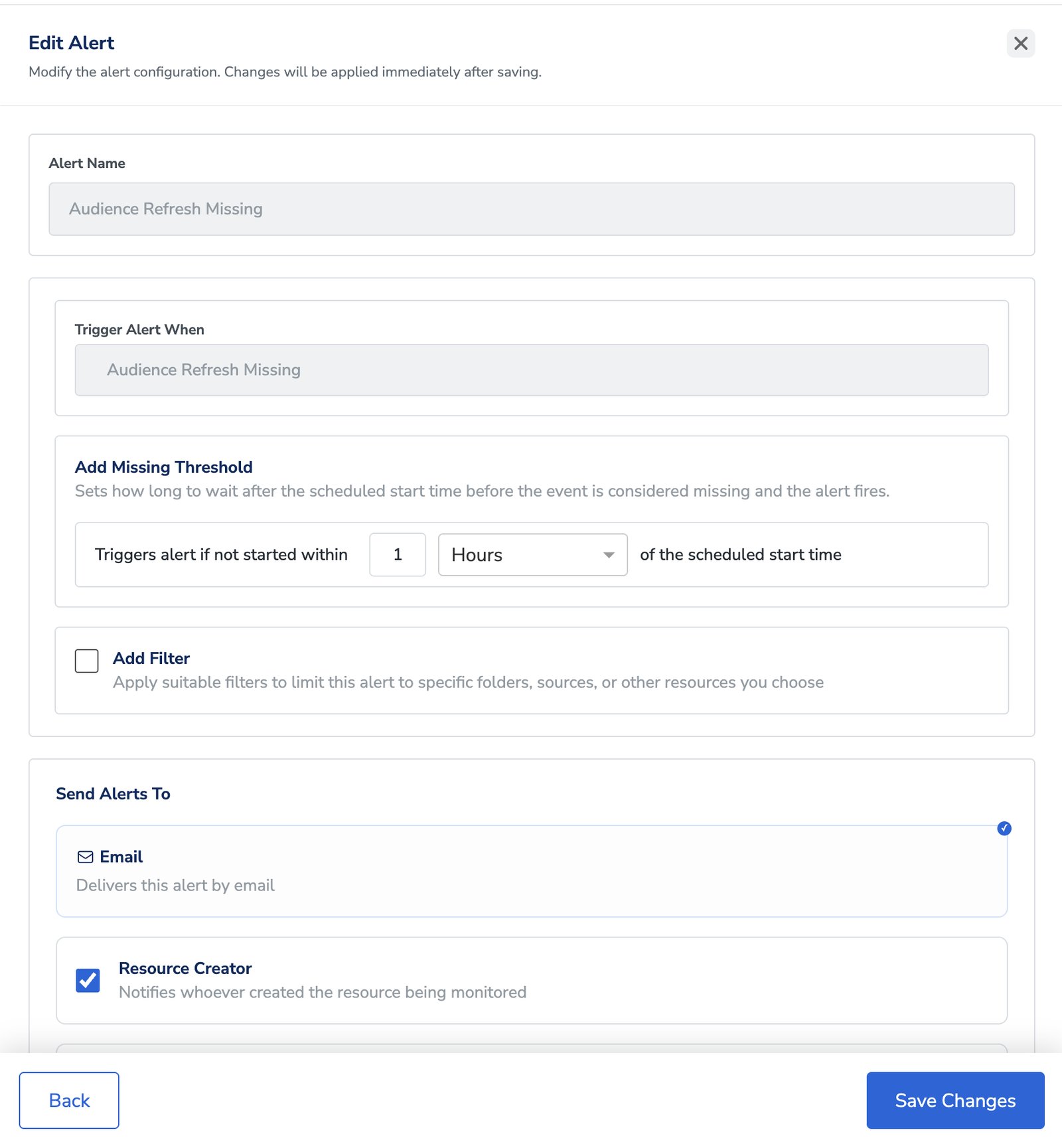
The trigger event on a default alert is fixed — on the **Edit Alert** screen, **Alert Name** and **Trigger Alert When** are read-only. You cannot repoint a "Source Pull Failed" alert at a different event. To monitor something else, [create a custom alert](#create-a-custom-alert) or duplicate a default alert and use it as a template.
**Duplicate** creates a copy named `[Original Name] (Copy)`, saved **disabled**. That gives you room to adjust the thresholds, filters and recipients before it starts sending anything.
### Set a threshold or a lookback window
Which condition you get depends on the kind of event the alert watches. This is the part worth understanding before you tune anything.
**Absence-type alerts** — such as Audience Refresh Missing, Audience Refresh Delay or Source Pull Missing — take an **Add Missing Threshold**. It sets how long to wait after the scheduled start time before the event counts as missing and the alert fires.
### Audience alerts
| Alert | Default state | Fires when |
| ------------------------------ | ------------- | -------------------------------------------------------------------------------------------------------------- |
| **Audience Failure** | Enabled | An audience fails during its processing lifecycle. |
| **Audience Refresh Failed** | Enabled | An audience upload to a destination fails, after retries. |
| **Audience Refresh Delay** | Disabled | An audience refresh runs late — overdue past its grace period while still in progress. |
| **Audience Refresh Missing** | Disabled | A scheduled audience refresh never starts — overdue past its grace period, with the last run having succeeded. |
| **Audience Modified** | Disabled | An audience's configuration is modified. |
| **Audience Created** | Disabled | A new audience is created. |
| **Audience Refresh Completed** | Disabled | An audience refresh completes successfully. |
### Source alerts
| Alert | Default state | Fires when |
| ----------------------- | ------------- | ------------------------------------------------------------------------------------------------------- |
| **Source Pull Missing** | Enabled | A source does not start its scheduled pull within the threshold you set after the scheduled start time. |
| **Source Pull Failed** | Enabled | A source data pull terminates with an error. |
| **Source Created** | Disabled | A new source is created. |
For what each failure scenario means and how to resolve it, see [Audience Alerts](/articles/segment-customer/audience-alerts) and [Source Alerts](/articles/integrate-customer/source-alerts).
### Manage a default alert
Each alert card has an **Enabled**/**Disabled** toggle and a menu offering **Edit**, **Duplicate** and **Delete**.
The trigger event on a default alert is fixed — on the **Edit Alert** screen, **Alert Name** and **Trigger Alert When** are read-only. You cannot repoint a "Source Pull Failed" alert at a different event. To monitor something else, [create a custom alert](#create-a-custom-alert) or duplicate a default alert and use it as a template.
**Duplicate** creates a copy named `[Original Name] (Copy)`, saved **disabled**. That gives you room to adjust the thresholds, filters and recipients before it starts sending anything.
### Set a threshold or a lookback window
Which condition you get depends on the kind of event the alert watches. This is the part worth understanding before you tune anything.
**Absence-type alerts** — such as Audience Refresh Missing, Audience Refresh Delay or Source Pull Missing — take an **Add Missing Threshold**. It sets how long to wait after the scheduled start time before the event counts as missing and the alert fires.
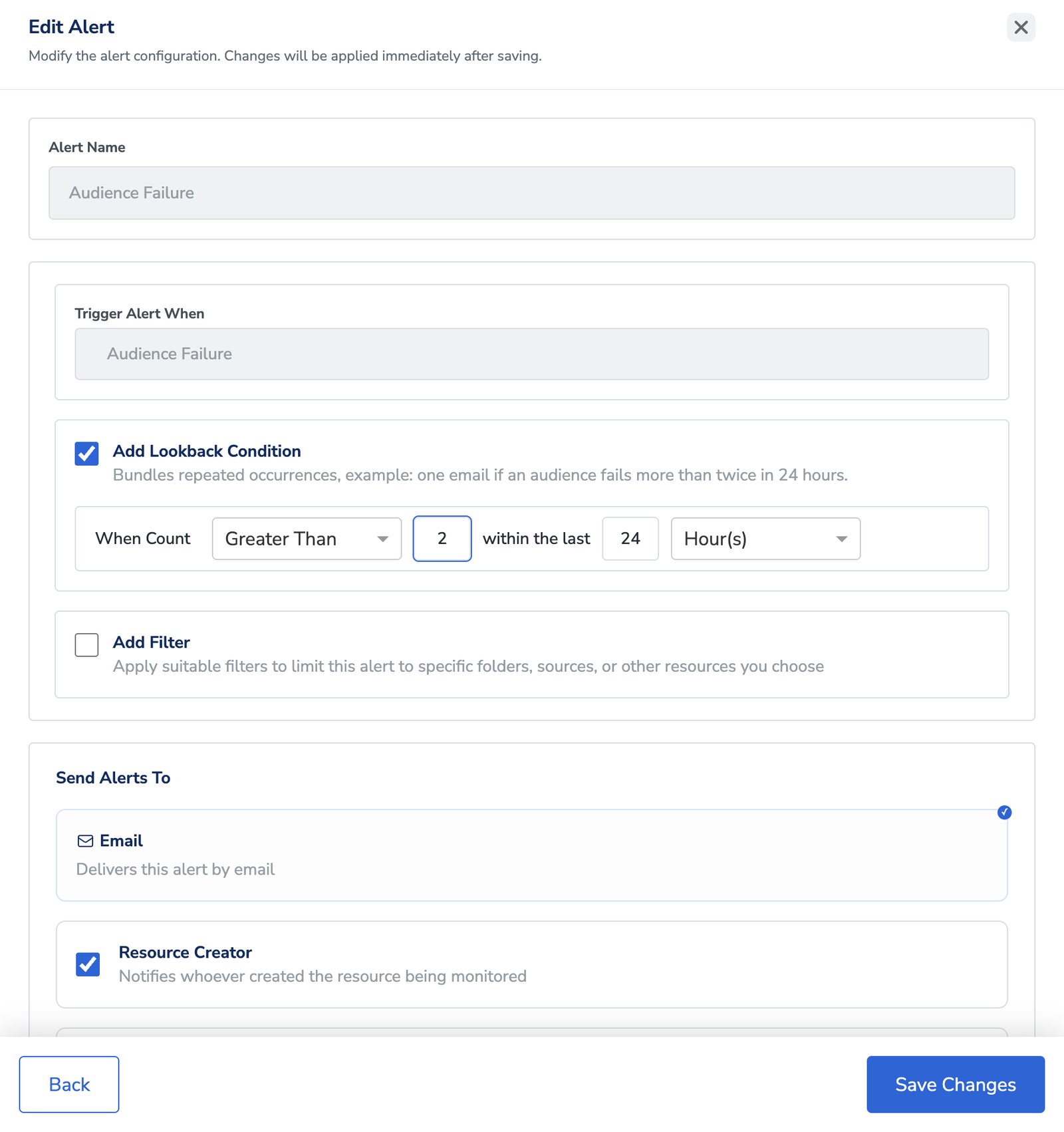
 **Failure-type alerts** — such as Audience Failure or Source Pull Failed — take an **Add Lookback Condition** instead. Rather than emailing on every single failure, it bundles repeats into one notification: set a count, a comparison and a window, and you get a single email when the threshold is crossed.
For example, **When Count** *Greater Than* **2** *within the last* **24** *Hour(s)* sends one email if an audience fails more than twice in a day.
**Failure-type alerts** — such as Audience Failure or Source Pull Failed — take an **Add Lookback Condition** instead. Rather than emailing on every single failure, it bundles repeats into one notification: set a count, a comparison and a window, and you get a single email when the threshold is crossed.
For example, **When Count** *Greater Than* **2** *within the last* **24** *Hour(s)* sends one email if an audience fails more than twice in a day.
 ### Scope an alert with filters
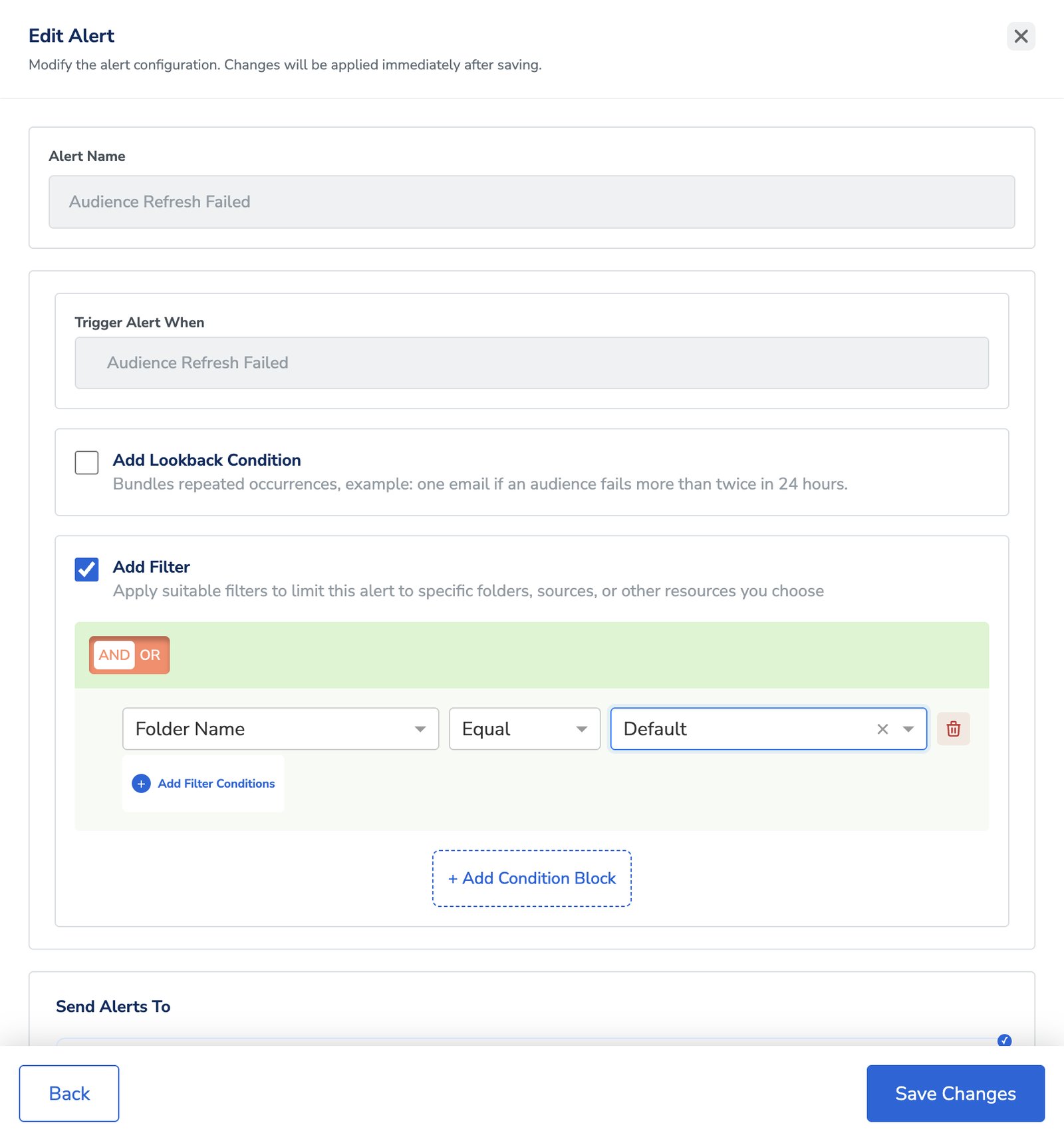
By default an alert covers your whole organisation. Tick **Add Filter** to narrow it to specific folders, sources or other resources — useful when one team only wants alerts for the audiences it owns.
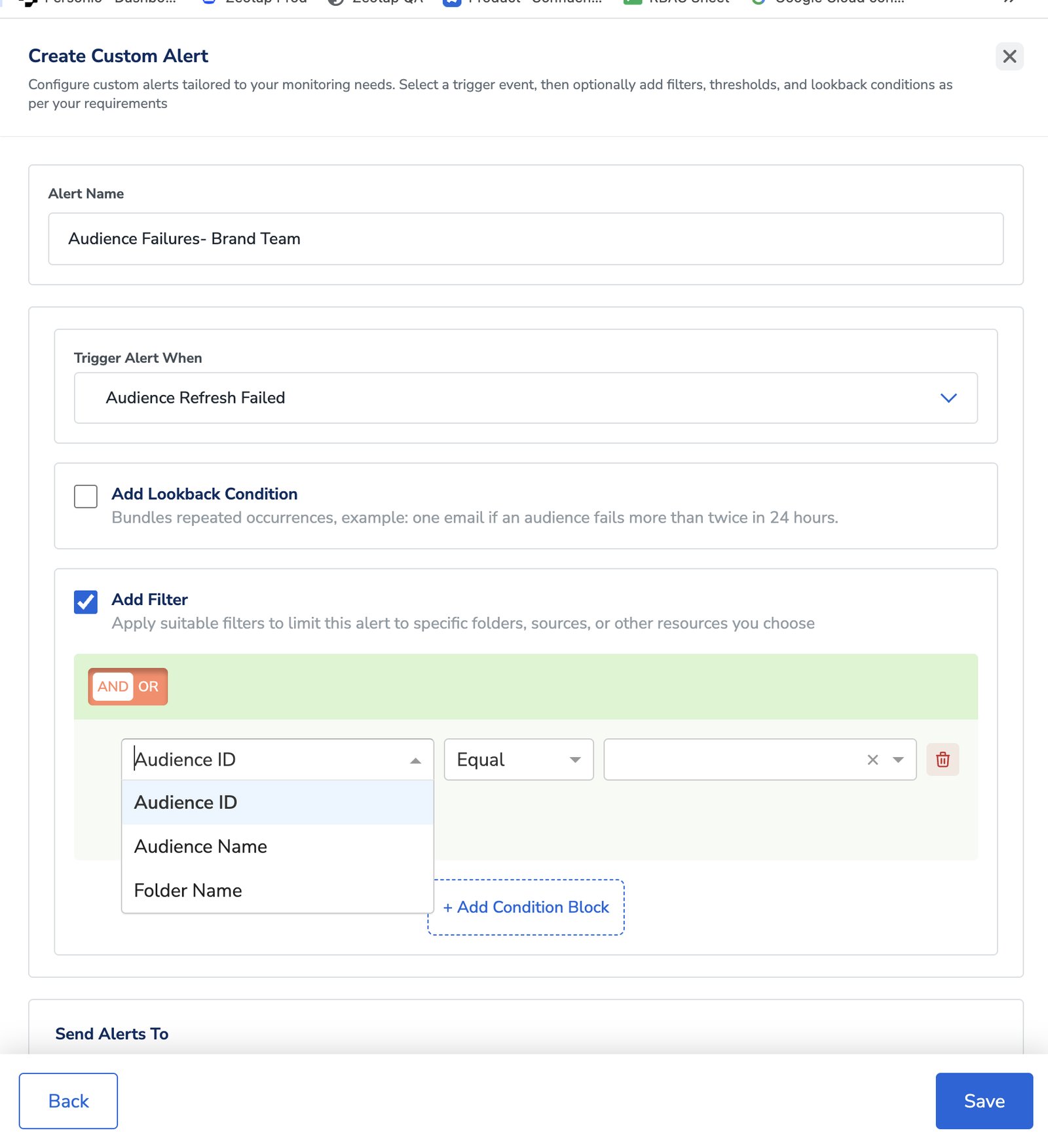
Filters use the same condition builder you know from audiences: pick a field, an operator and a value, combine conditions with **AND**/**OR**, and group them with **+ Add Condition Block**.
### Scope an alert with filters
By default an alert covers your whole organisation. Tick **Add Filter** to narrow it to specific folders, sources or other resources — useful when one team only wants alerts for the audiences it owns.
Filters use the same condition builder you know from audiences: pick a field, an operator and a value, combine conditions with **AND**/**OR**, and group them with **+ Add Condition Block**.
 ### Choose who gets notified
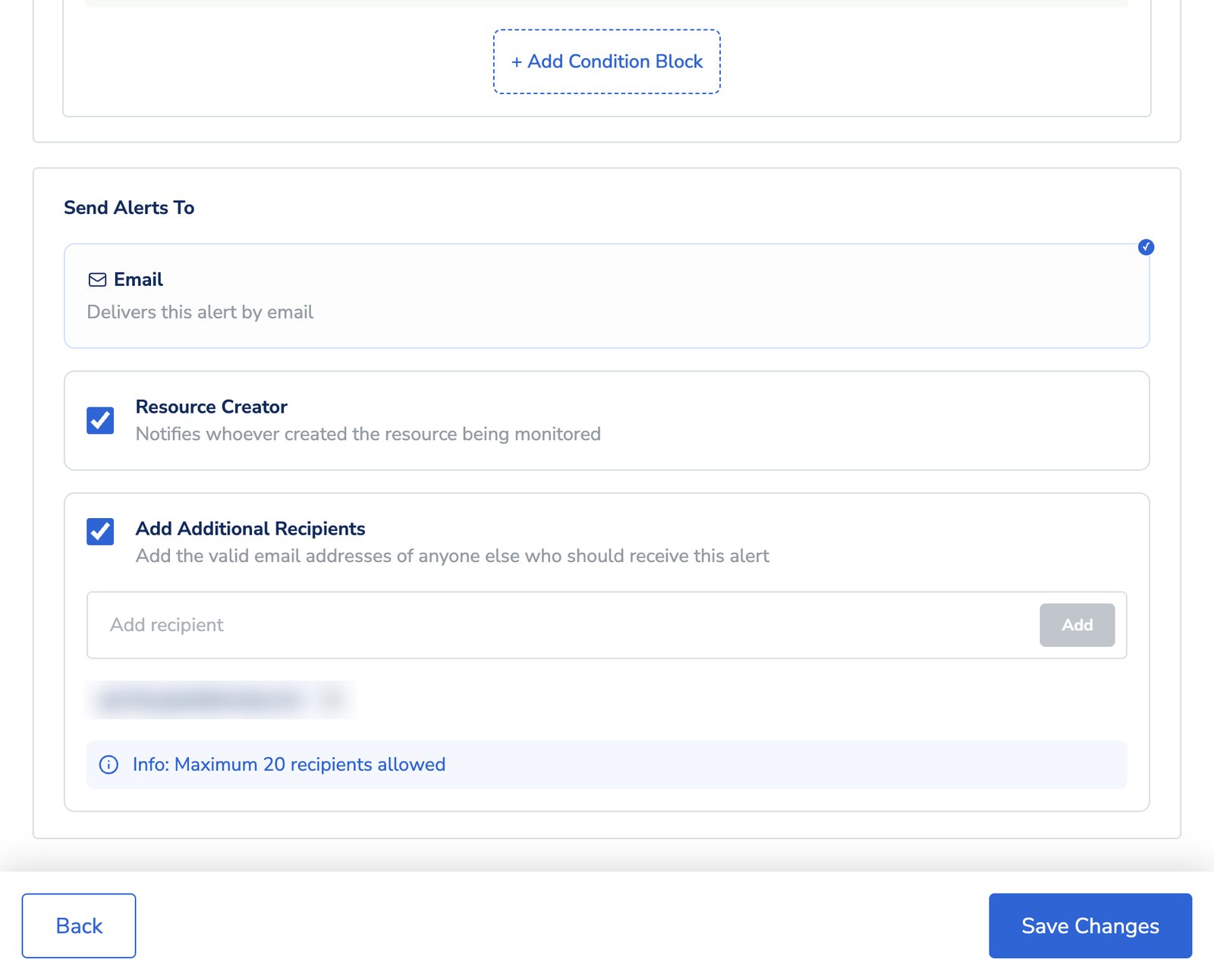
Under **Send Alerts To**:
* **Email** — the delivery channel. This is currently the only channel available.
* **Resource Creator** — notifies whoever created the audience or source being monitored. On by default.
* **Add Additional Recipients** — add any other email addresses that should receive the alert, up to a maximum of 20 recipients.
### Choose who gets notified
Under **Send Alerts To**:
* **Email** — the delivery channel. This is currently the only channel available.
* **Resource Creator** — notifies whoever created the audience or source being monitored. On by default.
* **Add Additional Recipients** — add any other email addresses that should receive the alert, up to a maximum of 20 recipients.
 ### Enable or disable an alert
Use the toggle on the alert card. Disabling pauses the notifications but keeps the configuration intact, which is what you want during planned maintenance or a temporary change in how a team works — you can switch it back on without rebuilding anything.
## Create a custom alert
Create a custom alert when the defaults do not cover what you need — for example, watching a single source, or pairing an event with your own threshold and recipient list.
Go to **Admin → Alerts & Notifications**.
Choose the **Source** or **Audience** tab, depending on what you want to monitor.
In the **Custom Alerts** section, select **Create Custom Alert**.
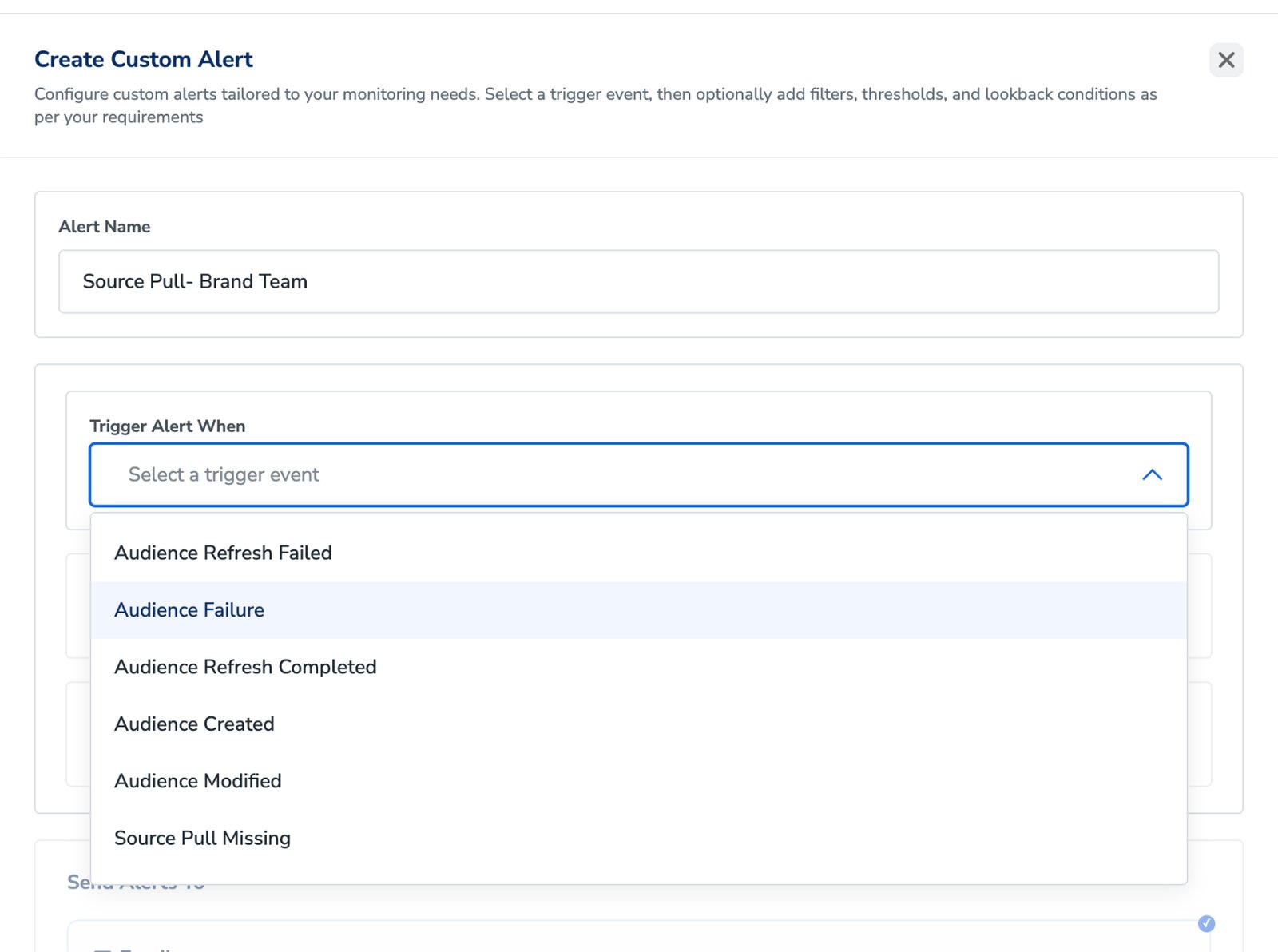
Give it a clear, descriptive name. The name identifies the alert in the list and in the notification emails, so something like `Source Pull - Brand Team` beats `Alert 3`.
Under **Trigger Alert When**, select the event to watch — for example **Audience Refresh Failed**, **Audience Failure** or **Source Pull Missing**.
### Enable or disable an alert
Use the toggle on the alert card. Disabling pauses the notifications but keeps the configuration intact, which is what you want during planned maintenance or a temporary change in how a team works — you can switch it back on without rebuilding anything.
## Create a custom alert
Create a custom alert when the defaults do not cover what you need — for example, watching a single source, or pairing an event with your own threshold and recipient list.
Go to **Admin → Alerts & Notifications**.
Choose the **Source** or **Audience** tab, depending on what you want to monitor.
In the **Custom Alerts** section, select **Create Custom Alert**.
Give it a clear, descriptive name. The name identifies the alert in the list and in the notification emails, so something like `Source Pull - Brand Team` beats `Alert 3`.
Under **Trigger Alert When**, select the event to watch — for example **Audience Refresh Failed**, **Audience Failure** or **Source Pull Missing**.
 Depending on the event you picked, you get either an **Add Missing Threshold** field (absence-type events) or an **Add Lookback Condition** field (failure-type events). Some events have neither.
Tick **Add Filter** to scope the alert to particular resources instead of the whole organisation. On the Audience tab you can filter on **Audience ID**, **Audience Name** or **Folder Name**.
Depending on the event you picked, you get either an **Add Missing Threshold** field (absence-type events) or an **Add Lookback Condition** field (failure-type events). Some events have neither.
Tick **Add Filter** to scope the alert to particular resources instead of the whole organisation. On the Audience tab you can filter on **Audience ID**, **Audience Name** or **Folder Name**.
 Email is on by default, and so is **Resource Creator** — clear it if the creator should not be notified. Add any other addresses under **Add Additional Recipients**.
Save the configuration. The alert starts working immediately, according to its enabled state.
### Field reference
| Field | Description |
| ------------------------------------------ | ------------------------------------------------------------------------------------------------------------- |
| **Alert Name** | Free text. Shown in the alert list and in the subject and header of the notification emails. |
| **Trigger Alert When** | The event this alert watches for. Fixed on default alerts; selectable on custom alerts. |
| **Add Missing Threshold** | Absence-type events only. How long to wait after the scheduled start time before the event counts as missing. |
| **Add Lookback Condition** | Failure-type events only. Bundles repeated occurrences into a single notification within the window you set. |
| **Add Filter** | Optional. Scopes the alert to specific resources instead of triggering across the organisation. |
| **Send Alerts To — Email** | The delivery channel. Currently the only one available. |
| **Send Alerts To — Resource Creator** | Notifies whoever created the monitored audience or source. Enabled by default. |
| **Send Alerts To — Additional Recipients** | Optional. Further email addresses, up to 20 recipients. |
## FAQs
Check the alert's filters first — a filter scoped to a folder or resource you are not using will stop it firing for anything else. Then check **Send Alerts To**: if **Resource Creator** is cleared and no additional recipients are listed, the alert has nobody to notify.
Yes. Disable it with the toggle on the alert card. The thresholds, filters and recipients are all kept, so switching it back on restores the same behaviour.
No — the trigger event on a default alert is fixed, and both **Alert Name** and **Trigger Alert When** are read-only when you edit one. Create a custom alert, or duplicate the default alert and adjust the copy.
To avoid a flood. A source that fails on every retry can generate a lot of individual emails; a lookback condition turns that into one notification when the count crosses your threshold in the window you set.
Up to 20 additional recipients, plus the resource creator if that option is left enabled.
## Related Topics
Email is on by default, and so is **Resource Creator** — clear it if the creator should not be notified. Add any other addresses under **Add Additional Recipients**.
Save the configuration. The alert starts working immediately, according to its enabled state.
### Field reference
| Field | Description |
| ------------------------------------------ | ------------------------------------------------------------------------------------------------------------- |
| **Alert Name** | Free text. Shown in the alert list and in the subject and header of the notification emails. |
| **Trigger Alert When** | The event this alert watches for. Fixed on default alerts; selectable on custom alerts. |
| **Add Missing Threshold** | Absence-type events only. How long to wait after the scheduled start time before the event counts as missing. |
| **Add Lookback Condition** | Failure-type events only. Bundles repeated occurrences into a single notification within the window you set. |
| **Add Filter** | Optional. Scopes the alert to specific resources instead of triggering across the organisation. |
| **Send Alerts To — Email** | The delivery channel. Currently the only one available. |
| **Send Alerts To — Resource Creator** | Notifies whoever created the monitored audience or source. Enabled by default. |
| **Send Alerts To — Additional Recipients** | Optional. Further email addresses, up to 20 recipients. |
## FAQs
Check the alert's filters first — a filter scoped to a folder or resource you are not using will stop it firing for anything else. Then check **Send Alerts To**: if **Resource Creator** is cleared and no additional recipients are listed, the alert has nobody to notify.
Yes. Disable it with the toggle on the alert card. The thresholds, filters and recipients are all kept, so switching it back on restores the same behaviour.
No — the trigger event on a default alert is fixed, and both **Alert Name** and **Trigger Alert When** are read-only when you edit one. Create a custom alert, or duplicate the default alert and adjust the copy.
To avoid a flood. A source that fails on every retry can generate a lot of individual emails; a lookback condition turns that into one notification when the count crosses your threshold in the window you set.
Up to 20 additional recipients, plus the resource creator if that option is left enabled.
## Related Topics